You click “Posts” in wp-admin and wait. You click “Plugins” and wait some more. Every page in your WordPress dashboard takes five, ten, sometimes twenty seconds to load — while your actual website loads fine for visitors.
This is one of the most common WordPress complaints, and the good news is it’s usually fixable without spending a dime. A slow admin dashboard is almost always caused by a handful of specific things: the Heartbeat API hammering your server, a bloated database, too many plugins doing too much in the background, or PHP settings that haven’t been touched since you installed WordPress.
Below are 11 fixes in the order I’d try them — quick wins first, bigger moves last. You probably won’t need all 11. Most people see a dramatic improvement after the first four.
1. Tame the Heartbeat API
The WordPress Heartbeat API is the number one cause of slow admin dashboards, and most site owners have never heard of it.
Here’s what it does: every 15–60 seconds, while you’re logged into wp-admin, your browser sends a small request to admin-ajax.php to check for things like post-locking (so two editors don’t overwrite each other) and autosaves. That’s fine on one tab. But leave three or four admin tabs open and you’ve got a constant stream of requests hitting your server in the background — on cheap shared hosting, this alone can make the dashboard crawl.
The fix: install the free Heartbeat Control plugin. Once activated, go to Settings → Heartbeat Control and set the Heartbeat frequency to 60 seconds (or disable it entirely on the frontend, where you almost never need it).
If you’d rather not add another plugin, drop this into your theme’s functions.php file (or a code snippets plugin):
// Slow the Heartbeat API to once per minute in wp-admin
add_filter( 'heartbeat_settings', function( $settings ) {
    $settings['interval'] = 60;
    return $settings;
} );

// Disable Heartbeat completely on the frontend
add_action( 'init', function() {
    if ( ! is_admin() ) {
        wp_deregister_script( 'heartbeat' );
    }
}, 1 );
One warning: don’t disable the Heartbeat API inside wp-admin entirely. The post editor relies on it for autosaves and post locking. Slowing it down is the sweet spot.
2. Strip Down Your Dashboard Widgets
Every widget on your main dashboard screen — “At a Glance,” “Activity,” “Site Health,” “WordPress Events and News” — runs its own little query or remote request every time the dashboard loads. The “WordPress Events and News” widget, for example, fetches data from WordPress.org on every single load. Individually they’re tiny. Together, they’re noticeable.
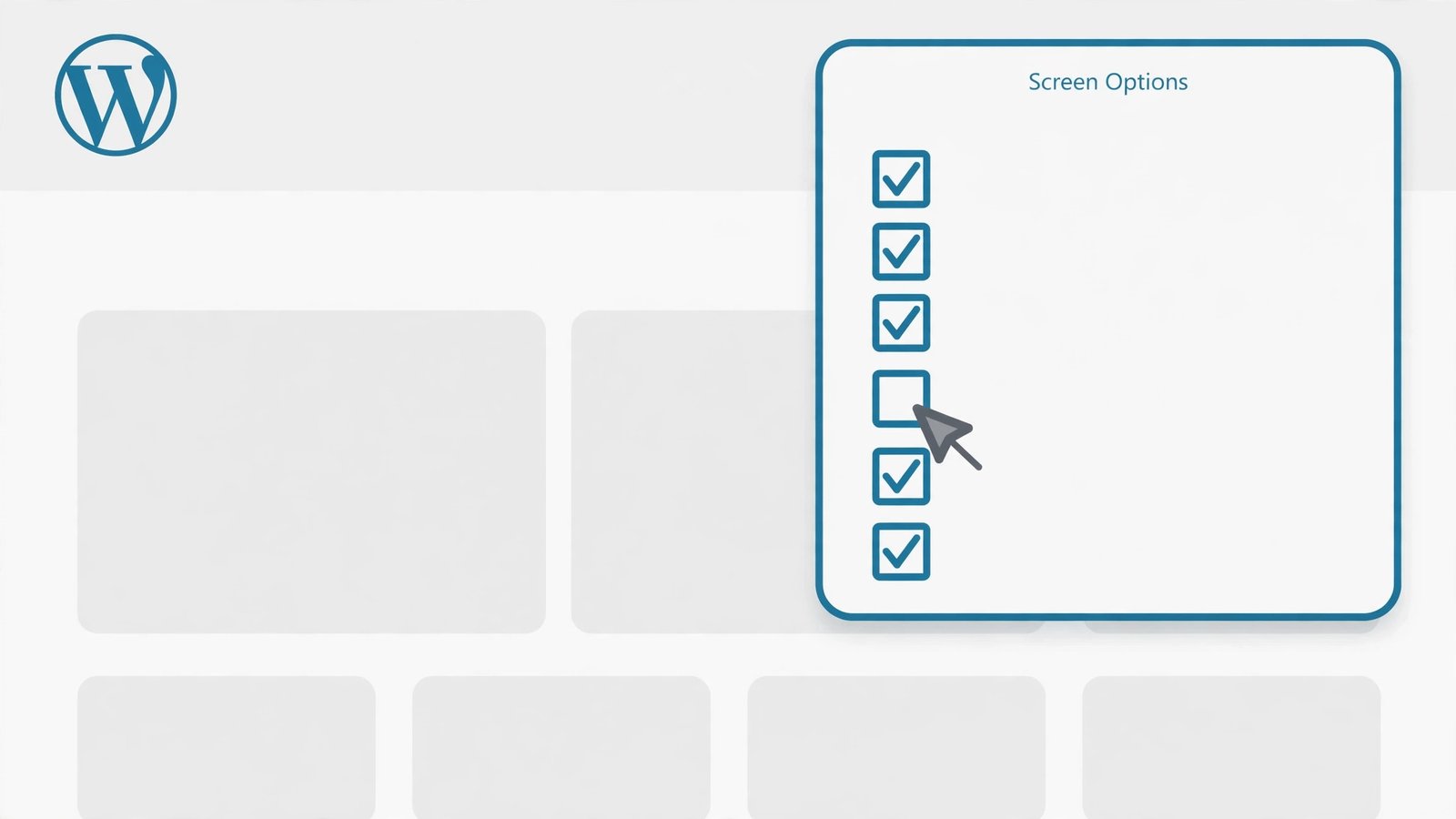
The fix: click Screen Options in the top-right corner of the dashboard and uncheck every widget you don’t actually look at. Most people need “At a Glance” and “Activity” at most. Everything else can go.
If you want to remove them permanently (so they don’t come back or clutter other user accounts), add this to functions.php:
// Remove unused dashboard widgets
function remove_dashboard_widgets() {
    remove_meta_box( 'dashboard_incoming_links', 'dashboard', 'normal' );
    remove_meta_box( 'dashboard_plugins', 'dashboard', 'normal' );
    remove_meta_box( 'dashboard_primary', 'dashboard', 'side' );
    remove_meta_box( 'dashboard_secondary', 'dashboard', 'side' );
    remove_meta_box( 'dashboard_quick_press', 'dashboard', 'side' );
    remove_meta_box( 'dashboard_recent_drafts', 'dashboard', 'normal' );
    remove_meta_box( 'dashboard_recent_comments', 'dashboard', 'normal' );
    remove_meta_box( 'dashboard_right_now', 'dashboard', 'normal' );
    remove_meta_box( 'dashboard_activity', 'dashboard', 'normal' );
}
add_action( 'wp_dashboard_setup', 'remove_dashboard_widgets' );
Delete any lines for widgets you want to keep. Just remember: if you’re using a child theme, this goes in the child theme’s functions.php so a parent theme update doesn’t wipe it out.
3. Clean Your Database (Transients, Revisions, Spam)
Your WordPress database quietly collects junk over time, and a bloated database means slower queries everywhere — including in the admin area. The three biggest offenders:
- Transients: temporary cached data that plugins are supposed to delete when it expires. Many don’t. Thousands of expired transients sitting in your
wp_optionstable slow down every admin page load. - Post revisions: WordPress saves a revision every time you hit save or autosave fires. A post you’ve edited 40 times has 40 extra rows in the database.
- Spam and trashed comments: if you’ve never emptied them, they could number in the thousands.
The fix: install WP-Optimize (free). Go to WP-Optimize → Database and run a cleanup of:
- Clean all post revisions
- Clean all auto-draft posts
- Remove spam and trashed comments
- Remove expired transients
- Optimize database tables
Tick the boxes, click “Run optimization,” and you’re done. Always take a backup first — your host’s backup tool or a plugin like UpdraftPlus works fine. WP-Optimize is safe, but a backup before any database operation is non-negotiable.
Do this cleanup once every few months. It takes two minutes and it genuinely helps, especially on older sites.

4. Limit Post Revisions Going Forward
Cleaning up old revisions (step 3) is only half the battle — WordPress will keep creating new ones forever unless you tell it to stop. Every autosave and manual save adds another row.
The fix: open your wp-config.php file (it’s in the root folder of your WordPress installation, accessible via your host’s file manager or FTP) and add this line above the line that says /* That's all, stop editing! Happy publishing. */:
define( 'WP_POST_REVISIONS', 3 );This keeps a maximum of 3 revisions per post — plenty for recovering from a mistake, without the database bloat. If you want no revisions at all, use false instead of 3, though I’d keep at least a couple for safety.
5. Delete Plugins and Themes You’re Not Using
Here’s a hard truth: it’s not the number of plugins that slows down wp-admin, it’s what those plugins do. But unused plugins are pure dead weight — many of them still load code, register admin menu items, or run background checks even when you’re not actively using them.
The fix: go to Plugins → Installed Plugins and be ruthless. For each plugin, ask: “Do I actually use this?” If the answer is no — or “I installed it to try something once” — deactivate it, then delete it. Deactivated plugins still sit on your server and some still get scanned by WordPress on admin pages. Deleting is the only real cleanup.
Do the same for themes: go to Appearance → Themes and delete every theme except your active one and one default fallback (like Twenty Twenty-Four). Old themes are also a security risk, so this is a win twice over.
While you’re at it, pay special attention to plugins known for heavy admin activity: security plugins that scan on every page load, statistics plugins that query the database for dashboard charts, and backup plugins running on aggressive schedules. You don’t necessarily need to remove them — but check their settings for options like “only run scans on schedule” instead of continuously.
Speaking of themes: a bloated theme with a heavy page builder adds load to the admin area too, since the editor has to load all that extra code. If you’re shopping for something lighter, these free WordPress themes that look premium keep things fast without looking cheap.
6. Find What’s Hogging admin-ajax.php with Query Monitor
If the dashboard is still slow after the steps above, something specific is eating your server resources — and you need to find out what. The culprit is usually a plugin making slow or excessive calls to admin-ajax.php (the same file the Heartbeat API uses).
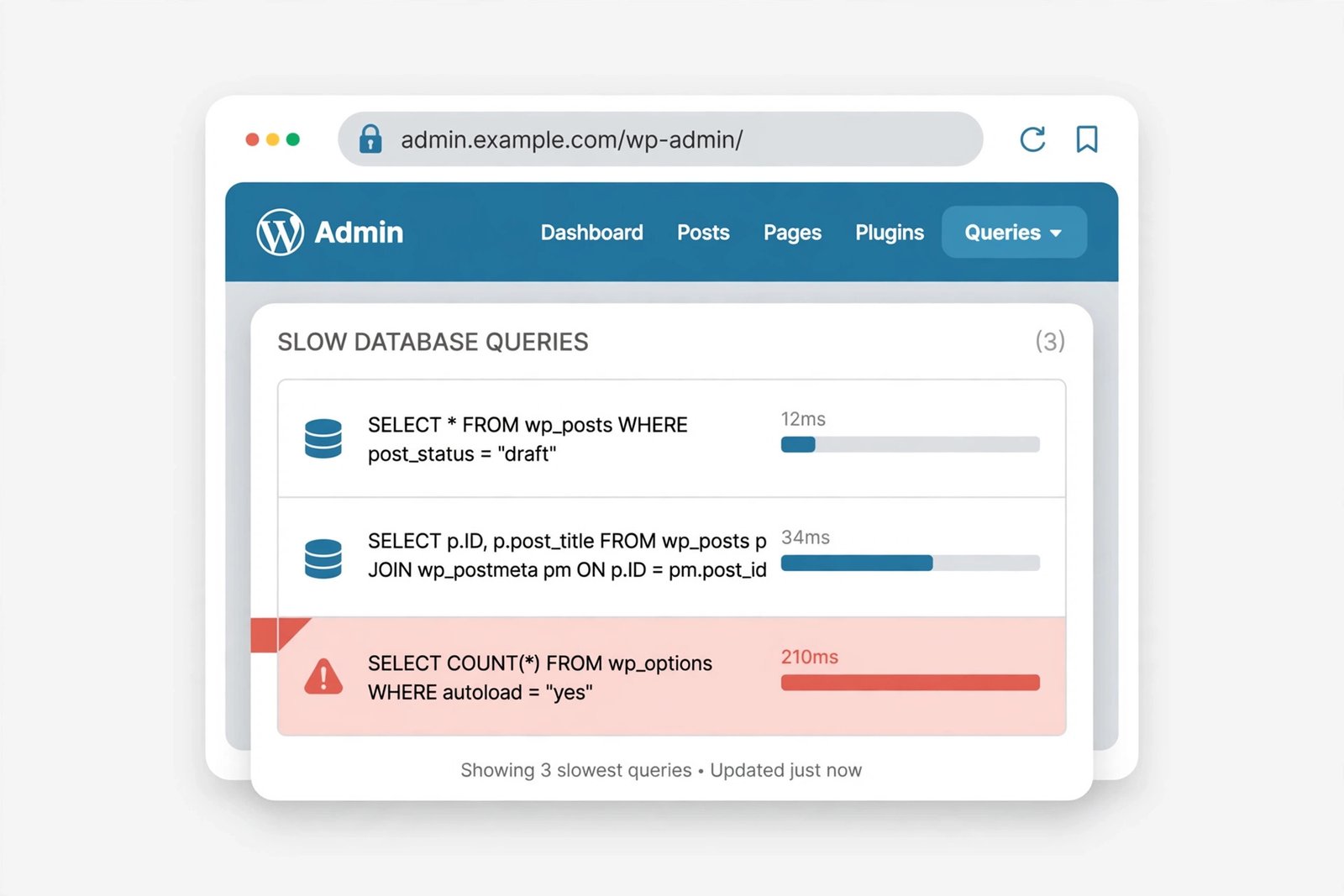
The fix: install Query Monitor (free, by John Blackbourn — it’s the standard debugging tool for WordPress developers). Once active, you’ll see a new item in your admin toolbar showing page load stats. Click it and look at:
- “Queries” — shows every database query on the current page, sorted by time. If one plugin’s queries are taking seconds, you’ve found your problem.
- “HTTP API Calls” — shows external requests (plugin update checks, license verifications, news feeds). A plugin phoning home on every admin page is a classic slowdown.
When you identify the offending plugin, you have three options: check its settings for a way to reduce its admin activity, replace it with a lighter alternative, or remove it if it’s not essential. Query Monitor itself adds a little overhead, so deactivate it when you’re done diagnosing — you can always turn it back on later.
7. Increase Your PHP Memory Limit
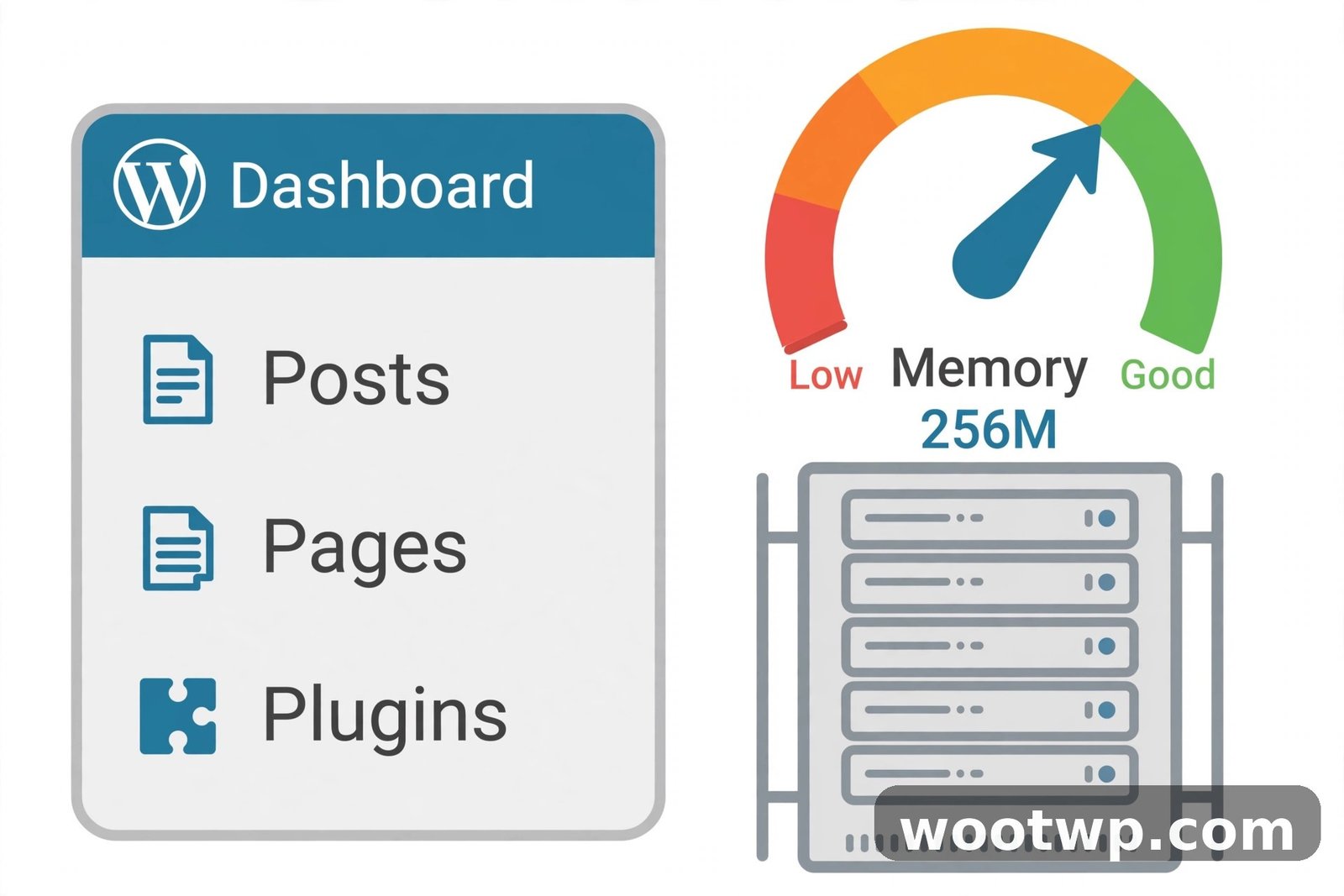
WordPress runs on PHP, and PHP gets a fixed amount of memory to work with. The WordPress default is 40 MB, which was fine in 2015 but is tight for a modern site with a page builder, a security plugin, and a backup plugin all running in the admin area. When PHP runs out of memory, things don’t just slow down — they can fail outright with white screens or half-loaded admin pages.
The fix: add this line to wp-config.php, again above the /* That's all, stop editing! Happy publishing. */ line:
define( 'WP_MEMORY_LIMIT', '256M' );256M is the sweet spot for most sites — enough headroom for the admin area without being wasteful. You can verify it worked by going to Tools → Site Health → Info → Server and checking the “PHP memory limit” value.
Note: some hosts cap the memory limit at the server level, in which case this line won’t have any effect. If Site Health still shows the old value after adding it, that’s your sign — contact your host’s support and ask them to raise it, or check your hosting panel for a PHP settings section.
8. Update PHP to Version 8.1 or Higher
This one surprises people. Your hosting account runs a specific version of PHP, and if your host set it up years ago and never changed it, you might still be on PHP 7.4 — which reached end of life and no longer receives security updates. Each major PHP release brings meaningful performance improvements, and WordPress 6.x runs noticeably faster on PHP 8.1 or 8.2 than on 7.4.
The fix: log into your hosting control panel and look for “PHP Version,” “PHP Selector,” or “Select PHP Version” (in cPanel it’s under the Software section; other panels have their own equivalent). Change it to 8.1 or 8.2 — don’t jump straight to the absolute newest release, since some older plugins may not be compatible with it yet.
Before switching:
- Take a full backup.
- Check Tools → Site Health in wp-admin — it flags plugins and themes with known PHP compatibility issues.
- Switch the version, then click through your admin area and your live site to make sure everything works.
If something breaks, switch back to the previous version immediately and investigate the specific plugin or theme that caused it. In the vast majority of cases, though, the switch is uneventful — and the speed improvement is real.
9. Reduce Items Per Page in Screen Options
This is a small one, but it adds up on the screens you visit most. The Posts, Pages, Comments, and Media library screens each load a set number of items per page — the default is 20. Every item means more database rows fetched, more thumbnails generated, and more HTML rendered.
The fix: on any list screen (Posts, Pages, Media, Comments), click Screen Options in the top-right corner and lower “Number of items per page” to 10 or even 5. The setting is per-screen and per-user, so it won’t affect anyone else on your site.
This won’t fix a fundamentally slow server, but on the screens you open fifty times a day, halving the items per page makes a visible difference — especially the Media Library, which has to generate or load thumbnails for every single item.
10. Use Object Caching (Redis or Memcached)
Here’s what’s happening under the hood: WordPress runs the same database queries over and over again. In the admin area, things like user capabilities, plugin settings, and menu structures get queried repeatedly on every page load. Object caching stores the results of those queries in fast memory (RAM) so WordPress doesn’t have to ask the database the same question twice.
The fix: check whether your host offers Redis or Memcached — many managed WordPress hosts include it on their dashboard with a simple on/off toggle. If yours does:
- Enable Redis (or Memcached) in your hosting panel.
- Install the free Redis Object Cache plugin.
- Go to Settings → Redis and click “Enable Object Cache.”
If your host doesn’t offer it, don’t try to install Redis yourself on shared hosting — it won’t work, and that’s fine. Object caching is an accelerator, not a requirement. Steps 1 through 9 will get you most of the way there on their own.
11. Upgrade Your Hosting (When the Server Is the Problem)
Sometimes you’ve done everything right and wp-admin is still slow. At that point, the honest answer is that the server itself is the bottleneck. The signs:
- The frontend is slow too, not just the admin area
- Query Monitor shows fast queries but pages still take forever (the server itself is struggling)
- Your host’s resource usage graphs show CPU or memory constantly maxed out
- Support tells you to “upgrade your plan” every time you ask about speed
Shared hosting means sharing CPU and RAM with hundreds of other sites. When a neighbor’s site gets a traffic spike, yours slows down. If your site has grown — more content, more traffic, more plugins — the $3/month plan it started on may simply not be enough anymore.
The usual upgrade path: better shared hosting → cloud hosting (where you get dedicated resources) → managed WordPress hosting (where the host handles performance for you). You don’t need the most expensive option — you need the one that matches your site’s actual size.
Quick Troubleshooting Checklist
Before you start, rule out the easy stuff:
- Is it just your browser? Open wp-admin in an incognito window with extensions disabled. A misbehaving browser extension can make any site feel slow. If incognito is fast, clear your cookies and cache in Chrome and disable extensions one by one.
- Is it just your connection? Test on your phone’s mobile data. If wp-admin is fast there, the problem is your network, not your site.
- Did it start suddenly? Think about what changed — a new plugin, a theme update, a host migration. Deactivate the most recent addition first.
And while you’re poking around wp-admin, make sure your admin account itself is locked down — a compromised admin account running malicious code in the background will slow everything to a crawl. Turning on two-factor authentication is a five-minute job; if you ever switch phones, here’s how to transfer Google Authenticator to a new phone without getting locked out.
Frequently Asked Questions
Why is my WordPress admin so slow but my website loads fine for visitors?
Because they use different resources. Your visitors benefit from caching — plugins and CDNs serve them pre-built pages without touching the database much. But wp-admin can’t be cached (it’s dynamic and personalized), so every admin page runs fresh database queries and loads every active plugin’s admin code. That’s why admin speed issues often don’t show up on the frontend.
Does the Heartbeat API really slow down the dashboard?
On its own, usually not dramatically. The problem is multiplication: several open admin tabs, each sending requests every 15 seconds, on a shared server with limited resources. Slowing the Heartbeat interval to 60 seconds and disabling it on the frontend (where it’s rarely needed) removes a constant background drain.
How many plugins is too many?
There’s no magic number. A site with 30 lightweight, well-coded plugins can run faster than a site with 5 heavy ones. What matters is what each plugin does on admin pages — background scans, external API calls, and unoptimized database queries are what hurt. Use Query Monitor (step 6) to find the actual offenders instead of counting plugins.
Will cleaning transients or deleting revisions break my site?
Cleaning expired transients is safe — by definition, they’ve already outlived their usefulness, and WordPress regenerates them as needed. Deleting post revisions only removes old saved copies of your content; your published posts and pages are untouched. That said, always take a backup before any database cleanup. It takes two minutes and removes all risk.
Should I just install a “speed optimization” plugin instead of doing all this?
Caching plugins help the frontend, not wp-admin — the admin area bypasses page caching by design. Some optimization plugins do include database cleanup and Heartbeat control features, which is fine, but there’s no single plugin that fixes a slow dashboard. The steps above address the actual causes; a plugin that promises to do it all with one click usually doesn’t.
When should I give up and change hosts?
When you’ve worked through steps 1–10 and the dashboard is still slow, or when your host’s own resource graphs show you’re constantly hitting CPU or memory limits. Also consider it if your host is still running PHP 7.4 with no option to upgrade — that’s a host that isn’t maintaining its platform. Moving WordPress hosts is less scary than it sounds; most good hosts offer free migration.
Conclusion
A slow WordPress admin dashboard is annoying, but it’s rarely mysterious. In most cases it comes down to the Heartbeat API firing too often, a database full of revisions and expired transients, or PHP settings that haven’t been updated in years.
Start with the quick wins: slow down the Heartbeat API, uncheck the dashboard widgets you never look at, run a database cleanup, and limit post revisions. Those four take about fifteen minutes total and fix the problem for most sites. If the dashboard is still dragging after that, work through the rest — find the resource hog with Query Monitor, raise your PHP memory limit, update PHP itself, and be honest with yourself about whether your hosting plan still fits your site.
Your admin dashboard is where you spend your working hours. It’s worth fifteen minutes to make it fast.