How to Fix the 404 Error in WordPress (9 Proven Fixes)
Clicking a link on your own website and landing on a “404 Not Found” page is frustrating — especially when the page definitely existed yesterday. Visitors hit a dead end, Google starts quietly dropping those URLs from search results, and you wonder what broke.
The good news: a WordPress 404 error is rarely a disaster. In almost every case I’ve seen, the problem is one of a handful of causes — usually permalinks that need resaving, a damaged .htaccess file, or a page slug that changed without you realizing. Work through the fixes below in order and you’ll almost certainly have it sorted in under thirty minutes.
Before you start: if your whole site shows 404 errors on every page except the homepage, start with Fix 1 and Fix 2 — that’s almost always a permalink or .htaccess issue. If only one or two specific pages are missing, skip ahead to Fix 3 (changed slugs) and Fix 4 (plugin conflicts).
What Does a 404 Error Actually Mean in WordPress?
A 404 error simply means the server received your request but couldn’t find anything at that address. It’s not telling you the site is down or hacked — it’s telling you that specific URL doesn’t map to anything.
In WordPress, URLs don’t point to real files on your server (with a few exceptions like images). They’re virtual: when someone visits yoursite.com/my-awesome-post/, WordPress reads that URL, looks up the matching post in the database, and builds the page on the fly. This mapping is controlled by your permalink structure plus a set of rewrite rules in your .htaccess file (or server config on Nginx). If that mapping breaks — or the post it’s pointing to changed — you get a 404.
So the detective work is simple: figure out whether the mapping broke (fixes 1–2), whether the destination changed (fix 3), or whether something is interfering with the request (fixes 4–8).
Fix 1: Resave Your Permalink Settings
This is the single most common fix for WordPress 404 errors, and it takes ten seconds. Whenever WordPress updates, you migrate a site, change servers, or install certain plugins, the internal rewrite rules can get out of sync. Resaving permalinks rebuilds them.
- Log in to your WordPress dashboard.
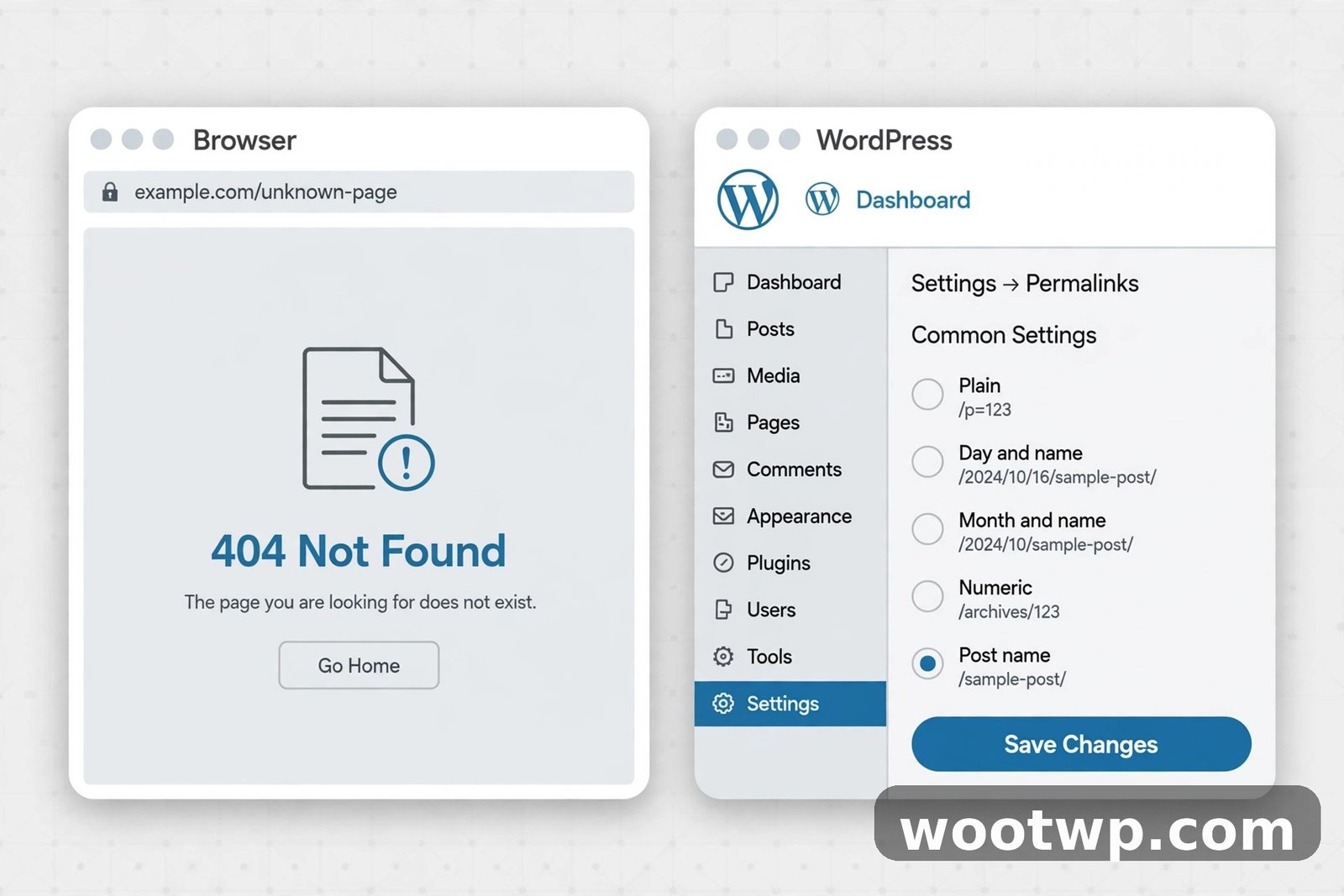
- Go to Settings → Permalinks.
- Don’t change anything — just scroll down and click Save Changes.
That’s it. WordPress flushes and regenerates its rewrite rules. Now check the pages that were showing 404 errors. In my experience, this alone fixes the problem roughly half the time — particularly when 404s appeared after a migration, a server move, or a WordPress core update.
If resaving didn’t help, leave the permalinks settings exactly as they are and move on to Fix 2.
Fix 2: Check and Repair the .htaccess File
If resaving permalinks didn’t fix things, the .htaccess file itself is the next suspect. This small file in your site’s root folder tells Apache (the web server most shared hosts use) how to handle incoming URLs. If it’s corrupted, missing, or contains bad rules from an old plugin, pretty URLs stop working and every page except the homepage returns a 404.
You’ll need file access — an FTP client like FileZilla or your hosting panel’s File Manager (cPanel, hPanel, DirectAdmin, etc.).
- Connect via FTP or open File Manager and navigate to your site’s root folder (usually
public_html). - Find
.htaccess. It starts with a dot, so it’s a hidden file — in FileZilla, go to Server → Force showing hidden files. In cPanel File Manager, click Settings and tick Show Hidden Files (dotfiles). - Download a copy to your computer as a backup first. If you make things worse, you can put the original back.
- Open
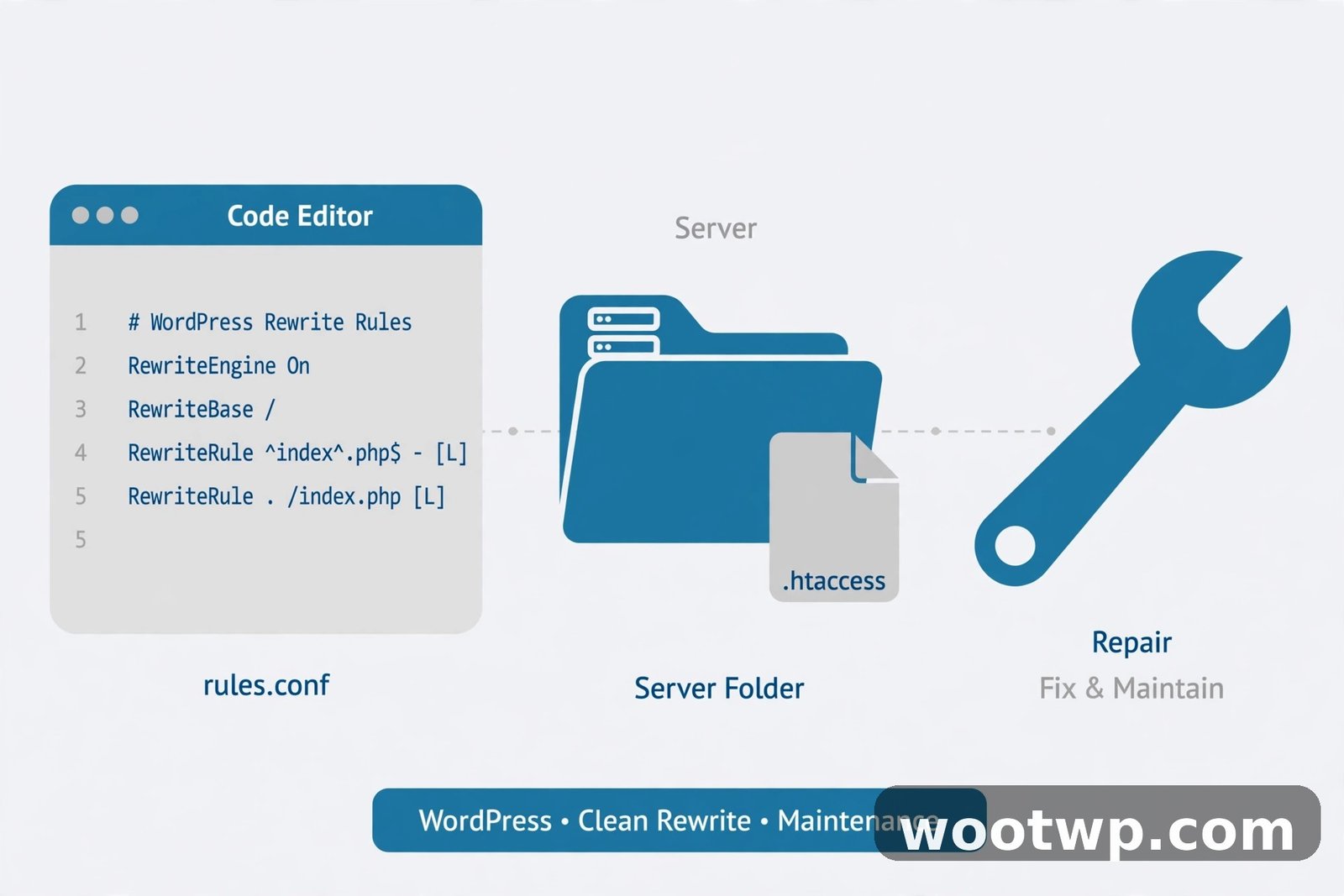
.htaccessand look at what’s inside. A healthy default WordPress.htaccesslooks exactly like this:
# BEGIN WordPress
RewriteEngine On
RewriteRule .* - [E=HTTP_AUTHORIZATION:%{HTTP:Authorization}]
RewriteBase /
RewriteRule ^index\.php$ - [L]
RewriteCond %{REQUEST_FILENAME} !-f
RewriteCond %{REQUEST_FILENAME} !-d
RewriteRule . /index.php [L]
# END WordPress- If your file is missing entirely, or contains broken or unfamiliar rules (especially blocks added by plugins you no longer use), replace the whole file contents with the code above — or delete the file and regenerate it by resaving permalinks (Settings → Permalinks → Save Changes), which is what I usually do because it’s foolproof.
- If you’re cautious, rename the file to
.htaccess_oldinstead of deleting it, resave permalinks to generate a fresh one, and test. If the 404s are gone, the old file was the culprit. If the problem persists, you can restore.htaccess_old.
One important note: some security and redirect plugins add their own rules between # BEGIN WordPress and # END WordPress. WordPress itself only manages what’s inside those markers — anything else is plugin territory. If the default code works but the problem returns after you reactivate a specific plugin, that plugin is writing bad rules (see Fix 4).
Fix 3: Check for Renamed, Moved, or Deleted Pages
If only specific pages or posts return 404 while the rest of the site works fine, the page itself probably changed. Common scenarios:
- You (or another editor) edited the slug — the last part of the URL. WordPress lets you change this in the post editor, and it’s easy to do accidentally. A post at
yoursite.com/best-coffee-shops/becomesyoursite.com/top-coffee-shops/and every old link to it breaks. - You moved a post to the trash or changed its status from Published to Draft.
- You restructured categories and the URLs include the category name (depends on your permalink structure).
- You deleted a page that other pages or external sites still link to.
Here’s how to investigate:
- In the WordPress dashboard, go to Posts → All Posts (or Pages → All Pages) and search for the missing page by title. If it’s in the Trash, restore it. If it’s a Draft, check whether it was published before — someone may have unpublished it by mistake.
- Open the post and look at the permalink shown under the title in the editor. Compare it with the URL that’s giving the 404. If they differ, the slug changed at some point.
- Decide: either change the slug back to the original (best if the old URL has backlinks or ranks in Google), or set up a redirect from the old URL to the new one.
Setting up redirects for changed URLs
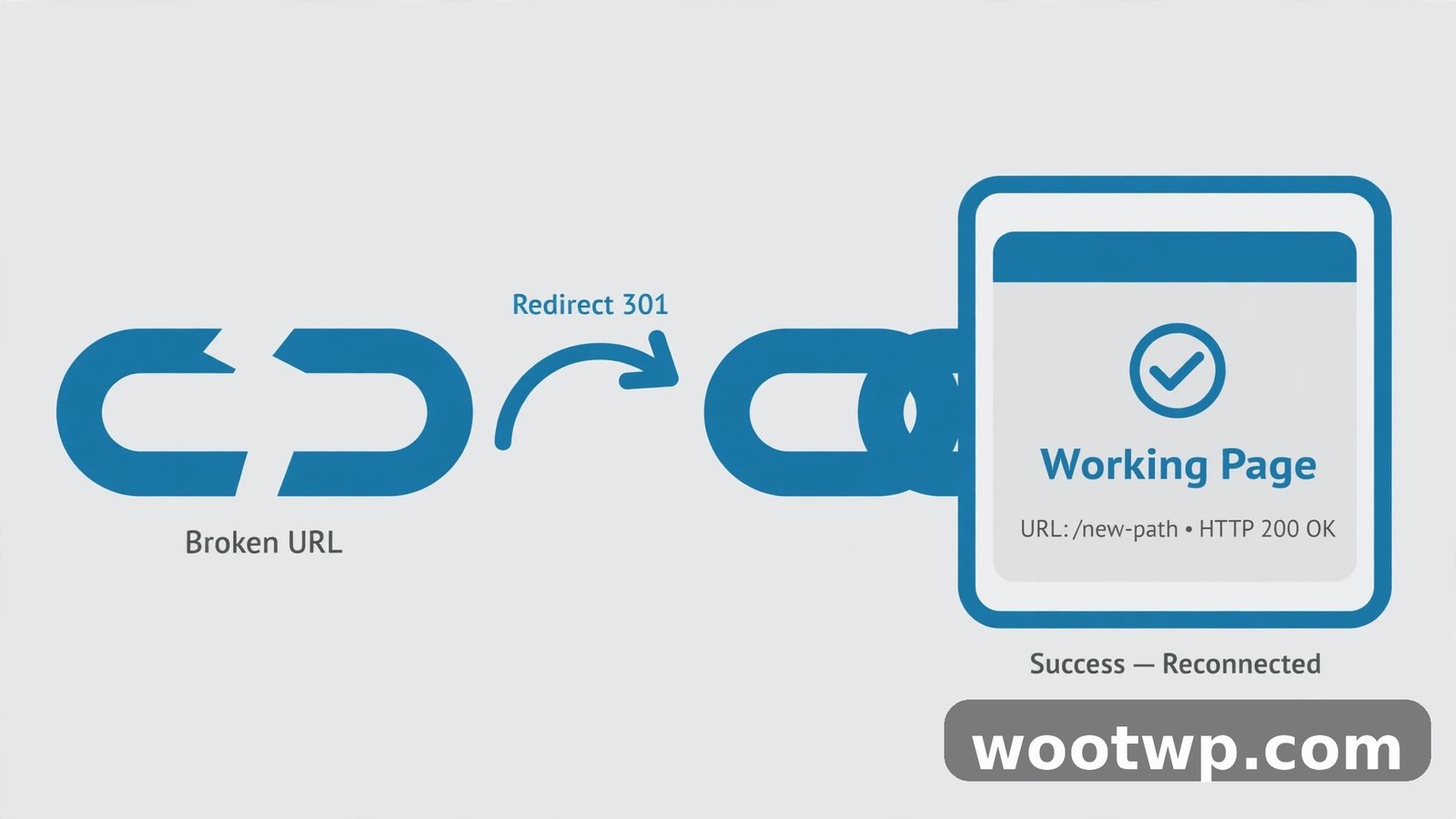
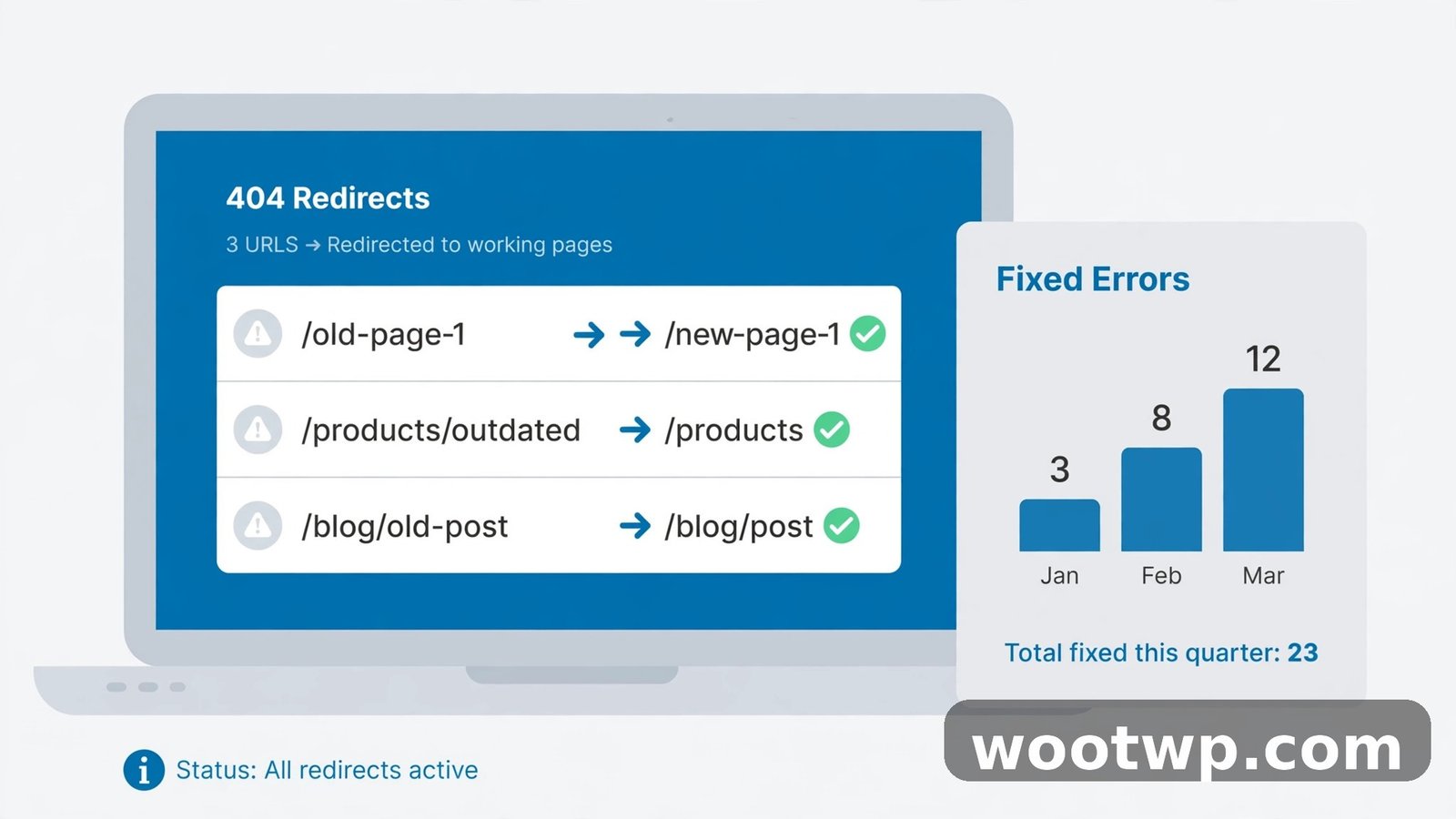
A redirect tells browsers and search engines “this page has moved — go here instead.” The visitor never sees a 404, and Google transfers most of the old page’s ranking value to the new URL.
The simplest free approach is the Redirection plugin (free in the WordPress plugin directory):
- Install and activate Redirection from Plugins → Add New.
- Go to Tools → Redirection → Add New.
- In Source URL, enter the old path (just the part after your domain, like
/best-coffee-shops/). - In Target URL, enter the new full URL.
- Save and test the old URL in a fresh browser tab — it should land on the new page.
For a site migration or a big URL restructuring, do the same for every changed URL. A handful of unredirected old URLs is exactly how sites accumulate 404s over time.
Fix 4: Rule Out Plugin and Theme Conflicts
Some plugins meddle with URL rewriting — redirect plugins, security plugins, multilingual plugins (like WPML or Polylang), and SEO plugins can all cause 404s if they malfunction or conflict with each other. A bad theme can too, though it’s less common.
The reliable way to test:
- Go to Plugins → Installed Plugins.
- Select all plugins, choose Deactivate from the bulk actions dropdown, and click Apply. (Don’t worry — deactivating doesn’t delete settings.)
- Check whether the 404 errors are gone.
- If they’re fixed, reactivate plugins one by one, checking the broken URLs after each one. When the 404s return, you’ve found the culprit. Look for an update for that plugin, check its settings for URL/rewrite options, or contact its support.
If plugins aren’t the issue, switch to a default WordPress theme (Appearance → Themes → activate Twenty Twenty-Five or whichever default theme is installed) and test again. If the 404s disappear with the default theme, the problem is in your theme’s code — check with the theme developer. I’ve seen this happen with themes that register custom post types or custom rewrite rules and don’t flush them properly.
Remember to switch your real theme back on when you’re done testing, whatever the result.
Fix 5: Nginx Server? Check Your Configuration
Fixes 1 and 2 assume your site runs on Apache (or LiteSpeed, which reads .htaccess too). But if your host uses Nginx, there is no .htaccess file at all — Nginx doesn’t read it. On Nginx, URL rewriting is handled in the server configuration, and a missing or wrong rule produces exactly the same 404 symptoms.
If you’re on Nginx (common with hosts like Kinsta, Cloudways, or any VPS setup), your site’s server block needs this location rule for pretty permalinks to work:
location / {
    try_files $uri $uri/ /index.php?$args;
}
What this does: for each request, Nginx first tries to serve a real file ($uri), then a real directory ($uri/), and if neither exists, hands the request to WordPress (/index.php), which figures out the right page from the URL.
If you manage the server yourself, add that block inside your server { } configuration and reload Nginx (sudo nginx -s reload). If you’re on managed hosting, you almost certainly can’t edit this — contact your host’s support and ask them to verify the WordPress permalink rule is in place. Also resave permalinks in WordPress (Settings → Permalinks → Save Changes) afterward, since WordPress still needs its internal rewrite rules rebuilt even on Nginx.
Fix 6: Clear Caches That May Be Serving Stale 404s
Sometimes the 404 is already fixed on the server, but a cached copy of the error page keeps being served. Or a caching layer cached the 404 response itself and keeps showing it.
Work through these layers:
- Browser cache: hard-refresh with Ctrl + Shift + R (Windows) or Cmd + Shift + R (Mac), or test in an incognito/private window. If you want a full cleanup, here’s how to clear cookies and cache in Chrome.
- WordPress caching plugin: purge all caches from the plugin’s admin bar menu or settings page.
- Server cache: some hosts (especially with LiteSpeed or Nginx caching) cache at the server level — purge from your hosting panel.
- CDN cache: if you use Cloudflare or another CDN, purge the cache there, and consider enabling “Development Mode” temporarily while troubleshooting so nothing is cached.
Test the URL after each step. If the 404 disappears at some point, you know which layer was lying to you.
Fix 7: Find Every 404 on Your Site (Not Just the Ones You Know About)
The 404s you notice are rarely the only ones. Old blog posts link to pages you deleted years ago, image files go missing after migrations, and Google keeps trying to crawl URLs from a decade ago. Finding them systematically is worth doing once a quarter.
Google Search Console (free, and you should have this anyway)
- Open Google Search Console and select your property.
- Go to Pages (under Indexing in the left menu).
- Look for “Not found (404)” in the list of reasons pages aren’t indexed. Click it to see the full list of URLs Google tried to crawl and got a 404 for.
These are the highest-priority fixes because Google is actively trying to send traffic to them. Redirect each one to the closest relevant live page (Fix 3), or if there’s genuinely no replacement, let it stay a 404 — that’s fine and normal.
Your server’s error logs
Your hosting panel (cPanel’s Metrics → Errors, or similar) shows recent 404s as visitors hit them. This catches 404s from real users — mistyped URLs, broken internal links, missing images — that Search Console might not report. I check this after every migration; it always turns up a few surprises.
A broken link checker
A free broken-link checking tool crawls your site and reports every internal link that leads to a 404. Run one after any big content cleanup. Fix what you find by updating the links to point at the correct URLs (better than redirecting, for links you control).
Fix 8: Check the Easy-to-Miss Causes
A few less common culprits that are worth ruling out when the obvious fixes don’t work:
- Case sensitivity: Linux servers treat uppercase and lowercase as different.
yoursite.com/My-Page/andyoursite.com/my-page/are two different URLs on most hosts. If a 404 appears after moving from a Windows server to Linux hosting, check the exact capitalization of file and folder names. - HTTPS migration leftovers: if you recently switched to HTTPS, old HTTP URLs can 404 if the redirect rules are incomplete. Make sure your site address in Settings → General shows
https://, and that your.htaccessor server config redirects all HTTP traffic to HTTPS. - DNS or domain issues: if you just pointed a domain at your hosting or changed nameservers, 404s (or a parked page) during the first few hours are usually DNS propagation — wait and retest. Clear your local DNS cache too.
- File permissions: files should be
644and folders755. Overly restrictive permissions can make WordPress unable to read its own files, which sometimes surfaces as 404s on specific assets. - A 404 on wp-admin itself: if you can’t reach the dashboard at all, the problem is usually
.htaccess(Fix 2) or a security plugin blocking access. Rename the plugin folders via FTP one at a time (wp-content/plugins) to identify the blocker.
If you’ve worked through all eight fixes and specific pages still 404 while everything else works, the database itself may have damaged post records — at that point it’s worth asking your host to check, or restoring from a known-good backup.
How to Prevent 404 Errors Going Forward
Fixing 404s once is good. Stopping them from accumulating is better:
- Resave permalinks after big changes. Any migration, server move, domain change, or major WordPress update — go to Settings → Permalinks and hit Save Changes. It costs ten seconds.
- Never change a published post’s slug casually. If you must, set up a redirect from the old URL the same day. Old URLs with backlinks are assets — treat them that way.
- Redirect before you delete. When removing a page, decide where its traffic should go and create the redirect first, then delete.
- Audit quarterly. Spend twenty minutes in Search Console’s “Not found (404)” report every few months and clean up what’s there. Pair this with keeping your admin area fast and manageable — a snappy dashboard makes maintenance like this far less of a chore, so it’s worth reading our guide on how to speed up your WordPress admin dashboard.
- Keep a backup before structural changes. If a plugin update or settings change breaks URLs site-wide, a backup lets you roll back in minutes instead of debugging for hours. And if a broken change ever takes down the whole site instead of just some pages, the troubleshooting process is similar to what we covered in our 500 internal server error guide.
Frequently Asked Questions
Why do all my WordPress pages show a 404 error except the homepage?
This is the classic symptom of broken rewrite rules. Your homepage works because it doesn’t need URL rewriting, but every other page does. Go to Settings → Permalinks and click Save Changes — that rebuilds the rules. If it doesn’t help, your .htaccess file is likely corrupted or missing; replace it with the default WordPress code shown in Fix 2. On Nginx servers, the try_files rule may be missing from the server configuration.
Can a plugin really cause 404 errors?
Yes. Any plugin that touches URLs, redirects, or rewrite rules can break them — redirect managers, security plugins, multilingual plugins, and some SEO plugins are the usual suspects. Deactivate all plugins and check; if the 404s stop, reactivate them one at a time until the problem returns. That identifies the culprit, and you can then look for an update, adjust its settings, or replace it.
Should I redirect old URLs or just let them 404?
If the old URL has traffic, backlinks, or search rankings, redirect it to the closest relevant live page — you’re preserving value you already earned. If it’s a URL nobody visits and nothing links to, letting it return a clean 404 is perfectly fine. Google doesn’t penalize sites for having some 404s; it’s a normal part of the web. What hurts is when important URLs 404 with no redirect.
How do I find which pages on my site are returning 404 errors?
Three good sources: Google Search Console’s Pages report lists every URL Google crawled that returned a 404; your hosting panel’s error log shows 404s as real visitors hit them; and a broken link checker crawls your site and reports dead internal links. Between those three, you’ll catch virtually everything.
Do 404 errors hurt my Google rankings?
A few 404s won’t hurt your overall rankings — Google understands that pages get deleted and treats 404 as a normal signal. What does hurt is when pages that rank well or have backlinks start returning 404 without redirects, because you lose that traffic and link value. Fixing those promptly with proper redirects protects your rankings. Also, a site riddled with broken internal links gives visitors a poor experience, which indirectly affects how your content performs.
What’s the difference between a 404 error and a 500 error?
A 404 means the server is working fine but couldn’t find anything at the requested URL — it’s a “not found” problem, usually about permalinks, slugs, or redirects. A 500 means the server itself hit a problem and couldn’t complete the request at all — it’s a server-side failure, usually about PHP, memory limits, or corrupted files. They have completely different causes and fixes, so identifying which one you’re seeing is the first step. If you’re dealing with a 500 instead, our guide to fixing the 500 internal server error walks through that separately.
Conclusion
WordPress 404 errors look alarming but they’re one of the most fixable problems you’ll encounter. Start with the quick wins — resaving permalinks and checking .htaccess — because those resolve the majority of cases, especially site-wide 404s. For individual missing pages, track down what changed (usually a slug edit or a deletion) and redirect the old URL. And make it a habit to check Search Console’s 404 report every few months so small problems don’t pile up into big ones.
If you worked through all nine fixes and something still isn’t right, the issue is likely server-level or database-level, and that’s a good time to loop in your hosting provider’s support team with a clear description of what you’ve already tried — they’ll be able to help much faster with that context.