How to Convert HEIC to JPG on Windows and Android: 6 Free Ways
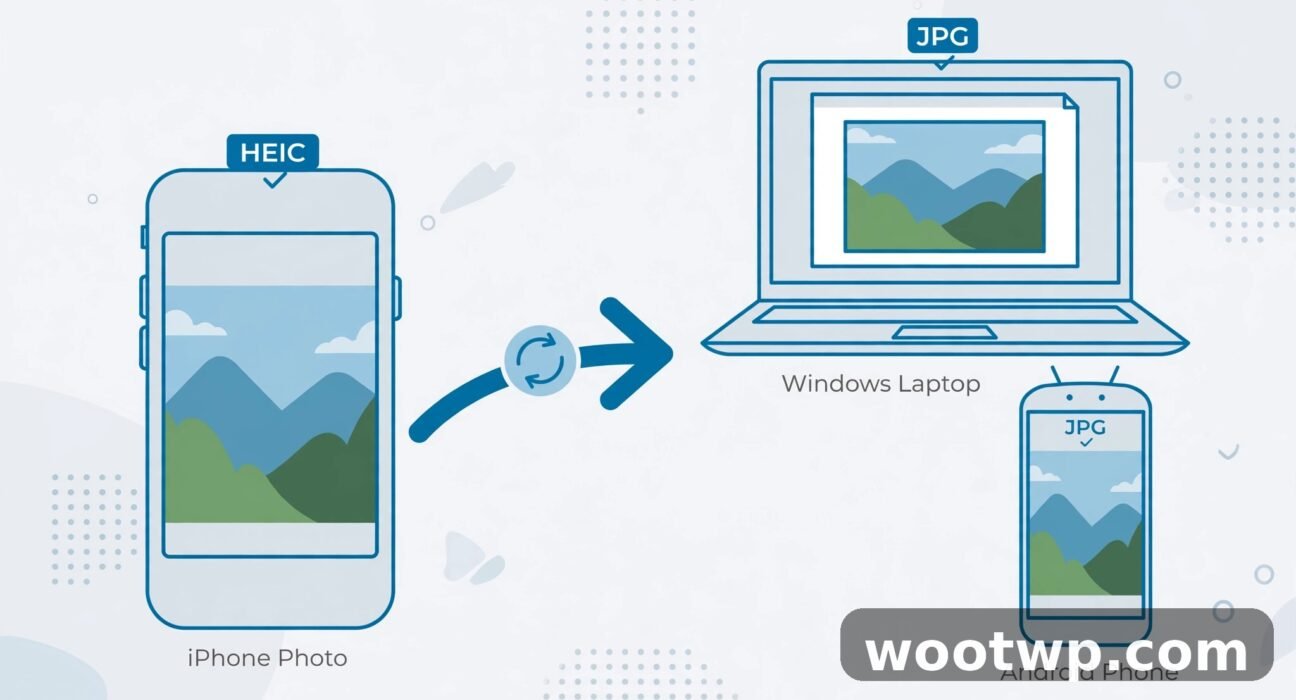
If you've ever received iPhone photos that won't open on your Windows PC or Android phone, you've met the HEIC format. Apple's iPhones save photos as HEIC by default — great for storage, terrible for compatibility. Learning how to convert HEIC to JPG on Windows and Android takes about a minute per method below, and every one of them is free. Pick whichever fits your situation: quick one-off conversions, batch jobs, or changing the setting so it stops happening.
- What Is HEIC and Why Can't Windows Open It?
- How to Convert HEIC to JPG on Windows
- How to Convert HEIC to JPG on Android
- Stop the Problem at the Source: Change iPhone Settings
- FAQs
What Is HEIC and Why Can't Windows Open It?
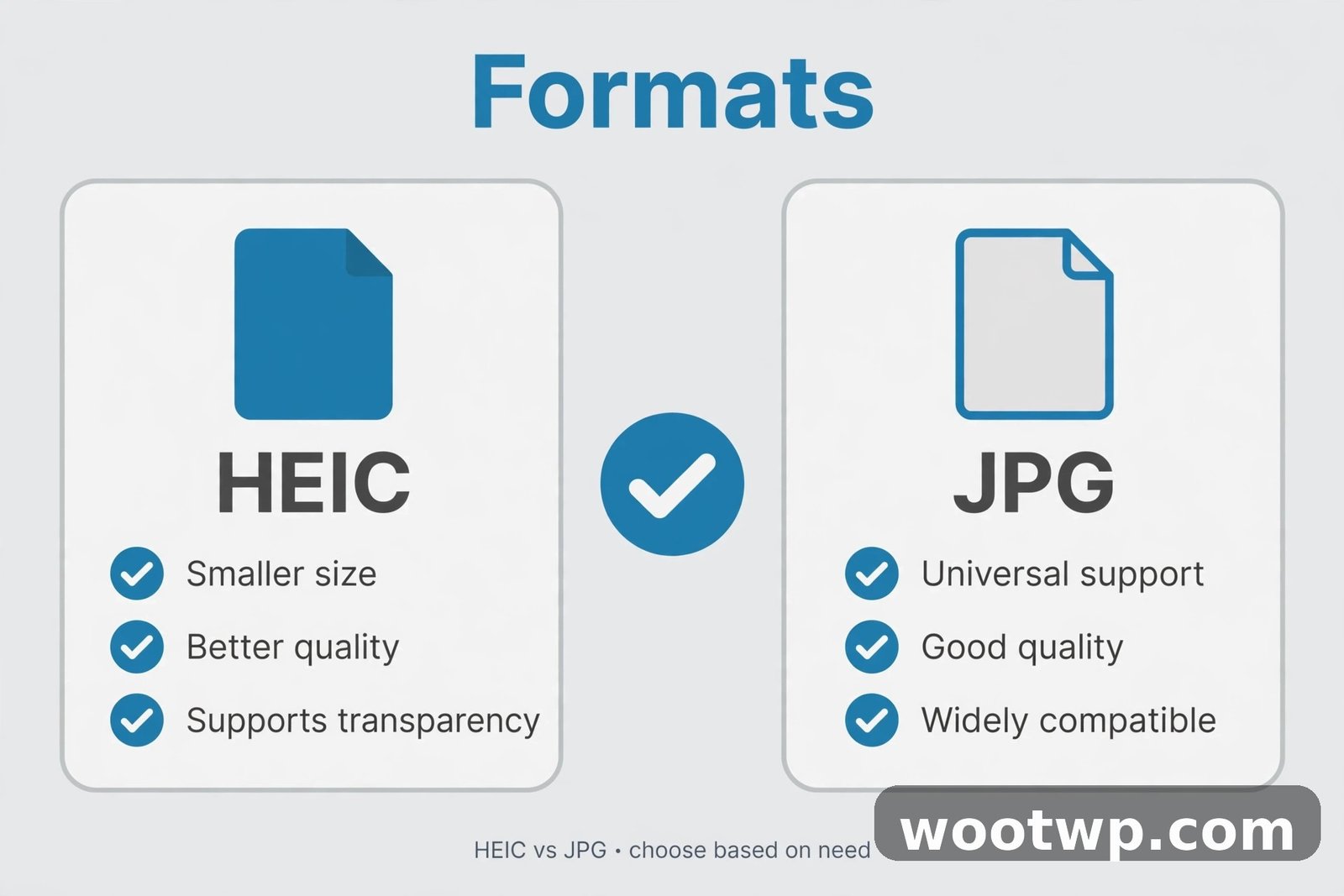
HEIC stands for High Efficiency Image Container. Since iOS 11, iPhones save photos in this format because it stores the same quality as JPG in roughly half the file size. That means more photos fit on your phone.
The catch is compatibility. HEIC is based on the HEVC video codec, and Windows doesn't include HEVC support out of the box — Microsoft actually sells it as a paid extension. Many Android phones, older photo viewers, most websites, and upload forms can't handle HEIC either. So when someone AirDrops or messages you HEIC photos, your device may show nothing at all.
Converting HEIC to JPG solves the problem permanently for that file. JPG opens everywhere: Windows, Android, email clients, browsers, printers, upload forms. The conversion is slightly lossy, but at normal quality settings the difference is invisible. You will notice one thing, though — the JPG will be bigger than the HEIC, because HEIC compresses more efficiently.
One more thing the conversion drops: Live Photo video clips, depth maps from Portrait mode, and 10-bit color. The still photo itself, its resolution, and its EXIF metadata (date taken, camera settings, GPS) all survive.
How to Convert HEIC to JPG on Windows
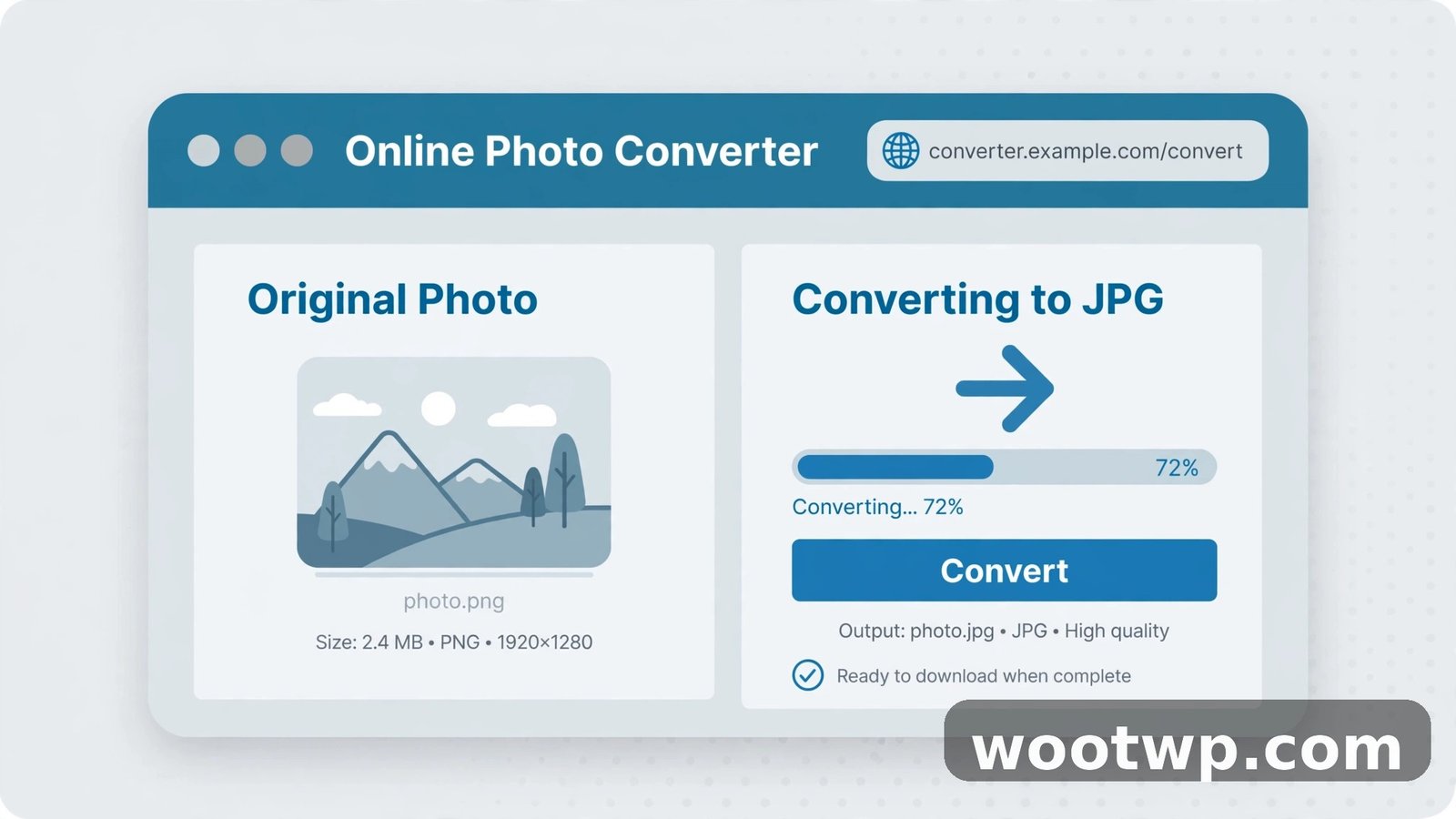
1. Use a Free Online Converter (Fastest for a Few Photos)
For a handful of photos, nothing beats a browser-based converter. You don't install anything, and it works on any Windows version:
- Go to a free converter like CloudConvert.
- Click Select File (or drag your HEIC photos in).
- Make sure the output is set to JPG.
- Click Convert, then Download.
Two honest caveats from experience. First, your photos upload to someone's server — don't convert sensitive images this way; use an offline method instead. Second, free tiers usually limit how many files you can convert per day, so this is a "few photos" solution, not a "500 vacation photos" solution.
2. Open HEIC Directly in Windows Photos (Best for Browsing)
If the problem is just viewing photos, install Microsoft's HEVC Video Extensions from the Microsoft Store (about $0.99) or the free HEIF Image Extensions. After installing, the built-in Photos app opens HEIC files like any other image, and thumbnails appear in File Explorer.
This doesn't convert anything — it just teaches Windows to read HEIC. If you then need JPGs, open the photo in Paint and choose File > Save as > JPEG picture. Clunky for batches, fine for one or two.
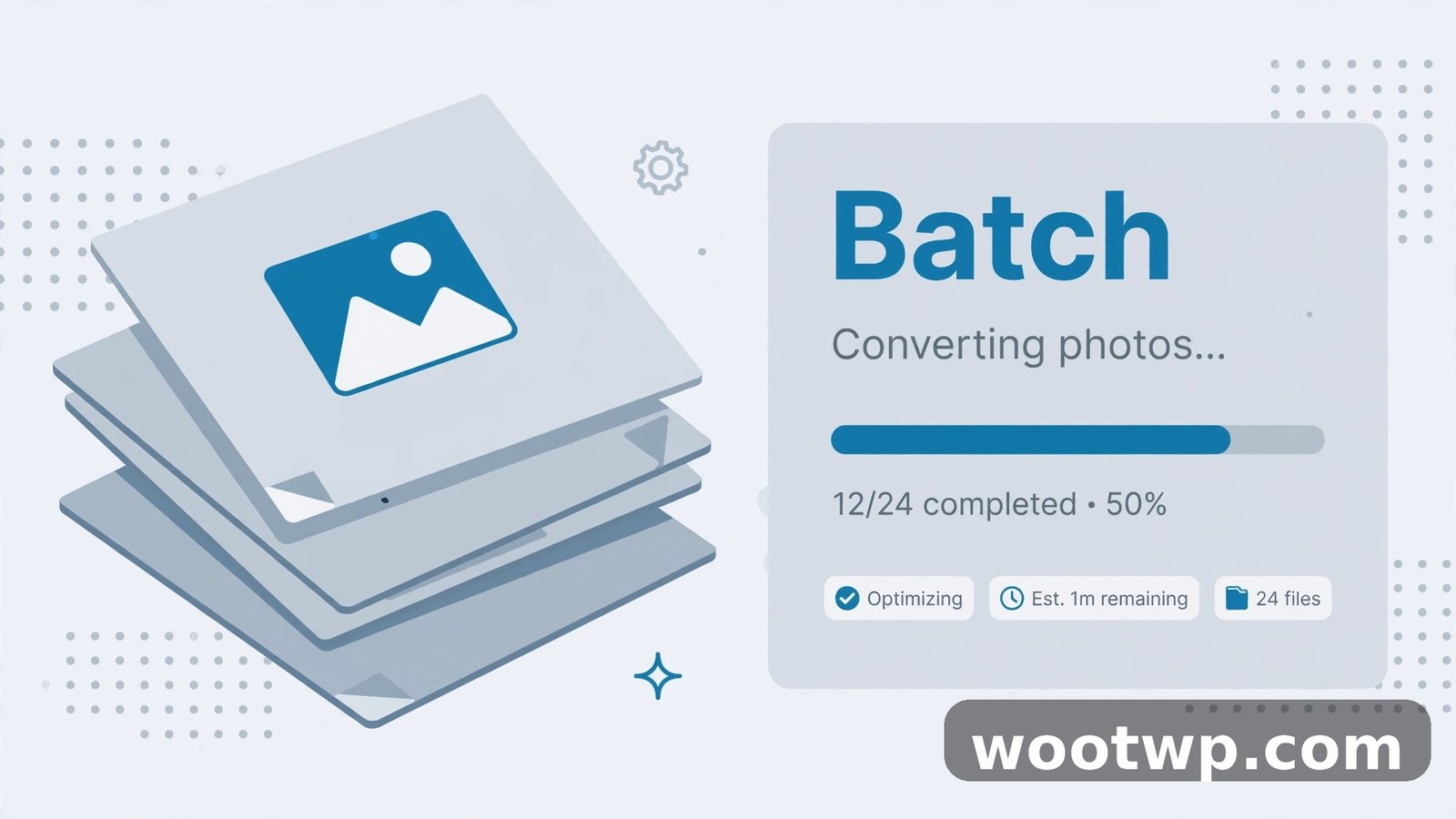
3. Convert Batches With IrfanView (Free, Offline, Great for Many Files)
IrfanView is a tiny, free Windows program that's been around forever, and its batch conversion is exactly what you need for dozens of photos:
- Install IrfanView plus the plugin pack (the HEIC support comes with the plugins).
- Open IrfanView and go to File > Batch Conversion/Rename.
- Set the output format to JPG and choose an output folder.
- Add your HEIC files, click Start Batch.
- Grab a coffee — a few hundred photos convert in a couple of minutes.
Everything stays on your computer, there's no file limit, and the JPG quality slider lets you balance size against quality. For photos you'll email or upload, 85–90% quality is the sweet spot.
4. Use the Command Line With ImageMagick (Power Users)
If you're comfortable with a terminal, ImageMagick converts HEIC to JPG in one command and handles whole folders with a loop:
magick mogrify -format jpg *.heicRun that in a folder full of HEIC files and you'll get a JPG for each one. Download it from imagemagick.org. This is the fastest method I know for very large batches, and it works on Windows, Mac, and Linux identically.
How to Convert HEIC to JPG on Android
Android's HEIC support is patchy — newer Samsung and Pixel phones read it, many others don't. These methods cover every Android phone.
5. Use a Browser-Based Converter on Your Phone
The same online converters from method 1 work in Chrome on Android. It's the simplest route for a few photos:
- Open Chrome and go to a free HEIC-to-JPG converter.
- Tap Select File and choose your HEIC photos from your files.
- Convert and download the JPGs.
One tip: most browsers can't preview HEIC, so you'll pick files by name rather than thumbnail. Convert, then check the JPGs in your gallery to confirm they're the right ones.
6. Use a Free Converter App (Best for Phone-Only Workflows)
If you convert HEIC files regularly on your phone, a dedicated app is smoother than a browser tab. Search the Play Store for "HEIC to JPG converter" — several free options convert directly on the device without uploading anything, which is better for privacy.
Look for apps that:
- Convert on-device (no upload to a server)
- Support batch conversion, not just one file at a time
- Let you choose the output quality
Avoid apps that demand account sign-ups or plaster watermarks on your photos — the good ones do neither. And if you deal with lots of image formats on your phone generally, my guide on merging PDF files on phone and PC covers the same "make it work on mobile" mindset for documents.
Bonus: Google Photos Handles It Silently
Worth knowing: if the HEIC photos are backed up to Google Photos, downloading them from the Google Photos app or website often gives you a JPG automatically. It's not a documented feature you can rely on, but in practice Google Photos converts on download. If the photos are already in your library, try downloading one and check the file extension before doing anything more complicated.
Stop the Problem at the Source: Change iPhone Settings
If the HEIC files keep coming from your own iPhone (or a family member's), the cleanest fix is to stop creating them — or at least make transfers convert automatically.
Change the iPhone Camera Format
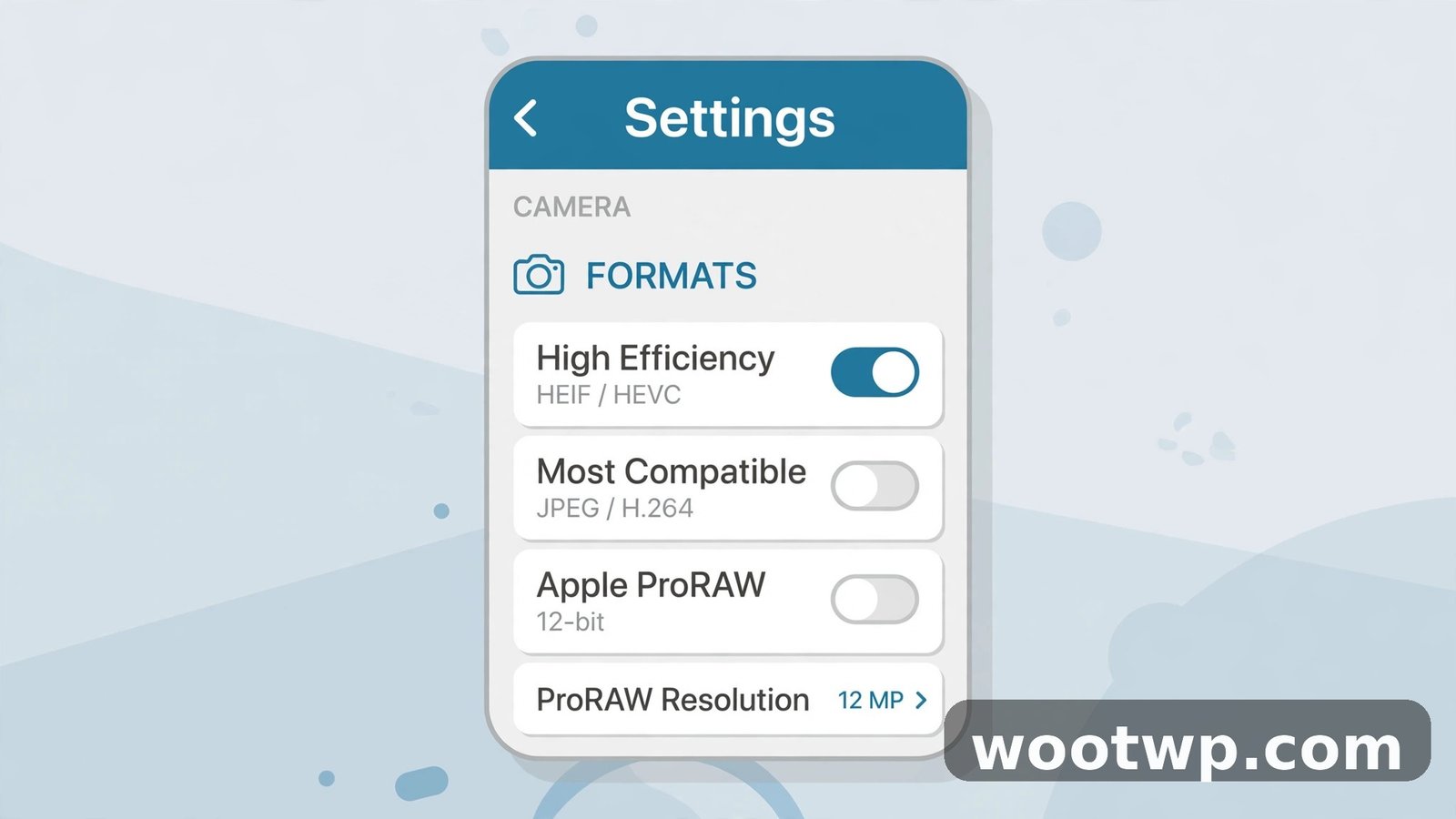
On the iPhone, go to Settings > Camera > Formats and switch from High Efficiency to Most Compatible. From then on, photos save as JPG directly. The tradeoff: each photo takes roughly twice the storage space. If the iPhone is always running out of room, this might not be worth it.
Auto-Convert on Transfer (Best of Both Worlds)
Keep the storage savings of HEIC but get JPGs when you move photos to a computer:
- On the iPhone, go to Settings > Photos.
- Under Transfer to Mac or PC, select Automatic.
With this on, the iPhone converts HEIC to JPG automatically whenever you transfer photos via USB cable. You keep the smaller files on the phone and get compatible files on the computer. In my opinion this is the best setting for most people — it just doesn't help with photos sent through messaging apps, which is where manual conversion still comes in.
What About HEIC Files Sent Through WhatsApp or Telegram?
Messaging apps usually compress and convert photos on their own — WhatsApp, for example, sends photos as JPG regardless of the original format. If you receive a HEIC file through a chat app, it likely came as a "document" or file attachment rather than a photo. Download it to your device first, then use one of the conversion methods above.
FAQs
Is converting HEIC to JPG free?
Yes — every method in this guide is free. Online converters have free tiers with daily limits, while offline tools like IrfanView and ImageMagick are completely free with no limits at all.
Does converting HEIC to JPG lose quality?
Technically yes, because JPG uses lossy compression. In practice, at quality settings of 85% or higher, the difference is invisible to the human eye. What you will notice is the larger file size — JPGs are typically 30% to 80% bigger than the HEIC originals.
Can Windows 11 open HEIC files without converting?
Yes, after you install the HEVC Video Extensions from the Microsoft Store. Then the Photos app and File Explorer handle HEIC natively. But note that many apps and websites still won't accept HEIC uploads, so conversion is often necessary anyway.
Why does my Android phone save photos as HEIC?
Some Android phones (mostly Samsung and a few others) offer HEIF/HEIC as an optional camera format for the same reason Apple uses it — smaller files. You can usually switch it back to JPG in the camera app's settings under "Picture format" or "Advanced picture options."
What's the difference between HEIC and HEIF?
HEIF is the container standard; HEIC is Apple's specific implementation of it using the HEVC codec. For practical purposes they're the same thing, and every converter that handles one handles the other. You'll see both extensions (.heic and .heif) in the wild.
Will the converted JPG keep the date and location info?
Yes. Good converters preserve EXIF metadata — the capture date, camera settings, and GPS coordinates all carry over to the JPG. Your photo library will still sort the converted photos by the day they were taken.
Conclusion
Converting HEIC to JPG on Windows and Android doesn't need paid software or technical skills. For a few photos, a free online converter does the job in under a minute. For batches, IrfanView on Windows or a converter app on Android handles hundreds of files offline. And if the files keep coming from an iPhone in the family, flip that transfer setting to Automatic and the problem mostly solves itself. If you work with photos a lot, you might also like my roundup of free AI photo enhancers for cleaning up old or low-quality images once they're in a format you can actually open.