Move WordPress Site to New Host Without Downtime: The Complete Guide
Moving your WordPress site to a new host sounds scary, but it doesn't have to be. If you move a WordPress site to a new host the right way — copy everything over while the old site stays live, test the new copy, then switch your DNS — your visitors will never notice a thing. No blank pages, no lost orders, no panicked "is my site down?" messages. This guide walks you through the whole process, from the pre-move checklist to the post-move tests, using both the easy plugin method and the manual method for full control.
Table of Contents
- What You Need Before You Move Your WordPress Site to a New Host
- Method 1: Move Your WordPress Site with a Migration Plugin (Easiest)
- Method 2: Move Your WordPress Site Manually (Full Control)
- How to Switch DNS Without Downtime
- What to Test After Moving Your WordPress Site
- What About Email, SSL, and Subdomains?
- How Do You Move a WooCommerce Store Without Losing Orders?
- Common Migration Problems and Quick Fixes
- FAQs
- Conclusion
What You Need Before You Move Your WordPress Site to a New Host
A WordPress site has two parts, and both must arrive intact on the new server:
- The files — WordPress core, the wp-content folder (themes, plugins, uploads), and wp-config.php.
- The database — posts, pages, users, and settings live in MySQL or MariaDB. Without it, the files show an empty install.
Before you touch anything, gather this checklist:
- New hosting account with enough disk space for your site plus headroom for the move.
- Login details for your domain registrar or DNS provider — you'll need to change DNS at the end.
- The old host's control panel or FTP/SFTP login — to grab files and the database.
- A full backup of the site, stored somewhere independent of both hosts (your computer or cloud storage). If you don't have one, learn how to back up your WordPress site for free first.
- A list of things outside WordPress that people always forget: email accounts on the old server, DNS records (MX, TXT), SSL certificate details, cron jobs, and PHP version settings.
One more thing: lower your DNS TTL to 300 seconds (5 minutes) at least 24 hours before the switch. The TTL tells internet providers how long to cache your old server's address. If it's set to 24 hours, some visitors will keep hitting the old server for a full day after you switch. Lowering it early makes the cutover fast and clean.
Method 1: Move Your WordPress Site with a Migration Plugin (Easiest)
For most sites, a migration plugin is the fastest, least error-prone way to move a WordPress site to a new host. Plugins like Duplicator, All-in-One WP Migration, and UpdraftPlus handle the file copy, database export, and URL replacement in one package.
Here's how it works with a typical migration plugin:
- Install the plugin on your old site. Go to Plugins, then Add New, search for Duplicator or All-in-One WP Migration, and install it.
- Create a migration package. The plugin bundles your files and database into one archive (plus an installer file).
- Download the archive and installer to your computer. Keep the backup copy — it's your safety net.
- Upload both files to the new host. Place them in the public_html folder (or wherever your new site will live) using FTP or the new host's file manager.
- Run the installer. Visit yourdomain.com/installer.php in a browser. The installer asks for the new database name, username, and password, then unpacks everything.
- Create the database first. In your new host's control panel, create a MySQL database and a user with full privileges on it. Note the names — the installer needs them.
- Finish the installer and delete it. When done, delete the installer file and the archive from the server immediately. Leaving them there is a security risk.
The whole process usually takes 15 to 60 minutes depending on your site's size. Don't switch DNS yet — test first (more on that below).
Plugin limits to know about: free versions often cap upload sizes (All-in-One WP Migration's free version historically limits imports to a few hundred megabytes). If your site is large, you may need the paid version, a larger upload limit set by your host, or the manual method below.
Method 2: Move Your WordPress Site Manually (Full Control)
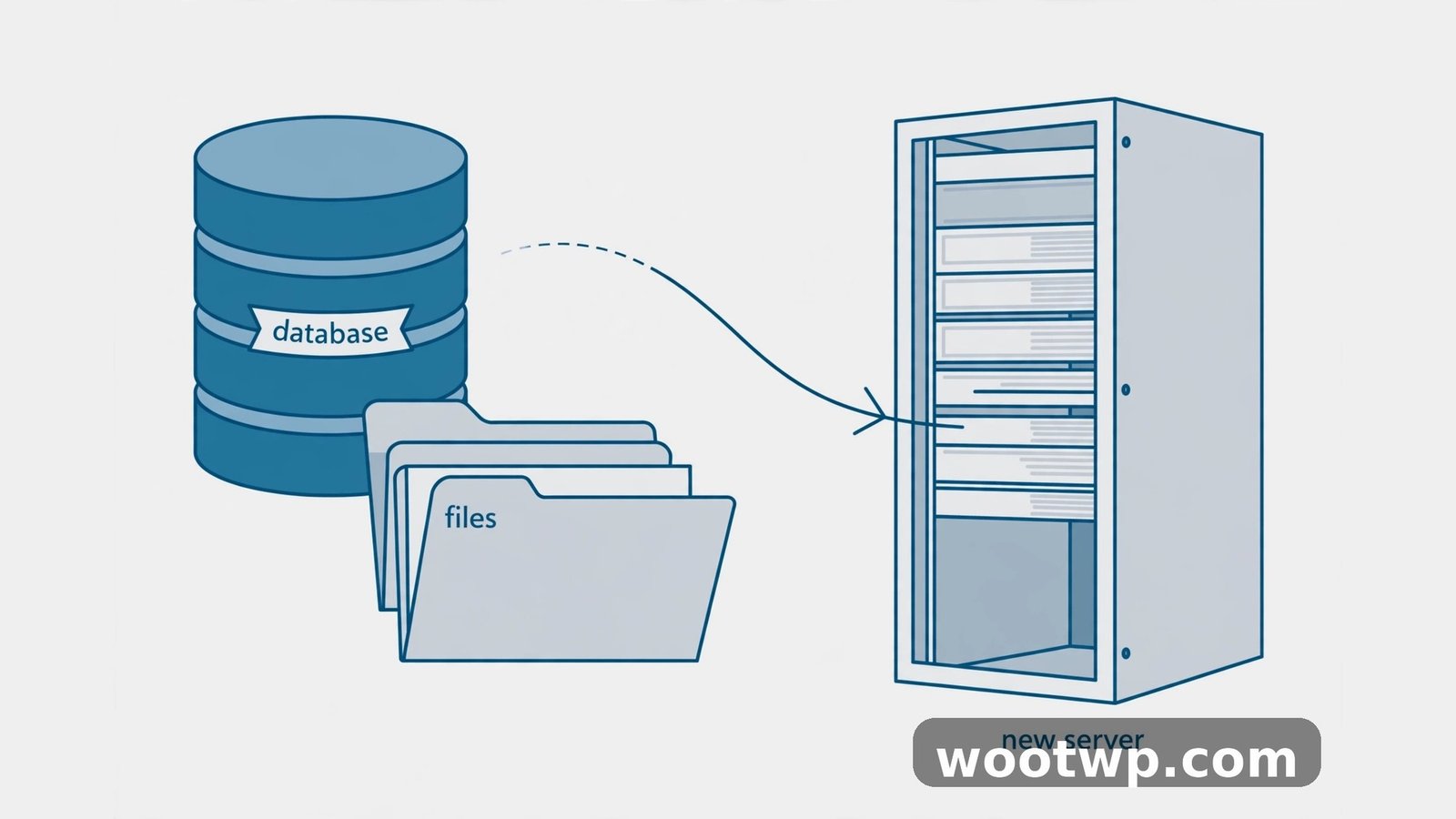
The manual route takes longer but works on any host, with no plugin limits. It's also the best way to understand what a WordPress migration actually moves.
Step 1: Copy the files to the new host
Download your entire site via FTP/SFTP, or compress it into a zip in your old host's file manager and download that — much faster for big sites. Then upload it to the new host's document root. Exclude cache folders and log files to save time.
If your old host offers SSH, pulling from the new server is fastest:
rsync -avz --exclude='wp-content/cache/' user@old-server:/public_html/ /new-server-path/Step 2: Export the database
In the old host's phpMyAdmin, select your WordPress database, click Export, choose the Quick method and SQL format, and download it. For very large databases, SSH with mysqldump is more reliable:
mysqldump -u olduser -p olddatabase > backup.sqlStep 3: Create the database on the new host
In the new host's control panel, create a fresh MySQL database plus a database user, and grant that user all privileges on the database. Write down the database name, username, password, and host (usually localhost).
Step 4: Import the database
Open phpMyAdmin on the new host, select the new (empty) database, click Import, and upload the SQL file. For large files that time out in phpMyAdmin, use SSH instead:
mysql -u newuser -p -e "source backup.sql" newdatabaseStep 5: Update wp-config.php
Edit wp-config.php on the new server and set the new database credentials:
define( 'DB_NAME', 'your_new_database' );
define( 'DB_USER', 'your_new_user' );
define( 'DB_PASSWORD', 'your_new_password' );
define( 'DB_HOST', 'localhost' );
Double-check these values — wrong credentials are the number one cause of the "Error establishing a database connection" message after a move.
Step 6: Fix URLs with a search-and-replace
If your domain stays the same, skip this. If you're also changing domains (or moving between http and https, or www and non-www), run a proper search-and-replace on the database. Never do a blind find-replace in a text editor — WordPress stores serialized data, and naive replacements corrupt it. Use the free "Better Search Replace" plugin on the new site, or WP-CLI:
wp search-replace 'old-domain.com' 'new-domain.com' --all-tables --dry-runRemove the dry-run flag when the preview looks right.
How to Switch DNS Without Downtime
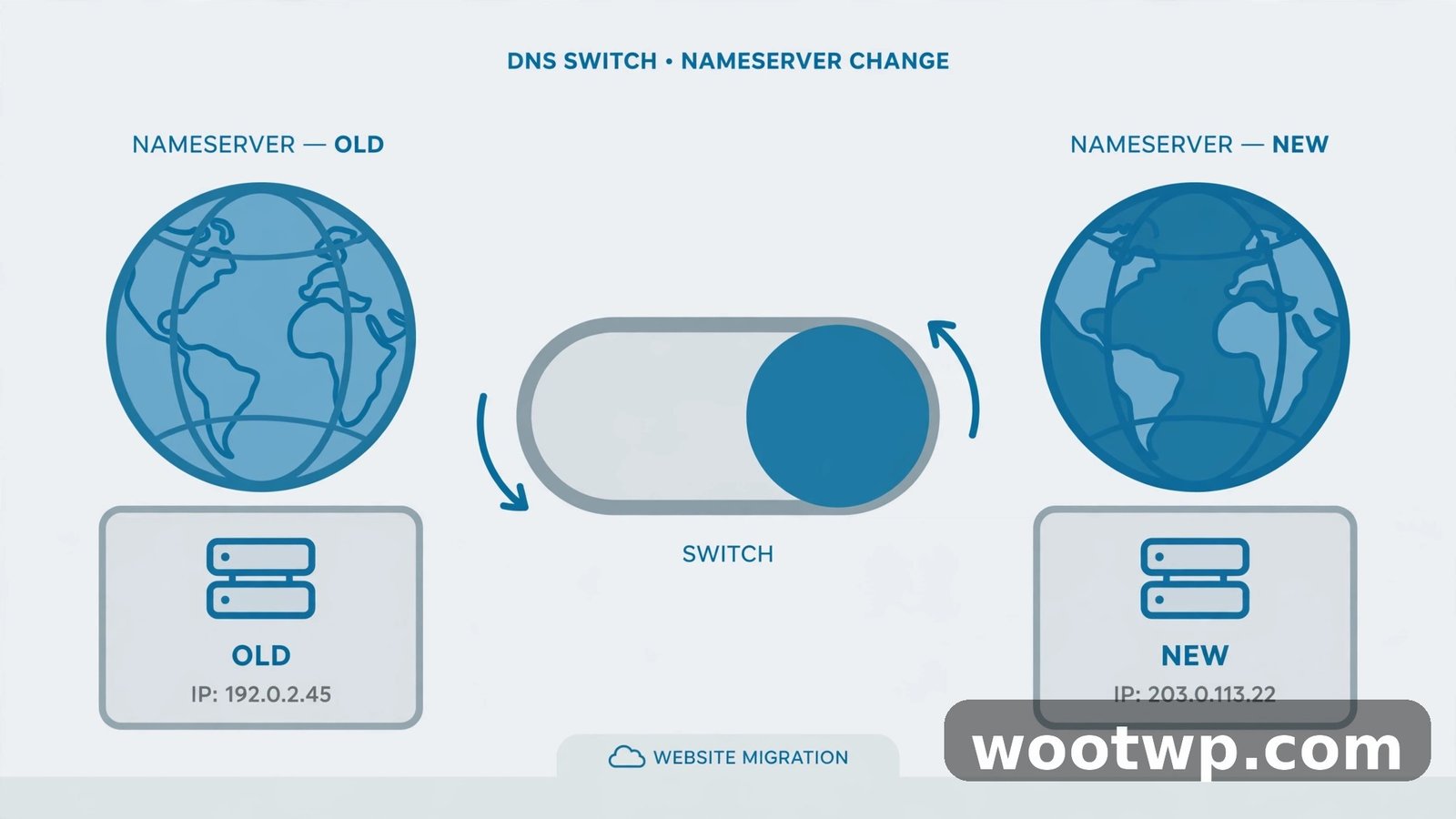
This is the step where most DIY migrations go wrong. The rule is simple: never switch DNS before you've tested the new copy.
Test the new site first
Point your own computer at the new server without touching public DNS. Two ways:
- Temporary URL: many hosts give you one (like server123.host.com/~username). It works but URLs inside the site may look odd.
- Hosts file override (better): add a line to your computer's hosts file mapping your real domain to the new server's IP. Your browser then loads the new site as if DNS had already switched, while the rest of the world still sees the old one. Test everything, then remove the line.
Flip the DNS
Once the new copy checks out:
- Log in to your DNS provider (registrar or the new host, whichever manages your DNS).
- Update the A records for your domain and www to the new server's IP address.
- Keep the old hosting account active for at least a week. DNS propagation takes minutes for most visitors but can take up to 48 hours for stragglers, and keeping the old site live means nobody sees downtime in between.
Handle dynamic sites with a write freeze
Blogs and brochure sites are easy: nothing changes between your copy and the cutover. Stores, forums, and membership sites keep receiving orders and comments, so they need a short freeze — put WooCommerce in catalog mode or enable maintenance mode during the final sync, copy the latest database, then switch DNS immediately. A 10-minute freeze beats lost orders.
What to Test After Moving Your WordPress Site
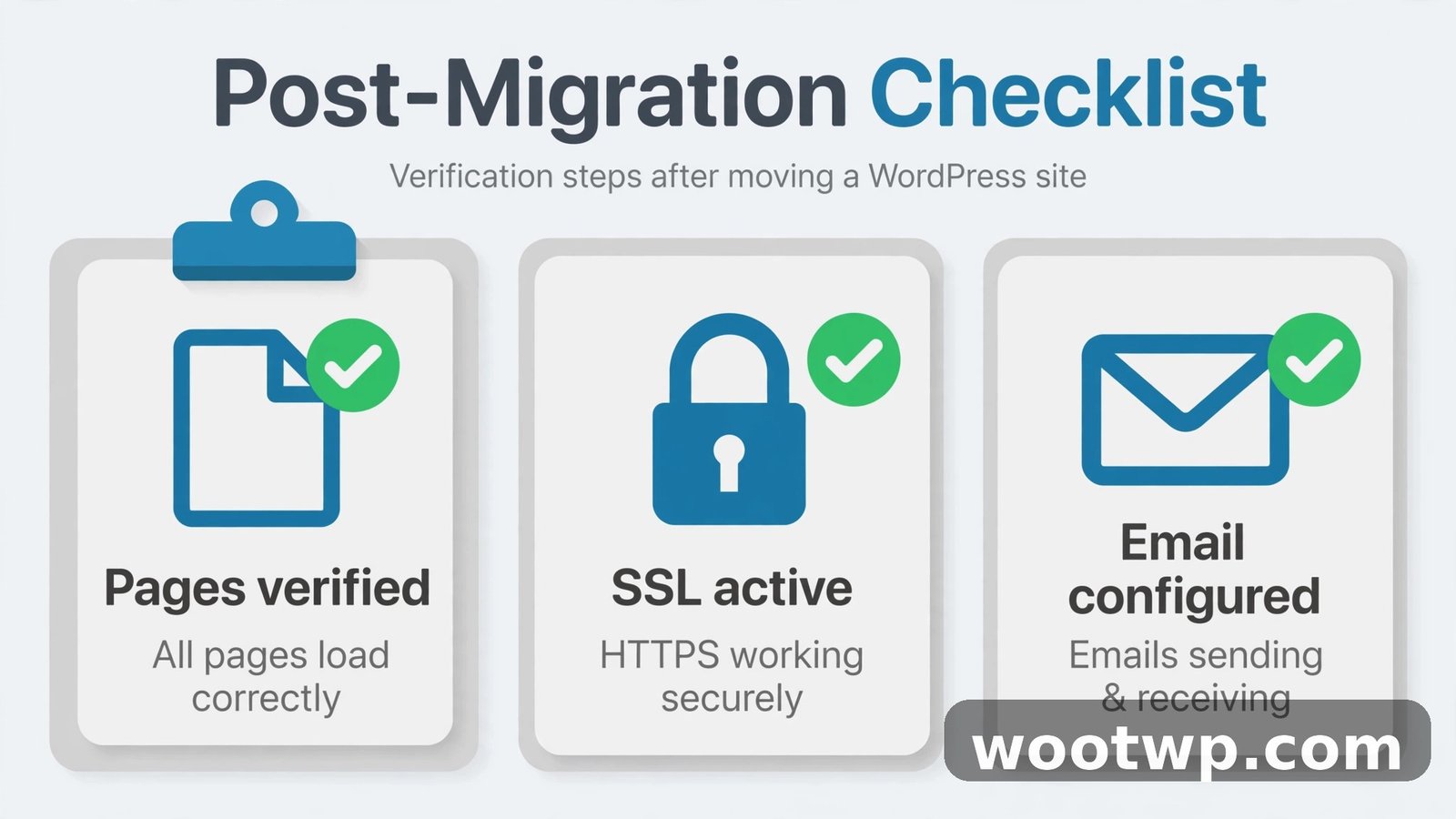
Walk through this list before you cancel the old hosting:
- Homepage and key pages load with no missing images or broken styles.
- Contact forms and checkout actually submit (send a test).
- Admin dashboard logs in and saves changes.
- Permalinks work — visit a few posts. If they 404, go to Settings, then Permalinks, and hit Save to rebuild the rewrite rules.
- SSL certificate is active — the new host should issue one automatically (Let's Encrypt is standard). Test https:// on every page template.
- Email sending works — WordPress password resets and form notifications. Migration often breaks mail routing.
- Search Console and analytics still tracking — verify the tags survived the move.
If you hit a white screen or a 500 error on the new host, the usual suspects are a PHP version mismatch or a plugin conflict. This walkthrough on fixing the 500 internal server error in WordPress covers the exact debugging order.
What About Email, SSL, and Subdomains?
Email: If your email accounts live on the old host, they don't move with WordPress. Either recreate them on the new host before switching DNS (and back up the old mailboxes), or better yet, move email to a dedicated provider like Google Workspace or Microsoft 365 so your next host move never touches email again. Update your MX records to match whichever route you choose.
SSL: Certificates don't transfer between servers. Issue a fresh one on the new host before the DNS switch, or immediately after. Most hosts offer free Let's Encrypt certificates with one click.
Subdomains and addon domains: These are server-level, not WordPress-level. Recreate each subdomain (blog, shop, staging) on the new host and copy their files separately.
Cron jobs: WordPress's built-in cron runs on visits, so it usually survives. But if you set up real server cron jobs for backups or imports on the old host, recreate them on the new one.
How Do You Move a WooCommerce Store Without Losing Orders?
Moving a store follows the same steps, with one extra discipline: the database keeps changing. The safe sequence is:
- Do the full migration and testing while the old store stays live.
- Pick a low-traffic window and enable maintenance or catalog mode on the old store.
- Export the latest database from the old host and import it into the new one (overwriting the test copy).
- Switch DNS immediately.
- Disable maintenance mode on the new store and place a test order.
Keep the old store in maintenance mode until you're sure DNS has fully propagated — a customer checking out on the old copy after you've switched creates an order that exists nowhere on the new server.
Common Migration Problems and Quick Fixes
"Error establishing a database connection" — wp-config.php credentials don't match the new database. Re-check the database name, user, password, and host.
White screen after the move — usually a plugin incompatible with the new PHP version. Rename the plugins folder via FTP to disable everything, then reactivate one by one.
Images missing or pointing to the old server — the search-and-replace step was skipped or incomplete. Run it again on the new database.
Redirect loop between www and non-www — the site URL settings disagree with the server config. Check Settings, then General, and make sure the WordPress Address and Site Address match how you access the site.
Contact forms stopped sending mail — the new host's mail setup differs. An SMTP plugin with proper authentication fixes this in most cases.
Site works but feels slow — the new server's PHP version or caching setup may differ. Confirm you're on a supported PHP version and re-enable your caching plugin.
FAQs
How long does it take to move a WordPress site to a new host?
For a typical blog, 30 to 90 minutes of active work: copying files, moving the database, and testing. Large media-heavy sites or stores can take 2 to 4 hours. DNS propagation adds waiting time on top, but if you keep the old host live, visitors see no interruption.
Will moving hosts hurt my SEO?
Not if you do it cleanly. Keep the same URLs and permalink structure, avoid downtime during the switch, keep SSL active, and submit the unchanged sitemap in Search Console. Rankings stay stable — and often improve if the new host is faster.
Do I need to move my domain registration when I change hosts?
No. Your domain can stay registered where it is; you only change the DNS records (usually the A record or nameservers) to point at the new host. Moving the domain registration is a separate, optional step.
Can I move my WordPress site to a new host for free?
Yes, if you do it yourself. The manual method and free migration plugins cost nothing beyond the new hosting plan. Many hosts also offer free professional migrations — always ask support before doing it yourself.
What is the safest way to move a WordPress site to a new host?
Full backup first, copy everything while the old site stays live, test the new copy with a hosts file override, lower DNS TTL a day ahead, switch DNS, and keep the old hosting for a week. That sequence is what makes the move effectively downtime-free.
What should I do with my old hosting account after the move?
Keep it active for at least 7 to 14 days after the DNS switch, in case you need to roll back or grab something you missed (email, cron jobs, stray files). Then cancel it — but download one final backup first.
Conclusion
To move a WordPress site to a new host without downtime, remember the golden rule: the old site stays live until the new one is proven. Copy files and database, test with a hosts file override, time your DNS switch with a lowered TTL, and work through the post-move checklist. Whether you use a migration plugin or do it manually, that sequence is what separates a smooth move from a stressful one. Take your time, keep your backups, and your visitors will never know anything changed.
For more detail on the official process, see WordPress's own documentation on moving WordPress.