How to Clear WordPress Cache: 6 Easy Fixes That Actually Work
You just updated your site, but the changes aren't showing. The old homepage is still there, the new menu is missing, and the prices you edited yesterday look untouched. Nine times out of ten, this isn't a bug — it's cache. Learning how to clear WordPress cache properly, at every layer where it hides, fixes the problem in minutes.
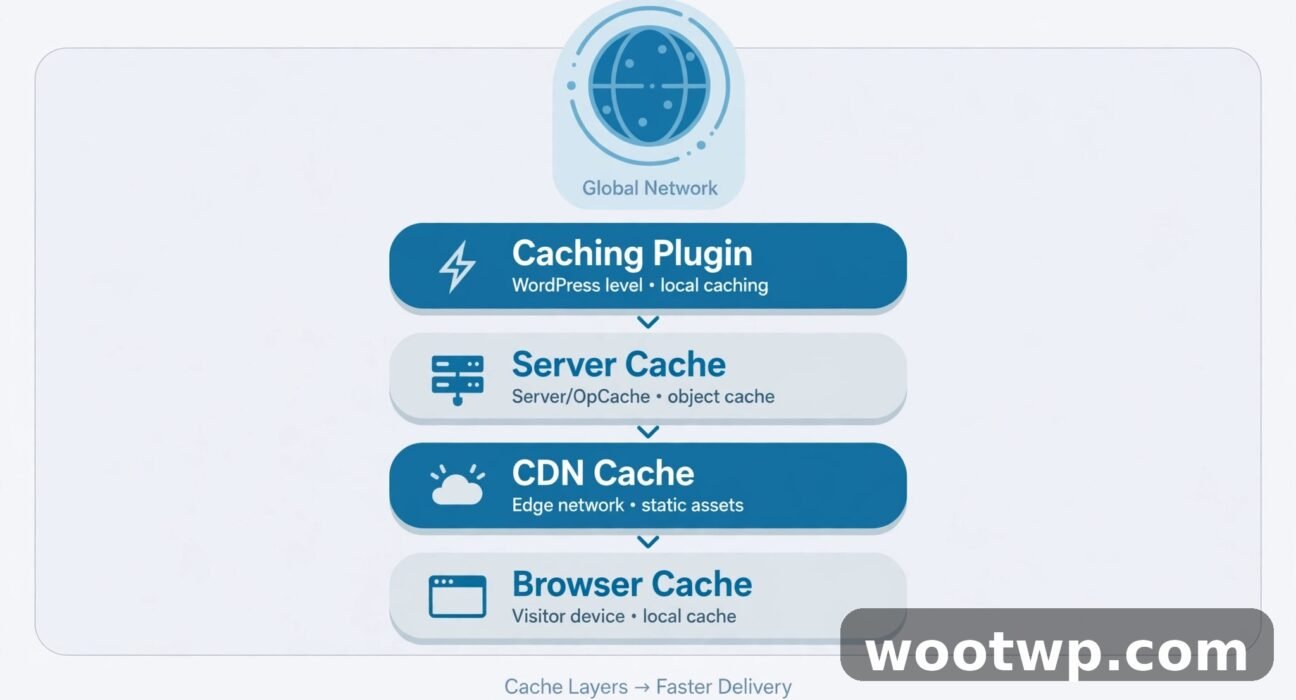
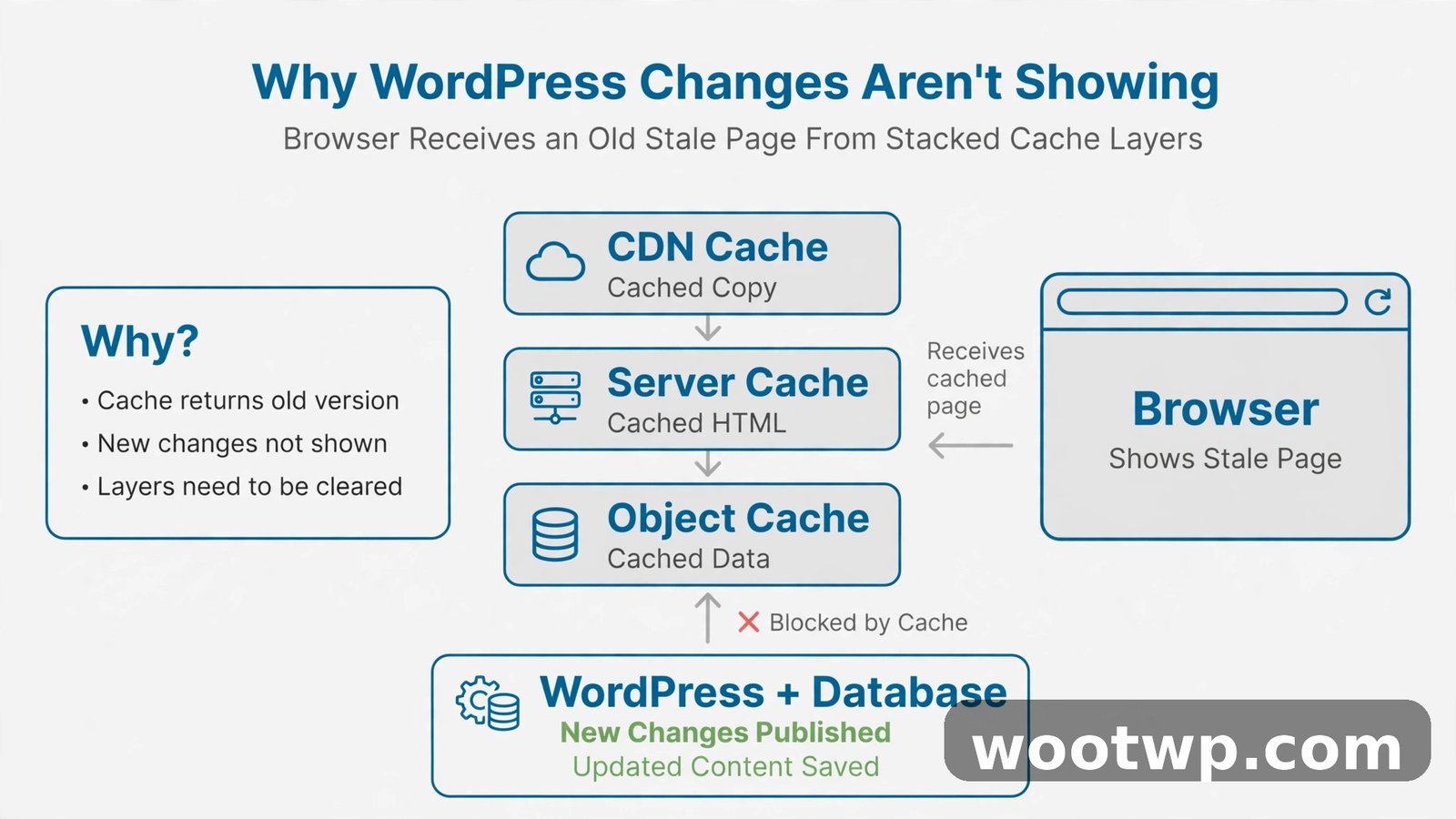
The catch is that WordPress doesn't have just one cache. There can be four or more of them working at the same time: your caching plugin, your web host, your CDN, and your own browser. Clear one and the others can keep serving the stale version. In this guide I'll walk you through each layer, in order, with the exact menu paths and commands I use on my own sites.
- Why Your WordPress Changes Aren't Showing Up
- How to Clear WordPress Cache With a Caching Plugin
- How to Clear Cache in WordPress Without a Plugin
- How to Clear Server and Host-Level Cache
- How Do I Clear My WordPress CDN Cache?
- Do I Need to Clear My Browser Cache Too?
- How to Check Your Cache Actually Cleared
- Common Cache Problems and Fixes
Why Your WordPress Changes Aren't Showing Up
Caching stores a ready-made copy of your pages so visitors get them faster. Instead of WordPress rebuilding every page from scratch on each visit — running PHP, querying the database, stitching the theme together — the cache hands over a saved snapshot. That's great for speed, but it means the snapshot can go stale.
Here's where confusion starts. When you click "Update" in WordPress, you're changing the original content. The cached snapshots don't know about it automatically. Most decent caching plugins do detect changes and clear the affected page, but theme changes, widget edits, menu updates, and CSS tweaks sometimes slip through.
In my experience, the number one scenario is this: you edit a page, preview looks fine because you're logged in, but logged-out visitors still see the old version. That's because most caching plugins bypass the cache for logged-in users. Your preview is real-time; their view is the snapshot. If you've just switched to one of those free WordPress themes with clean layouts and the new design isn't showing for visitors, stale cache is the first suspect, not the theme.
The golden rule: when something looks outdated or broken right after a change, clear the cache before you touch anything else. It solves the issue far more often than you'd expect, and it takes about 30 seconds per layer.
How to Clear WordPress Cache With a Caching Plugin
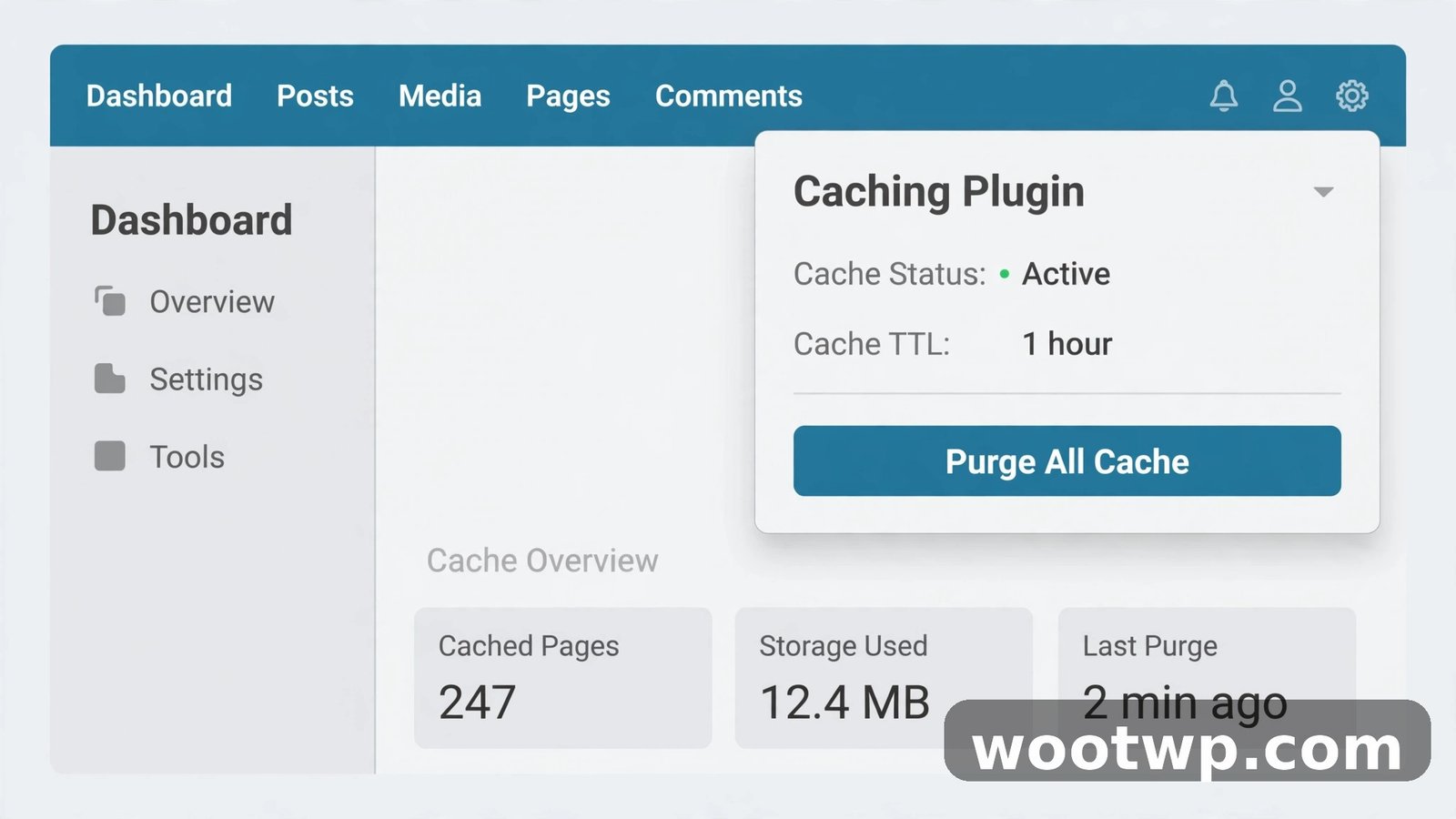
This is the layer most people need, and it's the easiest. If you installed a caching plugin — and on a production site, you should have one — it owns your page cache. Here are the exact steps for the popular ones.
LiteSpeed Cache
LiteSpeed Cache is free and widely bundled with shared hosting. To clear everything:
- In your WordPress dashboard, go to LiteSpeed Cache > Toolbox.
- On the Purge tab, click Purge All for the full cache, or Purge All – LSCache to clear only the page cache.
- Confirm when asked. You'll see a green success notice.
You can also purge from the top admin bar: hover LiteSpeed Cache and click Purge All. I keep the admin-bar option handy because I use it daily.
WP Rocket
WP Rocket is premium and handles this well:
- In the top admin bar, hover the WP Rocket menu.
- Click Clear Cache. That's it for the standard page cache.
- For a deeper clean, go to Settings > WP Rocket > Dashboard and click Clear and Preload Cache — this clears everything and rebuilds the cache for your key pages.
WP Rocket also has a Preload feature that warms the cache after clearing, so visitors don't hit a slow uncached page.
W3 Total Cache
- In the top admin bar, hover Performance.
- Click Purge All Caches.
- Or go to Performance > Dashboard and click empty all caches.
W3 Total Cache separates page cache, database cache, and object cache, so "Purge All Caches" is the one that covers everything.
WP Super Cache
- Go to Settings > WP Super Cache.
- Under the Easy tab, click Delete Cache.
- For a thorough job, switch to the Contents tab and click Delete Expired followed by Delete Cache.
If your site uses a different plugin, the option is almost always in the top admin bar or under the plugin's own menu — look for words like "Purge", "Clear Cache", or "Empty Cache". They all do the same thing.
How to Clear Cache in WordPress Without a Plugin
Maybe you don't have a caching plugin, or you need to clear WordPress's built-in object cache from the server side. WordPress keeps an internal object cache in memory during each page load, and persistent caching plugins like Redis or Memcached extend it across requests. Here's how to flush it.
Using WP-CLI (fastest method)
If you have SSH or terminal access to your hosting account:
- Connect to your server via SSH.
- Navigate to your WordPress installation directory. Usually something like:
cd ~/public_html or cd /var/www/html
- Run the flush command:
wp cache flush
- You should see:
Success: The cache was flushed.
The wp cache flush command clears the entire object cache — every cached database query, every transient stored in the object cache, everything. Use it carefully on a busy site: the first visits after a flush will be slower while the cache rebuilds.
Using a code snippet
If you don't have WP-CLI, you can flush the object cache with a tiny PHP snippet. The safe way is through the Code Snippets plugin or your theme's functions file, run once, then remove it:
wp_cache_flush();
Some developers run this via Tools > Site Health > Info in older workflows, but honestly, installing WP-CLI or using your host's cache tools is cleaner. The official documentation for the object cache lives in the WordPress Developer Resources on the WP_Object_Cache class, which explains exactly what gets stored and flushed.
Clearing transients
Transients are WordPress's way of caching expensive data (like API responses or widget output) with an expiration time. Most expire on their own, but a stuck transient can keep showing old data. The free Transients Manager plugin lets you view and delete them one by one from Tools > Transients. Delete selectively — don't nuke transients you don't recognize, since plugins rebuild them and a mass delete can temporarily slow things down.
How to Clear Server and Host-Level Cache
Here's the layer people miss. Many modern hosts run their own caching — Varnish, Nginx FastCGI cache, or a proprietary system — that sits in front of WordPress. Your plugin's purge button doesn't touch it. If you've cleared the plugin cache and pages are still stale, this is your next stop.
Hostinger
- Log in to hPanel.
- Go to Websites > Manage for your site.
- In the left sidebar, find Advanced > Cache (on some plans it's under Performance).
- Click Purge All or Clear Cache. LiteSpeed-based plans may show the LiteSpeed cache panel instead.
Cloudways
- Open the Cloudways platform and select your server.
- Go to Manage Services.
- Click Purge next to Varnish to clear the Varnish cache.
- If you use Redis or Memcached on the server, purge those from the same panel.
SiteGround
- Log in to Site Tools.
- Go to Speed > Caching.
- Under Dynamic Cache, click the three-dot menu and choose Purge All.
- Do the same for Memcached if it's enabled.
Kinsta, WP Engine, and managed hosts
Managed WordPress hosts almost always have a cache button in the hosting dashboard or a companion plugin in your WordPress admin. WP Engine, for example, adds a WP Engine menu with Purge All Caches. Kinsta puts it in the MyKinsta dashboard under your site's Tools section. The pattern is always the same: find your host's cache tool, hit purge, confirm.
One thing I've learned the hard way: after migrating a site or changing DNS, always purge the host-level cache even if the migration tool says it handled it. Stale server cache after a migration produces the weirdest symptoms — half the site new, half old — and a purge fixes it instantly.
How Do I Clear My WordPress CDN Cache?
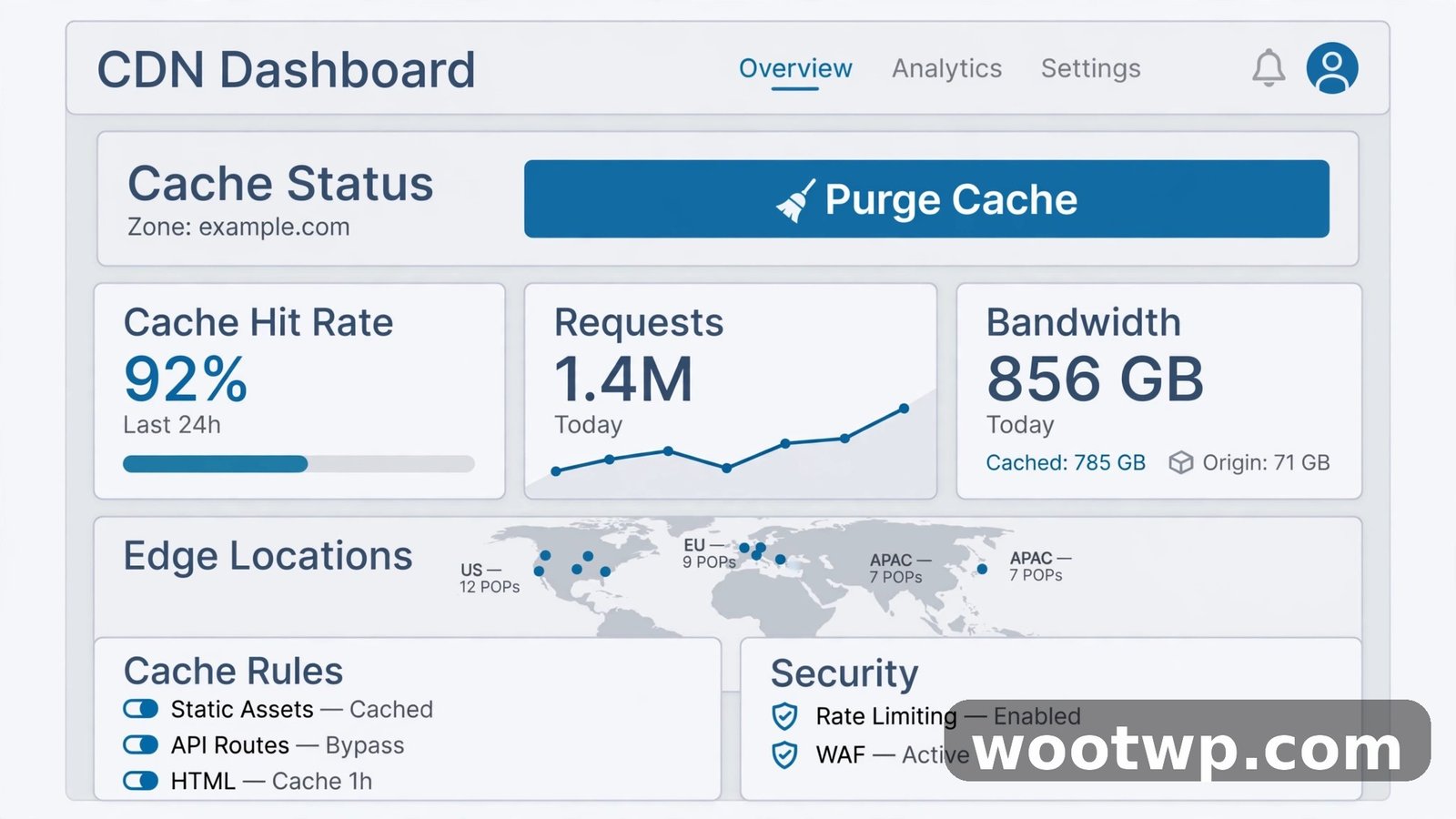
If you use a CDN like Cloudflare, Bunny CDN, or Sucuri, there's yet another cache layer. The CDN stores copies of your pages and assets on servers around the world. Clearing your plugin and host cache does nothing to these edge copies, so this step matters most after big changes.
Cloudflare (the most common setup)
- Log in to the Cloudflare dashboard and select your domain.
- Go to the Caching section, then Configuration.
- Click Purge Everything for a full clear. This is the safest option after design or content overhauls.
- For a single updated page, use Custom Purge and enter the exact URL instead — faster and less disruptive.
The official Cloudflare guide on purging cache walks through both options with screenshots if you want a visual reference.
A note on timing: Cloudflare's full purge can take 30 seconds or more to propagate globally. If you purge and immediately reload, you might still catch an old edge copy. Give it a minute, then check.
Bunny CDN and others
Bunny CDN users go to the Bunny dashboard, select the pull zone, and click Purge Cache. Sucuri users find it under Firewall > Clear Cache. The concept is identical everywhere: one button that invalidates the stored copies so the next visitor pulls fresh content from your origin server.
Don't forget static asset versioning
CDNs cache CSS and JavaScript files aggressively, sometimes with long expiry times. After changing your theme's styling, a CDN purge handles it — but if a single stylesheet refuses to update, check whether your caching plugin appends version query strings (like style.css?ver=2.1). Most do this automatically, which forces browsers and CDNs to fetch the new file. If yours doesn't, purge the CDN cache manually and move on.
Do I Need to Clear My Browser Cache Too?
Yes — and this is the layer that fools everyone, because it's personal. Your browser caches pages, images, stylesheets, and scripts locally. After you've cleared the plugin, host, and CDN caches, your own browser may still be showing you its private saved copy. You clear everything server-side, reload, see the old page, and conclude "clearing cache doesn't work." It worked fine. Your browser just didn't ask for the new version.
Hard refresh first (try this before a full clear)
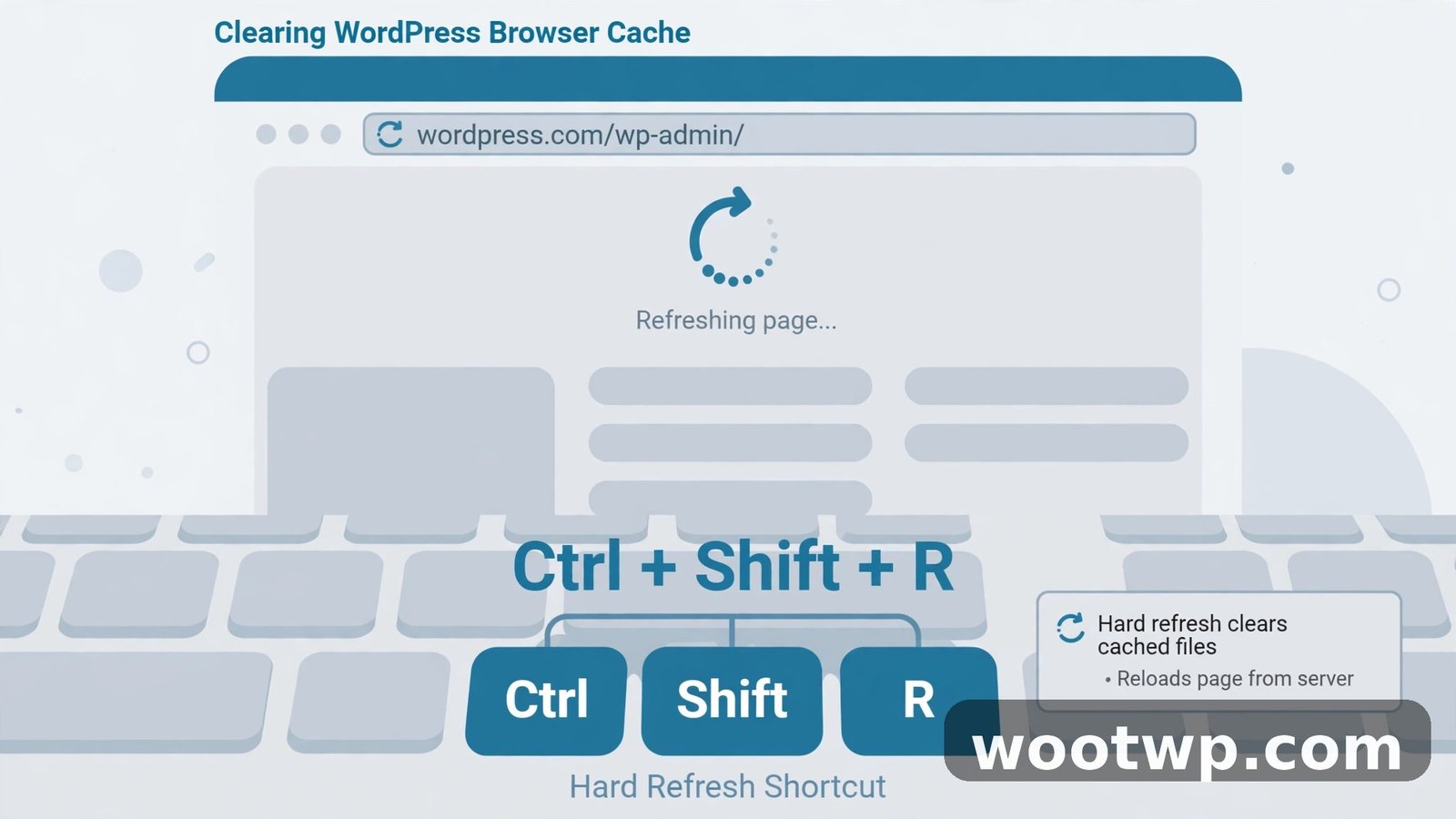
A hard refresh forces the browser to re-download the page instead of using its cache:
- Windows / Linux:
Ctrl + Shift + RorCtrl + F5 - Mac:
Cmd + Shift + R
This takes two seconds and fixes most "it's still showing the old version" cases on your own machine. I do this instinctively after every site change.
Full browser cache clear
If a hard refresh doesn't cut it — especially for stubborn CSS or JavaScript — clear the browser's cache properly:
- Chrome: Go to Settings > Privacy and security > Delete browsing data. Select Cached images and files, choose your time range, and click Delete data. For the full walkthrough with screenshots, see my guide on how to clear cookies and cache in Chrome.
- Firefox: Go to Settings > Privacy & Security > Cookies and Site Data and click Clear Data, checking Cached Web Content.
- Edge: Go to Settings > Privacy, search, and services > Clear browsing data and click Choose what to clear.
- Safari: Go to Settings > Privacy > Manage Website Data and click Remove All, or enable the Develop menu and use Empty Caches.
Test in an incognito window
Here's my favorite verification trick: open the page in a private/incognito window (Ctrl + Shift + N in Chrome). Incognito starts with a clean cache, so what you see there is what a new visitor sees. If the incognito view shows your changes but your normal window doesn't, the problem is 100% your browser cache — not the site.
How to Check Your Cache Actually Cleared
Clearing cache blindly and hoping is fine, but verifying takes a minute and saves you from chasing ghosts. Run through this checklist:
- Hard refresh the page (
Ctrl + Shift + R) in your normal browser. - Open the page in incognito mode — this is the true visitor view.
- Check on a different device or network, like your phone on mobile data. This rules out any caching at your ISP or office network level.
- Look at the page source (right-click > View Page Source) and search for your caching plugin's signature comment. WP Rocket, LiteSpeed Cache, and WP Super Cache all leave an HTML comment at the bottom noting when the cached page was generated. A fresh timestamp confirms a fresh cache.
- Verify dynamic content: log out of WordPress, then check the page. If the logged-out view matches your changes, the public cache is clean.
If everything checks out in incognito but your normal browser still shows old content, stop troubleshooting the site — it's your browser, full stop. Clear it or wait for its cache to expire.
Common Cache Problems and Fixes
Even with the right steps, cache can misbehave. Here are the issues I run into most often and how to fix each one.
Why does my WordPress site show old content after updating?
You cleared one layer but not all of them. The most common combo is clearing the plugin cache while the host-level or CDN cache still holds the old page. Work through the layers in order: plugin, then host, then CDN, then your browser. Also confirm you're checking while logged out — logged-in admins often bypass the cache entirely.
Why is my site slow right after clearing the cache?
That's normal and temporary. Clearing the cache deletes all the pre-built pages, so the first visitors trigger fresh page builds, which are slower. Most caching plugins offer preloading or warmup — WP Rocket preloads automatically, LiteSpeed Cache has a crawler under LiteSpeed Cache > Crawler. Enable it so the cache rebuilds itself instead of making visitors wait.
Can I clear the WordPress cache automatically?
Yes. Good caching plugins auto-purge the affected pages when you publish or update content. For scheduled full purges, some hosts offer cron-based cache clearing, and plugins like W3 Total Cache support purge schedules. I don't recommend purging everything on a timer, though — it defeats the purpose of caching. Let the automatic per-page purging do its job and clear manually only when something looks stale.
Why are my CSS changes not showing up?
CSS files get cached at every layer with long expiry times. After editing styles: purge the plugin cache, purge the CDN cache (Cloudflare caches static assets hard), then hard refresh your browser. If you're developing, most caching plugins have a development mode that bypasses the cache — LiteSpeed Cache calls it under LiteSpeed Cache > Presets with an "Advanced (no optimization)" option. Turn it on while you work, off when you're done.
Is it safe to clear the WordPress cache?
Completely safe. Clearing cache never deletes content, settings, media, or database records. It only removes the temporary snapshots, which WordPress rebuilds automatically. The worst case is a brief period of slower page loads while the cache warms up again. There's no version of "clear cache" that breaks your site.
Should I use more than one caching plugin?
No — never run two page-caching plugins at once. They conflict, produce unpredictable results, and can even serve broken pages. Pick one caching plugin and pair it with your host's server-level cache and optionally a CDN. One layer of each type is the correct setup.
FAQs
How do I clear the WordPress cache from the admin dashboard?
Hover over your caching plugin's menu in the top admin bar and click Purge All or Clear Cache. In LiteSpeed Cache, go to LiteSpeed Cache > Toolbox > Purge and click Purge All. In WP Rocket, hover the WP Rocket menu and click Clear Cache. The exact label varies by plugin, but every caching plugin puts this option in the admin bar or its own settings menu.
What is the WP-CLI command to clear WordPress cache?
The command is wp cache flush. Run it from your WordPress installation directory over SSH. It clears the entire object cache, including cached database queries and transients stored in the object cache. You'll see a "Success: The cache was flushed" message when it completes.
How often should I clear my WordPress cache?
Rarely, and only when needed. A well-configured caching plugin automatically purges changed pages when you publish or update content. Manual full clears are for troubleshooting — stale content, post-migration weirdness, or after major theme changes. Purging everything daily or on a schedule just slows your site down for no benefit.
Why is my WordPress site not updating for visitors but looks fine to me?
Because you're logged in. Most caching plugins bypass the cache for logged-in users, so admins see live content while visitors see cached snapshots. Log out or open an incognito window to see what visitors actually see. If the logged-out view is stale, clear your cache layers in order: plugin, host, CDN, browser.
Does clearing WordPress cache delete my content?
No. Clearing cache only removes temporary generated copies of your pages. Your posts, pages, media files, comments, and settings all stay exactly where they are. WordPress rebuilds the cache automatically as visitors browse the site.
How do I clear cache on WordPress without a plugin?
Use WP-CLI's wp cache flush command over SSH to clear the object cache, clear your host's server-level cache from the hosting dashboard, purge your CDN cache from its dashboard, and hard refresh your browser with Ctrl+Shift+R. For page caching without any plugin, most hosts provide their own cache tool in the hosting panel.
Conclusion
Learning how to clear WordPress cache is really about knowing the layers: your caching plugin, your host's server cache, your CDN, and your browser. Clear them in that order, verify in an incognito window, and the "my changes aren't showing" problem stops being a problem. Next time your site looks stuck, skip the panic and the plugin reinstalls — purge the cache first. It fixes the issue far more often than anything else you'll try.