
How to Stop WhatsApp Auto Downloading Media: 6 Quick Fixes
Every photo, video, and voice note someone sends you on WhatsApp can land on your phone without you asking for it. That is the default behavior, and it is why so many people run out of storage. If you want to learn how to stop WhatsApp auto downloading media, the fix takes about two minutes, and you can do it separately for mobile data, Wi-Fi, and roaming. This guide walks you through the exact settings on Android and iPhone, the middle-ground setup most people actually want, and how to clean up the files WhatsApp already saved.
- Auto-Download vs Media Visibility: Two Settings, Not One
- How to Stop WhatsApp Auto Downloading Media on Android
- How to Stop WhatsApp Auto Downloading Media on iPhone
- A Middle-Ground Setup That Works for Most People
- How to Stop WhatsApp Media Showing in Your Gallery
- How to Stop WhatsApp Auto-Download on WhatsApp Web and Desktop
- Clean Up the Media WhatsApp Already Saved
- What Still Downloads After You Turn It Off
- Frequently Asked Questions
Why WhatsApp Fills Your Phone So Fast
WhatsApp is built for speed. When a friend sends a photo, the app wants it ready the instant you open the chat. So by default, it downloads photos automatically, and on Wi-Fi it often grabs videos too.
That feels fine with one or two photos. It stops feeling fine in a busy family group. Ten people sharing good-morning images, birthday videos, and forwarded clips can add hundreds of megabytes in a week. That is why so many people look up how to turn whatsapp auto download off, and why the fix below is worth the two minutes it takes. On a phone with limited storage, that is the difference between installing an update and getting a "storage full" warning.
The good news is that you stay in control. Once you know how to stop WhatsApp auto downloading media, your chats still work normally. Messages still arrive. You just tap a photo or video to download it when you actually want to see it.
Auto-Download vs Media Visibility: Two Settings, Not One
Most guides skip this, and it causes a lot of confusion. WhatsApp has two separate settings, and they do different jobs.
Media auto-download decides whether a file is downloaded to your phone in the first place. When it is off, a photo stays on WhatsApp's servers until you tap it.
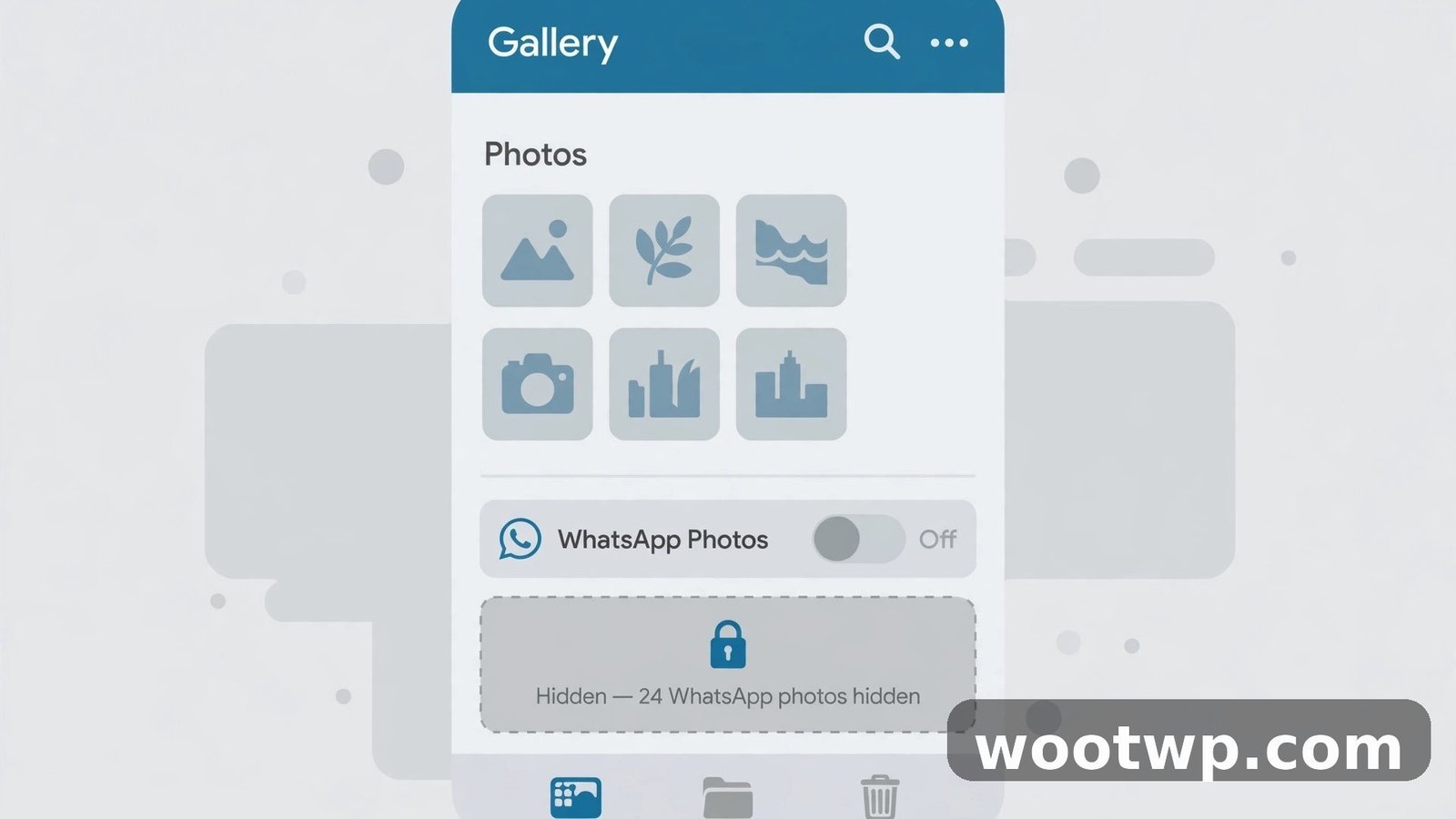
Media visibility decides whether downloaded media shows up in your phone's gallery or Photos app. When it is off, files you do download stay inside WhatsApp and do not clutter your gallery.
Here is the part that trips people up: turning off auto-download does not stop old media from showing in your gallery. If your goal is to stop whatsapp saving photos to your gallery, the media visibility setting is the one that does that job. And turning off media visibility does not stop WhatsApp from downloading files and eating storage. You need to check both settings if you want a clean gallery and a phone with free space.
In my experience, the best order is to fix auto-download first, then media visibility, then clean up what is already there. The sections below follow that order.
How to Stop WhatsApp Auto Downloading Media on Android
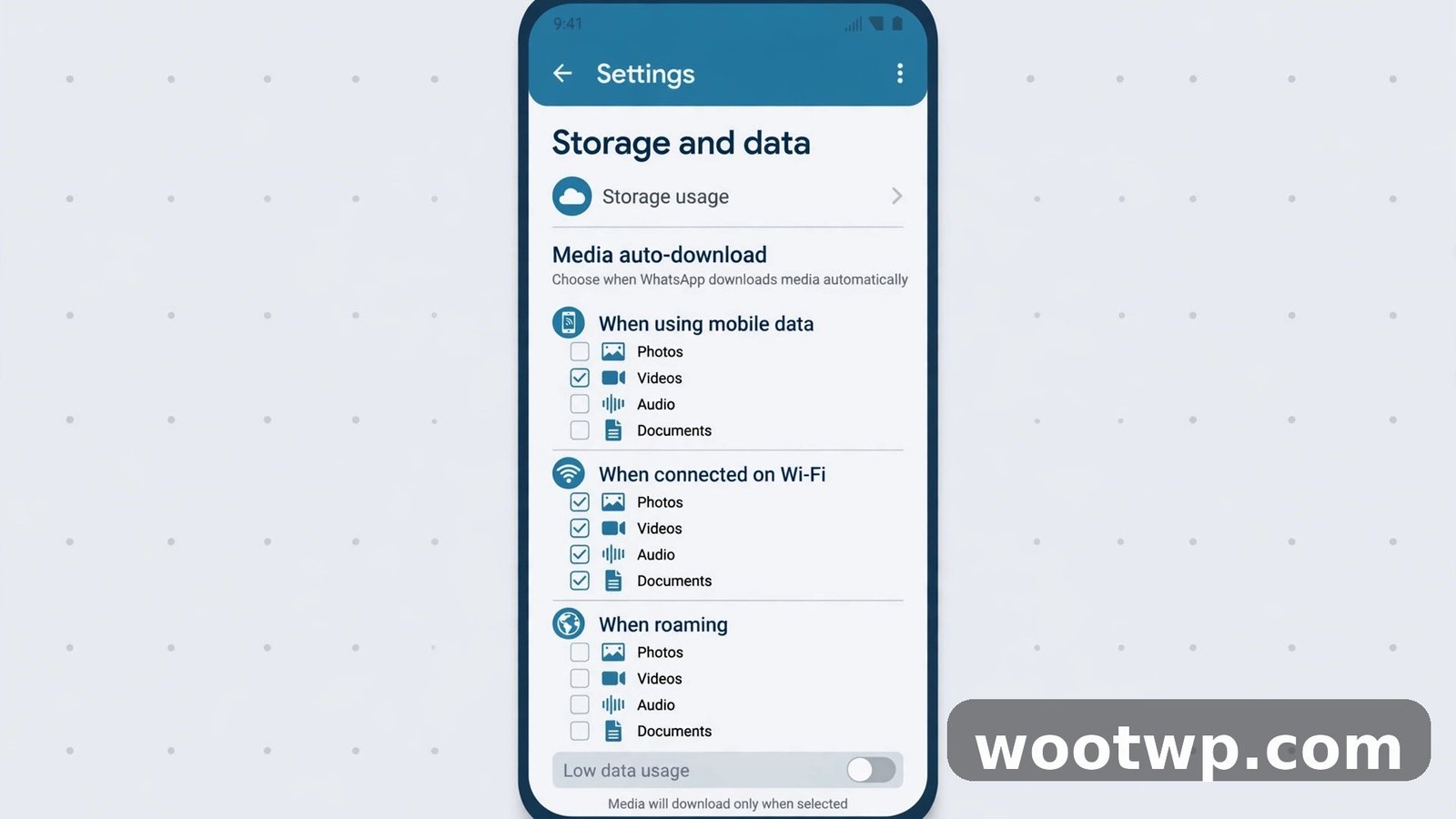
Android gives you three separate controls: one for mobile data, one for Wi-Fi, and one for roaming. You need to set all three, or WhatsApp will keep downloading on the connection you missed. The whatsapp media auto-download controls live under Settings, then Storage and data, on both Android and iPhone, so the path is easy to remember once you have done it.
Follow these steps to learn how to stop WhatsApp auto downloading media on Android:
- Open WhatsApp.
- Tap the three dots in the top-right corner.
- Tap Settings.
- Tap Storage and data.
- Under Media auto-download, tap When using mobile data.
- Uncheck Photos, Audio, Videos, and Documents, or tap No media if your version shows that option.
- Tap OK.
- Go back and tap When connected on Wi-Fi.
- Uncheck all four media types again and tap OK.
- Go back and tap When roaming.
- Uncheck all four media types again and tap OK.
That is it. From now on, photos and videos arrive as blurred previews with a download arrow. Tap one only when you want to see it.
One detail worth knowing: the roaming setting matters more than people think. If you travel and your phone switches to a roaming network, WhatsApp uses the roaming rules, not your normal mobile data rules. Set it to No media and you will never get a surprise data bill from a group chat while you are abroad.
If you use two WhatsApp accounts on one Android phone, repeat these steps in each account. The setting is per account, not per phone, so changing it in one account leaves the other one downloading everything. For a full walkthrough of running a second account, see this guide on how to use two WhatsApp accounts on one Android phone.
How to Stop WhatsApp Auto Downloading Media on iPhone
iPhone handles this a little differently. There is no separate roaming control, and the setting uses Never instead of unchecking boxes. The path is short, and here is how to stop WhatsApp auto downloading media on iPhone:
- Open WhatsApp.
- Tap Settings in the bottom-right corner.
- Tap Storage and Data.
- Under Media Auto-Download, tap Photos.
- Select Never.
- Go back and tap Audio.
- Select Never.
- Go back and tap Videos.
- Select Never.
- Go back and tap Documents.
- Select Never.
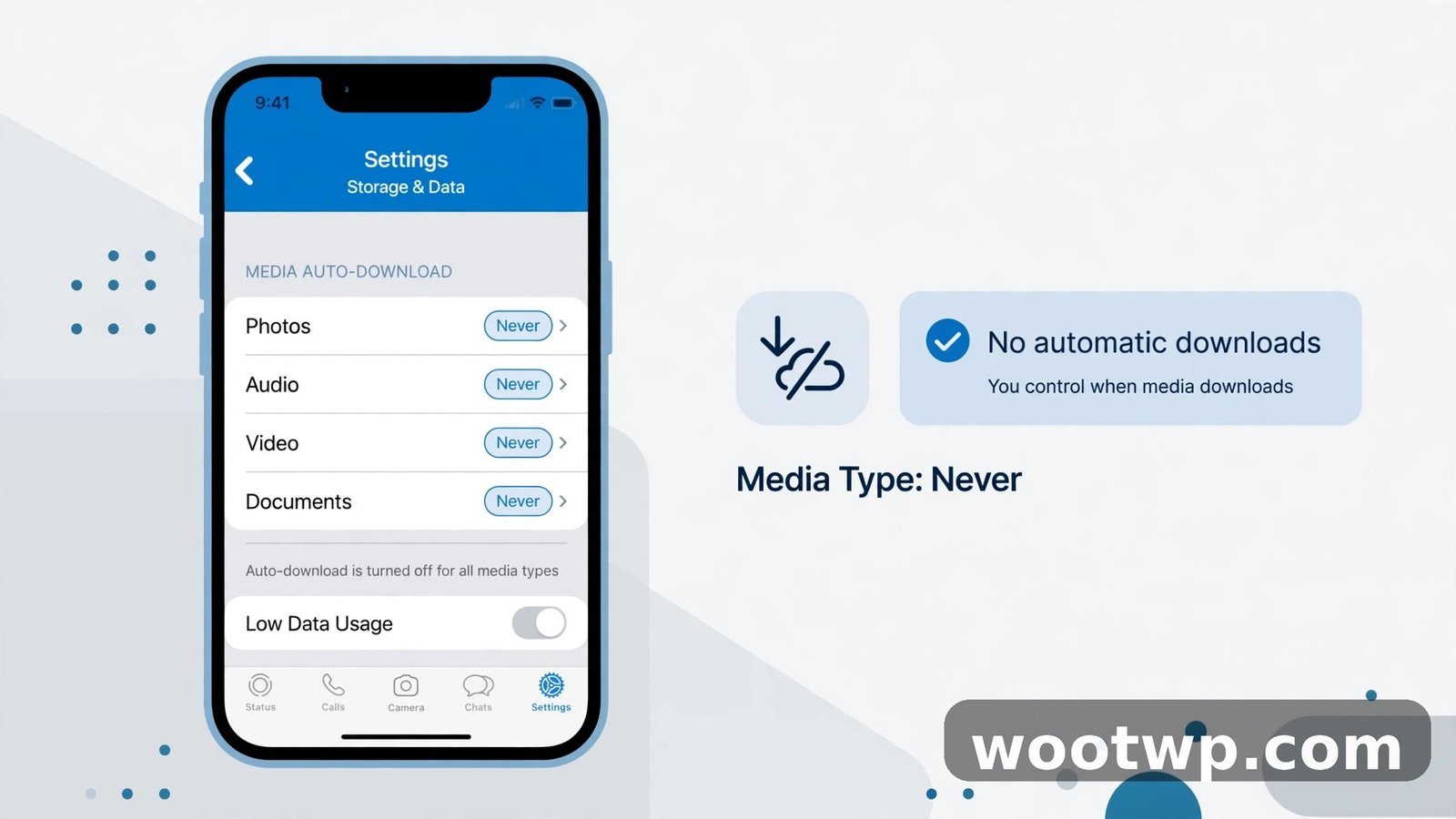
You can set each type on its own, which is handy. Some people set photos to Wi-Fi and videos to Never, so pictures still load at home but big videos never download without a tap.
There is one more iPhone setting that sits nearby and is easy to miss. On the same Storage and Data screen, look for the Save to Photos option under Media Auto-Download on older versions, or under Chats on newer versions. That controls whether downloaded media is copied into your iPhone Photos app. Turn it off if you want downloaded photos to stay inside WhatsApp only. I cover that in detail in the gallery section below.
A Middle-Ground Setup That Works for Most People
Turning everything off is the cleanest option, but it is not always the most convenient. Tapping every single photo to load it gets old fast, especially in chats with people you trust. Plenty of people want a middle ground, and WhatsApp supports it well. If you already know how to stop WhatsApp auto downloading media completely, this setup is simply a softer version of the same steps.
Here is the setup I recommend to friends and family:
- Photos on Wi-Fi only. Photos are small, usually a few hundred kilobytes each, and they make chats feel instant at home.
- Videos set to Never on every connection. Videos are the storage hogs. A single 30-second clip can be bigger than a hundred photos.
- Audio set to Never on mobile data, Wi-Fi only if you listen to a lot of voice notes. Voice notes are small, but forwarded audio files can pile up.
- Documents set to Never everywhere. You almost always want to choose which PDF or file to open, and documents are easy to find again in the chat.
To set this up on Android, go to Settings > Storage and data > Media auto-download, then set When using mobile data to No media and When connected on Wi-Fi to Photos only. On iPhone, set Photos to Wi-Fi and everything else to Never.
This setup keeps your chats fast while stopping the real problem, which is videos and documents quietly filling your storage. If your phone still fills up, switch photos to Never too and see how it feels for a week. You can always change it back in seconds.
How to Stop WhatsApp Media Showing in Your Gallery
Even once you know how to stop WhatsApp auto downloading media, you may still see old WhatsApp photos in your gallery. That is the media visibility setting doing its job badly, or rather doing exactly what it was told to do. Here is how to fix it for all chats, and for one chat only.
Turn Off Gallery Saving for All Chats
On Android:
- Open WhatsApp.
- Tap the three dots, then Settings.
- Tap Chats.
- Turn off Media visibility.
On iPhone:
- Open WhatsApp.
- Tap Settings.
- Tap Chats.
- Turn off Save to Photos.
From now on, media you download stays inside WhatsApp and does not appear in your gallery or Photos app. Media you already downloaded stays where it is, so you still need the cleanup steps later in this guide.
Turn It Off for One Chat or Group Only
Some chats are the problem, not all of them. A family group that shares a hundred photos a day is different from a one-to-one chat with your partner. WhatsApp lets you control this per chat.
On Android:
- Open the chat or group.
- Tap the contact or group name at the top.
- Tap Media visibility.
- Select No.
- Tap OK.
On iPhone:
- Open the chat or group.
- Tap the contact or group name at the top.
- Tap Save to Photos.
- Select Never.
This is the single most useful trick in this guide for group chats. You keep your own photos clean while the group keeps working normally for everyone else. Nobody in the group sees that you changed it.
How to Stop WhatsApp Auto-Download on WhatsApp Web and Desktop
WhatsApp Web and the desktop app have their own setting, and it is separate from your phone. Changing it on your phone does not change it on your computer, so the steps for how to stop WhatsApp auto downloading media on WhatsApp Web are worth doing too if you use the desktop app.
On WhatsApp Web or the desktop app:
- Click the three dots or the settings gear.
- Open Settings.
- Click Storage or Storage and data, depending on your version.
- Find the media auto-download options.
- Uncheck Photos, Audio, Videos, and Documents, or set each one to Never.
The desktop setting mostly affects how quickly media appears when you open a chat on your computer. It does not save much space, since your computer usually has more storage than your phone, but it does stop WhatsApp Web from downloading every video in a busy group the moment you open it. If you use WhatsApp Web at work, turning it off also keeps random group media from popping up on a shared screen.
Clean Up the Media WhatsApp Already Saved
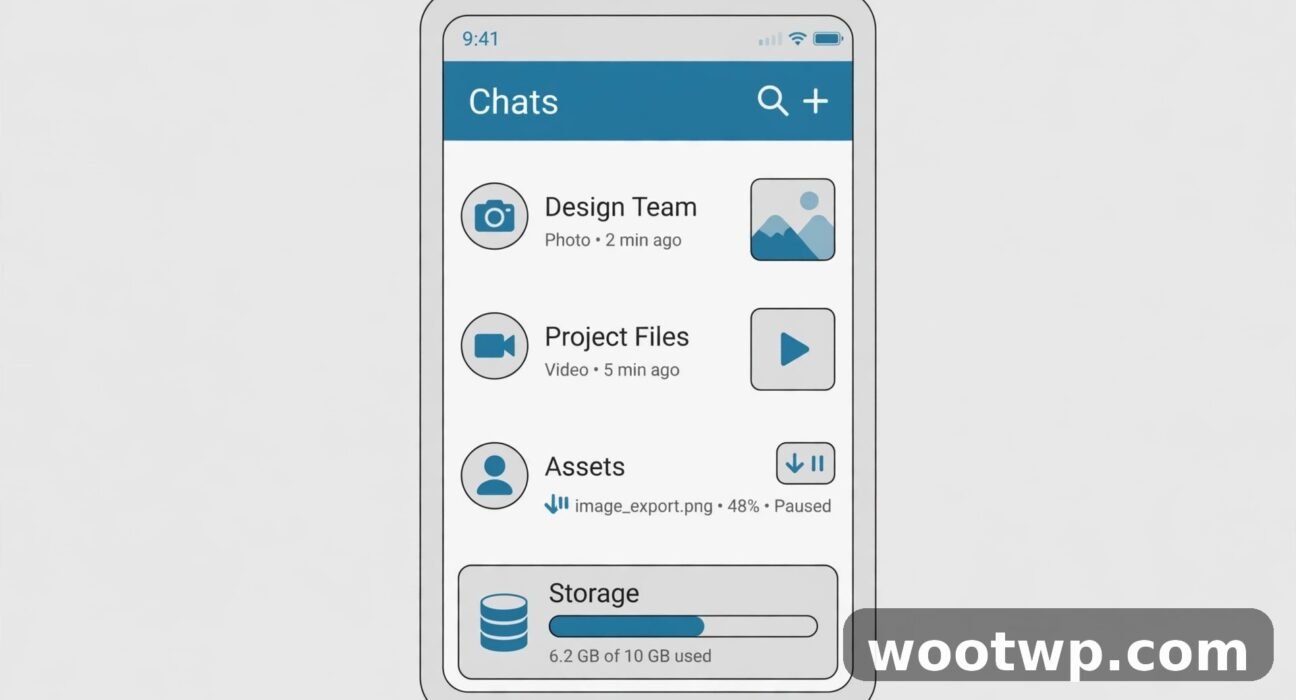
Once you have learned how to stop WhatsApp auto downloading media, new downloads stop. But changing the setting does nothing about the gigabytes already on your phone. WhatsApp has a built-in cleanup tool, and it is better than most people expect.
Use Manage Storage
On Android and iPhone:
- Open WhatsApp.
- Go to Settings > Storage and data > Manage storage.
- At the top you will see how much space WhatsApp is using.
- Tap Larger than 5 MB to see the biggest files first.
- Tap a file to preview it, select the ones you do not need, and tap the delete icon.
- Go back and tap Forwarded many times to clear the clips that have been passed around over and over.
- Scroll down to the chat list, which is sorted by size, and open the biggest chats to delete media inside them.
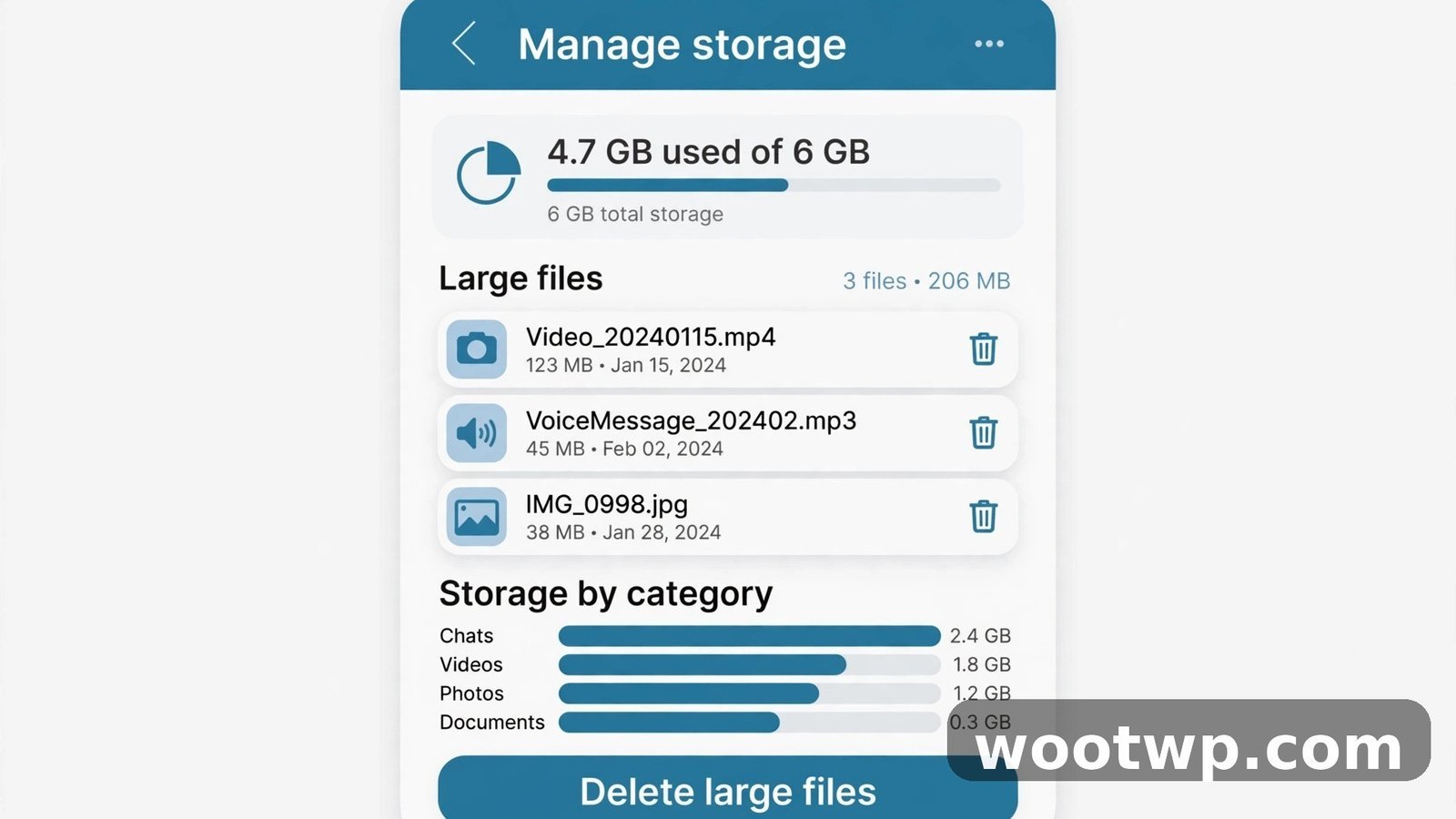
I have seen phones free up several gigabytes from this screen alone, mostly from videos in two or three group chats. The tool shows you the file before you delete it, so you can keep the photos that matter and drop the rest.
Delete Media From One Chat
If one group is the main offender, you do not need to clean the whole app:
- Open the chat.
- Tap the contact or group name at the top.
- Tap Media, links, and docs.
- Select the files you want to remove.
- Tap the delete icon.
Deleted media is gone from your phone, but it stays in the chat for other people unless you also choose Delete for everyone, which only works for messages you sent and only within a short time window.
If storage is still tight after cleaning WhatsApp, the problem may be bigger than one app. This guide on how to free up storage on Android without deleting photos walks through clearing caches, offloading unused apps, and finding hidden large files without losing a single photo.
A Quick Note on Backups
Deleting media from your phone does not delete it from your chat backup if the backup was already made. If you back up to Google Drive or iCloud, the next backup will reflect what is on your phone now. Old backups keep their old contents until they are replaced. That is worth knowing if you are deleting something sensitive and expecting it to vanish everywhere at once. It will not, until the next backup runs.
What Still Downloads After You Turn It Off
Figuring out how to stop WhatsApp auto downloading media changes a lot, but it does not freeze WhatsApp completely. A few things still happen, and knowing them in advance saves confusion.
Voice messages you tap still download. When you press play on a voice note, WhatsApp downloads it so it can play. That is normal, and voice notes are tiny. The setting only stops them downloading before you ask.
Files you open still download. Tapping a photo, video, or document downloads that one file. That is the whole point of the setting: you choose, file by file.
Profile photos and stickers still load. Small images like contact photos and stickers are not covered by the media auto-download setting. They are tiny and do not affect storage in any meaningful way.
Status updates may still preload on Wi-Fi. WhatsApp sometimes preloads status updates so they play smoothly. If you watch a lot of statuses, that uses some data, but it is far less than group videos.
What the setting does NOT do: it does not stop people from sending you media, it does not delete anything already on your phone, it does not hide media from your gallery on its own, and it does not reduce your chat backup size until the next backup runs. Each of those needs the separate steps covered above.
One more thing I have seen confuse people: if someone sends you a photo and you tap it to view it, then later clear the chat, the photo goes with it. If you want to keep a photo, save it to your gallery first, or star the message so you can find it again later.
Frequently Asked Questions
How do I stop WhatsApp from auto downloading media on Android?
Go to Settings, then Storage and data, then Media auto-download. Set When using mobile data, When connected on Wi-Fi, and When roaming to No media, or uncheck Photos, Audio, Videos, and Documents in each one. New media will arrive as a preview you tap to download.
How do I stop WhatsApp from auto downloading media on iPhone?
Open WhatsApp Settings, tap Storage and Data, then set Photos, Audio, Videos, and Documents to Never under Media Auto-Download. You can also turn off Save to Photos under Chats so downloaded media does not appear in your Photos app.
Does turning off auto-download stop WhatsApp from saving photos to my gallery?
Not on its own. Learning how to stop WhatsApp auto downloading media only controls whether files are downloaded, while media visibility controls whether downloaded files appear in your gallery. Turn off Media visibility on Android or Save to Photos on iPhone as well if you want your gallery to stay clean.
Why is WhatsApp still downloading photos after I turned off auto-download?
The most common reason is that one of the three Android connection settings was missed, usually Wi-Fi or roaming. Check all three, and double-check the whatsapp storage and data screen to confirm each media type is off. On iPhone, check that each media type is set to Never. Also remember that tapping a photo downloads it, so a file you opened yourself is expected.
Can I stop auto-download for one group only?
There is no per-group auto-download switch, but you can turn off media visibility for a single group so its photos never reach your gallery. Open the group, tap its name, then set Media visibility to No on Android or Save to Photos to Never on iPhone. For downloads themselves, use the middle-ground setup and simply do not tap media in that group.
Will turning off auto-download save mobile data?
Yes, and this is where the whatsapp storage and data settings earn their keep. With auto-download off on mobile data, WhatsApp only uses data for text messages and the media you choose to open. Videos in group chats are the biggest data drain, so setting videos to Never on mobile data makes the largest difference.
Conclusion
Learning how to stop WhatsApp auto downloading media is a small change with a big payoff: fewer storage warnings, less mobile data used, and a gallery that only holds photos you actually chose. Set auto-download to No media or Never, turn off media visibility for noisy groups, and clear out what is already saved with Manage storage. Do those three things once, and your phone will stay clean without you thinking about it again.