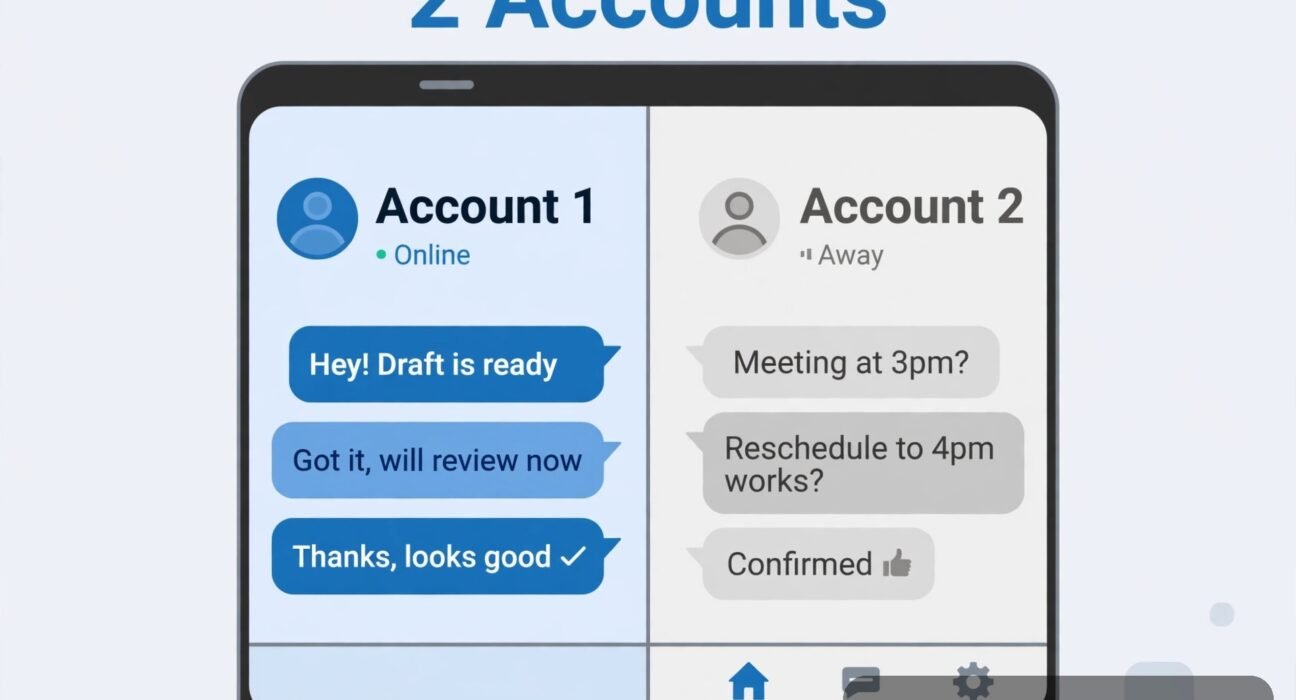
How to Use Two WhatsApp Accounts on One Android Phone: 4 Easy Ways
Keeping work chats and personal chats on the same phone used to mean carrying two handsets or constantly logging in and out. That is no longer the case. If you want to learn how to use two WhatsApp accounts on one Android phone, you have several safe options, and the best one is built right into WhatsApp itself.
In this guide, I will walk you through the official multi-account feature first, then WhatsApp Business, then your phone maker’s dual-app feature, so you can pick the method that fits your phone and your second number. I will also warn you about the one method you should avoid, because it can get your account banned.
- What You Need Before You Start
- Method 1: How to Use Two WhatsApp Accounts on One Android Phone With the Built-In Feature
- Method 2: Use WhatsApp Business for Your Second Number
- Method 3: Use Your Phone’s Dual Apps or App Clone Feature
- Method 4: Link a Second Phone With Linked Devices (Same Account, Two Phones)
- How to Switch Between Accounts and Manage Notifications
- What to Avoid: Unofficial WhatsApp Mods
- Troubleshooting Common Problems
- Frequently Asked Questions
What You Need Before You Start
Every method for running two WhatsApp accounts needs two different phone numbers. WhatsApp ties each account to one number, and you cannot register the same number twice. Before you start, make sure you have:
- Two active phone numbers that can each receive an SMS or a verification call. This can be two physical SIM cards, one physical SIM plus one eSIM, or a second number on another phone that can receive the code for you.
- The latest version of WhatsApp from the Google Play Store. The built-in multi-account feature needs a recent version, so update first if you have not in a while.
- A phone with enough free storage. Two accounts mean two sets of chats, photos, and backups, so free up space if your phone is nearly full. Our guide on how to free up storage on Android without deleting photos can help if space is tight.
One more thing to know: each account keeps its own chats, settings, and backup. Your work account will not see your personal chats, and your personal account will not see your work chats. That separation is the whole point, and it works well once you set it up.
Method 1: How to Use Two WhatsApp Accounts on One Android Phone With the Built-In Feature
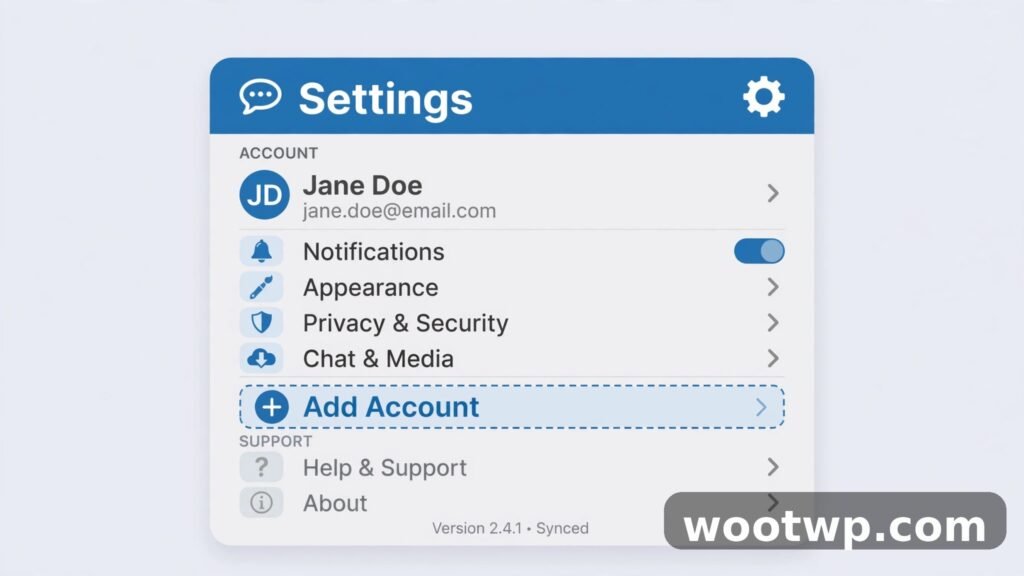
This is the method I recommend for most people. WhatsApp added official multi-account support on Android, so you can run two accounts inside the same app, switch between them with a tap, and keep everything official and safe. WhatsApp’s own Help Center confirms the feature and its requirements if you want to check the latest details.
- Open WhatsApp on your Android phone and make sure your main account is working normally.
- Tap the three-dot menu in the top-right corner and choose Settings.
- At the top of the Settings screen, tap the small arrow next to your name and profile picture.
- Tap Add Account.
- Read the on-screen information and tap Agree and Continue.
- Enter your second phone number, including the correct country code, and tap Next.
- Wait for the verification code by SMS. If SMS does not arrive after a couple of minutes, tap the option to receive a call instead.
- Enter the code, then set up the second account: add a name, a profile picture, and your privacy settings for that account.
That is it. Both accounts now live in the same app. To switch, go to Settings and tap the arrow next to your name, then choose the other account. You can also switch from the same menu without digging through settings each time, which makes jumping between work and personal chats quick.
Each account keeps its own:
- Chat list, messages, and call history
- Profile picture, name, and About text
- Privacy settings, including last seen, read receipts, and profile photo visibility
- Notification sound and vibration settings
- Backup settings, if you back up each account separately to Google Drive
In my experience, this is the cleanest setup because there is only one app icon on your home screen and one app to update. The only downside is that you need to remember which account is active before you send a message, since sending from the wrong account is the most common mistake people make with this method. Get into the habit of glancing at the profile picture at the top of the chat list before you type.
Method 2: Use WhatsApp Business for Your Second Number
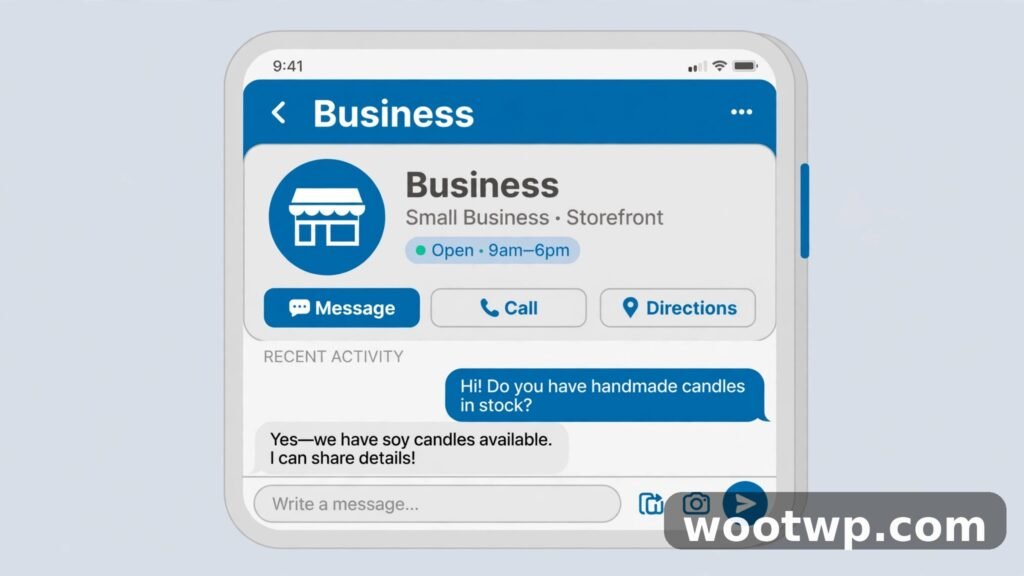
If your second account is for work, a shop, or a side business, WhatsApp Business is an excellent choice. It is an official app from the same company, it installs alongside regular WhatsApp, and it gives you business features the regular app does not have.
- Install WhatsApp Business from the Google Play Store. Do not uninstall regular WhatsApp.
- Open WhatsApp Business and tap Agree and Continue.
- Enter your second phone number and verify it with the SMS code or call.
- Set up your business profile: business name, category, description, address, email, and website if you have one.
- Optional but useful: set up a greeting message for new customers, an away message for off-hours, and quick replies for questions you answer often.
The big advantage here is separation. You get two app icons on your home screen, one for personal chats and one for business chats, so you never mix them up. Notifications also stay distinct, which means you can mute the business app after hours while keeping personal notifications on.
WhatsApp Business also lets you label chats, so you can tag customers as “new,” “pending payment,” or “regular” and filter by those labels later. If you run a small shop or freelance service from your phone, those labels alone are worth using this method.
One caution: use a real second number for the business account, not your personal number. If you register WhatsApp Business with your personal number, you will end up with two apps fighting over the same account, which causes confusion and missed messages.
Method 3: Use Your Phone’s Dual Apps or App Clone Feature
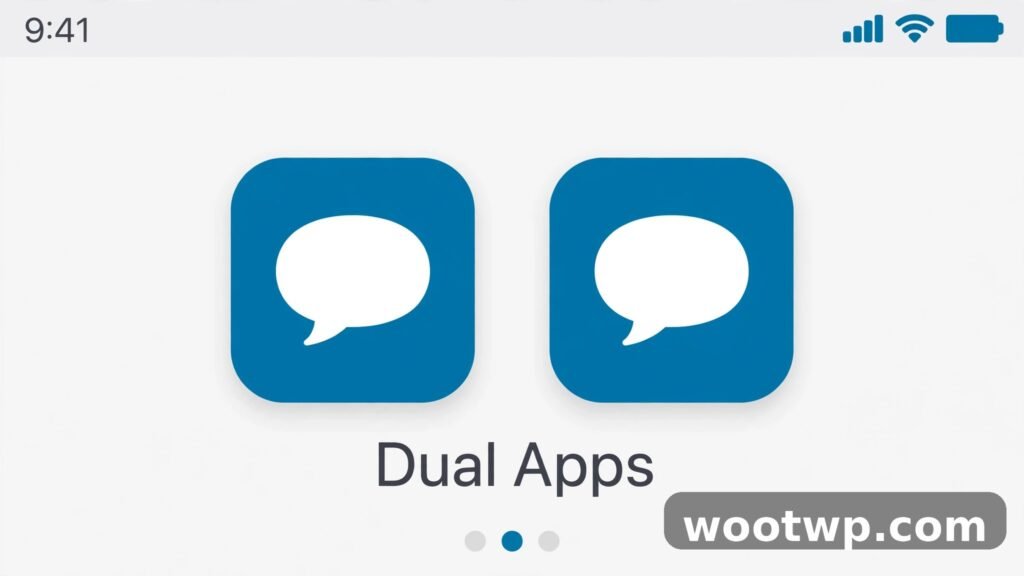
Many Android phone makers include a built-in feature that clones an app so you can run two copies of it. Samsung calls it Dual Messenger, Xiaomi calls it Dual Apps, Huawei calls it App Twin, and other brands use names like App Cloner or Parallel Apps. The idea is the same: a second WhatsApp icon appears, and you sign into it with your second number.
Here is how it works on Samsung, the most common example:
- Open Settings on your Samsung phone.
- Go to Advanced Features.
- Tap Dual Messenger.
- Find WhatsApp in the list and turn the toggle on.
- Confirm when the phone asks to install the second copy of WhatsApp.
- Open the second WhatsApp icon, which has a small orange badge on it, and sign in with your second number.
On Xiaomi phones, the path is Settings, then Apps, then Dual Apps, then turn on WhatsApp. On other brands, search Settings for “dual,” “clone,” or “parallel” and you will find the right option quickly.
This method is safe because it uses the official WhatsApp app, just a second copy of it. It is a good fallback if the built-in multi-account feature is not showing on your phone yet, or if you prefer two separate icons on your home screen.
There are two limits to know about. First, not every phone has this feature, especially budget models and Google Pixel phones, which do not include a clone feature. Second, cloned apps sometimes behave oddly after major system updates, so if your second WhatsApp stops receiving notifications, check that the clone is still enabled and that battery optimization is not killing it in the background.
Method 4: Link a Second Phone With Linked Devices (Same Account, Two Phones)
This method answers a slightly different question, so I include it to clear up confusion. Linked Devices lets you use the same WhatsApp account on up to four extra devices, including a second phone. It does not give you a second account; it gives you the same account on two phones.
- On your second phone, install WhatsApp and choose Link as Companion Device instead of entering a number.
- A QR code appears on the second phone’s screen.
- On your main phone, open WhatsApp, go to Settings, then Linked Devices, then Link a Device.
- Scan the QR code on the second phone with your main phone.
Your chats sync to the second phone, and you can send and receive messages from either device. This is useful if you want WhatsApp on a work phone and a personal phone without juggling two numbers.
Do not confuse this with the methods above. If your goal is two separate accounts with two numbers, use Method 1, 2, or 3. If your goal is one account on two phones, use this one.
How to Switch Between Accounts and Manage Notifications
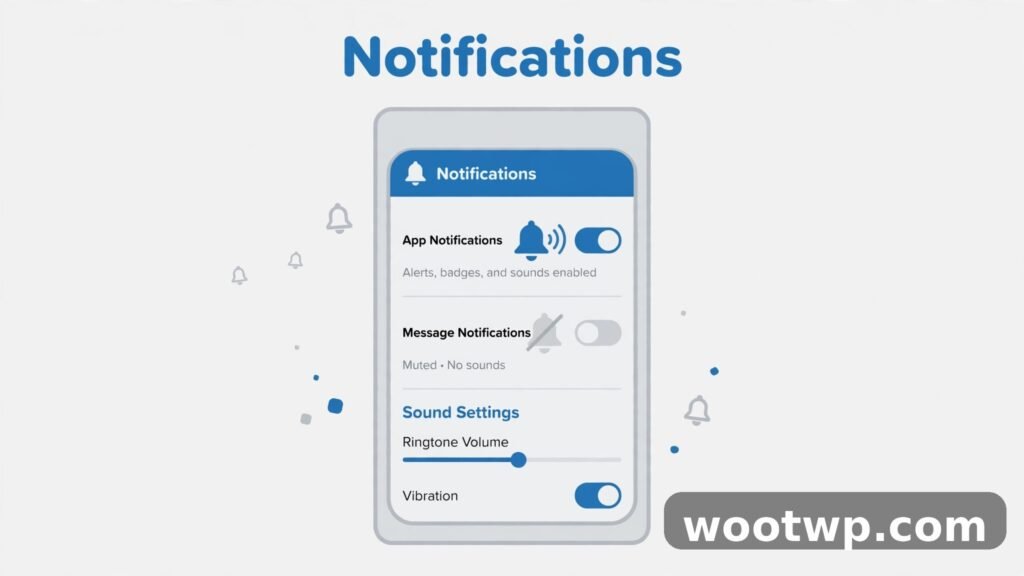
Running two accounts is only useful if you can tell them apart at a glance. Set this up right after adding your second account.
Use different profile pictures. Give each account a clearly different photo: your face for personal, a logo or a work photo for business. Your profile picture is the fastest visual cue for which account is active.
Use different notification sounds. In WhatsApp, go to Settings, then Notifications, and set a different message tone for each account. A distinct sound for work messages means you know which account buzzed without unlocking your phone.
Mute strategically. You can mute individual chats, but you can also mute a whole account’s notifications from your phone’s Settings, then Apps, then WhatsApp, then Notifications. Many people mute the work account in the evening and unmute it in the morning, which is a simple way to protect personal time.
Check which account is active before sending. Before you send a sensitive message, glance at the top of the screen. In the built-in multi-account view, the active account’s name and picture show in Settings and on the chat list. Sending a personal message from your work account, or the reverse, is embarrassing and avoidable with a one-second check.
Back up both accounts. If you use Google Drive backup, each account backs up separately under its own number. Open Settings, then Chats, then Chat Backup in each account and confirm backup is on. Losing a phone hurts far less when both accounts restore cleanly.
When you switch phones, remember to move your two-factor codes too: our guide on how to transfer Google Authenticator to a new phone covers that step so you do not get locked out of your accounts.
What to Avoid: Unofficial WhatsApp Mods
You will find modified WhatsApp apps online that promise two accounts, extra themes, and hidden features. Names change constantly, but the pattern is the same: a third-party build of WhatsApp that is not from the official developer.
Avoid these completely. WhatsApp’s own help pages warn that using unofficial apps can get your account temporarily or permanently banned, because these apps break WhatsApp’s terms of service. They also carry real security risks: the code is not reviewed by Google Play, it can read your messages, and updates can add anything the maker wants, including malware.
If you have ever used one, switch back to the official app right away and verify your number again. Your chats may not transfer, which is painful, but keeping your account and your messages safe matters more than a custom theme.
Stick to the official routes in this guide: the built-in multi-account feature, WhatsApp Business, your phone maker’s clone feature, or Linked Devices. All four are supported, safe, and will not put your account at risk.
Troubleshooting Common Problems
The Add Account option is missing. Update WhatsApp from the Play Store, then restart the app. The feature rolled out in stages, so an old version may not show it. If it still does not appear, use Method 2 or 3 as a fallback.
The verification code never arrives. Check that the second number can receive SMS, that you entered the country code correctly, and that the SIM is active. Wait a full two minutes, then choose the call option. If the number is on another phone, keep that phone nearby during setup.
Notifications arrive late on the second account. Go to your phone’s Settings, then Apps, then WhatsApp, then Battery, and set it to Unrestricted. Battery optimization is the most common cause of delayed WhatsApp notifications, especially on Xiaomi, Huawei, and Samsung phones.
The second account keeps logging out. This usually means the number was registered on another device or in a cloned app that conflicted with it. Register the number in one place only, and avoid running the same number in both the built-in multi-account feature and a cloned copy at the same time.
You sent a message from the wrong account. Delete it quickly using Delete for Everyone, if it is within the time limit, then resend from the right account. After that, set different profile pictures and notification sounds, as described above, so the mistake is less likely to repeat.
Frequently Asked Questions
Can I use two WhatsApp accounts on one Android phone?
Yes. The official way is WhatsApp’s built-in multi-account feature: go to Settings, tap the arrow next to your name, choose Add Account, and verify a second number. You can also use WhatsApp Business or your phone’s dual-app feature.
Do I need two SIM cards for two WhatsApp accounts?
You need two different phone numbers, but they do not both need to be in your phone. One can be a physical SIM, one an eSIM, or a number on another phone that can receive the verification code during setup.
Is it free to use two WhatsApp accounts on one phone?
Yes. The built-in multi-account feature, WhatsApp Business, and most phone makers’ dual-app features are all free. You only pay your normal mobile plan costs for the second number itself.
Will my chats stay separate between the two accounts?
Yes. Each account has its own chats, settings, notifications, and backup. Messages sent to one account never appear in the other, and contacts see only the account you messaged them from.
Can I use the same phone number for both accounts?
No. WhatsApp allows only one account per phone number. If you try to register the same number twice, the second registration will log the first one out.
Is using a cloned WhatsApp app safe?
Your phone maker’s official clone feature, such as Samsung Dual Messenger, is safe because it runs the official app. Unofficial modified WhatsApp apps from outside the Play Store are not safe and can get your account banned.
Conclusion
Learning how to use two WhatsApp accounts on one Android phone comes down to picking the right official method for your situation. For most people, the built-in multi-account feature is the simplest: one app, two accounts, one tap to switch. If the second account is for business, WhatsApp Business adds useful tools and a separate icon. And if your phone supports it, a cloned app gives you the same separation with two icons. Whichever method you choose, keep the accounts visually distinct, back up both of them, and stay away from unofficial mods that put your account at risk.