
How to Find a Lost Android Phone: 7 Proven Steps That Work
It was a Tuesday afternoon, and I was sitting in a café in Riyadh with a karak in one hand and nothing in the other. My phone should have been on the table next to my keys. It wasn’t. I patted my jacket pockets. Then my jeans pockets. Then the chair, the floor under the chair, my bag — twice — while the waiter watched me with the polite patience of a man who has seen this exact panic before. My heart was doing that stupid drumbeat thing. Photos, bank apps, two-factor codes, three years of WhatsApp chats. All of it, sitting somewhere I couldn’t see.
Then I remembered: I could make the phone scream. I borrowed a friend’s phone, opened Find Hub, hit Play sound, and thirty seconds later a faint ringing came from under a pile of napkins on the next table. I’d set it down while paying and walked off. Total time lost: four minutes. Total damage: one bruised ego.
That is what this guide is for. If you are learning how to find a lost Android phone right now, because yours is missing right now, skip the story and jump to the first section. The steps below work with Google Find Hub (the service Google used to call Find My Device — same tool, new name since 2025), and they work whether your phone is ringing under a café napkin or sitting in a stranger’s pocket across town.
- The First 5 Minutes: What to Do Right Now
- How to Find a Lost Android Phone with Google Find Hub
- Can You Find an Android Phone When It’s Offline?
- How to Lock Your Phone with Just a Phone Number
- How to Find a Lost Samsung Phone
- What Is Theft Detection Lock?
- What to Do If Your Phone Was Stolen
- The 4-Minute Setup to Do Before You Ever Lose a Phone
- FAQs
- Conclusion
The First 5 Minutes: What to Do Right Now
Panic is the enemy here. It makes you run in circles and check the same pocket four times. Slow down for ten seconds. Breathe. Then work the list.
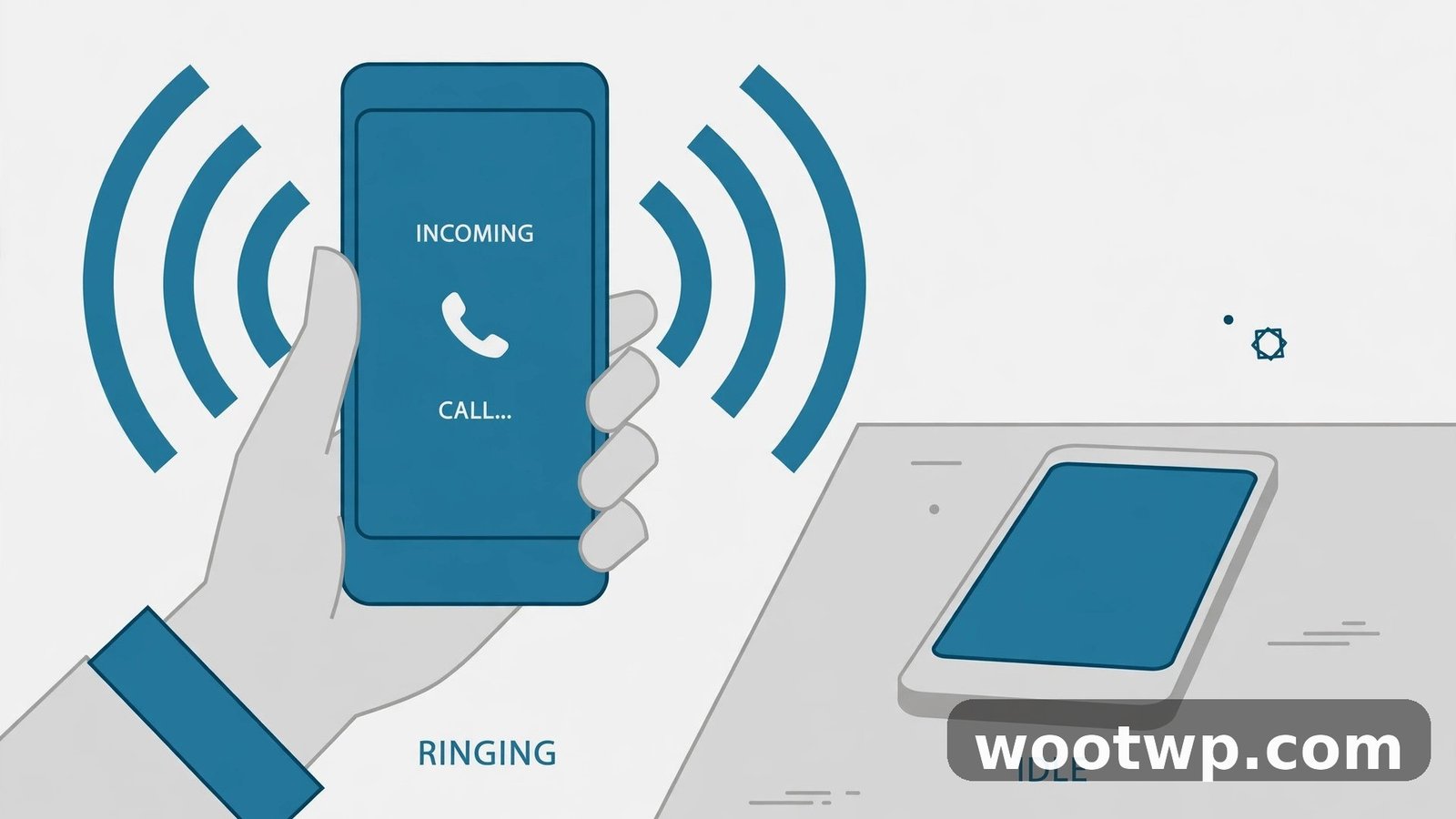
First, call your own number from another phone. Seriously. Half of all “lost” phones are within twenty metres of their owner, hiding in a jacket, a car door pocket, or between sofa cushions. A call costs nothing and it settles the question fast. If it rings, follow the sound. If it goes to voicemail, it might be switched off or dead — or on silent, which a plain call can’t beat. That’s when Find Hub earns its keep, because its ring cuts through silent mode.
Second, retrace your steps. Not in a vague, wandering way. Think in a straight line. Where did you last actually use the phone? Not where you think you had it — where you last saw the screen lit up. Walk that route backwards, slowly. Check the last three places you sat down. Ask at the counter of the last shop or café you visited, and leave your number with them if it isn’t there yet. Phones get handed in more often than you’d think.
Third, if the call doesn’t work and the retrace comes up empty, open Find Hub. Don’t wait an hour hoping it turns up. Every minute matters once a phone has left your hands, because a flat battery or a switched-off phone makes the job harder. The next section walks through it step by step.
And one thing not to do: don’t keep calling it fifty times in a row. If a stranger has picked it up, a phone ringing non-stop just tells them to switch it off. One or two calls, then Find Hub.
How to Find a Lost Android Phone with Google Find Hub
Google renamed Find My Device to Find Hub in 2025. If you’ve been searching for “find my device android” and wondering where it went — it didn’t go anywhere. Same service, same website, new name and a slightly cleaner look. Your phone needs to be signed in to a Google account, have location switched on, and be connected to the internet for live tracking. Most Android phones meet all three by default, as long as you haven’t switched the feature off.
Step 1: Open Find Hub on a computer or another phone
On any computer or phone with internet access, go to android.com/find and sign in with the same Google account that’s on your lost phone. That’s the account that matters — not a second Gmail you barely use, the one on the phone itself.
No computer nearby? Install the Find Hub app from the Play Store on any Android phone — a friend’s, a family member’s, a spare — and sign in with your Google account. There’s also a guest mode, so you can sign in on someone else’s phone without touching their account, then sign out again when you’re done. Handy in a pinch, and no, it doesn’t mess with their phone at all.
If you borrowed someone’s computer to do this, sign out of your Google account afterwards. Honestly, do the same with the browser data — our guide on how to clear cookies in Chrome shows the quick way to wipe the traces so your account stays yours.
Step 2: Pick your device and check the map
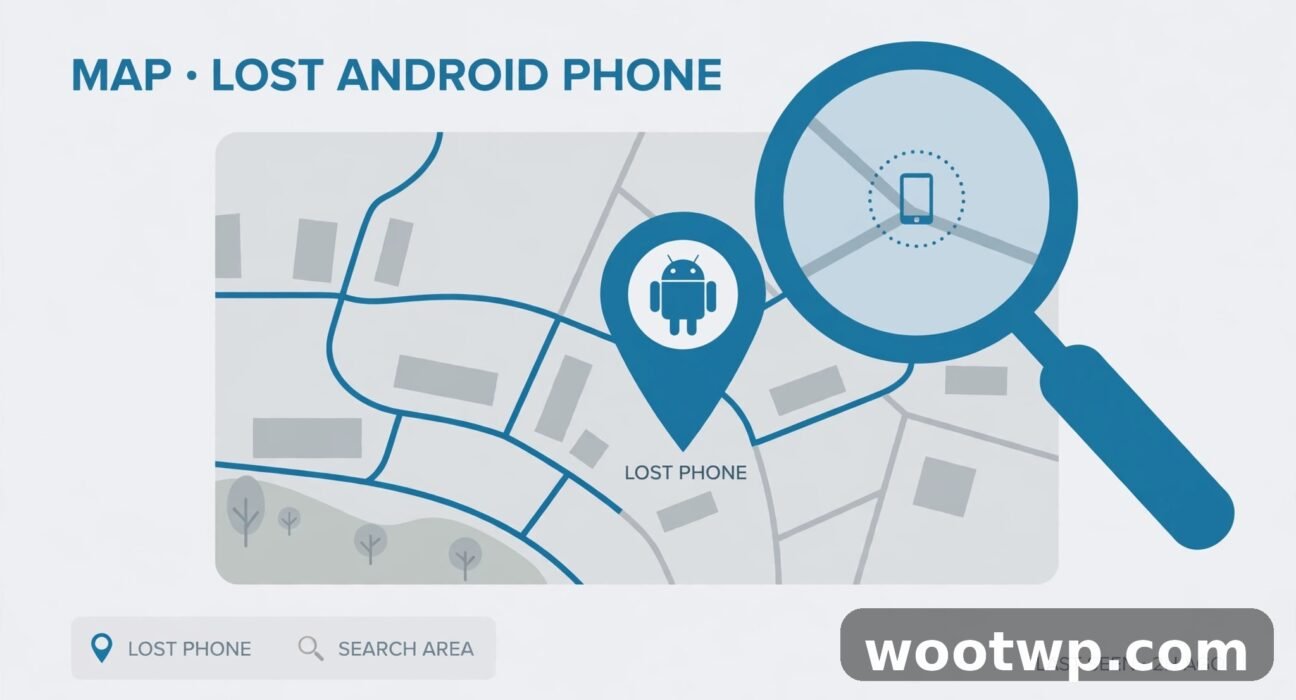
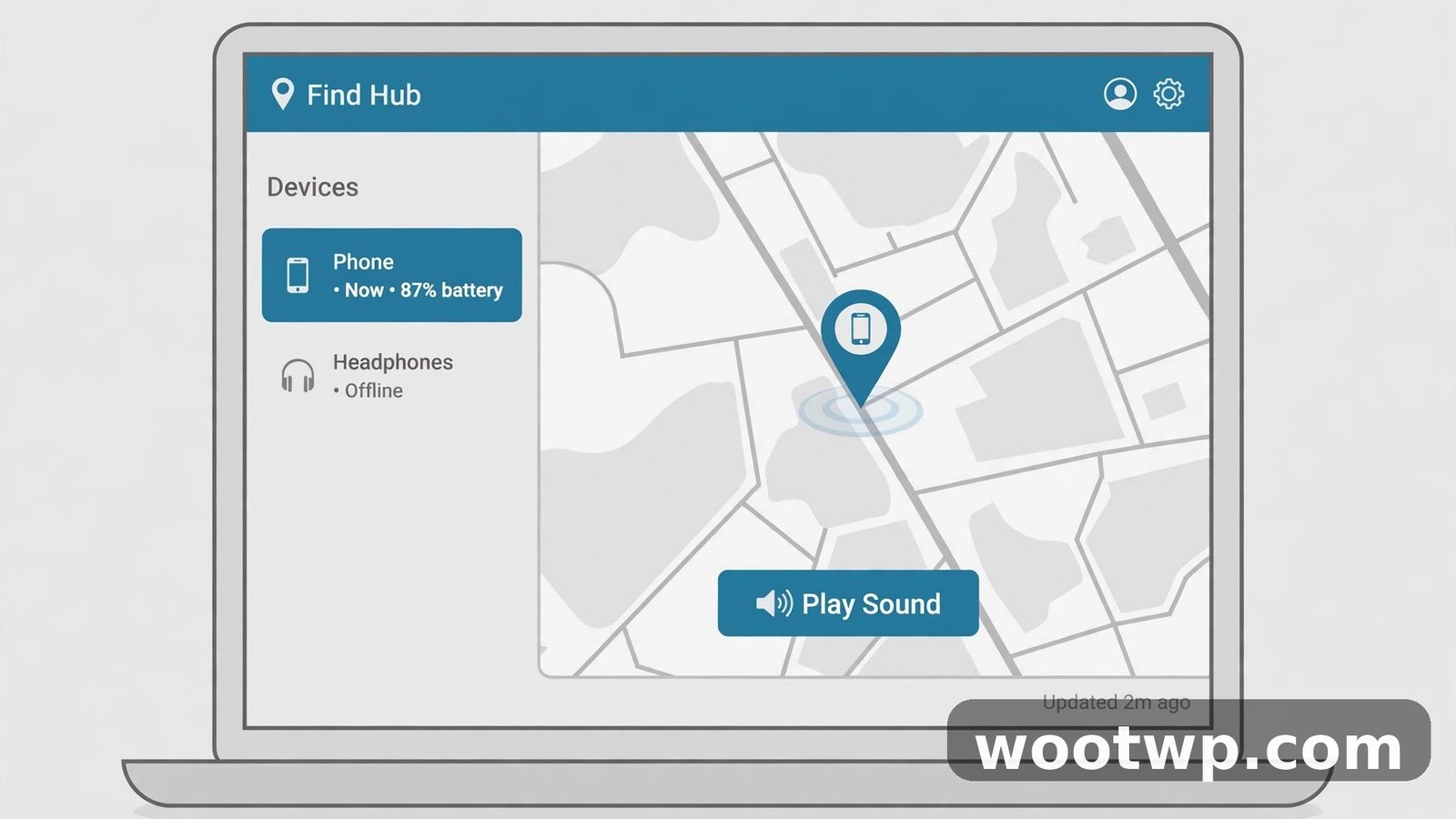
Once you’re signed in, Find Hub shows a list of your devices. Pick the lost one. A map appears with a dot for the phone’s last known location, plus details underneath: battery level, whether it’s online, and which network it’s on.
A few things the map can tell you:
- The dot is fresh and the phone is online. Best-case scenario. You can ring it, lock it, or head to the spot.
- The dot is old, with a time next to it. That’s the last place the phone was seen before it went offline. Treat it as a starting point, not gospel — the phone may have moved since.
- No location at all. The phone may be off, dead, or have location switched off. Don’t give up yet — the offline section below covers what to do next.
- The dot is at your own house. Check the car. Then check the car again. Ask me how I know. I once spent twenty minutes tearing the living room apart, ringing my phone from my wife’s handset, convinced it was buried in the sofa — and all the while it was sitting in the driver’s door pocket, muffled by a jacket, ringing away where nobody could hear it. The map was right. My search was just lazy.
Step 3: Ring it, lock it, or erase it
Find Hub gives you three tools, in order of how much you should want to use them.
Play sound. The phone rings at full volume for five minutes, even if it’s on silent or vibrate. Use this first, always, when the map says the phone is nearby. It stops the moment you unlock the phone or tap the power button. This is the button that found my phone under those café napkins. It works on Wi-Fi or mobile data, and it works on most Android phones running Android 9 or newer.
Secure device (shown as Mark as lost on some phones). This locks the phone with your PIN, pattern, or password, and lets you put a message and a callback number on the lock screen — something like “This phone is lost, please call 05X XXX XXXX.” Anyone who finds it can call you without unlocking anything. Do this the moment you think the phone is actually lost, not just misplaced. It also signs you out of your Google account on that phone, which keeps your email and photos out of reach. You can still track it afterwards, so locking it doesn’t end the search.
Factory reset device. This wipes everything on the phone — photos, apps, accounts, the lot — and returns it to out-of-the-box state. It’s the last resort, for when you’re sure the phone is gone for good and you’d rather nobody had your data than keep hoping. Two things to know before you tap it: the wipe needs the phone to come online to run, and once it’s wiped, Find Hub can no longer find it. The phone leaves your device list. So don’t rush this one.
I learned that the hard way, in a way. A few years back I was convinced my old phone had been stolen on a bus, and I hit Factory reset within the hour. Next morning my brother found it in the pocket of a jacket I’d hung up the night before. The phone was already wiped by then. Photos of a family trip, gone — the backup hadn’t run in weeks. So take it from someone who paid for the lesson: ring it first, lock it second, and only erase it when you’ve genuinely run out of hope. Not before.
Can You Find an Android Phone When It’s Offline?
Yes — sometimes. This is where Find Hub got a lot better in the last couple of years, and a lot of people haven’t caught up with the change.
Last known location. Even when your phone is offline, Find Hub shows where it was last seen, with the time it was there. If the battery died at home, the dot sits at home. If it was switched off on the bus, the dot sits on the bus route. Start your search there.
The Find Hub network. Newer Android phones can be found through other Android devices nearby, even with no internet connection of their own. Your lost phone sends out a small Bluetooth signal. Other Android phones passing nearby pick it up and report the location to Google — anonymously, and without the passers-by ever knowing. It works a bit like a crowd of strangers holding up a sign that says “your phone was here.” The more Android phones around, the better it works, so it shines in cities, malls, and airports, and struggles in the middle of nowhere. For it to work, your phone needs to be part of the network, which is switched on by default on most recent Android versions. You can check under Settings, then Google, then Find Hub.
Powered-off finding on Pixel phones. Pixel 8 and newer models can be located for several hours after being switched off, or even after the battery runs flat. The phone keeps a tiny reserve of power for its Bluetooth beacon. It’s not forever — a few hours, roughly — but it turns “switched off and gone” into “switched off and still findable.” Other brands have started adding similar features, so check your own model’s specs if you want to know where yours stands.
None of this is magic, to be fair. If the phone is offline in a quiet area with nobody around, the network has nothing to report and all you get is the last known location. That’s still far better than nothing. And it’s one more reason to lock the phone quickly — a locked phone that stays on keeps reporting its location, while a phone someone switches off stops talking.
How to Lock Your Phone with Just a Phone Number
Here’s a feature most Android owners have never heard of, and it’s the one that saves the day when you can’t get to a computer at all: Remote Lock.
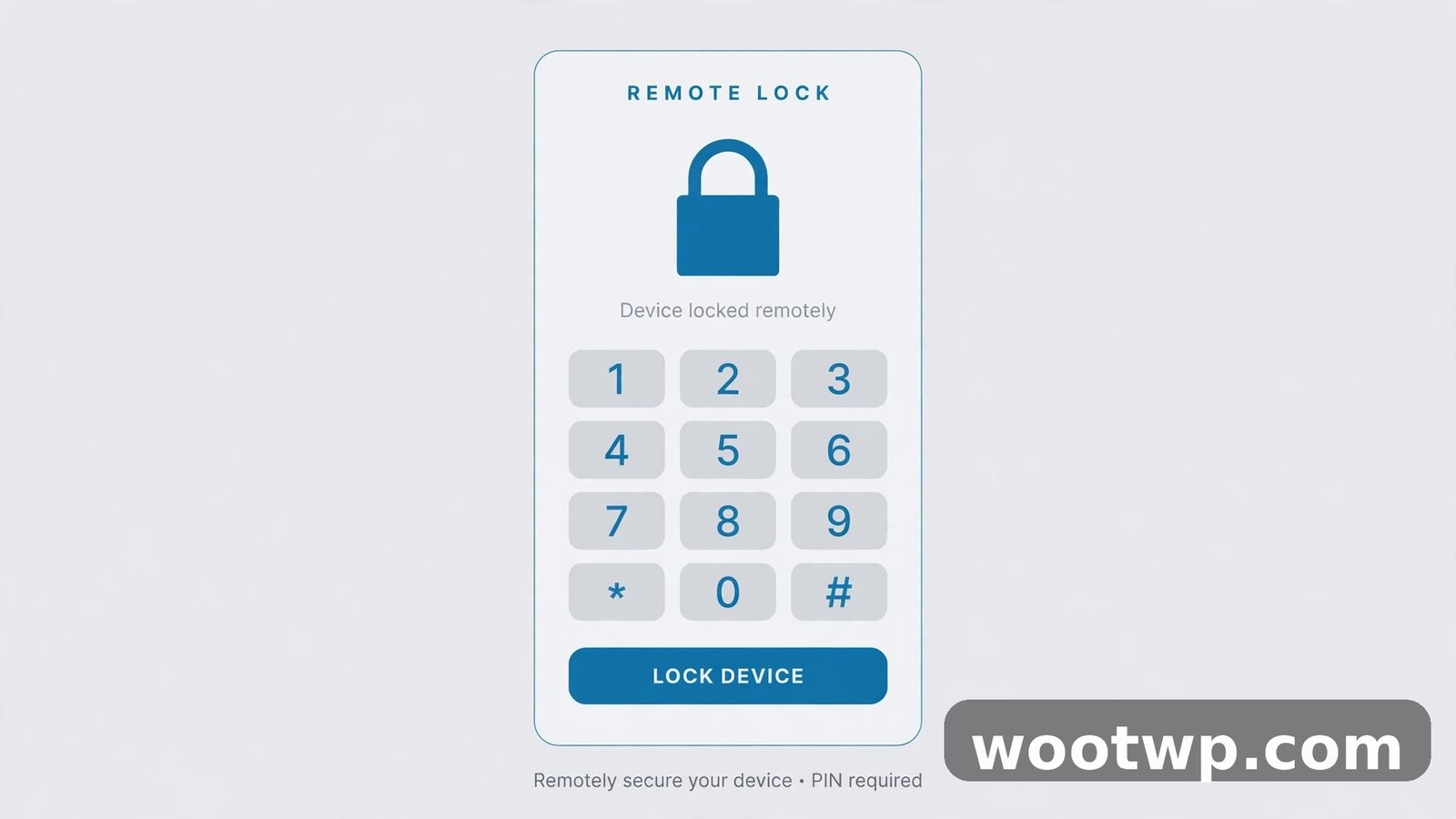
Remote Lock lets you lock your lost phone using nothing but its phone number. No Google password needed at the moment of panic — which matters, because plenty of people can’t remember their Google password under stress, and the password reset emails go to the phone they just lost. The catch, and it’s a real one: you have to switch Remote Lock on before the phone goes missing. It takes about thirty seconds, and I’ll cover it in the setup section at the end.
When the moment comes, here’s the whole process:
- On any phone or computer, go to
android.com/lock. - Type in the phone number of the lost phone and tap Continue.
- Google sends a one-time verification to that number — or rather, it checks the number against the device tied to your account. Follow the prompts and confirm.
- The phone locks immediately with a fresh lock screen. If you already had a PIN or pattern, it stays. If you didn’t have one set, Remote Lock creates one for you on the spot.
Done. Nope, no app to install in the moment, no account password to remember while your hands are shaking. Just a phone number and a browser.
I tried this on my own phone once, just to see if it actually worked, and it locked in under a minute. The only thing that tripped me up: I hadn’t switched it on beforehand the first time I tried, so the page just told me the feature wasn’t available for that device. Slightly embarrassing. But that’s the point — set it up now, while your phone is in your hand, not when it’s gone.
One more honest note. Remote Lock needs the phone to be online to receive the lock command, same as Find Hub. If the phone is off, the command waits and applies the moment it comes back online. Lock it through Find Hub too, if you can — the two methods stack nicely, and either one reaching the phone first is a win.
How to Find a Lost Samsung Phone
Samsung phones get a second safety net on top of Google’s, and if you own a Galaxy, you should know about it — because it can find your phone in situations where Find Hub can’t.
Samsung’s version is called Samsung Find (it used to be SmartThings Find), and it lives at samsungfind.samsung.com. Sign in with your Samsung account — the one you used when you set the phone up — and you’ll see your Galaxy devices on a map, with the same basic options: ring, lock, and erase.
Why bother with a second service? Two reasons. First, Samsung Find has its own offline finding network, built from Galaxy devices, which is huge in some countries. Your phone can be spotted by other Samsung phones nearby even when it’s offline, in much the same way Find Hub uses other Android phones. Second, on newer Galaxy models, Samsung’s offline finding can keep working for a while after the phone is switched off, similar to the Pixel feature above.
To make sure it works when you need it, the settings are worth a look:
- Open Settings on your Galaxy phone.
- Tap Security and privacy, then Lost device protection.
- Make sure Allow this phone to be found is switched on, along with Offline finding and Send last location.
That last one is a quiet lifesaver: when your battery drops to a critical level, the phone sends one final location to Samsung before it dies. It’s the digital equivalent of leaving a note saying where you were.
Use both services, honestly. Find Hub and Samsung Find don’t fight each other, and having two ways to ring a lost phone beats having one. If your phone ever goes missing, check both maps — sometimes one has a fresher location than the other.
What Is Theft Detection Lock?
This one is newer, and it’s the feature that actually thinks for you. Theft Detection Lock watches how your phone moves. If someone snatches it out of your hand and runs — that sharp yank, then fast movement — the phone locks itself on the spot. No waiting for you to notice. No fumbling for a website. The screen just locks, and the thief is holding a brick they can’t open.
It runs on most Android phones with Android 10 or newer, through a Google Play services update, so you don’t need the latest handset to get it. The setting lives under Settings, then Google, then Theft protection, where you’ll also find its partner feature, Offline Device Lock.
Offline Device Lock is the quieter of the two. If your phone stays offline for a while — say someone switches off the Wi-Fi and mobile data after grabbing it — the phone locks itself automatically. It also locks after several failed unlock attempts, which stops someone standing in a corner guessing your PIN.
Are these perfect? No. A snatch on a crowded street might not trigger the motion detection, and a thief who knows the trick can power the phone down fast. But they cost you nothing, they run in the background, and they close the easiest window a thief has: the few seconds after the grab, when the phone is still unlocked. Switch them both on. It takes less than a minute, and the instructions are in the setup section below.
Google’s own guide to finding, locking, or erasing a lost Android device explains these settings in full, straight from the source — worth a bookmark.
What to Do If Your Phone Was Stolen
A lost phone is a bad day. A stolen phone is a different problem, and the order of operations changes. Speed still matters, but so does not making things worse.
Lock it first, find it second. Before you do anything else, lock the phone through Find Hub or Remote Lock. A locked phone protects your photos, your email, your banking apps, and your two-factor codes. An unlocked phone hands all of that to a stranger. Lock first, then worry about the map.
Call your carrier and report it. Give them the IMEI number — the phone’s unique ID — and ask them to block the device on their network. A blocked IMEI means the phone can’t make calls or use mobile data on any network in your country, which makes it far less valuable to whoever took it. Your carrier can usually find the IMEI from your account, so don’t panic if you never wrote it down. And if you do have it noted somewhere, keep that note somewhere that isn’t your phone.
File a police report. Bring the IMEI, the make and model, the time and place it was taken, and any location history Find Hub gave you. A report probably won’t get your phone back on its own — let’s be straight about that — but it creates an official record, which your insurance or your carrier may ask for, and it helps if the phone turns up in a later recovery.
Change your important passwords. Start with your Google account, then your email, then your banking apps. Do it from a computer you trust. If you use two-factor authentication, move those codes to your new or spare device as soon as you can — our guide on moving Google Authenticator to a new phone walks through that step by step, so you don’t get locked out of your own accounts while you’re sorting the rest out.
Don’t go after it yourself. This is the one people argue with, and I get it — the map shows your phone in a building three streets away, and going to get it feels obvious. Don’t. You don’t know who’s holding it, or how many of them there are, or what state they’re in. Hand the location to the police and let them handle it. A phone is replaceable. You aren’t.
Watch for the follow-up scam. After a phone goes missing, some owners get texts or emails pretending to be from Google or Find Hub: “your phone has been found, click here to see its location.” It’s a trap to steal your Google password. Google will never ask you to sign in through a link in a text message. If you get one, delete it. For more on spotting these tricks, Android’s own advice on what to do if your phone is lost or stolen is a solid read.
The 4-Minute Setup to Do Before You Ever Lose a Phone
Everything in this guide works better — or only works at all — if you set it up before the bad day arrives. Here’s the whole job, four minutes, while your phone is sitting right in front of you.
Minute 1: Switch on Find Hub. Go to Settings, then Google, then Find Hub (on some phones it still reads Find My Device). Make sure it’s switched on, and that location access is allowed. While you’re there, check the Find Hub network setting is on too — that’s what lets other Android phones help find yours when it’s offline.
Minute 2: Set a screen lock. Settings, then Security, then Screen lock. Pick a PIN or a pattern — not 1234, not your birth year, not the same four digits you use for everything else. Add your fingerprint or face on top if your phone supports it. A phone with no lock at all is an open book to anyone who picks it up.
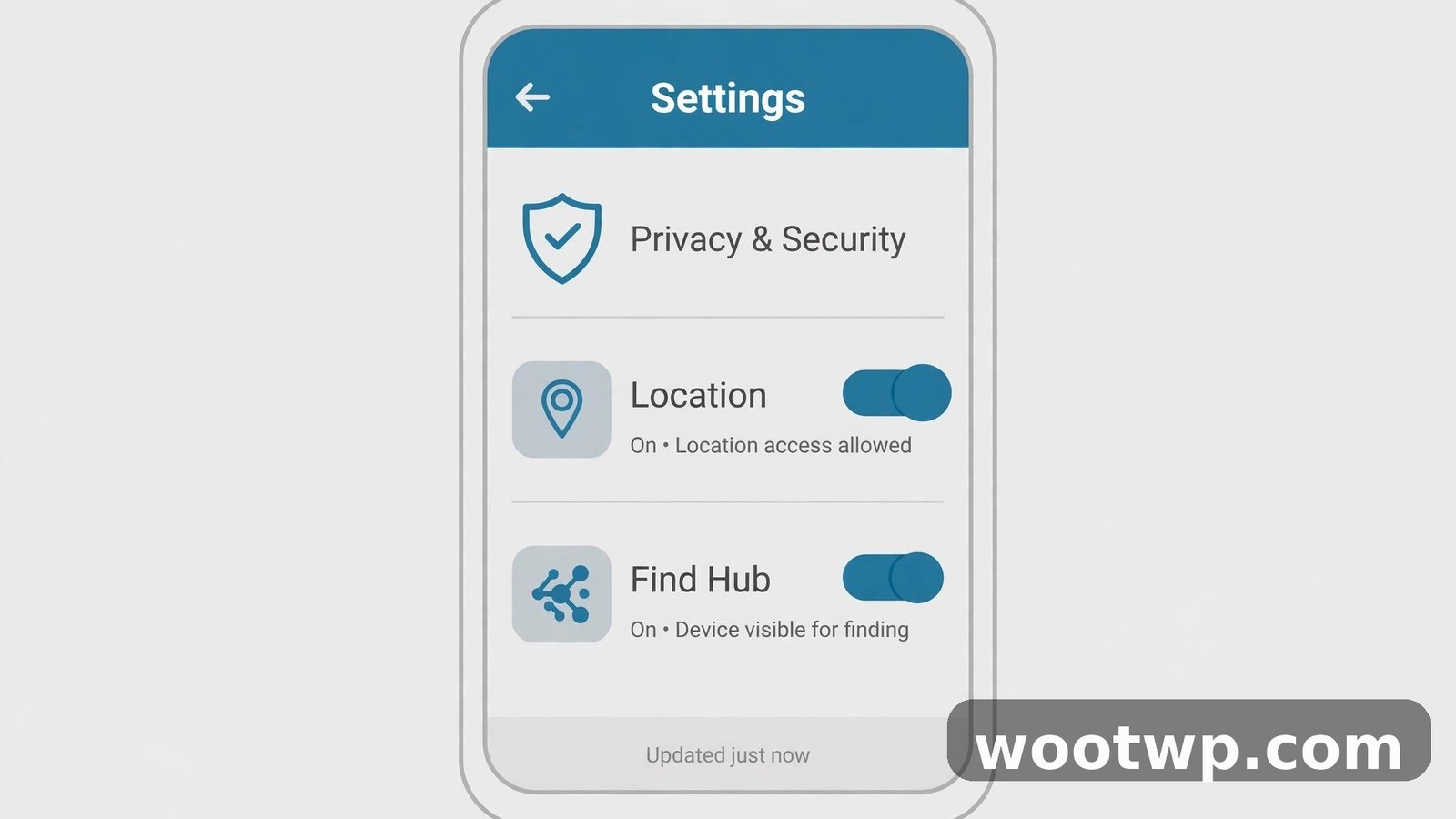
Minute 3: Switch on Remote Lock and Theft Protection. In the Find Hub settings, turn on Remote Lock and confirm your phone number — that’s what makes android.com/lock work later. Then go to Settings, then Google, then Theft protection, and switch on Theft Detection Lock and Offline Device Lock. Two toggles. Ten seconds each.
Minute 4: Write down your IMEI. Open the dialer and type *#06#. A number appears on screen — that’s your IMEI. Write it down somewhere that isn’t your phone: a notebook, a note on your computer, an email to yourself. If your phone ever gets stolen, your carrier and the police will both ask for this number, and you don’t want to be the person trying to remember it under stress.
Four minutes. That’s the whole job. Do it tonight, while you’re thinking about it — not tomorrow, because tomorrow has a habit of turning into next month, and phones have a habit of going missing on the worst possible day.
FAQs
Can I find my lost Android phone if it’s switched off?
Sometimes, yes. Find Hub shows the last known location from before the phone went off, and Pixel 8 and newer models can be located for several hours after switch-off through a low-power Bluetooth beacon. Samsung Galaxy phones have a similar offline finding feature through Samsung Find. If none of that applies, the last known location is still your best starting point, so check the map before anything else.
How do I find my lost Android phone from another phone?
Install the Find Hub app from the Play Store on any Android phone and sign in with the Google account that’s on your lost phone. You can also use guest mode on a friend’s phone, which lets you sign in without touching their account. Once you’re in, pick the lost device from the list, check the map, and tap Play sound to ring it — even if it’s on silent.
Can I track my lost Android phone with just the phone number?
Not exactly. You can’t see the phone’s live location from the number alone — but you can lock it. Remote Lock at android.com/lock lets you lock the phone using only its number, without needing your Google password. The catch is that Remote Lock has to be switched on in Find Hub settings before the phone goes missing, so set it up now. For the actual location, you need Find Hub with your Google account.
Does Find Hub work if my phone is on silent?
Yes, and this is the feature’s best trick. Tapping Play sound in Find Hub makes the phone ring at full volume for five minutes, even if it’s set to silent or vibrate. It only stops when you unlock the phone or press the power button. So if your phone is buried in the sofa on silent, Find Hub can still shout its way out. A normal phone call can’t do that — which is why the ring feature beats calling your own number once the easy search fails.
What should I do if someone stole my Android phone?
Lock it immediately through Find Hub or Remote Lock, then call your carrier with the IMEI number and ask them to block the device. File a police report with the IMEI, the model, and the last known location, and change your Google and banking passwords from a computer you trust. Don’t try to recover it yourself — pass the location to the police instead.
How do I set up Find Hub before I lose my phone?
Go to Settings, then Google, then Find Hub, and make sure it’s switched on with location access allowed. Turn on Remote Lock in the same place and confirm your phone number, then switch on Theft Detection Lock and Offline Device Lock under Settings, then Google, then Theft protection. Finish by dialling *#06# and writing down your IMEI somewhere safe. The whole setup takes about four minutes.
Conclusion
Learning how to find a lost Android phone comes down to two things: knowing Find Hub is there, and setting it up before you need it. Ring it first, lock it second, and erase it only when you’re sure it’s gone for good. Switch on Remote Lock and Theft Protection tonight — four minutes now, while your phone is in your hand, beats a very long afternoon later.