

How to Enable Dark Mode in Chrome and Windows 11: 5 Easy Ways
It was past 1 a.m. on a Tuesday, and I was still at my desk finishing an article that should have been done hours earlier. Every new tab I opened lit the whole room up white, and my eyes felt like sandpaper. That was the night I finally sat down and figured out how to enable dark mode in chrome and windows 11 properly — not just one switch, but the whole setup, so Chrome, Windows, and the pages I read all stopped glaring at me.
Turns out there are two separate switches, and that is exactly where most people get stuck.
Chrome has its own dark mode. Windows 11 has its own dark mode. They talk to each other — but only if you set them up the right way. Get one of them wrong and you end up with a dark taskbar and a blinding white browser, or the other way round, wondering which setting you missed.
This guide walks through every way to do it: Chrome on its own, Windows 11 on its own, both together, the hidden flag that darkens websites too, and Chrome on Android. Plus how to schedule it, how to switch it off, and what to do when Chrome ignores the Windows theme entirely. No downloads needed for the basics. The whole thing takes about two minutes.
- The Quick Answer: How to Enable Dark Mode in Chrome and Windows 11
- Method 1: Turn On Dark Mode in Chrome Only
- Method 2: How to Enable Dark Mode in Chrome and Windows 11 Together
- Why Are Websites Still White After Turning On Dark Mode?
- Method 3: Force Dark Mode on Every Website With the Chrome Flag
- How to Enable Dark Mode in Chrome on Android
- Can You Schedule Dark Mode on Windows 11?
- How to Turn Dark Mode Off Again
- Troubleshooting: Chrome Not Following the Windows 11 Theme
- FAQs
- Conclusion
The Quick Answer: How to Enable Dark Mode in Chrome and Windows 11
Short version first. Details after.
For Chrome only: open Chrome, go to Settings, then Appearance, then Mode, and pick Dark. Done. The toolbar, tabs, menus, and new tab page all go dark straight away.
For the whole system: open Windows Settings, go to Personalization, then Colors, then Choose your mode, and pick Dark. Then set Chrome's Mode to Device, so Chrome follows whatever Windows does. That is the setup I use myself — one switch in Windows controls everything, and Chrome just follows along.
If that sounds like enough, you can stop here. The rest of this guide is for the fiddly bits. The stuff that trips people up.
Method 1: Turn On Dark Mode in Chrome Only
This is the fastest way to learn how to enable dark mode in chrome and windows 11 setups where you only care about the browser. Maybe you like a light Windows theme but want a dark browser at night. Fair enough. Chrome lets you choose independently.
- Open Chrome on your Windows 11 PC.
- Click the three-dot menu in the top-right corner, then click Settings.
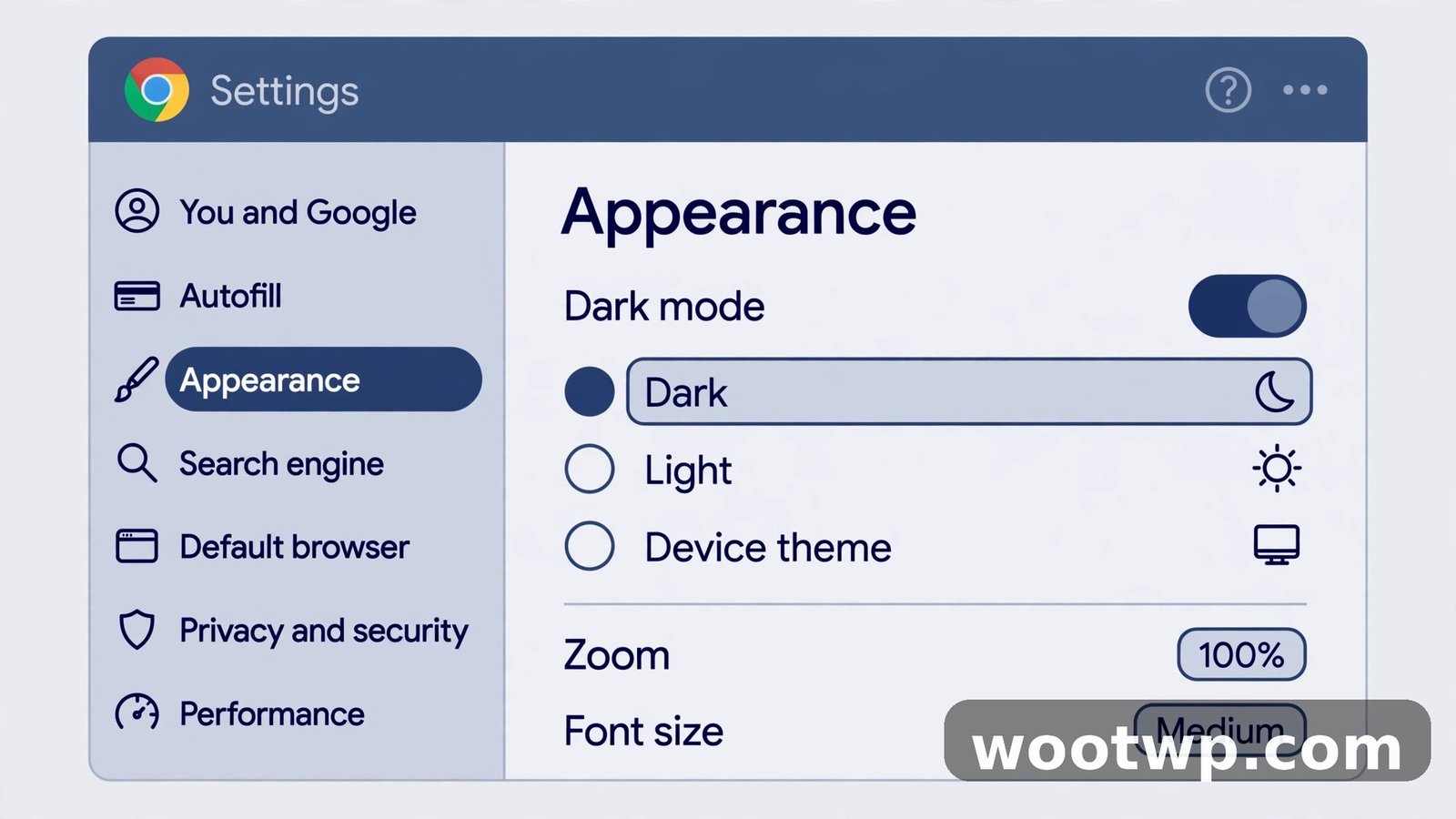
- Click Appearance in the left sidebar.
- Under Mode, pick Dark.
That is it. The change applies the moment you click it — no restart, no save button, nothing to confirm.
You will see three choices under Mode, and they matter more than they look:
- Light. Chrome stays bright white all the time, whatever Windows does.
- Dark. Chrome stays dark all the time, whatever Windows does.
- Device. Chrome copies your Windows theme. Windows goes dark, Chrome goes dark. Windows goes light, Chrome goes light.
Device is the setting that makes the two work as a team. If you plan to use the Windows system method in the next section, pick Device here and leave it alone.
One thing worth knowing: chrome dark mode settings only change Chrome's own interface. The toolbar, the tab strip, the address bar, the menus, the settings pages, the new tab page — all dark. The websites you visit are a different story, and I will get to that below.
Honestly, this is the method I reach for most on shared computers. It changes nothing about Windows itself, so nobody else using the PC gets a surprise. Just your browser, just the way you like it.
Method 2: How to Enable Dark Mode in Chrome and Windows 11 Together
If you want the whole computer dark — taskbar, Start menu, File Explorer, Settings, and Chrome — this is the method. Getting chrome dark mode windows 11 to behave as one system takes two switches and about thirty seconds.
Step 1: Set Windows 11 to dark mode
- Press the Windows key + I to open Settings. Or click Start, then the gear icon.
- Click Personalization in the left sidebar.
- Click Colors.
- Under Choose your mode, pick Dark.
Your taskbar, Start menu, and most Windows apps flip to dark right away. File Explorer goes dark too. If you have been staring at a white screen all evening, the relief is instant.
Step 2: Make Chrome follow Windows
Now open Chrome and check its Mode setting:
- In Chrome, go to Settings, then Appearance.
- Under Mode, pick Device.
That is the step people skip. Then they come back confused, because Windows is dark and Chrome is still glowing white at them.
Ask me how I know. The first time I did this, I set Windows to dark, admired my nice dark taskbar, opened Chrome — and got hit with a full white browser. I sat there for a good five minutes convinced the Windows setting was broken. It was not broken. My Chrome Mode was still set to Light from an experiment months earlier, and Light means light, whatever Windows says. Switched it to Device, and Chrome went dark on the spot. Two seconds to fix, five minutes to find. Classic.
The Custom option, for people who want it both ways
Under Choose your mode, there is also a Custom option. Pick it and Windows gives you two separate choices: one for the Windows interface itself (taskbar, Start menu) and one for apps (Settings, File Explorer). So you can have a dark taskbar with light apps, or the other way round. Most people never touch this, and that is fine. But if you like the dark taskbar and find dark File Explorer hard to read, Custom is your friend.
The windows 11 dark mode setting also plays nicely with accent colours. Still on the same Colors page, you can pick an accent colour for window borders and the Start menu. None of that is required for dark mode, but if your dark theme looks a bit flat, a deep blue or teal accent warms it up nicely.
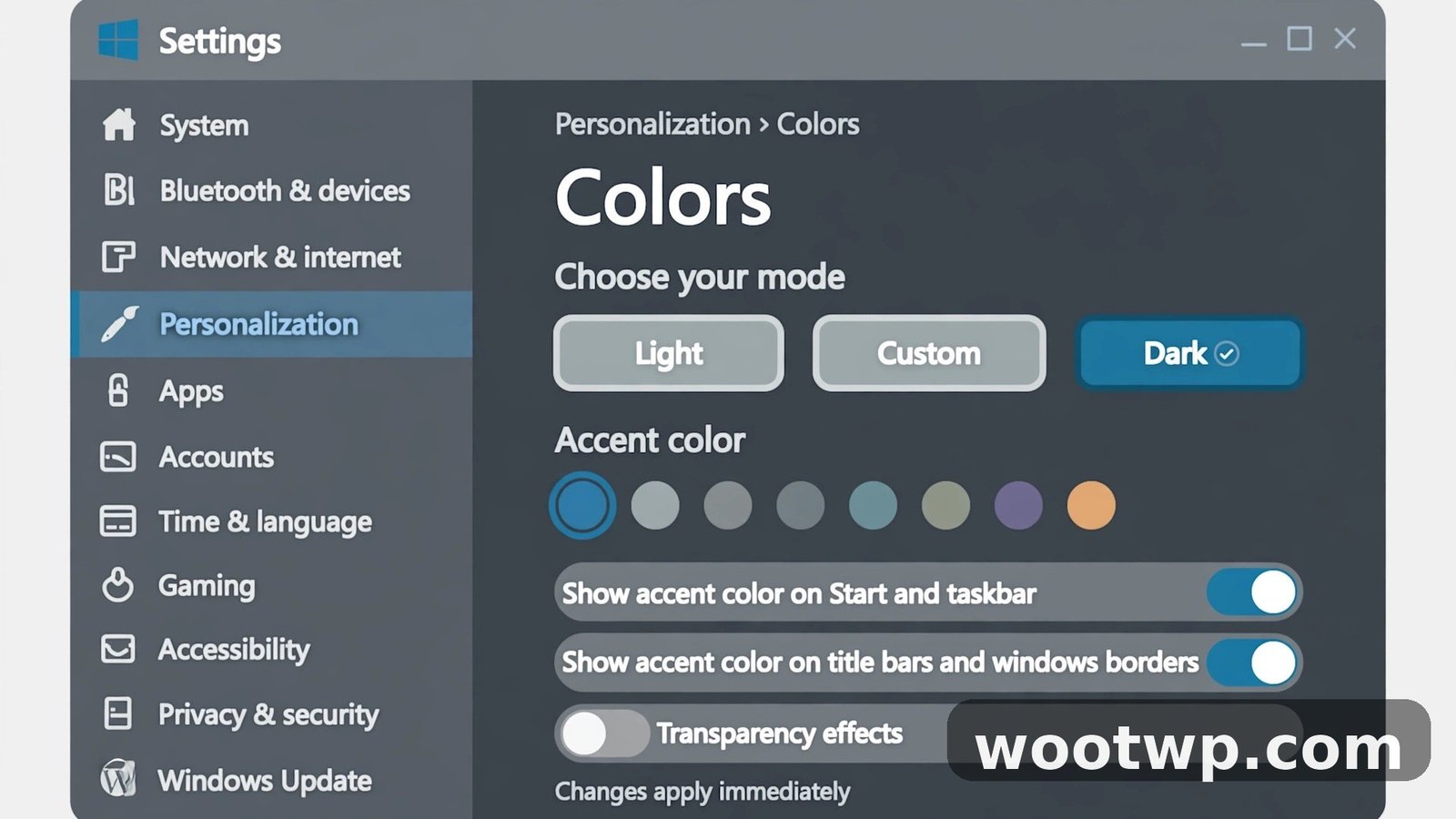
If you want screenshots of the Windows side of this, Pureinfotech has a detailed walkthrough of enabling dark mode in Windows 11 that covers the same settings with pictures. Worth a look if you prefer following along visually.
Why Are Websites Still White After Turning On Dark Mode?
This is the number one confusion with how to enable dark mode in chrome and windows 11, so let us clear it up properly.
Chrome's dark mode changes Chrome. It does not change the internet.
A website decides its own colours. When you load a page, the site serves up whatever background and text colours its designer chose — usually white. Chrome darkening its toolbar does nothing to the page itself. Same goes for Windows dark mode: it tells apps to use their dark theme, but a website is not a Windows app. It just sits there, white as ever.
So after doing everything right, you open your favourite news site and it still looks like a sheet of paper. That is normal. Annoying, but normal.
Some sites have their own dark theme built in. YouTube, X, Reddit, Wikipedia, and plenty of others let you switch the site itself to dark from a menu inside the site — usually under your profile picture or a settings gear on the page. That setting belongs to the site, not to Chrome, and it usually sticks once you pick it. Worth doing on the handful of sites you visit every day.
For everything else, there is the flag in the next section. Or you accept the white pages and enjoy the dark browser around them. Plenty of people do exactly that, and honestly, the dark toolbar plus a dark Windows theme already takes most of the sting out of late-night browsing.
Method 3: Force Dark Mode on Every Website With the Chrome Flag
If white web pages are the problem, this is the fix. Chrome has a hidden experimental setting called Auto Dark Mode for Web Contents. It forces every website into dark mode, whether the site offers one or not. That is what people mean when they talk about force dark mode chrome — it is not in the normal menus, it lives on the flags page.
Fair warning first: this is experimental. It works well on most pages, and it mangles a few. Here is how to turn it on, and how to turn it straight back off if it misbehaves.
- Click the address bar in Chrome and type
chrome://flags/#enable-force-darkthen press Enter. - Find Auto Dark Mode for Web Contents at the top of the page. It should already be highlighted.
- Click the dropdown next to it and pick Enabled.
- Click Relaunch at the bottom of the screen. Chrome restarts, and your tabs come back.
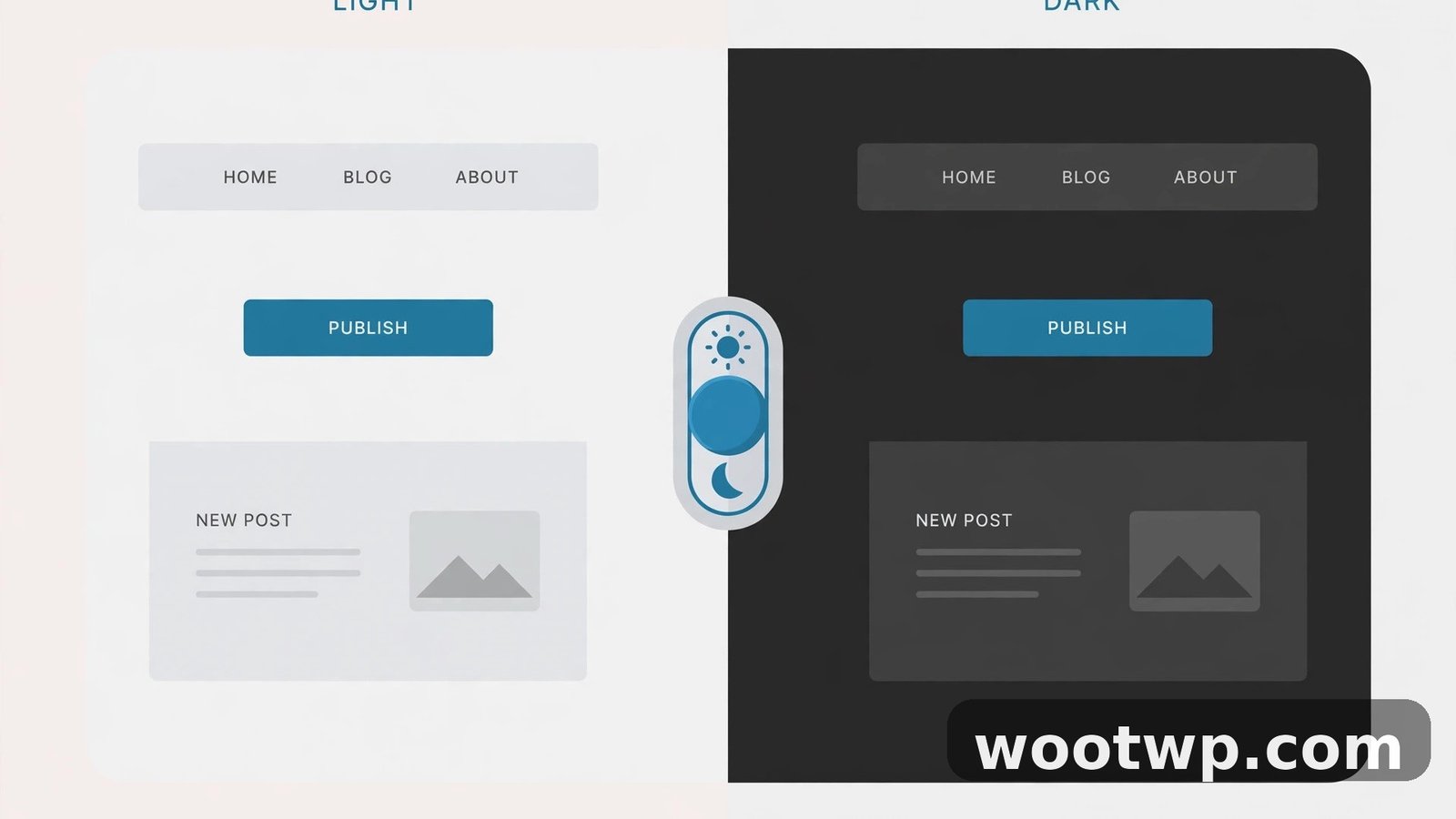
Now open any website. The whole page — background, text, buttons — should be dark.
Here is my honest experience. On plain text sites — blogs, docs, news articles — it looks great. Genuinely great. But on image-heavy pages, Chrome sometimes inverts pictures along with the colours. Photos turn into negatives. Logos go weird. I once turned the flag on, opened a shopping site, and every product photo looked like an X-ray. A banking page was worse: pale grey text on a white box, nearly unreadable, on a page where I really needed to read the numbers.
To be fair, Chrome has improved this over the years, and the worst cases are rarer than they used to be. But they still happen. If a site looks broken after you switch the flag on, that site is the reason, not your computer.
Turning it off is the same trip in reverse: type chrome://flags/#enable-force-dark in the address bar, set Auto Dark Mode for Web Contents back to Default, and click Relaunch. Normal service resumes.
The old shortcut trick (skip it now)
You might find old guides telling you to add --force-dark-mode to Chrome's desktop shortcut target. That trick still exists, but it does the same thing as the flag above, only clumsier — it only works when you launch Chrome from that one shortcut, and it breaks the moment the shortcut gets replaced. The flag is the better way now. If you already have the switch sitting on an old shortcut, remove it and use the flag instead.
How to Enable Dark Mode in Chrome on Android
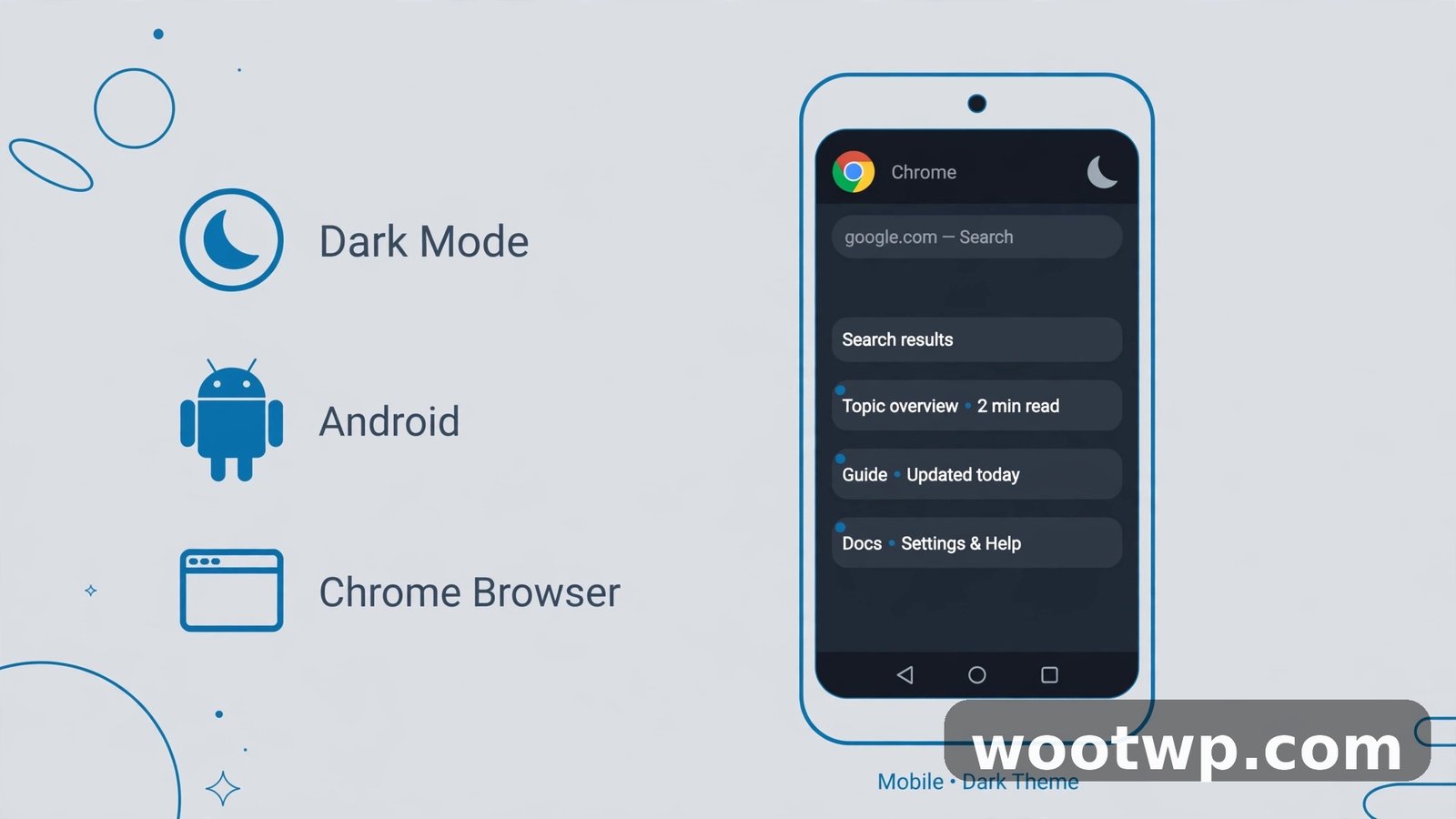
Your phone deserves the same treatment. The desktop side of how to enable dark mode in chrome and windows 11 is done — now the phone. Chrome on Android has its own dark mode, and it takes about twenty seconds.
- Open Chrome on your Android phone.
- Tap the three-dot menu in the top-right corner, then tap Settings.
- Tap Theme.
- Pick Dark to force dark mode, or System default to follow your phone's theme.
System default is the one I would pick. Set your Android phone to dark in its display settings, and Chrome follows along without you ever opening this menu again. Same idea as the Device setting on Windows — let the system decide, and the browser obeys.
A couple of phone-specific notes. The same rule about websites applies here too: Chrome on Android darkens its own interface, not the pages you visit. And some versions have a separate option in the same Theme screen for darkening web pages — the mobile version of the force-dark flag, with the same habit of mangling the odd image. If a site looks strange on your phone after turning it on, you know where to look.
Speaking of a new phone — if you have just switched handsets and set all this up fresh, do not forget to move your two-factor codes over before wiping the old one. Our guide on moving Google Authenticator to a new phone walks through that step by step, so your accounts stay protected on the new device.
Can You Schedule Dark Mode on Windows 11?
Short answer: the windows 11 dark mode setting has no built-in schedule. You cannot tell it to go dark at 9 p.m. and light at 7 a.m. — the setting simply is not there.
That catches people out, because phones have done this for years. Android and iPhone both let you schedule dark mode around sunset. Windows? Nope. You flip it by hand, or you use a free helper app.
The one most people use is called Auto Dark Mode. It is free, open source, and available from the Microsoft Store. Once installed, you set your own times — or let it follow sunrise and sunset for your location — and it switches the Windows theme for you. I keep it simple: dark at sunset, light at sunrise, and I never think about it again.
A quick note on a setting people mix up with this: Night light. You will find it under Display settings, and it is not dark mode. Night light tints your screen warm and orange to cut blue light in the evening. It does not change any colours to dark. You can run Night light and dark mode together — plenty of people do — but one is no substitute for the other.
And if you would rather not install anything, the manual route is one keyboard shortcut away: Windows key + I, Personalization, Colors, Choose your mode. Ten seconds, once a day, and your thumb learns it fast.
How to Turn Dark Mode Off Again
Maybe dark mode is not for you. Or maybe you only wanted it for one late night. Switching back is the same path in reverse, and it takes seconds.
In Chrome, go to Settings, then Appearance, and under Mode pick Light — or Device, if you want Chrome to follow Windows again.
In Windows 11, go to Settings, then Personalization, then Colors, and under Choose your mode pick Light.
If you turned on the force-dark flag, remember to set it back to Default at chrome://flags/#enable-force-dark and relaunch Chrome. Otherwise your websites stay dark even after the browser itself goes light, and that mismatch confuses everyone. I speak from experience. I once spent a whole morning wondering why one site looked so odd before I remembered the flag was still on from the night before.
Troubleshooting: Chrome Not Following the Windows 11 Theme
You set Windows to dark. Chrome stays white. Or the other way round. Before you reinstall anything, run through this list. Nine times out of ten, the fix is one of the first two items.
- Chrome's Mode is set to Light or Dark, not Device. This is the big one. In chrome dark mode settings, open Appearance, then Mode, and pick Device. Light and Dark are manual overrides — they ignore Windows completely, by design. If chrome dark mode windows 11 is not syncing, this is almost always why.
- Chrome needs a restart. Theme changes usually apply instantly, but if Windows switched while Chrome was running, a restart shakes it loose. Close every Chrome window and open it again. Not just the tab — the whole browser.
- Chrome is out of date. Click the three-dot menu, then Help, then About Google Chrome. Chrome checks for an update and installs it. The Appearance Mode options arrived in a Chrome update a while back, and a very old version may not have them at all.
- A Chrome theme from the Web Store is overriding it. If you installed a theme years ago and forgot about it, that theme wins over the Mode setting. Go to Settings, then Appearance, then Theme, and click Reset to default if a theme is listed there.
- Windows did not actually switch. Check the real setting: Settings, then Personalization, then Colors, then Choose your mode. If it says Light, Windows never switched in the first place. Set it to Dark again and watch the taskbar change.
One more general tip, because Chrome settings sometimes just act strangely after a bad update or a cluttered profile: clearing out old browsing data can help. Our guide to clearing cookies in Chrome walks through that safely, without nuking your saved passwords. It will not fix a theme setting on its own, but if Chrome is misbehaving in several small ways at once, it is a good place to start.
FAQs
How do I enable dark mode in Chrome and Windows 11 at the same time?
Set Windows to dark first: Settings, then Personalization, then Colors, then Choose your mode, then Dark. Then open Chrome, go to Settings, then Appearance, then Mode, and pick Device. That ties Chrome to the Windows theme, so one switch controls both. Change Windows back to light and Chrome follows.
Does dark mode in Chrome change websites to dark too?
No — not on its own. Chrome's dark mode only darkens the browser's own interface: the toolbar, tabs, menus, and new tab page. Websites keep whatever colours their designers chose, which is usually white. To darken the pages themselves, use the Auto Dark Mode flag at chrome://flags/#enable-force-dark, or pick sites that have their own dark theme toggle, like YouTube or Reddit. Just know the flag can mangle some images and text, so check your favourite sites after turning it on.
Why is Chrome still light after I set Windows 11 to dark mode?
Because Chrome's Mode is probably set to Light instead of Device. Light is a manual override, and it ignores Windows completely. Go to Chrome Settings, then Appearance, then Mode, and pick Device. If it already says Device, restart Chrome fully — close every window, not just the tab — and check again. Still stuck? Update Chrome from the three-dot menu, then Help, then About Google Chrome.
How do I schedule dark mode on Windows 11?
Windows 11 has no built-in dark mode schedule, so you need a helper. The free Auto Dark Mode app from the Microsoft Store does the job: set your times or let it follow sunrise and sunset, and it flips the Windows theme for you. Do not confuse this with Night light, which only warms the screen colour and does not make anything dark.
Does dark mode save battery or help your eyes?
It can help in a dim room, because a bright white screen in the dark is genuinely uncomfortable — less glare, less squinting, and an easier time getting back to sleep after. Battery savings are real but small, and mostly on phones and laptops with OLED screens, where black pixels use less power. On a normal desktop monitor the saving is barely worth mentioning. So use dark mode because it feels better, not because it will transform your battery life.
How do I turn off dark mode in Chrome on Android?
Open Chrome, tap the three-dot menu, then Settings, then Theme, and pick Light. If you had it on System default, switching your phone's own theme back to light does the same thing. And if web pages still look dark after that, check whether the dark-web-pages option is switched on in the same Theme screen — that one is separate from the browser theme, and it stays on until you switch it off.
Conclusion
That is how to enable dark mode in chrome and windows 11 — the full picture, not just one switch. Set Windows to dark under Personalization and Colors, set Chrome's Mode to Device so it follows along, and use the force-dark flag only if white web pages still bother you. If one setting ever stops working, check the Mode dropdown first: it is the cause almost every time. Do those three things, and the late-night glare is gone for good.