
How to Fix WordPress White Screen of Death: 9 Proven Ways
It was a Saturday morning, and I had just updated a plugin on a client’s site before my coffee had even cooled. I clicked over to the homepage to check the change. Blank. Pure white, top to bottom, not a single pixel of content. My stomach dropped. The dashboard was white too. No error message, no clue, nothing at all — just a white screen staring back at me like the site had never existed. Learning how to fix the WordPress white screen of death starts with one reassuring fact: your site is almost never actually gone. A blank page means PHP hit a fatal error and stopped before it could build any HTML. Your posts, your images, your database — all still sitting there, untouched. The site just can’t show them until you find the thing that broke.
This guide walks you through nine fixes in order, easiest first. Most white screens clear up in the first three steps. Work through them one at a time and check the site after each one. Don’t change five things at once, or you’ll never know which one fixed it.
- What Is the WordPress White Screen of Death?
- Why Does the White Screen Happen?
- Before You Start: Two Things to Do First
- Fix 1: Rule Out Your Browser First
- Fix 2: Check for the Recovery Mode Email
- Fix 3: Turn On Debug Mode to Find the Real Error
- Fix 4: Deactivate All Your Plugins
- Fix 5: Switch to a Default Theme
- Fix 6: Raise the PHP Memory Limit
- Fix 7: Fix a Syntax Error in functions.php
- Fix 8: Replace Corrupted Core Files
- Fix 9: Restore a Backup
- How to Fix the WordPress White Screen of Death Without wp-admin Access
- How to Stop the White Screen Coming Back
- FAQs
- Conclusion
What Is the WordPress White Screen of Death?
The WordPress white screen of death is what happens when a fatal PHP error stops WordPress from building the page. PHP is the language WordPress runs on. When it hits an error it can’t get past — a broken plugin, a bad line of code, a memory limit — it quits mid-build. And because most live sites hide error messages from visitors, you see nothing. Just white.
Since WordPress 5.2, some of these crashes show a different message instead: “There has been a critical error on this website.” That is the same problem wearing a friendlier face. WordPress caught the error and showed you a holding page. The fixes below work for both versions of the problem.
One thing worth knowing: a white screen on one page but not others points at a specific post, page, or template. A white screen on every page, including wp-admin, points at a plugin, theme, or server-level problem. That one observation narrows the hunt a lot.
Why Does the White Screen Happen?
Five causes cover nearly every case I’ve ever seen.
A plugin conflict is the most common. A plugin updates, clashes with your theme or another plugin, and the whole site goes down. This is why white screens so often appear right after an update.
A faulty theme comes next. Bad code in a theme file, or a theme update that didn’t finish cleanly, can take the site down the same way.
PHP memory exhaustion is the quiet one. Your site gets a fixed amount of server memory. A heavy plugin or a runaway process asks for more than that, and PHP gives up. The screen goes white with no warning at all.
A syntax error in functions.php or wp-config.php is usually self-inflicted. You paste a code snippet, miss a bracket, and the site dies the moment you save. Ask me how I know. I once pasted a snippet to add a custom footer, left out a closing parenthesis, and took down a whole site for twenty minutes before I spotted it.
Corrupted core files are the rarest cause. A WordPress update gets interrupted — a server hiccup, a timeout — and leaves half-written files behind.
Before You Start: Two Things to Do First
First, don’t panic-edit. Every extra change you make while flustered is another thing to undo later. Slow down. One fix at a time, check after each.
Second, grab copies of the files you’re about to touch. If you have hosting file manager or FTP access, download wp-config.php, .htaccess, and your theme’s functions.php before you edit any of them. A backup takes thirty seconds and saves you from a bad situation turning into a disaster. If you don’t have a recent full backup, now is a good moment to read our guide on how to back up your WordPress site for free — do that before anything else goes wrong.
Fix 1: Rule Out Your Browser First
Sometimes the problem is not your site at all. A stale cache or a corrupted cookie can show you a white page while everyone else sees the site fine.
Open the site in a private or incognito window. If it loads there, your normal browser cache is the problem. Clear it and move on with your day.
Still white in incognito? Try a different browser, or your phone on mobile data. If the site loads on your phone but not your laptop, the problem is local to that computer. If it loads nowhere, the problem is on the server, and you keep going down this list.
This step takes two minutes and saves people from hours of debugging a server problem that never existed. I’ve watched a site owner spend a whole afternoon in FTP before someone asked, “Did you try your phone?” It loaded fine. The cache was the whole story.
For the full steps, see our guide on how to clear your WordPress cache — it covers the browser, plugin, and server levels.
Fix 2: Check for the Recovery Mode Email
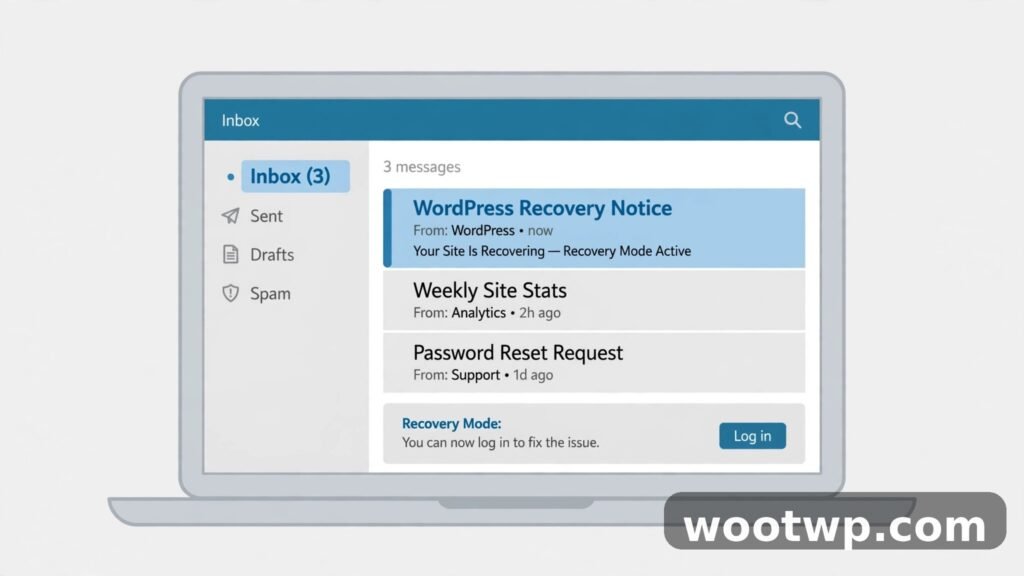
Since WordPress 5.2, a fatal error triggers an email to the site admin. The subject line is usually “Your Site is Experiencing a Technical Issue.” That email names the plugin or theme that caused the crash, and it includes a special link to log in to your dashboard in Recovery Mode.
Search your inbox — including spam — for that subject. Found it? Click the recovery link. WordPress logs you in with the broken plugin or theme paused, so you can deactivate or remove it from the dashboard like normal.
No email? Check that the admin email in your WordPress settings is one you actually monitor. Plenty of sites still point at an old address nobody checks. If you can’t get into the dashboard to check, the email might also be sitting in a spam folder on an address you forgot about. Worth a look before you move on.
Fix 3: Turn On Debug Mode to Find the Real Error
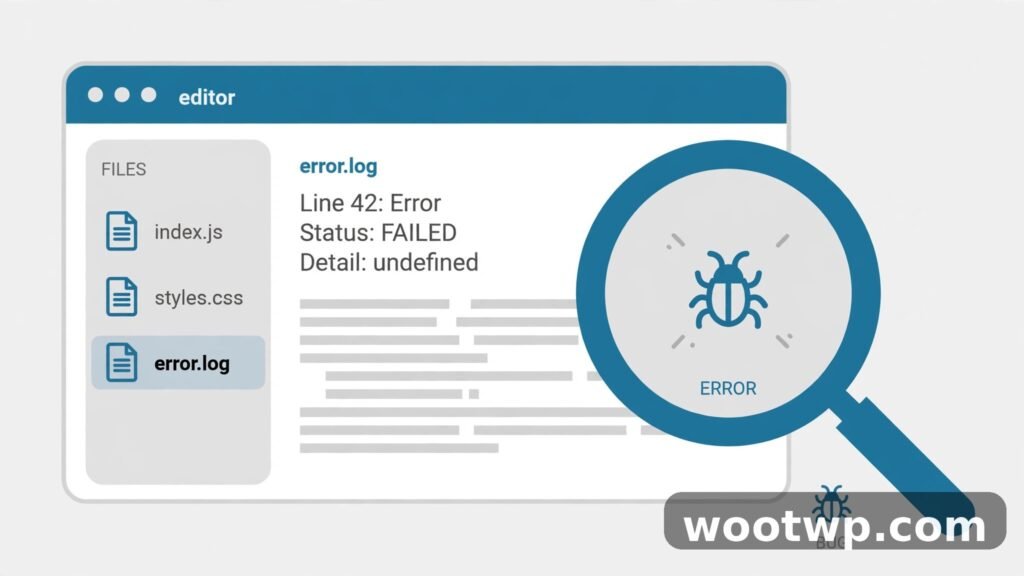
This is the single most useful step in the whole guide. Debug mode replaces the silent white screen with the actual error message: the file, the line number, and what went wrong. Once you can see the error, the fix is usually obvious.
You need file access for this — your hosting file manager or an FTP client. Open wp-config.php in your site’s root folder and add these three lines just above the line that says “That’s all, stop editing!”:
define( 'WP_DEBUG', true );
define( 'WP_DEBUG_LOG', true );
define( 'WP_DEBUG_DISPLAY', false );
Save the file, then reload the broken page once. Now open wp-content/debug.log. You’ll find an entry like this:
PHP Fatal error: Uncaught Error: Call to undefined function acme_slider_init() in /home/example/public_html/wp-content/plugins/acme-slider/includes/display.php on line 87Read the file path. If it points into wp-content/plugins/, a plugin is the culprit — and the path names exactly which one. If it points into wp-content/themes/, it’s your theme. If it points into wp-includes/ or wp-admin/, it’s a core file problem.
Two warnings. First, set WP_DEBUG_DISPLAY to false, as above, so errors go to the log file instead of showing on your live site for every visitor to see. Second, turn debug mode off again when you’re done. A debug.log left running on a live site grows forever and can leak file paths. The WordPress debugging documentation explains each setting in detail if you want to go deeper.
Fix 4: Deactivate All Your Plugins
If the log named a plugin, deactivate just that one and you’re done. If the log is empty or you skipped debug mode, deactivate everything and reactivate one by one.
With dashboard access, go to Plugins, tick every plugin, choose Deactivate from the bulk actions menu, and click Apply. Reload the site. If it comes back, a plugin was the problem. Reactivate them one at a time, reloading the site after each one, until the white screen returns. The last plugin you switched on is your culprit. Leave it off, or replace it with an alternative.
Without dashboard access, rename the plugins folder. In your file manager or FTP client, go to wp-content and rename the folder called plugins to plugins.hold. WordPress can’t find any plugins, so it deactivates all of them at once. Reload the site. If it works, rename the folder back to plugins, then rename individual plugin folders inside it one by one to find the broken one. Rename the suspect folder with .old on the end, and that plugin stays off while the rest come back.
Tedious? A bit. But it works every time, and it pinpoints the exact plugin instead of guessing.

Fix 5: Switch to a Default Theme
If deactivating plugins didn’t help, the theme is the next suspect — especially if the white screen appeared right after a theme update or a code change.
With dashboard access, go to Appearance, then Themes, and activate one of the default WordPress themes, like Twenty Twenty-Four or Twenty Twenty-Five. Reload the site. If it loads, your theme is the problem.
Without dashboard access, rename your active theme’s folder inside wp-content/themes. Add .old to the end of the folder name. WordPress falls back to a default theme automatically. If the site comes back, you’ve found it.
A broken theme usually means bad code in functions.php or a failed update. If you edited functions.php recently, that file is suspect number one — jump to Fix 7.
Fix 6: Raise the PHP Memory Limit
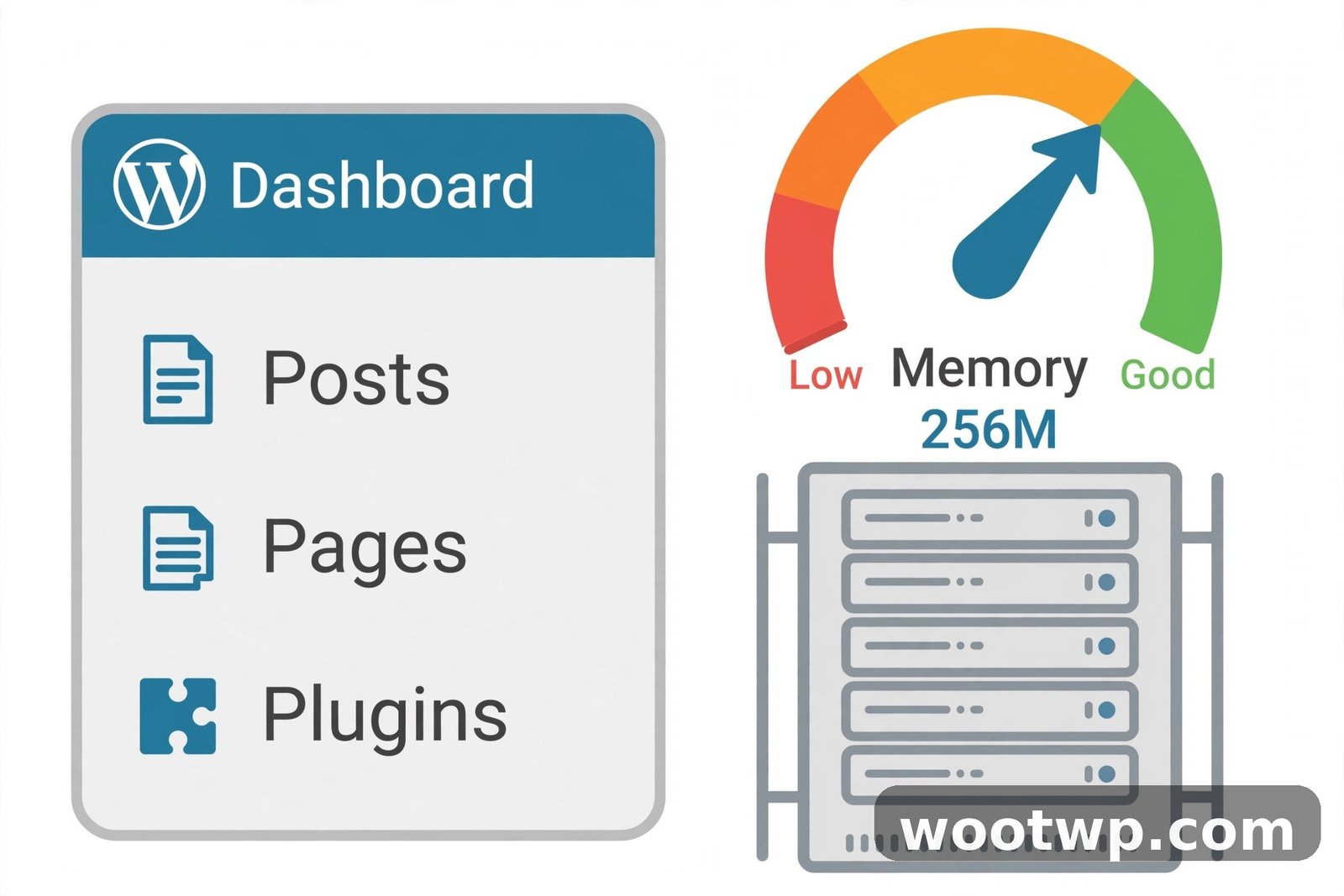
If your debug log says something like “Allowed memory size of 268435456 bytes exhausted,” your site ran out of memory. The fix is to give WordPress more.
Open wp-config.php and add this line above “That’s all, stop editing!”:
define( 'WP_MEMORY_LIMIT', '256M' );Save and reload. If the site comes back, memory was the problem. But ask yourself why it needed more memory in the first place. A plugin eating memory without limit is a plugin worth replacing. Raising the limit papers over the cause.
If 256M doesn’t help, your host may cap memory lower than that. Check your hosting panel for the PHP memory limit setting, or ask your host’s support. Some shared hosts lock it at 128M and won’t budge, in which case a heavy plugin has to go.
Fix 7: Fix a Syntax Error in functions.php
Did the white screen start right after you pasted code into functions.php? Then the code is almost certainly the cause. A single missing semicolon or bracket is enough to kill the entire site, because WordPress loads functions.php on every single page.
Open the file in your file manager or FTP client and look at the last thing you added. Check for missing semicolons at the end of lines, unclosed brackets, and mismatched quotes. If you can’t spot it, remove the snippet you just added, save, and reload. Site back? The snippet was broken. Fix the snippet offline, or find a cleaner version of the same code.
Honestly, this is why I never edit theme files directly on a live site any more. A child theme or a code snippets plugin keeps a bad snippet from taking down the whole site. One bad paste taught me that lesson for good. A sticky note on my monitor said “check brackets” for months afterwards. In 2026. A sticky note.
Fix 8: Replace Corrupted Core Files
If the debug log points at wp-includes/ or wp-admin/, or the white screen started during a WordPress update that never finished, your core files may be damaged.
Download a fresh copy of WordPress from wordpress.org — the same version your site runs, if you know it. Unzip it on your computer. Then, using FTP or the file manager, upload the fresh wp-admin and wp-includes folders to your site, replacing the old ones. Do not touch wp-content, and do not overwrite wp-config.php. Those hold your content and your settings.
This replaces any corrupted core file with a clean copy while leaving your themes, plugins, and uploads alone. Reload the site when the upload finishes.
Fix 9: Restore a Backup
If nothing above worked, a backup is your safety net. Most hosts keep automatic backups — check your hosting panel for a restore option before anything else. Many offer one-click restore to yesterday’s copy.
If your host doesn’t keep backups, use your own. A backup plugin restore, or a manual restore of the files and database, puts the site back to the last known good state. You’ll lose any changes made after that backup, which is annoying, but a working site from yesterday beats a white screen today.
This is also the moment to set up regular automatic backups if you don’t have them. The white screen you just fixed is the best possible reminder.
How to Fix the WordPress White Screen of Death Without wp-admin Access
Locked out of the dashboard entirely? You can still fix the white screen of death — you just do it through files instead of clicks.
The order stays the same: turn on debug mode in wp-config.php, read wp-content/debug.log, rename the plugins folder or the theme folder to isolate the culprit, raise the memory limit in wp-config.php. Every fix in this guide has a file-based version, because the dashboard is a convenience, not a requirement.
The only thing you truly need is file access — your hosting file manager works fine, no FTP client required. If you don’t have hosting panel access either, that’s a conversation with your host’s support team. They can rename a plugin folder for you in about a minute.
And if you’ve lost your admin password on top of everything else, you can reset your WordPress password from phpMyAdmin once the site is back.
How to Stop the White Screen Coming Back
Fixing it once is good. Making sure it doesn’t happen again is better.
Update one thing at a time, and check the site after each update. Bulk-updating ten plugins at once is how you end up not knowing which one broke everything.
Keep a staging copy of your site if your host offers one. Test updates there first. It takes five minutes and it catches the bad plugin before your visitors do.
Run a backup before every update. Automatic daily backups are better, but even a manual backup before a plugin update is enough to save you.
Delete plugins you don’t use. Every plugin is a potential conflict. If you haven’t used it in three months, remove it.
And keep your PHP version current. Old PHP versions cause strange fatal errors with modern plugins. Our guide on updating PHP covers the safe way to do it — check the version your plugins need before you switch.
FAQs
What causes the WordPress white screen of death?
A fatal PHP error that stops WordPress before it can build the page. The most common causes are a plugin conflict, a faulty theme, an exhausted PHP memory limit, a syntax error in functions.php, or corrupted core files after a failed update. Turning on debug mode shows you the exact error.
How do I fix the WordPress white screen of death if I can’t access wp-admin?
Use your hosting file manager or FTP. Turn on debug mode in wp-config.php, read wp-content/debug.log to find the culprit, then rename the plugins folder or the broken theme folder to deactivate it. Every fix in this guide works without dashboard access.
Why is my WordPress site showing a blank white page after an update?
An update — plugin, theme, or WordPress core — introduced code that conflicts with something else on your site, or the update didn’t finish cleanly. Check for the recovery mode email first, since it names the exact plugin. Then deactivate plugins one by one to find it.
What does “There has been a critical error on this website” mean?
It’s the same problem as the white screen, but WordPress caught the fatal error and showed a holding page instead of a blank one. Since WordPress 5.2, this message comes with a recovery mode email to the site admin. The fixes are identical.
Can a white screen of death delete my content?
No. A white screen means WordPress can’t display your content, not that it’s gone. Your posts, pages, images, and settings live in the database and the wp-content folder, and a PHP error doesn’t touch them. Once you fix the cause, everything comes back as it was.
How do I find which plugin caused the white screen?
Turn on debug mode and read wp-content/debug.log — the error line names the plugin file. Or deactivate all plugins, confirm the site loads, then reactivate them one at a time until the white screen returns. The last plugin you switched on is the one.
Conclusion
The WordPress white screen of death looks like a catastrophe, but it almost always has a simple cause and a quick fix. Turn on debug mode, read the error, and let the file path tell you where to look. Plugin, theme, memory, or a stray bracket in functions.php — nine times out of ten it’s one of those, and the site is back within the hour. Fix it once, then set up backups and update one plugin at a time, so the next white screen never gets the chance to ruin your Saturday morning.