How to Use Google Keep for Notes and Reminders: 7 Easy Tips
If you keep losing track of small tasks, ideas, and to-dos, learning how to use Google Keep for notes and reminders can fix that in one afternoon. Google Keep is a free note app from Google that syncs across your phone and computer, so a note you jot down on your phone is waiting for you on your laptop when you sit down to work. In this guide, you will learn how to create notes, set reminders that actually show up, organize everything with labels and colors, and share notes with family or coworkers.
- What Is the Google Keep Notes App?
- How to Use Google Keep for Notes and Reminders on Your Phone
- How to Use Google Keep for Notes and Reminders on the Web
- How to Create Every Kind of Note in Keep
- How to Set Time and Location Reminders
- How to Organize Notes With Labels, Colors, Pins, and Archive
- How to Share Google Keep Notes and Collaborate
- Everyday Setups That Actually Stick
- FAQs
What Is the Google Keep Notes App?
The google keep notes app is Google's simple answer to sticky notes. It is not a word processor and it is not a project management tool. It is a fast place to capture a thought, a list, a photo, or a voice memo before you forget it.
Keep lives in two places that stay in sync:
- On your phone: the Google Keep app for Android and iPhone.
- On the web: keep.google.com, signed in with the same Google account.
That sync is the whole point. I have started a packing list on my phone in a store, then opened it on my computer at home to print a checklist for the trip. Nothing needed exporting or emailing to myself. As long as you are signed in to the same Google account on both devices, your notes follow you.
Keep is free with a Google account, and there is no separate paid tier to unlock the basics. If you are just starting out with how to use Google Keep for notes and reminders, that free setup means there is nothing to buy before you try it. If you already use Gmail, Google Calendar, or Google Docs, Keep slots right into that same account, which makes setup almost instant.
How to Use Google Keep for Notes and Reminders on Your Phone
The phone app is where most people will spend their time, because that is where ideas strike. Here is the basic setup, step by step:
- Install Google Keep from the Play Store or App Store.
- Open the app and sign in with your Google account.
- Tap the plus (+) button at the bottom right to start your first note.
- Type a title, add your content, then tap the back arrow to save. Keep saves automatically, so there is no save button to hunt for.
- Tap the bell icon at the top of a note to add a reminder (more on that below).
One habit that makes learning how to use Google Keep for notes and reminders stick is to put the app somewhere easy to reach. I keep it on my home screen next to my messaging apps, because a note app buried in a folder is a note app you will not open. If your phone supports widgets, add the Keep widget too. It lets you start a note or tick off a list item without opening the full app.
On Android, you can also share straight into Keep from other apps. Tap Share on a web page, photo, or link, choose Keep, and it lands as a new note. That is the fastest way I know to save something to read later without cluttering your bookmarks.
How to Use Google Keep for Notes and Reminders on the Web
The web version at keep.google.com mirrors the app almost exactly. Your notes appear in the same grid, and anything you change syncs back to your phone within seconds.
To use it:
- Go to keep.google.com in your browser.
- Sign in with the same Google account you use on your phone.
- Click Take a note at the top to start a new note.
- Use the icons at the bottom of the note box to add a list, an image, or a drawing.
- Click outside the note to save it automatically.
The web version is best for longer typing sessions. I write meeting notes on my computer during a call, then glance at them on my phone later in the day. The keyboard shortcuts help too: press c to create a note, / to jump to search, and Esc to close a note.
One more practical point: if you ever switch phones, your notes are not trapped on the old device. Because everything lives in your Google account, signing in on the new phone brings your notes back. The same idea applies to other parts of your Google account when you move devices, and if you use two-factor codes, this guide to transfer Google Authenticator to a new phone walks through moving those codes safely.
How to Create Every Kind of Note in Keep
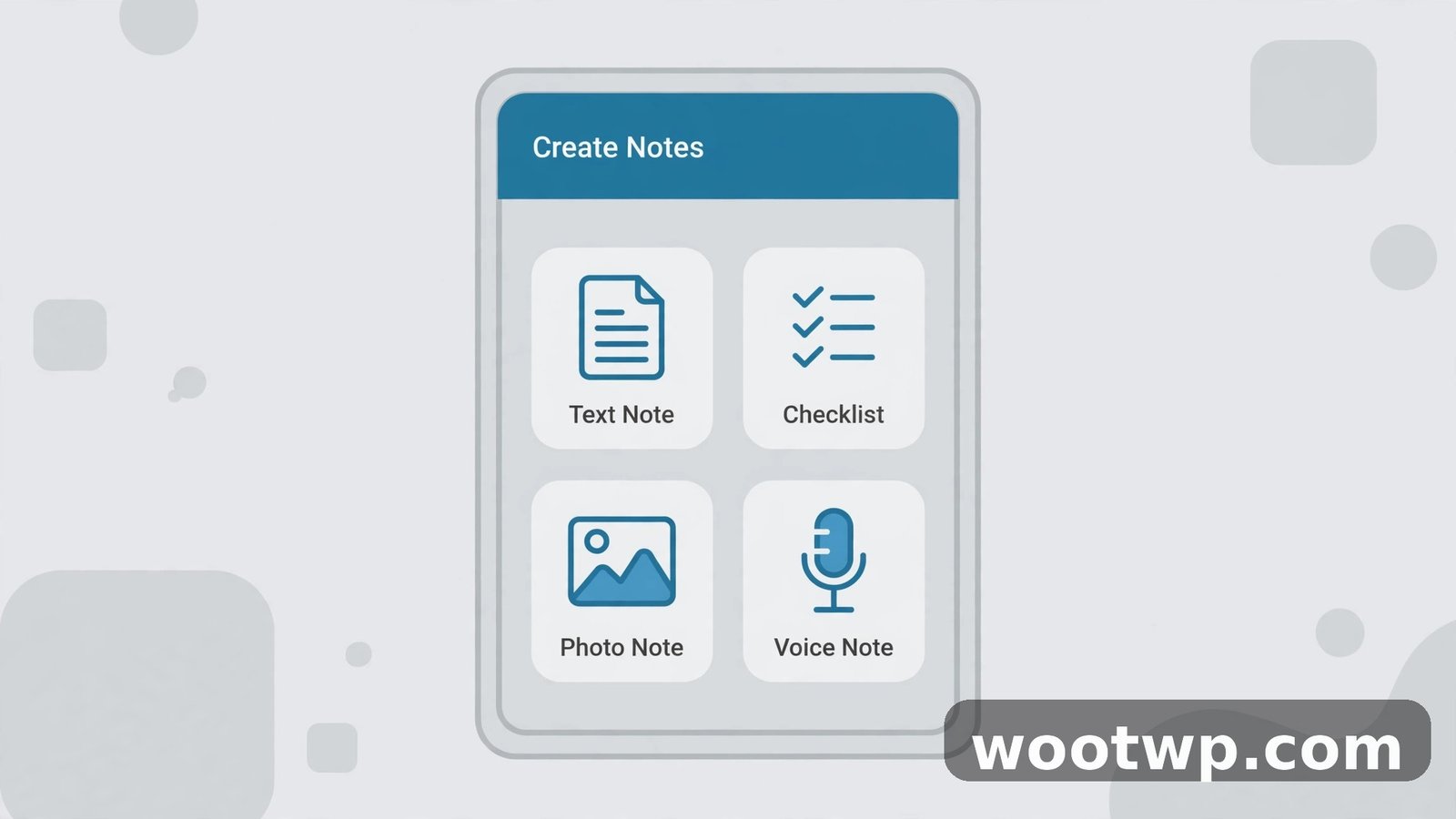
Keep is more flexible than it looks at first glance. Most people only ever type plain text, but the app handles several note types, and each one suits a different job.
Text notes
This is the default. Tap the plus button, type a title and your content, and you are done. Use text notes for ideas, quotes, addresses, reference numbers, and anything you want to find again with a quick search.
Checklists
Checklists are Keep's most useful feature for daily life. Here is how to make one:
- Open a new note.
- Tap the checkbox icon (or choose Show checkboxes from the menu).
- Type your first item and press Enter for the next one.
- Tap a checkbox to tick an item off. Ticked items move to the bottom, out of the way.
Shopping lists, packing lists, and daily task lists all work better as checklists than as plain text, because you can see progress at a glance.
Voice notes
On the mobile app, tap the microphone icon on the home screen and speak. Keep transcribes what you say into text and keeps the audio attached to the note. This is perfect for hands-free capture while driving or cooking. Check the transcription afterwards, since it can mishear names and numbers, but for quick reminders it is a real time-saver.
Photo notes
Tap the image icon to take a photo or pick one from your gallery. Keep can also pull text out of images, which means a photo of a whiteboard, a receipt, or a business card becomes searchable. I photograph serial numbers, warranty cards, and parking spot numbers this way, and searching for them later actually works.
Drawing notes
On the app, tap the drawing icon to sketch with your finger or a stylus. Drawings suit diagrams, quick maps, and annotations on top of an image. They are not a replacement for a proper drawing app, but for a rough sketch of a room layout or a diagram from a meeting, they do the job.
How to Set Time and Location Reminders
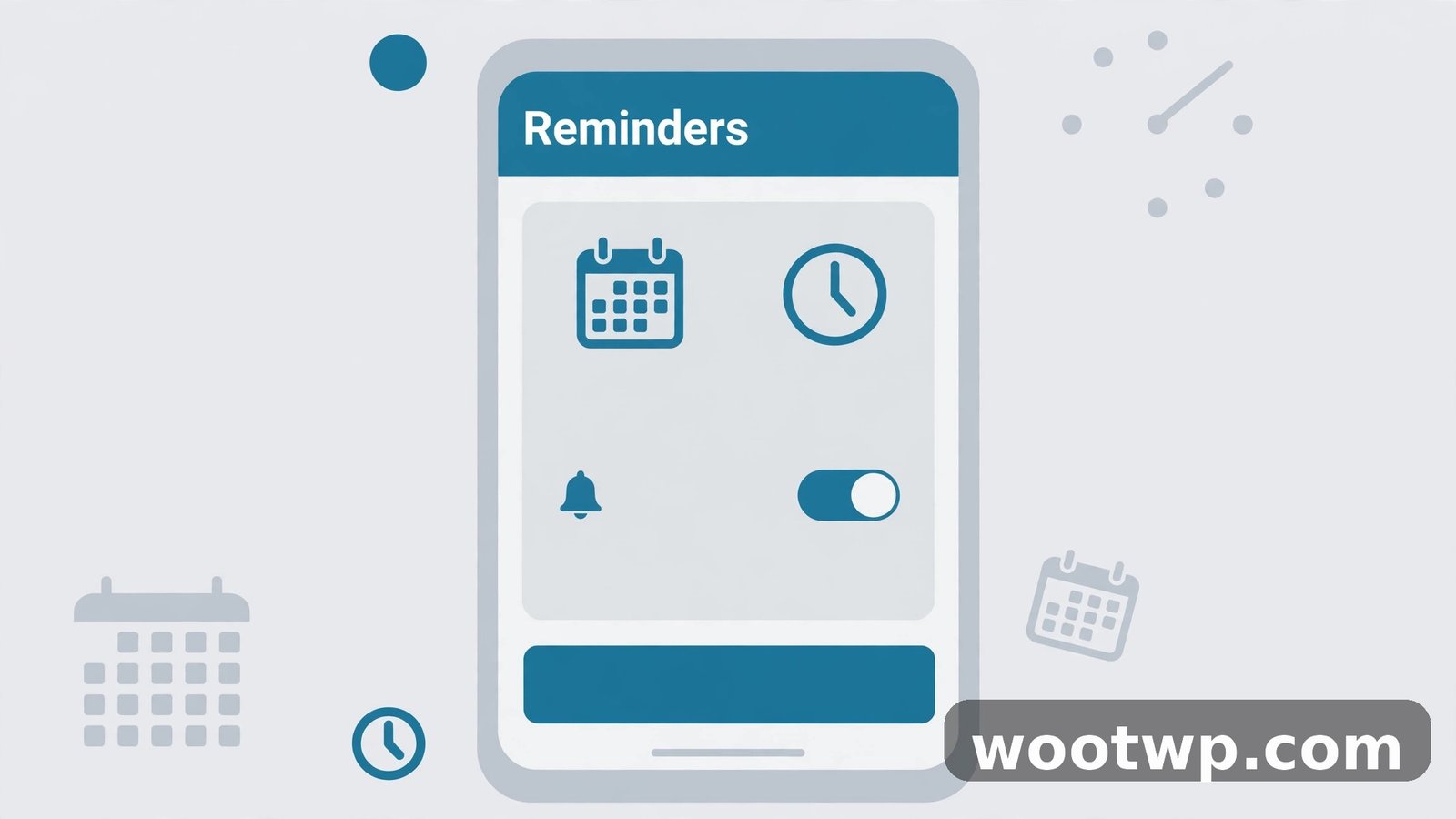
A note without a reminder is easy to forget, which is why google keep reminders are the feature that turns Keep from a notepad into a task manager. You can attach a reminder to any note, and Keep will notify you at the right time or place.
Set a time reminder
- Open the note you want to be reminded about.
- Tap the bell (Remind me) icon at the top.
- Pick a suggested time, like tomorrow morning, or tap Pick date and time for a custom slot.
- Choose the date and time, then tap Save.
Keep will send a notification on your phone at that time. If you use Google Calendar, the reminder also shows up there, so your tasks and your schedule sit side by side. Reminders also surface in Google Tasks views, which is handy if you check Tasks as your daily to-do list.
Set a location reminder
Location reminders fire when you arrive at (or leave) a place, which is ideal for errands:
- Open the note and tap the bell icon.
- Tap Pick place.
- Search for the place, such as a grocery store or your office, or choose from your saved places.
- Tap Save.
When you arrive, Keep notifies you. This only works if location permission is turned on for the Keep app, so if a location reminder never fires, check Settings, Apps, Keep, Permissions, Location on your phone first. In my experience, that permission is the cause of most "my reminder did not work" complaints.
View and manage all reminders
To see every upcoming reminder in one place, tap the menu icon and choose Reminders. From there you can edit a reminder's time, mark it done, or delete it. Done reminders stay attached to the note as history, which is useful when you want to check when you last did something.
One tip worth building into your routine: when you create a note that needs action, add the reminder immediately, while you are already looking at the note. A note you plan to "remind yourself about later" is usually a note you will forget.
How to Organize Notes With Labels, Colors, Pins, and Archive
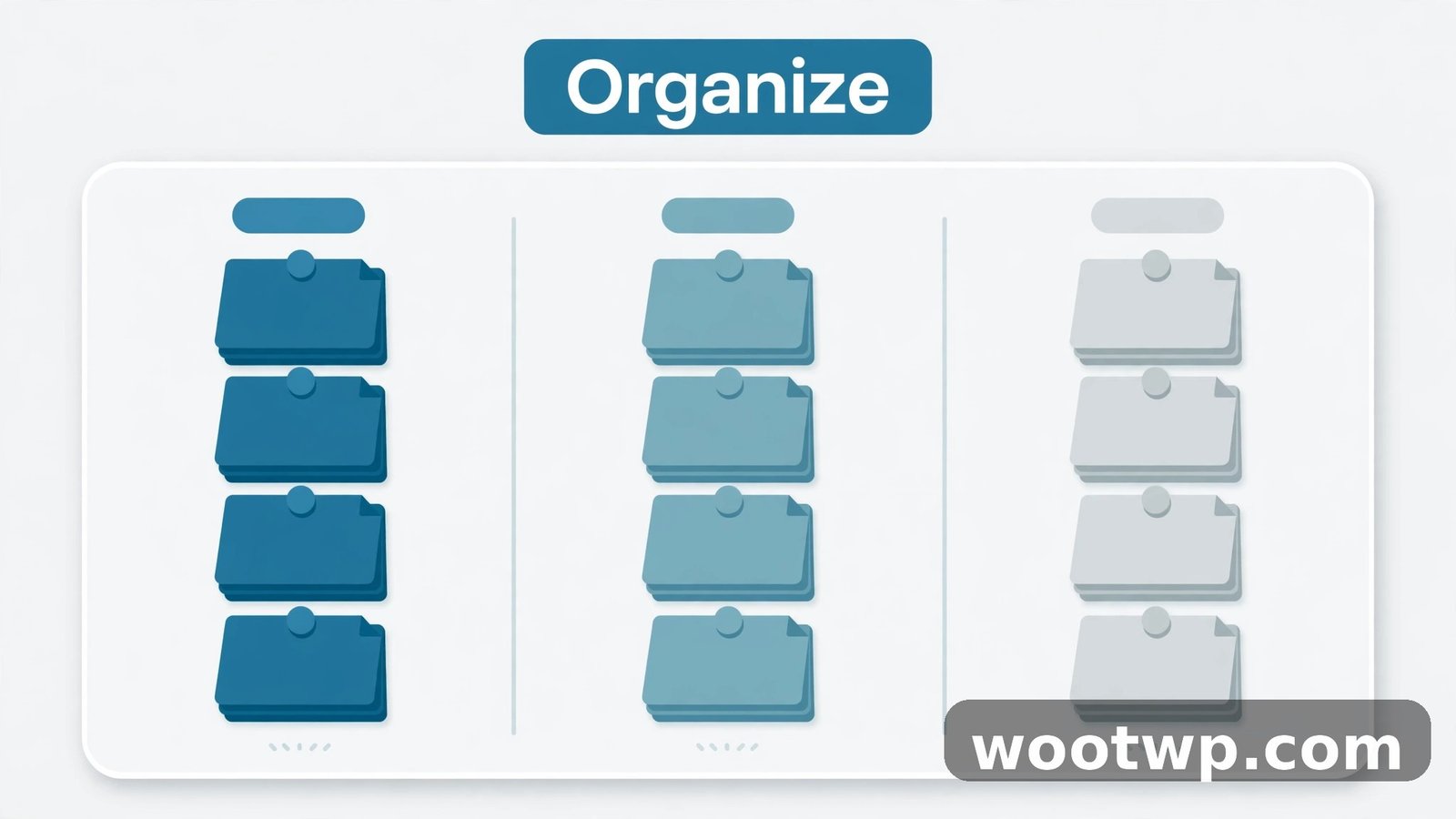
Once you have more than a few dozen notes, organizing matters. Keep gives you four lightweight tools, and google keep labels and colors are the pair I reach for most.
Labels
Labels work like folders, except a note can carry more than one label. To use them:
- Open a note and tap the three-dot menu.
- Tap Labels.
- Create a new label (for example, Work, Home, Travel) or tick an existing one.
- Tap the label name in the sidebar anytime to filter to just those notes.
I use a small set of labels: Work, Personal, Shopping, and Travel. A small set is easier to maintain than twenty labels you forget to apply. You can also search by label from the search bar if you type the label name.
Colors
Color-coding gives you a visual shortcut. Tap the paint palette icon on a note and pick a color. I use yellow for urgent items, green for money-related notes, and blue for reference material I want to keep long term. Used sparingly, colors let you spot the right note in a crowded grid without reading every title.
Pins
Tap the pin icon to pin a note to the top of your list. Pinned notes stay above everything else, which makes pins perfect for your current shopping list, this week's priorities, or a note you open ten times a day. Unpin it when you are done, or the pinned area grows until it stops being useful.
Archive
Archive is Keep's gentle version of deleting. Swipe a note or tap Archive in the menu, and it leaves your main view without being deleted. Archived notes still show up in search, so nothing is truly lost. I archive finished projects and old lists every month, which keeps the main screen focused on what is active. To find archived notes, open the menu and tap Archive.
How to Search and Filter Your Notes
Keep's search is stronger than most people expect. Tap the search bar and type a word, and Keep searches titles, note text, labels, and even text inside images. You can also filter by type: tap the search bar and choose Lists, Images, Drawings, or Reminders to narrow results.
A few search habits that pay off:
- Search for a single distinctive word rather than a full sentence.
- Combine a label filter with a keyword when your list is long.
- Use the Reminders view to see only notes with upcoming reminders.
- Remember that archived notes are searchable too, so check there before assuming a note is gone. Once you know how to use Google Keep for notes and reminders well, search is usually faster than scrolling, even with hundreds of notes.
If your Google account feels messy overall, the same tidy-up mindset helps elsewhere too. For example, this guide on how to create filters in Gmail to automatically organize your inbox shows how to set up rules so incoming mail sorts itself, which pairs well with a clean Keep setup.
How to Share Google Keep Notes and Collaborate
Learning how to share google keep notes is what turns a personal notepad into a household or team tool. Sharing is simple, and everyone you share with can edit the same note in real time.
To share a note:
- Open the note.
- Tap the collaborator (person with a plus) icon.
- Type the person's name or email address and select them.
- Tap Save.
Shared notes show the collaborator's avatar on the note. Changes sync to everyone, so a shared shopping list updates on your partner's phone the moment you tick an item off. This is the setup my household uses for groceries: one shared list, and whoever is at the store checks items off while the other person can still add to it from home.
A few practical notes on sharing:
- Collaborators need a Google account to edit shared notes.
- Anyone with edit access can change or delete content, so share sensitive notes only with people you trust.
- To stop sharing, open the collaborator list and remove the person.
- Shared notes cannot be shared further by collaborators unless you add them yourself.
If a shared note gets messy, use labels and colors to mark who owns which section, or split it into two notes: one shared, one private. In my experience, one shared list per purpose works better than one giant shared note that tries to cover everything. That shared-list habit is one of the most practical parts of learning how to use Google Keep for notes and reminders with family.
How Google Keep Works With Docs, Calendar, and Tasks
Keep does not live alone in the Google ecosystem. A few integrations are worth knowing:
- Google Docs: In Docs on the web, open Tools, Keep notepad (or the Keep icon in the sidebar) to drag notes straight into a document. This is the fastest way I know to turn brainstormed points into a draft.
- Google Calendar: Time reminders from Keep appear on your calendar, so a task with a deadline sits next to your meetings.
- Google Tasks: Reminders also surface in Tasks views, which means you can review Keep reminders alongside other to-dos without opening two apps.
- Google Assistant: You can ask your Assistant to add a note to Keep, which is useful when your hands are busy.
None of these integrations require extra setup beyond signing in with the same Google account everywhere. If a reminder is not showing in Calendar, double-check that you are looking at the same account on both apps, since mixed personal and work accounts are the usual culprit.
Everyday Setups That Actually Stick
Knowing how to use Google Keep for notes and reminders is one thing. Building setups you actually keep using is another. Each of these setups works because it answers the same question: how to use Google Keep for notes and reminders in a way that survives a busy week. Here are three that have lasted for me.
The always-ready shopping list
Keep one pinned checklist called "Shopping." Add items the moment you notice you are out of something, instead of trying to remember them all on shopping day. Share it with your household. At the store, tick items off as you go, then untick them next time you need them again, or delete the ticked items and start fresh. A location reminder for your usual grocery store turns the list into a nudge right when you arrive.
The packing list template
Make a packing list once, then duplicate it for every trip instead of starting over. Keep a master "Packing" note, copy it, rename the copy for the trip, and tick items off as you pack. Archive the trip copy when you are home, and the master stays clean for next time.
The meeting notes system
Create one note per meeting with the date in the title, like "Team meeting – Oct 30." Use a checklist inside for action items, and add a reminder for anything with a deadline. At the end of the week, archive finished meeting notes and keep only open action items pinned. Over a month, this builds a searchable record of decisions without any extra filing system.
The pattern across all three setups is the same: one note per job, a label or color so you can find it, and a reminder whenever the note needs action by a certain time. Simple systems survive; complicated ones get abandoned.
How to Recover Deleted Notes From Trash
Deleting a note in Keep does not erase it immediately. Deleted notes go to Trash, where they stay for 7 days before being permanently deleted. To recover one:
- Open the menu and tap Trash.
- Find the note you want back.
- Tap the note, then tap Restore (or use the three-dot menu and choose Restore).
- The note returns to your main list with its labels and reminders intact.
If the note is not in Trash, it may have been archived instead of deleted, so check the Archive view and search for a keyword from the note. After 7 days in Trash, recovery is not possible through the app, so if you delete something important by mistake, restore it the same day rather than hoping to get to it later. Knowing how to use Google Keep for notes and reminders also means knowing where deleted notes go, so a slip of the finger does not feel like a disaster. For genuinely important reference notes, I keep a copy in a document as well, because Keep is a capture tool, not a permanent archive.
What Google Keep Can't Do
Keep is honest about its limits, and knowing them saves frustration:
- It is not a document editor. Notes are short-form by design. Long reports, heavy formatting, and tables belong in Google Docs.
- There is no rich text formatting. You get bold-free plain text, lists, and images, not fonts, headings, or page layouts.
- Offline access is limited on the web. The mobile app handles offline notes better than the browser version, so do not rely on the web app without a connection.
- There is no folder hierarchy. Labels replace folders, which works well until you want nested folders, at which point a docs-based system fits better.
- Reminder options are basic. You get time and location triggers, but not complex recurring rules like "every third Tuesday." For that, Calendar or Tasks is the better home.
None of this makes Keep a bad tool. It makes it a focused one. Use Keep for capture, quick lists, and reminders, and hand longer work to Docs when a note outgrows its format. For more detail on what Keep can do, Google's own Google Keep Help Center covers the current features and settings.
FAQs
How do I use Google Keep for notes and reminders on Android?
Install the Google Keep app, sign in with your Google account, and tap the plus button to create a note. Tap the bell icon on any note to add a time or location reminder, and your notes will sync to keep.google.com automatically.
Is Google Keep free?
Yes, Google Keep is free with a Google account. There is no paid version or subscription needed for notes, lists, reminders, labels, sharing, or syncing across your devices.
Can I share Google Keep notes with someone who does not have a Google account?
No, collaborators need a Google account to view and edit shared notes. If the person does not have one, they can create a free Google account, or you can share the note's contents another way, such as copying the text into an email.
Do Google Keep reminders show up in Google Calendar?
Yes, time-based reminders from Keep appear in Google Calendar, and they also surface in Google Tasks views. This only works when both apps are signed in to the same Google account.
How do I recover a deleted note in Google Keep?
Open the menu, tap Trash, find the note, and tap Restore within 7 days of deleting it. After 7 days, notes in Trash are permanently deleted and cannot be recovered through the app.
What is the difference between archiving and deleting a note in Google Keep?
Archiving removes a note from your main view but keeps it searchable and fully restorable. Deleting sends it to Trash for 7 days, after which it is permanently removed, so archive finished notes you might need again and delete only what you are sure about.
Conclusion
Once you know how to use Google Keep for notes and reminders, the real win is not the app itself but the habit: capture it the moment you think of it, add a reminder if it needs action, and label it so you can find it later. Start with one pinned shopping list and one daily checklist, and let the system grow from there.