Create Filters in Gmail: 7 Simple Rules for a Clean Inbox
If your Gmail inbox feels like a firehose — newsletters you meant to read, receipts you'll never look at, notifications from every app you own — you don't need to read faster. You need to create filters in Gmail so incoming mail sorts itself. Gmail filters are free, take about 30 seconds each to set up, and once they're running, your inbox basically organizes itself. Here's exactly how they work, plus 7 ready-made filter rules you can copy today.
- What Are Gmail Filters?
- How to Create a Filter in Gmail
- 7 Filter Rules Worth Setting Up Today
- Managing and Editing Your Filters
- Filter Mistakes to Avoid
- FAQs
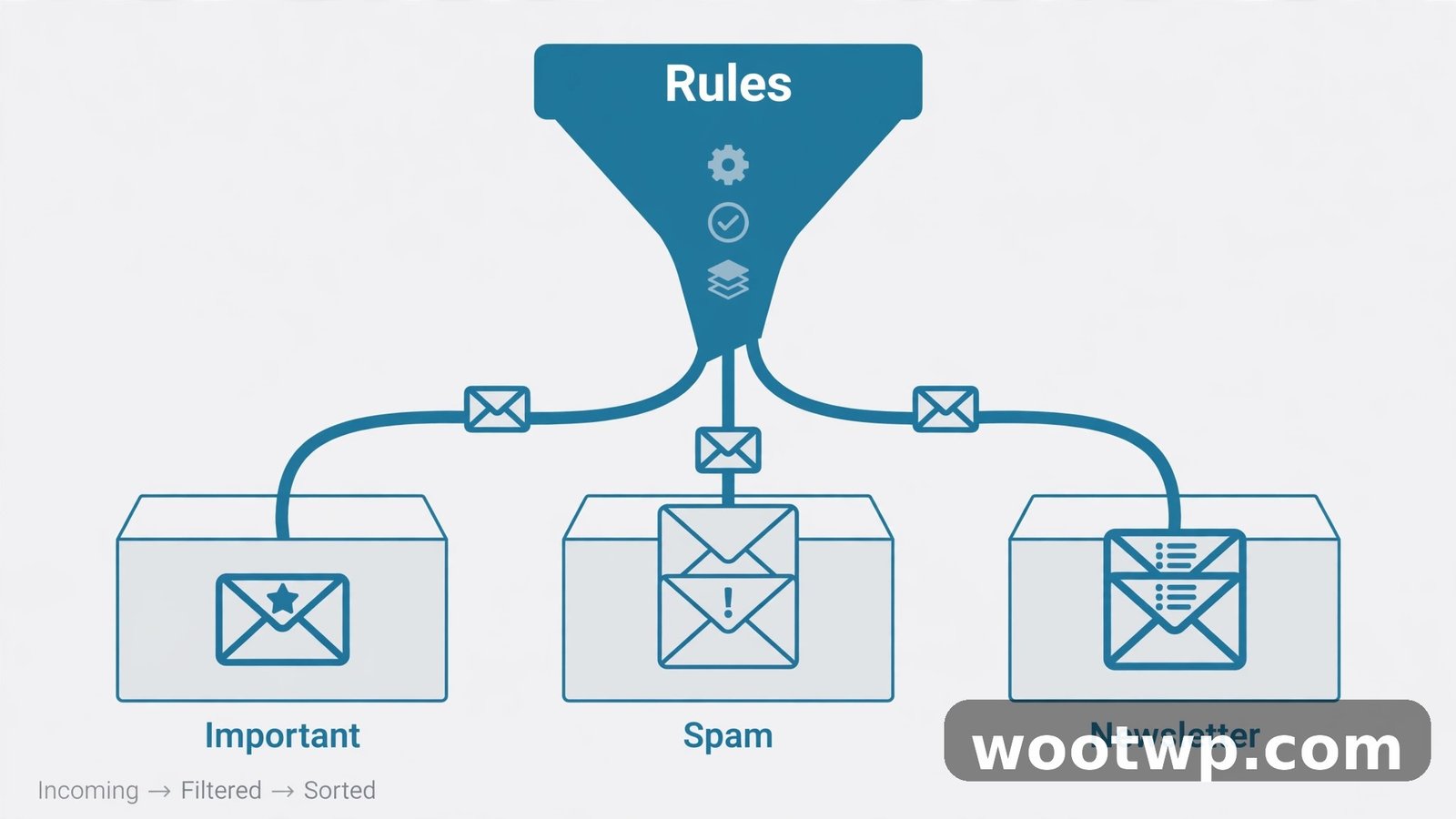
What Are Gmail Filters?
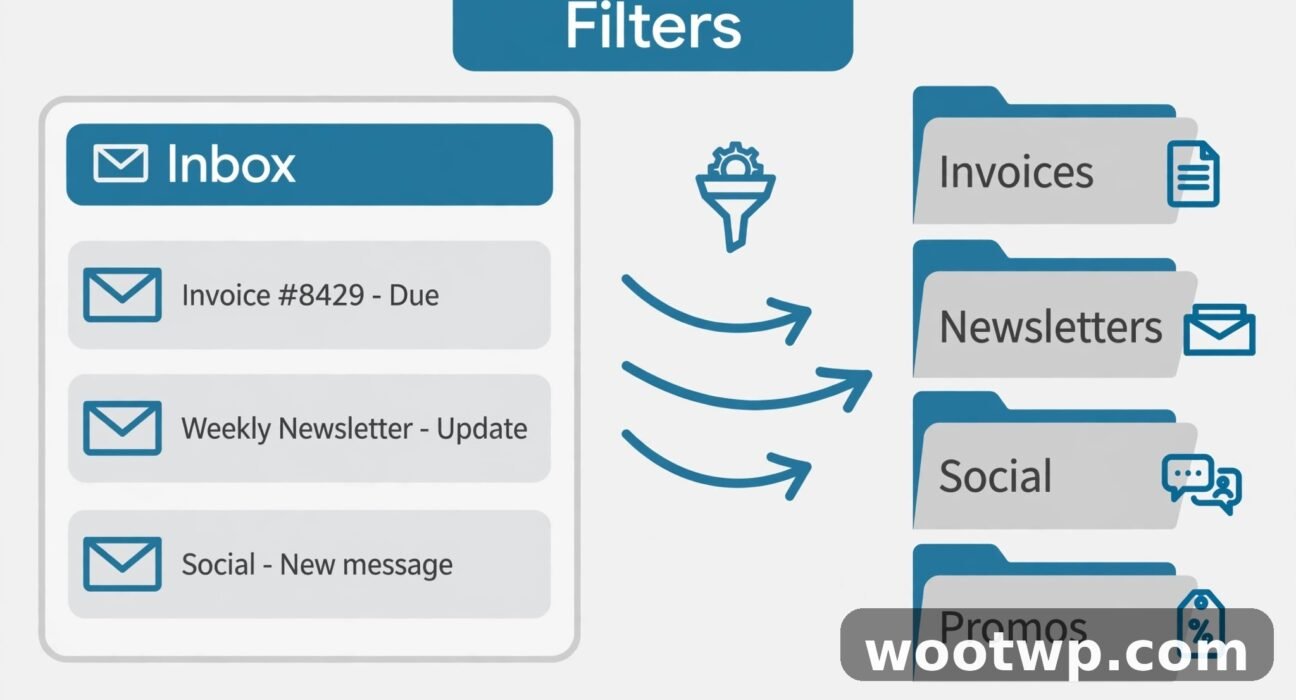
A Gmail filter is a rule you define once, and Gmail then applies it automatically to every email that matches. You tell Gmail what to look for — a sender, a subject keyword, an attachment — and what to do when it finds it: apply a label, skip the inbox, mark it read, delete it, star it, or forward it.
Filters are different from labels. A label is just a tag you stick on an email (Gmail's version of folders, except one email can have several labels). A filter is the automation that applies those labels for you. Filters are also more powerful than most people realize — combined with the "Skip the Inbox" action, they can keep whole categories of mail out of your face without deleting anything.
The best part: filters also work on the Gmail mobile app. They run on Google's servers, not your phone, so anything you set up on desktop applies everywhere.
How to Create a Filter in Gmail
There are two ways to create a filter. The first is the quickest.
Method 1: From the Search Bar (Fastest)
- Click the "Show search options" icon — the small sliders icon on the right side of the Gmail search bar.
- Fill in your criteria: the sender's address, words in the subject, words the email must (or must not) contain, size, or whether it has an attachment.
- Click Search first to preview which existing emails match — this is the smart move, because it shows you exactly what you're about to affect.
- If the results look right, click the sliders icon again and this time click Create filter at the bottom right.
- Choose your actions: Skip the Inbox (Archive it), Mark as read, Apply the label, Delete it, Star it, Forward it, or Never send it to Spam.
- Optionally check "Also apply filter to X matching conversations" to organize emails you already have.
- Click Create filter.
Method 2: From Settings (More Control)
- Click the gear icon and choose See all settings.
- Open the Filters and Blocked Addresses tab.
- Click Create a new filter.
- Fill in the criteria and click Create filter, then choose your actions.
Both methods lead to the same place. I use the search-bar method when I'm building a filter from an email I just received, and Settings when I'm planning several at once.
Understanding the Filter Criteria Fields
- From: the sender's address or domain. Use just the domain (like
@newsletter.com) to match everything from that domain. - To: useful if you use Gmail aliases or plus-addressing (like
you+shopping@gmail.com) — filter on the "To" address to sort signups automatically. - Subject: words that must appear in the subject line.
- Has the words: words anywhere in the email, body included.
- Doesn't have: words that must NOT appear — great for excluding things from a broad filter.
- Size: filter emails above or below a certain size. Handy for catching space-hoggers.
- Has attachment: matches any email with a file attached.
Understanding the Filter Actions
- Skip the Inbox (Archive it): the single most useful action. The email stays in "All Mail" and still shows under its label — it just doesn't clutter your inbox.
- Mark as read: pairs well with "Skip the Inbox" for notifications you want filed away silently.
- Apply the label: tags matching emails so they're easy to find. You can create a new label right in the filter dialog.
- Delete it: sends matching emails straight to Trash. Use carefully.
- Star it: for things you never want to miss.
- Forward it: sends a copy to another address — useful for shared inboxes.
- Never send it to Spam: overrides Gmail's spam filter for a trusted sender. Only use this for senders you're sure about.
7 Filter Rules Worth Setting Up Today
You don't need dozens of filters. These seven cover what most people actually struggle with. Each one takes under a minute.
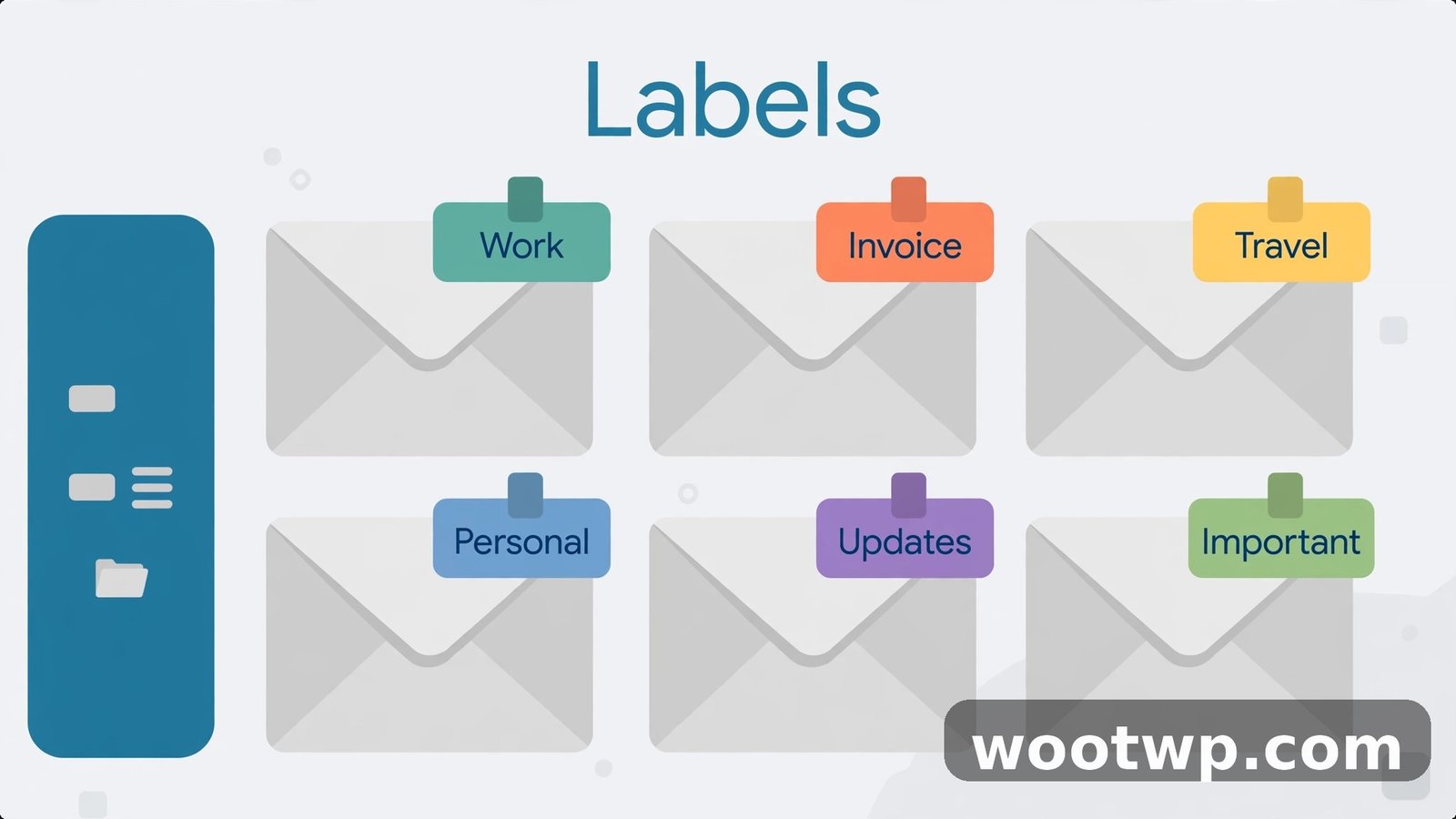
1. Auto-File Newsletters
Newsletters are the biggest inbox hog for most people, and the filter is simple:
- Has the words:
unsubscribe - Actions: Skip the Inbox, Apply the label
Newsletters, Mark as read (optional)
The word "unsubscribe" appears in almost every legitimate newsletter footer, so this catches most of them in one shot. They'll be waiting under your Newsletters label whenever you actually want to read them. If you're drowning in newsletters entirely, my guide on how to free up Gmail storage without deleting emails has more cleanup strategies.
2. File Receipts and Order Confirmations
Online shopping receipts are worth keeping but never need to interrupt you:
- Has the words:
receipt OR order confirmation OR invoice - Actions: Skip the Inbox, Apply the label
Receipts
The OR operator is a lifesaver in filters — it lets one filter catch several keyword variations. Add OR tracking if you want shipping updates filed too.
3. Silence Social Media Notifications
If you still get "someone liked your post" emails, filter them out:
- From:
@facebook.com OR @instagram.com OR @linkedin.com OR @x.com - Actions: Skip the Inbox, Mark as read, Apply the label
Social
Adjust the domains to whatever you actually use. The point: you'll see these notifications in the apps themselves, so the emails are pure noise.
4. Star Emails From Your Boss or Key Clients
Filters aren't just for hiding mail — they can surface what matters:
- From:
boss@company.com - Actions: Star it, Never send it to Spam
You can also set a second action to apply a label like VIP. Combine this with Gmail's Priority Inbox and important people will always stand out.
5. Auto-Delete or File Promotional Blasts
Those daily deal emails you never open? Give them a filter with a built-in expiry:
- From:
@deals-store.com - Actions: Skip the Inbox, Apply the label
Deals
If you genuinely never read them, change the action to Delete it — but be careful with this one. Deleting is only for senders you're sure about. And if the problem is wider than one sender, my article on how to stop spam emails in Gmail covers blocking, reporting, and unsubscribing at scale.
6. Catch Large Attachments Before They Eat Your Storage
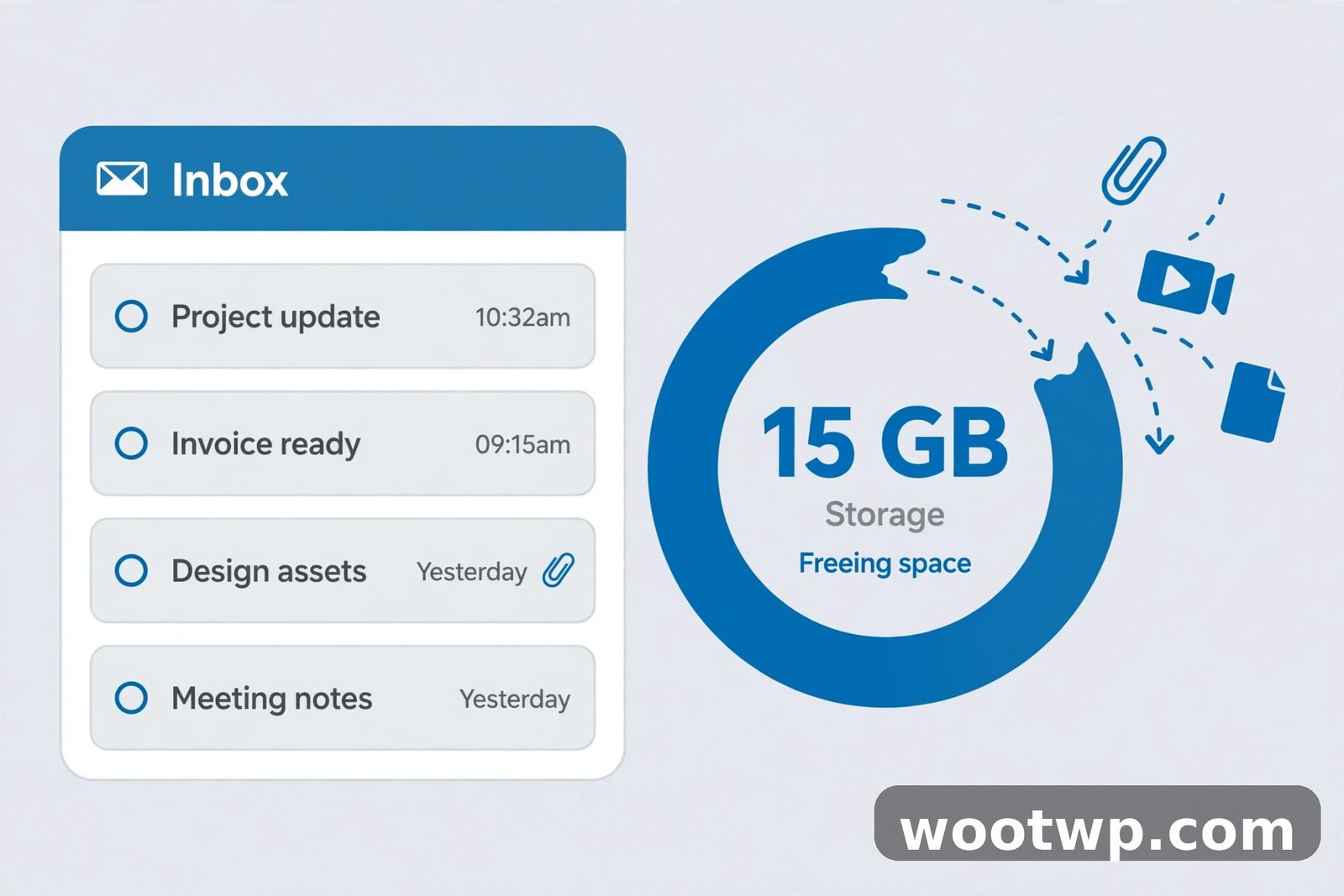
Gmail's free 15 GB fills up faster than anyone expects, and attachments are usually the reason:
- Has attachment: checked
- Size: greater than
10M - Actions: Apply the label
Large files
This doesn't file them away — it just tags them so you can find and clean them up later. Run a search for larger:10M every few months and delete what you don't need.
7. Sort by Alias With Plus-Addressing
Gmail ignores everything after a plus sign in your address, so you+shopping@gmail.com lands in your inbox normally. Use that to your advantage: give you+shopping@gmail.com to stores, you+news@gmail.com to newsletters, and filter on the "To" field:
- To:
you+shopping@gmail.com - Actions: Skip the Inbox, Apply the label
Shopping
This is one of the cleanest organization systems in Gmail because you control the sorting at the moment you sign up, not after the mail arrives.
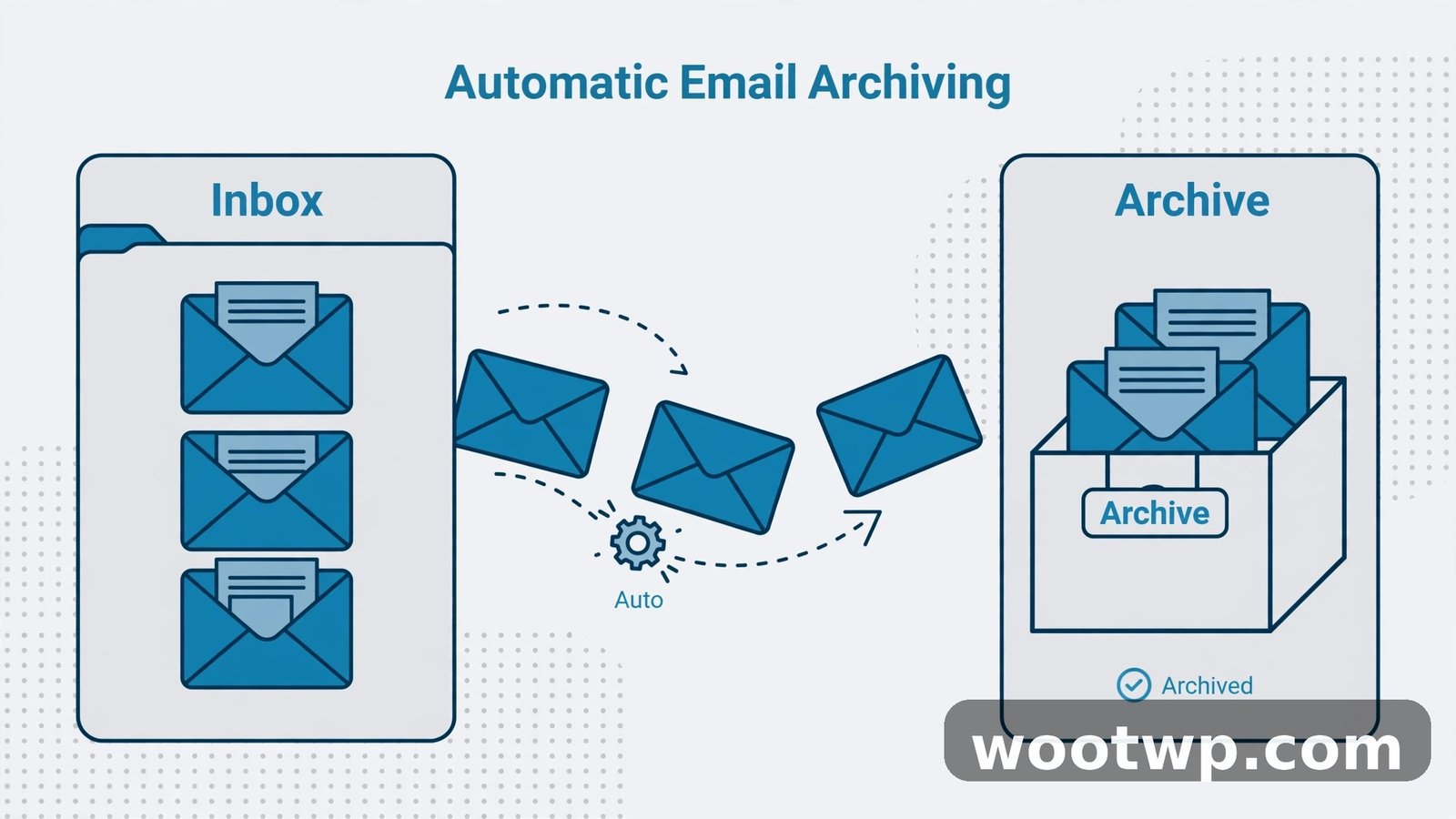
Managing and Editing Your Filters
Filters aren't set-and-forget forever — senders change, habits change. Every few months, review them:
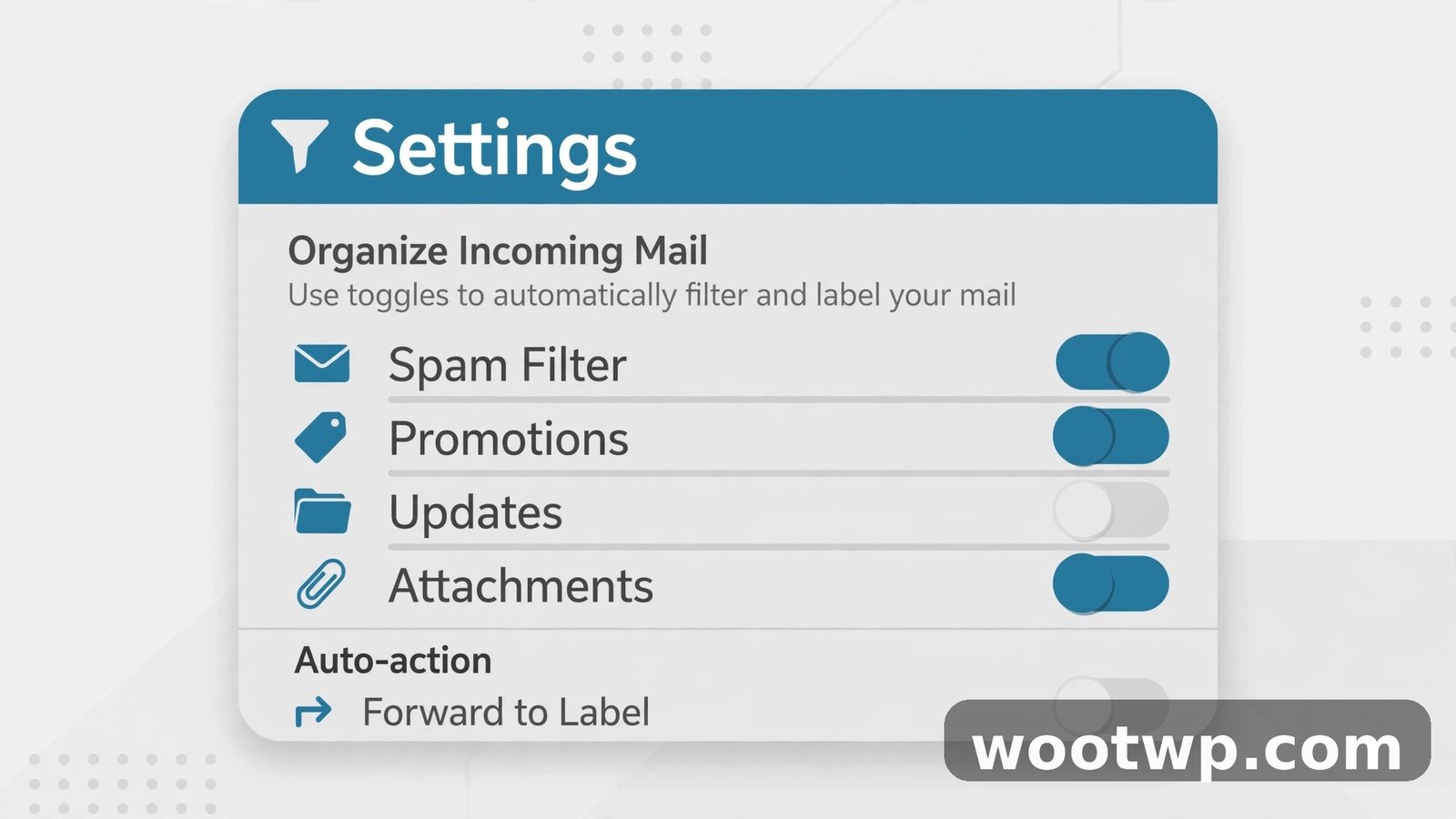
- Go to Settings > Filters and Blocked Addresses.
- You'll see every filter with its criteria and actions listed.
- Click edit to change a filter, or delete to remove it.
A few practical tips I've learned the hard way:
- Order matters when filters overlap. If two filters match the same email, both run. That's usually fine, but watch for a "Delete it" filter colliding with a "Star it" filter — the email gets starred, then deleted.
- Use "Doesn't have" to make filters safer. Adding
Doesn't have: invoiceto your newsletter filter keeps actual bills out of it. - Don't over-filter. If you create 40 filters, you'll lose track and miss things. Start with the seven above and add more only when a specific sender annoys you twice.
- Check All Mail occasionally. "Skip the Inbox" doesn't delete anything, but it's worth glancing at your labels now and then to make sure nothing important got misfiled.
Filter Mistakes to Avoid
- Filtering to Trash too aggressively. A typo in the "From" field can send real mail to Trash. Trash auto-deletes after 30 days, so mistakes can become permanent. Preview with Search before creating any Delete filter.
- "Never send it to Spam" on shady senders. This action disables Gmail's protection for that sender. Only use it for senders you fully trust, like your bank or your employer's domain.
- Forgetting mobile exists. Filters run server-side, so they work on mobile — but you can't create or edit them in the Gmail mobile app. All filter management happens on desktop.
- Using filters instead of unsubscribing. If you never want a sender's mail at all, unsubscribe. Filters are for mail you want to keep but not see immediately.
FAQs
How many filters can I have in Gmail?
Gmail allows up to 1,000 filters per account, which is far more than anyone needs. If you're anywhere near that number, you're overcomplicating things — 10 to 20 well-designed filters beat 200 narrow ones.
Do Gmail filters work on the mobile app?
Yes. Filters run on Google's servers, so they apply to mail no matter which device you read it on. You just can't create or edit filters in the mobile app — that requires the desktop site.
Can I apply a filter to emails I already received?
Yes. When creating the filter, check "Also apply filter to X matching conversations" and Gmail will process your existing matching emails too. For a huge backlog, let it run — it can take a few minutes.
What's the difference between labels and filters in Gmail?
Labels are tags you put on emails — like folders, except an email can have multiple labels. Filters are automated rules that apply those labels (or other actions) for you. You use labels manually or let filters use them automatically.
Why is my Gmail filter not working?
The usual suspects: a typo in the criteria, overlapping filters where another filter acted first, or the filter matching on "Has the words" when the real text uses different wording. Edit the filter, click Search to preview matches, and adjust the criteria until the preview looks right.
Can filters forward email to another address automatically?
Yes, but the forwarding address must be verified first. Go to Settings > Forwarding and POP/IMAP > Add a forwarding address, confirm the verification email, then the address becomes available as a filter action.
Conclusion
Learning to create filters in Gmail is one of those small skills that pays off every single day. Start with just two or three — the newsletter filter and the receipts filter are the highest-impact ones — and let them run for a week. Once you see your inbox staying clean on its own, you'll wonder why you ever sorted mail by hand. A calm inbox isn't about discipline; it's about automation.