Fix 503 Service Unavailable in WordPress: 9 Proven Ways
You open your site and instead of your homepage you get a blank screen that says "503 Service Unavailable." Nothing is broken visually — the server is just refusing to serve your site right now. Learning how to fix 503 service unavailable in WordPress is mostly about finding out what is overwhelming your server and removing that pressure. In this guide, I'll walk you through 9 proven fixes in the order I'd try them myself, from the 30-second checks to the deeper server-level causes.
- What the 503 Error Actually Means
- Common Causes of the WordPress 503 Error
- How to Fix the 503 Error: 9 Proven Methods
- How to Stop the 503 Error From Coming Back
- FAQs
What Does the 503 Service Unavailable Error Mean?
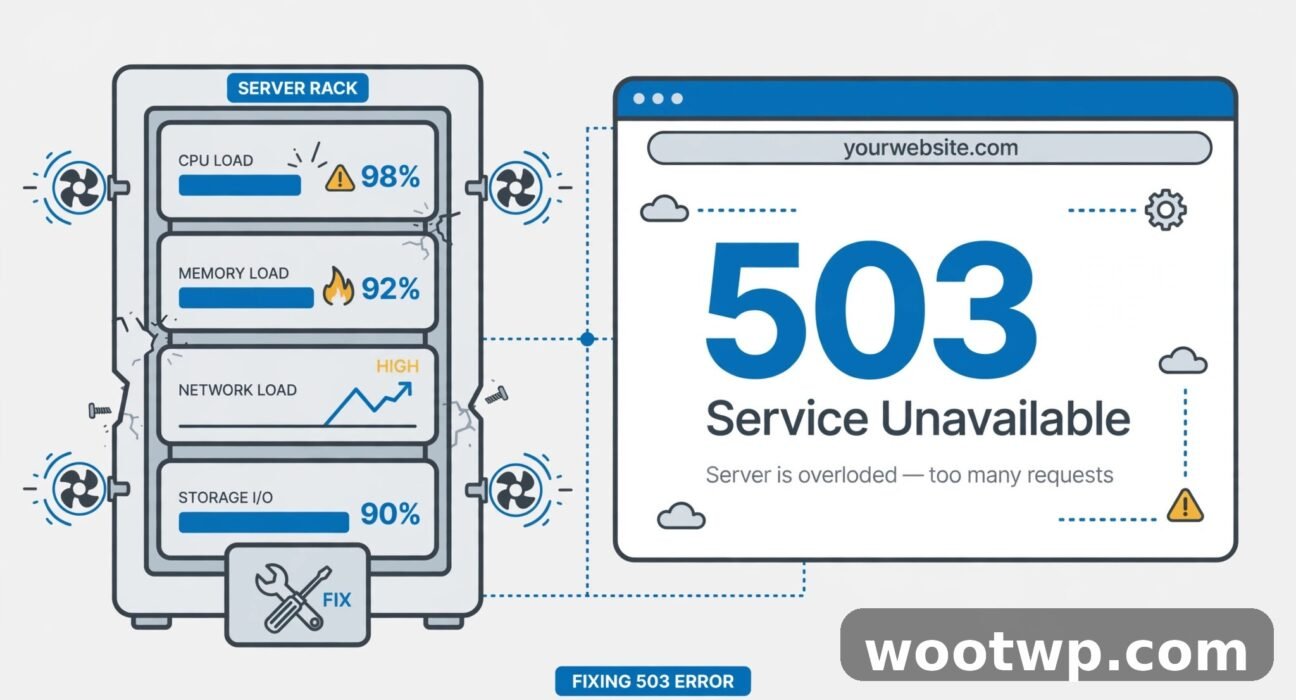
A 503 Service Unavailable error is the server's way of saying "I'm here, but I can't handle your request right now." It's a temporary status, which is actually good news — unlike a broken database or corrupted files, a 503 usually means everything is still intact and something is just overloading the server.
In WordPress, the 503 error shows up when your hosting server gets more requests or work than it can process. Think of it like a restaurant kitchen during a dinner rush: the kitchen still exists, the recipes are fine, but there are too many orders coming in at once. Your job is to figure out what's creating the extra orders.
The 503 error is different from a 500 error. A 500 internal server error usually means something is broken in your code. A 503 means the server is overwhelmed — by traffic, by a runaway plugin, or by a resource limit you've hit.
What Causes the 503 Error in WordPress?
In my experience, the WordPress 503 error almost always comes down to one of these:
- A misbehaving plugin — the single most common cause. A plugin with a memory leak, an infinite loop, or a heavy background task can eat all your server's resources on every page load.
- A heavy or badly coded theme — themes that run expensive database queries on every request can push a small hosting plan past its limits.
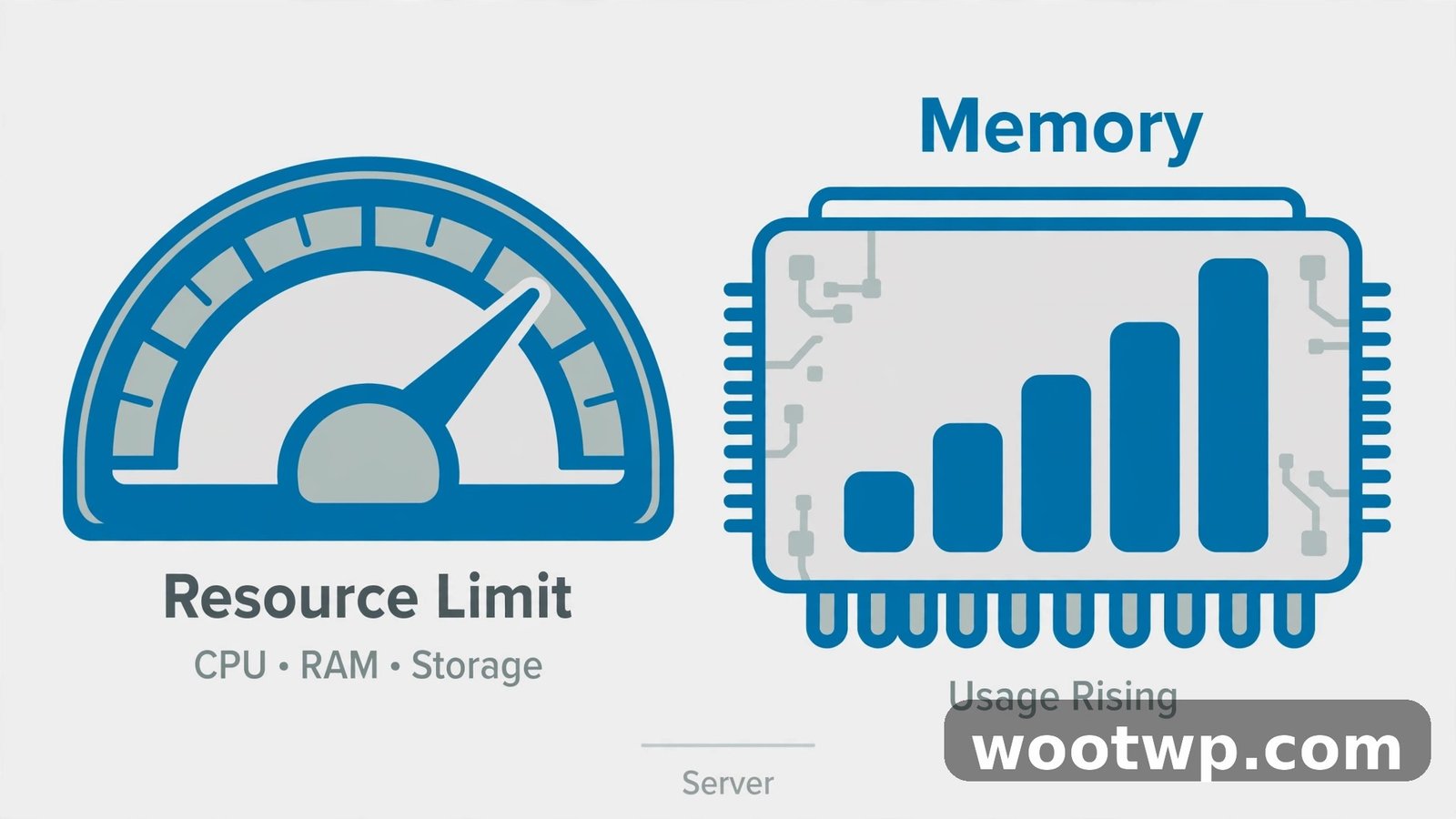
- Too little PHP memory — WordPress asks for a certain amount of memory, and if your plan caps it too low, PHP processes die and the server returns 503.
- Traffic spikes — a post going viral, a sale starting, or even a bot swarm can flood a shared server.
- DDoS attacks or aggressive bots — scrapers and bots hitting your site thousands of times an hour look exactly like a traffic spike to the server.
- Stuck maintenance mode — if a WordPress update gets interrupted, the site can stay stuck in maintenance mode, which also returns a 503.
- The WordPress Heartbeat API — this built-in feature sends constant requests between the browser and server. With several editors logged in at once, it adds up fast.
- CDN or firewall issues — Cloudflare or a security plugin can return its own 503 when it can't reach your origin server.
Now let's fix it, starting with the fastest checks.
How to Fix the 503 Error in WordPress
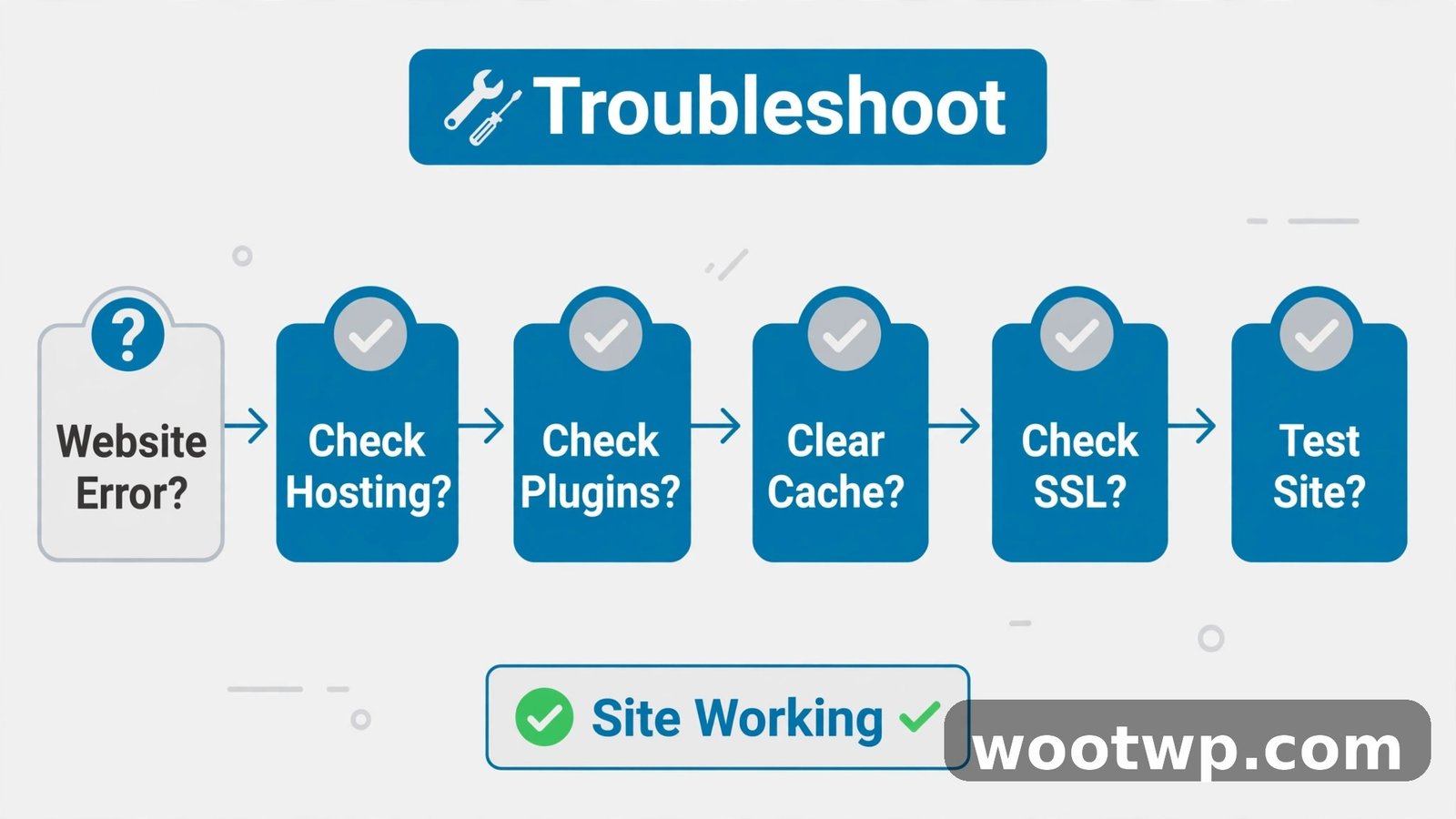
Work through these in order. Most of the time, one of the first four steps solves the problem.
1. Wait a Few Minutes and Refresh
If the 503 just appeared, don't touch anything yet. Many 503 errors are brief — a traffic spike, a host running backups, or a resource reset. Wait 5 to 10 minutes, then hard-refresh (Ctrl + Shift + R on Windows, Cmd + Shift + R on Mac).
Also check the site from another browser or your phone on mobile data. If it loads there, the problem may be your own cached page or IP, not the server.
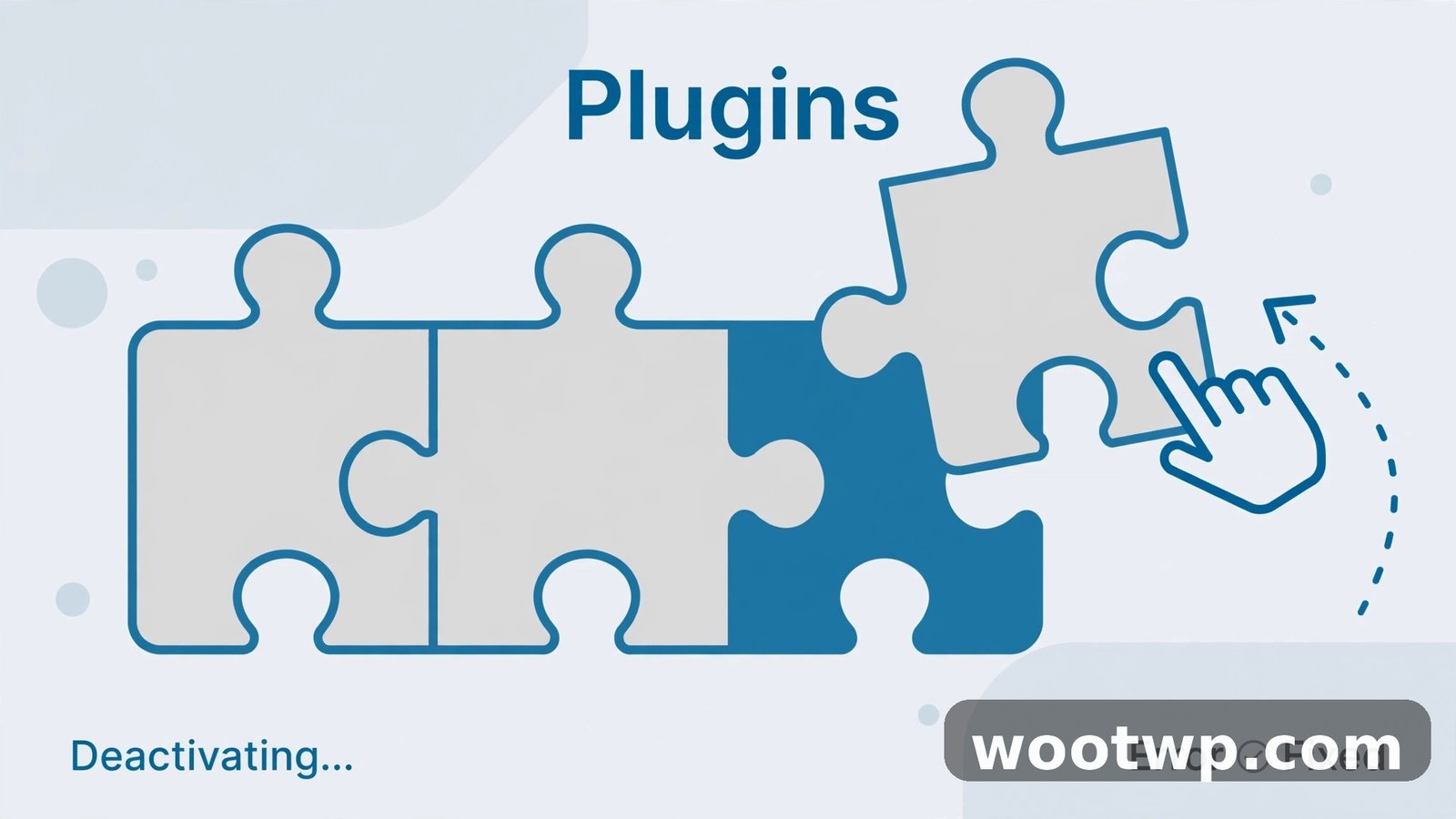
2. Deactivate All Plugins
A plugin is the most likely culprit, so rule it out first. If you can reach your WordPress dashboard:
- Go to Plugins > Installed Plugins.
- Check the box at the top to select all plugins.
- Choose Deactivate from the bulk actions dropdown and click Apply.
- Reload your site.
If the site loads, reactivate your plugins one by one, reloading the site after each one. When the 503 returns, you've found the problem plugin. Replace it or check the developer's site for a known fix.
If the dashboard won't load either, do it through your host's file manager or FTP:
- Connect to your site's files and open the
wp-contentfolder. - Rename the
pluginsfolder toplugins-old. - Reload your site — WordPress treats a missing plugins folder as "no plugins active" and should load.
- Rename it back to
pluginsafterward; all plugins will be deactivated and you can reactivate them one at a time from the dashboard.
3. Switch to a Default Theme
If plugins weren't the cause, your theme is next in line. From the dashboard, go to Appearance > Themes and activate a default theme like Twenty Twenty-Four or Twenty Twenty-Five. Install one first if it isn't there.
Can't reach wp-admin? Rename your active theme's folder inside wp-content/themes/ over FTP. WordPress will automatically fall back to a default theme. If the 503 clears, your theme's code is the problem — usually a function that runs expensive queries on every page load. Contact the theme developer or switch themes.
4. Delete a Stuck .maintenance File
When WordPress runs a core, plugin, or theme update, it creates a file called .maintenance in your site's root folder and deletes it when the update finishes. If the update crashes or times out, that file stays behind and your site keeps showing a 503 to every visitor.
Fix it in under a minute:
- Open your host's file manager or FTP client and look in the root folder (usually
public_html). - Enable "show hidden files" — the file starts with a dot, so it's hidden by default.
- If you see
.maintenance, delete it. - Reload your site.
This one catches more people than you'd expect, especially after updates on slow shared hosting.
5. Increase Your PHP Memory Limit
WordPress needs enough PHP memory to run. If your hosting plan sets it too low, PHP processes get killed and the server answers with a 503. I've seen this on fresh installs with several heavy plugins active.
Add this line to your wp-config.php file, just above the line that says "That's all, stop editing!":
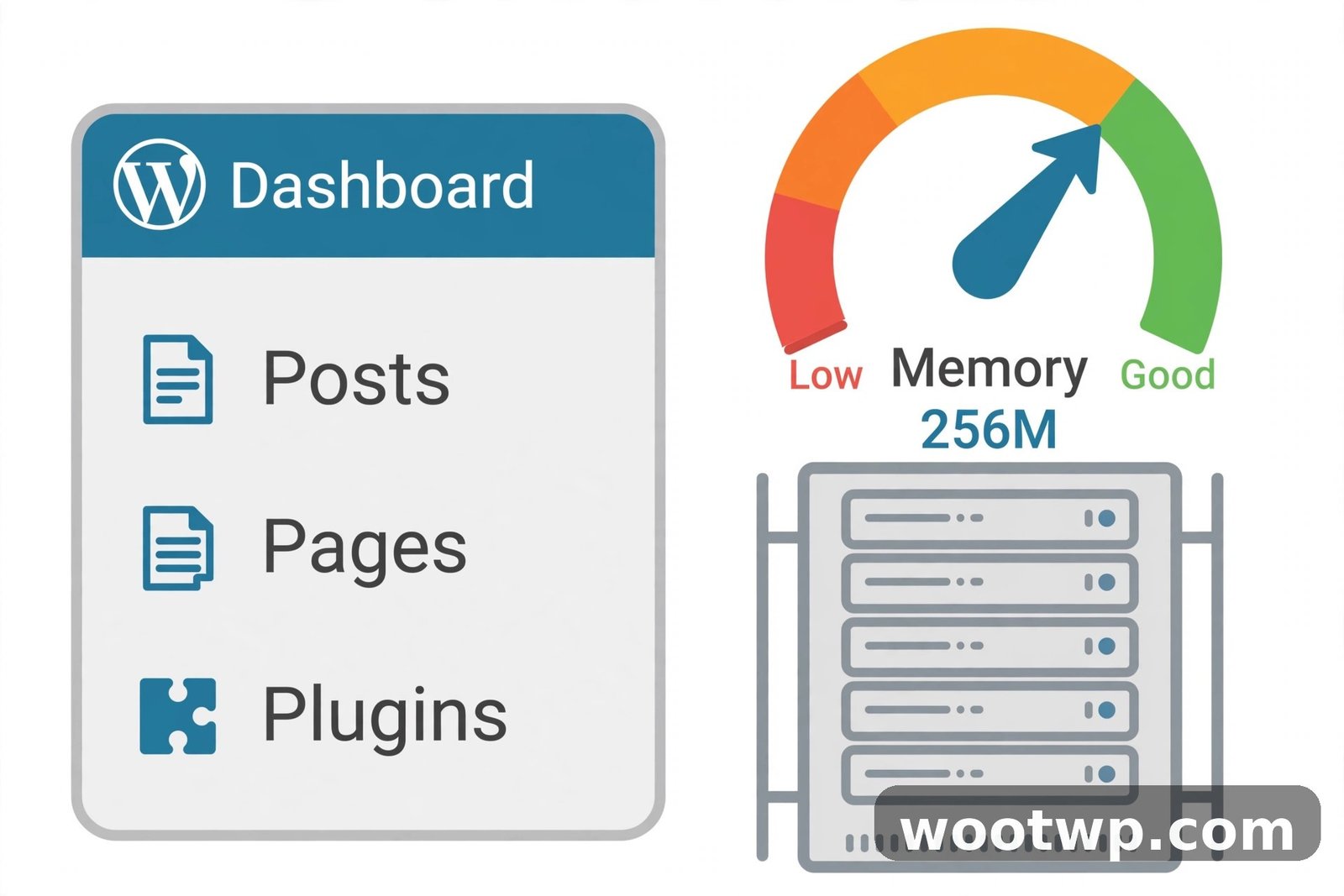
define('WP_MEMORY_LIMIT', '256M');If 256M isn't enough, try 512M — but don't go higher than what your hosting plan actually provides. You can also raise it in php.ini or ask your host's support to do it for you, which takes them about two minutes. For the full walkthrough, see my guide on how to increase the PHP memory limit in WordPress.
6. Turn Down the WordPress Heartbeat API
The Heartbeat API is a background feature that keeps your browser talking to the server — for autosaves, post locking, and login session checks. On a normal blog it's harmless. But if you have multiple editors working in wp-admin at the same time, or several admin tabs open, all those little requests pile up and can tip a small server over the edge.
The easiest fix is the Heartbeat Control plugin from the WordPress plugin directory, which lets you slow it down or disable it on the dashboard, the frontend, and the editor separately. I'd start by limiting it rather than killing it entirely — autosaves and post-locking are genuinely useful.
7. Check Your CDN, Firewall, and Security Plugins
Sometimes the 503 isn't coming from WordPress at all — it's coming from something sitting in front of it. Cloudflare can serve its own 503 when it can't reach your origin server, and security plugins like Wordfence can trigger resource limits with aggressive scanning.
To test this:
- If you use Cloudflare, log into your Cloudflare dashboard and temporarily pause Cloudflare (set the orange cloud to gray, or use "Pause Cloudflare on Site"). If the site loads, the issue is between Cloudflare and your server — check your SSL mode and firewall rules there.
- If you run a security plugin, deactivate it (see step 2) and check whether the 503 clears. A full malware scan or a live-traffic log on a busy site can hammer the server.
8. Enable Debug Mode and Check Your Logs
If none of the quick fixes worked, it's time to look under the hood. WordPress has a built-in debug mode that logs PHP errors to a file you can read. Add these lines to wp-config.php:
define('WP_DEBUG', true);
define('WP_DEBUG_LOG', true);
define('WP_DEBUG_DISPLAY', false);
Then reload the page that triggers the 503 and open wp-content/debug.log in your file manager. Look for recent Fatal error or Allowed memory size exhausted entries — they'll usually name the plugin, theme file, or function causing the crash. The official WordPress debugging documentation explains every option in detail if you want to dig deeper. Remove or fix the offending code, then set WP_DEBUG back to false.
9. Ask Your Hosting Provider to Check the Server
If you've ruled out plugins, themes, maintenance files, and memory, the problem may live below WordPress entirely — at the server level. Your host's support team can see things you can't: CPU usage graphs, killed processes, resource-limit hits, and whether your account is being throttled.
When you contact them, tell them exactly what you've already tried. Ask specifically:
- "Am I hitting my CPU or memory resource limits?"
- "Can you see what's using the most resources on my account?"
- "Is there anything unusual in the server error logs for my site?"
Good hosts will answer all three in minutes. If they confirm you're consistently maxing out your plan, it's time to upgrade — no amount of plugin juggling will fix a plan that's simply too small for your traffic.
How to Stop the 503 Error From Coming Back
Fixing the immediate 503 is only half the job. Here's what actually keeps it away:
- Keep everything updated. Old plugins are the most common source of the resource leaks and bugs that cause 503s. Update WordPress, themes, and plugins on a regular schedule — and delete plugins you don't use.
- Use a caching plugin. A good cache plugin serves most visitors a static page instead of making PHP and MySQL work for every single request. That alone can cut server load dramatically. My guide on speeding up a slow WordPress admin covers the performance side of this.
- Add a CDN. Offloading images, CSS, and JavaScript to Cloudflare or a similar CDN takes real load off your server during traffic spikes.
- Block bad bots. If scrapers are hammering your site, a firewall or rate-limiting rules will keep them from eating your resources.
- Monitor resource usage. Most hosts show CPU and memory graphs in their control panel. Check them once in a while — if you're hovering near the limit on a normal day, upgrade before the next traffic spike forces the issue.
- Back up before big changes. Updates, new plugins, and traffic surges are the three moments 503s love. A recent backup means you can roll back in minutes instead of debugging for hours. See my guide on how to safely update PHP in WordPress if you don't have a backup routine yet.
FAQs
How long does a 503 service unavailable error usually last?
It depends on the cause. A temporary traffic spike or host-side hiccup can clear in minutes. A plugin conflict or resource-limit problem won't fix itself and will last until you address it. If the error persists for more than 15 to 20 minutes, start troubleshooting instead of waiting.
Does a 503 error hurt my Google rankings?
A short 503 won't hurt you. Google understands that servers have brief outages, and the 503 status code specifically tells Googlebot to come back later. But if the 503 lasts for days, Google may start dropping your pages from the index — so don't ignore a persistent one.
What's the difference between a 503 and a 500 error?
A 500 internal server error means something is broken — usually bad code or a failed process. A 503 service unavailable error means the server is working but temporarily can't handle the request — usually overload, limits, or maintenance. The fixes overlap, but the mindset is different: 500 is "what broke," 503 is "what's overwhelming the server."
Can a DDoS attack cause a 503 error in WordPress?
Yes. A DDoS attack floods your server with junk traffic, which is exactly what a 503 is built to report. But don't assume every 503 is an attack — in my experience, a heavy plugin or a traffic spike is far more common. Your host can tell you whether the traffic looks malicious.
Why does my WordPress admin show a 503 but the homepage works?
That's usually the Heartbeat API or a heavy admin-only plugin. The wp-admin area makes far more requests than the frontend, so it hits resource limits first. Try deactivating plugins and limiting Heartbeat activity as described above.
Will deactivating all plugins delete my settings?
No. Deactivating a plugin just turns its code off — all settings and data stay in your database. You can reactivate everything afterward and your configuration will be exactly as you left it.
Conclusion
The 503 service unavailable error looks scary, but it's one of the more honest errors WordPress gives you — it means the server is overwhelmed, not broken. Start with the quick wins: wait and refresh, deactivate plugins, switch themes, and check for a stuck maintenance file. Those four steps resolve the vast majority of WordPress 503 errors. And once your site is back, put the prevention habits in place — caching, updates, and resource monitoring — so you don't meet this error again next month.