How to Fix Windows 11 Slow Startup: 9 Proven Free Fixes
You press the power button, and then you wait. The logo appears, the dots spin, and minutes pass before your computer is actually usable. Learning how to fix Windows 11 slow startup is worth the effort, because you pay that waiting time every single day, and most of the fixes are free and take minutes.
In this guide I'll walk you through the fixes in the order that solves the most cases: first measure the problem, then trim what launches at boot, then clean up disk space, drivers, and system files. I will also tell you honestly when the problem is hardware — an old hard drive — so you stop wasting time on software tweaks that cannot help.
- First, Measure How Slow Startup Really Is
- How to Fix Windows 11 Slow Startup: Disable Startup Apps
- Should You Turn On Fast Startup in Windows 11?
- Free Up Space on Your System Drive
- Update Windows and Your Drivers
- Scan for Malware Slowing Down Startup
- Repair System Files With SFC and DISM
- Run a Clean Boot to Find the Culprit App
- Is Your Hard Drive the Real Problem?
- When a Slow Startup Means Something Is Failing
- Frequently Asked Questions
First, Measure How Slow Startup Really Is
Most people try random fixes without ever measuring, so they never know what worked. Spend two minutes on this first, and every fix after it becomes a real test instead of a guess.
Restart your computer once, then time it with your phone: start the timer when you press the power button, stop it when the desktop is fully loaded and you can open a program without waiting. Write the number down. That is your baseline.
You can get a more precise number from Windows itself:
- Right-click the Start button and choose Event Viewer.
- In the left pane, go to Applications and Services Logs, then Microsoft, then Windows, then Diagnostics-Performance, then Operational.
- Look for Event ID 100. It records how long each boot took, in milliseconds, and which program slowed it down most.
If your boot takes under 30 seconds to a usable desktop, your startup is actually fine, and the slowness you feel may be a slow program after login, not the boot itself. If it takes over a minute, or several minutes, the fixes below will help. Measure again after each major fix, so you can see which one made the difference and stop when the problem is solved.
One more check before you start: open Task Manager with Ctrl + Shift + Esc right after login, and watch the Disk column for the first two or three minutes. If disk usage sits at 100% for a long time, storage pressure or a struggling hard drive is part of the story, which points you toward the disk space and hardware sections below.
How to Fix Windows 11 Slow Startup: Disable Startup Apps
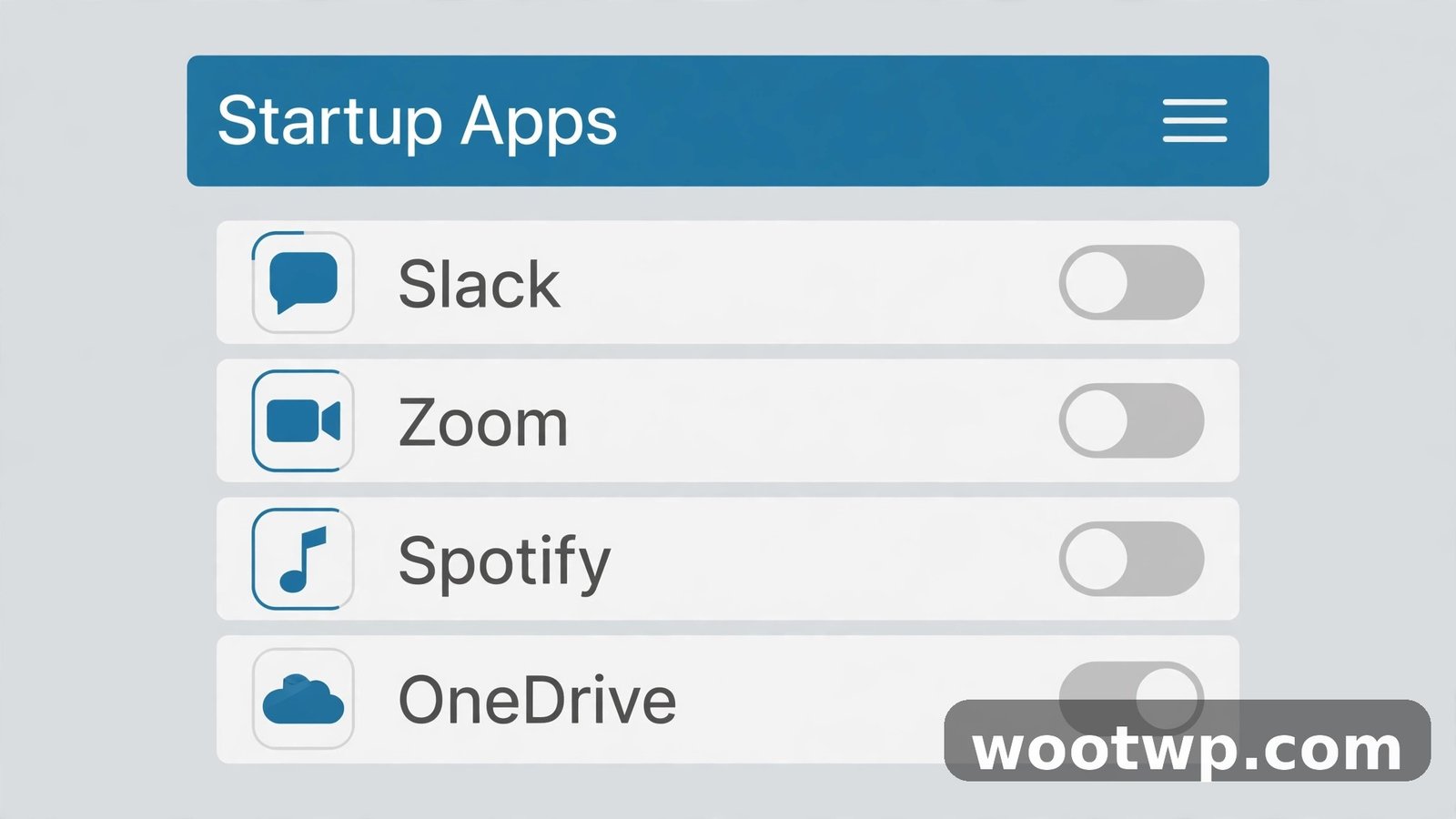
Too many startup apps is the most common cause of a slow Windows 11 startup, and it is the easiest to fix. Every chat app, game launcher, cloud sync tool, and updater that launches at boot competes for your disk and processor at the exact moment Windows is trying to finish loading.
- Press Ctrl + Shift + Esc to open Task Manager.
- Click "Startup apps" in the left menu.
- Look at the "Startup impact" column. Start with the "High" entries.
- Select an app you do not need the second Windows starts — a game launcher, a chat app, a music app, an update helper — and click "Disable" at the top.
- Restart and time your boot again.
Disabling a startup app does not uninstall it. The app still works perfectly when you open it yourself; it just stops launching automatically. You can re-enable anything at any time from the same list, so there is no risk in being generous with the Disable button.
Leave these alone: your antivirus or Windows Security, audio and touchpad drivers, and anything from your computer maker that manages power or hardware. Disabling security software at startup leaves you unprotected, and disabling hardware drivers can break sound, wifi, or the touchpad until you re-enable them.
In my experience, trimming startup apps alone cuts boot time noticeably on most computers, because the average Windows install accumulates a dozen auto-starting programs over a year or two of normal use. If you only do one fix from this guide, do this one.
You can also manage startup apps from Settings: go to Settings, then Apps, then Startup, and toggle apps off there. Task Manager is better for this job because it shows the impact rating, which tells you where the biggest wins are. Microsoft's own community guidance on slow Windows 11 loading walks through the same startup-app and clean-boot approach.
Should You Turn On Fast Startup in Windows 11?
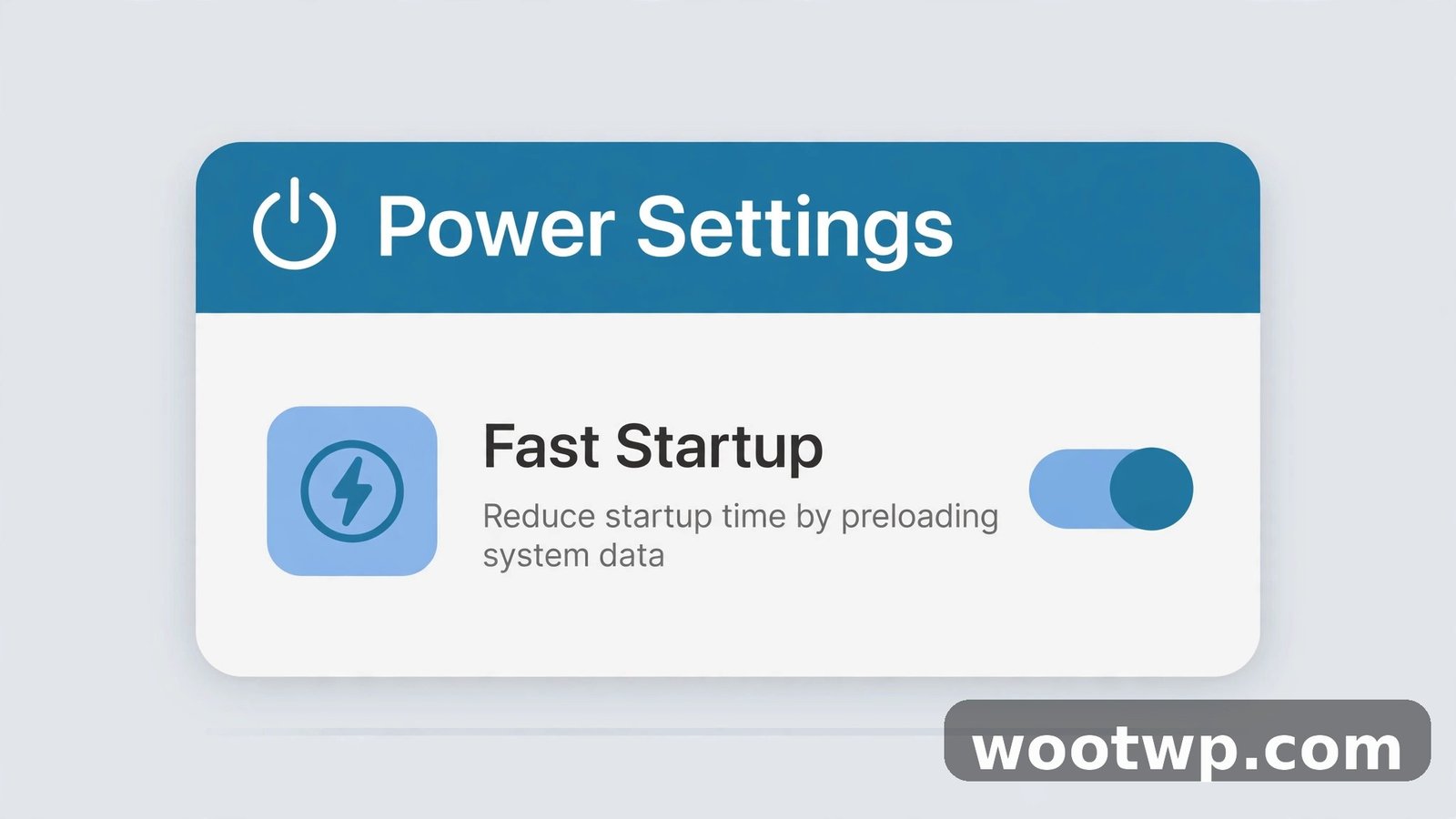
Fast Startup is a Windows feature that saves part of the system state to disk when you shut down, so the next boot loads faster — like a partial hibernation. It is usually on by default, but it is worth checking, because some updates and some computer makers turn it off.
- Open Control Panel. The fastest way is to press Windows + R, type "control panel," and press Enter.
- Go to System and Security, then Power Options.
- Click "Choose what the power buttons do" in the left menu.
- Click "Change settings that are currently unavailable" at the top.
- Tick "Turn on fast startup (recommended)" and click "Save changes."
Fast Startup helps most on computers with a traditional hard drive, and less on fast SSDs, where boots are already quick. It has one trade-off worth knowing: because shutdown is not a full shutdown with Fast Startup on, a genuine full restart is still the right move when you are troubleshooting. Restart, unlike shutdown, always fully reloads Windows, which is why "have you tried restarting?" works so often.
If Fast Startup is already on and your boot is still slow, the problem lies elsewhere — usually startup apps or disk space — so move on to the next sections rather than toggling this setting back and forth.
Free Up Space on Your System Drive
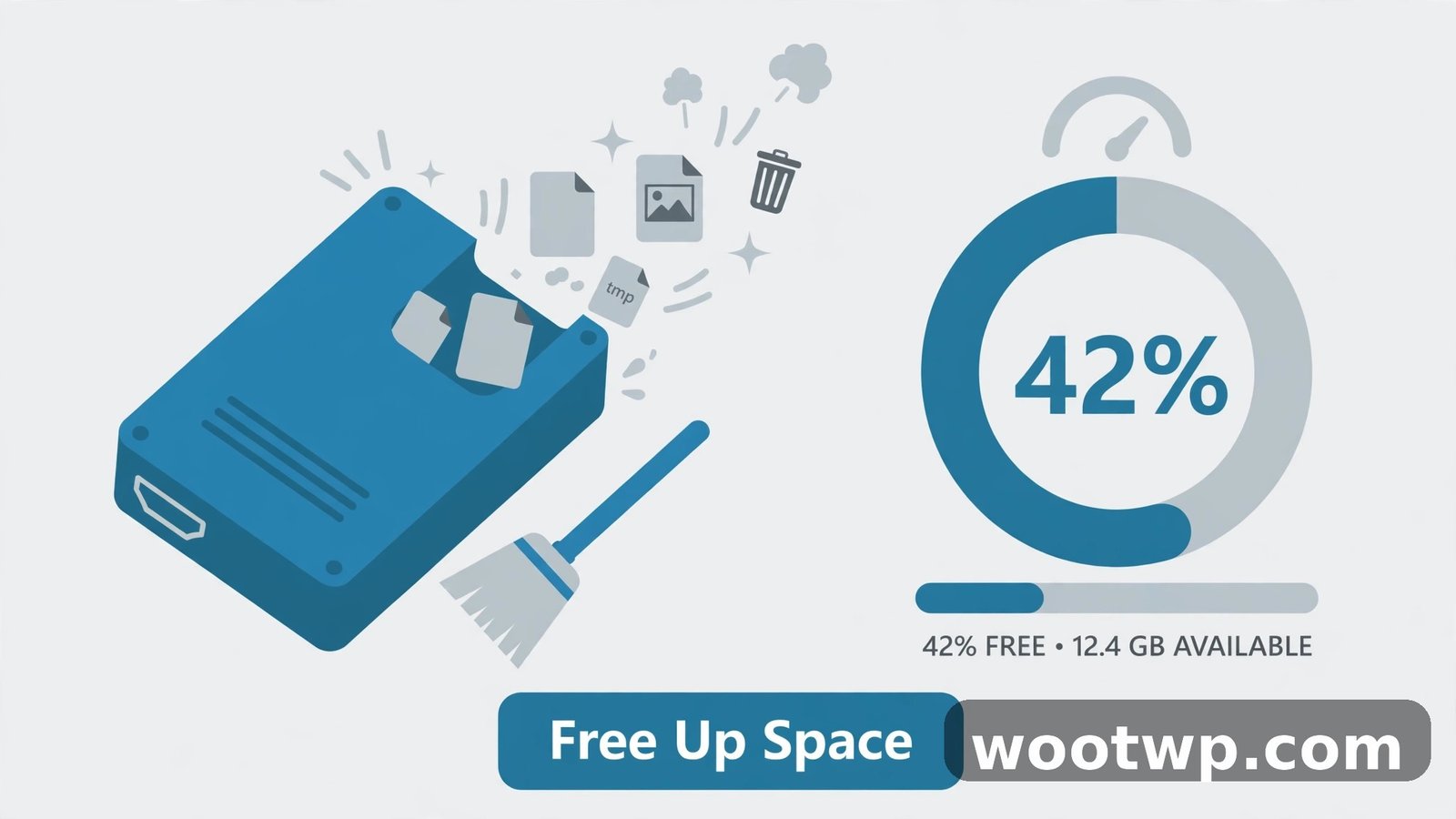
A nearly full system drive slows down startup, because Windows needs free space for temporary files, updates, and the page file it uses as overflow memory. As a rule, keep at least 10 to 20 percent of your C: drive free. On a 256 GB drive, that means roughly 25 to 50 GB free; on a 512 GB drive, 50 to 100 GB.
Start with the built-in cleanup:
- Press Windows + S, type "Disk Cleanup," and open it.
- Select your C: drive and click OK.
- Tick Temporary files, Recycle Bin, and Thumbnails, then click OK and "Delete Files."
- Run it again, this time clicking "Clean up system files," selecting C: again, and ticking "Windows Update Cleanup" and any other large safe items.
- Restart and check whether startup feels faster.
Storage Sense automates this going forward:
- Go to Settings, then System, then Storage.
- Turn on Storage Sense, and click it to set it to run automatically, for example when disk space is low, and to delete temporary files and Recycle Bin contents older than 30 days.
If you are still short on space after cleanup, the biggest wins are usually old downloads, duplicate photos, and programs you installed once and never opened. Go to Settings, then Apps, then Installed apps, sort by size, and uninstall what you genuinely do not use. Move large media files to an external drive or cloud storage rather than deleting things you want to keep.
Low disk space also slows down Windows updates, which then pile up and slow down future boots further. Keeping breathing room on C: breaks that cycle.
Update Windows and Your Drivers
Outdated Windows builds and old drivers cause slow startups in ways that are hard to spot, because the symptom looks like general slowness rather than a specific error. Updates fix known boot delays, so this step is worth doing even when everything else looks fine.
- Go to Settings, then Windows Update, and click "Check for updates."
- Install everything offered, including optional driver updates if they appear under Advanced options.
- Restart when asked, even if it is inconvenient. A pending update that never gets its restart keeps slowing down every boot after it.
- If a specific device misbehaves — wifi dropping, sound crackling — update that driver from the computer maker's own website, not from a random driver-updater tool. Random driver tools are a common source of new problems.
Graphics drivers deserve special attention on gaming computers and laptops with two graphics chips. An old graphics driver can delay the login screen noticeably. Get it from the chip maker's site or your laptop maker's support page, and skip third-party tools that promise to update all drivers at once.
After updating, measure your boot time again. If an update made things worse — it happens occasionally — you can roll back from Settings, then System, then Recovery, within a short window after the update. Do not let a bad update linger for weeks while you blame startup apps.
Scan for Malware Slowing Down Startup
Malware and unwanted software are a real cause of slow startup, because they often install themselves as startup tasks that run before you even see the desktop. A full scan is cheap insurance, and it rules out a nasty cause early.
- Open Windows Security from the Start menu.
- Go to Virus and threat protection, then click "Scan options."
- Choose "Full scan" and click "Scan now." This takes longer than a quick scan, but it checks every file, which is the point.
- If anything is found, let Windows Security remove it, then restart and re-measure your boot.
Also check for programs you did not install on purpose. Go to Settings, then Apps, then Installed apps, and look for anything with a strange name, a missing publisher, or a "PC cleaner," "registry booster," or "optimizer" label. Genuine optimizers rarely help modern Windows, and fake ones actively slow it down. Uninstall anything suspicious, then run the full scan again.
If you run a third-party security suite, consider whether it is part of the problem. Some suites add a heavy startup load of their own. If boot time drops sharply after temporarily removing a suite and relying on Windows Security instead, that suite was costing you every morning. Windows Security on its own is a solid, lightweight choice for most people. Prevention matters as much as scanning: many infections arrive through a single bad download, so learn how to check if a link is safe before clicking before you open attachments or installers from unfamiliar sources.
Repair System Files With SFC and DISM
If startup is slow and you have ruled out startup apps, disk space, and malware, damaged system files may be the cause. Windows has two built-in repair tools that fix this without reinstalling anything, and they are safe to run.
- Right-click the Start button and choose Terminal (Admin) or Windows PowerShell (Admin). Click Yes on the permission prompt.
- Type this command and press Enter: sfc /scannow
- Wait for it to finish. It checks protected system files and repairs any it finds damaged. Do not close the window while it runs.
- When it finishes, run this second command and press Enter: DISM /Online /Cleanup-Image /RestoreHealth
- DISM repairs the underlying Windows image that SFC relies on, and it can take 10 to 20 minutes. Let it finish, then restart.
If either tool reports that it fixed something, measure your boot time after the restart. If both report no problems, your system files are healthy, and the cause lies elsewhere — which is useful information on its own, because it stops you from chasing file corruption that is not there.
Do not run registry cleaners as part of this step. They promise speed and deliver risk, and Microsoft's own guidance has long been to leave the registry alone unless you know exactly what you are changing. SFC and DISM are the safe, supported versions of this fix.
Run a Clean Boot to Find the Culprit App
When the usual fixes do not solve it, a clean boot isolates the problem. It starts Windows with only Microsoft services and a minimal set of programs, so you can see whether a third-party app is the culprit at all.
- Press Windows + R, type "msconfig," and press Enter.
- Go to the Services tab and tick "Hide all Microsoft services." This step matters — hiding them stops you from accidentally disabling something Windows needs.
- Click "Disable all" to turn off the remaining third-party services.
- Go to the Startup tab and click "Open Task Manager." Disable all startup apps there.
- Close Task Manager, click OK in System Configuration, and restart.
If startup is fast in a clean boot, a third-party app or service is definitely the cause. Re-enable items in small groups, restarting after each group, until the slowness returns. The group that brings it back contains your culprit. Narrow it down from there, then leave that app disabled at startup or uninstall it.
When you are done, return to msconfig, choose "Normal startup" on the General tab, click OK, and restart. Do not leave your computer in clean-boot mode permanently — it disables useful programs, and it is a diagnostic tool, not a fix.
This process takes patience, maybe an hour of restarts, but it ends arguments with yourself about which app is to blame. The measurement tells you.
Is Your Hard Drive the Real Problem?
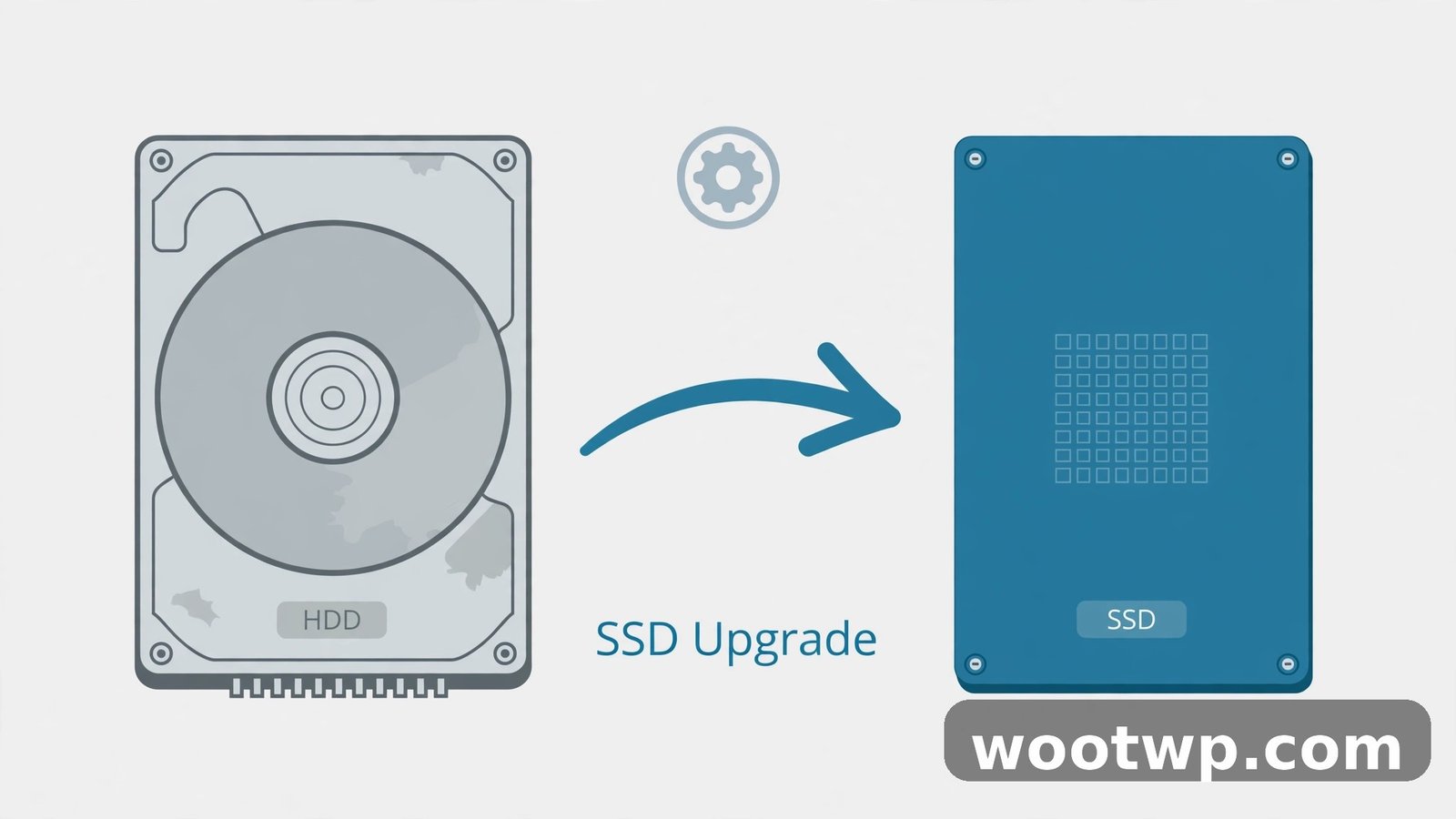
Here is the honest part. If your computer still uses a spinning hard disk drive (HDD) as its system drive, no amount of software tweaking will make it boot like a modern machine. HDDs are dramatically slower than solid-state drives (SSDs), and Windows 11 is designed around SSD speeds.
How to tell which you have:
- Press Ctrl + Shift + Esc to open Task Manager, then go to Performance.
- Click on Disk. The panel shows whether it is an HDD or an SSD, and its model name.
- If it says HDD, that is very likely your main bottleneck.
Upgrading from an HDD to an SSD is the single biggest startup improvement available for an older computer, often cutting boot time from minutes to under half a minute. It is a hardware job, so it costs money and takes some care — clone your drive or reinstall Windows, and keep a backup first — but it is the fix when software fixes stop helping.
Adding RAM helps too, but only if you are actually short on it. If Task Manager shows memory usage near 100% right after login on a 4 GB machine, 8 GB or 16 GB will help. If you have 16 GB and it sits half-empty, more RAM will not speed up your boot at all. Check before you spend.
When a Slow Startup Means Something Is Failing
Most slow startups are software problems, but a few patterns mean hardware trouble, and you should act on those rather than keep tweaking settings.
Watch for these warning signs:
- Boot time getting worse week by week, not stable.
- Clicking, grinding, or repeated spin-up noises from the drive.
- Frequent blue screens, freezes during boot, or Windows failing to start sometimes.
- Disk errors in Event Viewer, or a drive health tool reporting warnings.
If you see these, back up your important files immediately — documents, photos, work files — to an external drive or cloud storage before doing anything else. A failing drive can stop working without further warning, and no startup fix matters if your files are gone.
After backing up, check the drive's health with the maker's own diagnostic tool or a trusted health checker, and plan a replacement drive if it reports problems. If the computer is under warranty, contact the maker with the symptoms and the error details. A slow boot caused by failing hardware is not something to tune away.
Frequently Asked Questions
How long should Windows 11 take to start up?
On a modern computer with an SSD, a usable desktop in 20 to 40 seconds after the power button is normal. On an older machine with a hard drive, a minute or more can still be normal. What matters most is change: if your boot time has grown much longer than it used to be, something changed, and the fixes in this guide will usually find it.
Is it safe to disable startup apps in Windows 11?
Yes, for apps like chat programs, game launchers, music apps, and update helpers. Disabling only stops them from launching automatically — it does not delete them, and you can re-enable them any time. Leave security software and hardware drivers alone, and do not disable anything you do not recognize until you have looked it up.
Does Fast Startup make shutdown slower or cause problems?
Fast Startup makes the next boot faster, not slower, and it is safe for most computers. Its one quirk is that shutdown is not a complete shutdown, so use Restart — not shutdown — when troubleshooting, because Restart fully reloads Windows. If you dual-boot with another operating system, Fast Startup can occasionally interfere with shared drives, in which case turning it off is the right call.
Why is Windows 11 slow to start after an update?
Updates can leave temporary files behind, reset startup settings, or install a driver that does not suit your hardware. Run Disk Cleanup, check for a follow-up update, and review your startup apps after a major update — updates sometimes re-enable apps you previously disabled. If a specific update caused the problem, you can roll it back from Settings, then System, then Recovery, within a short window.
Will adding more RAM fix a slow Windows 11 startup?
Only if you are short on RAM. On a 4 GB computer with memory usage near 100% after login, more RAM helps noticeably. On a computer with 8 GB or 16 GB that never fills up, extra RAM will not change boot time. Check Task Manager's Performance tab first: if memory is not full, spend your effort on startup apps, disk space, and drive type instead.
Should I reinstall Windows to fix a slow startup?
Reinstalling is a last resort, not a first step. Try the fixes in this guide first — startup apps, Fast Startup, disk space, updates, malware scan, SFC and DISM, and a clean boot. Reinstall only if a clean boot is still slow, system file repairs fail, or the problem returns immediately after every fix. Before reinstalling, back up everything and make sure you can reinstall your programs and sign back into your accounts.
Conclusion
Knowing how to fix Windows 11 slow startup comes down to working in order: measure your boot time, disable high-impact startup apps, check Fast Startup, free up disk space, and update Windows and drivers. Those five steps solve the large majority of slow boots without spending anything.
Start with the startup apps list today and time your next boot. If the number drops — and it usually does — keep the measurement habit, and your computer will stop wasting the first minutes of every day.