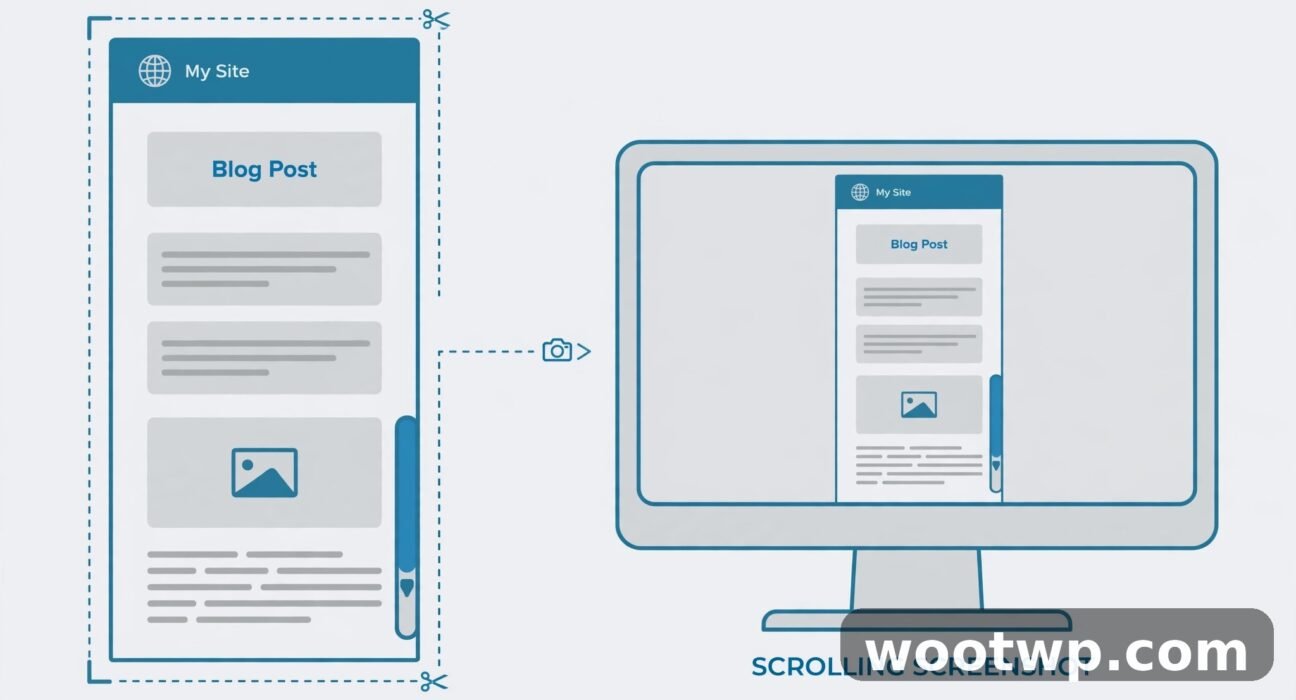
How to Take a Scrolling Screenshot on Windows: 5 Free Ways
You need to capture an entire webpage — or a long settings page, a chat conversation, a full document — but the Snipping Tool only grabs what's visible on screen. Learning how to take a scrolling screenshot on Windows solves this: instead of stitching together a dozen partial screenshots, you capture everything in one tall image.
Here's the catch: Windows has no built-in, system-wide scrolling screenshot feature. But your browsers do, and one excellent free app covers everything else. This guide walks you through five free methods — from Edge's one-click full-page capture to ShareX for any app window — so you can pick the right tool for whatever you're capturing.
- Why Doesn't Windows Have Scrolling Screenshots Built In?
- Method 1: Microsoft Edge — Capture Full Page
- Method 2: Firefox — Take a Full-Page Screenshot
- Method 3: Chrome — Full-Size Screenshot via DevTools
- Method 4: ShareX — Scrolling Capture for Any App
- Method 5: Print to PDF as a Fallback
- Which Method Should You Use?
- Tips for Clean Scrolling Screenshots
- FAQs
Why Doesn't Windows Have Scrolling Screenshots Built In?
Windows gives you Print Screen and the Snipping Tool (Windows key + Shift + S), and both are excellent — for what's on screen right now. Neither can scroll. The Snipping Tool's capture modes (rectangular, window, full-screen) all stop at the visible viewport.
The reason is architectural: scrolling capture requires the tool to programmatically scroll a window and stitch the frames together, which is app-specific behavior. Browsers solved this for web pages years ago, and free tools like ShareX solve it for everything else. So the workflow is simple: browser methods for web pages, ShareX for anything else.
Method 1: Microsoft Edge — Capture Full Page
If you use Microsoft Edge, this is the easiest method on this list. Edge has a built-in screenshot tool with a full-page mode, and it takes about ten seconds.
- Open the webpage you want to capture in Microsoft Edge.
- Press Ctrl + Shift + S. (You can also click the three-dot menu and choose Screenshot — in older Edge versions it's called Web capture.)
- Select Capture full page.
- Edge scrolls the page automatically and shows you a preview.
- Click Save to download the image to your Downloads folder.
Before you save, you can use the Draw option to annotate the capture — handy for circling the important part before you send it to someone. There's also a Copy button if you'd rather paste the screenshot straight into a document or chat.
One limitation: this captures the web page, not the browser interface around it. That's usually what you want, but if you need the address bar and tabs in the shot, use the regular Snipping Tool for the visible part instead.
Method 2: Firefox — Take a Full-Page Screenshot
Firefox has had a full-page screenshot feature built in for years, and it's just as simple as Edge's:
- Open the page in Firefox.
- Right-click on an empty area of the page (not on an image or link).
- Select Take Screenshot.
- Click Save full page in the top-right corner.
- Choose Download to save it as a PNG file.
Firefox saves clean, high-resolution captures, and in my experience it handles pages with sticky headers better than most tools — it usually renders the full page without duplicating the fixed header at every scroll position.
Method 3: Chrome — Full-Size Screenshot via DevTools
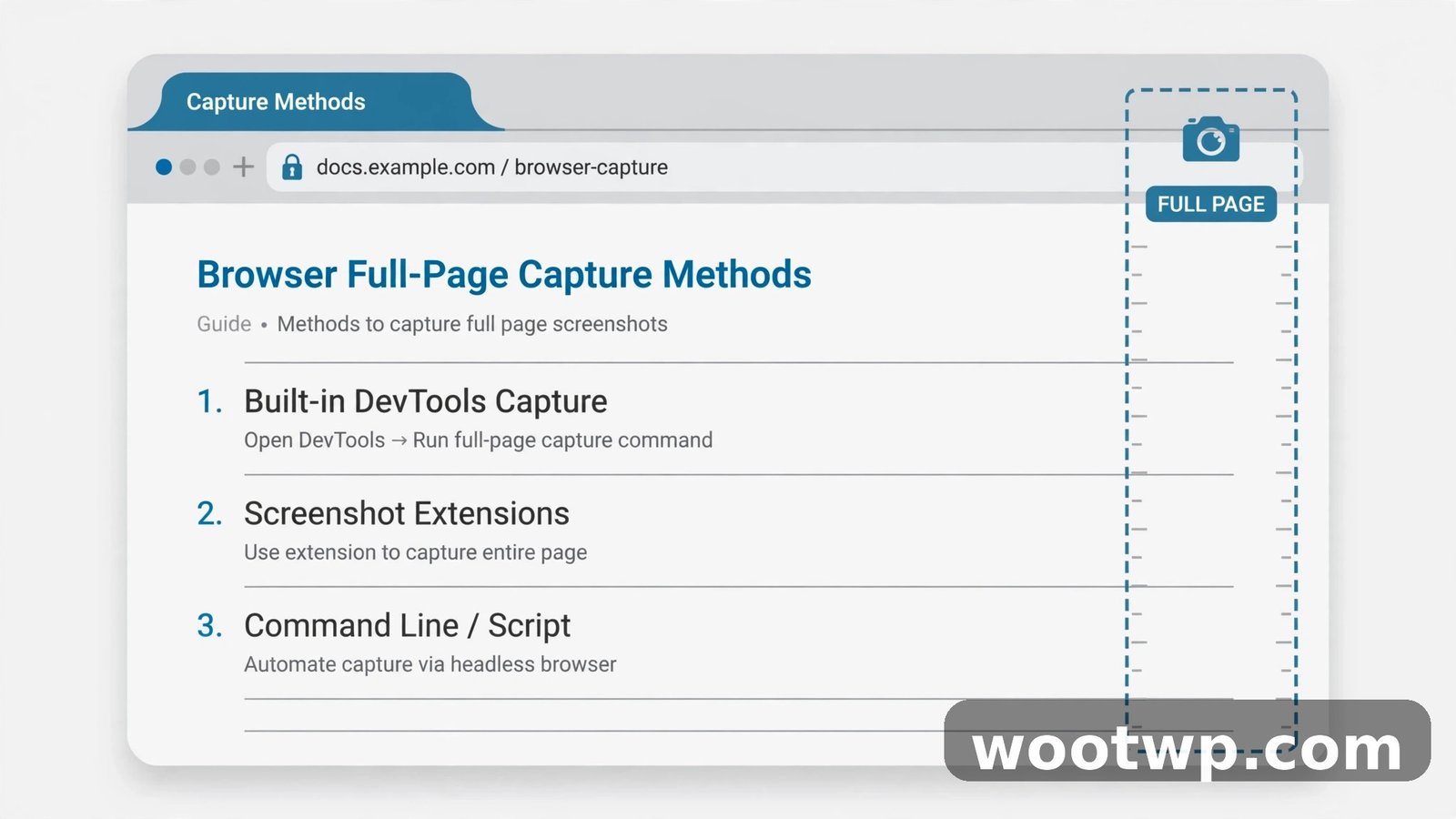
Chrome doesn't have an obvious screenshot button, but its developer tools include a full-page capture command. It takes a few more steps, but it's completely free and built in:
- Open the page in Google Chrome.
- Press F12 to open Developer Tools (it docks to the side of the window).
- Press Ctrl + Shift + P to open the command menu.
- Type screenshot and select Capture full size screenshot.
- Chrome saves a PNG of the entire page to your Downloads folder.
- Press F12 again to close Developer Tools.
The result is pixel-perfect at the page's full width — great for documentation. The only awkward part is remembering the shortcut sequence. If you do this often, Edge or Firefox is more convenient. But it's good to know the Chrome method exists, since Chrome is what most people already have installed.
Method 4: ShareX — Scrolling Capture for Any App
Browser tools only work on web pages. What about a long Windows Settings page, a chat log in a desktop app, a spreadsheet, or a PDF reader? That's where ShareX comes in — a free, open-source screenshot tool for Windows with a dedicated scrolling capture mode.
Install ShareX
- Go to the official site at getsharex.com or install ShareX from the Microsoft Store.
- Download and run the installer.
- Launch ShareX from the Start menu. It sits in your system tray when running.
Only download ShareX from the official site, the Microsoft Store, or the GitHub releases linked from the official site. Avoid random download mirrors — screenshotting tools from shady sources are a classic malware vector.
Take a scrolling screenshot with ShareX
- Open the app or window you want to capture, and scroll to the top of the content.
- In ShareX, go to Capture → Scrolling capture. (Or right-click the ShareX tray icon and choose the same option.)
- Your cursor becomes a crosshair. Click the window or drag over the region you want to capture.
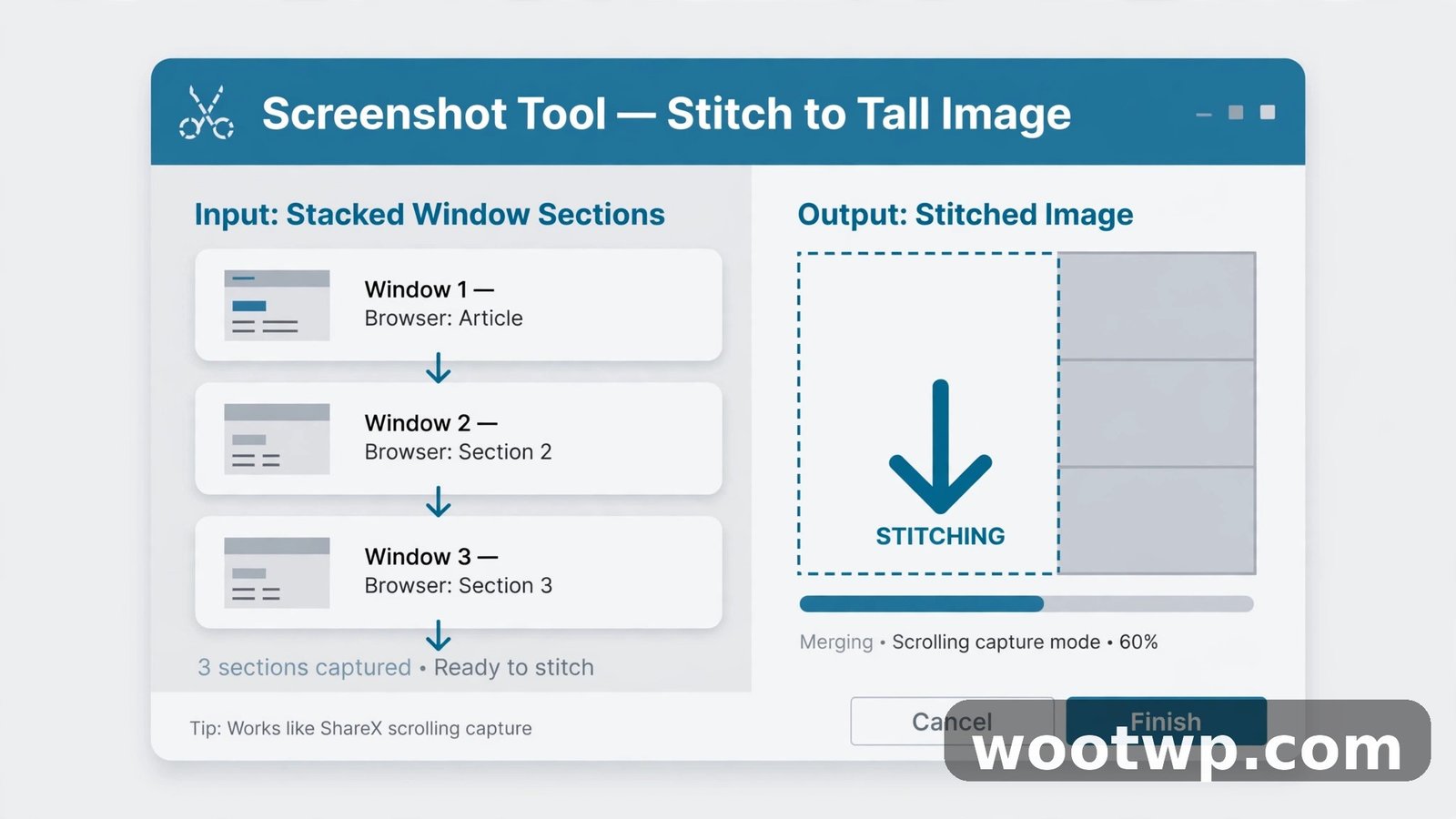
- In the scrolling capture dialog, review the capture area and click Start scrolling capture.
- ShareX scrolls through the content automatically, capturing each section.
- When it finishes, review the stitched preview, then save or copy the image.
Tips when ShareX struggles
ShareX works on the first try for most windows, but some apps need coaxing:
- Leave out fixed headers and animated areas when you select the region — sticky elements confuse the stitching.
- Watch the indicator in the top-right during capture: green means the frames matched cleanly, yellow means partial matches, red means it couldn't combine the first two captures and stopped.
- Switch to manual scrolling mode in the capture options if automatic scrolling fails — you scroll, ShareX captures.
- Increase the scroll delay for pages with lazy-loading images or animations, so each section fully loads before capture.
- Set up a hotkey: in ShareX's Hotkey settings, add Start/Stop scrolling capture to a key combination so you can trigger it without opening the menu.
ShareX is the most powerful free option on this list, and it doubles as a full screenshot suite — annotation, screen recording, and uploads are all built in. If you take screenshots regularly, it's worth the ten minutes to learn.
Method 5: Print to PDF as a Fallback
Sometimes you don't need an image at all — you need the whole page saved in one document. Browsers can print any page to a PDF, which captures everything including the parts you'd have to scroll to see:
- Open the page in any browser.
- Press Ctrl + P.
- Set the destination printer to Save as PDF (Windows) or Microsoft Print to PDF.
- Adjust the layout if needed and click Save.
This is perfect for archiving articles, saving receipts, or documenting a page for your records. Two caveats: the PDF paginates the content (it splits into pages rather than one continuous image), and some background images may be dropped depending on your print settings. But all the text is there, it's searchable, and you didn't install anything.
Which Method Should You Use?
Here's the quick decision guide:
| Situation | Best method |
|---|---|
| Capturing a webpage in Edge | Method 1: Edge full-page capture |
| Capturing a webpage in Firefox | Method 2: Firefox screenshot |
| Capturing a webpage in Chrome | Method 3: Chrome DevTools |
| Capturing a desktop app, Settings page, chat, or PDF reader | Method 4: ShareX |
| Archiving a page as a searchable document | Method 5: Print to PDF |
| Need annotations on the capture | Method 1 (Edge Draw) or Method 4 (ShareX editor) |
My personal setup: Edge's full-page capture for quick webpage grabs, ShareX for everything else. Between those two, I've never needed anything more.
Tips for Clean Scrolling Screenshots
A few habits that separate clean captures from messy ones:
- Let the page fully load first. Scroll through it once yourself so lazy-loaded images appear; otherwise your screenshot will have blank gaps.
- Zoom out if the page is extremely long. Press Ctrl + minus a couple of times to shrink the page, then capture — you get the whole thing at a readable-enough size in a smaller file.
- Hide distractions. Close cookie banners and pop-ups before capturing (press Escape on most of them), and consider a reader mode for article pages.
- Check the result. Open the saved image and scroll through it — look for duplicated headers, missing sections, or stitching seams, especially with ShareX.
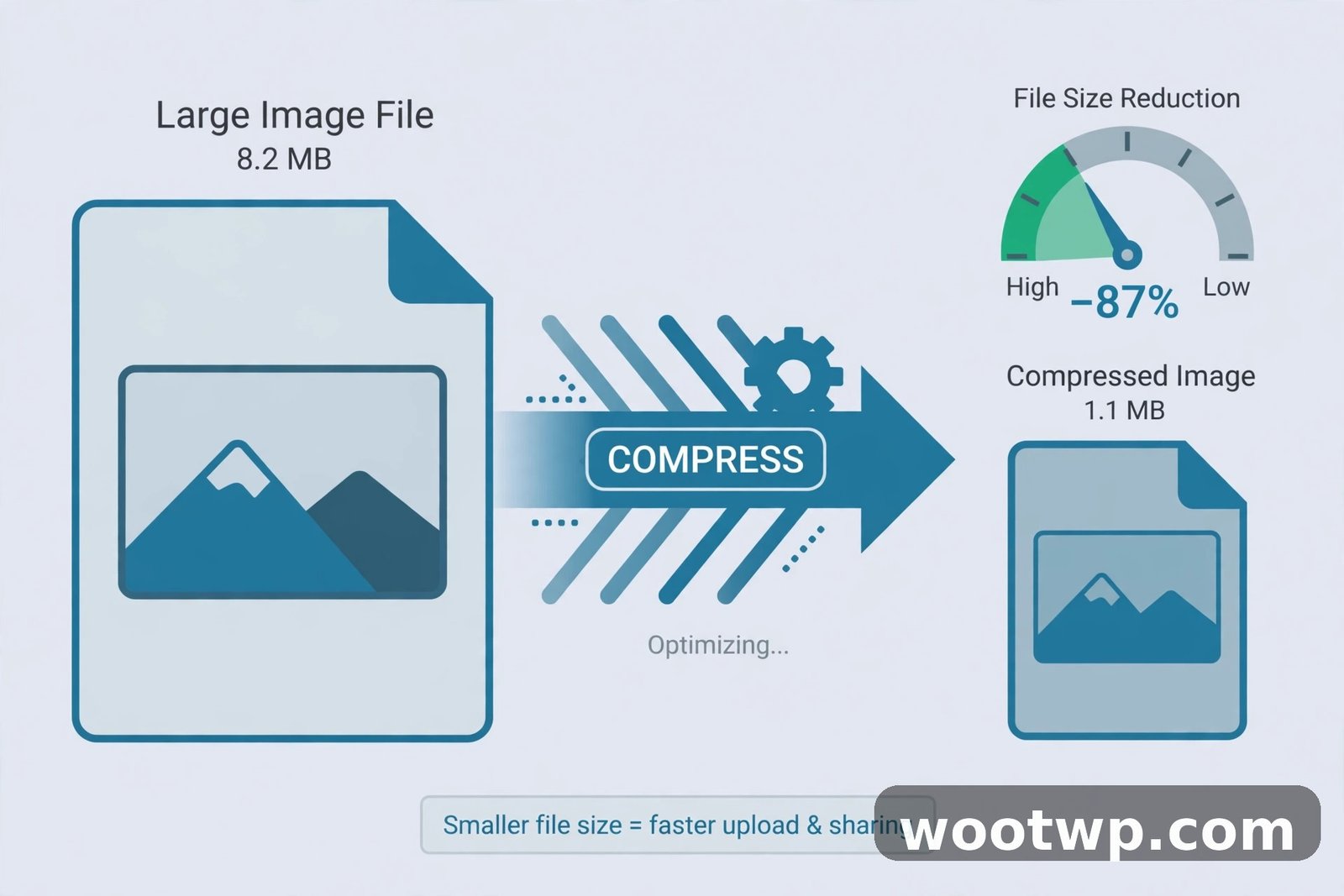
- Compress the file before sharing. Full-page screenshots can be several megabytes. Run them through the steps in how to compress images without losing quality before emailing or uploading — your recipients will thank you.
FAQs
Can the Windows Snipping Tool take scrolling screenshots?
No. The Snipping Tool (Windows key + Shift + S) captures only what's currently visible on screen. For scrolling captures, use your browser's built-in full-page screenshot (Edge, Firefox, or Chrome) or install ShareX for desktop apps.
Is ShareX really free?
Yes — ShareX is free and open-source, with no paid tier and no watermarks. It's been actively maintained for years and is widely trusted. Just make sure you download it from getsharex.com or the Microsoft Store, not a third-party mirror.
Why does my scrolling screenshot have duplicated headers?
Sticky or fixed headers stay on screen while the page scrolls, so stitching tools capture them in every frame. In ShareX, exclude fixed headers from your capture region. In browsers, this is rarely a problem — Edge, Firefox, and Chrome handle sticky elements correctly in full-page mode.
Can I take a scrolling screenshot of a PDF?
Yes. Open the PDF in your browser (drag the file into Edge or Chrome) and use the browser's full-page capture. For PDFs in a desktop reader app, use ShareX's scrolling capture on the reader window.
What's the difference between a scrolling screenshot and printing to PDF?
A scrolling screenshot produces one continuous image of the page — great for sharing in chats or documents. Printing to PDF produces a paginated, searchable document — better for archiving and records. Use screenshots for visuals, PDFs for documentation.
Do scrolling screenshot tools work on pages that load content as you scroll?
Mostly yes, with a caveat. Infinite-scroll pages (like social media feeds) can confuse stitching tools. For those, scroll through the content manually first to load everything, increase the capture delay in ShareX, or just capture in sections. Standard articles and settings pages work perfectly.
Conclusion
Now you know how to take a scrolling screenshot on Windows for any situation: Edge, Firefox, and Chrome each capture full web pages for free, ShareX handles every desktop app, and Print to PDF covers archiving. Pick the method that matches what you're capturing, and you'll never stitch together partial screenshots again.