How to Free Up Disk Space on Windows 11: 9 Proven Fixes
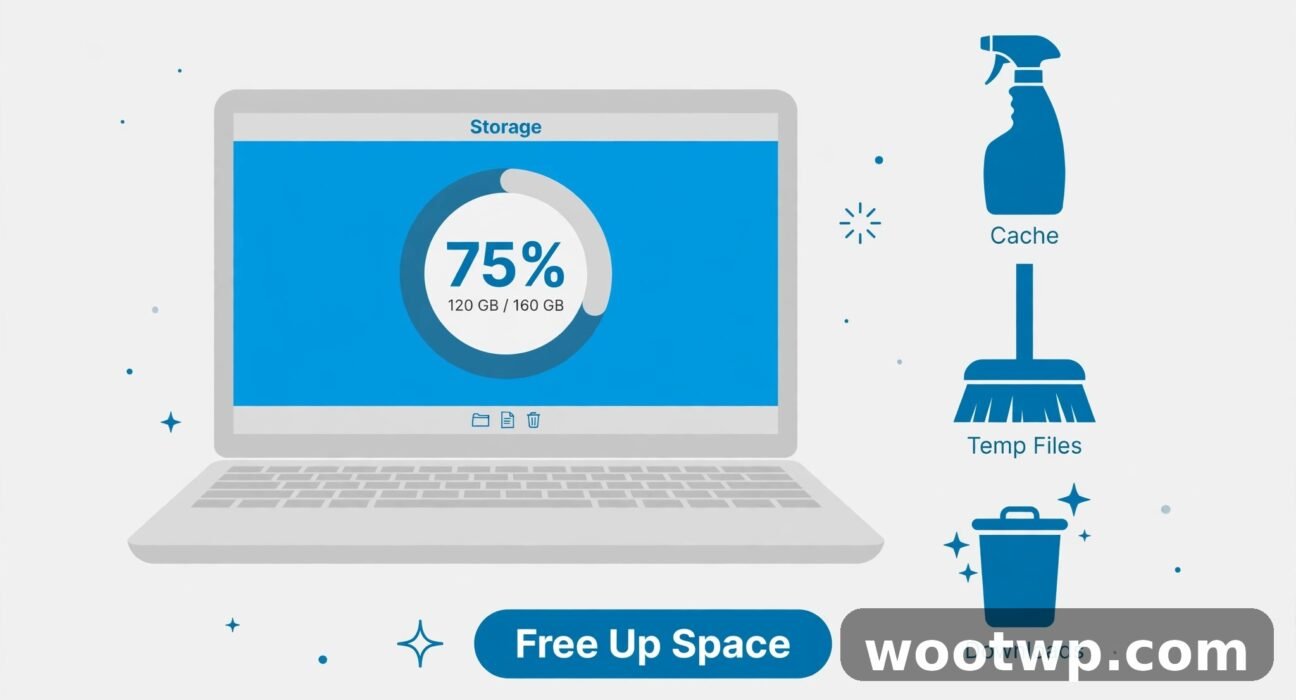
Running low on storage is one of the most annoying Windows problems. Updates fail, apps crawl, and that red bar in File Explorer just stares back at you. If you want to know how to free up disk space on Windows 11, the good news is that most of the fix takes less than 30 minutes, and Windows already has the tools built in. This guide walks you through every method that actually works, in order from easiest to most advanced, so you can reclaim gigabytes without deleting anything you need.
- Turn on Storage Sense and let Windows clean itself
- Use Cleanup recommendations to find the biggest wins
- Run Disk Cleanup including system files
- Uninstall large apps you no longer use
- Move large files off the C drive
- Clear temporary files and the Recycle Bin
- How to free up disk space on Windows 11 with advanced steps
- What you should never delete
- Frequently asked questions
Turn on Storage Sense and let Windows clean itself
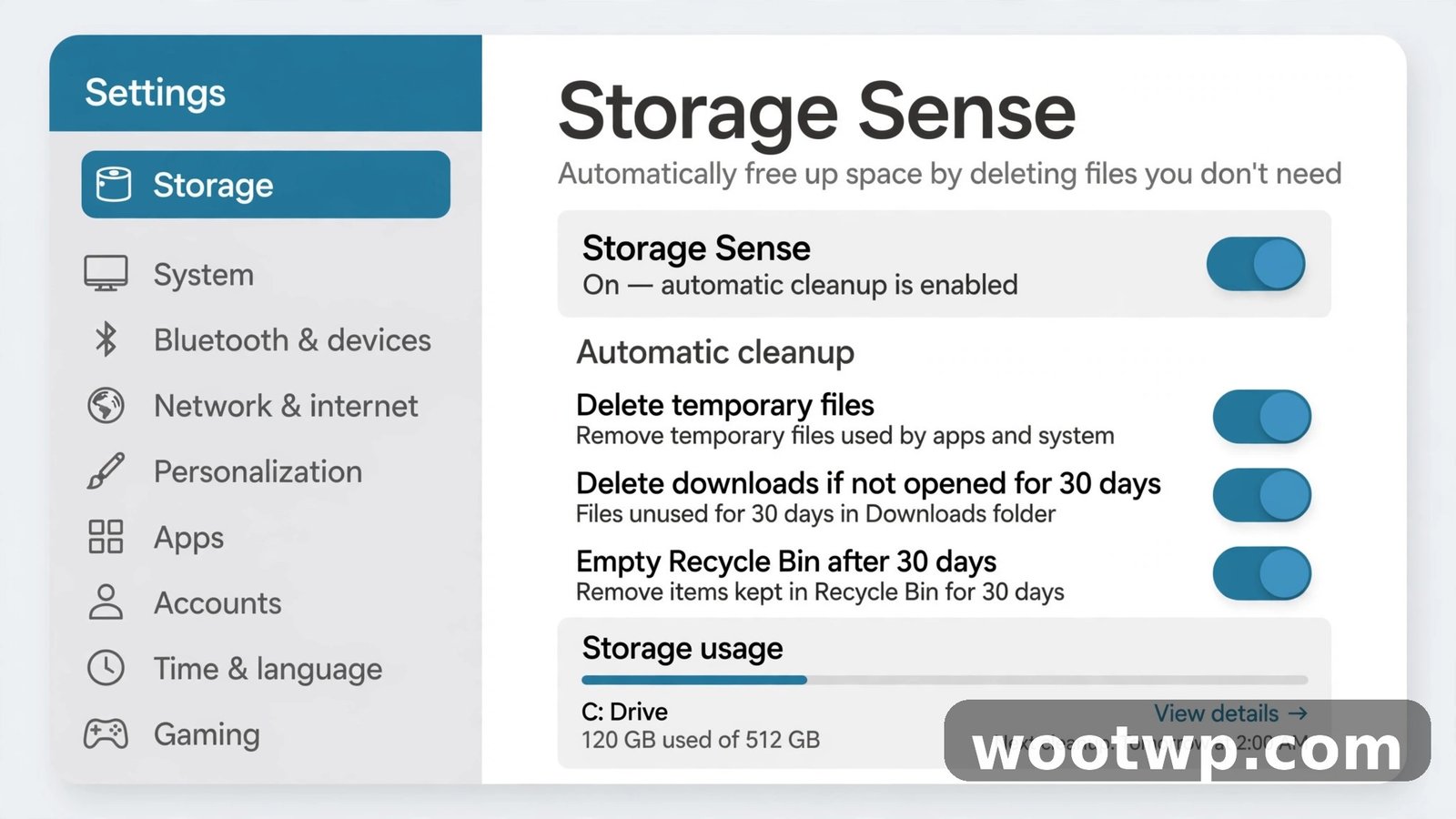
Windows 11 Storage Sense is the built-in automatic housekeeper. Once you turn it on, it quietly deletes temporary files, empties the Recycle Bin on a schedule, and cleans up old Downloads. In my experience, this is the single best first step when learning how to free up disk space on Windows 11, because it keeps working long after you set it up.
Follow these steps to turn it on:
- Open Settings > System > Storage.
- Toggle Storage Sense to On.
- Click Storage Sense to open its settings.
- Under Cleanup of temporary files, tick the boxes you want.
- Set Run Storage Sense to Every week or Every month.
- Under Recycle Bin, choose 30 days so deleted files do not pile up forever.
- Under Downloads, choose Never unless you are sure you want automatic deletion.
That last setting matters. I have seen people lose installers and documents they still needed because Storage Sense cleaned their Downloads folder automatically. Keep Downloads on Never and clean it by hand instead.
Use Cleanup recommendations to find the biggest wins
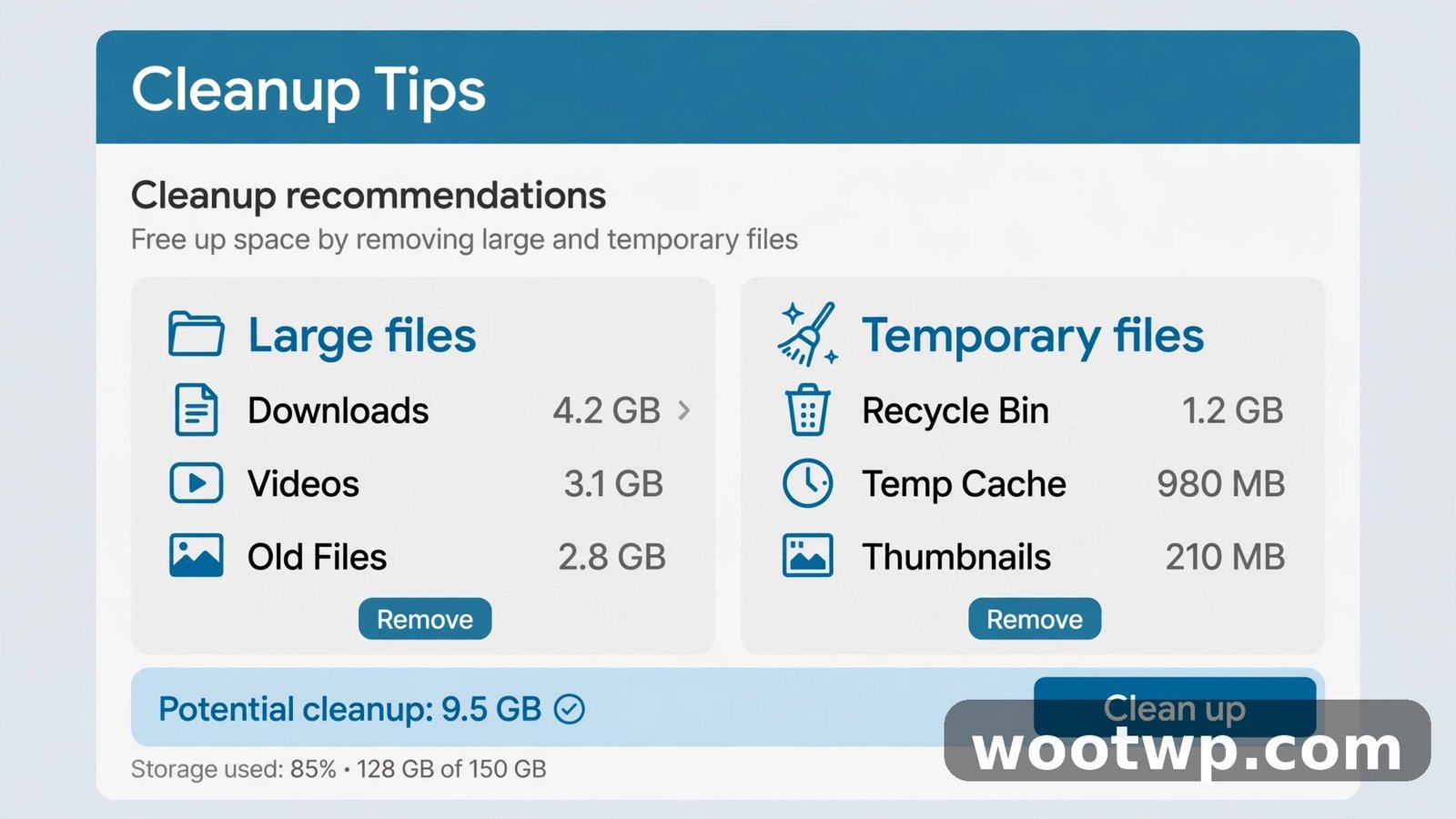
Windows 11 also has a feature called Cleanup recommendations. It scans your drive and groups the space hogs into four categories: Temporary files, Large or unused files, Files synced to the cloud, and Unused apps. This is where windows 11 cleanup recommendations really shine, because they show you exactly what is safe to remove.
Here is how to use them:
- Open Settings > System > Storage > Cleanup recommendations.
- Expand Temporary files and tick the boxes for items you do not need.
- Expand Large or unused files and review each file carefully.
- Expand Unused apps and note anything you have not opened in months.
- Click Clean up to remove the selected items.
A word of caution: review the Large or unused files list one item at a time. The windows 11 cleanup recommendations screen also flags apps you have not opened in months, which is a handy prompt for the uninstall step below. If you only do one thing to learn how to free up disk space on Windows 11, this scan is a great place to start. Windows sometimes flags videos, installers, or project files you still want. If you are unsure about a file, leave it ticked off and move it to an external drive instead. When you are figuring out how to free up disk space on Windows 11, deleting the wrong file costs far more time than the space is worth.
Run Disk Cleanup including system files
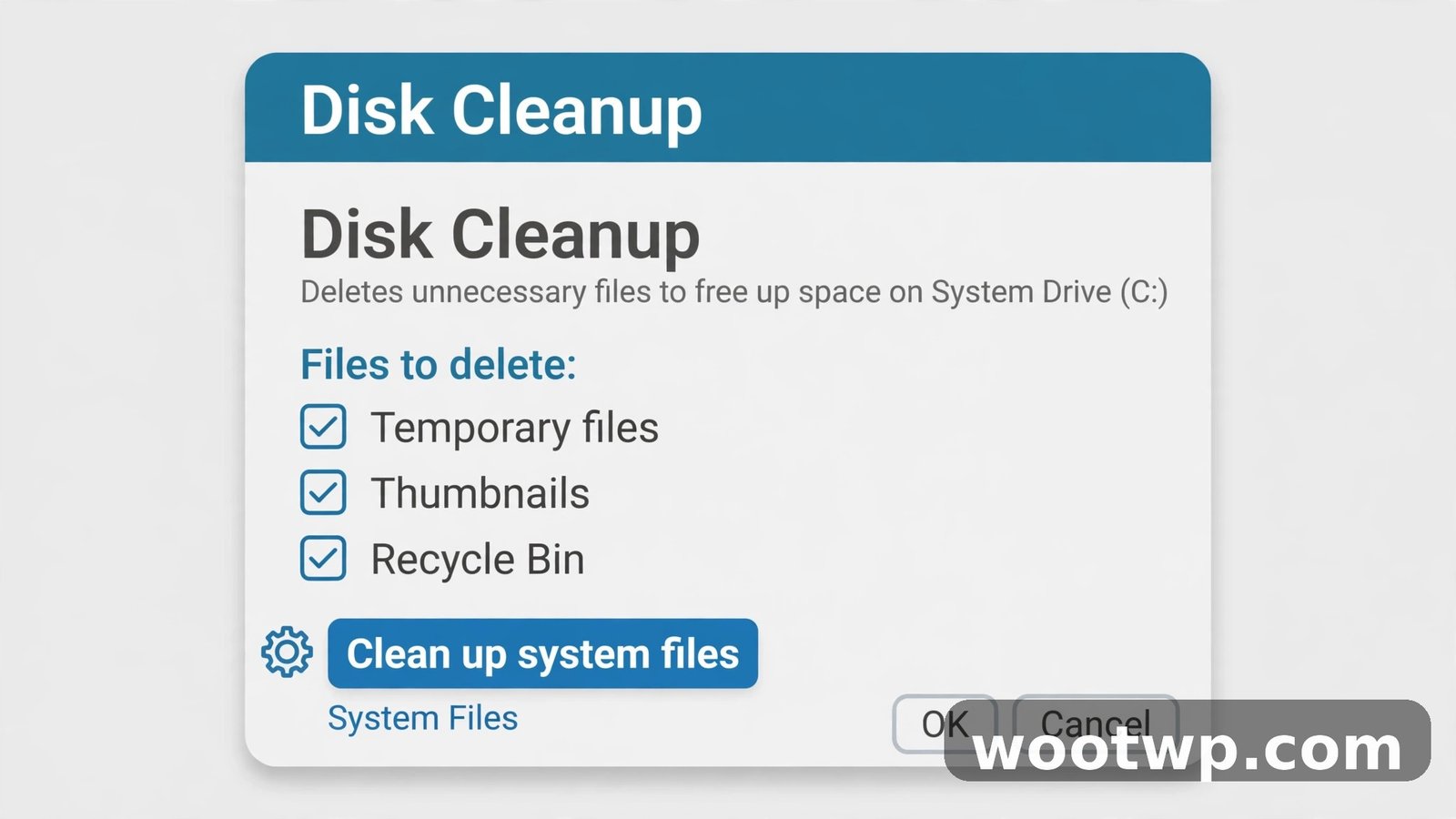
Disk Cleanup is the older tool, and it is still worth running because it can remove things Storage Sense misses. Most importantly, it can clean up system files, including old Windows Update files and previous Windows installations that can eat tens of gigabytes.
Run it like this:
- Press the Windows key, type Disk Cleanup, and open it.
- Select your system drive (usually C:) and click OK.
- Click Clean up system files at the bottom left.
- Select the C: drive again and click OK.
- Wait for the scan to finish. This can take a few minutes.
- Tick Windows Update Cleanup, Temporary files, Delivery Optimization Files, and Recycle Bin.
- If you see Previous Windows installation(s), only tick it if you are sure you will not roll back to the older version.
- Click OK, then Delete Files to confirm.
This is the core of windows 11 disk cleanup, and it is the step that frees the most space for many people. Running windows 11 disk cleanup this way is the deepest clean Windows offers without third-party tools. A single Windows Update Cleanup entry can be several gigabytes on a PC that has not been cleaned in a year or more.
Note: after you delete previous Windows installation files, you can no longer go back to the earlier version of Windows within the usual 10-day rollback window. Only tick that box once your current setup is running fine.
Uninstall large apps you no longer use
Apps are quiet space hogs. Games, video editors, and old trial software can each take up 10 GB or more, and they sit there untouched for years. Sorting your installed apps by size makes this an easy win.
Here is the fastest way:
- Open Settings > Apps > Installed apps.
- Click the Sort by dropdown and choose Size (large to small).
- Scroll through the list and spot anything you no longer use.
- Click the three-dot menu next to an app and choose Uninstall.
- Follow the prompts to remove it fully.
Start with games you finished, old creative suites, and duplicate apps that do the same job. Removing a single large game is often the fastest way to free up space on C drive Windows 11 machines with small SSDs. I have seen PCs where three browsers, two media players, and a forgotten game together freed more than 40 GB in one pass. If you are short on space on a laptop with a small drive, this step alone can be the difference between a working PC and a constantly full one.
One tip: if you use a heavy browser, it can also eat disk space with cache and extensions. If Chrome feels sluggish too, our guide on how to fix Chrome using too much memory covers the browser side of the problem.
Move large files off the C drive
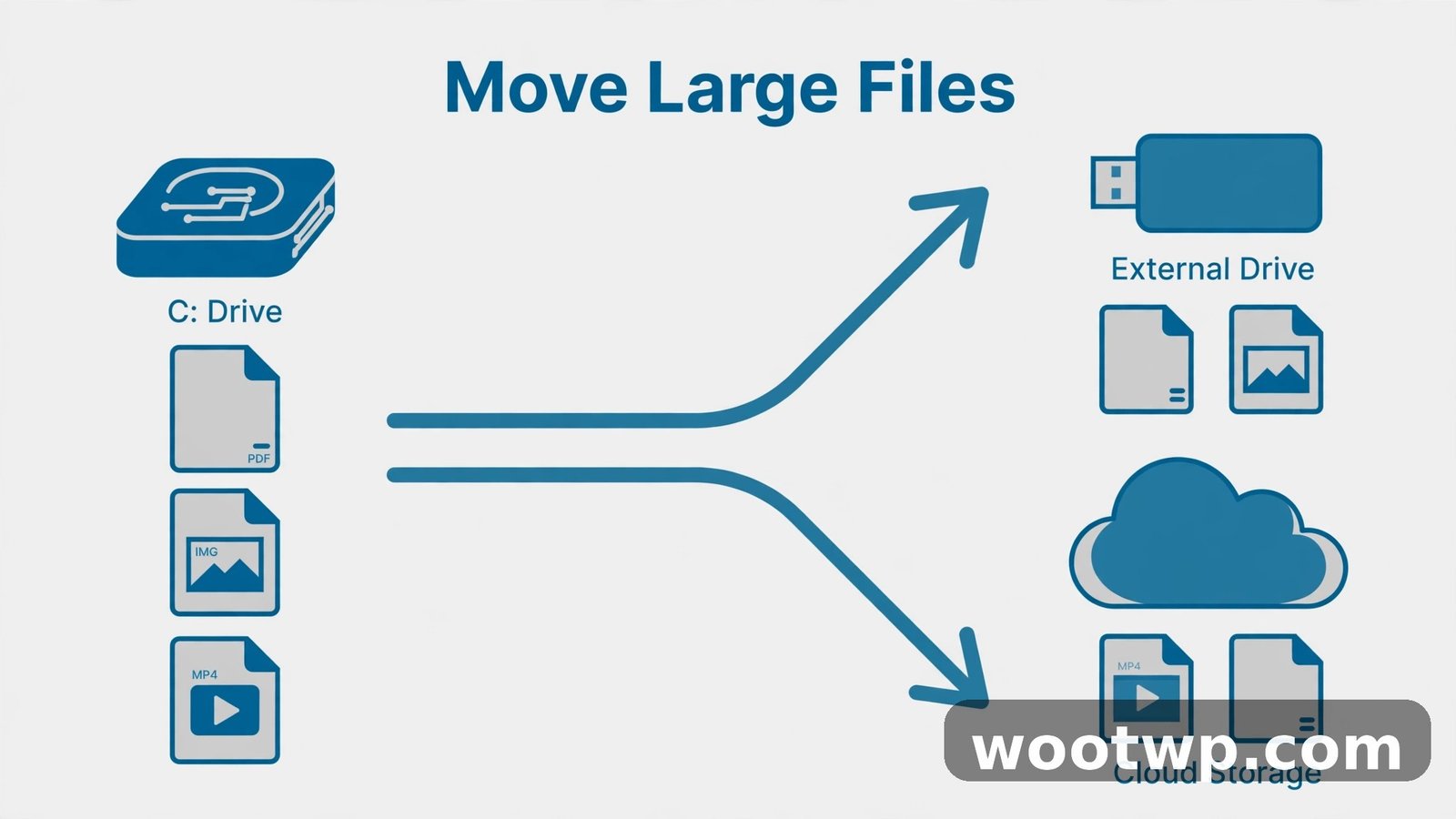
If you still need your big files, do not delete them. Move them instead. If you want to know how to free up disk space on Windows 11 without deleting a single photo, moving files is the answer. Photos, videos, and project folders belong on a second drive, an external hard drive, or cloud storage, not on the same drive Windows runs on.
A simple approach that works:
- Move your Pictures, Videos, and Downloads folders to a second drive or external drive.
- Keep only current projects on the C drive. Archive finished work elsewhere.
- If you have a second internal drive, change the default save location in Settings > System > Storage > Advanced storage settings > Where new content is saved.
- Back up anything important before moving it. A moved file with no backup is one drive failure away from being gone.
This matters because Windows needs free space on the C drive to work well. Updates download, the page file grows, and temporary files pile up during normal use. Keeping at least 10 to 15 percent of the drive free keeps everything running smoothly. If you want to free up space on C drive Windows 11 machines specifically, moving large personal files is often the biggest single move you can make.
Clear temporary files and the Recycle Bin
Temporary files build up from updates, app installs, and everyday use. They are safe to remove, and Windows gives you two quick ways to do it.
First, empty the Recycle Bin:
- Right-click the Recycle Bin on your desktop.
- Choose Empty Recycle Bin.
- Confirm the deletion.
Second, clear temporary files through Settings:
- Open Settings > System > Storage > Temporary files.
- Wait for the scan.
- Tick Temporary files, Downloads only if you have checked its contents, and Delivery Optimization Files.
- Click Remove files.
Review your Downloads folder before you tick it. I keep a habit of checking Downloads once a month, moving what I need into proper folders and deleting the rest. It takes five minutes and stops the folder from growing into a multi-gigabyte junk drawer. This is a small habit, but it is one of the reasons my own PCs rarely run out of room.
How to free up disk space on Windows 11 with advanced steps
The steps above cover most cases. If you still need more room, two advanced options can help: turning off hibernation and reducing System Restore space. Both are optional, and both come with trade-offs, so read the warnings before you change anything.
Turn off hibernation to reclaim several gigabytes
Hibernation saves your open apps and documents to a file called hiberfil.sys so your PC can resume quickly. That file is roughly the size of your RAM, so on a PC with 16 GB of RAM it can take up around 16 GB of disk space.
To turn it off:
- Press the Windows key, type Command Prompt, right-click it, and choose Run as administrator.
- Type
powercfg /hibernate offand press Enter. - Restart your PC.
The hiberfil.sys file disappears and the space is freed. The trade-off is that you lose the Hibernate option in the power menu, and Fast Startup also relies on hibernation, so startup may feel slightly slower. If you use a laptop and rely on hibernation to save battery state, skip this step. It is optional, and sleep mode still works fine without it.
Reduce space used by System Restore points
System Restore keeps snapshots of your system so you can roll back after a bad driver or update. Those snapshots, called restore points, can quietly grow to several gigabytes.
To limit them:
- Press the Windows key, type Create a restore point, and open it.
- Select your C: drive and click Configure.
- Drag the Max Usage slider down to around 5 percent of the drive.
- Click Apply, then OK.
You can also delete all but the most recent restore point from the same dialog by clicking Delete under Disk Space Usage. Only do this if your PC is currently stable. Restore points are your safety net, and removing them all leaves you with no rollback option if something breaks tomorrow. When you are learning how to free up disk space on Windows 11, this step should come last, not first.
Check what is actually using the space
If you have done everything above and the drive is still full, it is time to find the culprit. Open Settings > System > Storage and look at the breakdown. The Apps, Temporary files, and Other categories tell you where the space went. A surprisingly large Other category often means leftover folders from uninstalled programs or a bloated user profile. From there, sort your largest folders in File Explorer by size and investigate before deleting anything.
What you should never delete
Freeing space is good. Deleting the wrong thing is not. Keep these rules in mind:
- Never delete the C:\Windows folder or anything inside it that you do not recognize.
- Never delete Program Files folders by hand. Uninstall apps properly through Settings instead.
- Never delete files with extensions like .dll or .sys unless you know exactly what they do.
- Never delete everything in Downloads without checking it first. Installers, tax documents, and photos often hide there.
- Never turn off System Restore completely unless you have another backup plan.
When in doubt, move the file to an external drive first and wait a week. If nothing breaks, then delete it. That one habit has saved me more than once.
Bonus tips that keep the space free
Once you have reclaimed your space, a few habits keep it free:
- Turn on Storage Sense and leave it on. It handles the routine cleaning for you.
- Empty the Recycle Bin weekly. Deleted files still take up space until you do.
- Uninstall an app the week you stop using it, not a year later.
- Save large recordings and videos to a second drive from the start. If you record your screen often, our guide on how to record your screen on Windows 11 without software shows where those recordings land so you can manage them.
- Run Disk Cleanup after major Windows updates. Update leftovers are the most common source of sudden disk bloat. Once you know how to free up disk space on Windows 11, repeating this routine after every major update keeps the drive healthy.
If you follow this guide, you will know exactly how to free up disk space on Windows 11 whenever the warning appears again, and you will fix it in minutes instead of hours.
Frequently asked questions
How much free space should I keep on my Windows 11 C drive?
Aim for at least 10 to 15 percent of the drive free, or 20 GB at minimum on smaller drives. Windows needs breathing room for updates, temporary files, and virtual memory, and performance drops sharply when the drive is nearly full.
Is it safe to delete temporary files in Windows 11?
Yes, temporary files are safe to delete. Windows and your apps recreate them as needed. Just avoid deleting files from system folders by hand, and use Storage Sense or Disk Cleanup rather than digging through Windows folders yourself.
What is the difference between Storage Sense and Disk Cleanup?
Storage Sense runs automatically on a schedule and handles routine cleaning like temporary files and the Recycle Bin. Disk Cleanup is a manual tool that reaches deeper, especially when you choose Clean up system files to remove old update files and previous Windows installations.
Does uninstalling apps free up disk space immediately?
Yes, in most cases the space is freed as soon as the uninstall finishes. A few apps leave leftover folders behind, so check the app’s folder in Program Files afterwards if the space does not seem to return, and delete leftovers only if you are sure they belong to the removed app.
Should I turn off hibernation to save space?
Only if you do not use hibernation and you need the space. Turning it off frees a file roughly the size of your RAM, but you lose the Hibernate power option and Fast Startup. On laptops where battery life matters, it is usually better to keep hibernation on and free space elsewhere.
Can I free up disk space on Windows 11 without deleting my files?
Yes. Move large files to a second drive, an external drive, or cloud storage instead of deleting them. You can also compress rarely used folders, uninstall apps you no longer need, and clean temporary and update files, all without touching your personal documents or photos.
Conclusion
Learning how to free up disk space on Windows 11 comes down to a simple routine: turn on Storage Sense, run Cleanup recommendations and Disk Cleanup, uninstall what you no longer use, and move big files off the C drive. Do that once, leave Storage Sense running, and the red bar in File Explorer will stay away for good.