How to Export Saved Passwords From Chrome: 7 Easy Steps
If you are switching browsers or moving to a dedicated password manager, learning how to export saved passwords from Chrome is the fastest way to take your logins with you. Instead of resetting dozens of passwords one by one, you can download them all in a single file, import that file where you want it, and be done in a few minutes.
This guide covers desktop, Android, and iPhone, plus importing into a password manager and deleting the export safely afterwards. That last part matters, because the exported file is not protected.
- Before You Export: What a Chrome Passwords CSV Really Is
- How to Export Saved Passwords From Chrome on Desktop
- How to Export Saved Passwords From Chrome on Android
- How to Export Saved Passwords From Chrome on iPhone and iPad
- How to Import Your Chrome Passwords Into a Password Manager
- What to Do With the CSV File After Importing
- Can You Export Chrome Passwords Without a CSV?
- Common Problems When You Export Chrome Passwords
- Frequently Asked Questions
- Conclusion
Before You Export: What a Chrome Passwords CSV Really Is
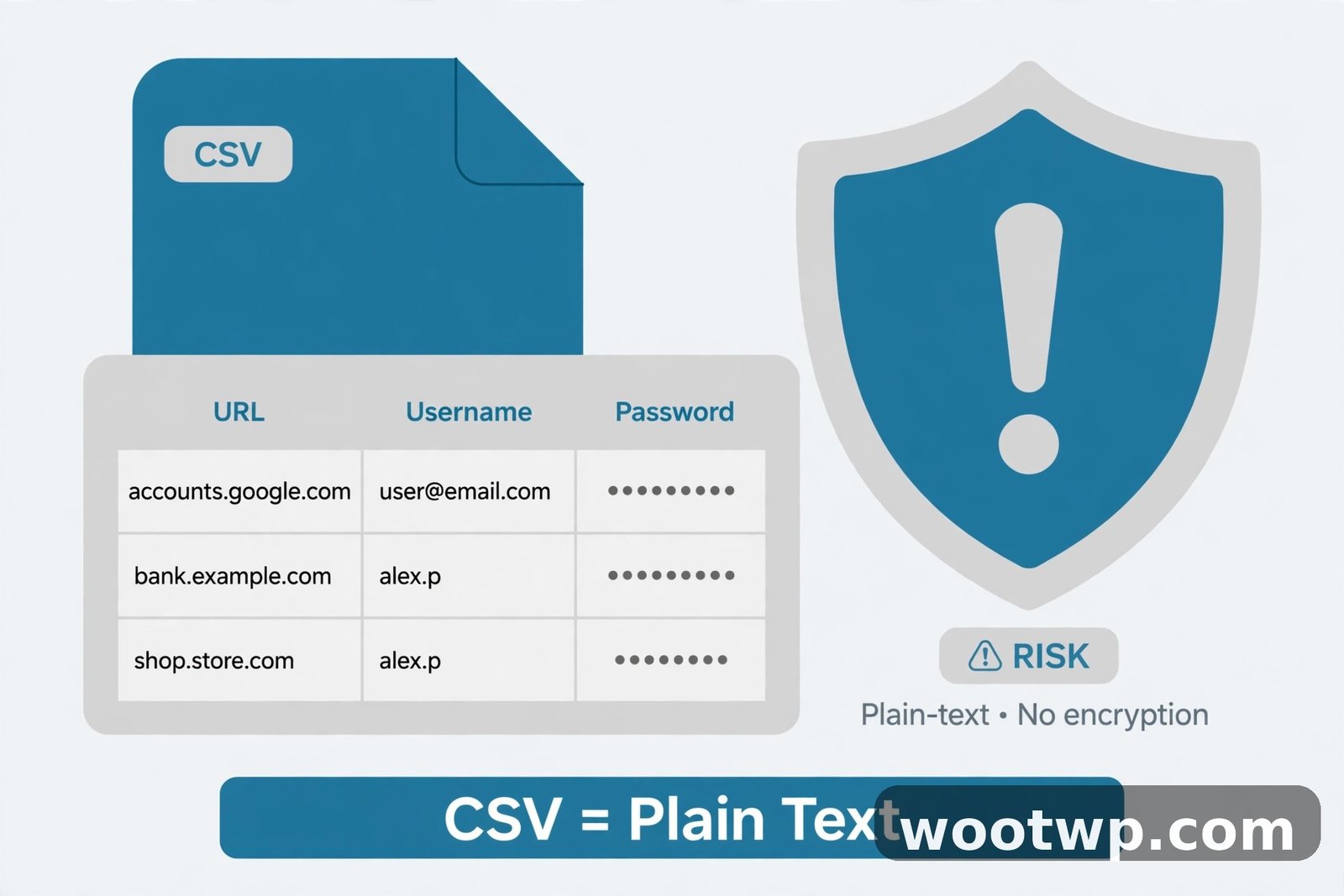
When you export passwords from Chrome, you get a CSV file. CSV stands for comma-separated values, and it is basically a simple spreadsheet with columns for the website address, your username, and your password.
Here is the catch: a chrome passwords csv is stored in plain text. Anyone who opens that file can read every password in it. It is not encrypted, and it is not locked with a master password. That is why every guide to how to export saved passwords from Chrome should start with a warning, and why Google shows you one before the download starts.
A few ground rules before you begin:
- Only export on a device you own and trust. Never do it on a shared or public computer.
- Do not email the file to yourself, upload it to cloud storage, or send it through a chat app.
- Plan to import it and delete it in the same session. The shorter the file exists, the safer you are.
- Make sure Chrome is signed in to the right Google account, so you export the passwords you actually use.
How to Export Saved Passwords From Chrome on Desktop
The desktop version of Chrome has the most straightforward export flow, and it works the same on Windows, Mac, and Linux. Follow these 7 steps to learn how to export saved passwords from Chrome on a computer.
- Open Chrome on your computer and make sure you are signed in to the correct Google account.
- Click the three-dot menu in the top-right corner of the browser window.
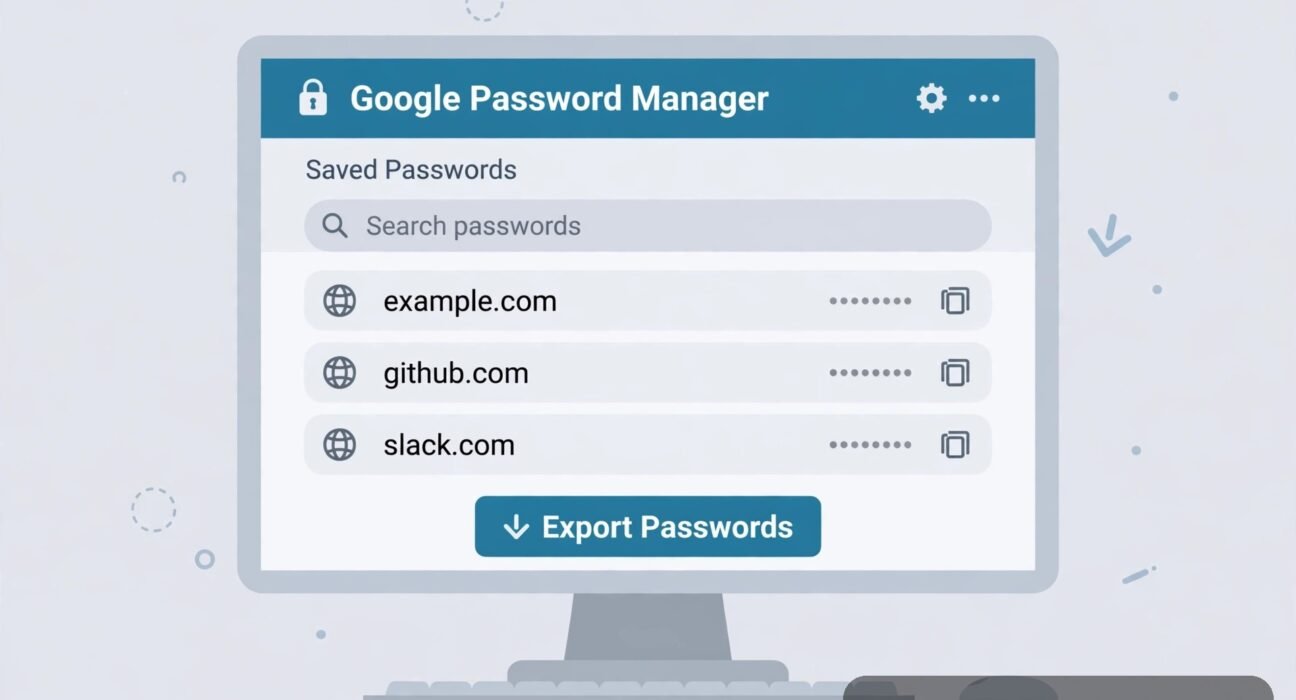
- Go to Passwords and autofill, then click Google Password Manager.
- In the Password Manager, click Settings in the left-hand menu.
- Find the Export passwords section and click Download file.
- Chrome will ask you to confirm with your device password, PIN, or fingerprint. This security check proves it is really you. Enter it and continue.
- Choose where to save the file, then click Save. Chrome downloads a file usually named something like Chrome Passwords.csv.
That is the whole google password manager export flow on desktop. The file lands in your Downloads folder unless you pick another location. Save it somewhere memorable, like your Desktop, so you can find it for the import step and delete it right after.
On that confirmation prompt: Windows asks for your Windows sign-in password or PIN, and a Mac asks for your Mac user password or Touch ID. If you skip it, the download will not start. It exists so someone who grabs your unlocked laptop cannot quietly export everything.
If you do not see the Export option, update Chrome via the three-dot menu, then Help, then About Google Chrome.
How to Export Saved Passwords From Chrome on Android
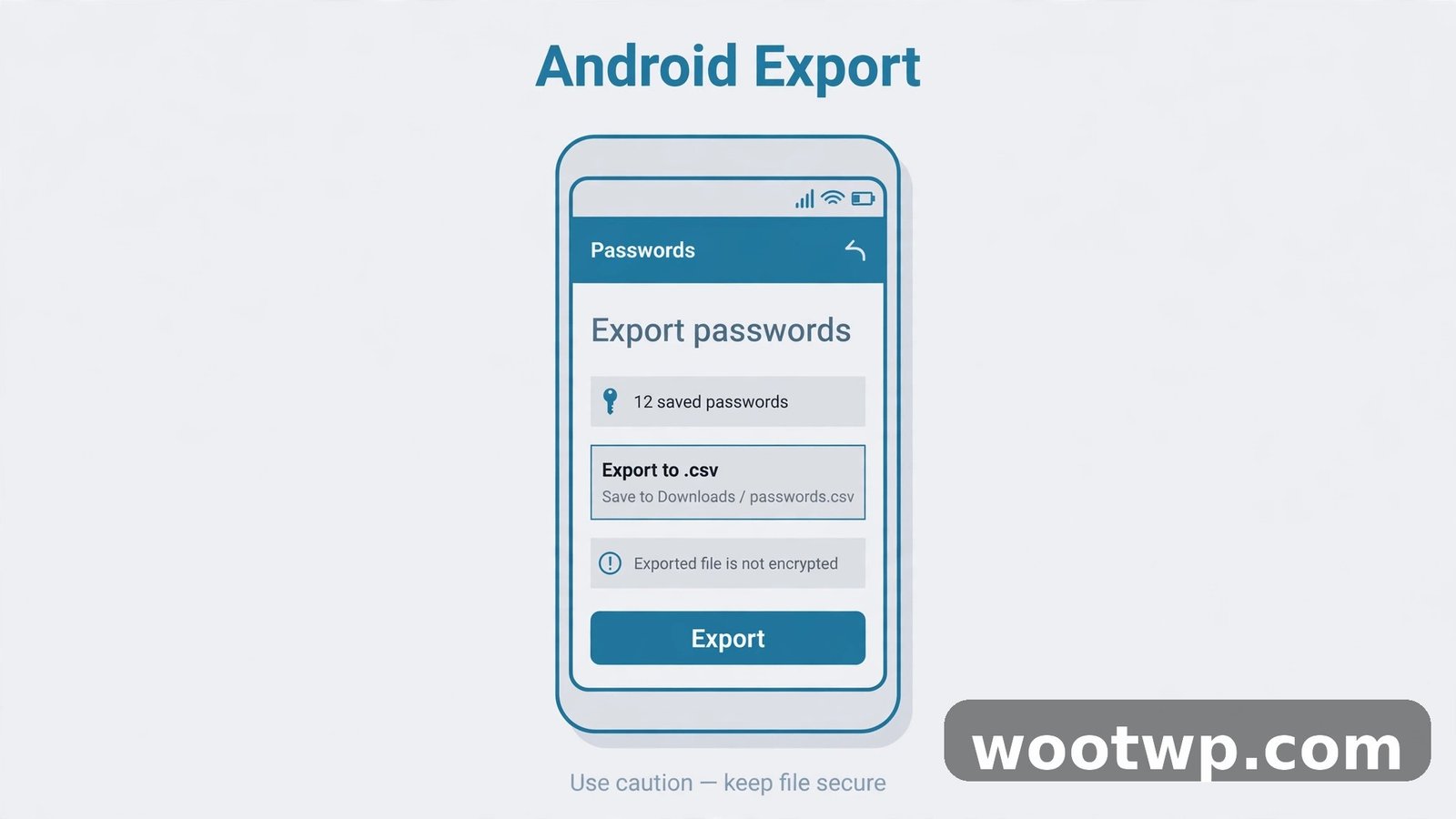
The steps for how to export saved passwords from Chrome on Android are nearly identical to desktop, but the confirmation uses your phone's lock method instead of a computer password.
- Open Chrome on your Android phone or tablet.
- Tap the three-dot menu in the top-right corner.
- Tap Settings, then tap Password Manager.
- Tap Settings in the Password Manager, or tap the gear icon if you see one.
- Tap Export passwords.
- Confirm with your fingerprint, face unlock, PIN, or pattern when prompted.
- Choose where to save the file. On Android, it usually goes to your Downloads folder.
On Android, some phones offer to open the CSV file right after it downloads. Do not open it, and definitely do not share it from the downloads notification. Leave it alone until you are ready to import it.
How to Export Saved Passwords From Chrome on iPhone and iPad
Here is how to export saved passwords from Chrome on iPhone and iPad, where the option sits in a slightly different place than on Android.
- Open Chrome on your iPhone or iPad.
- Tap the three-dot menu in the bottom-right corner.
- Tap Password Manager.
- Tap the Settings or gear icon at the bottom of the screen.
- Tap Export Passwords.
- Confirm with Face ID, Touch ID, or your device passcode.
- Choose how to save the file. You can save it to the Files app, which keeps it on your device.
On iOS, be careful with the share sheet that appears after the export. Tapping AirDrop or Mail creates extra copies you must track down and delete later. Save it to Files, import it, then delete it, as described below.
If the Export Passwords option is greyed out, update Chrome from the App Store and make sure you are signed in to your Google account inside Chrome itself.
How to Import Your Chrome Passwords Into a Password Manager
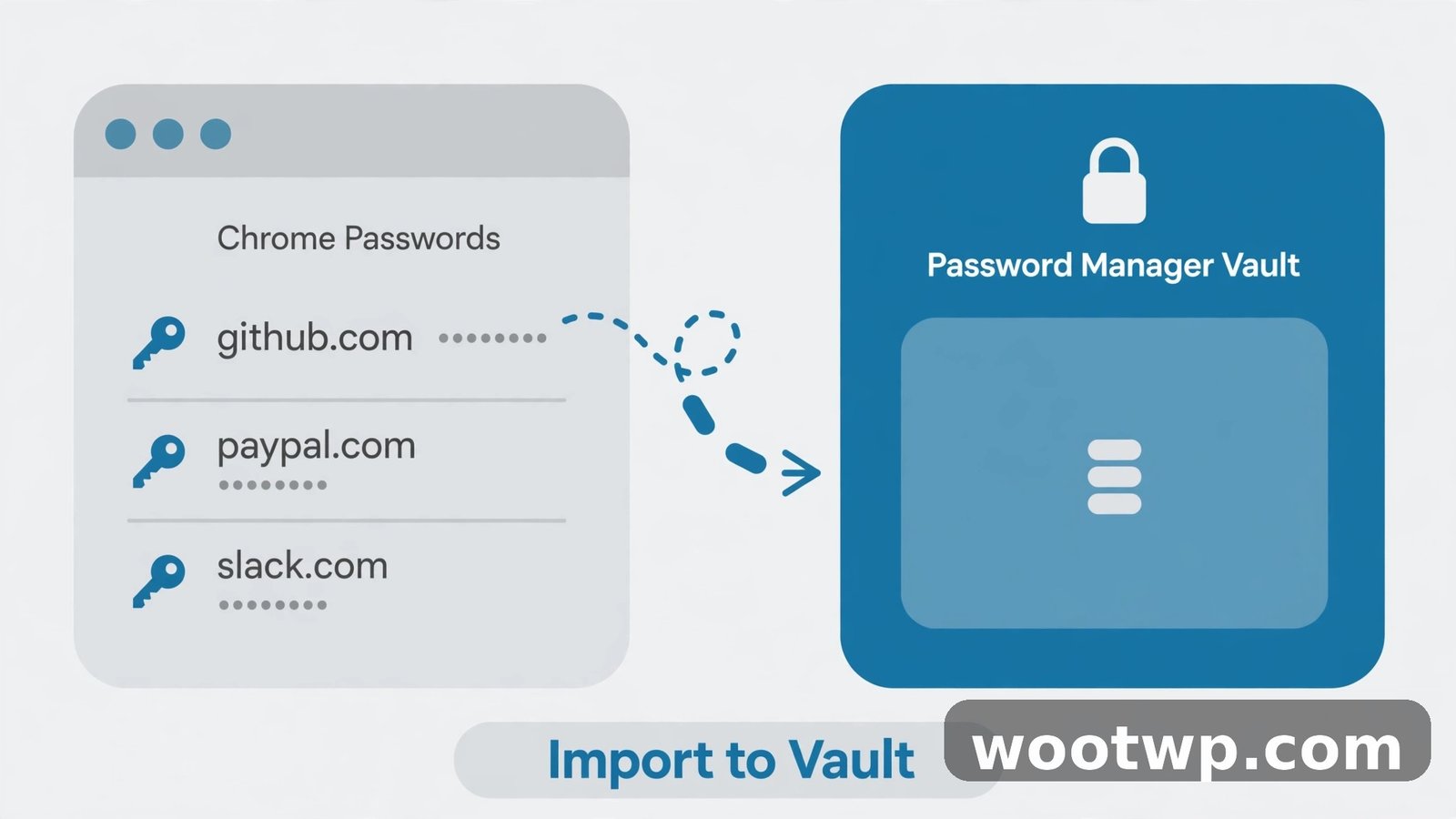
Once you know how to export saved passwords from Chrome, the next step is getting them into a password manager. Most password managers accept a CSV import, and the process is similar across them. Here is the general flow when you import passwords to password manager apps:
- Open your password manager on your computer. Desktop import tools are usually easier than mobile ones.
- Look for an Import option in the settings, tools, or vault menu.
- Select Chrome or Generic CSV as the import source.
- Choose the CSV file you just exported from Chrome.
- Review the list of logins before confirming. Delete any entries you no longer need, such as dead sites or duplicate logins.
- Click Import or Confirm to add them to your vault.
- Sign in to a website or two to confirm the import worked and your logins autofill correctly.
After a successful import, change your most important passwords first, especially email and banking, and replace weak or reused ones with strong, unique passwords. If you need a fresh password, a secure password generator can create a long, random one in seconds.
Some password managers can also import directly from your Google account via a browser extension, which avoids creating a plain-text file at all. If yours offers that, use it instead.
What to Do With the CSV File After Importing
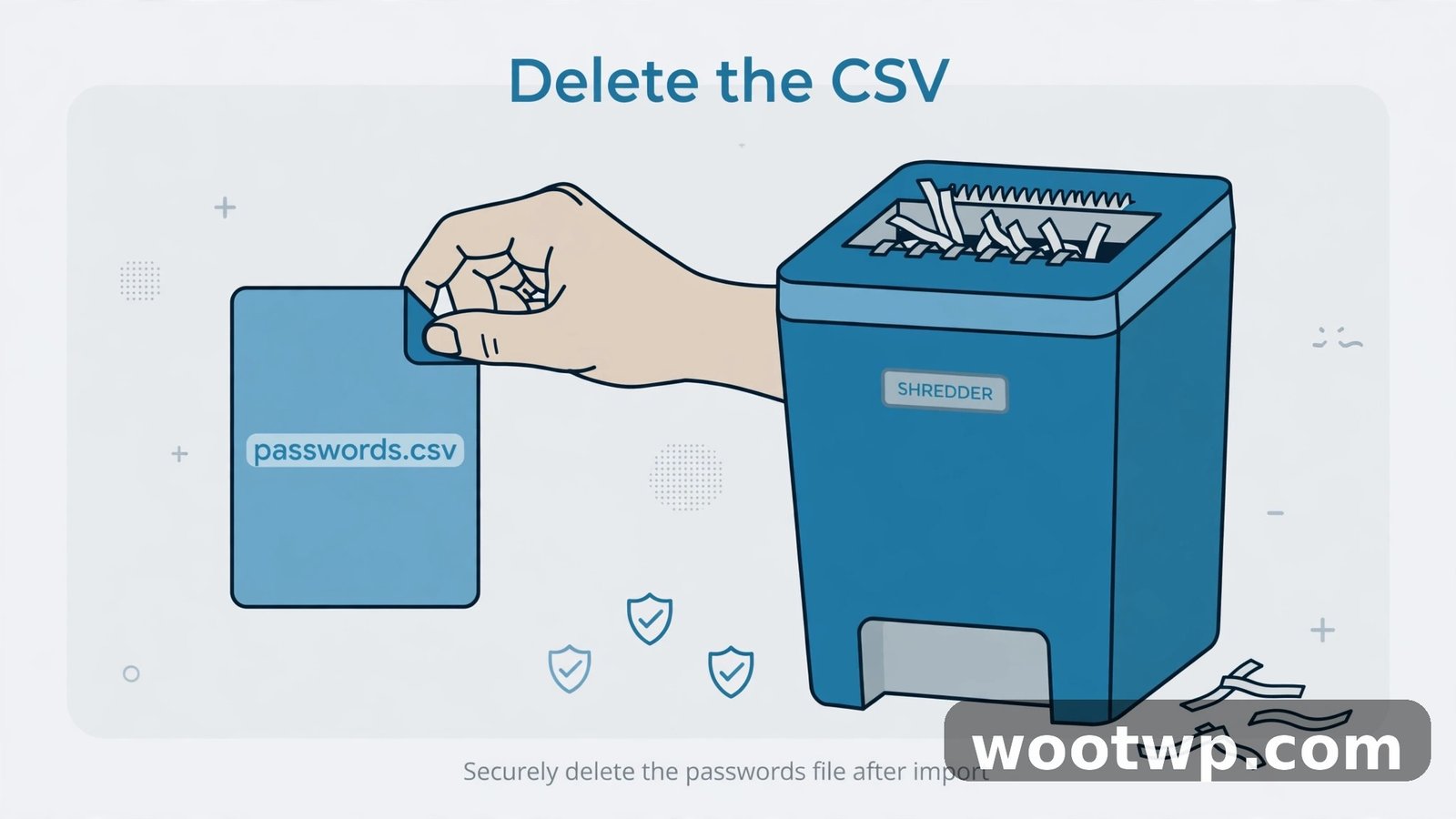
This step is just as important as the export itself. Once you know how to export saved passwords from Chrome and have imported the file, the CSV has done its job and should not stick around.
- Delete the CSV file from your Downloads folder, Desktop, or Files app.
- Empty your trash or recycle bin, so the file is actually gone and not just moved.
- Check for extra copies. Search your device for files ending in .csv and look for anything named like Chrome Passwords.
- If you saved the file to cloud storage or sent it anywhere, delete those copies too.
I have seen people import their passwords and then forget the CSV file sitting in Downloads for months. That defeats the purpose of moving to a password manager. Make deleting the file part of the same task, not something you will do later.
While you are tidying up, turn on two-factor authentication for your most important accounts if you have not already. If you use an authenticator app, our guide on how to transfer Google Authenticator to a new phone will help you move your codes safely when you switch devices.
Can You Export Chrome Passwords Without a CSV?
Sometimes you do not need a file at all. To use the same passwords on another device, sign in to Chrome with the same Google account there, turn on password sync, and your saved logins appear automatically.
Another option is passkeys, where sites offer them. A passkey replaces a password with a device-based sign-in, so there is nothing to export or leak. Not every site supports passkeys yet, but major email, banking, and shopping sites increasingly do.
If you are moving to a different browser, most browsers can import directly from Chrome during setup, so no CSV file is created. Learning how to export saved passwords from Chrome is still worth it when you need a portable file, but for simple moves, sync or a direct browser import is cleaner and safer.
So, to export chrome passwords to csv is the right move when you need a portable file, such as for a password manager import. For simple moves, sync is the better choice.
Common Problems When You Export Chrome Passwords
The export option is missing
This usually means Chrome is out of date or you are not signed in to a Google account in Chrome. Update Chrome, sign in, and check again. The process for how to export saved passwords from Chrome is the same on all desktop systems, but on a work or school device, an administrator may have disabled password export, and you cannot turn it back on yourself.
The confirmation prompt keeps failing
Make sure you are entering your device password, not your Google account password: your Windows sign-in on a PC, your Mac user password on a Mac, or your lock screen PIN, fingerprint, or face unlock on a phone. If you recently changed it, sign out and back in, then try again.
The CSV file looks messy when opened
Opening a CSV file in a spreadsheet app can jumble long passwords or addresses, especially if a password contains a comma. That does not mean the export is broken: password managers read the CSV format correctly. Do not edit the file by hand before importing it, or you may corrupt entries.
Some passwords are missing after import
This happens when a password manager skips duplicates or entries without a website address. Check Chrome's Password Manager for the missing login and add it manually. Passwords saved under a different Google account or Chrome profile will not appear either, so repeat the export from that profile if needed.
If you run into odd browser behavior while working through these steps, clearing out old site data can sometimes help. Our guide on how to clear cookies in Chrome walks through that process step by step.
Frequently Asked Questions
How to export saved passwords from Chrome to a new computer?
Export to a CSV file on your old computer, import it into a password manager or the new browser, then delete the CSV file, all in one sitting. Never email the file to yourself. If both computers use Chrome, signing in with the same Google account and turning on sync moves your passwords with no file at all.
Is it safe to export passwords from Chrome to CSV?
The export itself is safe on your own trusted device, but the resulting file is not encrypted, so anyone who opens it can read your passwords. Import it quickly and delete every copy afterwards, including from the trash. Never store it in cloud storage or send it through email or chat.
How to export saved passwords from Chrome on my phone?
On both Android and iPhone, open Chrome, go to Password Manager, open Settings, and tap Export Passwords. Confirm with your fingerprint, face unlock, or passcode, and the file saves to Downloads or Files. The same plain-text warning applies on mobile, so delete the file after importing it.
Does exporting passwords delete them from Chrome?
No. Exporting only creates a copy. Your passwords stay saved in Chrome and your Google account until you delete them separately. If you are leaving Chrome for good, remove them from Google Password Manager only after you have confirmed the import worked.
Why does Chrome ask for my device password before exporting?
Chrome asks for your device password, PIN, or biometric confirmation to prove you are the device owner. This stops someone who picks up your unlocked device from quietly downloading all your passwords. If you cannot pass this check, the export will not start.
Can I export only some passwords from Chrome instead of all of them?
Chrome does not offer a way to export a selection of passwords. The export always includes all saved passwords for that account or profile. If you only want certain logins, export everything, import it, and delete the entries you do not want inside the password manager. For official details, see the Chrome Help Center.
Conclusion
Now you know how to export saved passwords from Chrome on desktop and mobile, import them into a password manager, and clean up afterwards. The process takes only a few minutes, and the one habit that makes it safe is simple: import the file, then delete it right away.