How to Send Large Videos on WhatsApp: 5 Proven Quality Tips
You recorded a beautiful video, sent it to a friend on WhatsApp, and watched it come back looking soft, blurry, and washed out. If you want to know how to send large videos on WhatsApp without that quality loss, you are in the right place. Whether you want to send video on WhatsApp without losing quality for a family event or a work project, the methods below keep every detail intact. This guide walks you through the exact methods that keep your videos sharp, from the 2 GB document trick to the HD upload setting and cloud links for files that are simply too big.
Table of Contents
- Why Does WhatsApp Shrink Your Videos?
- How to Send Large Videos on WhatsApp as Documents (Up to 2 GB)
- What Changes When You Send a Video as a Document?
- How to Send Large Videos on WhatsApp in HD Quality
- How to Send Large Videos on WhatsApp When the File Is Over 2 GB
- Should You Trim or Split the Video First?
- Check the Video Before You Hit Send
- Common Mistakes That Ruin Video Quality
- Frequently Asked Questions
Why Does WhatsApp Shrink Your Videos?
When you send a video from your gallery, WhatsApp treats it as a media message. It compresses the file so it uploads fast and uses less mobile data. That compression is the reason your crisp 4K clip arrives looking like it was filmed through a foggy window.
WhatsApp does this by default for every gallery send. It lowers the resolution, drops the bitrate, and sometimes cuts the frame rate. The result is a smaller file, but you pay for it with detail, color, and sharpness. This automatic WhatsApp video compression is the trade-off you accept every time you send from the gallery.
The good news is that WhatsApp gives you two ways around this: sending the video as a document, and turning on HD quality for regular sends. Both are built into the app, and neither needs a third-party tool.
How to Send Large Videos on WhatsApp as Documents (Up to 2 GB)
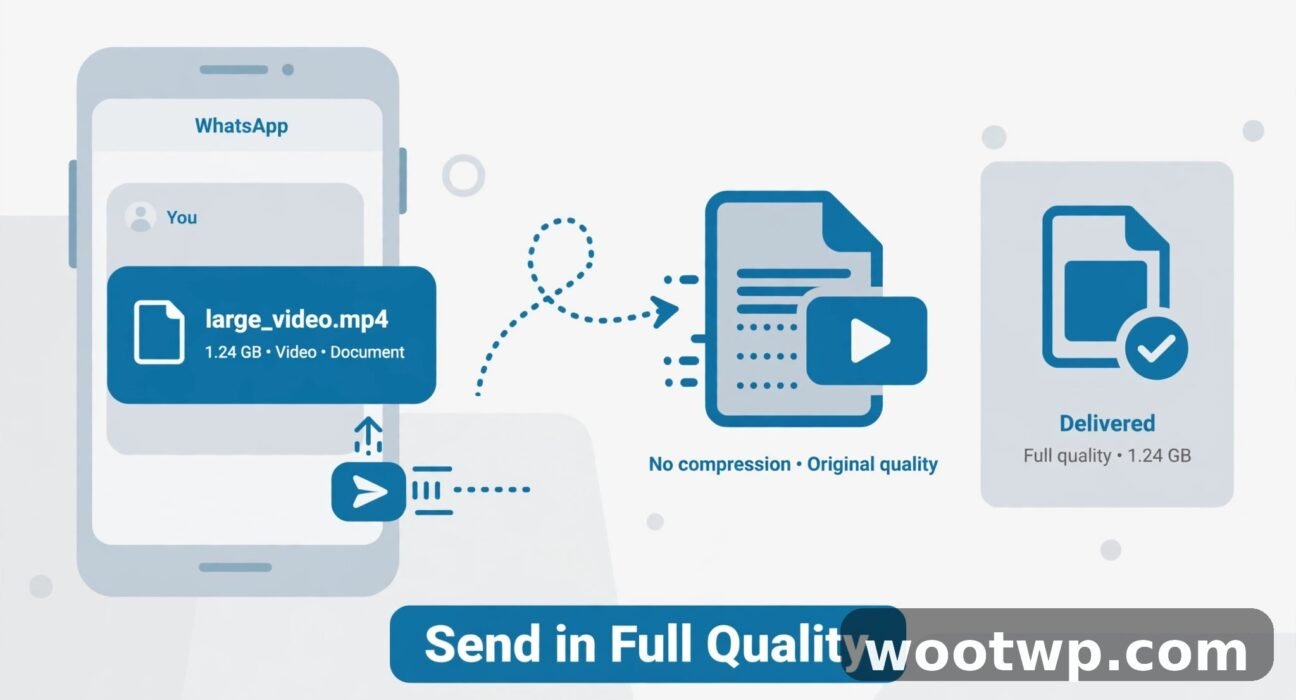
The document method is the single best way to send large videos on WhatsApp without losing quality. A video sent as a document is not compressed at all. It arrives at its original resolution, bitrate, and file size, exactly as it left your phone.
WhatsApp lets you send documents up to 2 GB in size. The WhatsApp document video 2GB limit covers most phone recordings, including long 4K clips. Here is the exact process:
- Open the chat with the person or group you want to send the video to.
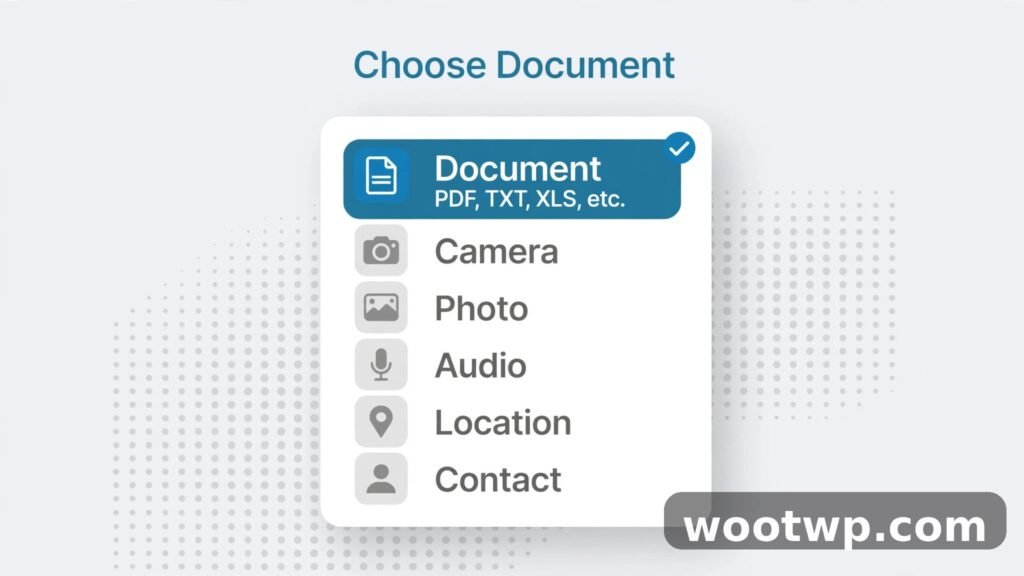
- Tap the attach button (the paperclip on Android, or the plus icon on iPhone).
- Choose Document instead of Gallery.
- Tap Choose from Gallery or browse your files, then pick the video.
- Wait for the upload to finish, then tap Send.
A Few Things to Know Before You Send
- The upload takes longer than a normal send, because the full file goes across. On a slow connection, a 1 GB video can take several minutes.
- Keep WhatsApp open during the upload. If the app is closed or the phone sleeps mid-upload, the send may stall and need to be restarted.
- The recipient needs enough free storage space on their phone to download a file this size. A quick heads-up before you send a 2 GB file goes a long way.
I have used this method for years to share family event videos, and the difference is night and day. A birthday video sent as a document still looks sharp on a big TV screen, while the same clip sent from the gallery looks muddy.
What Changes When You Send a Video as a Document?
A document-sent video behaves differently from a normal video message, and it helps to know this before you use the method. If you are learning how to send large videos on WhatsApp for the first time, the file-card behavior can surprise you, so here is what to expect:
- It arrives as a file, not an inline clip. The recipient sees a file card with the video name and size. They tap it to download it, then open it in their video player.
- It does not autoplay in the chat. Unlike a gallery video, it will not play inline in the conversation window.
- It does not appear in the chat’s media gallery in the same way. The recipient can still find it in their downloads or in the chat’s shared documents list.
- The original filename is kept. This is handy if you are sending work files or footage that needs to stay organized.
None of this is a drawback if quality matters more than convenience. For quick, casual clips, a normal send is fine. For anything you want to keep, the document route is the right call.
One more tip: if you ever lose a chat and need old media back, our guide on how to recover deleted WhatsApp messages with 7 proven methods walks through the options that actually work.
How to Send Large Videos on WhatsApp in HD Quality
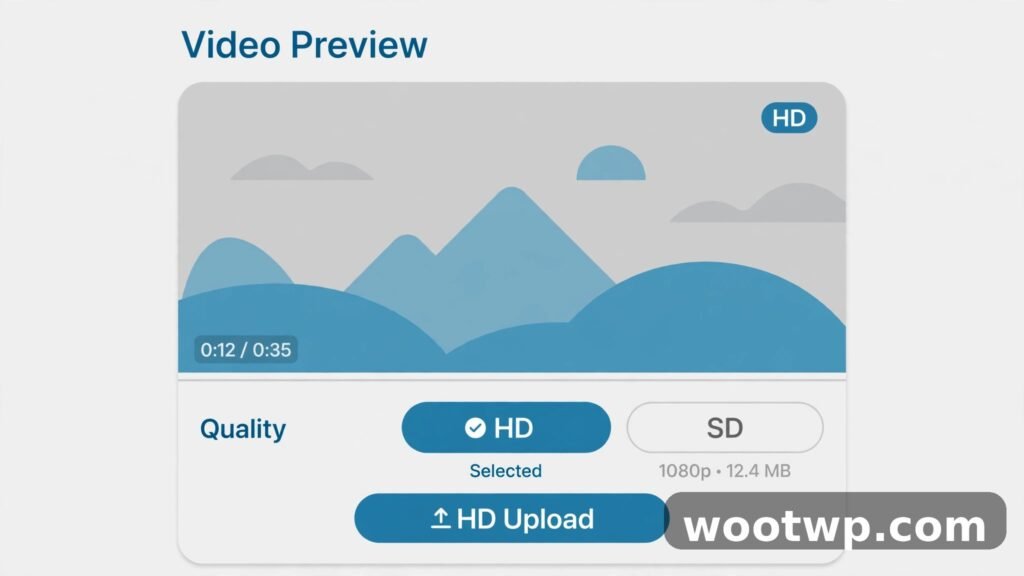
If you still want the convenience of a normal video message — inline playback, a thumbnail in the chat — turn on HD quality. The WhatsApp HD video upload option sends media at a much higher resolution than the standard compressed send. It is not fully lossless like the document method, but the improvement is obvious.
Here is how to use it:
- Open the chat and tap the attach button.
- Choose Gallery and pick your video.
- On the preview screen, tap the HD button at the top.
- Choose HD quality from the pop-up, then tap Send.
The HD option appears on the preview screen every time you send a photo or video as media. You need to pick it per send — WhatsApp does not yet let you set HD as the permanent default for all sends, so check the preview screen each time.
A few honest notes about HD sends:
- HD videos still get some compression. They look far better than standard sends, but they are not bit-for-bit identical to the original file.
- HD uploads are bigger, so they take longer and use more data. On a limited data plan, send HD only on Wi-Fi.
- The recipient’s phone and screen affect what they see. An HD clip still looks best on a decent display.
For most everyday sharing — a holiday clip, a school play, a quick project update — HD is the sweet spot between quality and convenience. For anything you plan to edit or archive later, use the document method instead.
How to Send Large Videos on WhatsApp When the File Is Over 2 GB
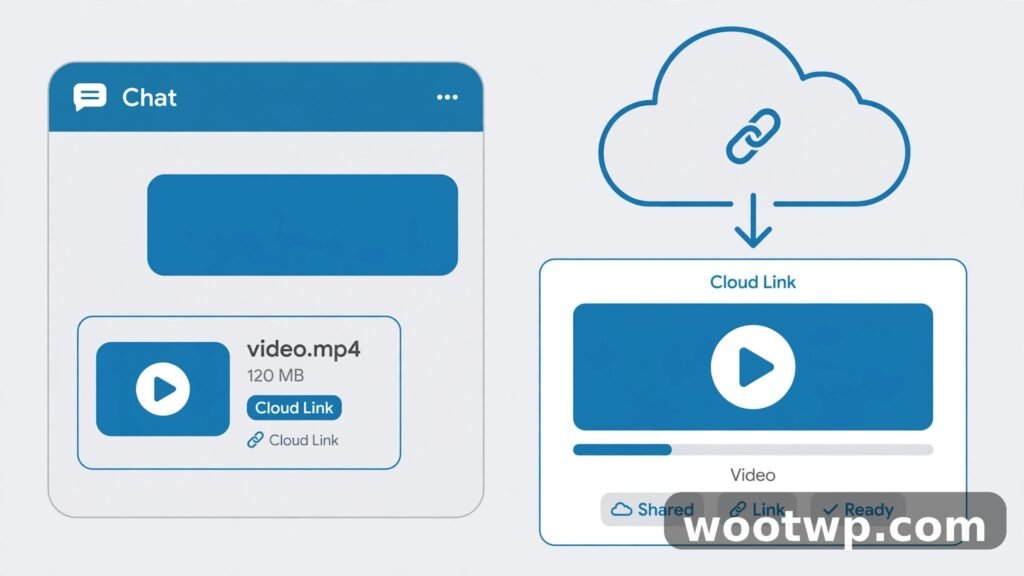
Sometimes even 2 GB is not enough. A long 4K recording or a full event video can easily pass that limit. When that happens, the cleanest answer is a cloud link. You upload the video once, then share the link in WhatsApp. The recipient downloads the original file at full quality.
Here is the method using Google Drive:
- Open the Google Drive app and tap the plus button, then Upload.
- Choose the video from your phone and wait for the upload to finish.
- Tap the three dots next to the uploaded file and choose Manage access or Share.
- Set the link access to Anyone with the link (or share it with the specific person’s email if you prefer tighter control).
- Tap Copy link.
- Paste the link into your WhatsApp chat, and add a short note saying what the video is.
The same idea works with other cloud storage services you already use. The principle is identical: the file lives in the cloud, and WhatsApp just carries the link.
Two safety notes here. First, only share links with people you trust, because anyone with an “anyone with the link” URL can open it. Second, if the link leads somewhere unexpected, pause before tapping it — our guide on how to check if a link is safe before clicking in 7 proven ways explains the quick checks worth doing. You can also read WhatsApp’s own documentation at the WhatsApp Help Center for the latest limits and features.
Should You Trim or Split the Video First?
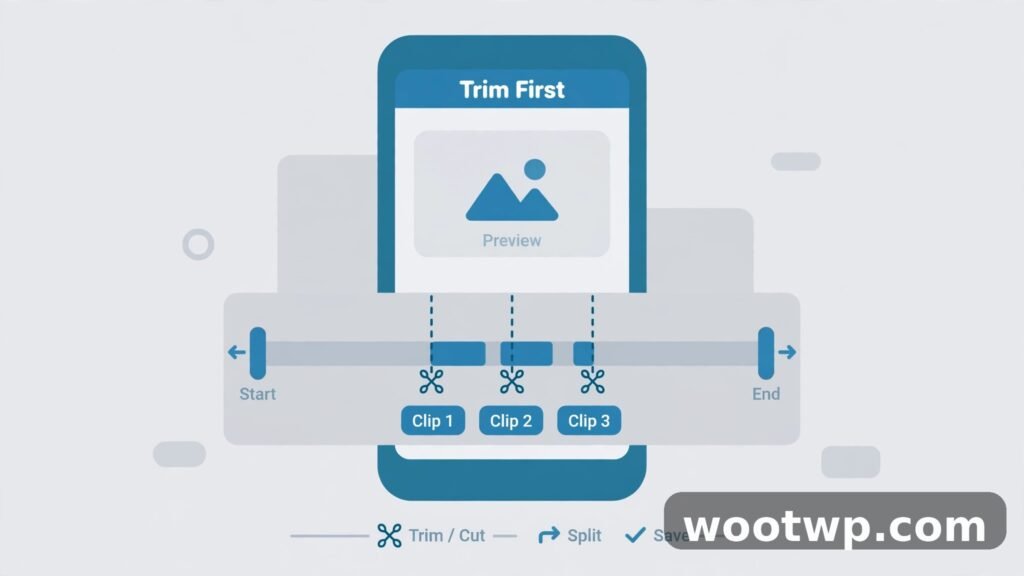
Before you send, ask yourself whether the recipient needs the whole clip. Knowing how to send large videos on WhatsApp also means knowing when not to send the whole file. A few smart edits can turn an awkward 3 GB file into an easy send:
- Trim the dead ends. Most recordings have a few seconds of nothing at the start and end. Cutting those alone can shrink the file noticeably.
- Cut it into parts. If the video is a long event, split it into logical chapters. Each part stays under the 2 GB document limit and is easier for the recipient to download.
- Send only the best take. If you recorded the same moment three times, send the best one. Nobody needs all three.
Your phone’s built-in editor handles basic trimming without any extra app. Open the video in your gallery, tap Edit, drag the trim handles, and save a copy. Keep the original untouched so you can always go back to it.
Trimming is also the fix when a video is just slightly over the limit. Cutting 30 seconds off a 2.1 GB clip often brings it under 2 GB, which means you can use the document method instead of a cloud link.
Check the Video Before You Hit Send
A quick pre-send check saves you from sending the wrong file or a broken one. Run through this short list:
- Play the first few seconds. Make sure it is the right clip and that the audio works.
- Check the file size. On Android, long-press the file in your file manager to see its size. On iPhone, check it in the Files app or Photos info panel.
- Confirm the recipient’s storage. A 2 GB file needs 2 GB of free space on the other end. If their phone is nearly full, the download will fail.
- Use Wi-Fi for big uploads. Mobile data can be slow and expensive for gigabyte-sized files, and a weak signal can stall the upload.
- Keep the phone charged. A big upload on a dying battery is a recipe for a failed send.
This checklist takes less than a minute, and it prevents the most common reason people have to re-send a large video: the first attempt failed halfway through.
Common Mistakes That Ruin Video Quality
Even with the right method, a few habits quietly undo your effort. If you already know how to send large videos on WhatsApp but keep getting blurry results, one of these habits is usually the culprit. Watch out for these:
- Sending from the gallery out of habit. This is the number one cause of blurry WhatsApp videos. If quality matters, always choose Document.
- Forwarding a video that was already compressed. A forwarded clip keeps the compression from its first send. Ask the original sender for the document version instead.
- Recording in low quality to begin with. Check your camera settings before an important event. A video shot at low resolution cannot be rescued later, no matter how you send it.
- Screenshotting or screen-recording a video. This adds a second round of compression and usually drops the resolution. Always share the original file.
- Sending over a weak connection and assuming it failed. If an upload stalls, wait and retry on better Wi-Fi rather than sending a smaller, compressed copy in frustration.
Frequently Asked Questions
How can I send large videos on WhatsApp without losing quality?
Send the video as a document instead of from the gallery. Open the chat, tap Attach, choose Document, and pick the video. Document sends are not compressed, so the file arrives at its original quality, up to the 2 GB limit.
What is the maximum video size I can send on WhatsApp?
You can send documents up to 2 GB in size. Videos sent from the gallery are also subject to the same overall media size handling, but they get compressed first, so the file that arrives is much smaller and lower in quality than the original.
Does the HD option on WhatsApp keep the original quality?
HD quality is a big improvement over the standard compressed send, but it is not fully lossless. The video still goes through some compression. For a bit-for-bit original, send the video as a document instead.
Why does my video look blurry after sending it on WhatsApp?
Gallery sends are compressed by default, which lowers resolution and bitrate. That compression is what causes the blur. Switch to the document method or turn on HD on the preview screen to keep the video sharp.
Can I send a video larger than 2 GB on WhatsApp?
Not directly, since 2 GB is the document limit. Upload the video to a cloud storage service like Google Drive, set the sharing link, and paste that link into your WhatsApp chat. The recipient can then download the full-quality original.
Do videos sent as documents play inside the WhatsApp chat?
No, they arrive as downloadable files rather than inline video clips. The recipient taps the file card to download it, then opens it in their phone’s video player. The trade-off is worth it when quality matters most.
Conclusion
Learning how to send large videos on WhatsApp comes down to one habit: stop sending important videos from the gallery. Use the document method for anything up to 2 GB, switch on HD for quick everyday clips, and reach for a cloud link when the file is bigger than 2 GB. That single change keeps your videos sharp, and your friends and family will actually see what you recorded.