How to Edit PDF on Android Phone Free: 6 Quick Methods
You receive a PDF on your phone, and you need to fix a typo, add a signature, fill in a form, or highlight a paragraph before sending it back. You do not have a computer nearby, and you do not want to pay for an app. Learning how to edit PDF on Android phone free is easier than most people expect, because several free tools already on your phone, or free in the Play Store, cover the everyday jobs well.
In this guide, I will show you six free methods, from built-in apps you already have to dedicated free editors, and I will be honest about what each one cannot do, so you pick the right tool for your job instead of wasting time on the wrong one.
- First, Know What Kind of PDF Edit You Need
- Method 1: How to Edit PDF on Android Phone Free With Google Drive and Docs
- Method 2: Mark Up PDFs With Samsung Notes
- Method 3: Annotate and Sign With Adobe Acrobat Reader Free
- Method 4: Edit Text and Pages With Xodo Free
- Method 5: Use a Free Online PDF Editor in Your Browser
- Method 6: Fill Forms and Sign With Your Phone's Built-In Markup
- What Free PDF Editors Cannot Do
- Frequently Asked Questions
First, Know What Kind of PDF Edit You Need
The word "edit" covers very different jobs, and no single free app does all of them well. Before you install anything, decide which of these you need:
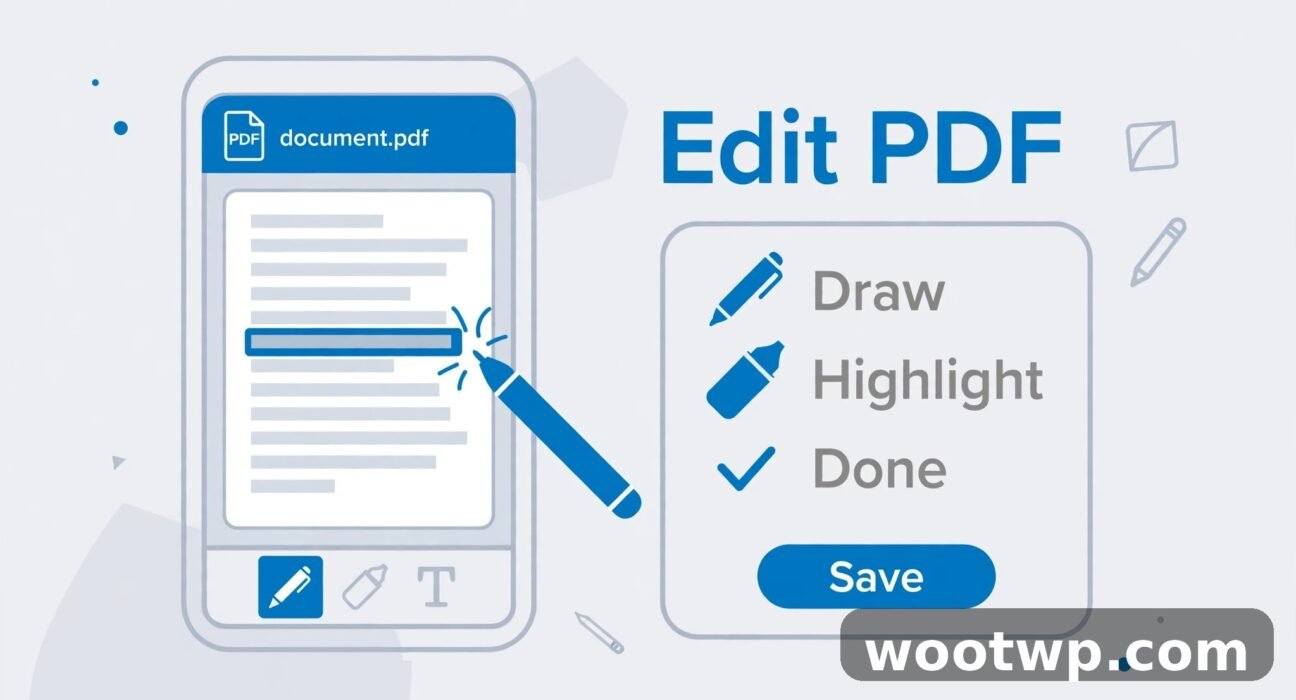
- Annotate: add highlights, comments, underlines, drawings, or sticky notes on top of the PDF. The original text stays untouched.
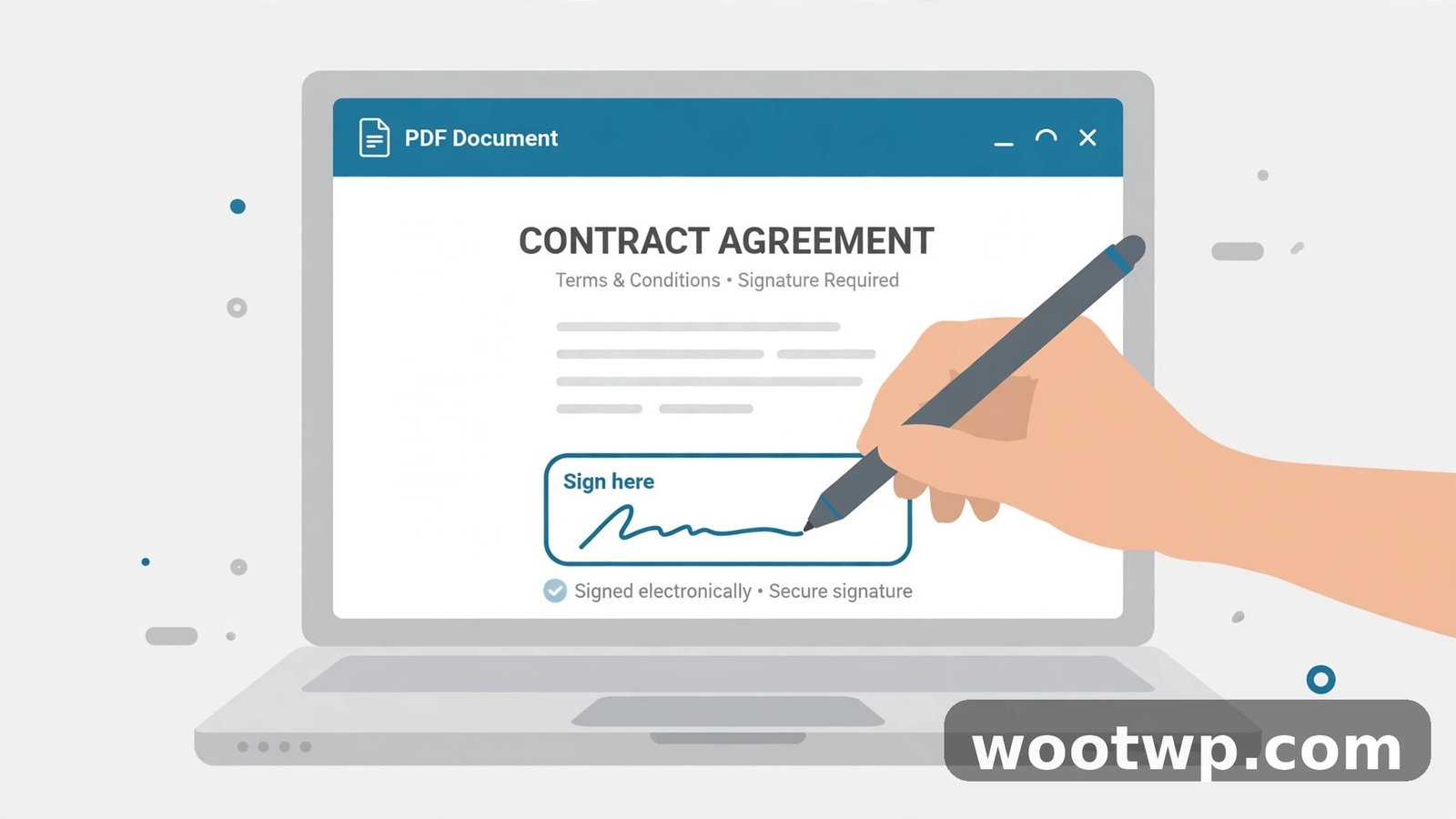
- Fill and sign: type into form fields, tick checkboxes, and add your signature.
- Add text or images: place new text boxes or pictures onto a page, for example to correct a line or add a note.
- Change existing text: rewrite words that are already in the PDF, which is the hardest job on a phone.
- Manage pages: reorder, delete, rotate, or extract pages.
- Convert: turn the PDF into a Word document you can edit freely, then save it back as a PDF.
Most everyday jobs are annotation, filling, and signing, and those are free almost everywhere. Changing existing text and managing pages are partly free in some apps and paid in others. Converting to Word is free through Google Docs and works well when the layout is simple. Knowing your job before you start saves you from installing three apps when one would do.
Method 1: How to Edit PDF on Android Phone Free With Google Drive and Docs
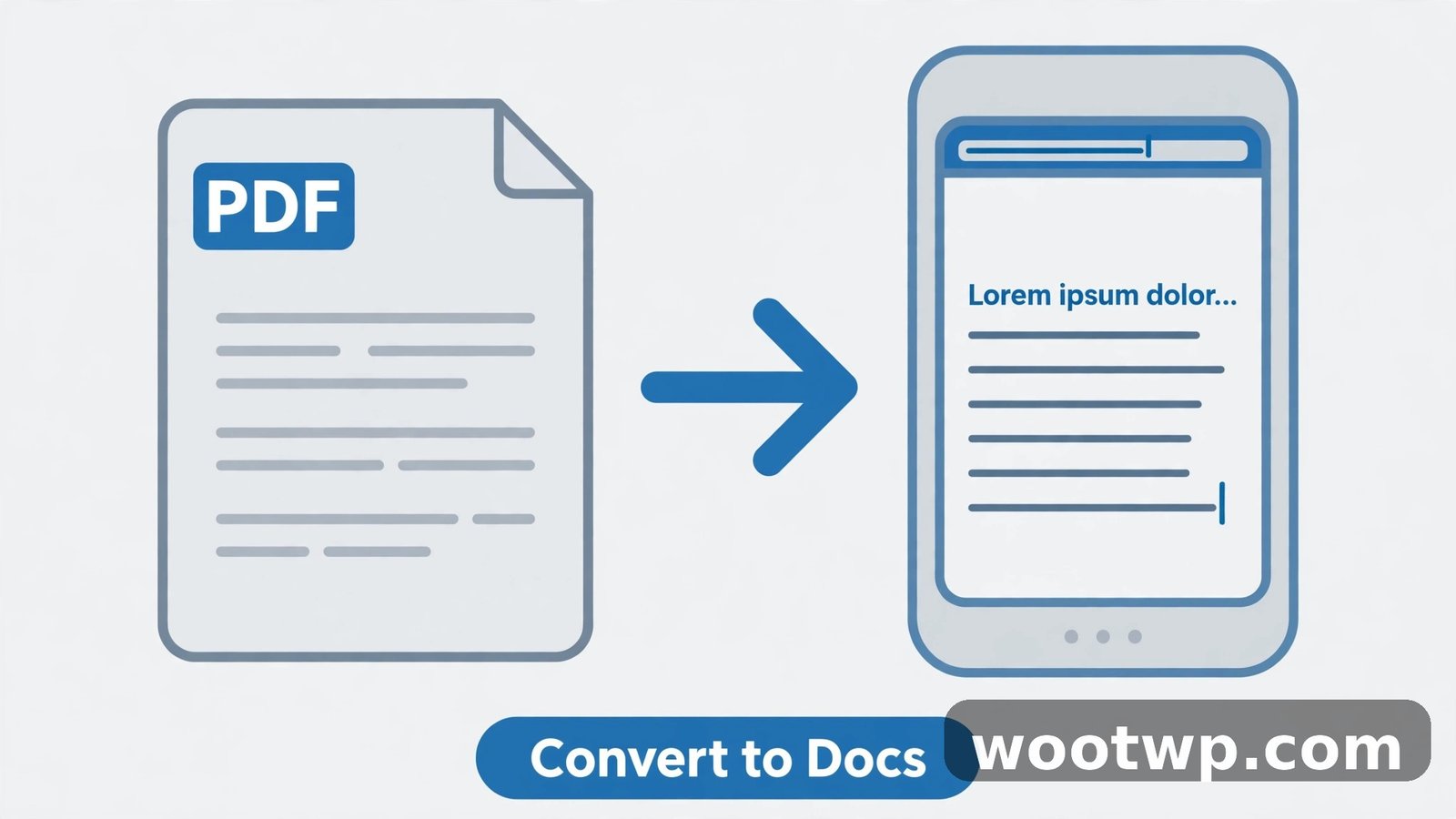
If your PDF is mostly text and you need to rewrite paragraphs, converting it to a Google Doc is the most powerful free option. You need a Google account and the Google Drive app, which most Android phones already have.
- Open the Google Drive app and upload the PDF if it is not already there. Tap the plus button, then Upload, and choose the file.
- Find the PDF in Drive and tap it to open the preview.
- Tap the three-dot menu in the top-right corner.
- Choose Open With, then Google Docs.
- Wait while Google converts the PDF. A new Google Doc opens with the PDF's text, ready to edit.
- Edit the text freely: fix typos, rewrite paragraphs, add headings, or insert images.
- When you finish, tap the three-dot menu, choose Share and Export, then Save As, and pick PDF Document to export your edited version as a new PDF.
This method shines when you need real text editing, not just annotations. A contract draft, a resume, or a report with simple formatting converts well and edits cleanly.
It has limits. Complex layouts, multi-column designs, and heavily formatted tables often shift during conversion, and images may land in unexpected places. Scanned PDFs, which are really pictures of pages, convert poorly, because Google Docs cannot read handwriting or scanned text reliably. If your PDF is a scan, skip to the annotation methods below instead.
One more tip: keep the original PDF untouched and work on a copy. If the conversion mangles the layout, you still have the original to fall back on, and you can try a different method instead.
Method 2: Mark Up PDFs With Samsung Notes
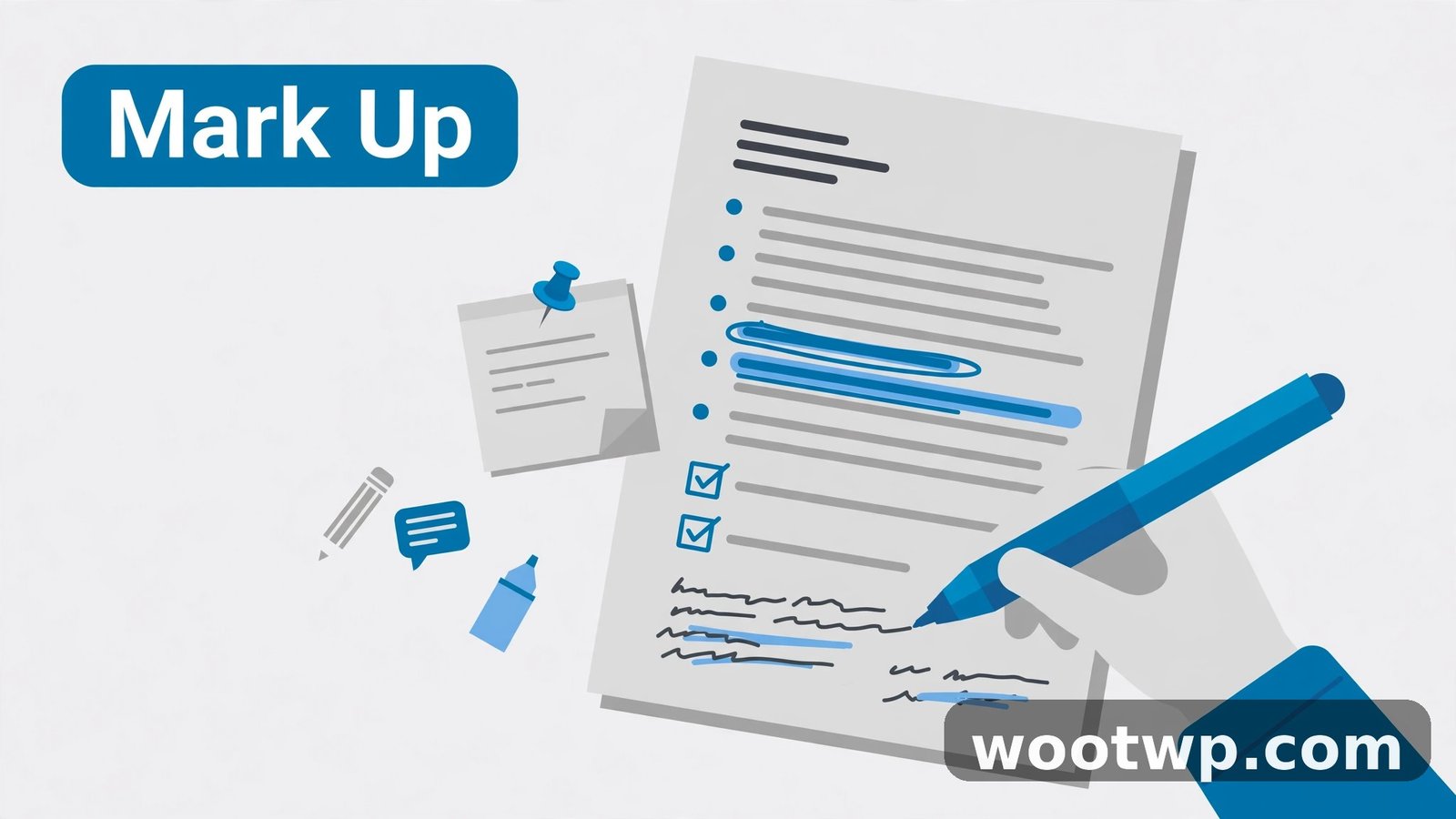
If you own a Samsung Galaxy phone or tablet, you already have a strong free PDF tool: Samsung Notes. It is built in, it costs nothing, and it is excellent for handwriting, highlighting, and signing.
- Open the PDF in your Files app or from an email attachment.
- When Android asks which app to use, choose Samsung Notes.
- The PDF opens as a note. Tap the pen icon to write or draw on it with your finger or an S Pen.
- Use the highlighter tool for passages you want to stand out, and the text tool to type notes anywhere on the page.
- When you finish, tap Save. Samsung Notes saves your markup into the PDF, and you can share it from the app.
Samsung Notes is my pick for students and anyone who reviews documents by hand. Highlighting a textbook chapter, scribbling corrections on a draft, or signing a form all feel natural here, and the S Pen makes it even better on supported devices.
The limit is that Samsung Notes is a markup tool, not a text editor. It cannot rewrite the existing text in a PDF, reorder pages, or edit embedded images. For those jobs, use one of the dedicated editors below. And if you do not own a Samsung device, this method does not apply, so move on to the next options.
Method 3: Annotate and Sign With Adobe Acrobat Reader Free
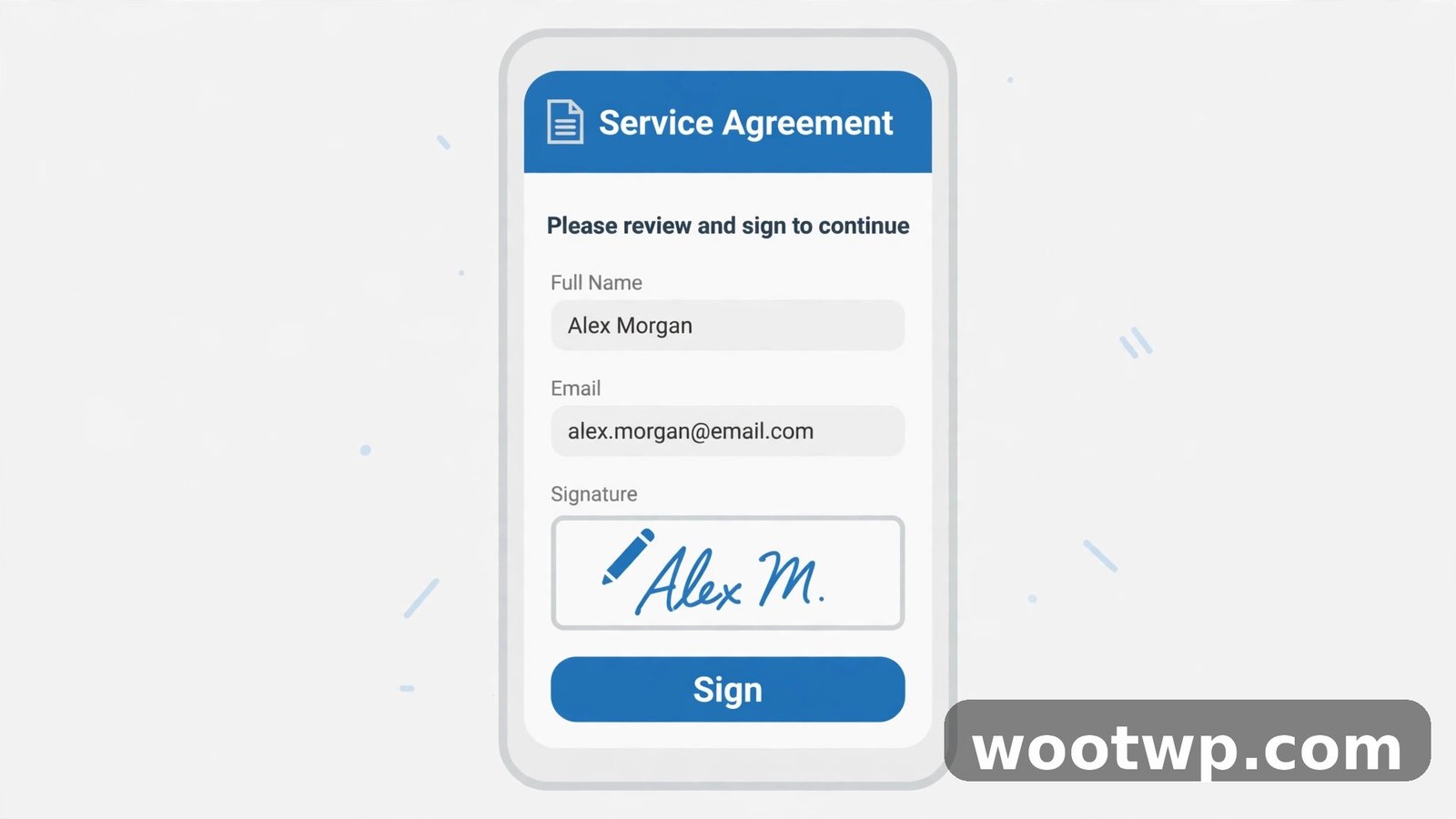
Adobe Acrobat Reader is the most widely used PDF app on Android, and its free tier covers the everyday jobs well: viewing, commenting, highlighting, filling forms, and signing.
- Install Adobe Acrobat Reader from the Google Play Store and open your PDF in it.
- Tap the comment icon, usually a speech bubble, at the bottom of the screen.
- Choose the tool you need: highlight, underline, strikethrough, freehand drawing, or a text comment.
- To fill a form, tap a form field and type. Acrobat Reader detects most fillable fields automatically.
- To sign, tap the signature tool, draw your signature with your finger, and place it where it belongs.
- Tap the checkmark to save your changes, then use Share to send the edited PDF.
Acrobat Reader is a safe first install if you are unsure which app to pick, because it handles the most common PDF tasks reliably and opens almost any PDF without fuss.
The free tier's limits matter for deeper edits. Changing existing PDF text, reorganizing pages, and editing images need an Adobe Acrobat Premium subscription. If you only need to annotate, fill, and sign, the free tier is enough, and you should not pay for features you will never use.
If your job is removing a password from a PDF rather than editing its contents, that is a different task with its own steps, covered in our guide on how to remove password from PDF.
Method 4: Edit Text and Pages With Xodo Free
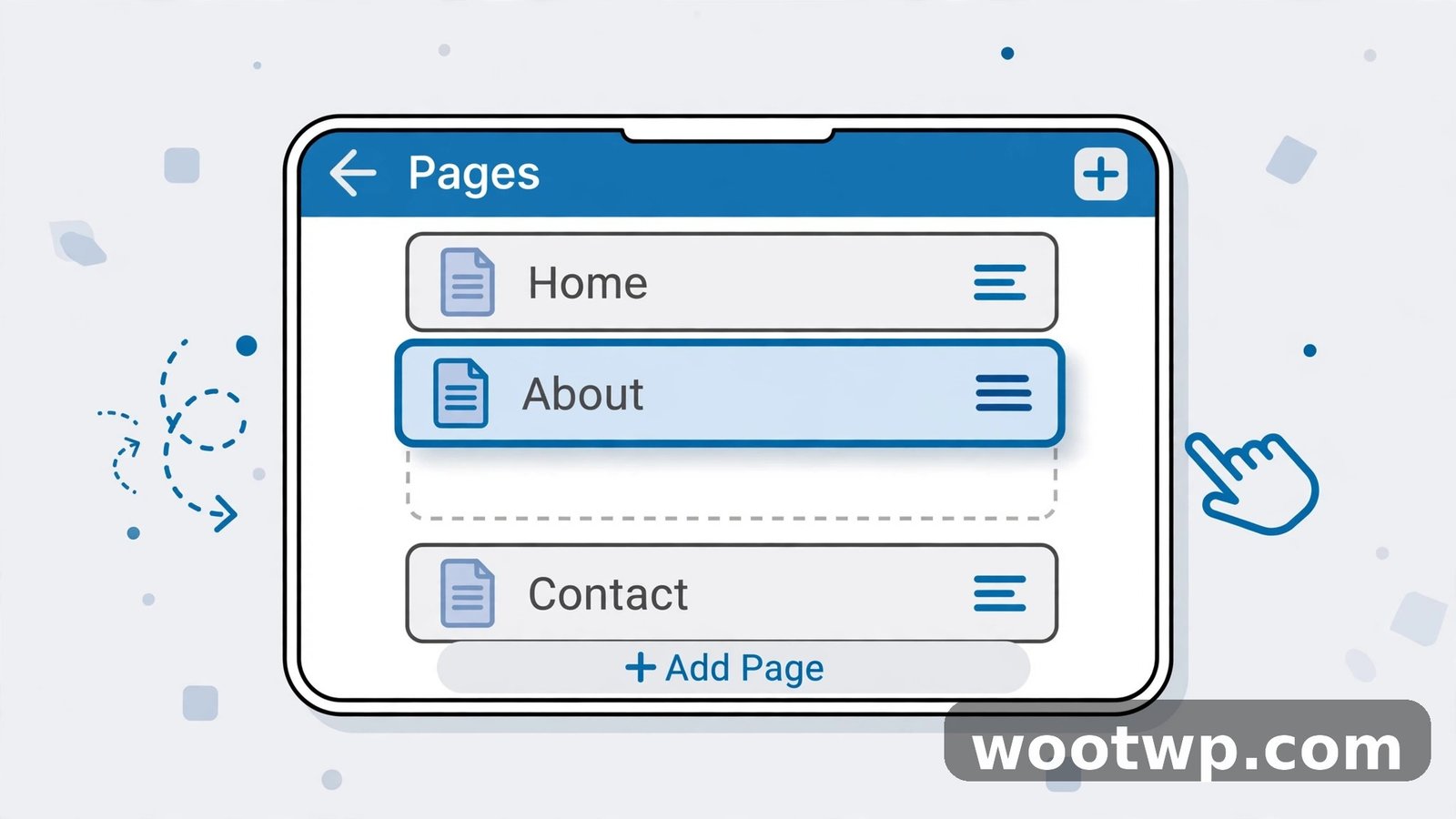
Xodo is the free app I recommend when you need to go beyond annotation and actually change parts of a PDF. Its free version is unusually generous, and it works well on phones, not just tablets.
- Install Xodo from the Google Play Store and open your PDF in it.
- To add text, tap the text tool, tap anywhere on the page, and type. You can change font size and color before placing the text.
- To highlight or underline, select the text tool for markup and drag across the passage.
- To manage pages, open the page thumbnail view, then long-press a page to delete, rotate, or reorder it.
- To sign, use the signature tool, draw your signature once, and reuse it on any document after that.
- Save the file when you finish. Xodo saves your edits into the PDF, and you can also save a copy to Google Drive or Dropbox from inside the app.
Xodo's strength is that it combines annotation, text insertion, and page management in one free app, which means most people can stop after installing just this one. It also syncs with cloud storage, so a PDF you edit on your phone is available on your computer later.
It still cannot do everything. Editing the original text inside a PDF, the way you edit a Word document, is limited in Xodo's free tier, just as it is in most free editors. For heavy text rewriting, the Google Docs conversion method above remains the better choice.
Method 5: Use a Free Online PDF Editor in Your Browser
If you do not want to install another app, or you only need to make a quick change once, a free online PDF editor in your phone's browser works well. Tools like PDFgear's free online editor let you upload a PDF, add text, highlight, fill forms, and sign, then download the result.
- Open Chrome on your Android phone and go to PDFgear's free online editor.
- Tap Upload or Choose File and select your PDF.
- Wait for the file to load, then pick the tool you need: Add Text, Highlight, Fill and Sign, or Draw.
- Make your changes and preview each page before saving.
- Tap Download to save the edited PDF to your phone's Downloads folder.
Online editors are convenient for one-off jobs and for phones with little free storage, since nothing is installed. They are also handy when the PDF is on a shared computer or a friend's phone and you just need a quick fix.
There are two cautions. First, you upload your document to someone else's server, so do not use an online editor for sensitive documents like contracts with personal details, financial statements, or identity documents. Edit those in an offline app like Xodo or Acrobat Reader instead. Second, free online editors usually limit file size and the number of edits per hour, so a large document may need to be split or edited in an app instead.
Method 6: Fill Forms and Sign With Your Phone's Built-In Markup
For the simplest job of all, filling in a short form or signing a single page, you may not need a PDF app at all. Android's built-in markup, available through Google Drive's preview and through many phone makers' gallery and files apps, lets you draw and write on a document quickly.
- Open the PDF in Google Drive or your Files app.
- Look for a markup, annotate, or pen option in the preview toolbar.
- Draw your signature, tick boxes, or add a short handwritten note.
- Save or share the marked-up file.
This method is limited, and it is not a substitute for a real editor when you have several pages to work through. But for a one-page permission slip, a delivery note, or a form that needs a signature and nothing else, it is the fastest route, because it uses tools already on your phone.
What Free PDF Editors Cannot Do
Free tools cover most everyday PDF jobs, but it helps to know where the line is, so you do not waste an hour hunting for a free feature that does not exist.
- Perfect text reflow. No free phone app rewrites a complex PDF the way Word rewrites a document. Convert to Google Docs for heavy text changes, and accept that complex layouts may shift.
- Scanned PDF text editing. A scanned PDF is a picture, not text. Free apps can annotate over it, but they cannot rewrite the words inside the picture without OCR software, which is usually a paid feature.
- Advanced page surgery. Merging large documents, splitting a PDF into many files, and compressing files to a tiny size are partly free online but often capped. For heavy page work, a desktop tool is usually faster. If you only need to combine a few PDFs into one, our free merge PDF tool does that in your browser without installing anything.
- Removing restrictions. If a PDF is locked against editing by its owner, free editors will not bypass that lock, and you should not try to break a restriction on a document you do not own.
When you hit one of these limits, the practical answer is usually to convert the PDF to an editable format, edit there, and export a fresh PDF. Our guide on how to convert PDF to Word free without losing formatting walks through that conversion in detail.
Frequently Asked Questions
Can I edit a PDF on my Android phone for free?
Yes. Google Docs conversion handles text rewriting, Samsung Notes and Adobe Acrobat Reader cover annotation and signing, and Xodo's free version adds text insertion and page management. Most everyday PDF jobs need no payment at all.
What is the best free PDF editor for Android?
For most people, Xodo is the best all-round free choice, because it combines annotation, text insertion, signing, and page management in one app. If you mainly highlight and sign, Adobe Acrobat Reader's free tier is simpler. If you rewrite text, Google Docs conversion works best.
Can I edit existing text in a PDF on Android?
Only to a limited extent. Free phone apps let you add new text on top of a PDF, but rewriting the original text inside it is restricted. For real text editing, convert the PDF to a Google Doc, edit it there, and export it as a new PDF.
How do I sign a PDF on my Android phone for free?
Open the PDF in Adobe Acrobat Reader or Xodo, tap the signature tool, draw your signature with your finger, and place it on the signature line. Both apps save your signature so you can reuse it on future documents without redrawing it.
Can I edit a PDF on Android without installing an app?
Yes. Free online editors like PDFgear's online editor and Sejda work in your phone's browser: upload the PDF, edit it, and download the result. Avoid online editors for sensitive documents, since you upload the file to a third-party server.
Why does my edited PDF look different after converting to Google Docs?
Google Docs rebuilds the document from the PDF's text, so complex layouts, multi-column designs, and tables can shift during conversion. Simple documents convert cleanly, but heavily formatted PDFs often need manual tidying after conversion.
Conclusion
Learning how to edit PDF on Android phone free is mostly about matching the job to the right free tool. Convert to Google Docs when you need to rewrite text, use Samsung Notes or Acrobat Reader for markup and signing, pick Xodo when you need page management too, and use an online editor only for quick, non-sensitive jobs. With those options in hand, most PDF edits take a few minutes on your phone, with no computer and no payment needed.