How to Take a Screenshot on MacBook: 7 Easy Shortcuts That Work
There is no Print Screen key on a MacBook, and that trips up almost everyone who switches from Windows. Learning how to take a screenshot on MacBook is actually simpler once you know the shortcuts, because macOS gives you a different shortcut for each job: the whole screen, part of the screen, one window, or a full recording setup.
In this guide, I will show you every shortcut you need, where your screenshots go, how to change where they save, and how to edit and share them without installing anything extra. Everything here uses tools already built into macOS, so you can start in the next two minutes.
- The 5 MacBook Screenshot Shortcuts at a Glance
- How to Take a Screenshot on MacBook of the Entire Screen
- How to Capture Just Part of the Screen
- How to Capture One Window or Menu
- How to Use the Screenshot Toolbar
- Where Your Screenshots Save and How to Change It
- How to Copy a Screenshot Instead of Saving It
- How to Edit, Crop, and Share a Screenshot
- How to Take a Screenshot on MacBook Without a Keyboard
- Fixing Common Screenshot Problems
- Frequently Asked Questions
The 5 MacBook Screenshot Shortcuts at a Glance
Memorise this table and you will cover nearly every situation:
| What you want | Shortcut |
|---|---|
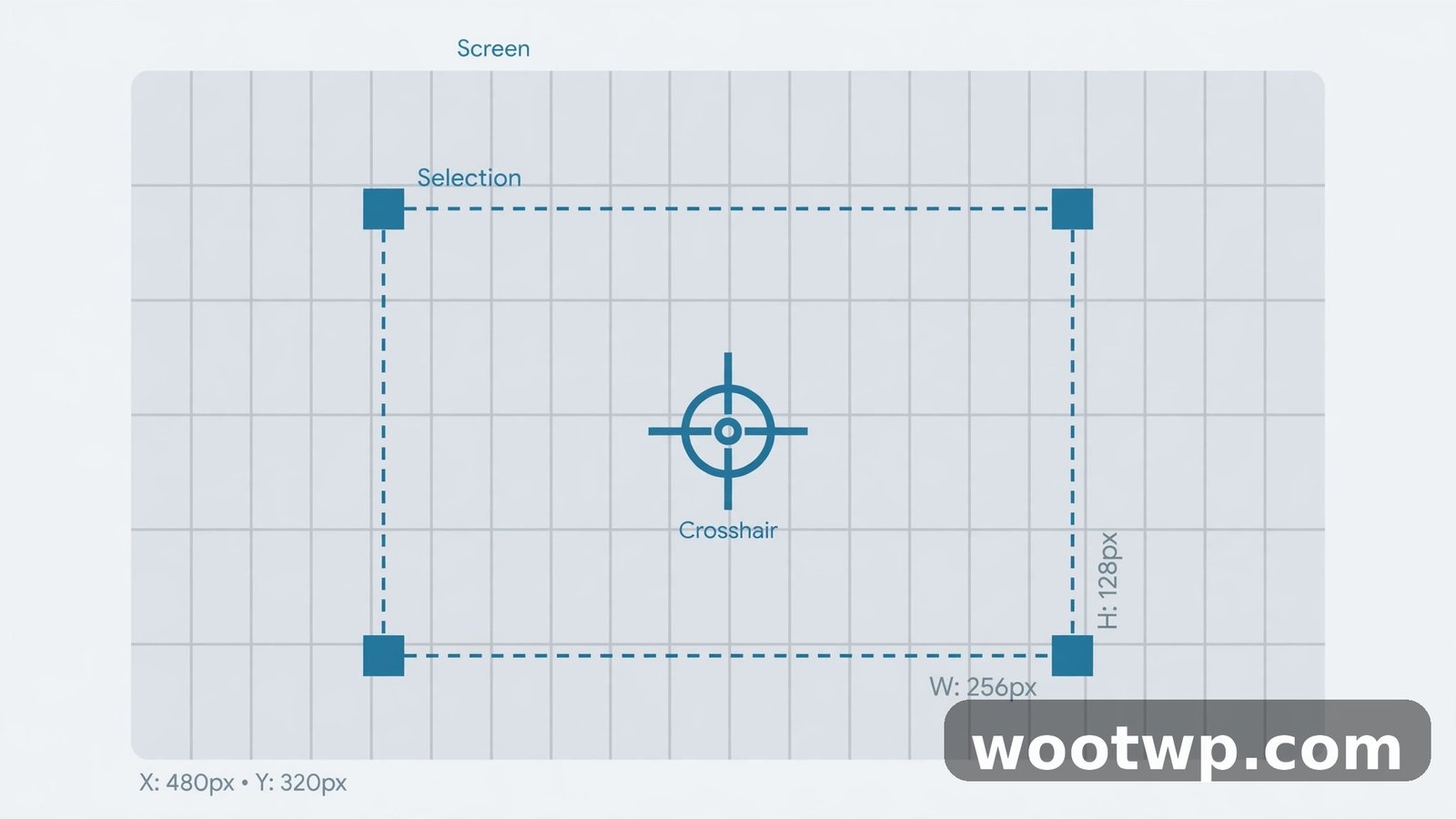
| Entire screen | Shift + Command + 3 |
| Selected area | Shift + Command + 4, then drag |
| One window or menu | Shift + Command + 4, then Space, then click |
| Screenshot toolbar | Shift + Command + 5 |
| Touch Bar (older MacBook Pro models) | Shift + Command + 6 |
On a MacBook keyboard, Command is the key with the ⌘ symbol, next to the Space bar. Shift is the upward arrow key on either side. Press the keys together and release them, rather than holding them down. You will hear a camera shutter sound, or see a thumbnail slide into the corner, which confirms the capture worked.
If you are new to Mac shortcuts in general, start with Shift + Command + 4. It is the one I use most, because it captures exactly the part of the screen I want and nothing else, which saves cropping later.
How to Take a Screenshot on MacBook of the Entire Screen
This is the fastest option when you want everything visible, such as an error message plus the app around it.
- Arrange your screen so everything you want is visible. Close or move windows you do not want in the shot.
- Press Shift + Command + 3 together, then release.
- A thumbnail appears briefly in the bottom-right corner. Click it to edit the shot straight away, or wait a few seconds and let it save on its own.
- Find the saved file on your Desktop. It is a PNG file named something like "Screen Shot 2026-10-28 at 9.50.00 AM.png".
On a MacBook connected to an external display, Shift + Command + 3 captures every display at once, saving one image per screen. That is handy for multi-monitor setups, but check which file is which before you send one, because the filenames look alike.
A full-screen shot is the easiest to take and the hardest to read, because everything shrinks when you share it. If the detail that matters is small, such as a line of text in a document, capture just that area instead, using the next method.
How to Capture Just Part of the Screen
This is the most useful MacBook screenshot skill, and it is worth practising until it feels automatic.
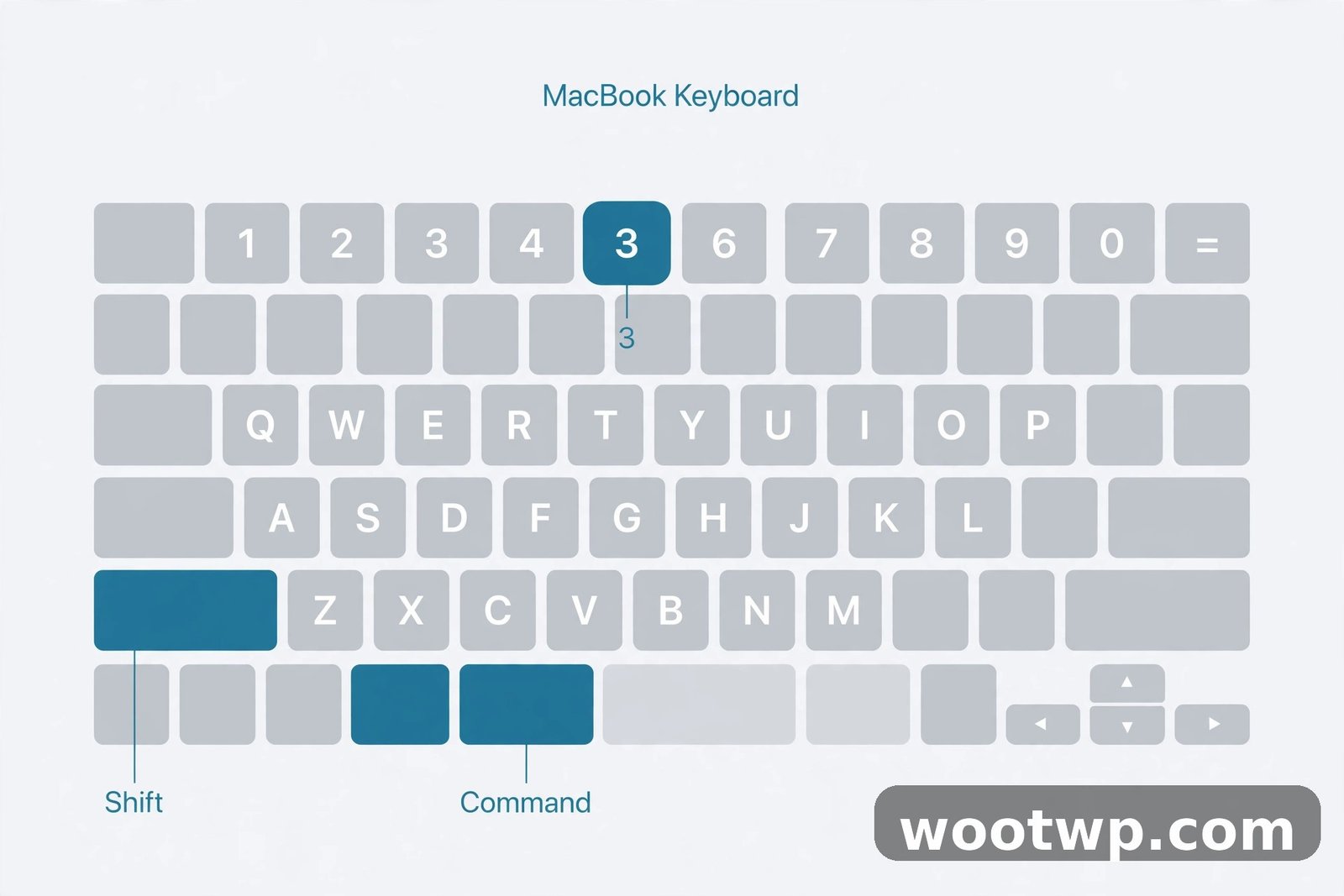
- Press Shift + Command + 4. Your pointer changes into crosshairs.
- Click and drag over the exact area you want to capture. A box shows the size of your selection as you drag.
- Release the mouse button or trackpad to take the shot.
- To cancel at any point before releasing, press Esc.
Three hidden controls make this much easier:
- Move the selection: while dragging, hold Space and drag to move the whole selection box without changing its size. Release Space to keep dragging the edges.
- Adjust one edge only: while dragging, hold Shift to lock one dimension and adjust the other. This helps when you want a precise width but a flexible height.
- Resize from the centre: while dragging, hold Option to grow or shrink the selection from its centre point instead of from a corner.
I use the Space trick constantly. You start a selection, realise it is slightly off, hold Space, slide it into place, and release. It beats cancelling and starting again five times.
How to Capture One Window or Menu
For a clean shot of a single app window, without your Desktop or other windows behind it, use the window capture mode.
- Open the window you want to capture, and bring it to the front.
- Press Shift + Command + 4, then press Space. Your pointer changes into a camera icon.
- Move the camera over the window you want. It highlights in blue.
- Click to capture just that window, complete with its shadow.
- To capture the window without its shadow, hold Option while you click.
To capture a menu, open the menu first, then press Shift + Command + 4 and drag over the menu and its items. Window mode does not work for open menus, because pressing Space closes some menus, so the drag method is the reliable choice there.
Window shots look far more professional than full-screen shots when you are writing a guide, reporting a bug, or sending a colleague a picture of a settings panel. The reader sees only what matters, with no clutter around it.
How to Use the Screenshot Toolbar
If you want options, timers, or screen recordings, open the toolbar instead of memorising more shortcuts.
- Press Shift + Command + 5.
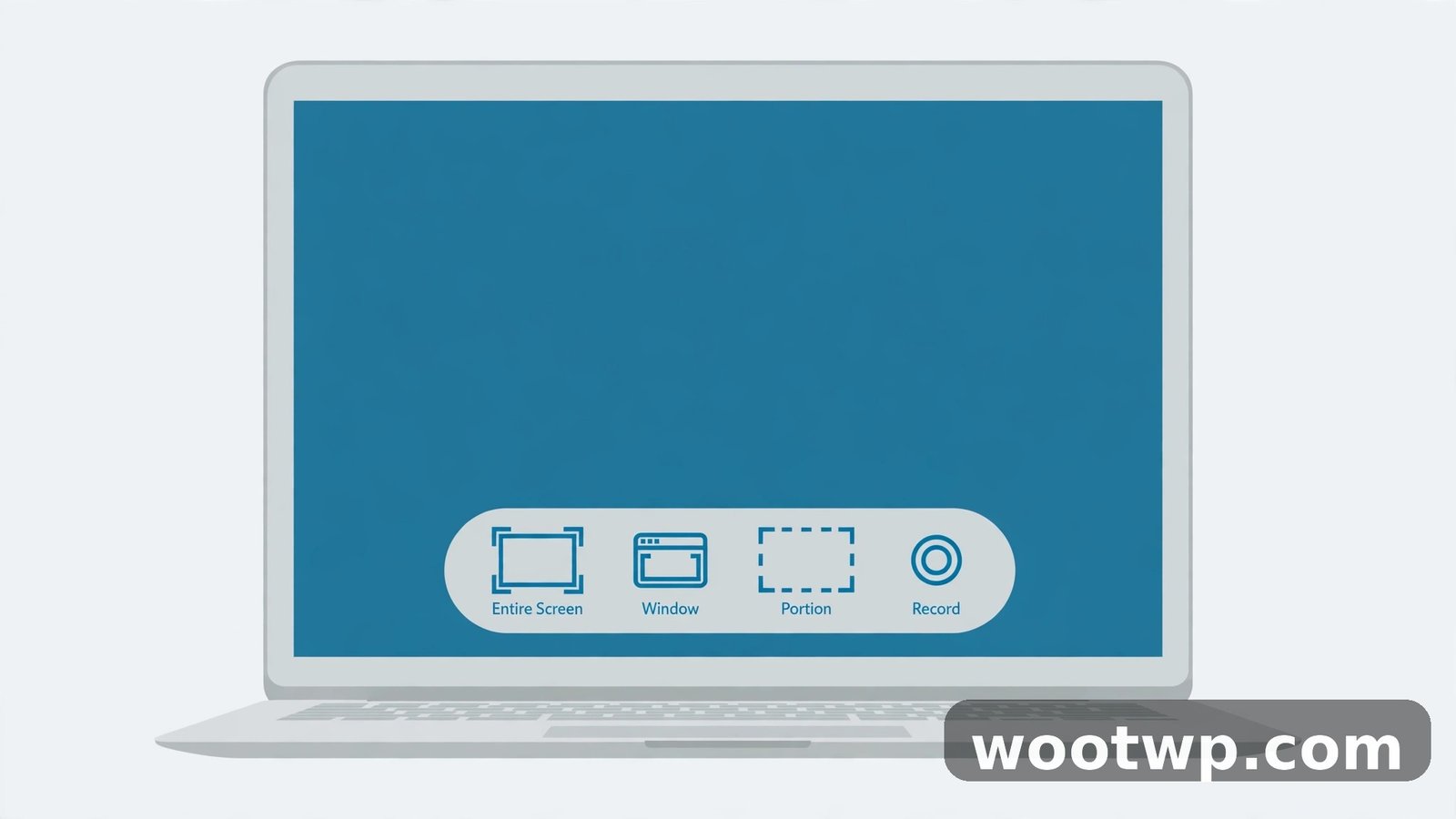
- A toolbar appears at the bottom of the screen with icons for capturing the entire screen, a selected window, or a selected portion.
- On the right side of the toolbar, you will also see recording options: record the entire screen, or record a selected portion.
- Click Options to set a timer (None, 5 seconds, or 10 seconds), choose where screenshots save, and decide whether the pointer shows in the capture.
- Click Capture to take the shot, or press Esc to close the toolbar without capturing.
The timer is genuinely useful. Set a 5-second timer when you need to open a menu, hover over something, or get your pointer into position before the shot. Without the timer, you would need a second pair of hands for those shots.
The toolbar also lets you record your screen without installing anything. Recordings save as .mov files in the same place as your screenshots. For a quick how-to video or a bug report, a 30-second screen recording often explains more than ten screenshots. For a full walkthrough, see our guide to recording your screen on Mac for free.
Where Your Screenshots Save and How to Change It
By default, macOS saves screenshots to your Desktop as PNG files. That is fine until your Desktop fills up with dozens of files named "Screen Shot…" and you cannot find anything.
To change the save location:
- Press Shift + Command + 5 to open the toolbar.
- Click Options.
- Under "Save to", pick a location such as Documents, Downloads, Clipboard, or a folder you create for screenshots.
- To pick a custom folder, choose Other Location and select or create the folder.
You can also change the file format, though that needs a Terminal command, and most people do not need it. PNG is the best default: it keeps text sharp and supports transparency, which matters for window shots. If file size matters more than sharpness, convert a copy to JPG afterwards in Preview, rather than changing the system default.
A tidy habit that pays off: create a folder called Screenshots in Documents, point the toolbar at it, and sort by date when you need an old shot. Your Desktop stays clean, and you still know exactly where every capture lives.
If you take screenshots on Windows too, our guide to taking a scrolling screenshot on Windows covers the built-in and free options there, so you can keep the same tidy system on both machines.
How to Copy a Screenshot Instead of Saving It
Sometimes you do not want a file at all. You want to paste the shot straight into an email, a chat, or a document. Add the Control key to any shortcut to copy instead of saving:
- Copy the entire screen: Control + Shift + Command + 3
- Copy a selected area: Control + Shift + Command + 4, then drag
- Copy a window: Control + Shift + Command + 4, then Space, then click
After the capture, paste with Command + V wherever you want it. No file appears on your Desktop, which keeps things tidy when you are sending quick shots all day.
This is my default for support chats and messages. I copy the shot, paste it into the chat, and move on, without a pile of files to delete later. If I think I might need the shot again, I save it normally instead, because a clipboard copy is gone the moment you copy something else.
How to Edit, Crop, and Share a Screenshot
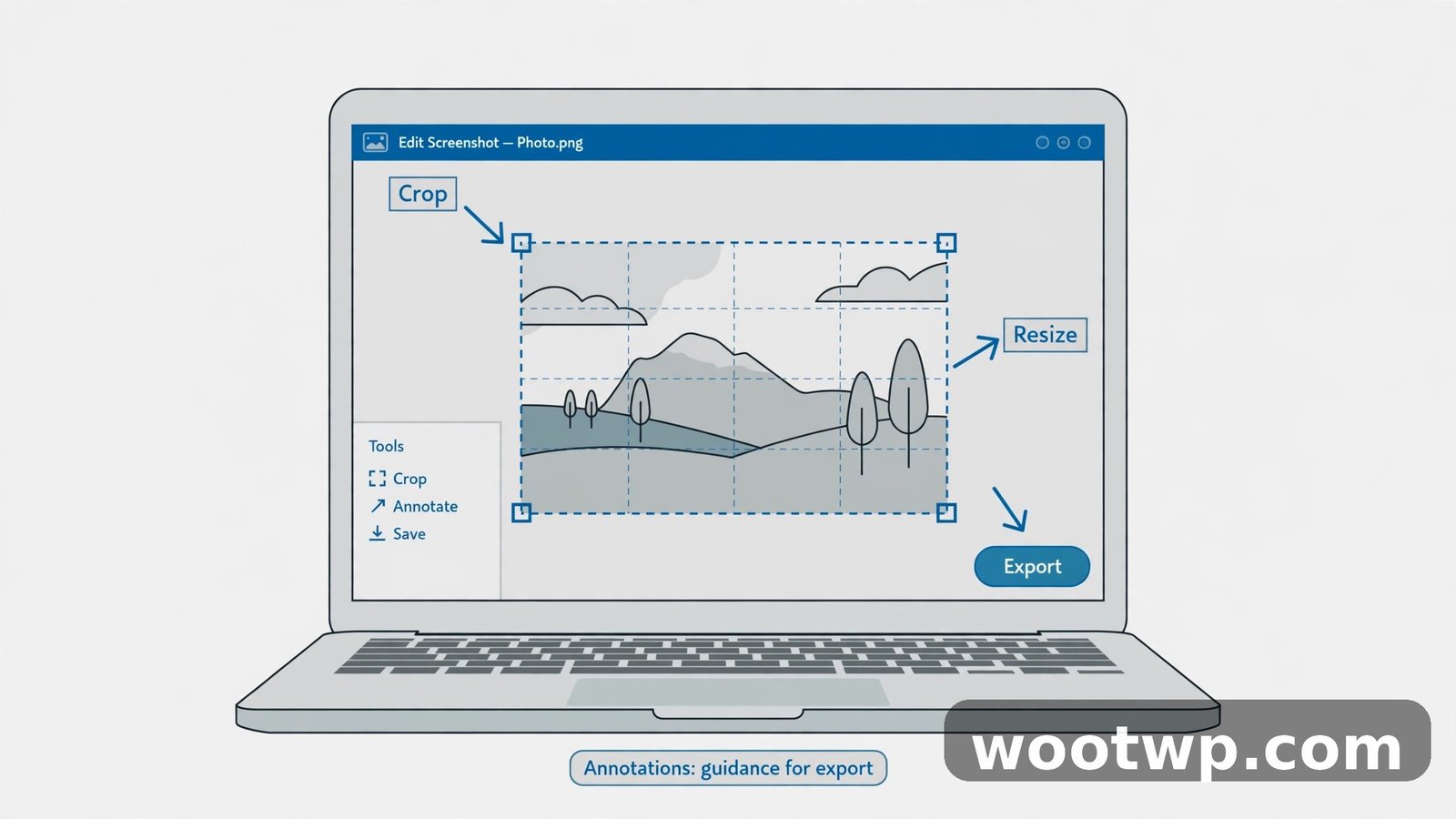
Every screenshot shows a thumbnail in the bottom-right corner for a few seconds after you take it. Click that thumbnail to open the editor before the file saves.
In the editor, you can:
- Crop: drag the edges of the image to trim it down to the part that matters.
- Annotate: use the markup tools to draw arrows, boxes, and circles, or add text labels.
- Highlight: draw attention to a button or a line of text with the highlighter tool.
- Sign: add a signature if the shot is part of a document you are approving.
- Share: click the Share button to send the shot by Mail, Messages, AirDrop, or another app.
- Delete: if the shot is wrong, delete it from the editor and retake it, without a stray file on your Desktop.
If the thumbnail already disappeared, open the saved file in Preview instead. Preview has the same markup tools: click the markup button in the toolbar, or choose Tools, then Annotate. You can also open the file in Photos if you prefer to keep edited shots in your library.
Keep edits light. A couple of arrows and a short label help the reader. A shot covered in red circles and long notes usually confuses more than it explains.
How to Take a Screenshot on MacBook Without a Keyboard
If your keyboard is not working, or you are using your MacBook in a setup where reaching the keys is awkward, you can still capture the screen.
- Open Finder, then go to Applications, then Utilities, and open Screenshot. You can also find it with Spotlight by pressing Command + Space and typing Screenshot.
- The toolbar from Shift + Command + 5 appears, and you can capture with the mouse or trackpad alone.
- For a full-screen capture from the menu bar, some Macs also offer Screenshot under the Apple menu utilities, but the app route above works on every current version of macOS.
Another route is to use your trackpad gestures to open Launchpad, search for Screenshot, and launch it the same way. Once the toolbar is open, everything works with clicks, so a broken key does not stop you capturing a shot for a repair report, which is often exactly when you need one.
Fixing Common Screenshot Problems
Nothing happens when I press the shortcut.
Check that the shortcut is enabled. Go to Apple menu, then System Settings, then Keyboard, then Keyboard Shortcuts, then Screenshots, and make sure the boxes are ticked. Also check that another app has not taken over the same keys. Screen-recording apps and window managers sometimes claim Shift + Command + 5.
The screenshot saves somewhere I cannot find.
Open the toolbar with Shift + Command + 5, click Options, and read the "Save to" setting. That is where your shots are going. If it says Clipboard, you copied instead of saving, because Control was held down. Press the shortcut without Control to save a file.
The screenshot is blank or black.
This happens with some video players and protected content, where macOS blocks the capture for copyright reasons. Try capturing a window instead of the full screen, or pause the video and capture a still from a different source. If the whole screen is black, restart your Mac, because a stuck graphics driver can cause it too.
Text in my screenshot looks blurry.
You probably captured a large area and then shrank it to share it. Capture just the text area at full size instead, and share the PNG without compressing it through a chat app that shrinks images. For the sharpest text, use the selected-area shortcut and keep the original file.
For Apple's own reference, see the official guide to taking screenshots on Mac, which lists every shortcut above and explains how to customise them in Keyboard settings.
Frequently Asked Questions
How do I take a screenshot on MacBook of the whole screen?
Press Shift + Command + 3 together and release. macOS captures everything visible and saves it to your Desktop as a PNG file by default. A thumbnail appears briefly in the corner if you want to edit it before it saves.
How do I screenshot only part of my MacBook screen?
Press Shift + Command + 4, then drag over the area you want. Release the mouse or trackpad to capture just that selection. Hold Space while dragging to move the selection, or press Esc to cancel and start again.
Where do MacBook screenshots go?
By default, they save to your Desktop as PNG files named "Screen Shot" followed by the date and time. You can change this in the Screenshot toolbar: press Shift + Command + 5, click Options, and pick a new save location under "Save to".
How do I screenshot a single window on a MacBook?
Press Shift + Command + 4, then press Space so the pointer becomes a camera, move it over the window until it highlights, and click. Hold Option while clicking if you want the window without its drop shadow.
Can I take a screenshot on a MacBook without the keyboard?
Yes. Open the Screenshot app from Applications, then Utilities, or search for it in Spotlight. The toolbar lets you capture the screen, a window, or a portion using only the mouse or trackpad.
Why is Shift + Command + 5 not working on my Mac?
The toolbar needs macOS Mojave 10.14 or later, so check your version if you run an older system. On current macOS, check System Settings, then Keyboard, then Keyboard Shortcuts, then Screenshots, to make sure the shortcut is enabled and not claimed by another app.
Conclusion
How to take a screenshot on MacBook boils down to five shortcuts, and you will use two of them most days: Shift + Command + 3 for the whole screen and Shift + Command + 4 for a selected area. Learn those, remember Shift + Command + 5 for the toolbar and timers, and set a sensible save folder once. After that, capturing, editing, and sharing a clean screenshot takes seconds, not minutes.