How to Use Android Phone as WiFi Hotspot Safely: 7 Easy Tips
Learning how to use android phone as wifi hotspot safely helps when home internet drops, you travel, or a friend needs a connection. A hotspot turns mobile data into a private WiFi network for other devices. Done right, it is quick and handy. Done carelessly, it can let strangers join, burn through your data, and drain your battery. This guide shows the safe way to set it up, share it, and switch it off.
Steps cover Pixel, stock Android, and Samsung phones.
- What Is an Android WiFi Hotspot and Why Safety Matters?
- How to Use Android Phone as WiFi Hotspot Safely on Pixel and Stock Android
- How to Set Up a Hotspot on Samsung Galaxy Phones
- Lock Down Your Password and Security Settings
- How to Connect Another Device to Your Hotspot
- How to Check Who Is Connected and Remove Strangers
- Is USB or Bluetooth Tethering Safer Than a WiFi Hotspot?
- How to Control Hotspot Data Usage on Android
- How to Save Battery While Using Your Hotspot
- What to Do When Your Hotspot Will Not Turn On or Connect
- Hotspot Safety Checklist: How to Use Android Phone as WiFi Hotspot Safely
- Frequently Asked Questions
- Conclusion
What Is an Android WiFi Hotspot and Why Safety Matters?
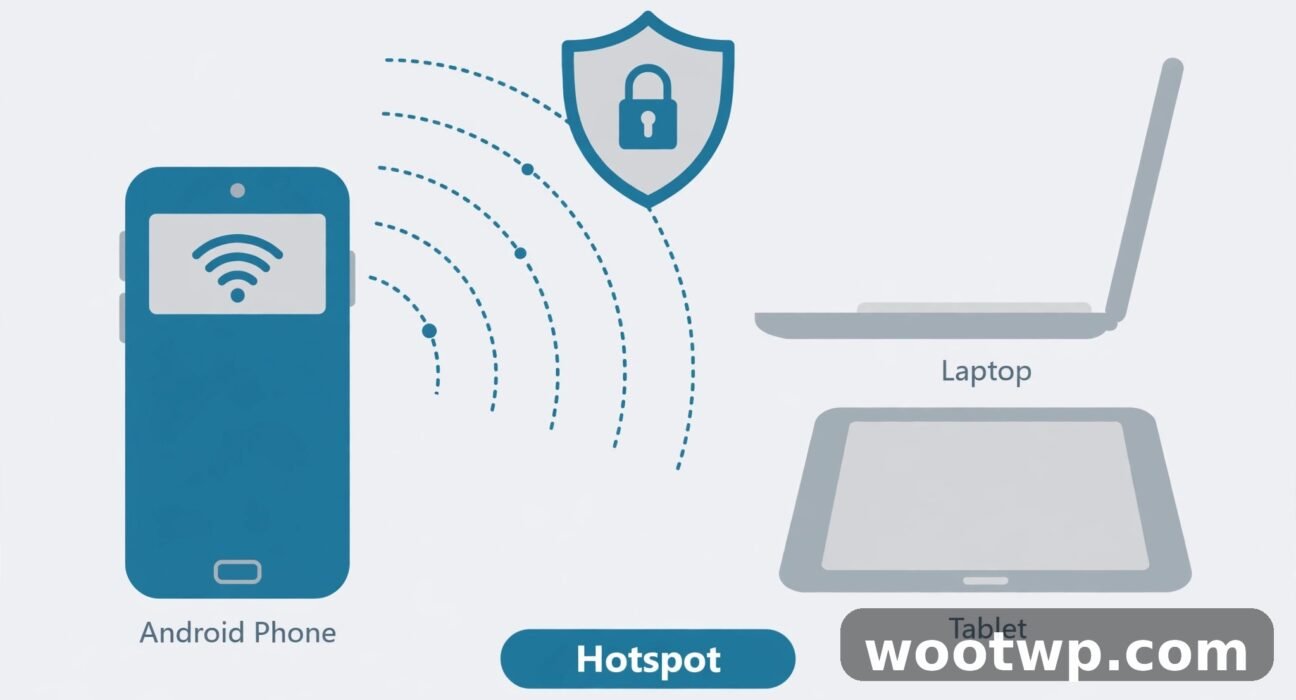
A WiFi hotspot shares your phone's mobile data over WiFi. Your phone acts like a small router. A laptop, tablet, or another phone connects with a network name and password you control.
The risk is simple. A hotspot broadcasts its name nearby. With no password, or a weak one, anyone close by can join. I have seen this in cafes. Once joined, they use your data. That is why security settings matter more than the on switch.
How to Use Android Phone as WiFi Hotspot Safely on Pixel and Stock Android
Turn on the hotspot from Quick Settings
- Swipe down twice from the top of the screen.
- Tap the Hotspot tile. Add it with the edit icon if you do not see it.
Check your password and security type in full settings before relying on it.
Set up the hotspot in Settings
- Open Settings.
- Tap Network and internet.
- Tap Hotspot and tethering.
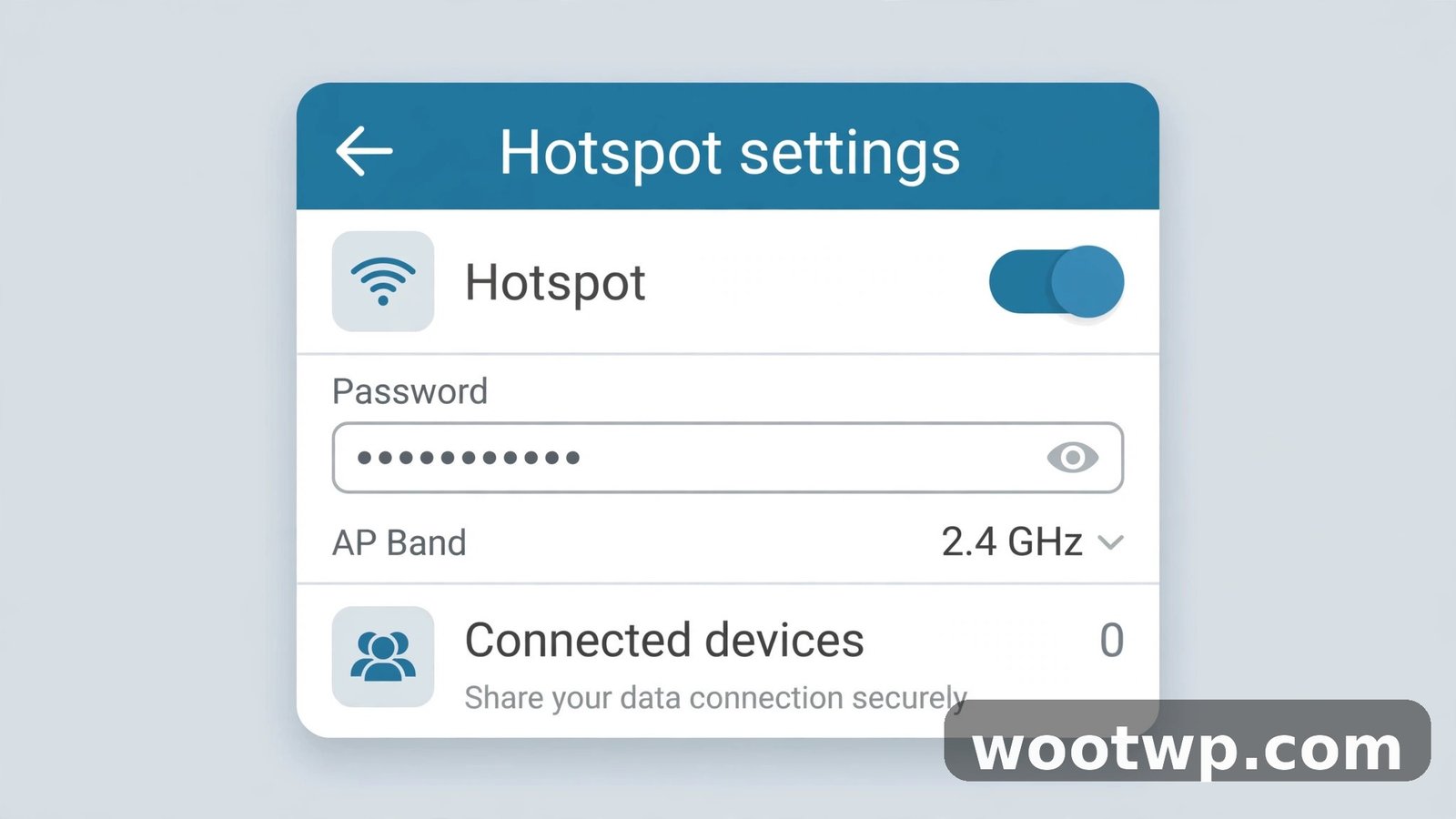
- Tap Wi-Fi hotspot.
- Tap Hotspot name. Choose a neutral name, with no full name, address, or phone number.
- Tap Security. Choose WPA3-Personal if offered, else WPA2/WPA3-Personal or WPA2-Personal. Never choose None.
- Tap Hotspot password. Set at least 12 characters, with letters and numbers.
- Tap AP band if shown. Choose 5 GHz for speed at close range, or 2.4 GHz for longer range.
- Turn on Turn off hotspot automatically if offered.
- Go back and turn on the Wi-Fi hotspot switch.
Change the password in the same screen after public use; it disconnects every device at once.
How to Set Up a Hotspot on Samsung Galaxy Phones
Samsung uses different menu names. The path runs through Connections, not Network and internet. These steps show how to use android phone as wifi hotspot safely on Galaxy phones.
- Open Settings.
- Tap Connections.
- Tap Mobile Hotspot and Tethering.
- Tap Mobile Hotspot.
- Tap Configure or the settings gear.
- Set a neutral Network name with no personal details.
- Set Security to WPA3-Personal or WPA2/WPA3-Personal where available. Older models may offer only WPA2-Personal, which is still far safer than an open network.
- Set a strong Password of at least 12 characters.
- Tap Band and pick 2.4 GHz or 5 GHz.
- Turn on the Mobile Hotspot switch.
Samsung also lets you set a data limit, device limit, and idle timeout. Leave Auto hotspot off unless only your own Samsung devices will connect.
Lock Down Your Password and Security Settings
The password is the main lock on your hotspot. A secure mobile hotspot starts with a password no stranger can guess.
Pick a strong android wifi hotspot password
Avoid birthdays, pet names, phone numbers, and patterns such as "password123". Those are the first guesses a stranger tries. Instead, try:
- Four unrelated words with numbers, such as "purple-lamp-42-train".
- A sentence you remember, such as "CoffeeAt7OnFridays!".
- A random password from your password manager, saved there for reuse.
Our guide to how to create strong passwords you can actually remember covers methods that work for WiFi, email, and banking. Never reuse your home WiFi password for your hotspot. If someone learns the hotspot password, they should not also gain your home network password.
Choose WPA3-Personal, and never choose None
WPA3-Personal is best when both devices support it. WPA2-Personal is the fallback for older laptops. Avoid None, sometimes labelled Open. It lets anyone join with no password. If a device is too old for WPA2, use USB tethering instead.
How to Connect Another Device to Your Hotspot
- Make sure the hotspot is on, with mobile data and a signal.
- On the other device, open WiFi settings.
- Find your hotspot name in the list.
- Tap it, enter the android wifi hotspot password exactly as set, and connect.
- Open a web page to confirm internet works.
Share the hotspot with a QR code
A QR code avoids typing a long password aloud. On Pixel, open the Wi-Fi hotspot screen and tap the QR code icon. On Samsung, do the same from the Mobile Hotspot screen. Do not screenshot the code into a group chat.
If a device keeps rejecting the password, check capitals, type it by hand, and forget the network and join fresh. Older devices may need WPA2/WPA3-Personal instead of WPA3 alone.
How to Check Who Is Connected and Remove Strangers
Knowing how to use android phone as wifi hotspot safely means knowing who is on it. On Pixel, open Settings, then Network and internet, then Hotspot and tethering, then Wi-Fi hotspot, and look for Connected devices. On Samsung, open Settings, then Connections, then Mobile Hotspot and Tethering, then Mobile Hotspot, and tap Connected devices.
If you see an unknown device, turn the hotspot off, change the password, then turn it back on. Share the new password only with people you trust.
Is USB or Bluetooth Tethering Safer Than a WiFi Hotspot?
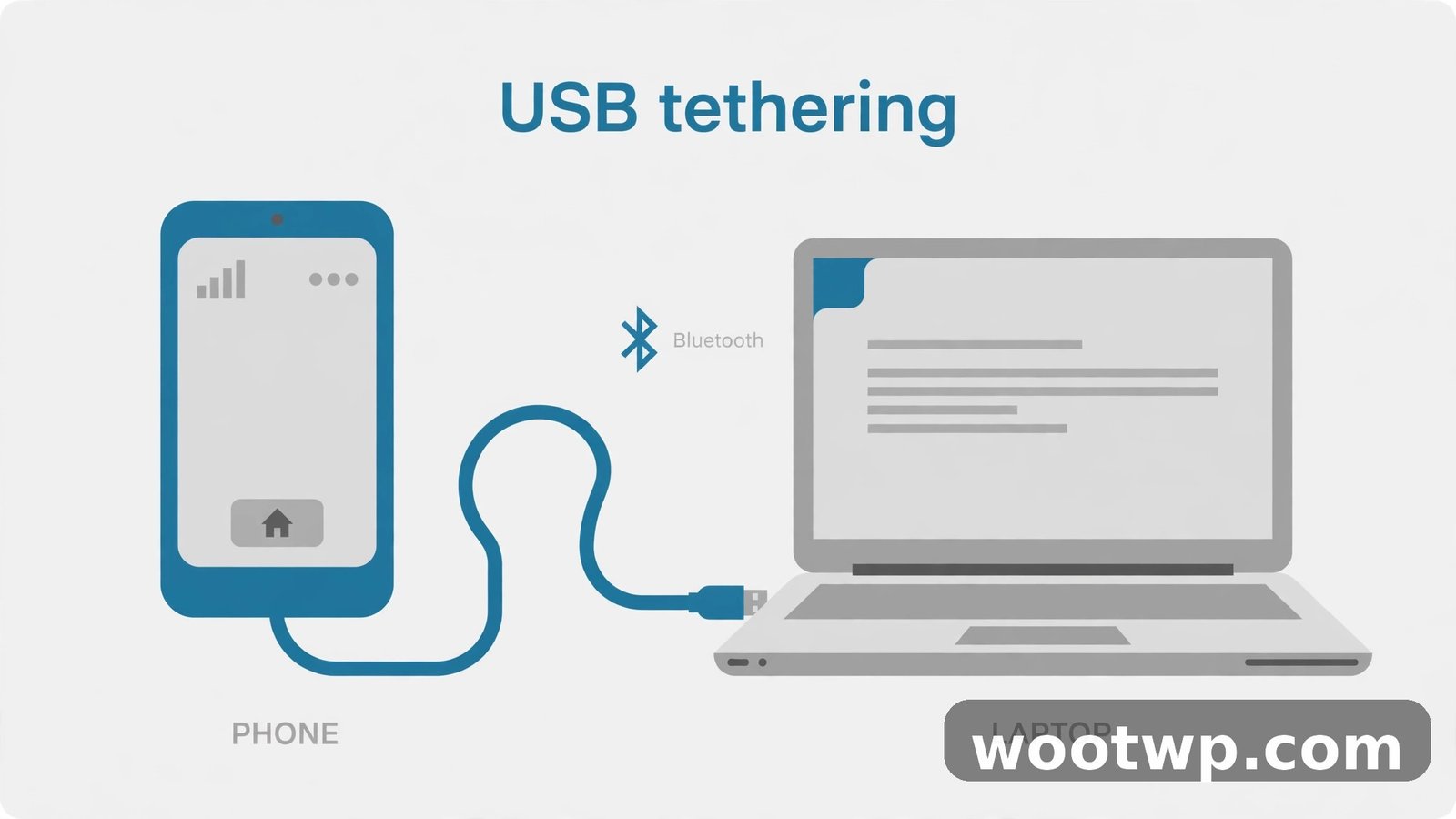
WiFi is most convenient, but USB and Bluetooth tethering share data through a cable or paired link instead of a broadcast signal.
USB tethering
USB tethering is the safest and fastest option for one laptop. No one nearby can see or join it, and it charges your phone slowly while you work.
- Connect your phone to the laptop with a cable that supports data, not just charging.
- Open Settings, then Network and internet, then Hotspot and tethering on Pixel, or Connections, then Mobile Hotspot and Tethering on Samsung.
- Turn on USB tethering.
Bluetooth tethering
Bluetooth tethering suits one device for email and messaging. Speeds are much slower than WiFi.
- Pair your phone with the other device over Bluetooth.
- Open Settings, then Network and internet, then Hotspot and tethering on Pixel, or Connections, then Mobile Hotspot and Tethering on Samsung.
- Turn on Bluetooth tethering.
- On the other device, open Bluetooth settings and choose your phone for internet access.
How to Control Hotspot Data Usage on Android
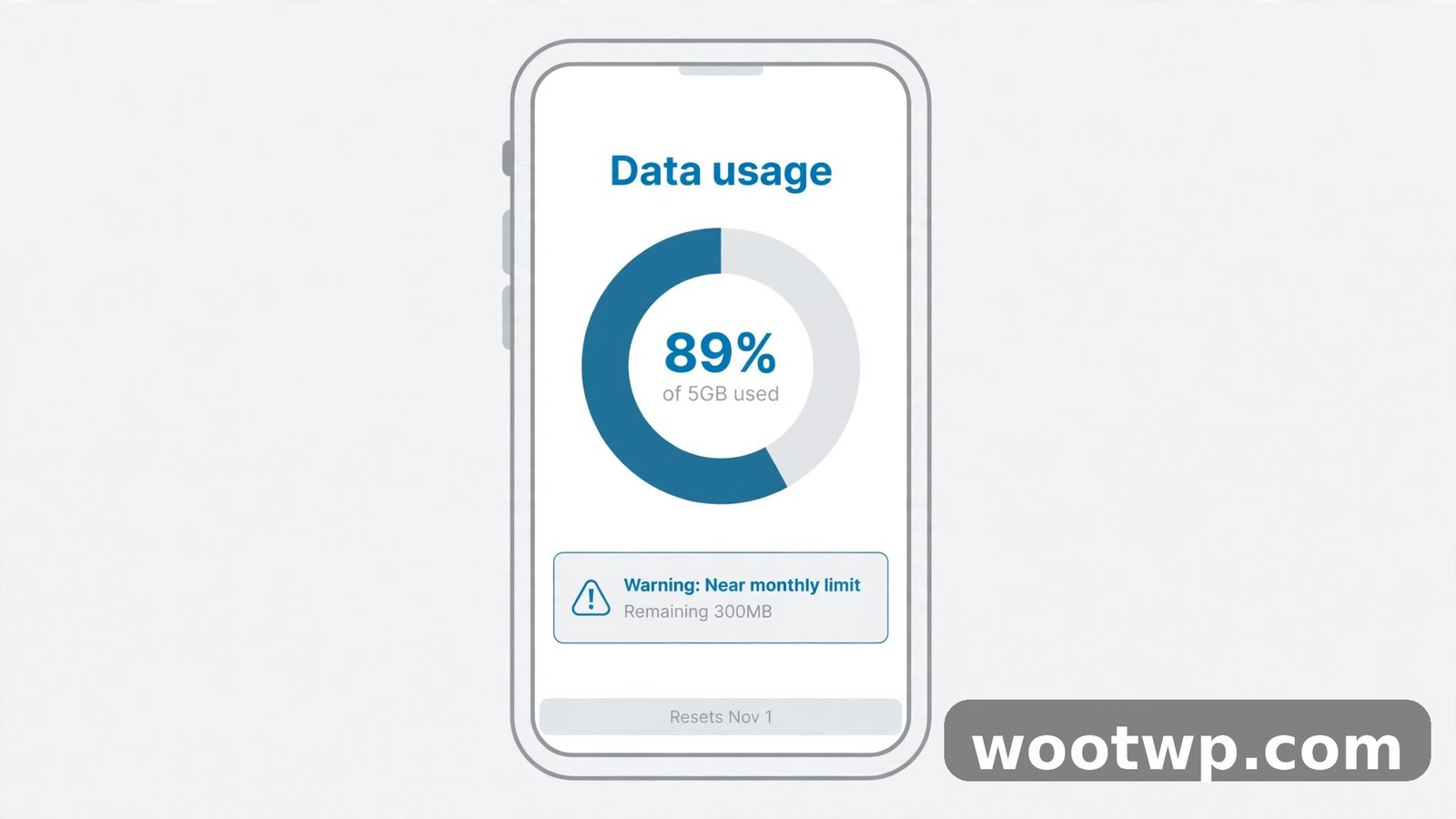
A laptop may download updates and stream video in the background. The hotspot data usage Android reports in Settings includes all of that. Controlling it is part of how to use android phone as wifi hotspot safely on a limited plan.
Set a data warning and limit
- Open Settings.
- Tap Network and internet.
- Tap SIMs or Mobile network.
- Tap Data warning and limit or Data usage.
- Turn on Set data warning at about 80 percent of your allowance.
- Turn on Set data limit only if you want mobile data to stop at a set amount. This cuts your own data too.
Cut background data use on connected devices
Pause cloud backups and updates before connecting a laptop. On Windows, set the hotspot as metered to hold back updates. Avoid top-quality streaming on connected phones.
Some carriers slow or charge for hotspot use, and roaming can be costly, so check your plan before travelling. If mobile data stops working, see our guide to fixing mobile data not working on Android.
How to Save Battery While Using Your Hotspot
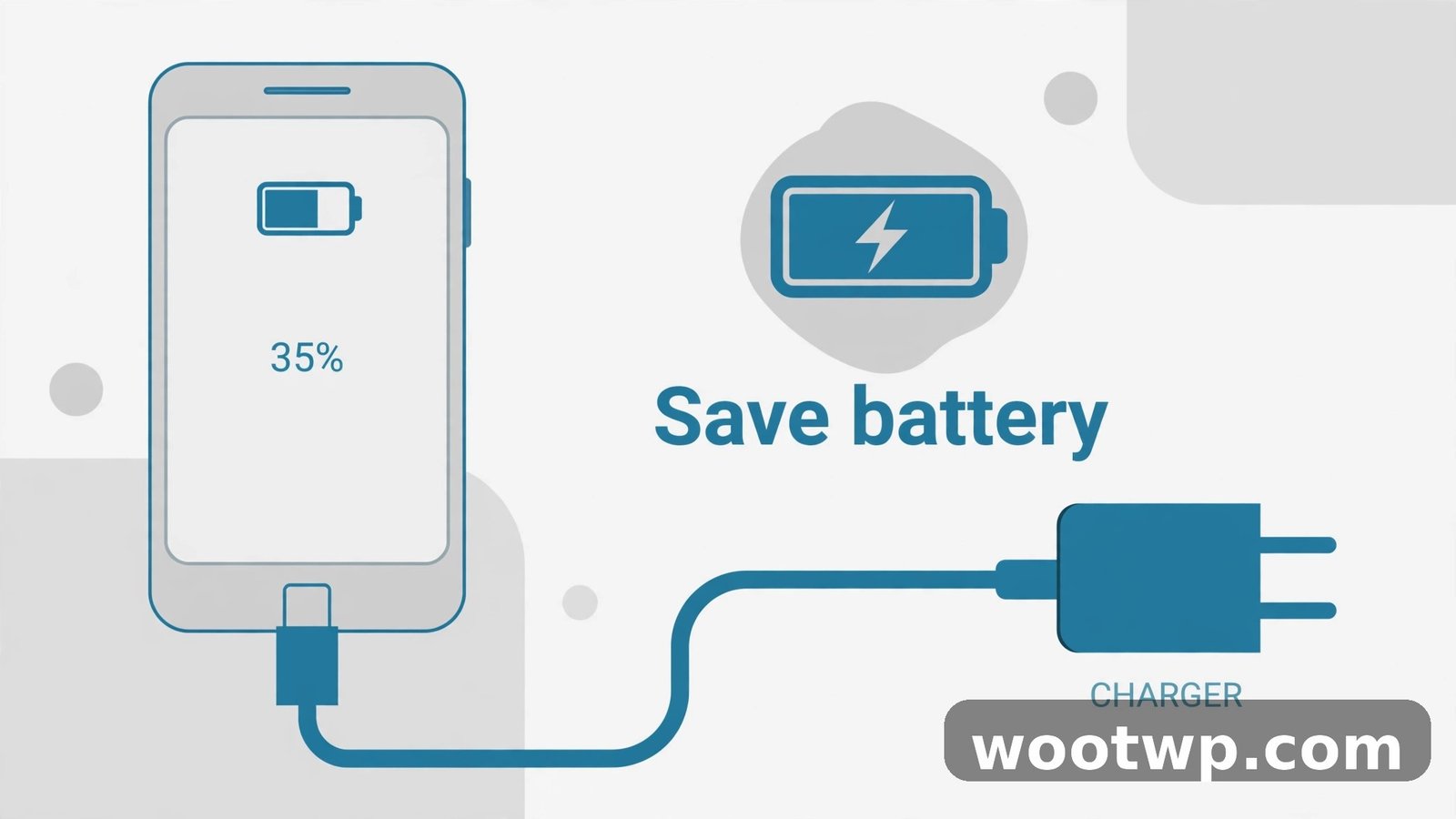
Saving battery is part of how to use android phone as wifi hotspot safely on long days out.
- Plug the phone in with a charger or power bank, on a hard surface where heat can escape.
- Limit connected devices. Each extra device adds work.
- Turn on auto turn-off, so an idle hotspot closes itself.
- Lock the screen. The hotspot works with the screen off.
- Use USB tethering for one laptop. It charges the phone while sharing data.
If the phone gets very hot, switch the hotspot off and let it cool.
What to Do When Your Hotspot Will Not Turn On or Connect
If you know how to use android phone as wifi hotspot safely, you also know how to fix it when it fails. Work through these checks in order.
Hotspot switch is greyed out or will not stay on
Open a web page on the phone itself. If it has no internet, the hotspot has nothing to share. Check Data Saver on Pixel phones, and restart the phone if the switch still fails.
Devices see the hotspot but cannot connect
Re-enter the password by hand, forget the network, and join again. Switch security to WPA2/WPA3-Personal, or the band to 2.4 GHz, for older devices. Check the device limit, since some phones cap hotspots at 8 or 10 devices.
Hotspot connects but there is no internet
Test the phone's own data first, then restart the hotspot and reconnect. Check for a data limit or carrier cap, and try USB tethering as a test. If home WiFi is also slow, see our guide to fixing slow WiFi at home. Google's guides to sharing a mobile connection by hotspot or tethering on Android and Pixel tethering cover the standard steps.
Hotspot Safety Checklist: How to Use Android Phone as WiFi Hotspot Safely
- Plan allows tethering, mobile data is on, and signal is good.
- Hotspot name is neutral, with no personal details.
- Security is WPA3-Personal, WPA2/WPA3-Personal, or WPA2-Personal, never None.
- Password is at least 12 characters, unique, and not posted in a public chat.
- Auto turn-off is on, and a data warning is set.
- Phone is charging or has enough battery, on a cool, hard surface.
- You will check connected devices, turn the hotspot off when done, and change the password after public use.
Frequently Asked Questions
Is it safe to use my Android phone as a WiFi hotspot?
Yes, with a strong password, WPA2 or WPA3 security, and the hotspot switched off when done. An open hotspot is not safe, as anyone nearby can join. Change the password after public use.
How do I find my android wifi hotspot password?
On Pixel, open Settings, then Network and internet, then Hotspot and tethering, then Wi-Fi hotspot. On Samsung, open Settings, then Connections, then Mobile Hotspot and Tethering, then Mobile Hotspot. Tap the password field or eye icon to reveal it, and share it directly with the person who needs it.
What is the best security type for an Android hotspot?
WPA3-Personal is best when both devices support it. WPA2/WPA3-Personal covers mixed devices, and WPA2-Personal suits older hardware. Never use None or Open.
Why does my hotspot use so much data?
Laptops treat a hotspot like home WiFi, so they download updates and stream video in the background. Set a data warning, set the connection as metered on Windows, and pause backups during the session.
Can someone hack my phone through my hotspot?
Not easily, on a password-protected hotspot, but joining puts a stranger on the same local network as your devices. A strong password, WPA2 or WPA3 security, and a short sharing window keep risk low. Change the password if you see an unknown device.
Should I leave my hotspot on all the time?
No. Leave it on only while needed. An always-on hotspot drains the battery, uses data if a device auto-connects, and broadcasts your network name nearby. Turn on auto turn-off, and switch it off by hand when you finish.
Conclusion
Knowing how to use android phone as wifi hotspot safely comes down to a strong password, the right security type, and switching off when done. Set it up in your android mobile hotspot settings, check who is connected, watch data use, and change the password after public sharing. Do those simple steps, and share your connection with confidence.