How to Reduce Image File Size for Website: 7 Easy Proven Ways
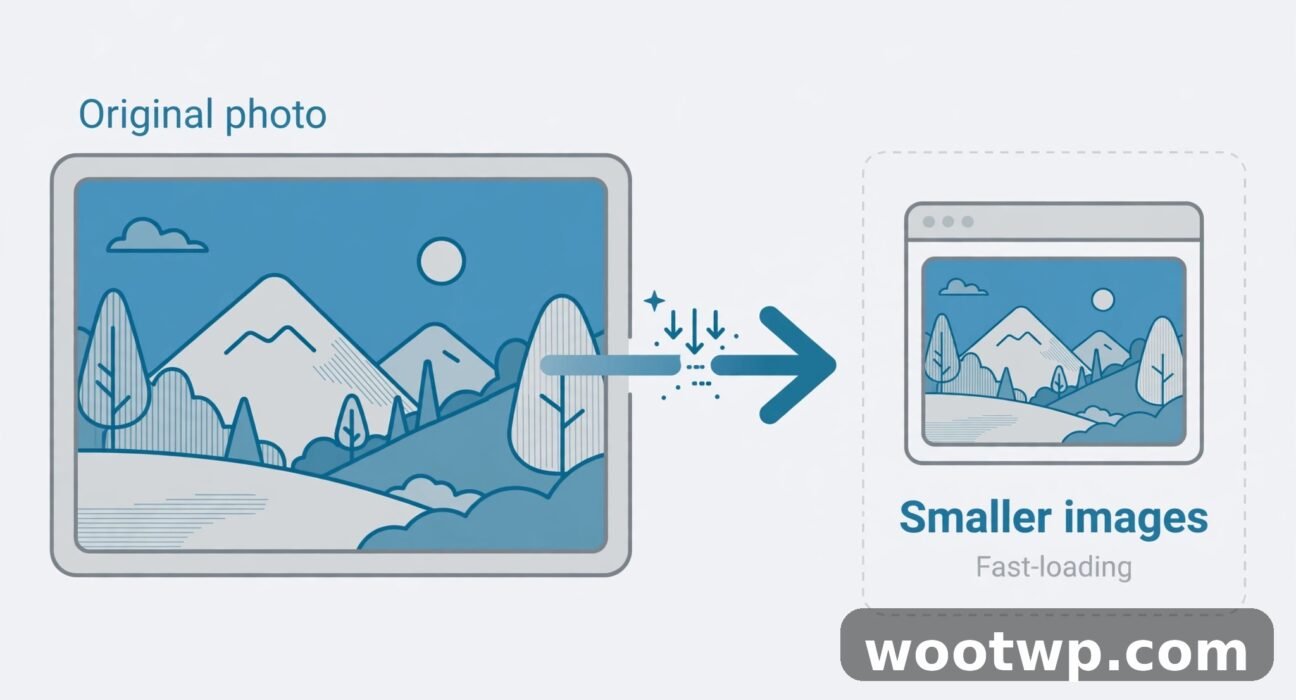
Learning how to reduce image file size for website pages is one of the fastest ways to make a site feel quicker. Large photos are often the heaviest part of a page. With the right size, format, and compression, most images can become much smaller while still looking sharp.
In this guide, I will show you the workflow I use: resize first, pick the right format, then compress images for web use. You will also learn quality checks, file naming, and responsive sizes and lazy loading.
- Why Large Images Slow You Down
- Reduce Size Without Losing Quality
- Step 1: Resize
- Step 2: File Format
- WebP vs JPG
- Step 3: Compress
- Step 4: Responsive Sizes and Lazy Loading
- Step 5: File Names and Alt Text
- Step 6: Keep Originals and Check Quality
- Target File Sizes
- Common Mistakes
- FAQs
- Conclusion
Why Do Large Images Slow Down a Website?
A photo from a modern phone can be 3,000 or 4,000 pixels wide and several megabytes in size. When that photo appears in a blog post at only 800 pixels wide, the browser still downloads the full large file first. That wastes data and delays the page.
Smaller files help pages load faster and use less mobile data. You do not need a perfect score. You just need images sized for how they will actually be seen. That is why knowing how to reduce image file size for website pages matters for every post you publish.
How to Reduce Image File Size for Website Without Losing Quality
Order matters. Always resize before you compress. If you compress a huge image first, you spend effort on pixels that will be thrown away when you resize later.
Think of it as three passes:
- Resize the image to its display size, plus a small margin for sharp screens.
- Choose a format suited to the image, such as a photo, a logo, or a graphic with text.
- Compress at a quality setting that looks clean at display size, then check before you upload.
This order helps you reduce image file size without losing quality. Keep originals untouched in a separate folder. If you are fixing an existing site, start with the heaviest pages: hero images, sliders, and galleries. The steps below show how to reduce image file size for website uploads, one pass at a time.
Step 1: Resize Images to Display Size
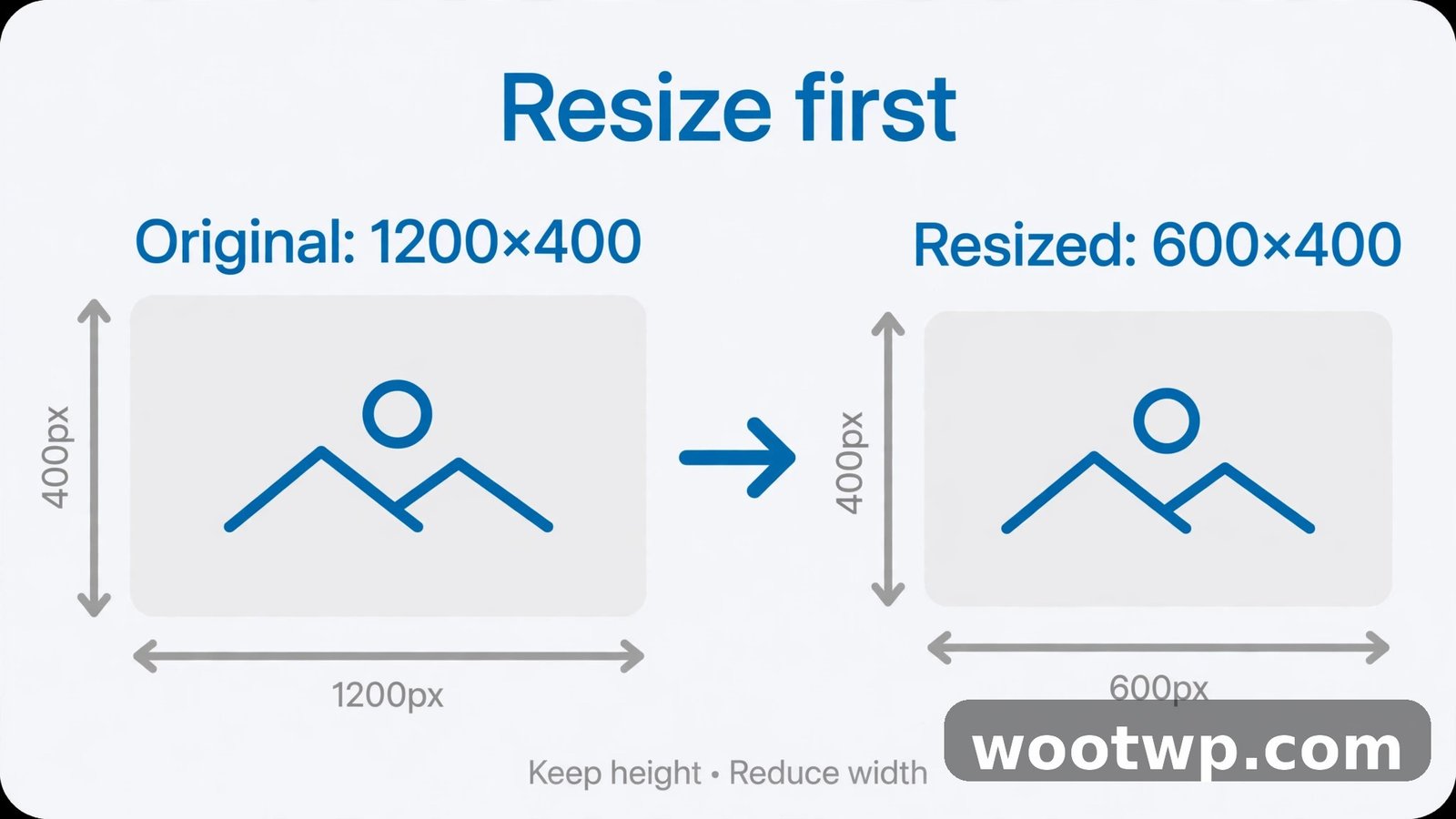
To resize images for website use, match the image to the space it will fill. A blog image shown at 800 pixels wide does not need to be 4,000 pixels wide. A hero image might need 1,600 or 1,920 pixels. A thumbnail might need only 300 or 400 pixels. Resizing is the first step in how to reduce image file size for website pages.
Check the Display Size First
Right-click an image in your browser and choose Inspect to see its displayed size, or check your theme settings for the slot width. Plan an export width about 1.5 to 2 times the display width for sharp screens. An 800-pixel slot often looks crisp at 1,200 to 1,600 pixels wide.
Resize in Bulk When You Have Many Images
For dozens of photos, resize in batches with a free tool such as IrfanView, Preview, or GIMP:
- Back up the originals first.
- Set the maximum width, keeping the aspect ratio locked.
- Export to a separate folder and spot-check a few results.
Step 2: Pick the Right File Format
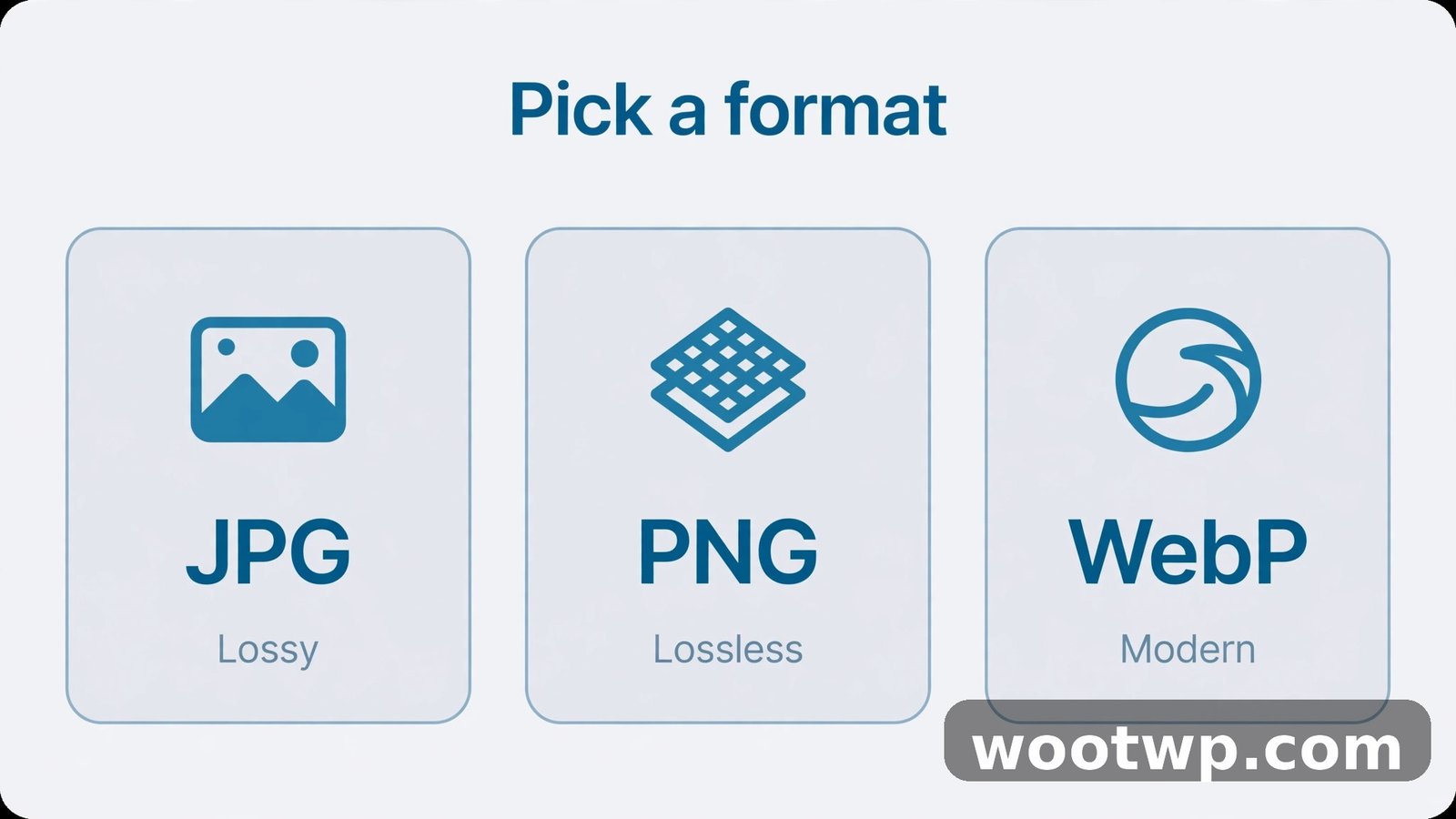
Format choice has a big effect on file size. Pick based on what the image contains, not habit. Format choice is the second step in how to reduce image file size for website pages.
JPG for Photographs
JPG suits photographs and complex images with many colors. It uses lossy compression, which discards some fine detail to save space. Avoid JPG for sharp text or logos, where it can add fuzzy marks around edges.
PNG for Graphics, Logos, and Transparency
PNG uses lossless compression, which keeps every pixel exact. It suits logos and graphics with sharp edges, and supports transparency. A photo saved as PNG is usually much larger than as JPG or WebP, so use PNG only for crisp edges or transparency.
WebP for Smaller Photos and Graphics
WebP often produces smaller files than JPG and PNG at the same visual quality. It supports lossy and lossless compression, and transparency. Most current browsers support WebP, making it a practical default. If a tool does not handle WebP well, keep a JPG copy as well.
AVIF for the Smallest Files When Supported
AVIF can produce even smaller files than WebP, especially for detailed photos. Support is broad in current browsers, but not universal in older browsers and some tools. Use AVIF when your platform serves a fallback automatically, and test it on a phone and a desktop first.
Which Format Should You Use: WebP vs JPG for Website Pages?
The webp vs jpg for website question comes up often. For most photos on a current site, WebP wins on file size. A WebP export at similar visual quality is often noticeably smaller than a JPG export of the same photo. Savings vary by image, so treat any single percentage as a rough guide, not a promise.
JPG still makes sense when a tool or platform handles JPG better, or when you need the widest compatibility with older software. If you share images outside the website, JPG is still the safest shared format. Start from the best original you have.
Step 3: Compress Images for Web Use
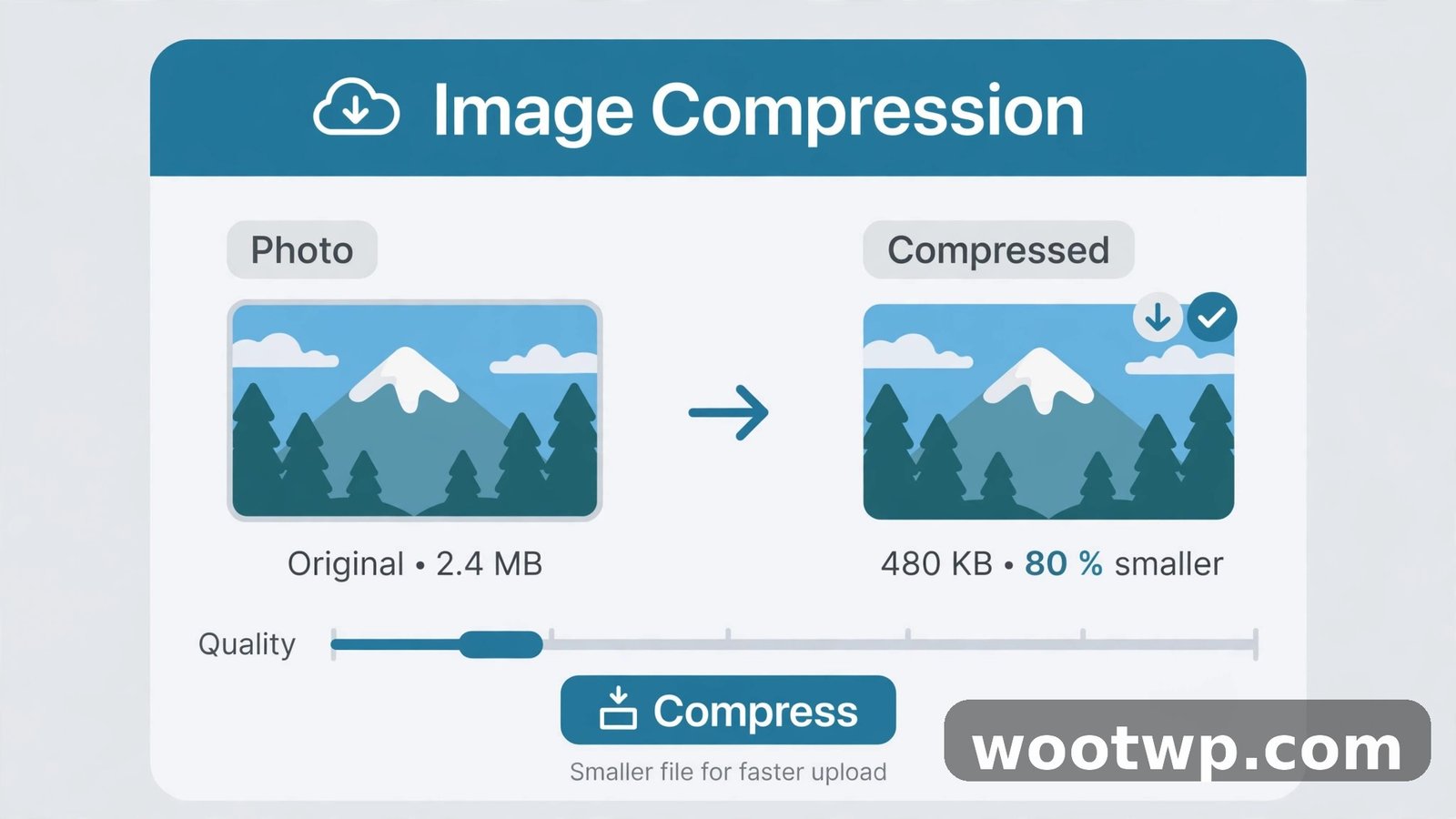
Once an image is the right size and format, compression squeezes out extra size without visible harm. The goal is the smallest file that still looks clean at the size visitors will see. Compression is the third step in how to reduce image file size for website pages.
Lossy vs Lossless: What Is the Difference?
Lossless compression shrinks a file without changing any pixel data. The saving is often modest for photos. Lossy compression discards detail that is hard to notice, and can shrink photos a lot more, but pushing it too far causes blocky patches and fuzzy edges. For photos, lossy compression at a sensible setting is usually right.
Start With Quality Around 75 to 85 Percent for Photos
For JPG and WebP photos, quality around 75 to 85 percent is a useful starting point. A clean studio photo may look fine at 75.
- Export at quality 80 and open the image at its display size.
- Look at faces, text, and skies, without zooming far beyond display size.
- If you see blocks or smearing, raise quality by 5 points. If it looks clean, try 75.
Compress With a Free Online Tool
A free image compressor tool lets you compress images for web use right in the browser. Upload a resized image, choose your settings, download the result, and check it at display size. For more control, Squoosh compares original and compressed versions side by side. The web.dev image guides explain formats and responsive images, and this guide on how to compress images without losing quality covers quality settings.
Compress in the Right Order on WordPress
On WordPress, optimize before you upload. Upload the resized, compressed file, since a huge original may still sit on your server. After replacing heavy images, clear the cache with this guide on how to clear WordPress cache, and check the page on a phone.
Step 4: Use Responsive Sizes and Lazy Loading
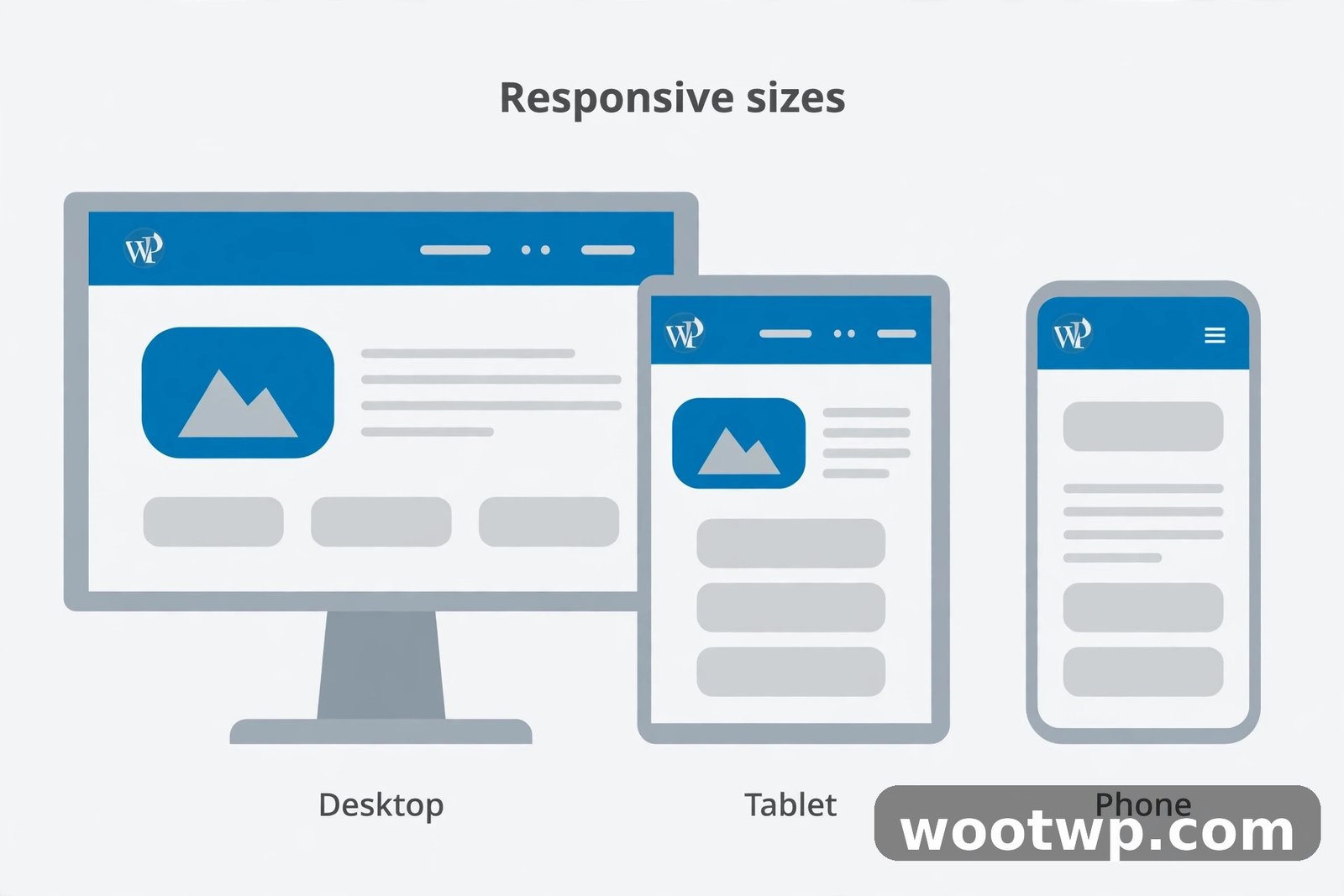
Responsive sizes mean the browser can pick a smaller file for a small screen and a larger file for a large screen. Instead of sending the same 1,920-pixel hero image to every phone, the site can send a narrower version to phones and the full version to desktops. Upload an image large enough for the biggest display, but not far larger than needed.
Lazy loading means images below the fold load as the visitor scrolls near them, so the first view is faster. Most WordPress versions add lazy loading to content images by default. Do not lazy load the hero image. Test on a phone and a desktop, and confirm images look sharp in both cases.
Step 5: Name Files Clearly and Add Alt Text
File names and alt text do not change file size, but they help visitors and search engines understand the image. Use short, descriptive file names with hyphens, such as handmade-leather-wallet-brown.jpg rather than IMG_4829.jpg.
Alt text describes the image for people who cannot see it. Write one clear sentence that says what the image shows. If an image is purely decorative, leave alt text empty so screen readers skip it. Strip unneeded metadata when you export.
Step 6: Keep Originals and Check Quality at Display Size
Keep the original file in a backup folder before you resize or compress. Once detail is discarded by lossy compression, you cannot get it back. Before you replace images on a live page, back up the site files or media folder. This guide on how to back up a WordPress site for free walks through free options.
Check quality the way visitors will see it:
- Open the optimized image at 100 percent of its display size.
- View it on a phone and a desktop screen if you can.
- Look at faces, text, and skies.
- Compare it with the original at the same display size, and raise quality if the difference is easy to spot.
How to Reduce Image File Size for Website Pages: What Size Should You Aim For?
There is no single target that fits every image. A simple icon can be a few kilobytes. As practical guidance, aim for most content photos to land under 200 kilobytes after resizing and compression, and many blog images under 100 kilobytes when display size allows it. Hero images may be larger, but try to keep them under 300 kilobytes where possible without visible quality loss.
Treat these numbers as starting points, not guarantees. These targets help you judge how to reduce image file size for website pages in practice. Measure the whole page, not one file alone: a page with twenty 150-kilobyte images is still heavy.
Common Mistakes That Keep Images Heavy
Watch for these habits that can undo your savings. Avoiding them is part of how to reduce image file size for website pages without extra work:
- Uploading camera originals directly, without resizing them first.
- Using PNG for every photo, when JPG or WebP would be much smaller.
- Compressing before resizing, so compression works on pixels you will discard.
- Saving at maximum quality every time, when quality 80 looks the same at display size.
- Loading every gallery image at once, instead of lazy loading below-fold images.
Frequently Asked Questions
How do I reduce image file size for website pages without losing quality?
Resize to display size first to reduce image file size without losing quality, then export as WebP or JPG. Compress at quality around 75 to 85 percent for photos, and check at display size.
What is the best image format for a website?
For most photos, WebP gives smaller files at similar quality. JPG remains safe for wide compatibility. Use PNG for logos and graphics needing sharp edges or transparency, and test AVIF only where fallback support is handled.
How do I compress images for web use for free?
Use a free browser tool such as Squoosh or a free online image compressor. Set format and quality, compare with the original at display size, and download the smaller file.
Does reducing image size affect image quality?
Lossy compression discards some detail, but at sensible settings the change is hard to notice. Problems appear when quality is too low or an image is enlarged beyond its export size.
What image size should I use for a blog post?
Match the width of the image slot in your theme. Many blog images display at 700 to 900 pixels wide, so 1,200 to 1,600 pixels is often enough. Hero images may need 1,600 to 1,920 pixels.
Should I use WebP or JPG for website images?
Try WebP first for photos on a current site, and compare file size and quality with JPG. Choose JPG for the widest compatibility with older tools. Keep a JPG copy for sharing outside the website.
Conclusion
Now you know how to reduce image file size for website pages: resize to display size, pick the right format, compress at a sensible quality, and check the result where visitors will see it. Start with your heaviest pages and keep your originals safe.