

How to Save a Webpage as PDF in Chrome: 6 Quick Easy Steps
Learning how to save a webpage as PDF in Chrome is one of the most useful browser skills you will use again and again. It turns any article, receipt, booking confirmation, or form into a file you can keep, share, print, or read offline, exactly as it looked when you saved it. You do not need an extension, a website, or a paid tool. Chrome has a built-in Save as PDF option in its print menu on Windows, Mac, and Android, and it takes under a minute once you know where to look.
This guide covers the desktop steps, the Android steps, and the iPhone steps for Chrome, plus how to clean up the layout, where your file ends up, and how to fix the problems that make saved pages come out blank, cut off, or far too large. It also explains when a PDF is the right choice and when a different save format works better.
Table of Contents
- What Happens When You Save a Webpage as a PDF in Chrome?
- How to Save a Webpage as PDF in Chrome on Windows and Mac
- How to Save a Webpage as PDF in Chrome on Android
- How to Save a Webpage as PDF in Chrome on iPhone
- How to Make a Clean, Readable PDF Without Ads and Clutter
- Where Does Chrome Save the PDF, and How Do You Find It?
- How to Combine Several Saved Pages Into One PDF
- Why Your Saved PDF Looks Wrong, and How to Fix It
- FAQs About Saving Webpages as PDFs in Chrome
- Conclusion
What Happens When You Save a Webpage as a PDF in Chrome?
When you save a webpage as a PDF in Chrome, Chrome prints the page to a file instead of to a printer. The result is a fixed document: the text, images, and layout are frozen at the moment you saved it. Links inside the page usually stay clickable in the PDF, so you can still tap a link to open the original page later, as long as you have an internet connection.
A PDF is different from a bookmark. A bookmark only saves the address, so the page can change or disappear before you return to it. A PDF saves the content itself, so a receipt, a price, or a set of instructions stays exactly as you saw it. That is why PDFs are the right choice for anything you may need to prove, share, or read later without relying on the website staying the same.
A PDF is also different from a screenshot. A screenshot captures only what is visible on your screen right now. A PDF captures the whole page, including the parts below the fold that you would need to scroll to see. For a long article, the PDF will have many pages, while a screenshot would need dozens of images to cover the same content.
Keep in mind what a PDF does not do. Videos in the page will not play in the PDF, interactive forms may not work, and content that loads only when you scroll may be missing if the page had not finished loading when you saved it. For pages like that, scroll to the bottom first, let everything load, and then open the print menu.
How to Save a Webpage as PDF in Chrome on Windows and Mac
The desktop steps are the same on Windows and Mac, apart from the keyboard shortcut. This is the method to learn first, because it gives you the most control over the result.
- Open the webpage in Chrome and let it finish loading. Scroll to the bottom once if the page loads more content as you scroll.
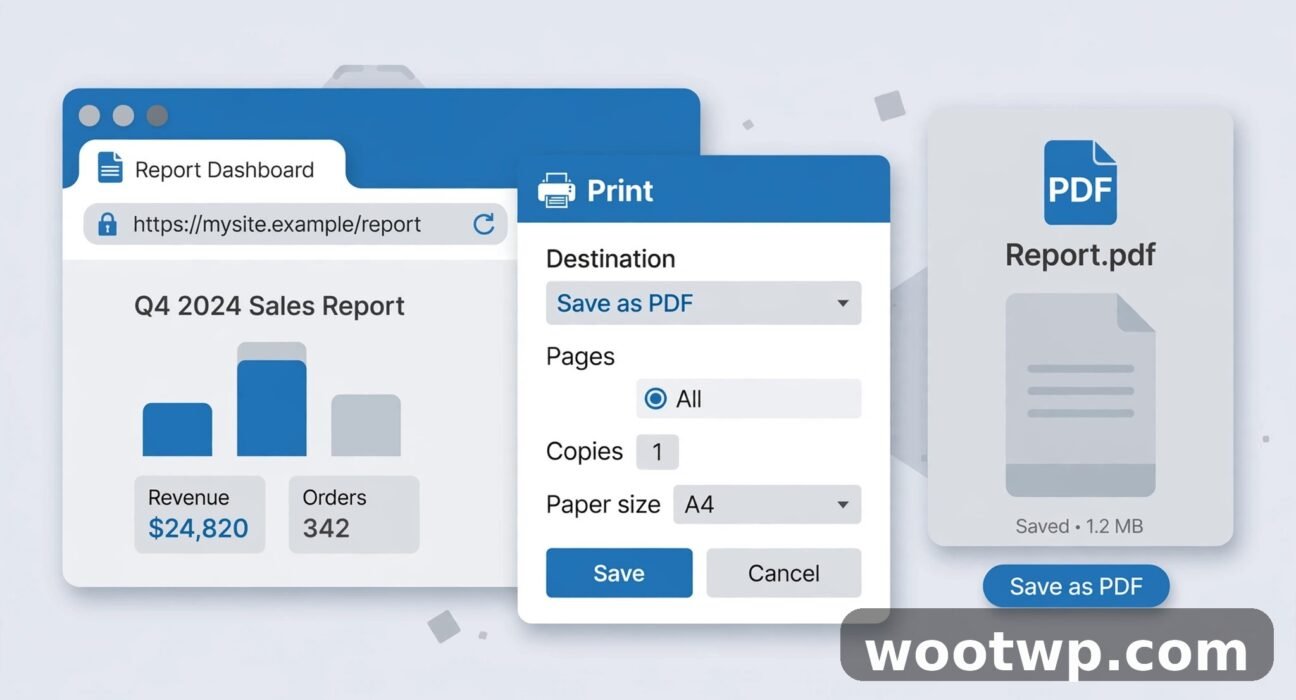
- Open the print menu. Press Ctrl + P on Windows, or Cmd + P on Mac. You can also click the three-dot menu in the top-right corner and choose Print.
- In the Destination or Printer dropdown, choose Save as PDF. If you see a real printer name instead, click the dropdown and pick Save as PDF from the list.
- Set the layout. Portrait suits articles and documents. Landscape suits wide tables, dashboards, and spreadsheets.
- Set the paper size. A4 is the safe default almost everywhere. Letter is common in the United States, but A4 opens fine on any device.
- Check the page count and the preview. If the preview shows 40 pages for a short article, the page is probably including comments or related posts you do not need. Use the Pages option to save only the pages you want, such as pages 1 to 3.
- Click Save, choose a folder, give the file a clear name, and click Save again.
Settings Worth Changing Before You Save
The print menu hides several useful options behind More settings. Open that section before you save, and check these:
- Margins: Default margins are fine for most pages. Choose Minimum only if content is being cut off at the edges, and Custom if you want tighter control.
- Scale: Leave it at Default unless the page looks too large or too small in the preview. Dropping the scale to 90 or 85 can pull a cut-off sidebar back onto the page.
- Headers and footers: Turn this on to add the page title, web address, date, and page numbers to each page. Turn it off for a cleaner look. For receipts and booking confirmations, leave it on, because the address and date prove where the page came from.
- Background graphics: Turn this on if the page relies on background colours or images to make sense, such as a chart or a coloured table. Turn it off to save ink and file size when you plan to print the PDF. Most articles read fine with it off.
In my experience, the single most common desktop mistake is saving before the preview has updated. After you change a setting, wait a second for the preview on the left to redraw. Saving while the preview still shows the old settings gives you a file that matches the old settings, not the new ones.
Google's own Chrome print help page describes the same print menu and destination options used in this guide, and it is worth checking if your Chrome version shows the menu in a different place after an update.
How to Save a Webpage as PDF in Chrome on Android
Chrome on Android hides the PDF option one step deeper than the desktop version, under Share and Print. Once you know the route, it takes about twenty seconds.
- Open the webpage in Chrome on your Android phone and let it load fully.
- Tap the three-dot menu in the top-right corner.
- Tap Share.
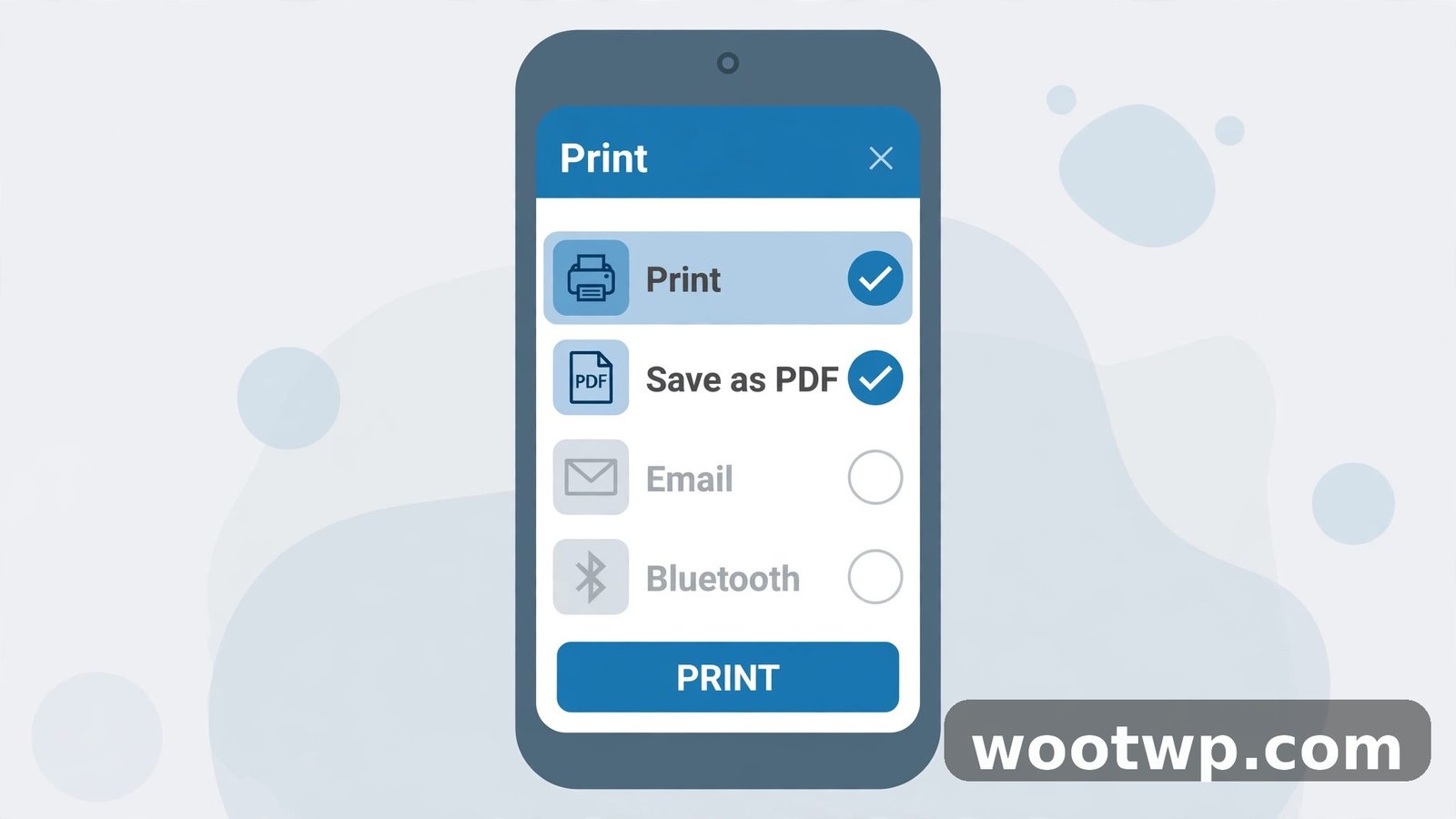
- Tap Print in the share sheet. On some phones, Print appears directly in the three-dot menu, so check there first.
- At the top of the print screen, tap the printer dropdown and choose Save as PDF.
- Set the paper size and orientation if the options appear. A4 and Portrait suit most articles.
- Tap the PDF or download icon, usually in the top-right or bottom-right corner.
- Choose where to save the file. Chrome usually offers the Downloads folder by default. Rename the file to something clear before you save it, because Chrome often suggests the page title, which can be long and messy.
Find the PDF on Android
Saved PDFs go to the Downloads folder unless you chose another location. Open the Files app, tap Downloads, and look for the file name. You can also open Chrome, tap the three-dot menu, choose Downloads, and open the PDF from there. To share it, long-press the file in the Files app and use the Share button to send it by email, WhatsApp, or any other app.
Android Chrome does not offer the same fine controls as desktop Chrome. You cannot pick individual pages to save, and you cannot toggle headers, footers, and background graphics separately in the same way. If you need that control, save the page on a computer instead, or use the desktop version of the site on your phone through the "Desktop site" option in the three-dot menu, though the result is not always cleaner.
How to Save a Webpage as PDF in Chrome on iPhone
Chrome on iPhone also saves pages as PDFs through the print menu, but the route is different again, because iOS handles printing and sharing its own way.
- Open the webpage in Chrome on your iPhone.
- Tap the Share button, usually at the top-right or in the address bar, depending on your Chrome version.
- Scroll the share sheet and tap Print.
- On the print options screen, pinch outwards on the page preview with two fingers, or tap the preview to open the full PDF view. This step turns the print preview into a PDF you can save.
- Tap the Share button in the PDF view.
- Choose Save to Files, pick a folder, and tap Save. You can also share the PDF directly to Mail, Messages, or another app from the same sheet.
If pinching the preview feels awkward, use Safari for this one job. Safari's Share menu has a direct Save to Files option with a PDF choice, and it is more reliable for long pages on iPhone. The result is the same kind of PDF file, and it opens in any PDF reader.
How to Make a Clean, Readable PDF Without Ads and Clutter
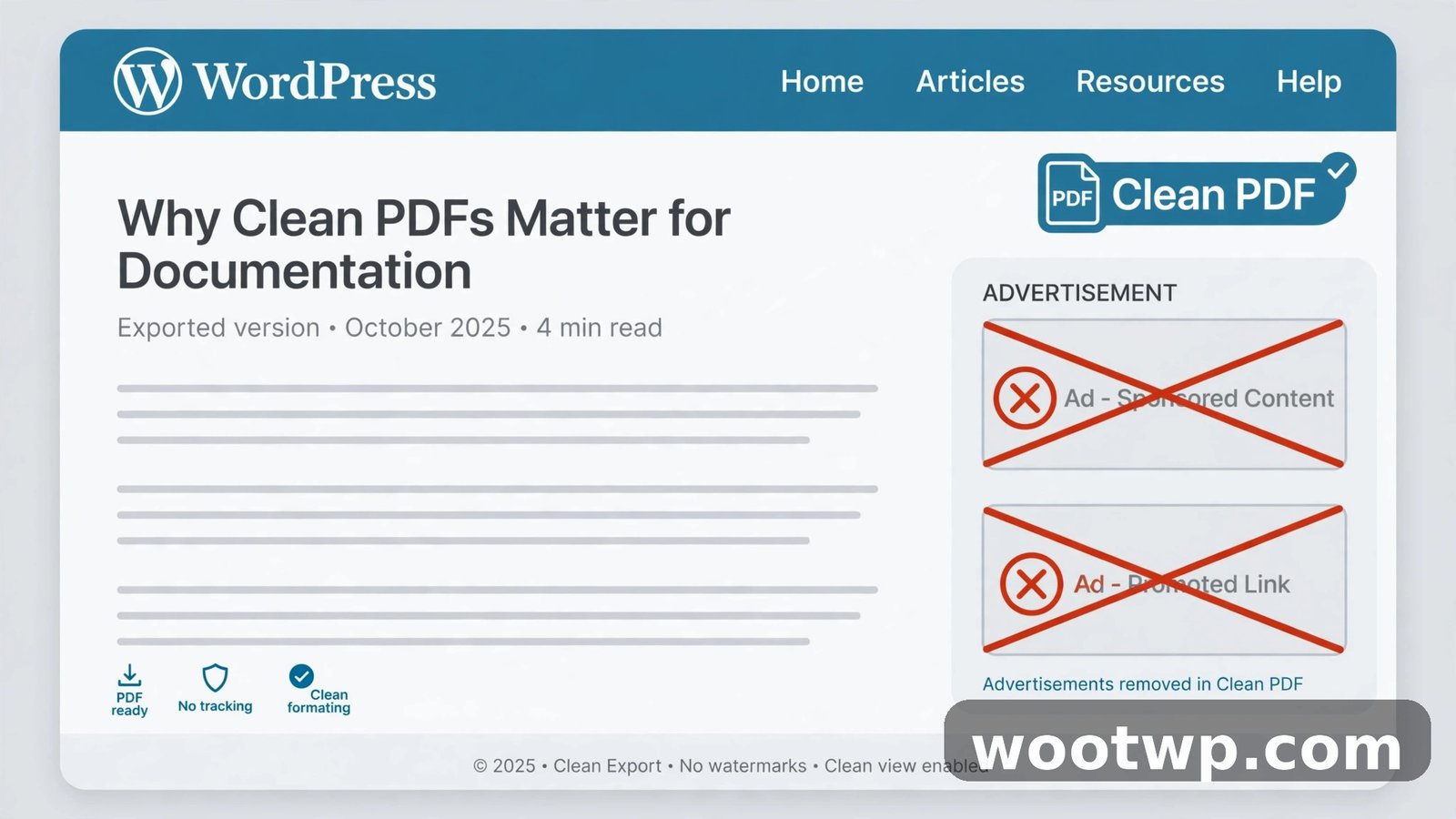
A straight print-to-PDF often includes the site's header, sidebar, newsletter boxes, cookie banners, and related articles. The content you want may be a third of the file. These steps cut the clutter before you save.
- Use Reader Mode first, where available. On Android, Chrome sometimes shows a simplified view for articles. On desktop, you can use an extension or a reader service, but check that the simplified page still holds the full article before you save it.
- Dismiss pop-ups before printing. Close cookie banners, newsletter pop-ups, and chat widgets before you open the print menu. Anything visible on screen usually appears in the PDF.
- Save only the pages you need. If the article runs to page 2 and the comments run to page 8, set the Pages option to 1 to 2 on desktop and save only the article.
- Turn background graphics off. This removes many coloured ad boxes and background images, and it shrinks the file. Turn it back on only if a chart or table needs its background colours to make sense.
- Check for a print-friendly version. Some sites offer a Print button or a printer icon on the article itself. That version is already stripped of ads and sidebars, and it prints to a much cleaner PDF.
- Hide the sidebar with the scale setting. If a sidebar squeezes the article into a narrow column, dropping the scale to 85 or 90 in More settings often pulls the layout back into shape.
For a page you will keep long-term, spend the extra minute on cleanup. A 3-page clean PDF is far more useful than a 20-page file where the article hides between ads. For a quick receipt, skip the cleanup and save as-is. The receipt matters more than the layout, and the headers and footers prove the source.
Where Does Chrome Save the PDF, and How Do You Find It?
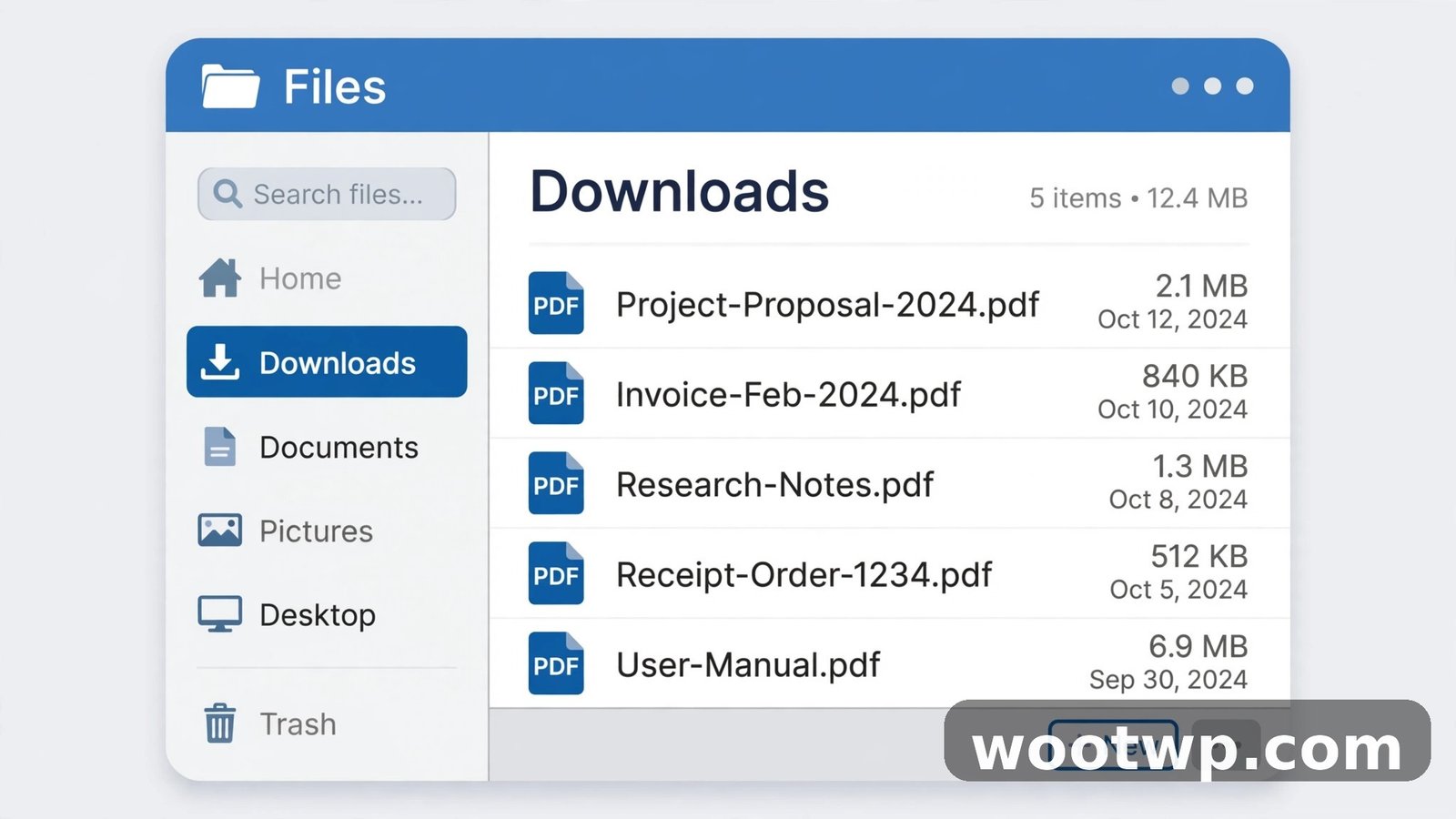
Chrome asks you where to save on desktop, so you choose the folder each time. On Android, it saves to Downloads unless you pick another folder in the save dialog. On iPhone, you choose the folder in the Files app when you save.
Good file names save time later. Use the pattern site-topic-date.pdf, such as airline-booking-confirmation-nov-2026.pdf, instead of accepting a long page title full of punctuation. If you save several pages from the same site, add a number or a short description so the files sort in a useful order.
If you cannot find a file you just saved, check these places in order: the Downloads folder, the folder Chrome last used for a save, and the search box in your file manager, searching for .pdf and part of the name. On Windows, also check the Documents folder, because some setups default there. On Mac, check Downloads first, then Documents.
How to Combine Several Saved Pages Into One PDF
Saving one page at a time leaves you with a folder of separate files. When you need one document, for example a set of booking confirmations, a multi-part guide, or several receipts for one trip, combine them.
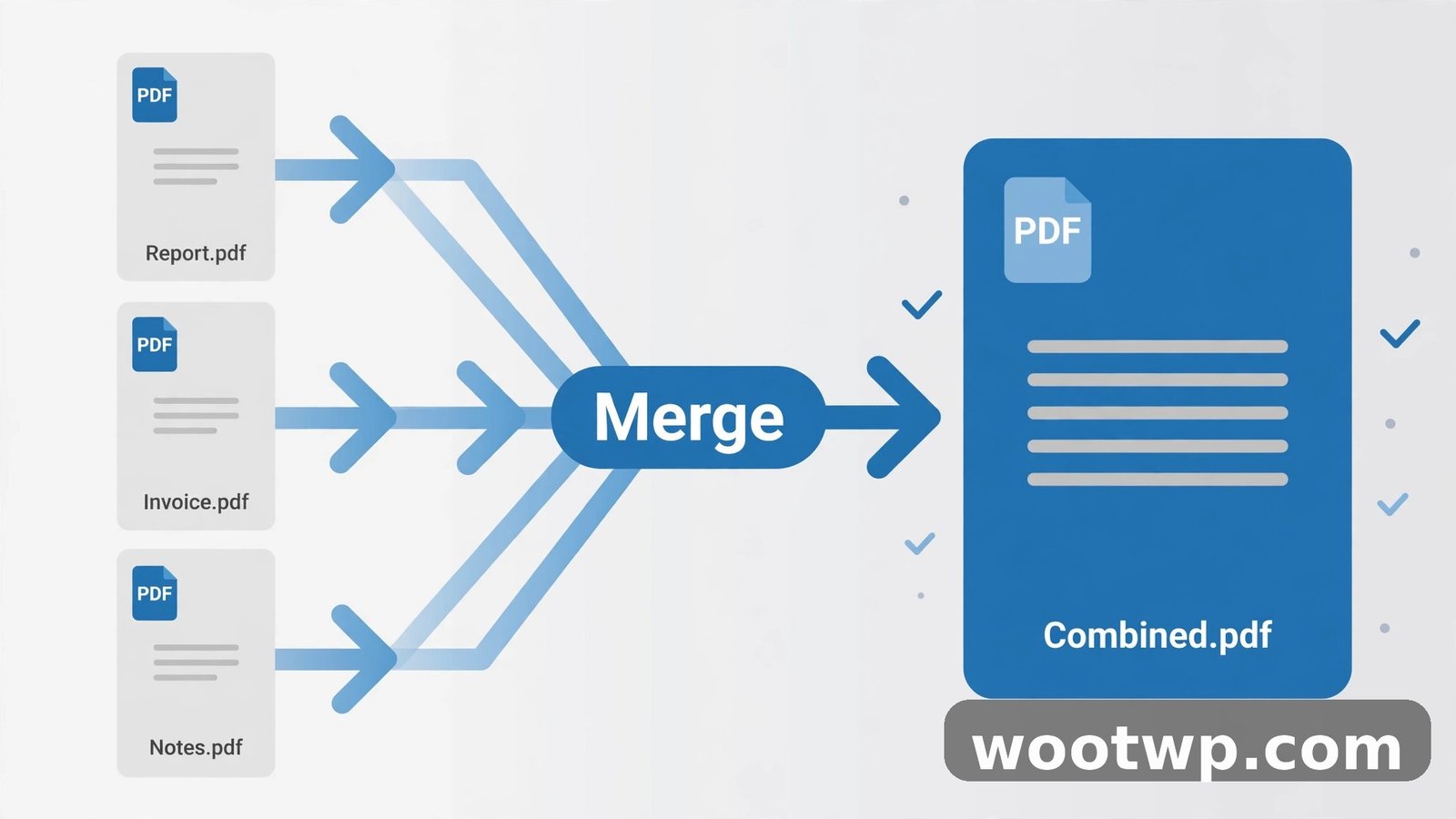
- Save each page as its own PDF using the steps above.
- Open our merge PDF tool in your browser.
- Upload the PDF files in the order you want them to appear.
- Merge them and download the single combined PDF.
Merging is also the fix for a page that Chrome split awkwardly. If a table broke across two saved PDFs, or a guide saved as three separate files, one merged file reads far better than three loose ones. Keep the original single-page files until you have checked the merged result, in case the order needs changing.
If you later need to remove a password from a PDF you saved, or open a PDF that asks for a password, our guide on how to remove the password from a PDF covers the free methods. Only do this for files you own or have the right to use, such as your own receipts and documents.
Why Your Saved PDF Looks Wrong, and How to Fix It
Most bad PDFs come from a page that was still loading, a print stylesheet the site never tested, or a setting that does not suit the page. Work through these fixes in order.
- The PDF is blank or mostly empty. The page probably loads its content with scripts after the print menu opens. Close the print menu, scroll through the whole page, wait for images to load, and try again. If the page is a web app, such as a dashboard, it may block printing entirely, and a screenshot is the better capture.
- Content is cut off on the right side. The page is wider than the paper. Switch to Landscape, drop the scale to 90, or set margins to Minimum. If the page uses a fixed wide layout, try the desktop site option or save on a computer instead.
- The PDF has dozens of pages. The page includes comments, related posts, or infinite scroll content. Use the Pages option to save only the pages you need, dismiss pop-ups first, and look for a print-friendly version of the article.
- Images are missing or show as grey boxes. The images had not loaded when you saved. Scroll through the page slowly, let each image appear, and save again. Turning background graphics on sometimes helps for images set as backgrounds.
- Text is tiny or huge. Check the scale setting in More settings. Reset it to Default first, then adjust in small steps. A scale below 70 makes most articles hard to read, so do not go too low to fix a layout problem.
- Save as PDF is missing from the list. Update Chrome to the latest version, restart the browser, and check again. On a work or school computer, printing and saving may be restricted by policy, in which case ask the administrator or use a personal device.
- The file is very large. Turn background graphics off, save fewer pages, and avoid saving pages with large photos at full size. A text article should usually be well under 1 MB. If it is much larger, a photo-heavy page is the cause, and saving only the pages you need is the fastest fix.
Clearing old browser data sometimes fixes a print menu that behaves strangely after an update, because a corrupted cache can break page rendering. Our guide on how to clear cookies in Chrome shows the safe way to do that without losing saved passwords, though you should only clear cookies if other fixes have failed.
FAQs About Saving Webpages as PDFs in Chrome
How do I save a webpage as a PDF in Chrome on a PC?
Press Ctrl + P on Windows or Cmd + P on Mac, choose Save as PDF in the Destination dropdown, check the preview, and click Save. Set the layout, paper size, and page range in the print menu before you save, and use More settings for margins, scale, and headers and footers.
How do I save a webpage as a PDF in Chrome on Android?
Open the page, tap the three-dot menu, tap Share, then tap Print. Choose Save as PDF at the top, then tap the PDF icon to save the file to your Downloads folder. Rename the file before you save it, because Chrome often suggests a long page title.
Can I save only part of a webpage as a PDF?
Yes, on desktop. In the print menu, set the Pages option to the page numbers you want, such as 1 to 2, and Chrome saves only those pages. On Android, Chrome does not offer a page range, so save the whole page and remove unwanted pages afterwards, or save the page on a computer instead.
Why is my saved PDF blank in Chrome?
The page content probably had not finished loading, or the page loads content with scripts that do not run in print mode. Scroll through the whole page, wait for images to load, close any pop-ups, and save again. If the page is a web app or dashboard, it may block printing, and screenshots are the better option.
Does saving a webpage as a PDF keep the links clickable?
Usually yes. Links in the saved PDF normally stay clickable and open the original web address in your browser. Videos, forms, and interactive elements do not carry over, and links to content behind a login may ask you to sign in again when you open them.
Is it legal to save a webpage as a PDF?
Saving a page for your own personal use, such as keeping a receipt or reading an article offline, is normally fine. Sharing or republishing someone else's content from a saved PDF is a different matter and may break copyright rules. Keep saved pages for personal use unless you have permission to share them.
Conclusion
Knowing how to save a webpage as PDF in Chrome gives you a permanent copy of anything important on the web, without an extension or a paid tool. Use Ctrl + P or Cmd + P on a computer, Share then Print on Android, and the print preview on iPhone. Check the preview, clean up the clutter, and name the file clearly. The PDF you save today will still open exactly the same way years from now, long after the live page has changed.