
How to Scan QR Code on Android Without Any App: 6 Easy Ways
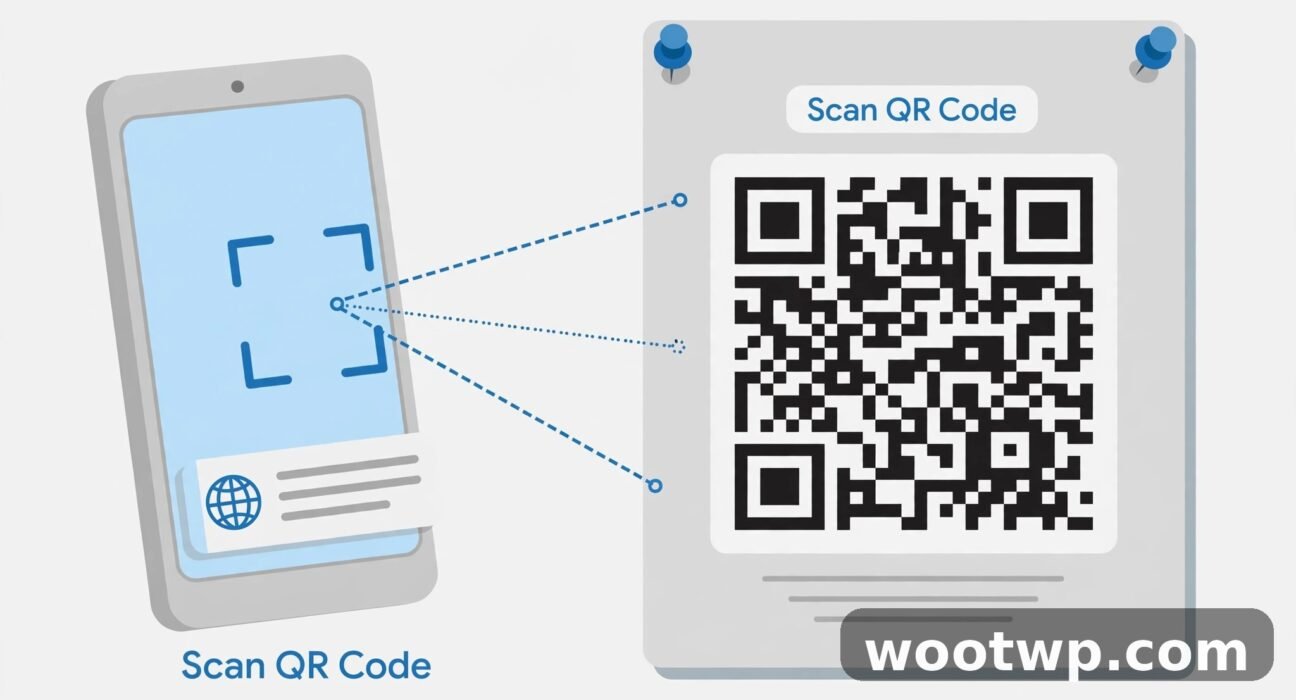
Learning how to scan QR code on Android without any app takes less than a minute once you know where the built-in scanner lives. You do not need to download a QR scanner from the Play Store, sit through ads, or hand a random app access to your camera and contacts. Every modern Android phone already has at least two ways to read QR codes built in: the camera app and Google Lens. This guide shows you all of them, including how to scan a QR code from a screenshot, how to scan a Wi-Fi QR code, and what to do when nothing happens.
Most people only ever need the first method. Open the camera, point it at the code, and tap the pop-up. The other methods are backups for the times the camera stays silent, the code is already saved as a photo on your phone, or the code is showing on your own screen and you cannot point a camera at it.
Table of Contents
- What Does "Without Any App" Really Mean on Android?
- How to Scan a QR Code on Android Without Any App Using the Camera
- How to Scan a QR Code With the Quick Settings Tile
- How to Scan a QR Code on Android With Google Lens
- How to Scan a QR Code From a Screenshot or Saved Photo
- How to Scan a QR Code on Your Own Screen With Circle to Search
- How to Scan a Wi-Fi QR Code and Brand-Specific Settings
- Why Your Android Phone Will Not Scan a QR Code
- How to Stay Safe When You Scan QR Codes
- FAQs About Scanning QR Codes on Android
- Conclusion
What Does "Without Any App" Really Mean on Android?
When people ask how to scan QR code on Android without any app, they usually mean without downloading a separate QR scanner app. That is the right instinct. The Play Store is full of QR scanner apps that are mostly ads with a scanner attached, and many of them ask for far more permissions than reading a code requires.
"Without any app" does not mean without using any built-in feature. Your phone's camera, Google Lens, and the Quick Settings scanner are all part of Android or part of apps that ship with your phone, such as the Google app and Google Photos. You are not installing anything new, you are not creating an account, and you are not paying for a feature that should be free.
In my experience, the camera method works on almost every phone sold in the last several years. Samsung, Pixel, Motorola, OnePlus, Xiaomi, Realme, and Oppo phones all read QR codes in the default camera app, though the exact setting that turns scanning on has a different name on each brand. If your phone runs Android 9 or newer, start with the camera. If it runs Android 8, the camera usually still works, and Google Lens covers the rest.
One more point before you start: you never need to press the shutter button to scan a code. Point, hold still, and wait for the pop-up. Pressing the shutter just takes a photo of the code, which does not open anything.
How to Scan a QR Code on Android Without Any App Using the Camera
This is the fastest way to scan a QR code on Android without any app download, and it handles most codes: website links, menus, tickets, payment screens, contact cards, and Wi-Fi details.
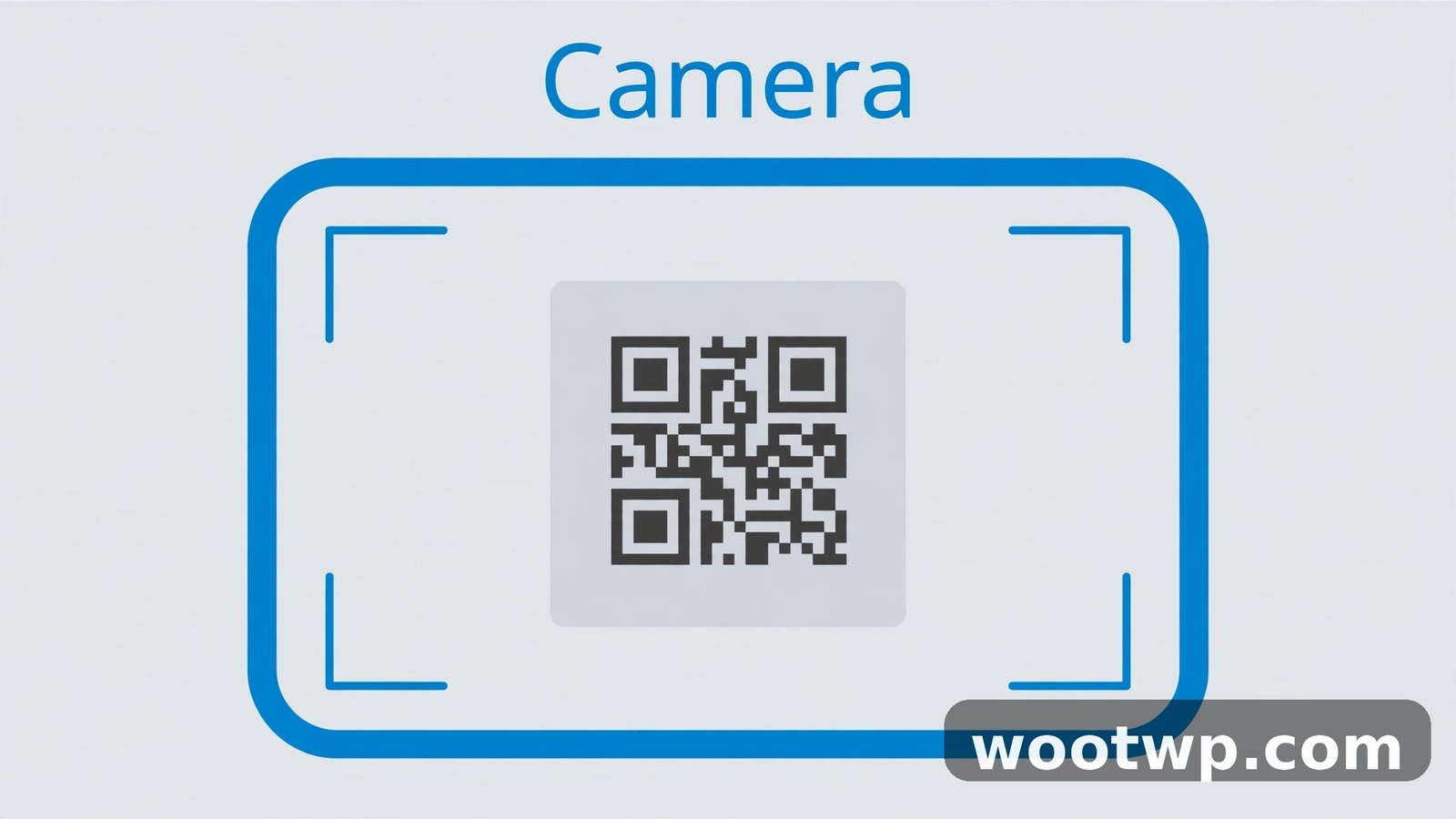
- Open your phone's default Camera app. Use the normal Photo mode, not Portrait, Night, or Video mode.
- Hold the phone about 15 to 25 centimetres (6 to 10 inches) from the code. Keep the whole square code inside the frame, with a little space around it.
- Hold still for one or two seconds. Do not tap the shutter button.
- A banner, chip, or pop-up appears with a preview of what the code contains, such as a web address or a Wi-Fi network name.
- Read the preview first. If it looks right, tap the banner to open it.
That preview step matters more than it looks. A QR code can point anywhere, and the preview is your one chance to check the destination before your browser opens it. The safety section near the end of this guide explains what to look for.
Turn On QR Scanning in Your Camera Settings
If nothing appears, QR scanning may be switched off in the camera app. The switch hides in a different place on each brand:
- Samsung: Open Camera, tap the gear icon for Settings, and turn on Scan QR codes.
- Pixel: Open Camera, tap the gear icon, then More settings, and make sure QR-related suggestions are on. On many Pixels, scanning works with no switch at all, and a Lens button appears in the viewfinder instead.
- Xiaomi, Redmi, and Poco: Open Camera, tap the menu or gear icon, and turn on Scan QR codes. Some Xiaomi phones also have a separate Scanner app preinstalled, which is still a built-in tool, not a download.
- OnePlus and Oppo: Open Camera, tap the gear icon, and look for a QR code or Google Lens option in settings.
- Motorola and Realme: Open Camera and look for a small QR icon or Lens icon in the viewfinder. Tapping it switches the camera into scan mode.
After you turn the setting on, go back to Photo mode and try again. If the camera still ignores the code, move to the Quick Settings tile or Google Lens below before you decide the phone cannot scan at all.
Tips for Codes That Will Not Read
A code that will not scan is usually a distance, light, or angle problem, not a broken phone. Try these fixes in order:
- Move closer, then slowly move back. Most phones read best at arm's length for a large poster code and much closer for a small receipt code.
- Add light. Glossy menus, laminated signs, and phone screens reflect light and confuse the camera. Tilt the phone slightly to kill the glare, or shade the code with your hand.
- Fill the frame with the code, but keep all four corner squares visible. A cropped corner square is the most common reason a code fails.
- Clean the camera lens. A smudged lens softens the whole image just enough to break the sharp edges a QR code needs.
- Check the code itself. A badly creased, torn, or faded print may be unreadable for any phone. Ask for a fresh copy or a typed link.
How to Scan a QR Code With the Quick Settings Tile
Android 13 and later include a built-in QR scanner in Quick Settings. This is the cleanest method when you scan codes often, because it opens a dedicated scanner view with a larger viewfinder and a torch button for dark rooms.
- Swipe down twice from the top of the screen to open the full Quick Settings panel.
- Look for a tile labelled Scan QR code or QR scanner.
- Tap the tile. The scanner view opens.
- Point the phone at the code and wait for the result to appear.
- Tap the result to open it.
Add the Tile If You Cannot See It
If the tile is missing, it is probably in the pool of unused tiles rather than gone:
- Swipe down twice and tap the pencil or edit icon in the Quick Settings panel.
- Scroll through the available tiles until you find Scan QR code.
- Drag it into the active tiles area, or tap it to add it.
- Tap Done or the back arrow to save the layout.
On Samsung phones running One UI, the same tile may sit under the name Scan QR code in the Quick Panel edit screen. On some older Samsung phones, the scanner lives in the Camera app or in the Samsung Internet browser instead, so check those before you assume your phone lacks the feature.
This tile is also the best option when the camera app is busy. If you are in the middle of a video call or the camera is open in another app, the Quick Settings scanner still works, because it is a separate system feature.
How to Scan a QR Code on Android With Google Lens
Google Lens is the backup scanner that fixes most failures. It reads codes the camera app misses, including small codes, codes at an angle, and codes in photos. Lens ships with the Google app on most Android phones, and on many phones it is built into the camera viewfinder as well.
Scan a Live Code With Lens
- Open the Google app and tap the Lens icon (a small camera shape) in the search bar. If you have a standalone Lens app, open that instead.
- Point Lens at the QR code.
- Tap the shutter button in Lens, or wait for Lens to detect the code on its own.
- Tap the link or action shown at the bottom of the screen.
Scan From Inside the Camera App
On Pixel, Samsung, and many other phones, Lens sits inside the camera:
- Open the Camera app.
- Tap the Lens button in the viewfinder, or switch to the More tab and choose Lens.
- Point at the code and tap the result.
If you see a Lens button but tapping it asks you to install something, check that you are using the phone's default camera and not a third-party camera app. Third-party cameras often hand off to a download instead of the built-in Lens.
Google Lens does more than QR codes, which is why it is worth knowing even if your camera scans fine. The same Lens button reads text, translates signs, and identifies plants, products, and landmarks, and the opening steps are the same: open Lens, point, tap.
How to Scan a QR Code From a Screenshot or Saved Photo
You cannot point your phone's camera at its own screen, so a QR code sent to you in a chat message, email, or screenshot needs a different route. This is the method most people miss, and it is the one that saves the most time once you know it.
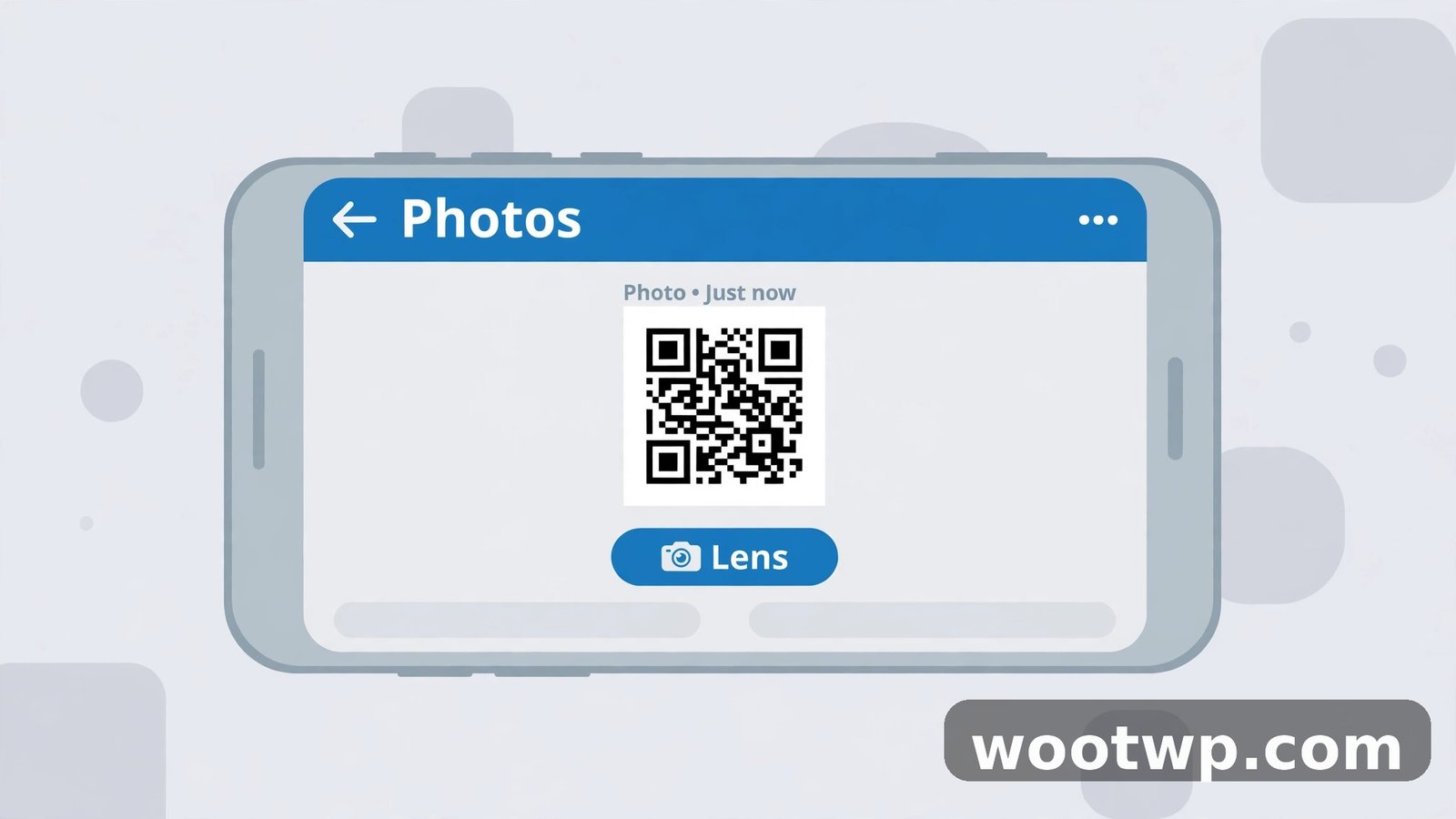
Method 1: Google Photos and Lens
- Save the image or take a screenshot of the QR code.
- Open the image in Google Photos.
- Tap the Lens button at the bottom of the screen.
- Lens reads the code from the image and shows the link or action.
- Tap the result to open it.
Method 2: Google Lens From Your Gallery
- Open Google Lens from the Google app.
- Tap the small image or gallery icon in the Lens viewfinder, usually in a corner.
- Pick the screenshot or photo that contains the code.
- Tap the code in the image, or wait for Lens to highlight it.
- Tap the result shown at the bottom.
Method 3: Long-Press on Samsung Gallery
On many Samsung phones, opening a photo in the Gallery app and long-pressing the QR code brings up options that include opening the link. If nothing appears, use the Photos and Lens route above, which works on every brand.
A common snag here is a screenshot that is too small. If the code is tiny in the middle of a long chat screenshot, crop the image to the code first, then run Lens on the cropped copy. Cropping also helps when a screenshot holds several codes and Lens keeps picking the wrong one.
When you scan a QR code from a screenshot, the safety rule is the same as for a printed code, only more important. Codes in messages are a favourite trick for scams, because the sender controls the whole image. Read the URL preview before you tap, and never scan a code from a message that pressures you to act fast.
How to Scan a QR Code on Your Own Screen With Circle to Search
Circle to Search is the newest built-in route, and it solves the on-screen code problem without a screenshot at all. It is available on select Pixel and Samsung Galaxy phones running Android 14 or later, and it is rolling out to more devices over time.
- Long-press the Home button or the navigation bar at the bottom of the screen. On gesture navigation, long-press the small handle bar.
- When the Circle to Search overlay appears, draw a circle around the QR code on your screen with your finger.
- Google reads the code and shows the destination as a chip or card.
- Tap the result to open it.
If long-pressing the Home button does nothing, Circle to Search is either not available on your phone or switched off. Check Settings, then Display or System, and search settings for "Circle to Search" to confirm. If your phone does not have it, the screenshot and Lens method above does the same job with one extra step.
Circle to Search also works on codes inside videos, PDFs, and web pages shown on your phone. It is the fastest way to open a code a friend shares on a video call, because you never leave the call to take a screenshot.
How to Scan a Wi-Fi QR Code and Brand-Specific Settings
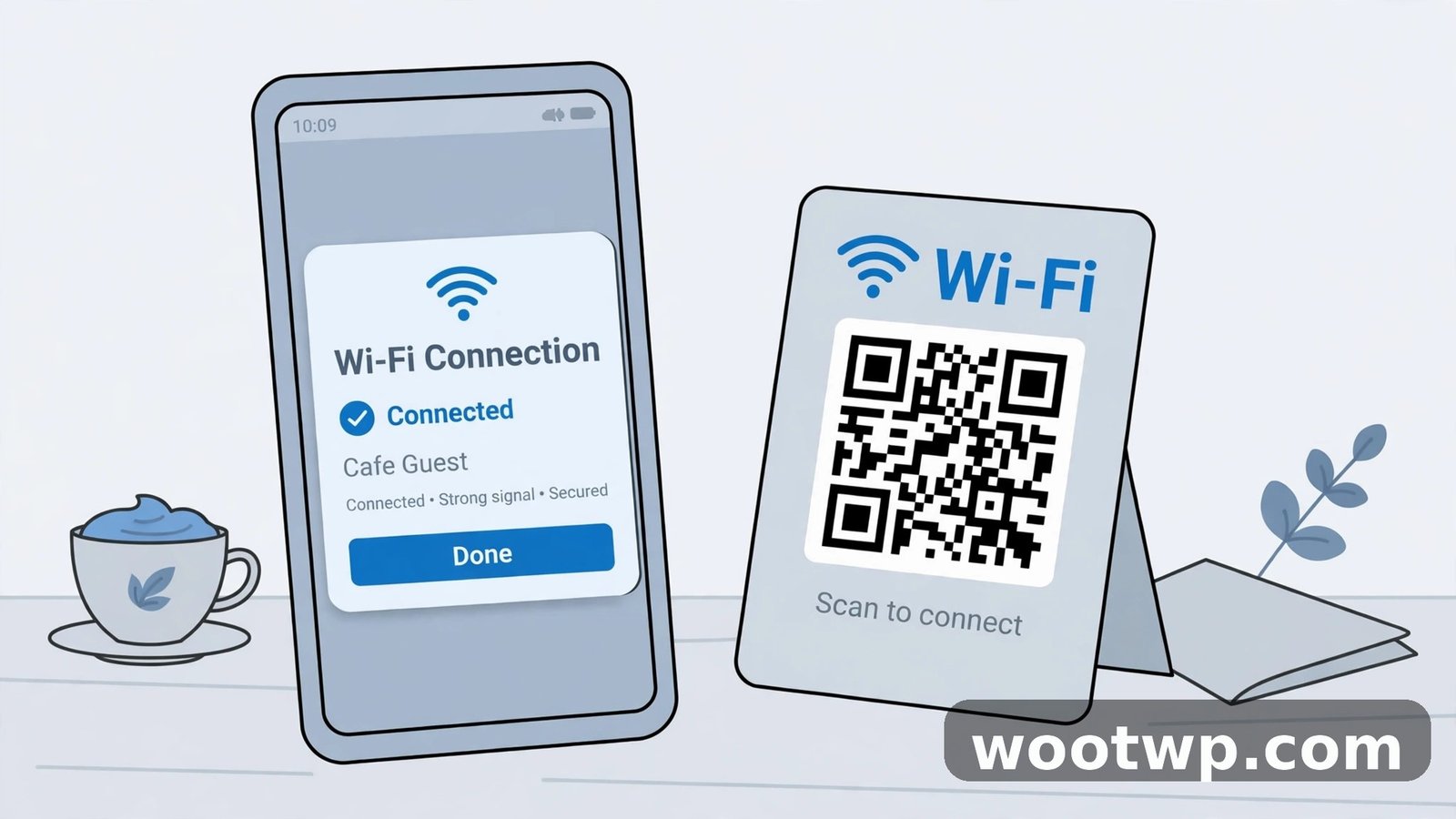
Wi-Fi QR codes deserve their own section, because they do not open a web page. Scanning one asks your phone to join a network, and the steps after the scan are different.
- Scan the Wi-Fi QR code with the camera, the Quick Settings tile, or Lens, exactly as above.
- A pop-up shows the network name and asks if you want to join.
- Tap Join or Connect. Your phone fills in the password from the code, so you never type it.
- If the pop-up offers to save the network, accept it only for networks you trust and will use again, such as home or work.
If scanning a Wi-Fi code opens a browser instead, the code may be a plain link to a setup page rather than a Wi-Fi code. That is normal for some hotel and cafe networks. Follow the page, and only enter details on a page you trust.
Create Your Own QR Code
Once you can scan codes, you may want to make one. Sharing your home Wi-Fi with guests, for example, is much easier as a printed code than a password spelled out loud. You can create a free QR code with our QR code generator tool, which builds codes for links, Wi-Fi details, and contact cards without installing anything. Print the code, stick it on the fridge, and guests can join by scanning it with the camera method at the top of this guide.
Why Your Android Phone Will Not Scan a QR Code
Work through this list when every method above fails. Most problems are settings or software age, not hardware.
- QR scanning is off. Check the camera settings switches listed earlier for your brand. This is the single most common cause on Samsung phones.
- The phone is too old. Phones running Android 7 or earlier may not scan in the camera app at all. Google Lens still works on many of them if the Google app is updated, and that is the best free route before you consider any download.
- The camera app is out of date. Update the Camera app, Google app, and Google Photos in the Play Store, then restart the phone and try again.
- The code is damaged or too small. Print it larger, or ask for the link in text form. A code printed smaller than about 2 centimetres across is hard for most phone cameras to read.
- The screen is too bright or reflective. Lower the brightness of the screen showing the code, or tilt your phone to remove reflections.
- You are in a third-party camera app. Open the phone's default camera app. Some third-party cameras do not include QR detection at all.
If you recently moved to a new phone, QR codes also come up in account setup, such as when you transfer two-factor codes. Our guide on how to transfer Google Authenticator to a new phone walks through scanning setup codes safely during a move, which is one place where a failed scan can lock you out if you rush it.
How to Stay Safe When You Scan QR Codes
QR codes are just links you cannot read at a glance, so treat them with the same caution as a link in a strange email. The safety check takes three seconds and stops most QR tricks, which security writers call quishing.
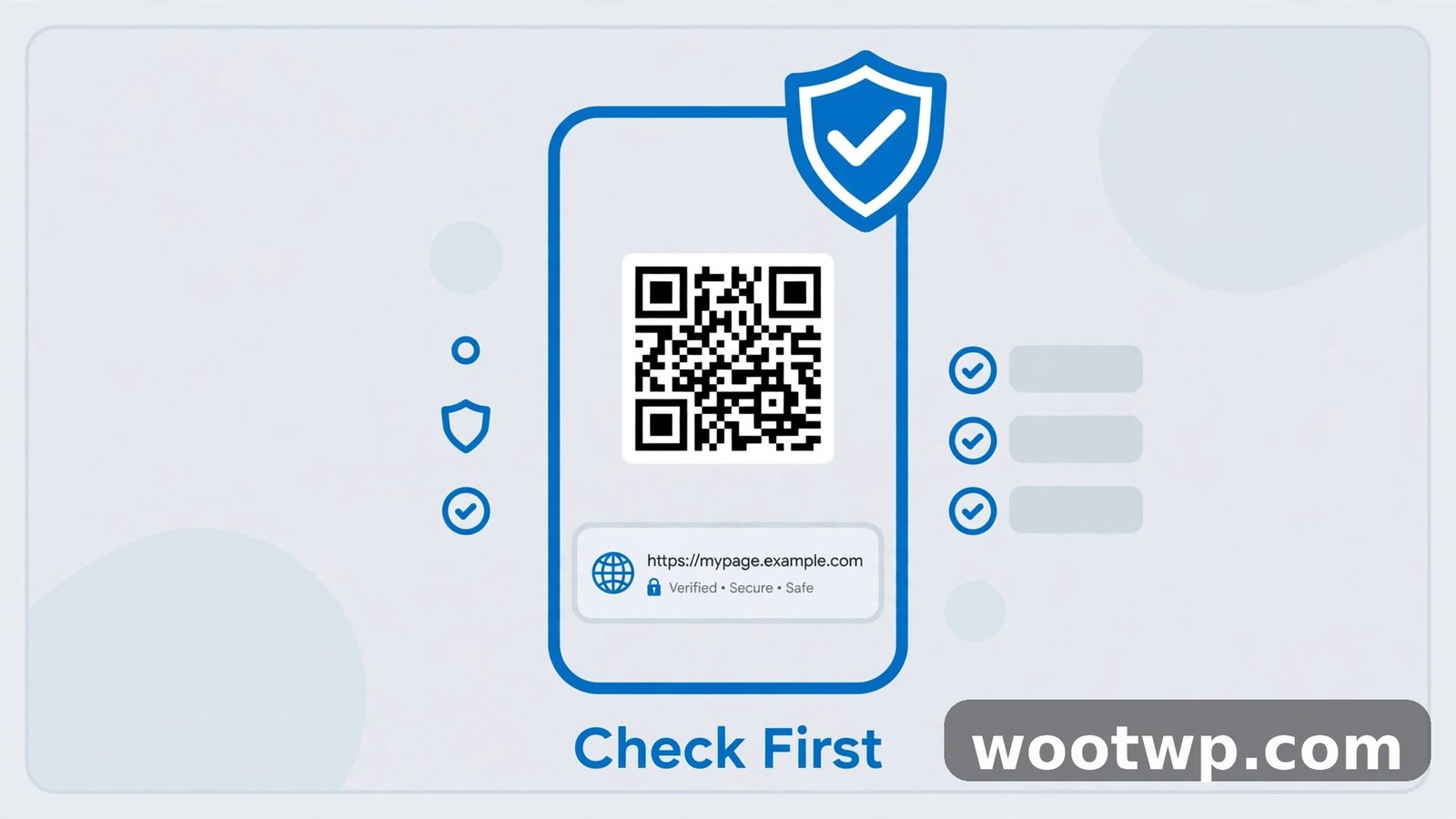
- Read the URL preview before you tap. If the preview shows a shortened link, a misspelled brand name, or a domain you do not recognise, do not open it. Type the real address yourself instead.
- Never scan a code that promises urgent action. Messages saying your account will close, your parcel is held, or your payment failed are pressure tactics. Real services do not rush you through a QR code.
- Do not log in right after scanning. If a code takes you to a login page, check the address bar first. A fake login page is the main payoff of a malicious code, and it only works if you type your password into it.
- Watch for payment codes. A code on a parking meter, restaurant table, or invoice that asks you to pay should match the business name on the screen. If it asks for a different payee, stop.
- Keep your phone updated. Android updates patch the browser and system features that handle scanned links, so install them when they arrive.
If you think you already tapped a bad code, act fast: close the page, do not enter any details, and run through the warning signs in our guide on how to check if your phone is hacked. Most bad scans do nothing on their own, but a password typed into a fake page needs a password change right away.
FAQs About Scanning QR Codes on Android
Can I scan a QR code on Android without any app at all?
Yes. The camera app, the Quick Settings scanner tile, and Google Lens are all built into Android or ship with your phone, so you do not need to download a separate QR scanner app. Open the camera, point it at the code, and tap the pop-up that appears.
Why does my Samsung phone not scan QR codes?
QR scanning is usually switched off in the Samsung Camera settings. Open Camera, tap the gear icon, and turn on Scan QR codes. If the switch is already on, try the Quick Settings Scan QR code tile or Google Lens, and make sure the code fills the frame with all four corner squares visible.
How do I scan a QR code from a screenshot on Android?
Open the screenshot in Google Photos and tap the Lens button, or open Google Lens and pick the image from your gallery. Lens reads the code from the saved image and shows the link. Crop the screenshot to the code first if the code is small or surrounded by other text.
Does scanning a QR code use mobile data or cost money?
Scanning itself is free and uses no data. Opening the link, video, or page the code points to uses data like any other web page, so a video or large download on mobile data still counts toward your plan.
Can I scan a QR code on Android 8 or older phones?
Often yes, with Google Lens. The camera app on Android 8 usually scans codes, and on Android 7 the Google app's Lens feature covers most codes. Update the Google app first, and if Lens is missing, your phone may need a scanner app as a last resort on very old software.
Is it safe to scan QR codes in restaurants and car parks?
Usually yes, if you read the preview first. Check that the URL matches the business, never log in on a page a code opened without checking the address, and do not scan a sticker placed over the original code. If a payment code names a different payee, stop and ask the business directly.
Conclusion
Knowing how to scan QR code on Android without any app comes down to one habit: start with the camera, fall back to the Quick Settings tile or Google Lens, and use Photos with Lens for codes already saved on your phone. Delete any third-party scanner app you installed in the past, because the built-in tools do the same job with fewer ads and fewer permissions. Read the preview before you tap, and a QR code becomes one of the fastest shortcuts on your phone instead of a guessing game.