

How to Use Split Screen on Android: 7 Easy Ways to Multitask
You are watching a video and a message pops up. You need to reply, but you do not want to lose your place in the video. Or you are comparing prices in two shopping apps and switching back and forth is driving you mad. If you want to learn how to use split screen on android, you are in the right place. This guide shows you how to run two apps side by side on almost any Android phone, with simple steps for Pixel, Samsung Galaxy, tablets, and foldables.
Split screen is built into Android, so you do not need to install anything. Once you know the steps, it takes about five seconds to set up. Below you will find the standard method, the Samsung method, and fixes for the most common problems.
Table of Contents
- What Is Split Screen on Android?
- How to Use Split Screen on Android on Pixel and Stock Android
- How to Use Split Screen on Samsung Galaxy Phones
- How to Resize, Swap, and Exit Split Screen
- How to Save App Pairs for One-Tap Multitasking
- How to Use Pop-Up View as a Bonus
- How to Use Split Screen on Android Tablets and Foldables
- Which Apps Won't Split and Why
- Why Is the Split Screen Option Missing?
- Frequently Asked Questions
- Conclusion
What Is Split Screen on Android?
Android split screen is a built-in feature that divides your display into two halves, with one app in each half. Both apps stay open and usable at the same time. You can watch a video on top while you take notes below, or keep a map open while you reply to messages.
This is the heart of android multitasking. Instead of switching between apps and losing your place, you keep both in view. The feature has been part of Android since Android 7, and it keeps getting smoother with each new version. On Android 14 and 15, most popular apps support it without any fuss.
Split screen works best when the two apps do different jobs. Good pairs include a browser with a notes app, a video app with a chat app, or a maps app with a music app. Two heavy games at once is a bad idea. Your phone will slow down, and one of the games will probably pause itself.
How to Use Split Screen on Android on Pixel and Stock Android
The standard method works on Pixel phones and most phones running stock or near-stock Android, including Motorola and Nokia. The steps are the same on Android 14, 15, and 16, with only small label changes between versions.
Here is how to use split screen on android on a Pixel or stock Android phone:
- Open the first app you want to use.
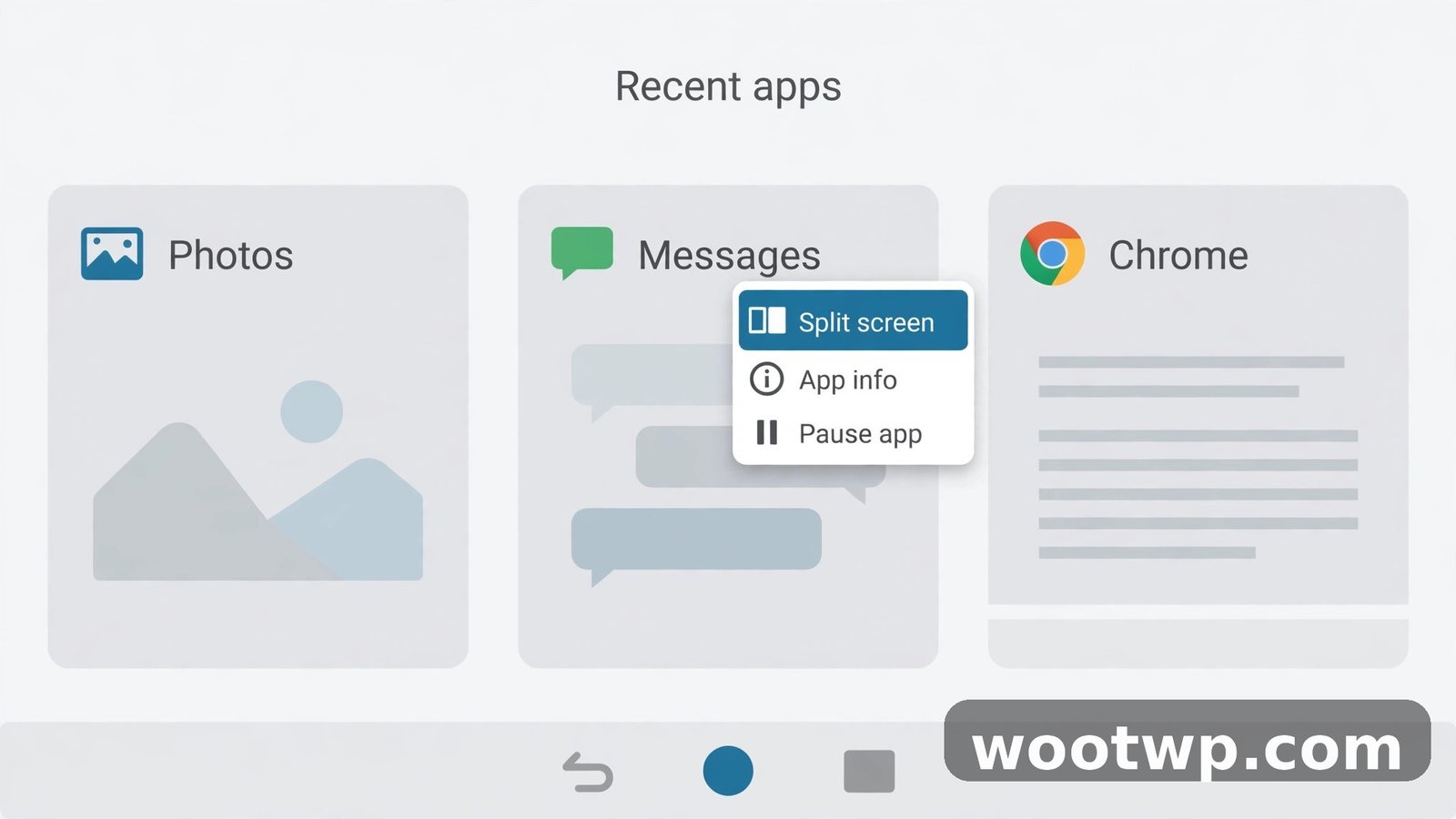
- Swipe up from the bottom of the screen and hold, then let go. This opens the Recents screen, also called Overview.
- Find the first app in the Recents cards. Tap its icon at the top of the card.
- Tap Split screen. On newer versions the option may read Split top.
- The first app moves to the top half of the screen.
- Tap the second app from the Recents cards or the app drawer. It fills the bottom half.
That is all there is to it. The divider bar between the two apps is your control handle, and we will cover it in a moment.
If you use three-button navigation instead of gestures, tap the square Recents button at the bottom of the screen to reach the same screen. The rest of the steps are the same.
Google explains the same steps in its own help pages. You can check the official guide to see two apps at the same time on a Pixel phone if you want to confirm the menu labels for your model.
One tip from my own use: start split screen from the app you care about most. The first app you pick becomes the top half, and the top half is easier to read on a tall phone. Put your video or document on top and your chat or notes app below.
How to Use Split Screen on Samsung Galaxy Phones
Samsung adds its own layer on top of Android, called Multi Window. Learning how to use split screen on android on a Samsung phone gives you a few extra tricks that Pixel phones do not have, including app pairs and a two-finger gesture.
The Recents method on Samsung
This is the most reliable way to start split screen on samsung phones:
- Open the first app you want to use.
- Tap the Recents button, or swipe up and hold if you use gestures.
- Tap the app icon at the top of the app card.
- Tap Open in split screen view.
- Pick the second app from the list that appears.
The Edge Panel method
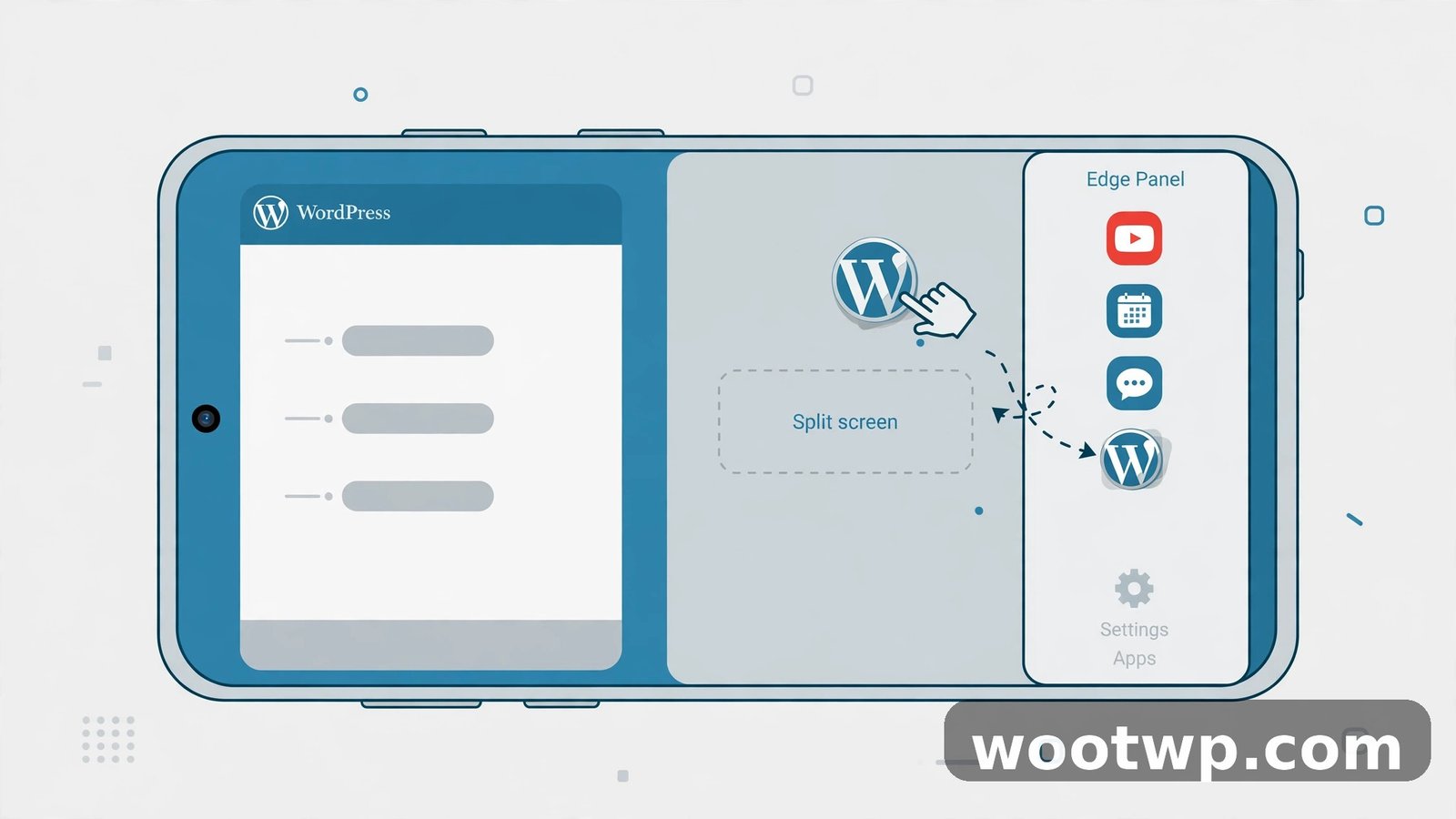
The Edge Panel is a slim tray that slides in from the side of the screen. It is handy when you want to open a second app without leaving the first one:
- Open the first app.
- Swipe left from the right edge handle to open the Edge Panel.
- Drag an app from the panel to the top or bottom half of the screen.
- The app drops into split screen view at once.
If you do not see the Edge Panel, turn it on at Settings, then Display, then Edge panels. Toggle the switch on.
The two-finger swipe gesture
If you want the fastest method, turn on the swipe gesture:
- Go to Settings, then Advanced features, then Multi window.
- Turn on Swipe for split screen.
- Open any app, then swipe up from the bottom of the screen with two fingers.
- The app moves into split screen view. Pick your second app.
In my experience, the gesture takes a day to feel natural, then it becomes the quickest way to split the screen. If it triggers by accident, turn it off again at the same settings page.
Samsung keeps its own support guide for this feature. You can read the official steps to use separate apps simultaneously on your Galaxy phone for model-specific notes.
How to Resize, Swap, and Exit Split Screen
Opening two apps is only half the job. Knowing how to control the layout is what makes android split screen genuinely useful day to day.
Resize the divider
- Drag the divider bar between the two apps up or down to give one app more room.
- On a phone held upright, drag up to enlarge the bottom app or down to enlarge the top app.
- On a tablet or foldable in landscape, drag the divider left or right.
- Double-tap the middle of the divider on Pixel phones and tablets to swap the two apps around.
Exit split screen
- Drag the divider all the way to the top or the bottom edge of the screen. The app that fills the screen stays open, and the other app closes.
- On Samsung phones, tap the divider bar, then tap the X icon to close one app.
- Press the Home button or swipe up to go home. This ends split screen and returns you to your home screen.
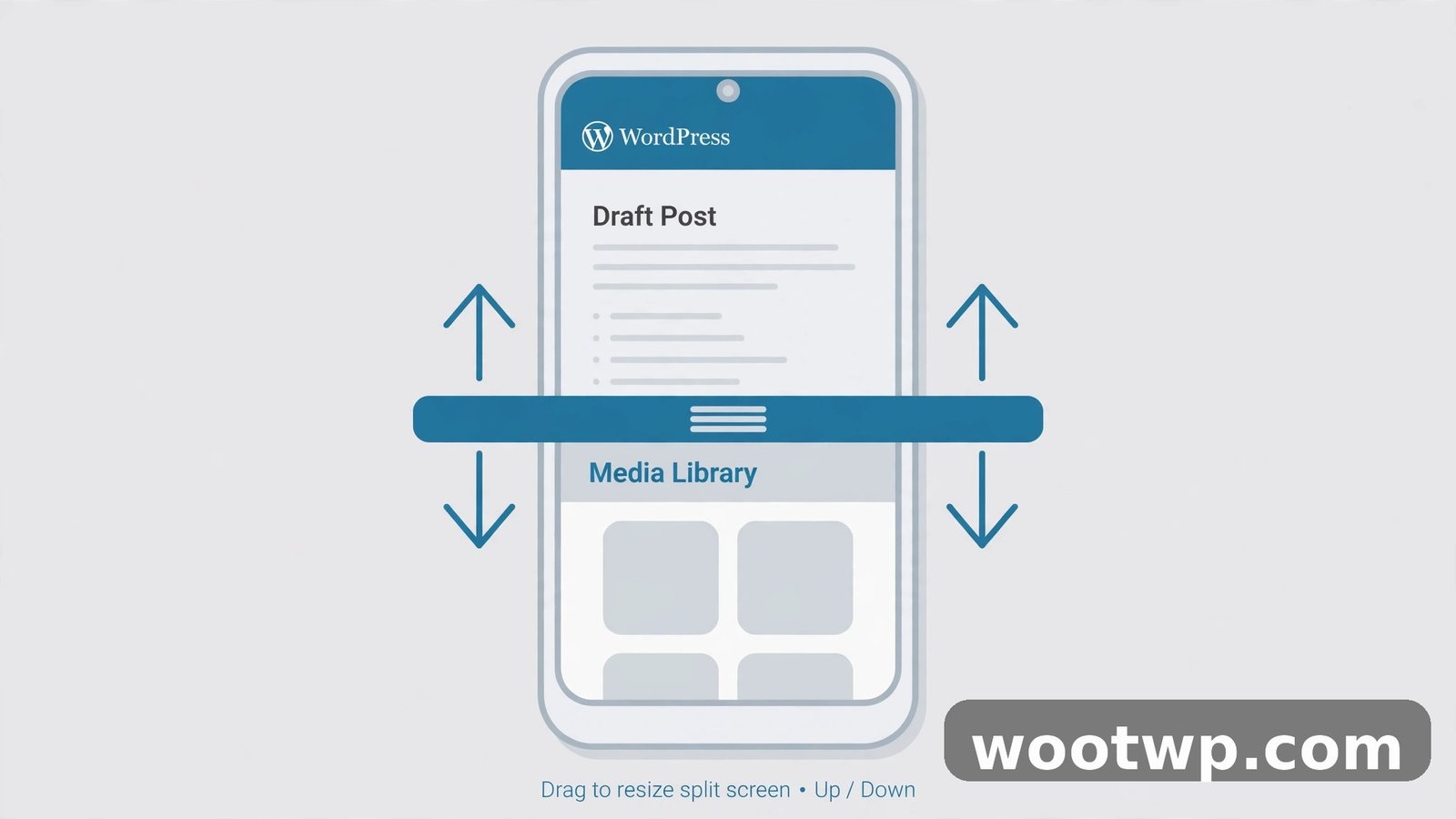
A small tip: if one app needs more space only for a moment, drag the divider, do your task, then drag it back. You do not need to exit split screen and start over.
How to Save App Pairs for One-Tap Multitasking
If you open the same two apps together every day, saving them as a pair saves you the setup each time. This is one of the best android multitasking tricks, and it is available on Samsung phones and Pixel tablets.
Save an app pair on Samsung
- Open your two apps in split screen view.
- Tap the Recents button.
- Find the paired apps in the Recents cards.
- Tap the icon at the top of the pair, then tap Add app pair.
- Choose where to save it: Home screen, Apps edge panel, or Taskbar on a tablet.
Save an app pair on Pixel Tablet
- Open your two apps in split screen mode.
- Swipe up and hold to open Overview.
- Below the two apps, tap Save app pair.
Your pair now opens both apps in split screen with one tap. I use this for a browser and notes pair every morning, and it turns a ten-second setup into a single tap. If you use multi window android features daily, app pairs are worth setting up for your two or three most common combos.
How to Use Pop-Up View as a Bonus
Pop-up view is split screen's flexible cousin. Instead of dividing the screen in half, it opens an app in a small floating window on top of whatever you are doing. It is ideal for a quick reply or a calculator check without leaving your main app.
Open an app in pop-up view on Samsung
- Open the Recents screen.
- Tap the app icon at the top of the app card.
- Tap Open in pop-up view.
- Drag the window where you want it. Drag a corner to resize it.
Turn on the pop-up gesture on Samsung
- Go to Settings, then Advanced features, then Multi window.
- Turn on Swipe for pop-up view.
- Swipe down from either top corner toward the middle of the screen with one finger.
On Pixel phones there is no built-in pop-up view, but picture-in-picture covers a similar need for video apps. Start a video in YouTube or Chrome, press Home, and the video shrinks into a small floating window you can drag around.
Pop-up view works well for short tasks. For longer work, switch to full split screen instead. A floating window gets in the way once you need to read more than a few lines.
How to Use Split Screen on Android Tablets and Foldables
Tablets and foldables are where split screen truly shines. A bigger display means both apps get enough room to be genuinely usable, not just visible.
Split screen on Android tablets
The steps match the phone method, but the layout feels different in landscape:
- Open the first app.
- Open the Recents screen, tap the app icon, then tap Split screen.
- Pick the second app. It fills the right half in landscape or the bottom half in portrait.
- Drag the divider left or right to balance the two apps.
On Pixel Tablet, you can also start from the home screen. Touch and hold an app icon, tap Split, then tap the second app. You can drag text and images between some apps in split screen, which is handy for research and note-taking.
Split screen on foldables
On a Galaxy Z Fold, unfold the phone first, then use the same Recents or Edge Panel method on the large inner display. You can run two apps side by side, and on newer models you can add a third app to the split. On a Pixel Fold, swipe up and hold to open Overview, tap Split, and pick your second app.
A word of caution: split screen and pop-up view are not supported on the front cover screen of some Galaxy Z Fold models. Unfold the phone before you start. Also, check that both apps keep working after you fold the phone shut again. Most apps hand over cleanly, but a video call may need a second to settle.
If your tablet feels slow with two apps open, close background apps you do not need. A simple guide to make your Android phone faster covers the same cleanup steps, and they work on tablets too.
Which Apps Won't Split and Why
Not every app supports split screen. When an app refuses, it is usually for one of these reasons:
- The app opts out. Some apps tell Android they cannot resize. Banking apps, some camera apps, and a few games do this on purpose.
- The app is too old. Apps built for very old Android versions may not support resizing at all.
- Security rules. Banking and payment apps sometimes block split screen so another app cannot sit beside them and capture the screen.
- The app needs the full screen. Camera apps and many games need every pixel, so they refuse to share the display.
- A bug or a pending update. An app that worked last month may break after an update. Check the Play Store for a newer version.
Here is what to try when an app refuses to split:
- Update the app from the Play Store.
- Restart your phone and try again.
- Try a different second app. The problem may be with the other app, not the one you suspect.
- Check the app's own settings. A few apps have a full-screen or picture-in-picture toggle that clashes with split screen.
If a banking app refuses, do not try to force it. Use the app on its own and switch to your second app when you are done. Forcing an app that opts out usually means a developer option or a third-party tool, and it can make the app unstable or insecure.
Why Is the Split Screen Option Missing?
If you know how to use split screen on android but the option never appears, work through these checks in order. Most cases are fixed by one of them.
The app does not support it
Open a different first app, like Chrome or Gmail, and try again. If the option appears, the first app was the problem, not your phone.
Multi Window is turned off on Samsung
Go to Settings, then Advanced features, then Multi window. Make sure the Multi window switch is on. On some models this page also holds the swipe gestures, so turn those on while you are there.
You are on an old Android version
Split screen needs Android 7 or newer. Check your version at Settings, then About phone, then Android version. If your phone is stuck on an older version, check for a software update at Settings, then System, then System update.
The app keeps crashing
A crashing app can break split screen for the whole session. Close both apps, clear the problem app's cache at Settings, then Apps, then the app name, then Storage, then Clear cache. If crashes keep happening, our guide to fix apps crashing on Android walks through the full repair steps.
The screen feels too cramped
On a small phone, two apps in split screen can feel tight. Try these fixes:
- Rotate your phone to landscape for wider halves.
- Drag the divider so the app you are reading gets more room.
- Use larger text only in the app that needs it, not system-wide.
- Switch to pop-up view for the second app instead of a full split.
Restart the phone
I have seen this fix more split screen problems than any other single step. A restart clears stuck window states and frees memory. Hold the power button, tap Restart, and try split screen again once the phone is back up.
If none of these steps help, check whether a recent system update changed the menu labels. Samsung and Google both rename these options from time to time, so the option may be there under a slightly different name.
Frequently Asked Questions
How do I use split screen on Android?
Open the first app, open the Recents screen, tap the app icon at the top of its card, then tap Split screen. Pick the second app and it fills the other half of the display. On Samsung phones, tap Open in split screen view instead.
Can I use split screen on any Android phone?
Almost any phone running Android 7 or newer supports split screen. The exact menu labels change between brands, so Pixel, Samsung, and other phones may word the option differently. Very old or entry-level phones may struggle with two heavy apps at once.
Why does split screen not work on some apps?
Some apps opt out of resizing, including many banking apps, camera apps, and games. This is usually a security or design choice by the app maker, not a fault with your phone. Update the app and try again, or use a different app that supports splitting.
How do I exit split screen on Android?
Drag the divider bar all the way to the top or bottom edge of the screen. The remaining app fills the display and the other app closes. On Samsung, you can also tap the divider and then tap the X icon to close one side.
Can I use three apps at once in split screen?
On most phones the limit is two apps, plus a floating pop-up window on Samsung. Some newer Galaxy Z Fold models support three apps in a split view on the large inner display. Standard phones and tablets do not offer a three-way split.
Does split screen drain the battery faster?
Running two apps at once uses more battery than running one, because the screen stays lit and two apps stay active. The extra drain is small for light apps like a browser and notes. It grows if both apps are heavy, so close split screen when you finish.
Conclusion
Now you know how to use split screen on android on Pixel, Samsung, tablets, and foldables. Start with the Recents method, save your favorite pairs, and use the divider to give each app the room it needs. The one habit that matters most is picking app pairs that do different jobs, so both halves earn their space.