
How to Fix Apps Crashing on Android: 9 Easy Proven Fixes
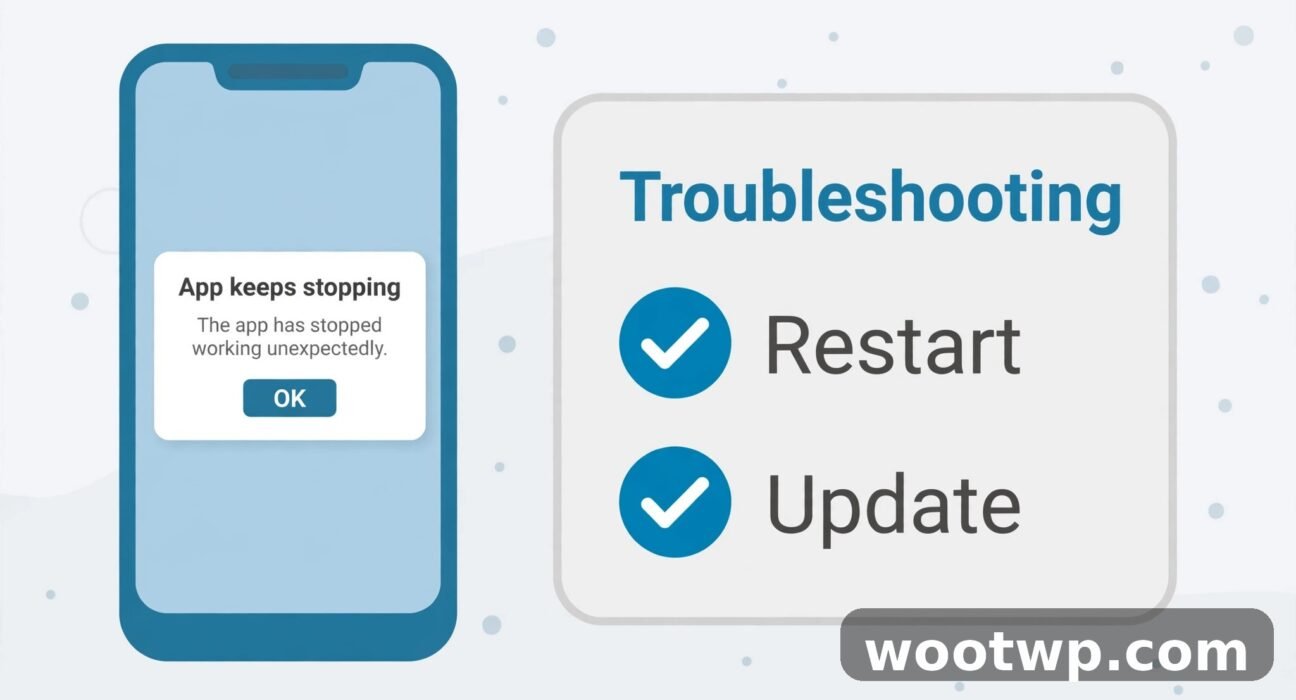
When you need to know how to fix apps crashing on Android, it usually starts the same way. You tap an app, it opens for a second, then it closes on its own — or a message pops up saying the app "keeps stopping." It is annoying, and it always seems to happen when you need the app most. The good news is that most crashes have a simple cause: a buggy update, damaged temporary files, low storage, or one shared system part that several apps depend on. This guide walks you through the fixes in the right order, from the quickest checks to the last-resort steps, so you stop the crashing without losing your data.
Menu names vary a little by brand. The steps below give the Pixel path first and the Samsung path where it differs. On other brands, look for the same words under Settings, Apps, and Storage. If a menu looks different on your phone, search Settings for the setting name at the top of the screen.
In this guide:
- Why Do Android Apps Keep Crashing?
- How to Fix Apps Crashing on Android: Start With the 5 Quick Fixes
- How to Clear the App Cache Without Losing Your Data
- What If Only One App Keeps Crashing on Android?
- How to Fix Apps Crashing on Android When Many Apps Crash at Once
- Safe Mode: How to Tell If a Downloaded App Is the Cause
- When to Reinstall, Archive, or Reset the App
- What to Do If Nothing Stops the Crashing
- Frequently Asked Questions About Apps Crashing on Android
- Conclusion: Fix the Cause, Not Just the Crash
Why Do Android Apps Keep Crashing?
An app crash means the app closed unexpectedly instead of running normally. Android shows this as the app disappearing back to the home screen, freezing and then closing, or a pop-up that says the app keeps stopping. A crash is different from a slow app. A slow app still runs. A crashing app cannot stay open at all.
In my experience, most Android app crashes come down to a short list of causes:
- A buggy app update. A new version ships with a bug, and the app starts crashing right after it updates. This is the most common cause when one app suddenly starts crashing and nothing else changed.
- Damaged cache files. Apps store temporary files so they load faster. If those files get damaged, the app can crash every time it tries to read them.
- Low storage. When your phone is nearly full, apps cannot save the temporary data they need to run. Android itself also struggles, and several apps may start crashing at once.
- An outdated system part. Many apps show web pages inside the app using a shared component called Android System WebView. If WebView or Chrome is outdated or buggy, lots of unrelated apps can crash together.
- A conflict with another app. A newly installed app, a VPN, an ad blocker, or an accessibility service can interfere with other apps.
- A bad system update or a failing phone. This is less common, but a system update that did not install cleanly, or storage that is starting to fail, can cause repeated crashes across many apps.
Knowing which pattern you have saves time. If one app crashes and the rest are fine, the problem is almost always that app. If many apps crash at the same time, look at shared parts first: WebView, Chrome, storage, and the Android system update. The fixes below follow that logic. Try them in order, and test the app after each step so you know which fix worked.
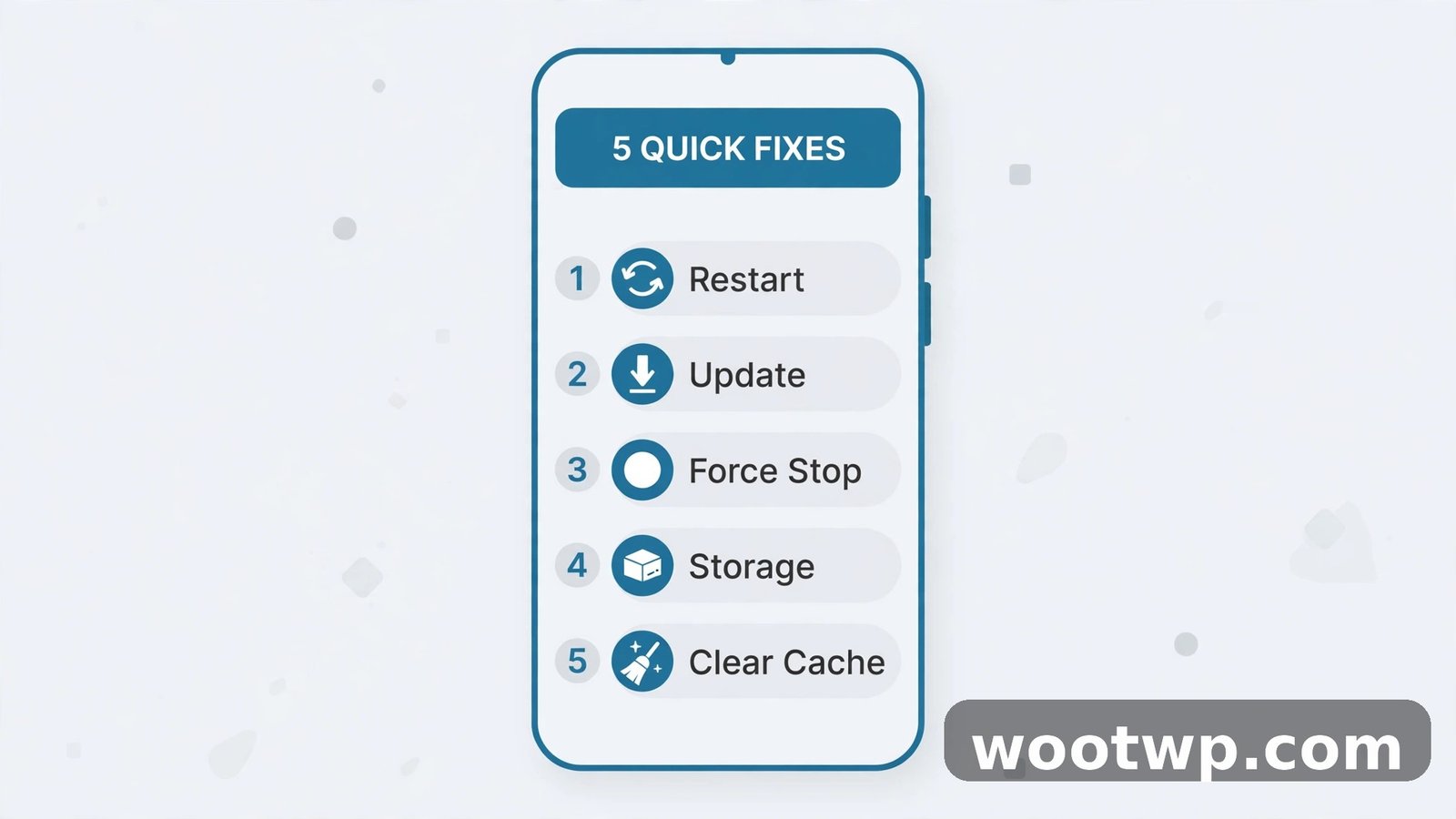
How to Fix Apps Crashing on Android: Start With the 5 Quick Fixes
These five fixes take about ten minutes together, and none of them deletes your photos, messages, or account data. Do them in this order. Restarting and updating first matters, because a restart alone often clears the stuck process that caused the crash.
Fix 1: Restart Your Phone
A restart clears temporary memory, stops stuck background processes, and gives the system a clean start. It sounds too simple, but I have seen it fix a crashing app more times than any other single step.
- Hold the Power button until the power menu appears.
- Tap Restart. If your phone has no Restart option, tap Power off, wait 30 seconds, then turn it back on.
- If the screen is frozen and the power menu will not appear, hold the Power button for about 30 seconds until the phone restarts.
- Once the phone is back up, open the crashing app and try the same action that crashed it before.
If the app works now, you are done. If it crashes again, move on. Do not skip the restart just because it feels basic — it also clears the state left behind by the crash itself.
Fix 2: Update the Crashing App
App developers release updates to fix bugs and crashes. If you run an older version, it may not work well with your current Android version. Check for an update before you change any settings.
- Open the Google Play Store.
- Tap your profile picture in the top right corner.
- Tap Manage apps and device.
- Tap Updates available.
- Find the crashing app and tap Update next to it. If you see Update all, you can update everything, but update the crashing app first.
- Open the app again and test it.
If the app has no update, or the update does not help, keep going. Also check the app's Play Store page for recent reviews. If many people report crashes after the latest update, the bug is on the developer's side, and the next update is often the real fix. In that case, the workarounds later in this guide can keep you going until it arrives.
Fix 3: Update Android and WebView
An outdated Android version can clash with newer apps. More importantly, two shared parts — Android System WebView and Google Chrome — affect many apps at once. WebView lets apps display web pages inside the app, so a broken WebView update can crash banking apps, shopping apps, social apps, and more, all on the same day.
To update Android:
- Open Settings.
- Tap System, then Software update or System update. On Samsung, go to Settings, then Software update, then Download and install.
- Install any update that is available, then restart the phone.
To update WebView and Chrome:
- Open the Google Play Store.
- Search for Android System WebView and tap Update if you see it.
- Search for Google Chrome and tap Update if you see it.
- Restart the phone and test the app.
Do not uninstall WebView updates as a fix unless a trusted guide for your exact phone model tells you to. On current Android versions, WebView and Chrome share code, and removing updates can make things worse. Updating both is the safe move.
Fix 4: Force Stop the App
Force stopping shuts down every part of the app, including background pieces that swiping the app away can leave running. It does not delete your data.
- Touch and hold the app icon, then tap App info. Or go to Settings, Apps, and tap the app in the list.
- Tap Force stop.
- Tap OK or Force stop to confirm.
- Open the app again.
If the app runs fine after a force stop but starts crashing again later the same day, the cause is likely damaged cache or a bad update. The next fixes deal with both.
Fix 5: Check Free Storage and Restart Again
Apps need free space to work. As a rule of thumb, keep at least 10 percent of your storage free. A phone with almost no free space will crash apps, fail updates, and run slowly all at once.
- Open Settings.
- Tap Storage. On Samsung, go to Settings, Device care or Battery and device care, then Storage.
- Check how much free space you have.
- If you are under 10 percent free, delete or move large videos, clear the trash in your photos app, and uninstall apps you no longer use.
- Restart the phone and test the crashing app.
If storage was the problem, the crashes should stop once space is free. That storage check belongs early whenever you are learning how to fix apps crashing on Android, because low space affects every app at once, not just the one that crashed first. If you keep running out of space, read our guide on how to make your Android phone faster overall for more ways to free space without deleting photos you want to keep.
How to Clear the App Cache Without Losing Your Data
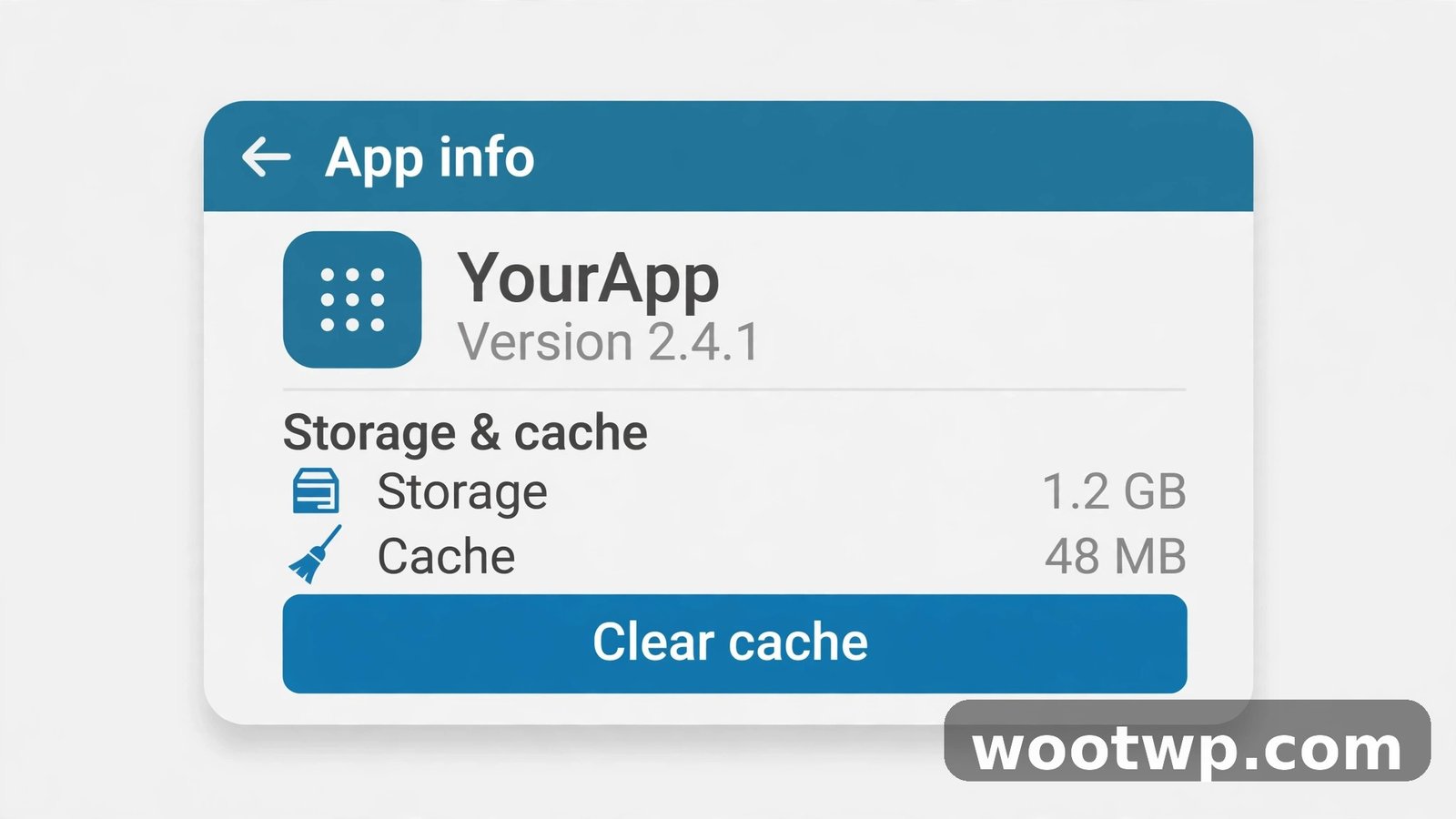
Clearing the cache is the single most useful fix for an app that keeps stopping, and it is safe to try. The cache holds temporary files only. Clearing it does not delete your account, your logins, your saved files, or your settings inside the app. The app will rebuild its cache the next time you open it, so it may load a little slower the first time. That is normal.
- Open Settings.
- Tap Apps. On some phones this is called Apps and notifications.
- Find and tap the app that keeps crashing.
- Tap Storage and cache or Storage.
- Tap Clear cache.
- Open the app and test it.
If clearing the cache fixes the crash, you are done. If the app crashes again after a day or two, the cache may be getting damaged again by a bug in the app itself. In that case, update the app, and if the problem keeps returning, reinstall it using the steps later in this guide.
Do not confuse Clear cache with Clear storage (also called Clear data). Clear storage deletes all the app's data and returns it to a fresh-install state: you will be signed out, and any data stored only inside the app will be gone. Only use Clear storage when you have checked that your data is backed up or synced to your account, and treat it as a last step before reinstalling. Google's own help pages warn that clearing storage permanently deletes app data, so read the button twice before you tap it.
What If Only One App Keeps Crashing on Android?
When a single app crashes and everything else works, focus on that app. The steps above fix most cases. If they did not, work through these checks before you reinstall anything.
Check Whether the Crash Started After an Update
Think back to when the crashing started. Did it start right after the app updated, or right after your phone installed an Android update? If it started after an app update, the update is the prime suspect. Check the Play Store page for the app and look at recent reviews and the "What's new" notes. If other users report the same crash, wait for the next update and use the web version of the service in your browser in the meantime, if one exists.
Check the App's Permissions
An app that lost a permission it needs can crash when it tries to use a feature tied to that permission, such as the camera or storage. This sometimes happens after an Android update resets permissions.
- Open Settings, Apps, and tap the app.
- Tap Permissions.
- Make sure the permissions the app needs for the crashing feature are allowed. For example, a camera app needs the Camera permission, and a file manager needs access to files.
- Try the crashing action again.
Turn Off Battery Optimization for That App (Temporarily)
Battery optimization can close apps aggressively in the background. That normally causes an app to stop in the background, not to crash while you use it, but on some phones it can still cause trouble for apps that need to stay active, such as fitness trackers and messaging apps.
- Open Settings, Apps, and tap the app.
- Tap Battery or App battery usage.
- Set it to Unrestricted or turn off battery optimization for the app.
- Test the app. If this fixes it, leave the setting as it is for that app only.
Do not turn off battery optimization for every app. That will drain your battery faster for no benefit. Change it only for the app that is crashing, and only if the other fixes did not help.
Check Your Internet Connection
Some apps crash or close when they cannot reach their servers, especially apps that load content on opening. If the app crashes only on mobile data or only on one Wi-Fi network, test it on a different connection. Turn Wi-Fi off and try mobile data, or the other way around. If the app works on the other connection, the problem is the network, not the app. Our guide to fixing mobile data problems on Android covers the connection checks that help here.
How to Fix Apps Crashing on Android When Many Apps Crash at Once
When several unrelated apps crash on the same day, stop treating it as one app's problem. Something shared is broken. Work through these checks in order.

Update WebView and Chrome First
As covered above, Android System WebView and Google Chrome are the most common shared cause when many apps crash together. Update both from the Play Store, restart the phone, and test two or three different apps. If they all work again, WebView was the cause. This pattern has happened more than once after a bad WebView update, and updating to the fixed version is what resolves it.
Check for a Bad Android System Update
If the crashes started right after an Android system update, check for a follow-up update. Manufacturers often release a small fix within days when an update causes widespread crashes.
- Open Settings, System, Software update.
- Install any available update.
- If no update is available and many apps crash, check the phone maker's support pages or community forum for your model and update version. If many owners report the same problem, the fix is usually a patch from the maker, and a factory reset will not help.
Free Up Storage and Memory
Low storage hits every app, not just one. If your phone is nearly full, free up space as described in Fix 5, then restart. Also close apps you are not using. You do not need a task-killer app — Android manages memory on its own — but if you have dozens of apps open, closing the ones you are not using can help on a phone with little RAM.
Remove a Recently Installed App
If the crashes started after you installed a new app, that app may be interfering with others. This is more likely with VPN apps, ad blockers, launchers, antivirus apps, and apps that use accessibility services.
- Uninstall the most recently installed app.
- Restart the phone.
- Test the apps that were crashing.
If the crashes stop, you found the cause. You can try reinstalling the app later after it updates, or find an alternative. If the crashes continue, reinstall the app you removed and keep troubleshooting.
Safe Mode: How to Tell If a Downloaded App Is the Cause
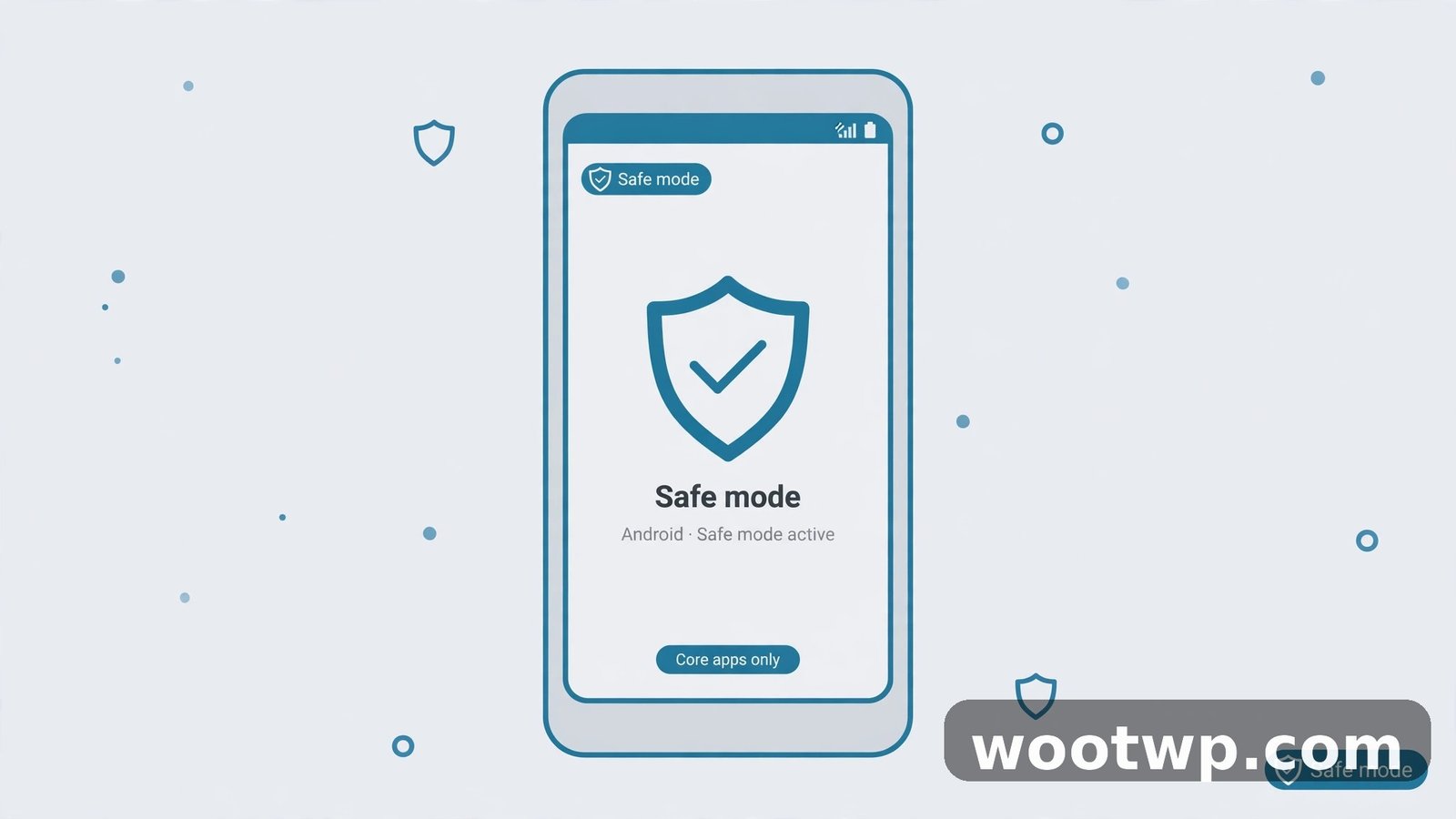
Safe mode starts your phone with all downloaded apps turned off. Only the apps that came with the phone run. If the crashing stops in safe mode, an app you installed is likely the cause. Safe mode is a useful diagnostic when you are learning how to fix apps crashing on Android and several apps are involved at once. If the crashing continues in safe mode, the problem is more likely in the system itself or the phone's hardware.
How to Start Safe Mode
- Hold the Power button until the power menu appears.
- Touch and hold Power off until you see the Reboot to safe mode prompt. On Samsung, hold Power off in the power menu, then tap Safe mode.
- Tap OK or Safe mode. The phone restarts, and you will see "Safe mode" in a corner of the screen.
- Test the apps that were crashing. Note that downloaded apps will be greyed out in safe mode, so you can only test the built-in apps directly. The useful test is whether the phone itself stops freezing and crashing.
How to Leave Safe Mode and Find the Culprit
- Restart the phone normally to leave safe mode.
- If the problem went away in safe mode, uninstall recently installed or updated apps one at a time, starting with the most recent. Restart and test after each removal.
- Pay special attention to apps you installed just before the crashing started, and to apps with device-admin or accessibility permissions.
Safe mode does not delete anything. It is a diagnostic tool only. Do not stay in safe mode as a workaround — find the app that causes the problem and remove it.
When to Reinstall, Archive, or Reset the App
Reinstalling gives the app a completely fresh start. It is the right step when the cache, updates, and force stop did not help, and only one app is crashing. But reinstalling deletes the app's local data, so check your backup first. If the app stores your data in your online account — as most messaging, email, banking, and social apps do — signing back in restores it. If the app stores data only on your phone, such as an offline note app or a game without an account, reinstalling can delete that data for good. Check the app's backup or sync settings before you remove it.
Archive the App First on Android 15 and Later
On Android 15 and later, you can archive an app instead of uninstalling it. Archiving removes the app's software and temporary files but keeps your data and the app icon, so restoring it is quicker and safer than a full reinstall.
- Open Settings, Apps, and tap the app.
- Look for Archive or go to the Play Store, open the app's page, and look for the archive option.
- Archive the app, then tap the icon or the Play Store page to restore it.
- Open the app and test it.
If archiving is not available on your phone, or it does not fix the crash, move on to a full reinstall.
How to Reinstall an App Properly
- Check that your data is synced or backed up. Open the app's settings and look for backup, sync, or account options.
- Touch and hold the app icon and tap Uninstall, or go to Settings, Apps, tap the app, and tap Uninstall.
- Restart the phone. This clears any leftover state from the old install.
- Open the Google Play Store, search for the app, and install it fresh.
- Sign in and test the same action that crashed before.
If a freshly installed app still crashes on the first open, the problem is almost certainly a bug in that app version or a clash with your Android version. Contact the developer through the Play Store page, report the crash, and check whether an older version or a beta version is available. Do not download the app from unofficial sites to get an older version — those copies can carry malware, which brings its own problems. If you suspect malware is involved at all, read our guide on how to check if your phone is hacked before you install anything else.
Clear Storage as a Last App-Level Step
If you would rather not reinstall, clearing storage is the closest equivalent. It resets the app to its fresh-install state without removing the app itself.
- Open Settings, Apps, and tap the app.
- Tap Storage and cache.
- Tap Clear storage or Clear data.
- Confirm, then open the app and sign in again.
Only do this after you have confirmed your data is backed up or synced. For most people, archiving or reinstalling is safer and easier to understand than clearing storage, because the steps are the same ones you already know.
What to Do If Nothing Stops the Crashing
If you have tried every fix above and still need to know how to fix apps crashing on Android, the problem has moved past a single app. Work through these last checks before you consider a factory reset.
- Check for overheating. A phone that is very hot will slow down and close apps to protect itself. Let it cool, remove the case, and stop charging while you use it. If it overheats during normal use in a cool room, that needs a repair check.
- Remove the SD card, if your phone has one. A failing SD card can crash apps that read from it, especially camera and gallery apps. Remove the card, restart, and test. If the crashes stop, back up the card's contents and replace the card.
- Check for a system WebView problem again. Updates can arrive in waves. Check the Play Store for WebView and Chrome updates once more, a day or two later.
- Back up, then factory reset — only as a last resort. A factory reset erases everything on the phone and returns it to its out-of-the-box state. Back up photos, contacts, messages, and app data first, using your Google account backup and your phone maker's backup tool. Then go to Settings, System, Reset options, Erase all data (factory reset). Set the phone up fresh and install apps one at a time, testing as you go. If crashes return on a fresh phone with only a few apps installed, the problem is likely hardware, and the phone needs service.
- Get help from the maker. If the phone is under warranty, or the crashes started after an official update, contact the maker's support with your model, Android version, and the names of the crashing apps. That detail helps them confirm a known issue faster than a general "my phone crashes" report.
For step-by-step help with the system side of the problem, Google's own Android Help pages cover fixing an app that is not working, safe mode, and system updates. Start there if you want the official wording for your exact Android version.
Frequently Asked Questions About Apps Crashing on Android
Why do my Android apps keep crashing all of a sudden?
A sudden wave of crashes usually follows an app update, an Android System WebView update, or an Android system update. Update the crashing app, WebView, and Chrome, restart the phone, and clear the app cache. If many apps crash on the same day, WebView and Chrome are the first things to check, because many apps share them.
How do I fix an app that keeps stopping on Android?
Restart the phone, update the app, force stop it, and clear its cache in Settings, Apps, Storage and cache. If it still keeps stopping, clear its storage or reinstall it after checking your data is backed up. Test the app after each step so you know which fix worked.
Does clearing the cache delete my data or log me out?
No. Clearing the cache deletes temporary files only. It does not delete your account, logins, photos, or settings inside the app. Clearing storage is different — that deletes app data and signs you out, so only use it when your data is backed up or synced.
Why does only one app crash while the rest work fine?
When one app crashes and the rest are fine, the problem is almost always that app: a buggy update, damaged cache, a missing permission, or a conflict with your Android version. Work through the app-level fixes in this guide, and check the app's Play Store reviews to see if other users report the same crash after the latest update.
What is Android System WebView and why does it crash apps?
Android System WebView is a built-in part of Android that lets apps show web pages inside the app. Many apps use it, so a buggy or outdated WebView can crash lots of unrelated apps at once. Updating WebView and Google Chrome from the Play Store usually fixes it. Do not uninstall WebView updates unless a guide for your exact phone tells you to.
Should I factory reset my phone to fix crashing apps?
Only as a last resort, after you have tried updates, cache clearing, safe mode, and reinstalling the crashing apps. A factory reset erases everything, so back up first. If crashes continue on a freshly reset phone with few apps installed, the cause is likely hardware, and the phone needs a repair check instead of more software fixes.
Conclusion: Fix the Cause, Not Just the Crash
Learning how to fix apps crashing on Android is mostly about working in the right order. Restart and update first, clear the cache next, and only then move to reinstalling or resetting. That order fixes most crashes without risking your data, and it tells you what actually caused the problem. If one app crashes, fix that app. If many apps crash together, check WebView, Chrome, storage, and the system update first. And if nothing helps, back up and get the phone checked — a crash that survives a fresh start is telling you something the software fixes cannot.