
How to Create a QR Code for Free: 7 Easy Steps That Work
You need a code you can print, share, or stick on a poster, and you do not want to pay for it or hand over your email address first. Learning how to create a QR code for free takes less than a minute once you know where the free tools hide, and the code you make can keep working for years. This guide shows you the four free methods that work, starting with the one already built into your browser.
A QR code is a square barcode that a phone camera can read. Point a camera at it and the phone opens a website, joins a Wi-Fi network, saves a contact, or starts an email. No extra app is needed on most modern phones. The trick is picking the right kind of code before you make it, because that choice decides whether it keeps working or stops when a paid trial ends.
- Static vs Dynamic QR Codes: The Choice That Decides Whether Your Code Keeps Working
- How to Create a QR Code for Free in Chrome
- How to Create a QR Code for Free in Microsoft Edge
- How to Create a QR Code for Free With a Web Generator
- How to Create a QR Code for Free on Your Phone
- How to Customize a QR Code Without Breaking It
- Test and Print Checklist for Your Free QR Code
- Why Your QR Code Will Not Scan and How to Fix It
- Frequently Asked Questions About Free QR Codes
- Conclusion: Your Free QR Code in Minutes
Static vs Dynamic QR Codes: The Choice That Decides Whether Your Code Keeps Working
Before you make anything, decide between a static code and a dynamic code. Most of the traps people fall into come from picking the wrong one, so it is worth one minute of your time.
What a static QR code does
A static QR code holds the data itself. The web address, the Wi-Fi password, or the contact details are encoded right inside the pattern of black and white squares. When someone scans it, their phone reads that data directly, with nothing in the middle that needs to stay switched on.
That is why a static QR code does not expire while the destination itself still exists. A code pointing at your website keeps working as long as that page stays live. A code holding your Wi-Fi login keeps working until you change the password. You cannot edit the destination later, and you cannot count scans, but for most everyday uses that trade is well worth it.
What a dynamic QR code does
A dynamic QR code holds a short redirect link instead of your real destination. Scans go to a server run by the generator company, which sends the phone on to your page. That middleman makes two extras possible: you can change the destination later without reprinting, and you can count scans.
The catch is that the middleman usually charges. Many sites advertise a free dynamic code, then ask for payment after a short trial or limit how many scans you get. If that company closes, changes its terms, or lets your account lapse, every printed code routing through it can stop working at once. I have seen small shops print hundreds of menus and flyers, only to find the codes dead a year later.
Pick a static code for almost everything: a website link, a Wi-Fi login, a contact card, a text note, an email address, or a phone number. Pick a dynamic code only when you truly need to change the destination after printing or need scan counts, and you are willing to pay a service you trust for as long as the code stays in use.
How to Create a QR Code for Free in Chrome
Chrome has a built-in maker, so you need no website or extension for a simple website code. It makes a static code for the page you are viewing, in about ten seconds.
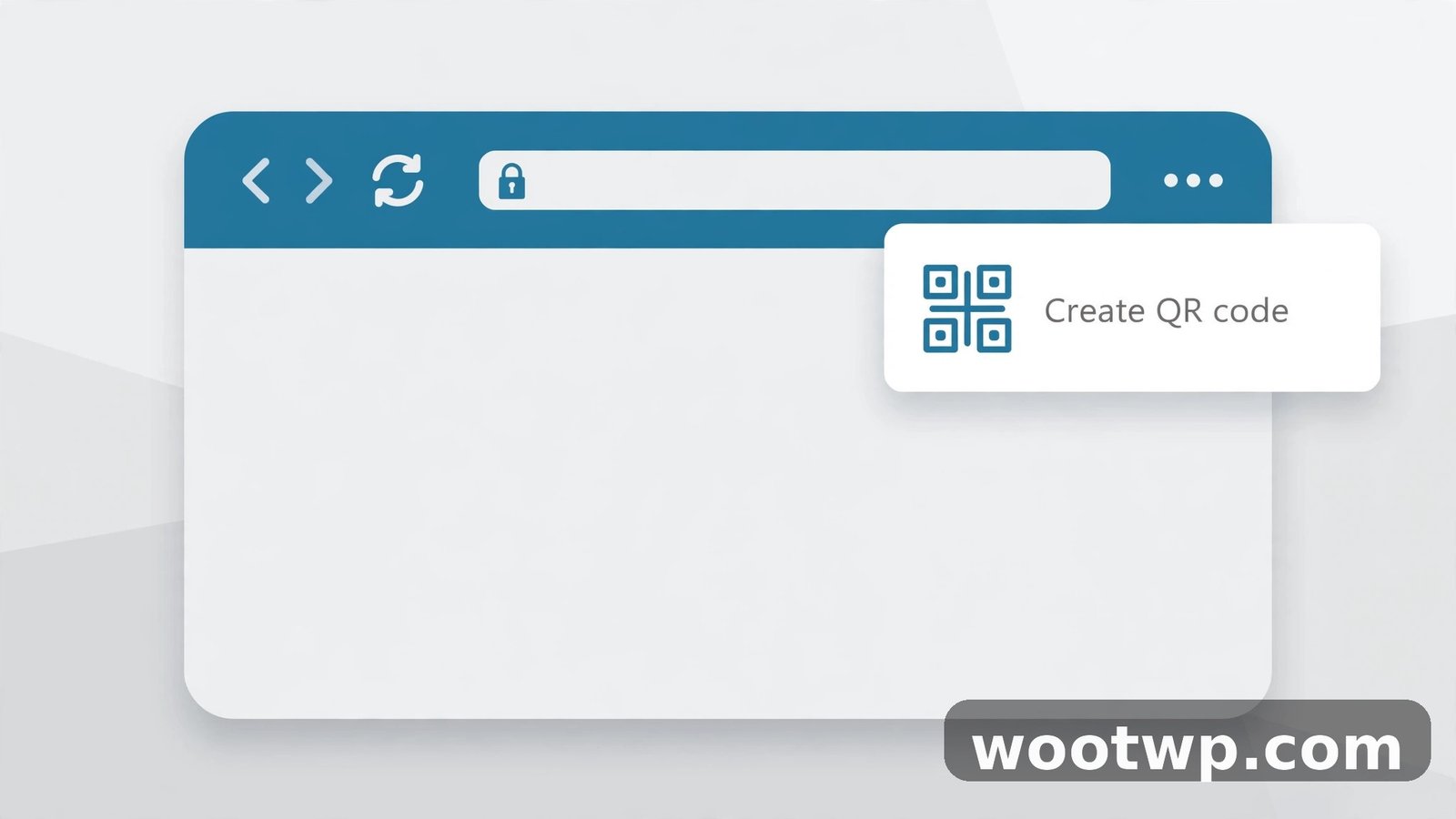
- Open Chrome on your computer and go to the exact page you want to share.
- Check the address bar. Make sure it shows the final page, not a login screen or a search result.
- Click the More menu, the three dots in the top right corner.
- Choose Cast, save, and share, then choose Create QR code.
- A pop-up shows your code. Scan it with your phone to check it, or click Download to save it as a PNG image.
You can also right-click on a blank part of the page and choose Create QR code for this page, if that option shows in your menu. Both routes give the same result.
Chrome's code is plain black and white, with a small dinosaur shape in the center. You cannot change the color or add a logo, and you cannot make a Wi-Fi or contact code this way. For a QR code for website link sharing, though, it is the fastest free option there is. Google's own help pages describe the same steps for sharing tabs in Chrome with a QR code, so check there if your version looks slightly different. If the option is missing, update Chrome first. Work and school accounts can have sharing switched off by an administrator. If Chrome is misbehaving in other ways, this guide to how to clear cookies in Chrome can help you reset it before you try again.
How to Create a QR Code for Free in Microsoft Edge
Edge has its own built-in maker, and it works in much the same way. It is a good choice if Edge is already your main browser on Windows or Mac.
- Open Edge and go to the page you want to share.
- Right-click on a blank area of the page.
- Choose Create QR code for this page.
- A small panel shows the code and the address it holds. Scan it with your phone to check it.
- Click Download to save the code as a PNG file, or use the copy option to paste it into a document.
After the first time you use it, Edge may also show a small QR code icon in the address bar. Clicking that icon opens the same panel for the page you are on. Like Chrome, Edge only makes codes for web pages, and the result is a plain static code with no color or logo options. Microsoft describes the feature on its QR code generator page for Edge, which is worth a look if the menu item does not appear in an older version. Update Edge, then check the right-click menu again.
How to Create a QR Code for Free With a Web Generator
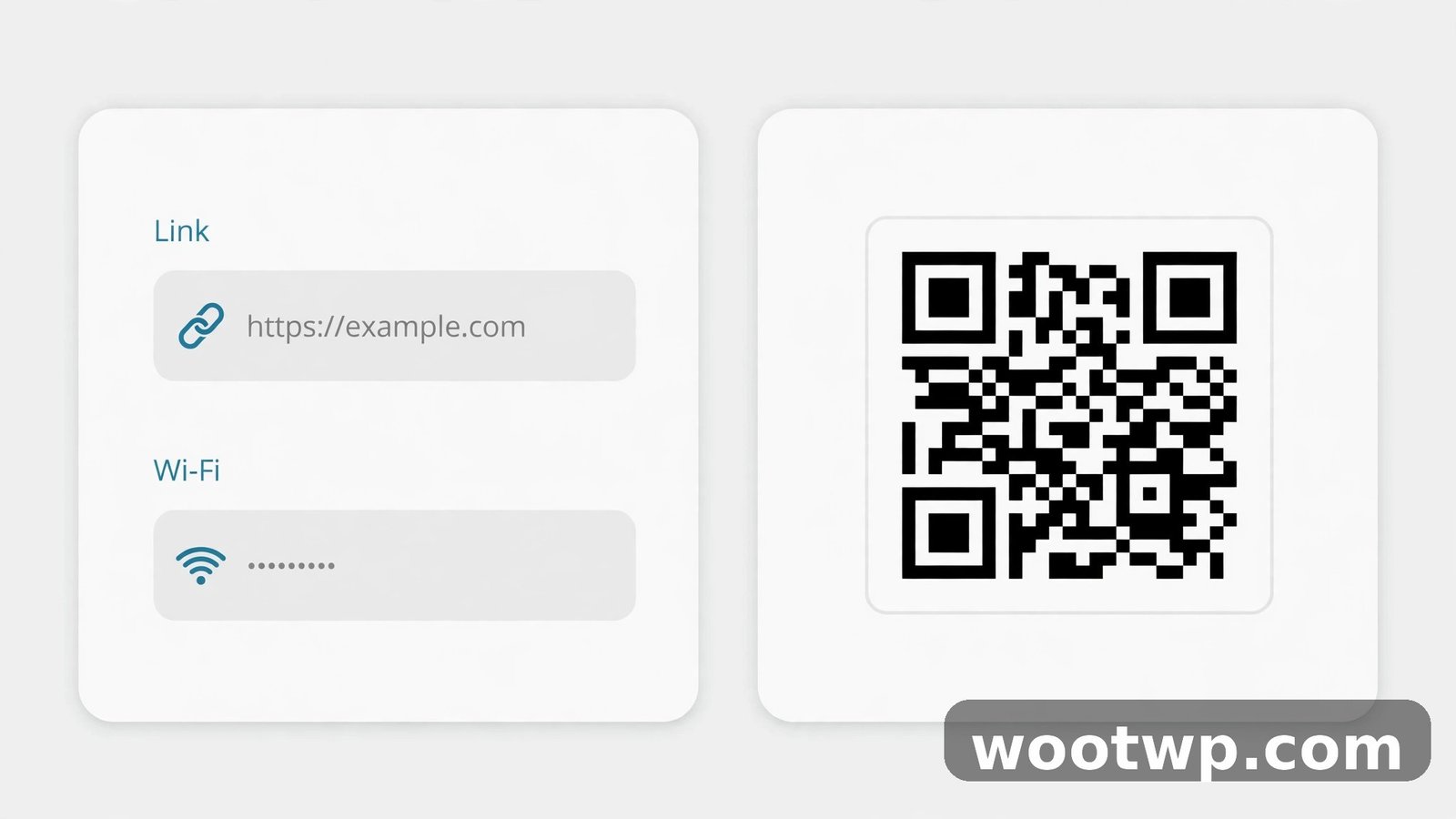
When you need more than a website link, a web generator is the way to go. This is the method for a QR code for WiFi password sharing, a contact card, a text note, an email, or a phone number. A good free QR code generator needs no account, makes static codes, and lets you download the image without a watermark or a scan limit.
The steps below describe the pattern most reputable no-sign-up generators follow. Button names may differ slightly from one site to another, but the flow is the same.
- Open a free QR code generator in your browser. You can try the free QR code generator tool here on this site, which needs no sign-up.
- Pick the type of code you need: URL, Wi-Fi, contact, text, email, or phone.
- Enter the details carefully. For a link, paste the full address, starting with https. For Wi-Fi, enter the exact network name, the password, and the security type.
- Choose Static, not Dynamic, if the site asks. If the only free choice is dynamic, stop and use a different generator, or use your browser's built-in maker for a link.
- Generate the code and preview it. Check that the address or details shown match what you typed.
- Download the code as a PNG. Save it at the largest size offered, so it stays sharp when printed.
Make a QR code for WiFi password sharing
A QR code for WiFi password sharing is one of the most useful codes you can make. Guests scan it and join your network without typing a long password or asking you to spell it out. Choose the Wi-Fi type, type the network name exactly as your phone shows it, including capital letters and spaces, and enter the password exactly as well. Pick the right security type, usually WPA or WPA2 for a home router. Test it with a phone that is not already connected to that network, and ideally with a guest's phone, before you print it.
Make a code for a contact, an email, or a phone number
Choose the contact type and fill in the name, phone number, and email address. Phones save this as a contact card, sometimes called a vCard, when scanned. Keep it short. A code holding a name and one number scans far more reliably than one stuffed with a job title, three addresses, and a long note. For email, enter the address and a subject line if the generator allows it. For a phone number, include the country code. In my experience, contact codes are the ones people mistype most often, so read every field twice before you generate the code.
Watch out for sign-up traps and expiring codes
This is where free offers turn costly. Be suspicious of any generator that asks you to create an account before it shows the code, shows the code then asks for payment to download it at a usable size, defaults to a dynamic code and hides the static option behind a plan, says the code expires after a set number of days or scans unless you pay, or adds its own branding across the code unless you upgrade. A genuine free static code needs none of that. Close the tab and try another generator, or fall back to Chrome or Edge for a link. Your printed code should never depend on a free trial staying active.
How to Create a QR Code for Free on Your Phone
You can make codes without a computer too. The steps depend on your phone, but the idea is the same: share a page as a QR code, or use a generator in your mobile browser.
On Android
In Chrome on Android, open the page you want to share, tap the More menu, tap Share, then choose QR Code. You can scan the code from another phone right away, or download it. This makes the same kind of static code as Chrome on a computer. A QR code for website link sharing made this way works exactly like one made on a computer. If you need a Wi-Fi or contact code, open a free QR code generator in your mobile browser and follow the same steps as on a computer. Type slowly on a small keyboard, and double-check the network name and password. To check how a code behaves when scanned, our guide on how to scan a QR code on Android without any app walks through the camera method step by step.
On iPhone
On an iPhone, open the page in Safari and tap the Share button to copy the link. Safari does not have a built-in QR maker in the same way Chrome does, so the simplest free route is to open a web generator in Safari, paste the link, and download the code. Save it to Photos, then share or print it from there. Whichever phone you use, test the finished code on a second phone before you rely on it.
How to Customize a QR Code Without Breaking It
A plain black code works fine, but once you know how to create a QR code for free, a little customization can help it fit a poster or a business card. The rule is simple: keep it readable first, and treat every decoration as a risk to scanning.
Colors, logos, and shapes
Dark squares on a light background scan best. Black on white is the safest choice, and dark navy or dark green on white usually works too. Avoid light squares on a dark background, low-contrast pairs like yellow on white, and busy photo backgrounds behind the code. A small logo in the center is fine if it covers only a tiny part of the code. A large logo or rounded squares that blur the edges can make the code harder to read, especially from a distance or in poor light. If you add a logo, test the code at the size you plan to print it, on two different phones.
Error correction: your safety net
QR codes include error correction, which means part of the pattern can be damaged or covered and the code still reads. Generators often let you pick a level, from low to high. A higher level lets more of the code be hidden, but it also makes the pattern denser, which can hurt scanning at small sizes. For most uses, the medium or quartile setting is a good balance. Pick the high setting only if you plan to place a logo in the center or print where the code might get scuffed, and print it larger to make up for the denser pattern. Never place a logo on a code made with low error correction.
Test and Print Checklist for Your Free QR Code
Never print a code you have not tested. A code on a thousand flyers with one wrong letter in the link is a thousand wasted flyers. Run through this checklist first, since learning how to create a QR code for free is only half the job, and checking it is the other half.
- Scan the code with two different phones, ideally one Android and one iPhone, using the normal camera app.
- Check that it opens the exact page, network, or contact you intended, not a near miss.
- Print one test copy at the real size, then scan the printed copy from the distance people will actually stand at.
- Print at a minimum of about 2 by 2 cm, or about 1 inch square, for a code scanned up close. Go bigger for posters, shop windows, and anything read from more than an arm's length away.
- Keep high contrast: dark code, light background, no pattern behind it.
- Leave a quiet zone, a clear white margin around all four sides, at least as wide as a few of the small squares. Do not let text or a border crowd the edge of the code.
- Use a sharp, high-resolution image. A blurry or stretched code fails far more often than a small one.
Why Your QR Code Will Not Scan and How to Fix It
Most scanning failures come from a short list of causes, and each one has a quick fix. Even when you know how to create a QR code for free, a small mistake in size, contrast, or typing can stop a code from reading, so work through them in order.
The code will not scan at all
The code is probably too small, too low in contrast, or printed from a blurry image. Print it larger, switch back to black on white, and download the largest PNG the generator offers. Also check the quiet zone. A code with text or a border touching its edges often fails even when everything else is right.
It scans, but it opens the wrong link
This is almost always a typo in the address you pasted. Open the code with your phone, look at the address shown before you tap it, and compare it letter by letter with the page you meant. Regenerate the code with the correct address and test it again.
It worked before, and now it does not
If the code is static, the destination probably changed. The page may have moved, the site may be down, or the Wi-Fi password may have changed. If the code is dynamic and it stopped working, the service behind it may have ended a trial, hit a scan limit, or closed an account. This is exactly why static codes are the safer choice for anything you print.
The code looks faded or washed out
Faded print, glossy glare, and pale colors all hurt scanning. Print on matte paper if you can, keep the code dark, and avoid placing it where direct sun or a bright lamp glares across it. On a shop window, test the code from outside at different times of day, since glass reflections change with the light.
Frequently Asked Questions About Free QR Codes
These are the questions I hear most from readers learning how to create a QR code for free.
How long does a free QR code last?
A static QR code lasts as long as its destination lasts. A code pointing at a live web page keeps working for years, and a Wi-Fi code keeps working until you change the network name or password. A dynamic code lasts only as long as the service behind it keeps your account and redirect active.
Can I make a QR code for free without signing up?
Yes. Chrome and Edge make website codes with no account, and many web generators make static codes for links, Wi-Fi, and contacts without asking for an email address. If a site demands an account before it shows your code, close it and use another free option instead.
Do free QR codes expire?
Static codes do not expire on their own. Claims that a free code expires after a set number of days usually mean the site made a dynamic code tied to a trial or a paid plan. Choose a static code, download the image, and keep a copy of the file so you can reprint it any time.
Is it safe to put a QR code with my Wi-Fi password on display?
It is safe in your own home for guests you trust, since anyone who scans it can join your network. Do not display a Wi-Fi code in a public place, on social media, or in a photo that strangers can see. Change your Wi-Fi password and make a new code if a guest code ends up shared more widely than you planned.
What is the smallest size I can print a QR code?
Print at least about 2 by 2 cm, or about 1 inch square, for close-up scanning, and go larger whenever people will scan from a distance. A code holding a long address has a denser pattern than a short one, so long links need more size. Always test a printed copy at the real size before a full print run.
Can I change the link in a QR code after I print it?
Not with a static code, because the destination is baked into the pattern itself. You would need to print a new code with the new link. Only a dynamic code lets you change the destination after printing, and that flexibility usually comes with an ongoing cost.
Conclusion: Your Free QR Code in Minutes
You now know how to create a QR code for free with the browser you already use, a web generator for Wi-Fi and contacts, or your phone when you are away from a computer. Start with a static code, keep it dark on light with a clear margin, and test it on two phones before you print. That one habit, testing before printing, saves more trouble than any fancy design ever will.