
How to Clear Cache on Android Without Deleting Data (7 Ways)
If you want to know how to clear cache on Android without deleting data, the good news is that the safe button and the dangerous button sit right next to each other — and once you know which is which, clearing cache takes about ten seconds per app. Cache files are temporary copies your apps keep so they load faster: thumbnails, bits of web pages, and pieces of videos you already watched. Clearing them frees space and often fixes a misbehaving app, and it does not touch your photos, messages, logins, or settings. This guide shows you the safe method for any app, the Samsung and Pixel differences, how to clear browser cache, the built-in cleanup tools, and the one button you must never tap by mistake.
The fear most people have is fair. Inside every app's storage screen there are two buttons that sound almost the same: Clear cache and Clear storage (or Clear data). One deletes temporary files. The other resets the app as if you just installed it. Tap the wrong one and you lose your saved logins, your offline downloads, and your settings. So the whole skill here is knowing the difference — and then using the right button with confidence.
In this guide:
- Clear Cache vs Clear Data: What Each Button Really Does
- How to Clear Cache on Android Without Deleting Data: The Safe Method
- How to Clear Cache on Samsung Galaxy Phones
- How to Clear Cache on Google Pixel Phones
- How to Clear the Cache in Chrome on Android
- How to Clear Junk Files With Files by Google
- Wiping the System Cache Partition: When It Helps and When to Skip It
- Frequently Asked Questions About Clearing Cache on Android
- Conclusion: Clear the Cache, Keep Your Data
Clear Cache vs Clear Data: What Each Button Really Does
Before you tap anything, learn the difference. It is the single most important thing in this guide.
| Button | What it deletes | What stays | Risk |
|---|---|---|---|
| Clear cache | Temporary files the app can rebuild: thumbnails, saved page fragments, preview images | Logins, settings, photos, messages, downloads, game progress | Very low |
| Clear storage / Clear data | Everything the app stored on your phone, including logins, settings, and offline content | The app itself, which stays installed | High — the app resets to a fresh install |
Clearing the cache is safe enough to do any time. The app simply rebuilds those temporary files the next time you open it, which is why an app may load a little slower on its first launch after a cache clear. That is normal and it only lasts a moment.
Clearing storage is a different tool for a different problem. It is the last resort when an app is broken in a way nothing else fixes, and you should only use it when you are ready to sign in again and set the app up from scratch. If anything in the app has not been backed up or synced, clearing storage deletes it for good. Google's Android help pages describe the same distinction — cache is temporary data your phone can recreate, while app data is the information the app needs to work the way you set it up.
One more thing to know: on some phones the button says "Clear storage" and on others it says "Clear data." They mean the same thing. And on a few phones the cache button is labelled "Clear cache" while the dangerous one hides under a "Manage space" option. Whatever the wording, the rule is the same: cache is safe, storage or data is a reset.
How to Clear Cache on Android Without Deleting Data: The Safe Method
This method works on nearly every Android phone, from Android 10 to the latest version. Menu names vary a little by brand, but the path is the same.
- Open Settings. Find the Settings app and tap it.
- Tap Apps. On some phones this is called Apps and notifications or Application Manager. If you see a "See all apps" option, tap that to get the full list.
- Pick the app you want to clean. Start with the app that is acting up, or the one using the most storage. Heavy apps like YouTube, TikTok, Instagram, Facebook, and Chrome usually hold the most cache.
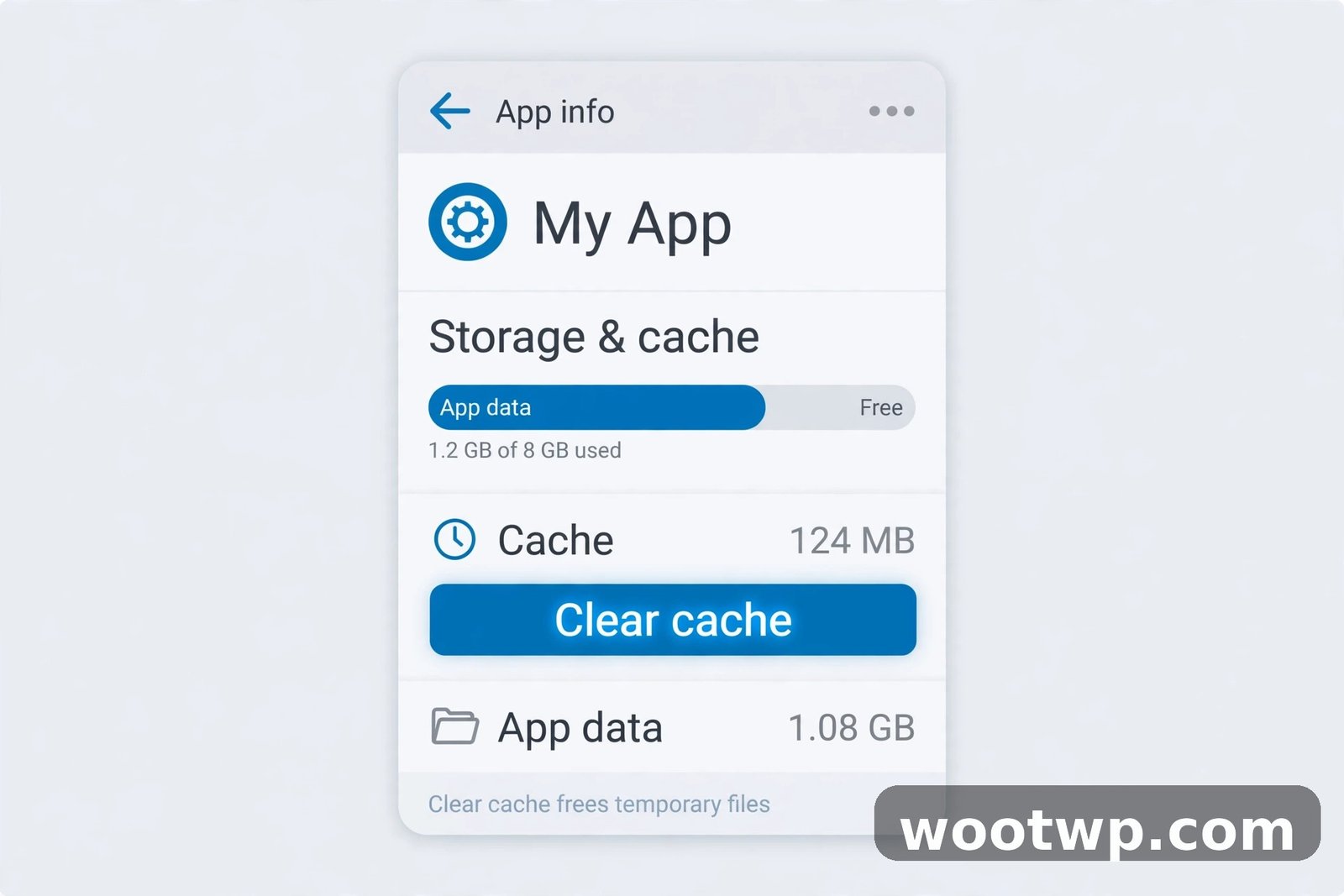
- Tap Storage and cache. On Samsung phones this is just called Storage. On some other brands it may be called Storage and memory.
- Tap Clear cache. That is it. The cache size shown on the screen should drop to zero or close to it.
Do not tap Clear storage or Clear data on that same screen. That is the button that resets the app. If your finger slips, stop — Android usually asks you to confirm before clearing storage, and you can cancel at that prompt.
Repeat the steps for each app you want to clean. There is no single button on most phones that clears every app's cache at once, so work through the worst offenders first. In my experience, clearing the cache of three or four heavy apps is usually enough to free a useful chunk of space and fix the app that was misbehaving.
Which apps are worth clearing first?
You get the best return from apps that store a lot of temporary media. Check the cache size on each app's storage screen and start with the biggest numbers:
- Social and video apps — YouTube, TikTok, Instagram, Facebook, and Snapchat cache thumbnails and video previews constantly.
- Browsers — Chrome and other browsers cache images and pages from every site you visit.
- Shopping apps — product photos pile up fast.
- Maps — offline map tiles and search results can grow large.
Apps you should leave alone unless they are actually misbehaving include your banking app, your authenticator app, and messaging apps with offline content. Clearing their cache is still safe, but there is no benefit in doing it when they are working fine.
How to Clear Cache on Samsung Galaxy Phones
Samsung's One UI renames a couple of menus, and it also offers a bulk cleanup tool that stock Android does not have.
Per-app cache on Samsung:
- Open Settings.
- Tap Apps.
- Select the app.
- Tap Storage.
- Tap Clear cache.
Bulk cleanup with Device Care:
- Open Settings.
- Tap Battery and device care.
- Tap Storage.
- Tap Clean now.
Device Care scans for junk files — mostly cache and leftover temporary files — and clears them in one go. It does not touch your photos, messages, or app data. This is the closest thing Samsung offers to a "clear all cache" button, and it is safe to run once a month or so.
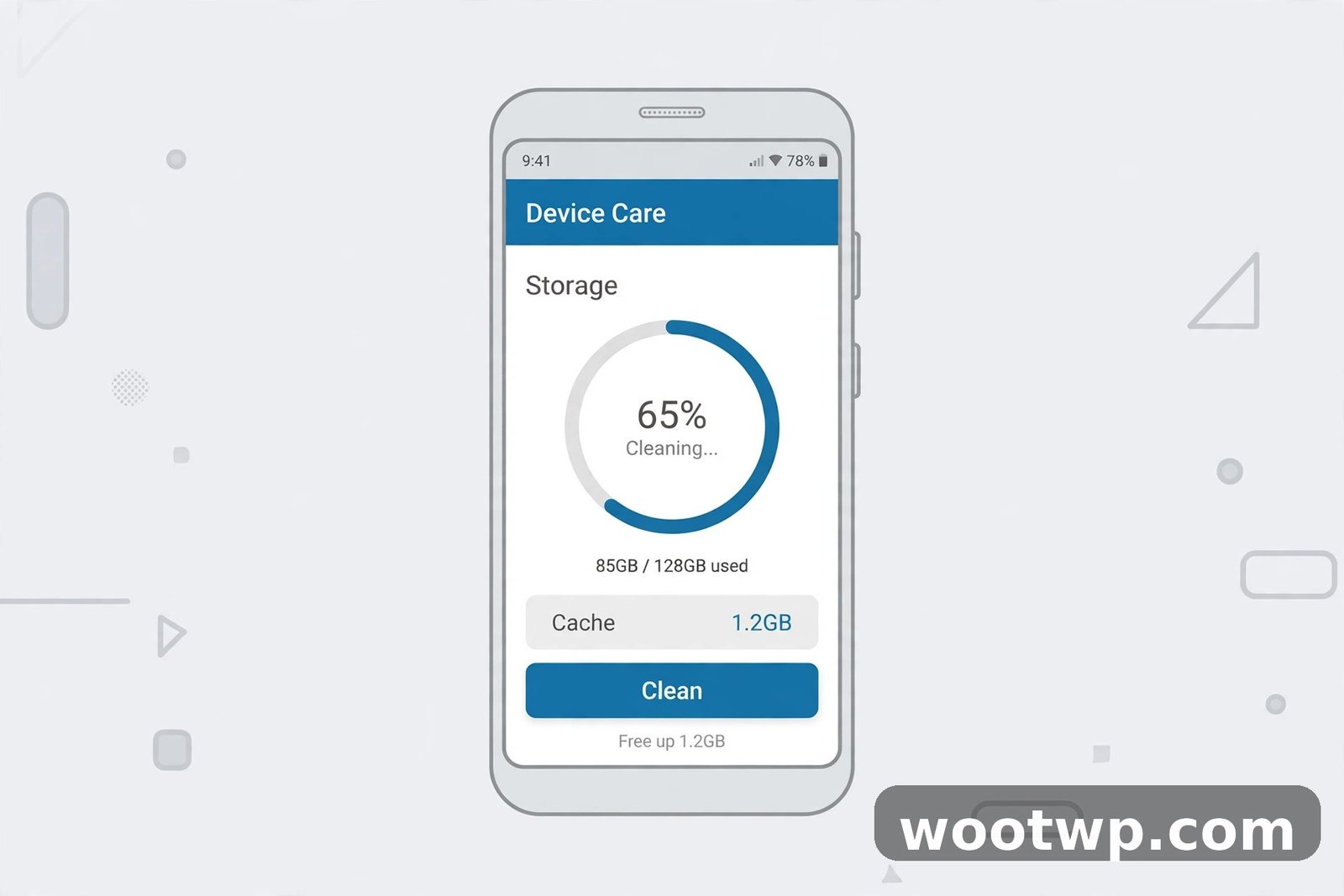
One Samsung warning: the same Storage screen also has a Clear data button. It sits right under Clear cache. Treat it the same way as everywhere else — do not tap it unless you mean to reset the app.
How to Clear Cache on Google Pixel Phones
Pixel phones run stock Android, so the steps match the standard method exactly.
- Open Settings.
- Tap Apps, then See all apps.
- Pick the app.
- Tap Storage and cache.
- Tap Clear cache.
Pixel phones also have a storage manager that can help. Go to Settings, then Storage, and look at the breakdown. If a category like "Other apps" is huge, tap into it to see which apps hold the most data, then clear the cache of the worst ones one by one.
On newer Pixel phones, the recovery-mode cache wipe option no longer exists, so do not go looking for it. The per-app method and the storage manager are the tools you have, and they cover nearly every situation.
How to Clear the Cache in Chrome on Android
Browser cache is the other big pile of temporary files on most phones. Clearing it is safe and does not sign you out of websites — as long as you only tick the cache box and leave the cookies and passwords boxes unticked.
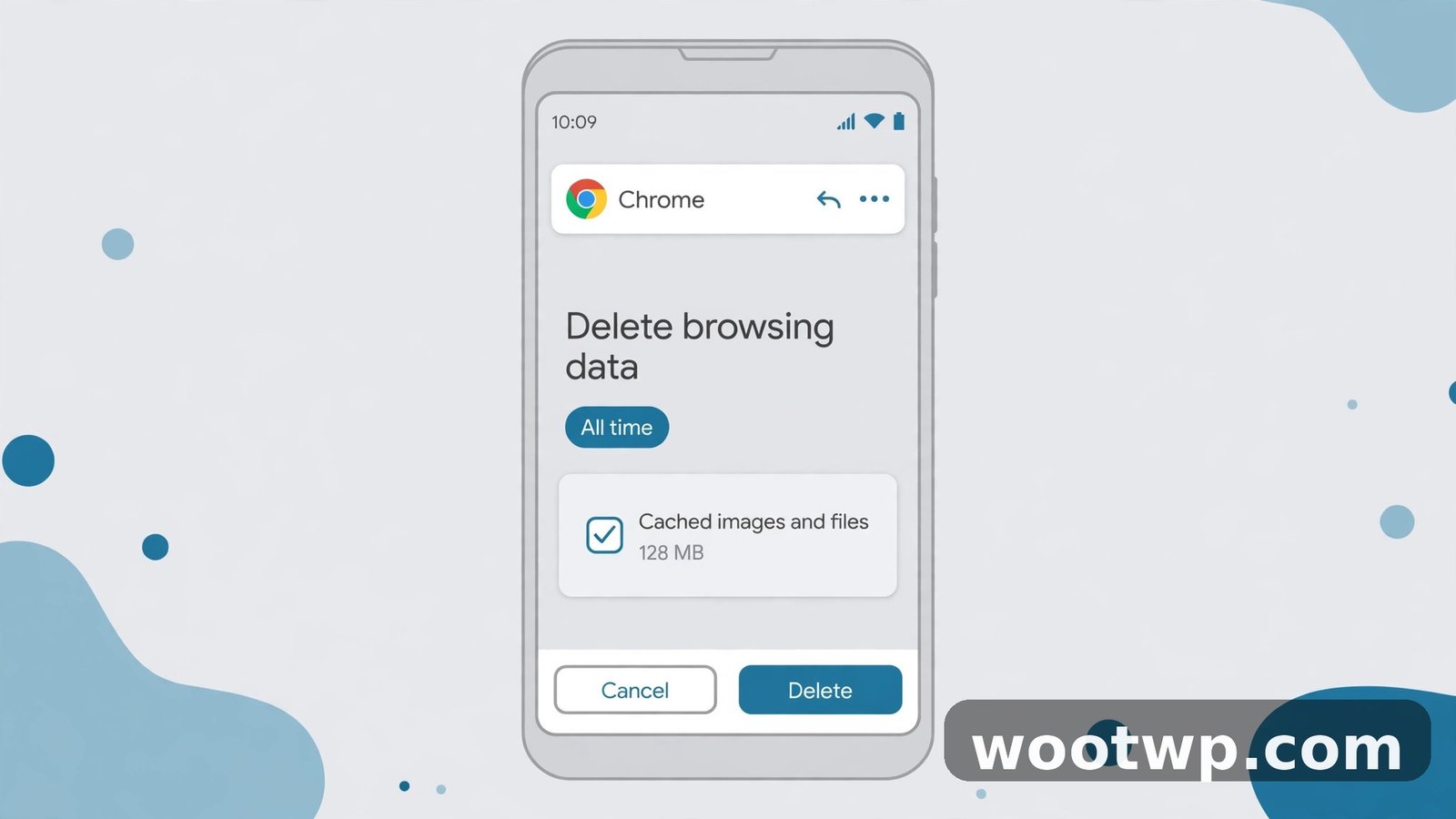
- Open Chrome on your Android phone.
- Tap the three dots in the top-right corner.
- Tap Delete browsing data (on some versions this is under History first).
- Choose a time range — Last hour, Last 24 hours, or All time.
- Make sure only Cached images and files is ticked. Untick "Cookies and site data" and "Saved passwords" if they are ticked.
- Tap Delete data or Clear data.
Your open tabs stay open, and you stay signed in to your sites, because cookies are untouched. The next time you visit a site, it may load a fraction slower while Chrome rebuilds the cached images — that is normal.
If you use Firefox, Edge, or another browser on your phone, the same idea applies: look in the browser's settings under Privacy or History for "Clear browsing data," and tick only the cached images and files option. And if you want a deeper tidy-up of Chrome itself, our guide on how to clear cookies in Chrome walks through the cookie side of the same screen.
How to Clear Junk Files With Files by Google
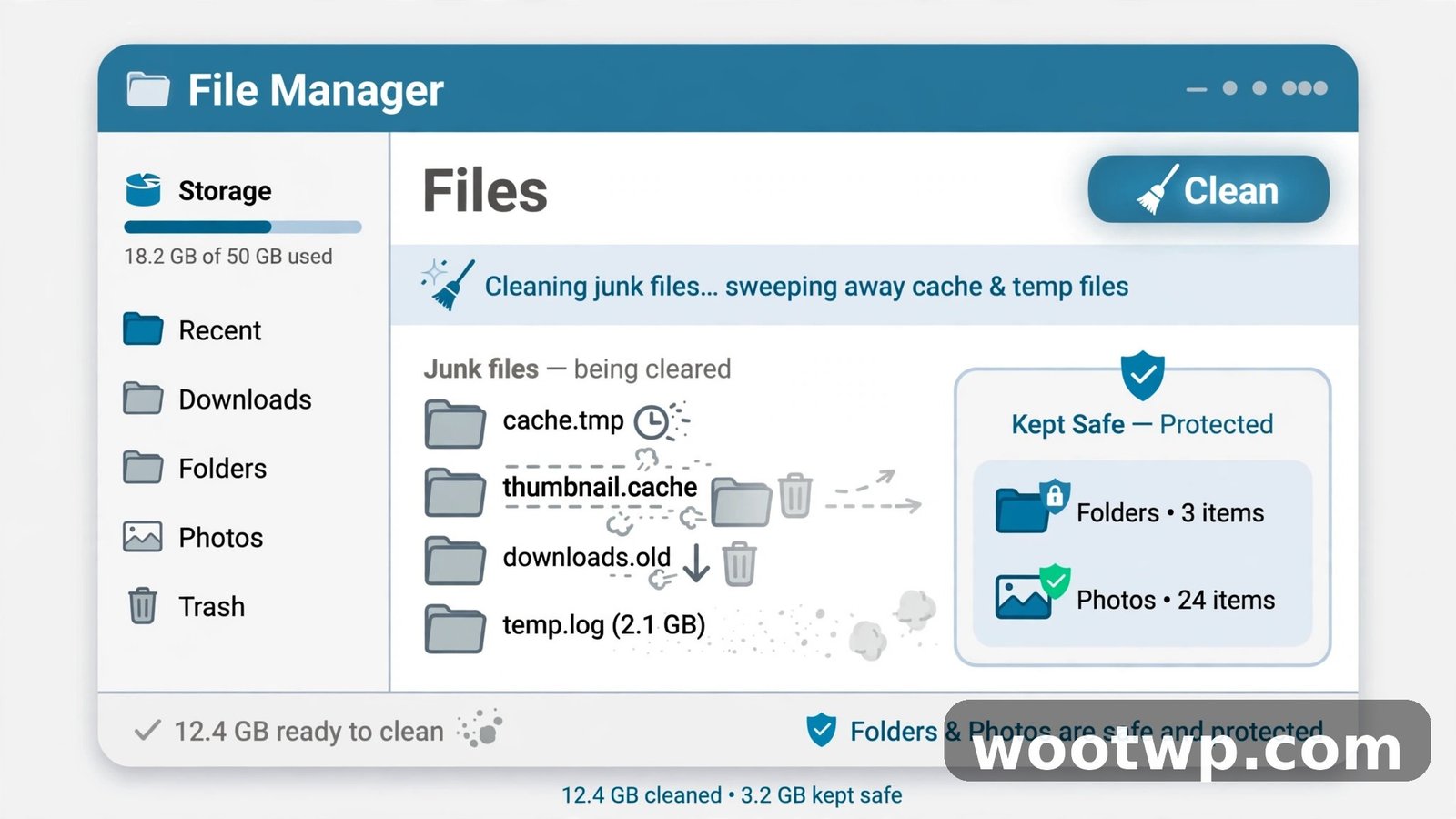
Files by Google is Google's own free file manager, and its Clean feature sweeps up junk files — cache, leftover temporary files, and duplicate files — without touching your personal data. It comes preinstalled on many phones. If yours does not have it, you can install it free from the Play Store.
- Open the Files by Google app.
- Tap the menu icon (three lines) in the top-left corner.
- Tap Clean.
- Look at the Junk files card and tap Clean on it.
- Confirm when asked.
Files by Google shows you exactly what it is about to delete before it deletes anything, and it never includes your photos, videos, or documents in the junk category. It may also suggest deleting duplicate files, old screenshots, or large files you have not opened in a while — those are separate suggestions, and you can ignore them. Only the junk files card is pure cache and temporary data.
This is the easiest method if you want a regular clean-up habit without opening each app one by one. Run it once a month and the junk never builds up.
Wiping the System Cache Partition: When It Helps and When to Skip It
Beyond app cache, Android keeps a system cache partition — temporary files the operating system and preinstalled apps use. Wiping it is an advanced step that used to be a common fix for phones that were slow or glitchy after a system update.
Here is the honest take: on modern Android phones, you almost never need to do this. Android manages its system cache well on its own, and the per-app methods above fix the problems people actually have. Wiping the cache partition does not delete your data, but it requires booting into recovery mode, which carries a small risk if you press the wrong option — the "Wipe data / factory reset" option sits right next to it in the same menu.
If you still want to try it, only do it on a phone where the option exists (many newer Pixels have removed it):
- Turn the phone off completely.
- Press and hold Volume Up and Power together until the recovery screen appears. The button combination varies by brand — Samsung uses Volume Up and Power, some phones use Volume Down and Power.
- Use the volume buttons to highlight Wipe cache partition and press Power to select it.
- Confirm, wait for it to finish, then choose Reboot system now.
Read the screen carefully at every step. If you are not sure which option is highlighted, do not press Power. The per-app cache clear covers the same ground for everyday problems, with none of the risk.
What about cache-cleaner apps from the Play Store?
Most of them do the same thing the built-in methods do, but with ads and extra permissions. Android has restricted what third-party cleaners can do for years, so they cannot clear other apps' caches the way they once could. My advice: skip them. The built-in Settings method and Files by Google are free, safe, and do the same job without handing a random app broad access to your phone. If your phone still feels slow after clearing cache, the problem is usually storage space or an old battery — our guide on how to make your Android phone faster covers the fixes that actually move the needle, and if storage is the real issue, here is how to free up storage on Android without deleting photos.
Frequently Asked Questions About Clearing Cache on Android
Does clearing cache on Android delete my data?
No. Clearing cache only removes temporary files that apps can rebuild, like thumbnails and saved page fragments. Your photos, messages, contacts, logins, settings, and downloaded files stay exactly where they are. Only the Clear storage or Clear data button deletes app data.
Will clearing cache log me out of my apps?
No, not when you tap Clear cache. Your login details are stored in the app's data, not its cache, so you stay signed in. If you tap Clear storage or Clear data by mistake, that does reset the app and you will need to sign in again.
How often should I clear cache on Android?
Only when you need to — when an app misbehaves, when storage is getting tight, or about once a month as light maintenance. Clearing cache every day is pointless because apps rebuild the files within hours, and it can make apps load slightly slower for no benefit.
Does clearing cache make my phone faster?
Sometimes, a little. If a damaged cache file is making an app freeze or crash, clearing it fixes the problem right away. But cache is not the main cause of a slow phone. Low storage, an old battery, or too many background apps matter far more. Clearing cache is a targeted fix, not a speed cure.
What is the difference between clear cache and clear data on Android?
Clear cache deletes temporary files the app can rebuild, and your logins and settings stay. Clear data (or Clear storage) resets the app to the state it was in when you first installed it — logins, settings, and offline content all gone. Use Clear cache first, and only use Clear data when an app is broken and you are ready to set it up again.
Can I clear the cache of all apps at once on Android?
Android has no built-in button that clears every app's cache in one tap. Samsung's Device Care comes closest with its Clean now option, and Files by Google clears junk files across the phone. Otherwise, clear the cache of the worst apps one by one, starting with the ones that hold the most cache.
Conclusion: Clear the Cache, Keep Your Data
Knowing how to clear cache on Android without deleting data is mostly about knowing which button to tap: Clear cache is safe, Clear storage is a reset. Open Settings, go to Apps, pick the app, tap Storage and cache, and tap Clear cache — ten seconds, no data lost. Use Files by Google or Samsung's Device Care for a quick monthly sweep, clear Chrome's cached images when the browser feels heavy, and leave the system cache partition alone unless you have a specific reason to touch it. Your photos, logins, and settings stay put, and the app that was acting up usually starts behaving again.