
How to Change Default Browser on Android: 5 Easy Steps
If you want to know how to change default browser on Android, the short answer is that it takes about a minute and you never have to open the browser itself to do it. Android lets you pick which installed browser opens every link you tap — in your messages, your email, your social apps, everywhere. The problem is that the setting hides under a menu most people never open, so links keep opening in a browser you did not choose. This guide shows you the exact steps for Pixel, Samsung, and older phones, plus the fastest shortcut, how to fix it when the option seems missing, and how to switch back whenever you like.
Every Android phone comes with a browser already set as the default. On most phones that is Chrome. On Samsung phones it is often Samsung Internet. That default stays in place until you change it, and changing it does not delete anything. Your old browser stays installed, your bookmarks stay where they are, and you can switch back with the same steps.
In this guide:
- What Happens When You Change Your Default Browser on Android
- How to Change Default Browser on Android in 5 Steps
- How to Change Default Browser on Samsung Galaxy Phones
- How to Change Default Browser on Older Android Phones
- The Fastest Way: Let Android Ask You Next Time You Tap a Link
- How to Make Chrome the Default Browser on Android
- How to Change Default Browser on Android When the Option Is Missing
- How to Switch Back to Your Old Browser
- Frequently Asked Questions About Changing the Default Browser on Android
- Conclusion: Pick the Browser That Fits How You Browse
What Happens When You Change Your Default Browser on Android
Your default browser is the app Android uses whenever a link needs opening and no specific app claims it. Tap a link in WhatsApp, Gmail, or a news app, and Android hands that link to the default browser. Change the default, and every one of those taps opens in the browser you picked instead.
A few things do not change when you switch:
- Your bookmarks and saved passwords stay in the old browser. Changing the default does not move them. If you want them in the new browser, use that browser's import or sync feature.
- Your old browser stays installed. Nothing is deleted. You can open it from your home screen or app drawer any time.
- Your search engine stays separate. The default browser and the search engine inside it are two different settings. Switching to Firefox, for example, does not change which search engine Firefox uses. You change that inside the browser's own settings.
- In-app browsers are separate too. Some apps, like Facebook and Instagram, open links in their own built-in browser instead of your default. That is controlled inside each app, not by Android's default browser setting.
If you spend most of your time in Chrome, it is worth learning how to clear cookies in Chrome too — a cluttered browser is the second most common reason links feel slow after a switch.
So the change is small and safe. It only decides which app opens links from other apps. If you try a new browser for a week and hate it, switching back takes the same minute.
How to Change Default Browser on Android in 5 Steps
This is the standard method, and it works on Google Pixel phones and most other Android phones running Android 12 or newer. The menu names can vary a little by brand, but the path is the same idea everywhere.
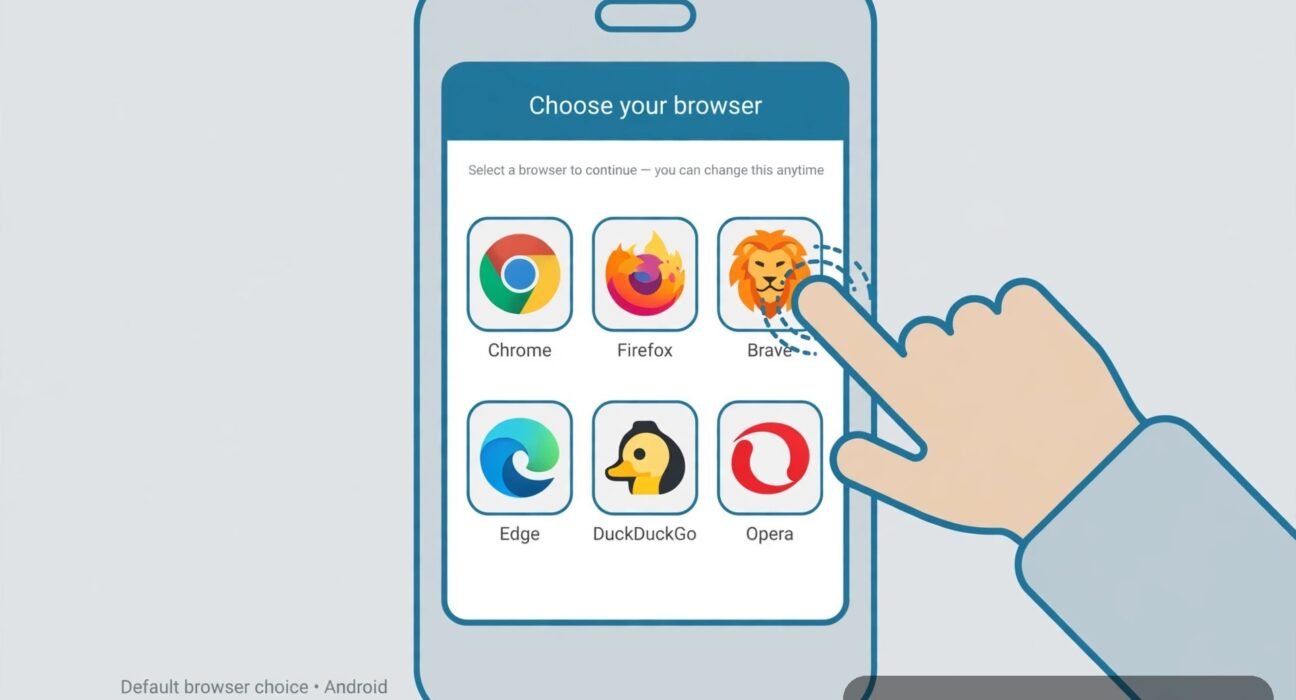
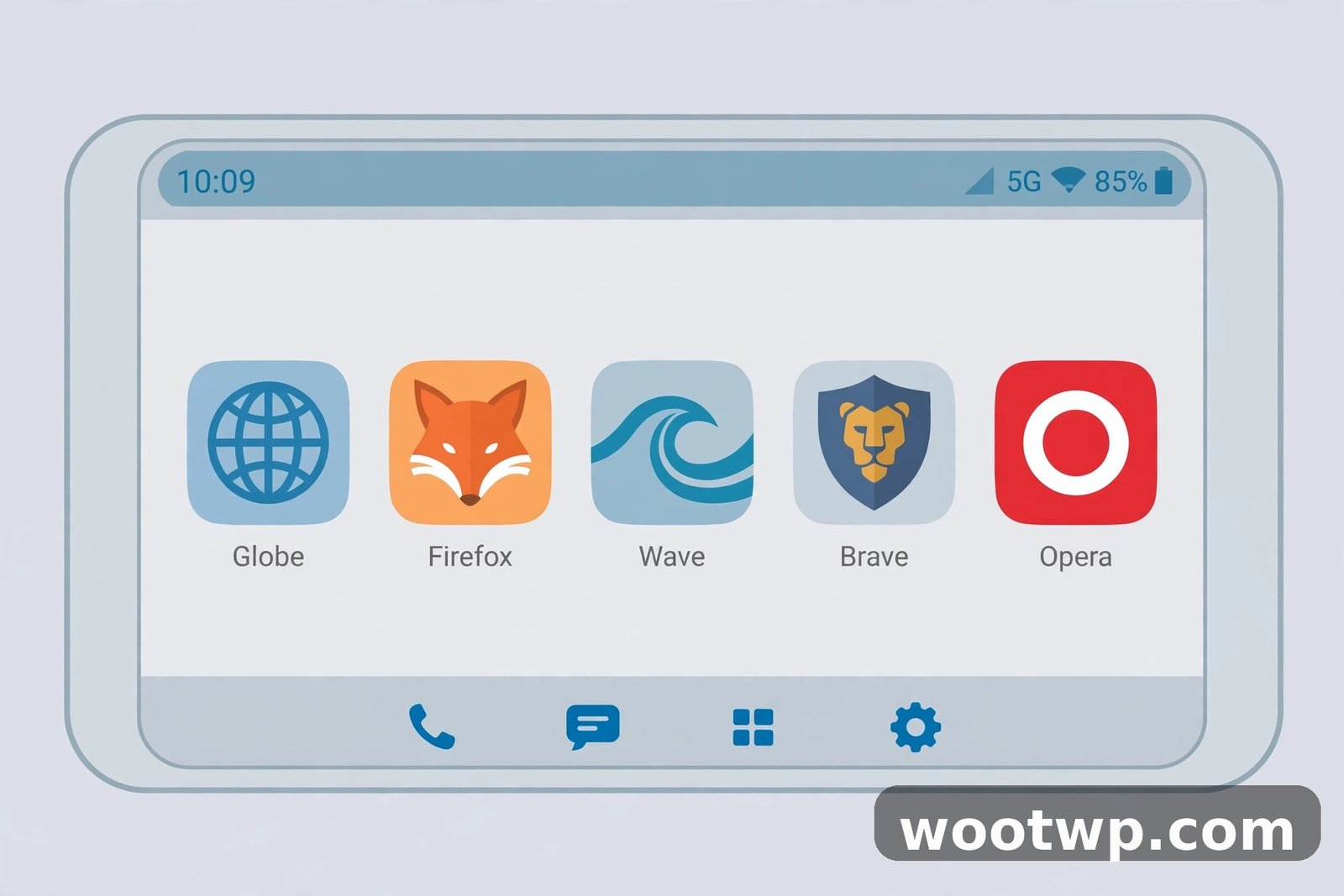
- Install the browser you want first. Open the Play Store, search for the browser, and tap Install. Android can only set a browser as default if it is already on your phone. Popular choices include Chrome, Firefox, Microsoft Edge, Brave, and Opera.
- Open Settings. Find the Settings app on your home screen or in your app drawer and tap it.
- Tap Apps. On some phones this is called Apps and notifications or Application Manager. Scroll down if you need to.
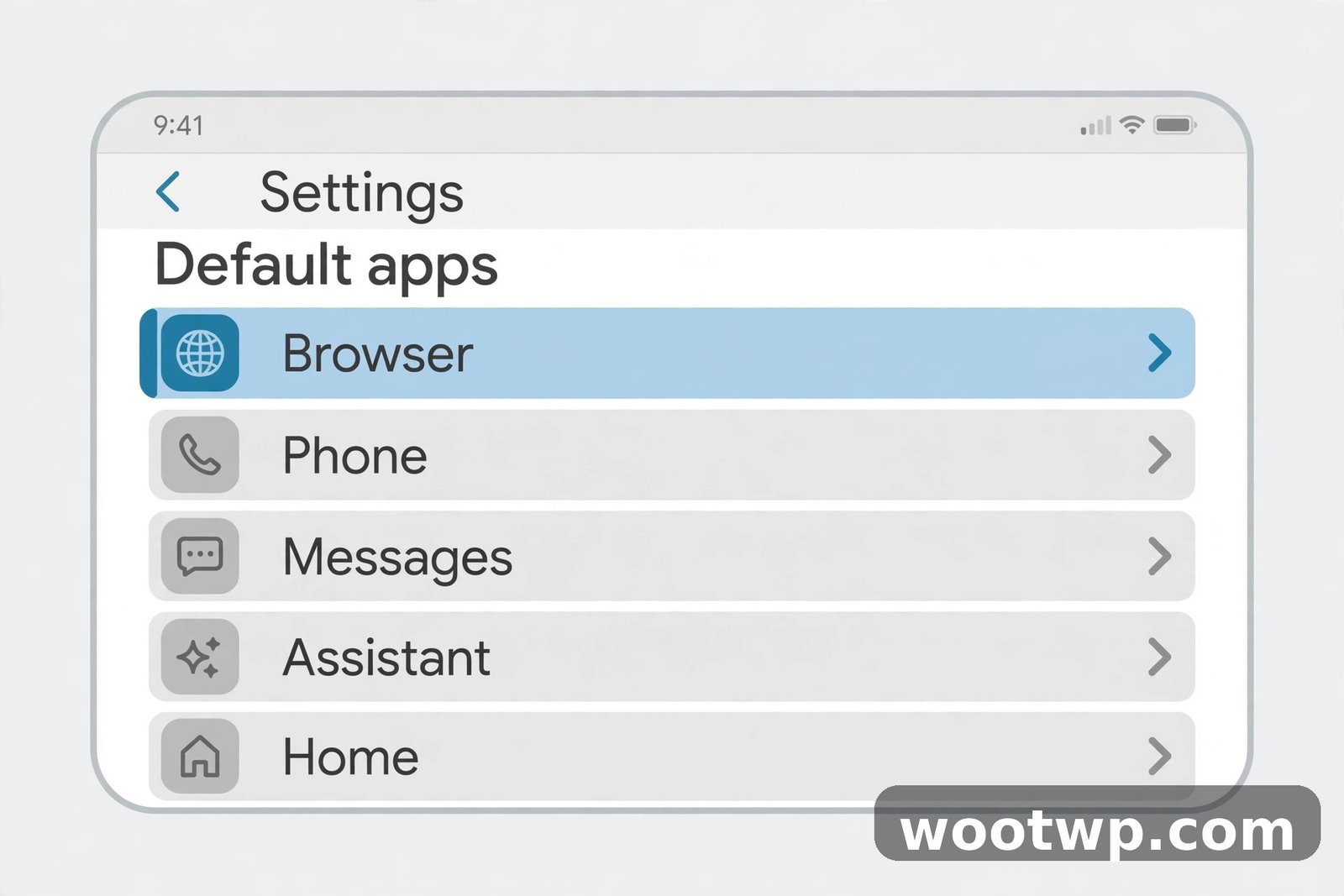
- Tap Default apps. On some phones you may need to tap the three-dot menu in the top corner first, or scroll to the bottom of the Apps screen. Samsung phones call this option Choose default apps.
- Tap Browser app, then pick your browser. You will see a list of every browser installed on your phone. Tap the one you want. A checkmark or a filled circle appears next to it, and the change takes effect right away. There is no save button.
Test it straight away. Open any app with a link — Gmail or your messaging app works well — tap a link, and it should open in the browser you just picked. If it does, you are done. Google's own Android help page on changing the default browser lists these same steps if you ever want to check them against the official guide.
Why the browser you want might not appear in the list
If your new browser does not show up under Browser app, try these fixes in order:
- Open the browser once. Some browsers only register themselves with Android after their first launch. Open it, tap through the welcome screens, then go back to Settings and check again.
- Update it from the Play Store. An old version may not support being set as default. Open the Play Store, search for the browser, and tap Update if the button is there.
- Check that it is really a browser. A few apps that open web pages, like some file managers, do not register as browsers and will never appear in the list. Only a real browser app can be set as the default.
How to Change Default Browser on Samsung Galaxy Phones
Samsung renames a couple of menus, which trips people up. The steps are the same idea, just with Samsung's wording.
- Open Settings.
- Tap Apps.
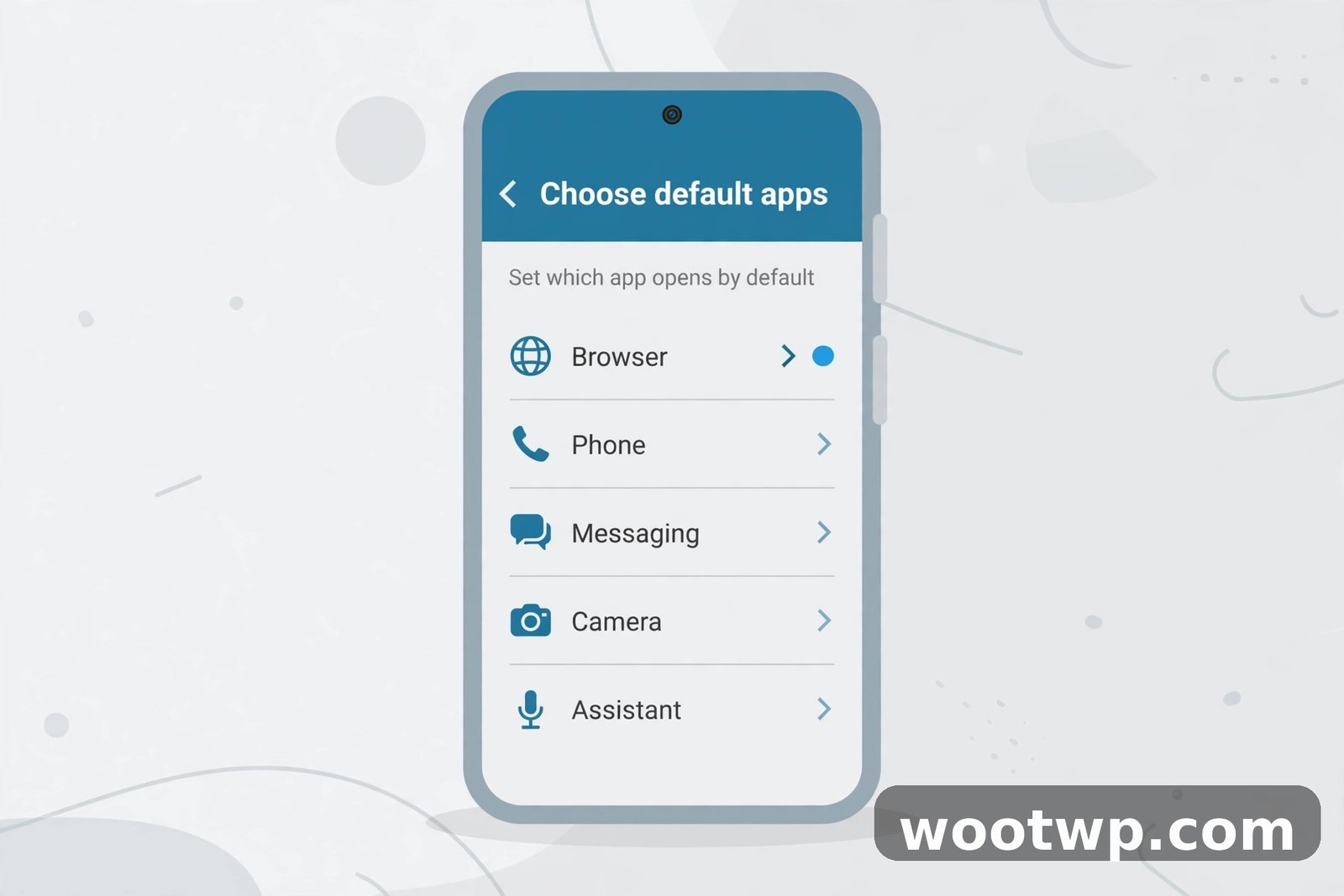
- Tap Choose default apps. On newer One UI versions this sits near the top of the Apps screen. On older versions, tap the three-dot menu and look for Default apps.
- Tap Browser app.
- Choose the browser you want from the list.
One Samsung quirk worth knowing: Samsung Internet is set as the default out of the box on most Galaxy phones, even if Chrome is also installed. If links keep opening in Samsung Internet after you changed the setting, check that you picked the right browser in the list and that the browser you want is up to date. In my experience, the setting itself works fine — the confusion usually comes from picking the wrong entry in a long list of apps.
If you use a Samsung phone with One UI 6 or newer, you can also search for the setting. Open Settings, tap the search icon at the top, and type default. Tap the Default apps result and you land right on the menu.
How to Change Default Browser on Older Android Phones
On Android 11 and earlier, the Default apps menu may not exist, or it may sit in a different place. The method below works on those phones.
- Open Settings.
- Tap Apps or Application Manager.
- Find the browser you want to use as your default in the app list and tap it.
- Look for a button or section called Set as default or Open by default. Tap it.
- Choose the browser from the options shown, or tap Set as default to confirm.
On some older phones, you first need to clear the current default before Android lets you pick a new one. To do that, find your current default browser in the app list, open its app info page, and tap Clear defaults. The next time you tap a link, Android will ask which browser you want to use. Pick your new browser and tap Always.
If your phone runs Android 10 or older and none of these menus exist, the tap-a-link method in the next section still works on every version.
The Fastest Way: Let Android Ask You Next Time You Tap a Link
If you do not want to dig through Settings at all, there is a quicker way that works on every Android phone.
- Open any app that has a link in it — Gmail, Messages, or a news app all work.
- Tap a link.
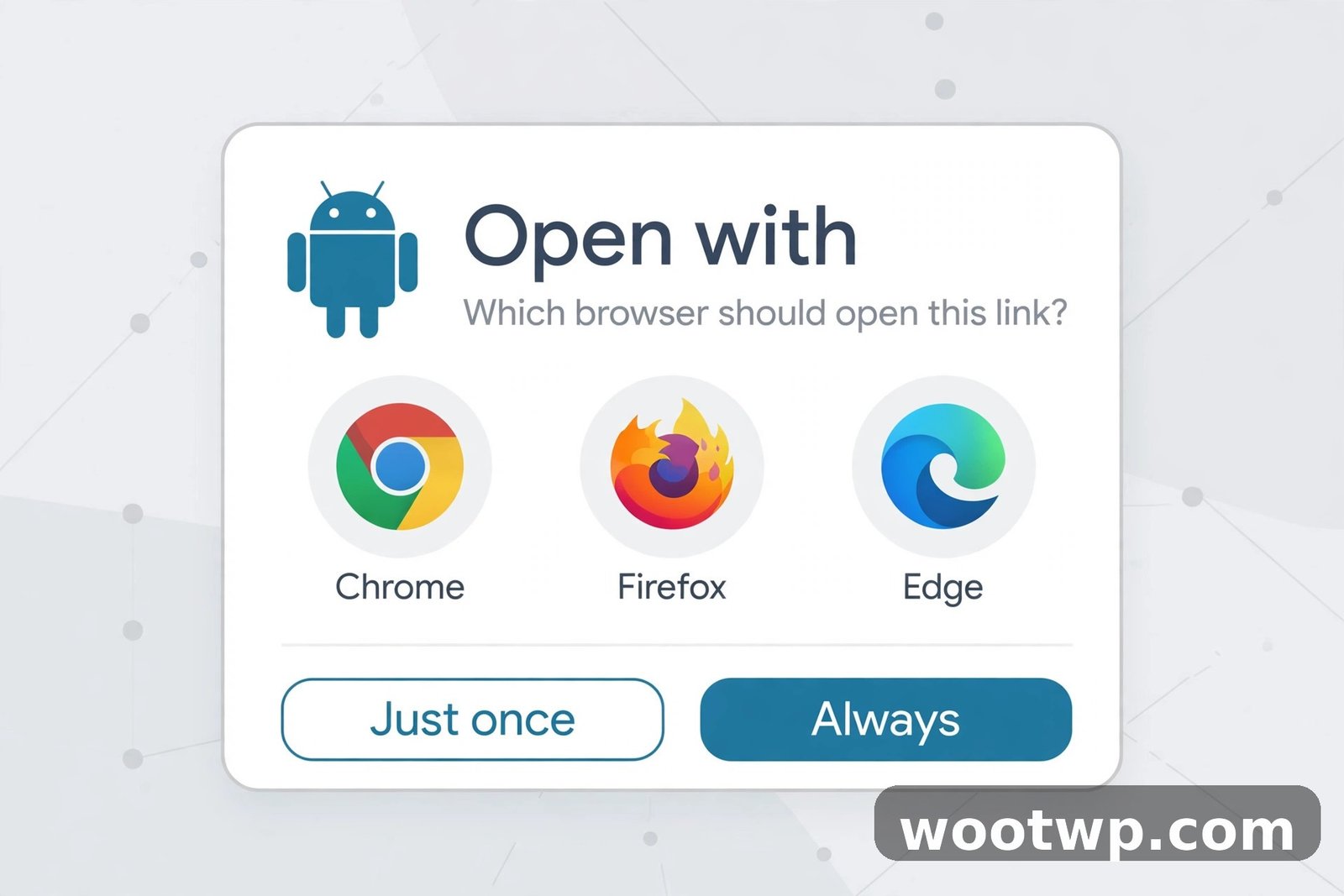
- Android shows a small pop-up with the browsers installed on your phone and two buttons: Just once and Always.
- Tap the browser you want, then tap Always.
Android remembers that choice and uses it for every link from now on. This is the whole job in about five seconds. It also works as a quick test: if you are not sure which browser you prefer, tap Just once for a few days and let yourself compare before you commit.
One catch: this pop-up only appears when Android has no default set, or when you tap a type of link your current default does not handle. If your phone already has a default browser, tapping a link just opens it without asking. In that case, clear the current default first — open Settings, go to Apps, find your current browser, and tap Clear defaults — then tap a link again and the pop-up will appear.
How to Make Chrome the Default Browser on Android
Chrome is the most common choice, and many people switch to it after trying another browser, or switch back to it from Samsung Internet. The steps are the same as the standard method, with Chrome as the pick.
- Make sure Chrome is installed and updated from the Play Store.
- Open Settings, then tap Apps.
- Tap Default apps (or Choose default apps on Samsung).
- Tap Browser app.
- Select Chrome.
You can also do it from inside Chrome itself. Open Chrome, tap the three dots in the top-right corner, tap Settings, and look for Default browser. If Chrome is not already the default, tapping that option takes you straight to the Android setting where you can pick it. This shortcut is handy, but it only works when Chrome is not already the default — if it is, the option simply says Chrome is already your default browser.
The same in-app shortcut exists in most other browsers too. Firefox, Edge, Brave, and Opera all have a "Set as default browser" option in their settings, and tapping it opens the same Android Default apps screen. It is the same setting either way — there is no separate browser-side switch. Once Chrome is your default, you can get more out of it: here is how to save a webpage as a PDF in Chrome and how to translate an entire webpage automatically when a link lands you on a page in another language.
How to Change Default Browser on Android When the Option Is Missing
Sometimes the Default apps menu seems to be missing, or the Browser app option is greyed out. Here is what to check, in order.
- You only have one browser installed. Android needs at least two browsers before it offers a choice. If only Chrome is installed, there is nothing to switch to, and the Browser app option may not appear at all. Install a second browser from the Play Store first.
- You are looking in the wrong place. On some phones, Default apps sits under Settings, then Apps, then the three-dot menu in the corner. On others it is at the very bottom of the Apps screen. Use the Settings search bar and type default — it finds the menu whatever your phone calls it.
- A work profile or device admin controls the setting. If your phone is managed by your employer or school, the default browser may be locked by a device policy. You will see a message or a greyed-out option. Only the administrator can change that.
- Parental controls are on. Google Family Link and similar tools can restrict changing default apps on a child's phone. Check the parental control settings or ask the family manager.
- The browser app is disabled. If the browser you want was disabled in Settings, it will not appear in the list. Go to Settings, then Apps, find the browser, and tap Enable if the button is there.
In my experience, the most common cause by far is the first one: only one browser installed. Install a second browser and the option appears.
How to Switch Back to Your Old Browser
Changing your default browser is never permanent. To go back, repeat the same steps and pick your old browser in the Browser app list. It takes the same minute, and there is no limit to how often you can switch.
If you want Android to ask you every time instead of remembering a default, clear the defaults of your current browser. Open Settings, go to Apps, find the browser, and tap Clear defaults. The next link you tap will show the Just once and Always pop-up again. That is useful if you share the phone, or if you use different browsers for different things — say Firefox for personal browsing and Chrome for work.
A quick word on switching browsers often: it is fine. Nothing breaks, nothing is lost, and your history and bookmarks stay inside each browser. The only mild annoyance is that each browser keeps its own set of saved logins, so you may need to sign in to sites again the first time you open them in a browser you have not used in a while. Turning on sync in each browser fixes that, since your passwords then follow your account rather than the app.
Frequently Asked Questions About Changing the Default Browser on Android
How do I change the default browser on Android to Chrome?
Open Settings, tap Apps, then Default apps, then Browser app, and select Chrome. Make sure Chrome is installed and updated first. You can also open Chrome, tap the three dots, go to Settings, and tap Default browser to jump to the same Android setting.
How do I change the default browser on a Samsung phone?
Open Settings, tap Apps, then Choose default apps, then Browser app, and pick the browser you want. Samsung uses the words "Choose default apps" instead of "Default apps," but the steps are otherwise identical to other Android phones.
Will changing my default browser delete my bookmarks or history?
No. Your bookmarks, history, and saved passwords stay inside the browser they belong to. Changing the default only decides which browser opens links from other apps. Nothing is deleted from either browser.
Why does Android keep asking which browser to use every time I tap a link?
That happens when no default browser is set. Android asks you each time because it has no saved choice. Pick a browser and tap Always, and the question goes away. If you tap Just once, Android will ask again next time.
Can I set a different default browser for different apps?
No, Android has one default browser for the whole phone. You cannot set Firefox for WhatsApp and Chrome for Gmail. What you can do is open links in a different browser by hand — long-press a link in many apps and choose "Open in browser" — or clear the default so Android asks you each time.
How do I stop links from opening in the Facebook or Instagram in-app browser?
That is a separate setting inside each app, not the Android default browser setting. In Facebook, go to Settings, then Media, and turn off "Links open externally" or the in-app browser option, depending on the version. In Instagram, open any link, tap the three dots, and choose "Open in browser." The app remembers that choice for later links.
Conclusion: Pick the Browser That Fits How You Browse
Learning how to change default browser on Android comes down to one menu: Settings, Apps, Default apps, Browser app. Pick the browser you want, and every link you tap from now on opens there. The fastest route is even simpler — clear the current default, tap any link, and choose your browser with Always. There is nothing to lose by trying a different browser for a week, since switching back takes the same minute. So pick the one that fits how you browse, and let Android do the rest.