How to Add Captions to Video for Free: 7 Proven Methods
Most people watch videos with the sound off. On phones in public, in quiet offices, in bed next to a sleeping partner — muted viewing is the default, not the exception. That means if your video has no captions, a huge chunk of your audience is just watching silent moving pictures and moving on. Learning how to add captions to video for free takes about ten minutes, and it's the single easiest upgrade you can make to anything you publish.
I've captioned everything from quick phone clips to hour-long tutorials, and the good news is you don't need paid software or editing skills. In this guide I'll show you seven free ways to add captions — auto-caption apps that do it in one tap, YouTube's built-in tools, and a couple of manual methods for when you want full control.
- Why Bother Captioning Your Videos?
- Method 1: CapCut Auto Captions (Fastest Overall)
- Method 2: YouTube Studio Auto Captions (Free Forever)
- Method 3: Auto Captions Inside TikTok and Instagram
- Method 4: Free Online Auto-Caption Tools
- Method 5: HandBrake — Burn In Captions From an SRT File
- Method 6: FFmpeg — Free Caption Burn-In for Power Users
- Method 7: Write Captions Manually With a Text Editor
- Captions vs Subtitles: What's the Difference?
- Style Tips That Keep People Watching
- Common Caption Problems and Fixes
Why Bother Captioning Your Videos?
Here's the honest truth: captions aren't a nice-to-have anymore. Social platforms report that a large majority of short videos are watched without sound, and videos with captions consistently hold attention longer than the same videos without them. If you're making videos for marketing, tutorials, or even family clips shared in a group chat, captions decide whether people actually get the message.
Captions also make your videos accessible to deaf and hard-of-hearing viewers, and they help viewers who understand your language but not at full speed — anyone watching in a second language, for example. On YouTube, accurate captions double as searchable text, which can help your video show up in more searches.
There are two kinds of captions. Closed captions can be turned on and off by the viewer (like YouTube's CC button). Burned-in (open) captions are permanently part of the video picture — they always show, on every platform, which is why creators love them for TikTok and Reels. The methods below cover both. Pick whichever fits your platform.
Method 1: CapCut Auto Captions (Fastest Overall)
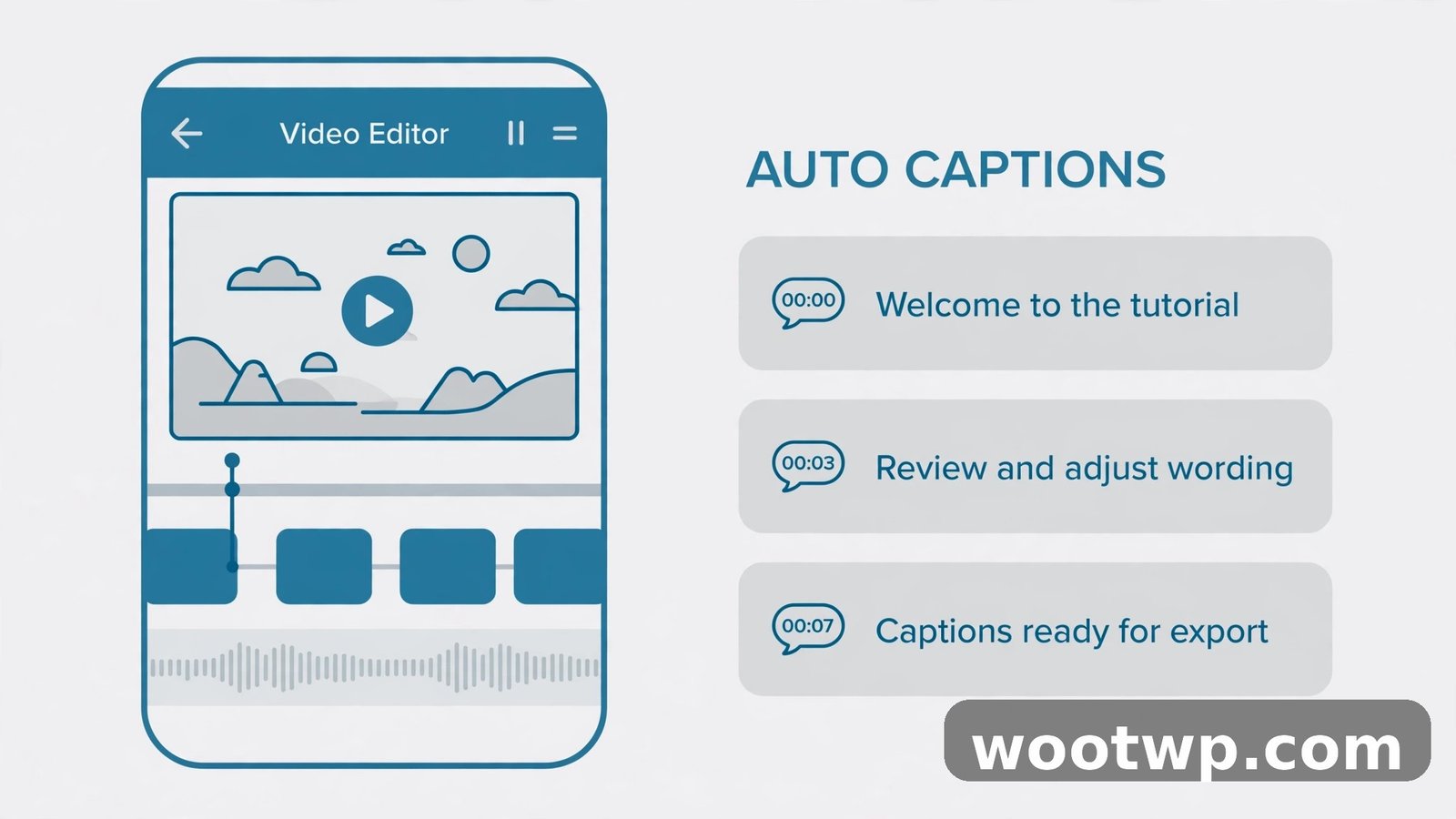
If you want captions in under a minute, start here. CapCut is free on phone and PC, and its auto-caption feature transcribes your audio and styles it with the trendy word-by-word highlight look you see all over TikTok. This is my go-to for short videos.
- Install CapCut from the Play Store, App Store, or capcut.com for desktop. It's free — skip the Pro upsell prompts.
- Start a new project and import your video.
- Select the video clip on the timeline, then tap Captions (on mobile) or click Captions in the top menu (desktop).
- Choose Auto captions, pick your spoken language, and tap Generate.
- Wait 10–30 seconds while CapCut transcribes the audio. Longer videos take a bit more time.
- Review the captions. Tap any caption block to fix typos — auto captions mishear names, slang, and numbers regularly, so skim through once.
- Style them. Pick a caption template, change the font, size, and colors. Bold text with a dark outline stays readable over bright footage.
- Export the video. The captions are now burned in permanently.
On the desktop version the steps are identical, and you get more template options. For a vertical TikTok or Reel, keep captions in the middle of the frame, away from the app's like and comment buttons.
Method 2: YouTube Studio Auto Captions (Free Forever)
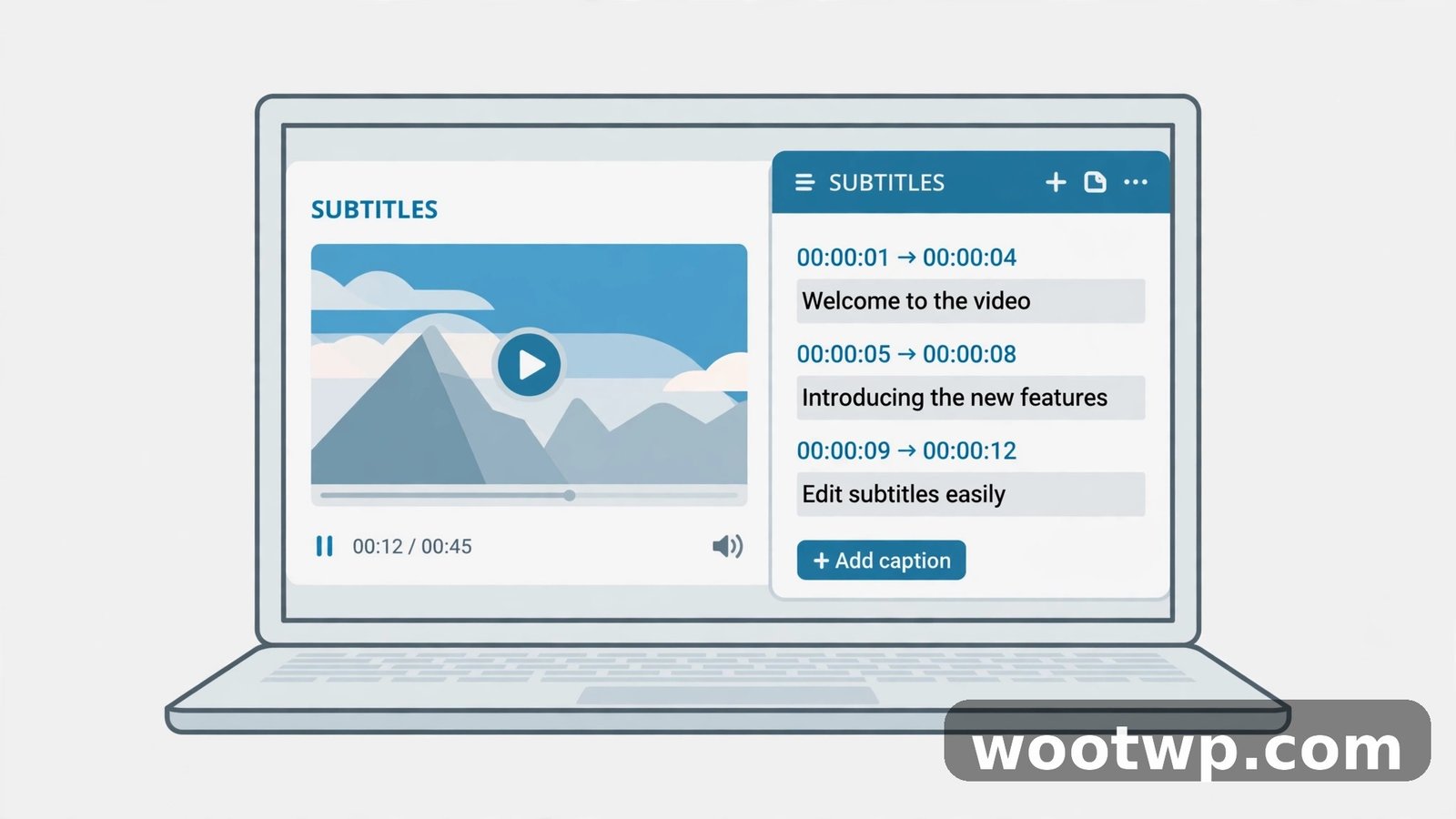
Uploading to YouTube? You already have a free captioning tool waiting in YouTube Studio — and it's one of the best, because YouTube lets you download the caption file and use it anywhere else. Here's a neat trick I use all the time: even if you never intend to publish the video on YouTube, you can use YouTube to generate the captions, then download them.
- Upload your video to YouTube as Unlisted (so nobody sees it).
- Open YouTube Studio and select the video.
- Go to Subtitles in the left menu.
- YouTube will show Automatic captions after processing (this can take minutes for short videos, hours for long ones).
- Click the three dots next to the automatic track and select Edit on Classic Studio (or the current editor) to fix errors. Auto captions are maybe 85–90% accurate — fix names, technical terms, and punctuation.
- To reuse the captions elsewhere: click the three dots and select Download to save the file as .srt.
You can then burn this SRT into your video with HandBrake or FFmpeg (methods 5 and 6 below), or upload the same SRT file to other platforms that accept caption files. For the full breakdown of YouTube's subtitle options, check YouTube's official help page on adding subtitles and captions.
Pro tip: After your video goes live, YouTube viewers can toggle the captions with the CC button, and the caption text helps YouTube understand your content for search. It's free SEO for your video.
Method 3: Auto Captions Inside TikTok and Instagram
If you only ever post on one social app, skip the extra editing entirely — both TikTok and Instagram can caption the video for you at upload time.
On TikTok:
- Record or upload your video as normal and tap Next.
- Tap Captions on the right-side menu (the icon with text lines).
- Wait for TikTok to transcribe. Edit any mistakes by tapping the caption text.
- Tap Save — the captions are burned into the video on export.
On Instagram (Reels):
- Create your Reel and tap Next.
- Tap the stickers icon at the top and choose Captions.
- Instagram generates the text; tap it to fix errors and change the style.
- Position it where it won't clash with the profile name or caption overlay.
The downside: these captions only exist on that platform. If you cross-post the same video to YouTube or Facebook, you'll need to caption it again — which is why methods 1 and 2 (exporting a burned-in version once) are better for multi-platform posting. Speaking of posting, captions are a big part of what makes professional marketing videos perform — the same rules apply to ads and product clips.
Method 4: Free Online Auto-Caption Tools
Prefer not to install anything? Several free web tools transcribe and caption videos in your browser. The quality varies, and most have limits (video length, monthly minutes, or a watermark on the free tier), so read the fine print before uploading a 2-hour file.
A typical workflow looks like this:
- Open the caption tool's website in your browser.
- Upload your video (or paste a video link, if supported).
- Select the spoken language and start the transcription.
- Edit the transcript in the tool's editor — fix the inevitable errors.
- Choose a caption style and export the video with burned-in captions, or download the SRT file for use elsewhere.
These tools are handy for one-off videos on a work computer where you can't install software. Just keep private or sensitive videos off third-party upload tools — for client work or anything confidential, use an offline method like HandBrake or FFmpeg instead. When you're done captioning, a quick pass with a YouTube tag generator can help the same video get discovered once you upload it.
Method 5: HandBrake — Burn In Captions From an SRT File
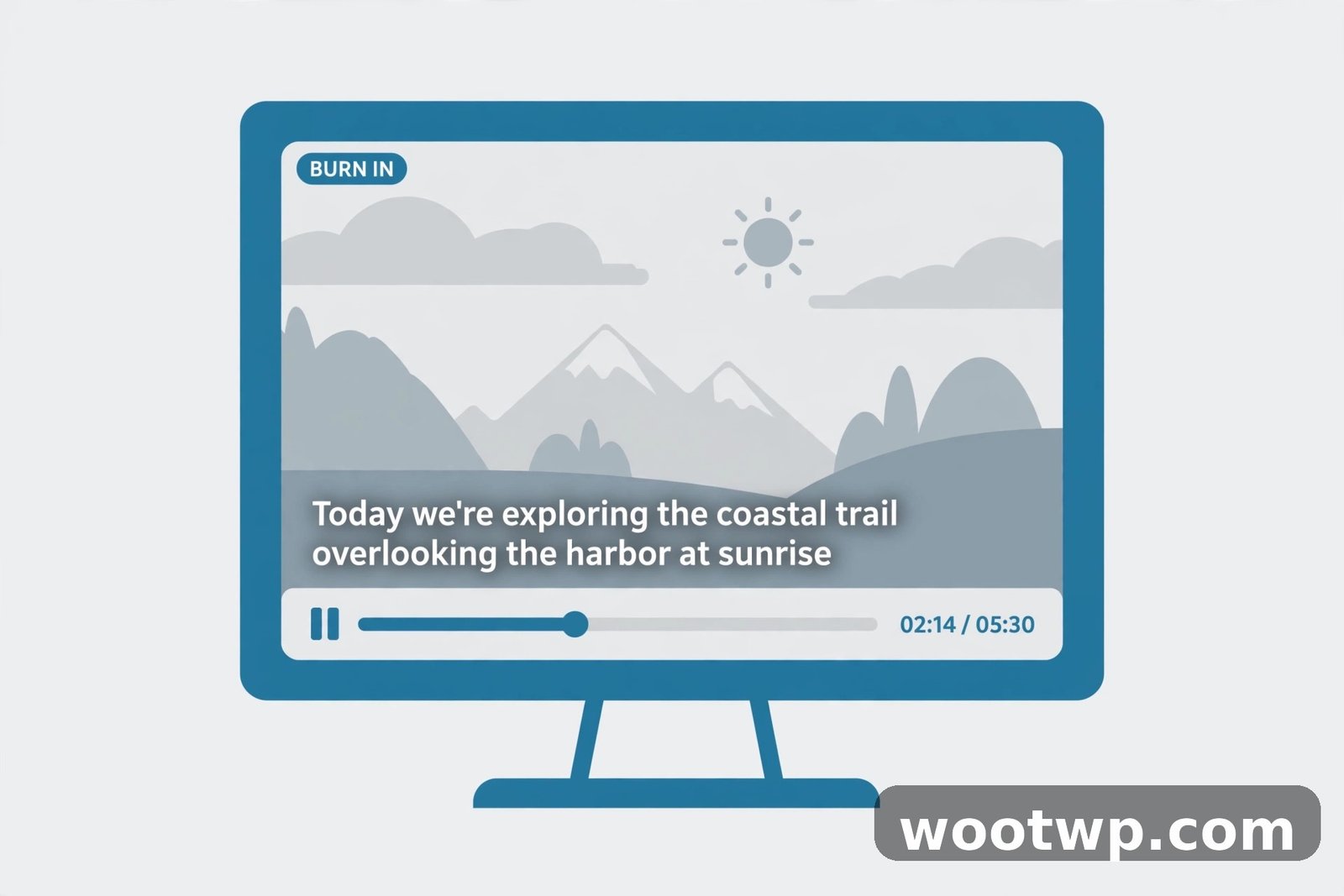
HandBrake is a free, open-source video converter for Windows, Mac, and Linux, and it can permanently burn a caption file into your video. Use this when you already have an SRT file (downloaded from YouTube, for example) and want a single video file with always-visible captions.
- Download HandBrake from handbrake.fr and install it.
- Open HandBrake and drag your video file into the window.
- Click the Subtitles tab.
- Click Import Subtitle and select your .srt file.
- Check the box Burn In next to the subtitle track — this paints the text into the picture permanently. (Leave it unchecked if you want toggleable soft subtitles instead.)
- Set your output format (MP4 is the safe choice) and click Browse to choose where to save.
- Click Start Encode and wait. Encoding a long video can take a while — a 10-minute 1080p clip usually takes a few minutes on a modern PC.
The result is an MP4 with captions that show on every player, every phone, every social feed. This is the method I use for tutorial videos, because viewers can pause and read a caption line without missing what I'm saying.
Method 6: FFmpeg — Free Caption Burn-In for Power Users
FFmpeg is the free command-line toolkit that powers half the internet's video processing. If you're comfortable with a terminal, it captions videos in one command — no GUI, no watermarks, no limits.
First, install FFmpeg from ffmpeg.org (on Windows, the easiest route is the full build from gyan.dev; on Mac, brew install ffmpeg; on Ubuntu, sudo apt install ffmpeg).
Then run this, with your files in the same folder:
ffmpeg -i input.mp4 -vf subtitles=captions.srt output.mp4That's it. FFmpeg reads the timing from your SRT file and renders the text into the video. A few useful variations:
- Custom style:
ffmpeg -i input.mp4 -vf "subtitles=captions.srt:force_style='FontSize=24,PrimaryColour=&H00FFFFFF,OutlineColour=&H00000000,Outline=2,Bold=1'" output.mp4 - Keep the original audio untouched (faster, no re-encode of sound): add
-c:a copy - Work with VTT files: convert first with
ffmpeg -i captions.vtt captions.srt
One catch on Windows: if the subtitle filter complains about the file path, put the video and SRT in a simple folder like C:\caps\ and run the command from there. Spaces in paths cause most FFmpeg subtitle errors.
Method 7: Write Captions Manually With a Text Editor
Auto captions are fast, but they're never perfect — and for short videos, writing the captions yourself is often quicker than fixing a bad transcript. An SRT file is just plain text with a simple format:
1
00:00:00,000 --> 00:00:03,500
Welcome back to the channel.

2
00:00:03,500 --> 00:00:07,000
Today I'm showing you the fastest free way to caption videos.
Each block has a number, a start and end timestamp, and the text. Rules of thumb:
- Keep each caption under two lines and about 42 characters per line.
- Show each caption for 1–6 seconds — long enough to read twice.
- Break lines at natural pauses, not mid-phrase.
Write the file in Notepad or any text editor, save it with a .srt extension (make sure it's plain text, not .srt.txt — turn off "hide extensions" in Windows if you're unsure), and then burn it in with HandBrake (method 5) or attach it as a caption file on YouTube, Facebook, or LinkedIn. For a 60-second video this takes maybe 15 minutes, and the result is more accurate than any auto-transcriber.
Captions vs Subtitles: What's the Difference?
People use the words interchangeably, and for most purposes it doesn't matter — but there's a real distinction worth knowing:
- Captions assume the viewer can't hear the audio. They include dialogue plus important non-speech sounds:
[door slams],[upbeat music], speaker labels likeJOHN:. This is what accessibility guidelines require. - Subtitles assume the viewer can hear but doesn't understand the language. They translate dialogue only, without sound descriptions.
In practice, when you auto-caption a video, you get captions in the accessibility sense. If you also want to reach non-English speakers, upload translated subtitle tracks (YouTube supports multiple subtitle languages per video). The file format is identical either way — SRT works for both.
Style Tips That Keep People Watching
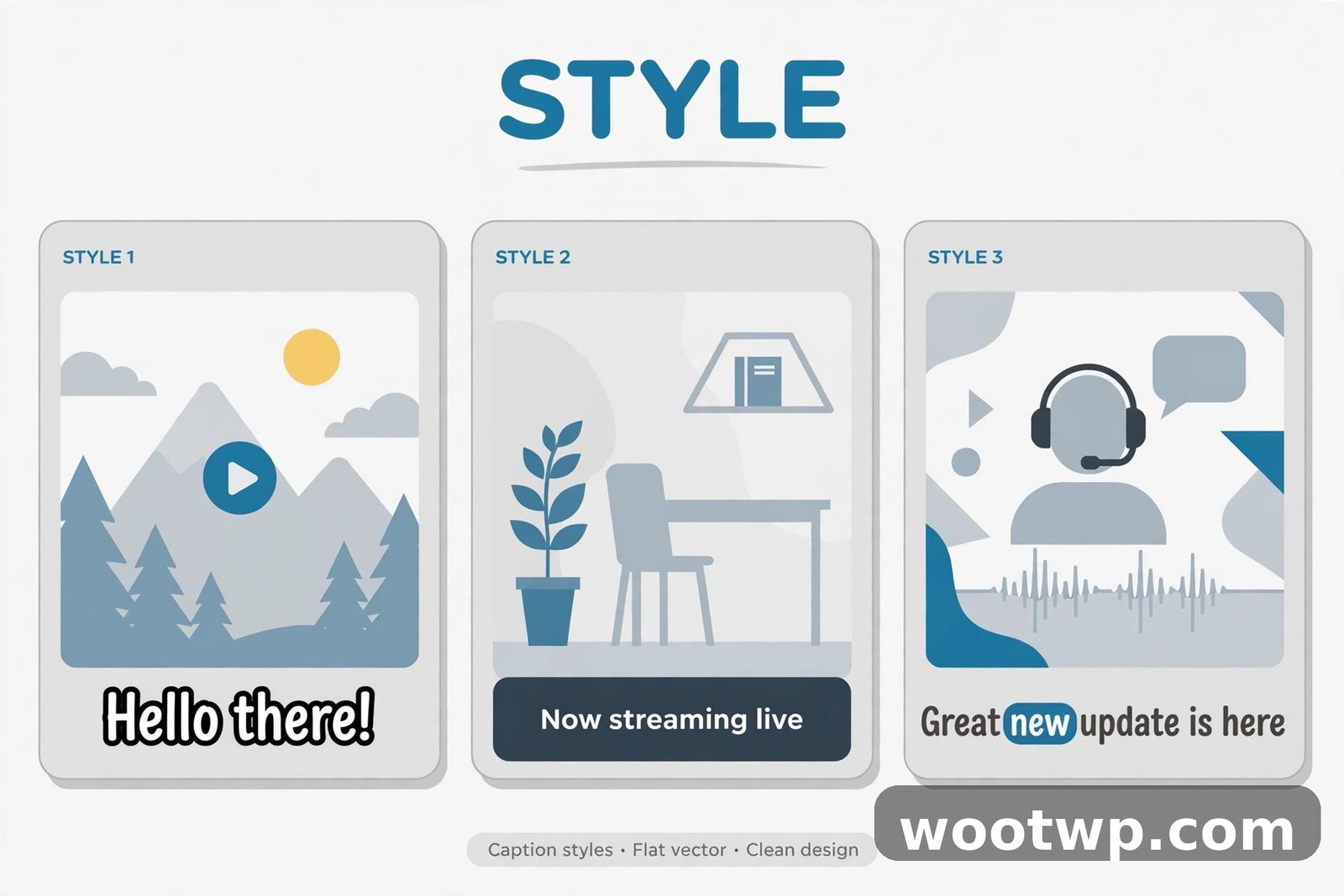
Badly styled captions can be worse than none: tiny gray text over a bright sky is unreadable, and captions covering the speaker's face are distracting. A few rules I follow:
- Contrast is everything. White text with a thick black outline (or a dark background bar) reads over any footage.
- Two lines max. More than that and viewers read instead of watch.
- Keep captions clear of the edges. Social apps cover the bottom with buttons and the top with usernames. The vertical middle or lower-third is safest.
- Match the platform's vibe. TikTok and Reels reward the bouncy word-by-word style; YouTube tutorials look better with clean, static lower-third captions.
- Punctuate properly. Auto captions often come out as one long run-on sentence. Adding periods and commas makes them dramatically easier to follow.
- Fix names and jargon. This is where auto captions fail most. If your video mentions a brand, a person, or a technical term, check every occurrence.
Common Caption Problems and Fixes
My auto captions are full of errors. Normal — auto transcription is 85–95% accurate depending on audio quality. Record in a quiet room, speak clearly, and keep background music low. The cleaner the audio, the cleaner the captions. Always do one editing pass before exporting.
The caption timing is off / out of sync. This happens when the video's frame rate changed during editing (e.g., a 60fps clip dropped into a 30fps timeline). Re-export at the original frame rate, or nudge the SRT timings. YouTube's subtitle editor lets you drag caption blocks to retime them visually.
Captions are cut off on TikTok or Reels. The app's interface overlays cover the bottom ~15% and top ~10% of the screen. Move your captions toward the center of the frame in your editor before exporting.
The SRT file won't import. Nine times out of ten it's the file extension — Windows loves to save it as captions.srt.txt. Enable "File name extensions" in File Explorer, rename it properly, and make sure the file is plain UTF-8 text.
Burned-in captions look blurry. You're rendering at a lower resolution than the source. Export at the same resolution as your original video (1080p source → 1080p export), and don't upscale a 720p caption render to 1080p — it'll never look sharp.
Can I remove captions after burning them in? No — burned-in captions are part of the video pixels. That's why keeping a copy of the original uncaptioned video (and the SRT file) is smart. Closed captions on YouTube or soft subtitles in an MP4 can always be changed later; burned-in ones can't.
FAQs
How do I add captions to a video for free?
The fastest free method is CapCut's auto captions: import your video, tap Captions > Auto captions, fix any errors, and export. For YouTube uploads, use YouTube Studio's automatic captions, which you can also download as an SRT file and reuse anywhere. Both are completely free with no watermark.
What is the best free app to auto caption videos?
CapCut is the best all-round free option — accurate auto captions, trendy styles, and free exports on phone and desktop. YouTube Studio has the best free transcription engine for longer videos, and TikTok/Instagram's built-in caption stickers are fine if you only post on those platforms.
Can I add captions to a video after uploading it to YouTube?
Yes. Go to YouTube Studio > Subtitles, and you can add, edit, or replace caption tracks at any time without re-uploading the video. Viewers will see the updated captions immediately, and you can download the caption file for use on other platforms.
What's the difference between open and closed captions?
Closed captions can be toggled on or off by the viewer (like YouTube's CC button). Open (burned-in) captions are permanently part of the video image and always visible. Burned-in captions are better for social feeds where videos autoplay muted; closed captions are better for YouTube, where viewers expect a toggle.
Should I use SRT or VTT for captions?
Use SRT for YouTube, social platforms, and most desktop tools — it's the universal format. Use VTT for videos embedded on websites, since it's the HTML5 web standard and supports styling. Both are plain text files with nearly identical content, and converting between them takes one FFmpeg command.
Do captions really help videos get more views?
Yes. Captions make videos watchable with the sound off — which is how most social video is consumed — and they improve accessibility for deaf and hard-of-hearing viewers. On YouTube, accurate captions also give the platform more text to understand your video, which can help it appear in more searches.
Conclusion
Knowing how to add captions to video for free is one of those skills that pays off every single time you publish. Start with CapCut's auto captions for quick social clips, use YouTube Studio when you want a reusable caption file, and keep HandBrake or FFmpeg handy for burning captions into finished videos. Fix the errors, style them for readability, and keep a copy of your SRT file. Your muted viewers — and your view counts — will thank you. If you're sending these captioned clips through messaging apps, it's worth checking your WhatsApp media settings too, so auto-downloads don't eat your storage.