How to Use Meta AI on WhatsApp: 7 Proven Features Explained
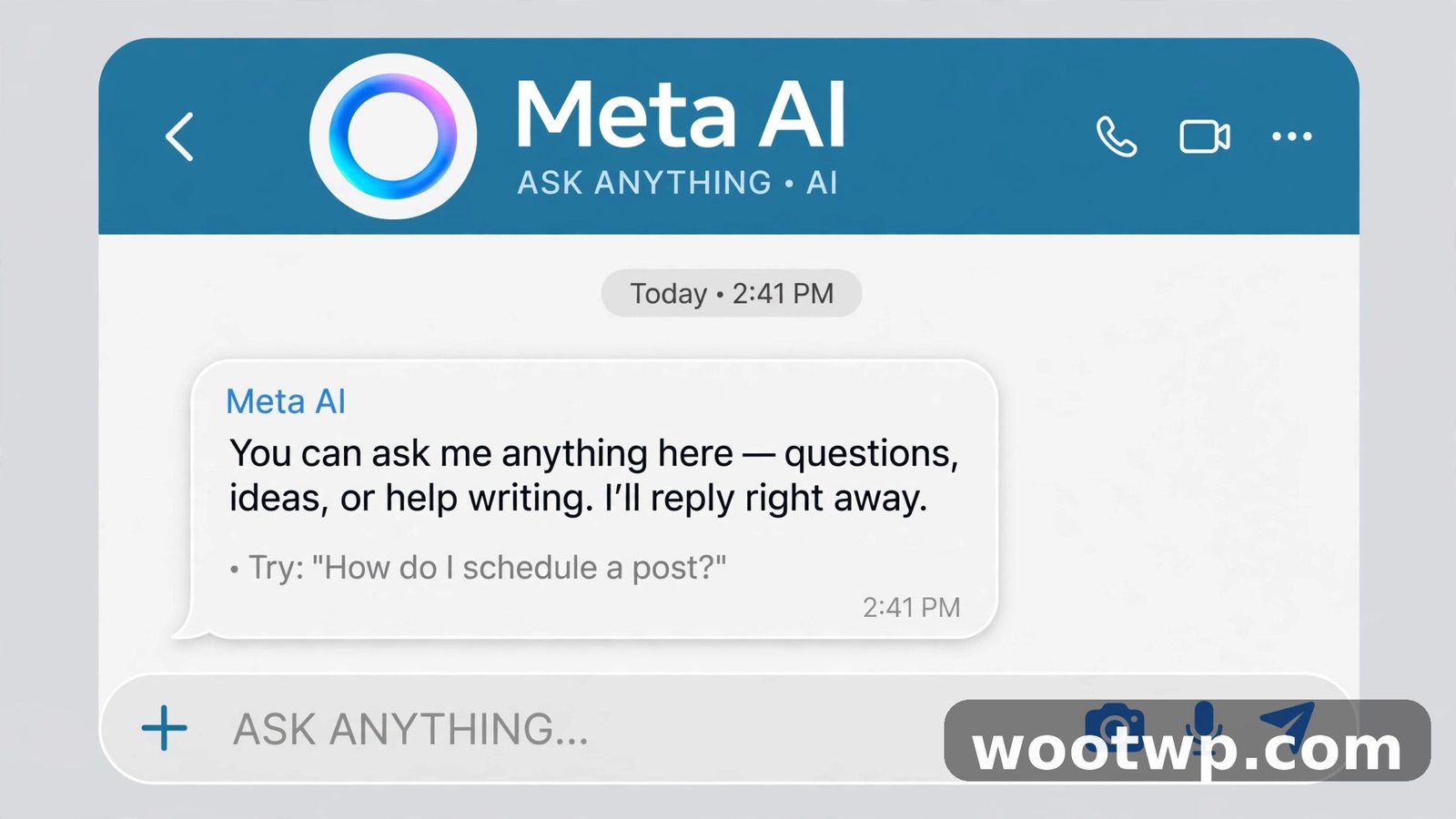
Meta AI has quietly turned WhatsApp from a simple messaging app into something much more useful: an AI assistant that lives right inside your chats. If you've spotted the colorful ring icon at the top of your chat list and wondered what it does, this guide shows you how to use Meta AI on WhatsApp — from asking questions and generating images to summoning it inside group chats.
I've spent the last few weeks putting it through its paces — planning trips in group chats, translating messages, generating images on the fly — and it's genuinely handy once you know where everything lives. Here's the full walkthrough: getting it set up, the seven features worth using, what it means for your privacy, and what to do if the icon hasn't appeared for you yet.
- What Is Meta AI on WhatsApp?
- How to Get Meta AI on WhatsApp
- 7 Meta AI Features Worth Using on WhatsApp
- Is Meta AI on WhatsApp Private?
- Meta AI Not Showing Up? Try These Fixes
- FAQs
What Is Meta AI on WhatsApp?
Meta AI is Meta's AI assistant, built into WhatsApp (as well as Instagram, Messenger, and Facebook). It works like other chat-based AI assistants: you ask it questions in plain language, and it answers, generates text or images, translates, and summarizes — all without leaving WhatsApp.
The key difference from a separate AI app is convenience. There's nothing new to download and no separate account to create. It's already where your conversations happen, so asking a quick question is as easy as sending a message. Meta AI is free to use.
A few things to know up front:
- Availability varies by region. Meta rolls the feature out in stages, so it may appear on your friend's phone before yours. It's primarily available in English, with more languages added over time.
- It's not the same as a contact. Meta AI is a built-in feature, not a person in your contacts — you interact with it through the dedicated icon or the @ mention in groups.
- New features keep arriving. Meta regularly adds capabilities (like asking about specific messages in groups), so update WhatsApp regularly to get the latest.
How to Get Meta AI on WhatsApp
If the feature is available in your region, setup takes about a minute:
- Update WhatsApp. Open the Google Play Store or Apple App Store, search for WhatsApp, and tap Update if one is available. Meta AI needs a recent version — on Android 9 or newer, or iOS 12 or newer.
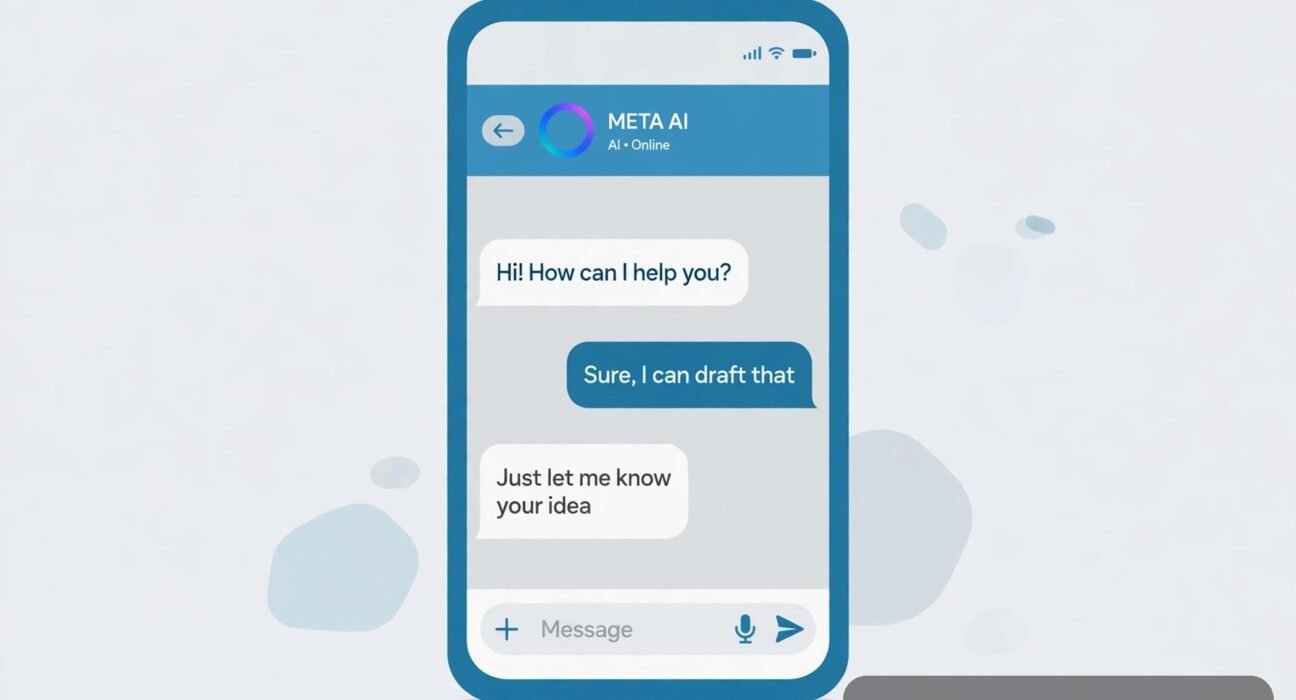
- Look for the Meta AI icon. After updating, you'll see a colorful ring icon (blue and purple) at the top of your chat list, or in the search bar. On some versions, it appears when you start a new chat.
- Tap the icon and accept the terms. The first time you open it, you'll see a brief terms screen. Accept to start chatting.
- Start asking. Type a question or request just like you'd message a person, and send.
That's it — no separate login, no settings maze. If you don't see the icon after updating, skip to the troubleshooting section at the end; the rollout may simply not have reached your account yet.
7 Meta AI Features Worth Using on WhatsApp
Here's what Meta AI can actually do inside WhatsApp, with the practical uses I've found for each.
1. Ask questions without leaving the chat
This is the core feature: a knowledgeable assistant one tap away. Instead of switching to a browser mid-conversation, ask directly.
Try it: Tap the Meta AI icon and ask things like "What's the weather in Jeddah this weekend?", "Explain the offside rule simply," or "How many grams of protein in 100g of chicken breast?" Answers come back in seconds, and you can follow up with "tell me more" or "simpler, please."
I use this most when a friend asks me something I half-know — rather than guessing or going silent while I search, I ask Meta AI and share the answer.
2. Summon it in group chats with @Meta AI
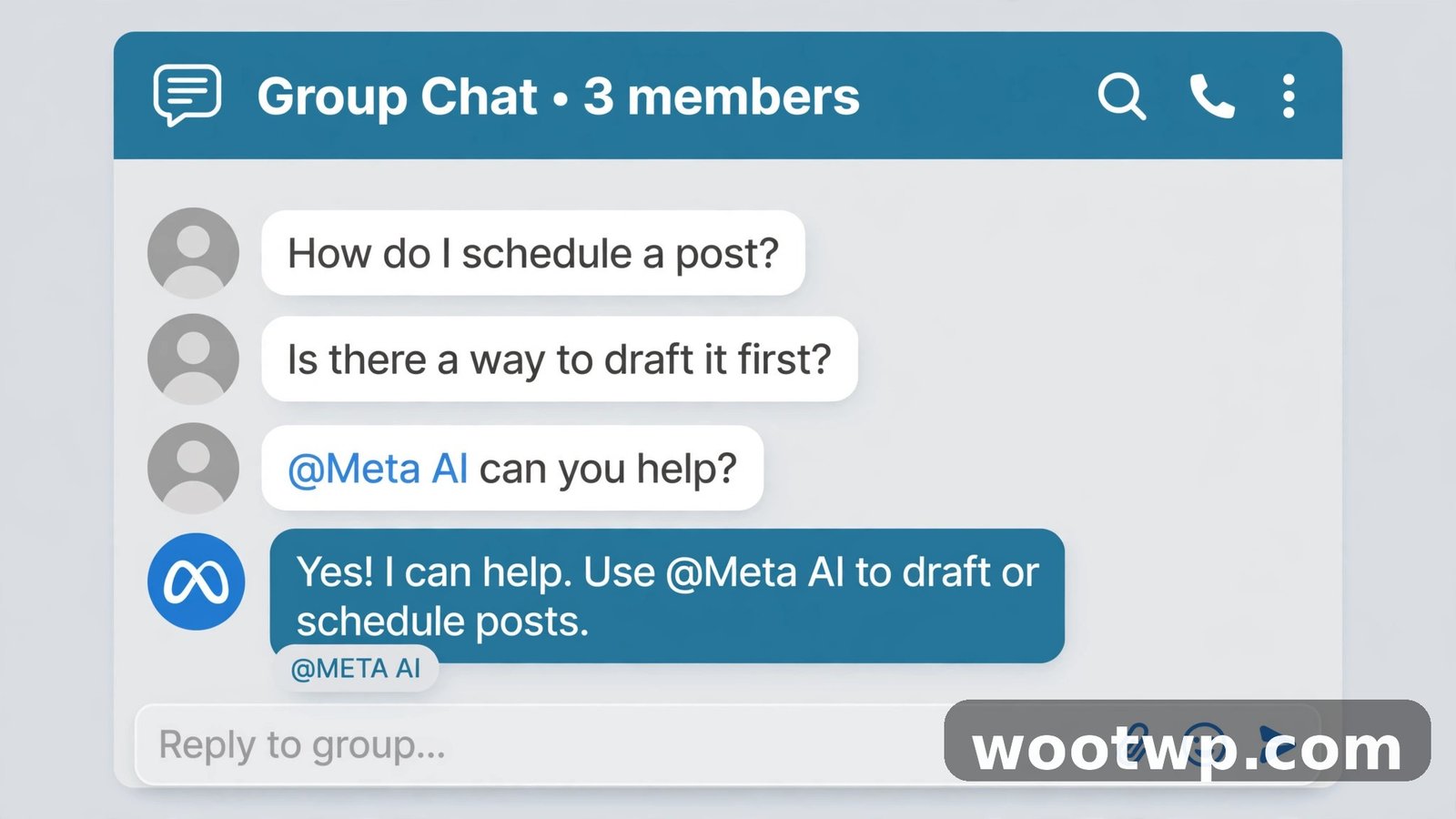
In a group chat, type @Meta AI followed by your question, and the assistant answers right there in the group. Everyone sees the question and the answer.
Try it: Planning a trip with friends? Type "@Meta AI suggest a 3-day itinerary for Istanbul under $500" and the whole group can react to the suggestions. Settling a debate? "@Meta AI who won the 2022 World Cup final?" ends the argument instantly.
The group context is what makes this special — the AI becomes a participant that helps the group decide things, rather than everyone disappearing to search separately.
3. Generate images with Imagine
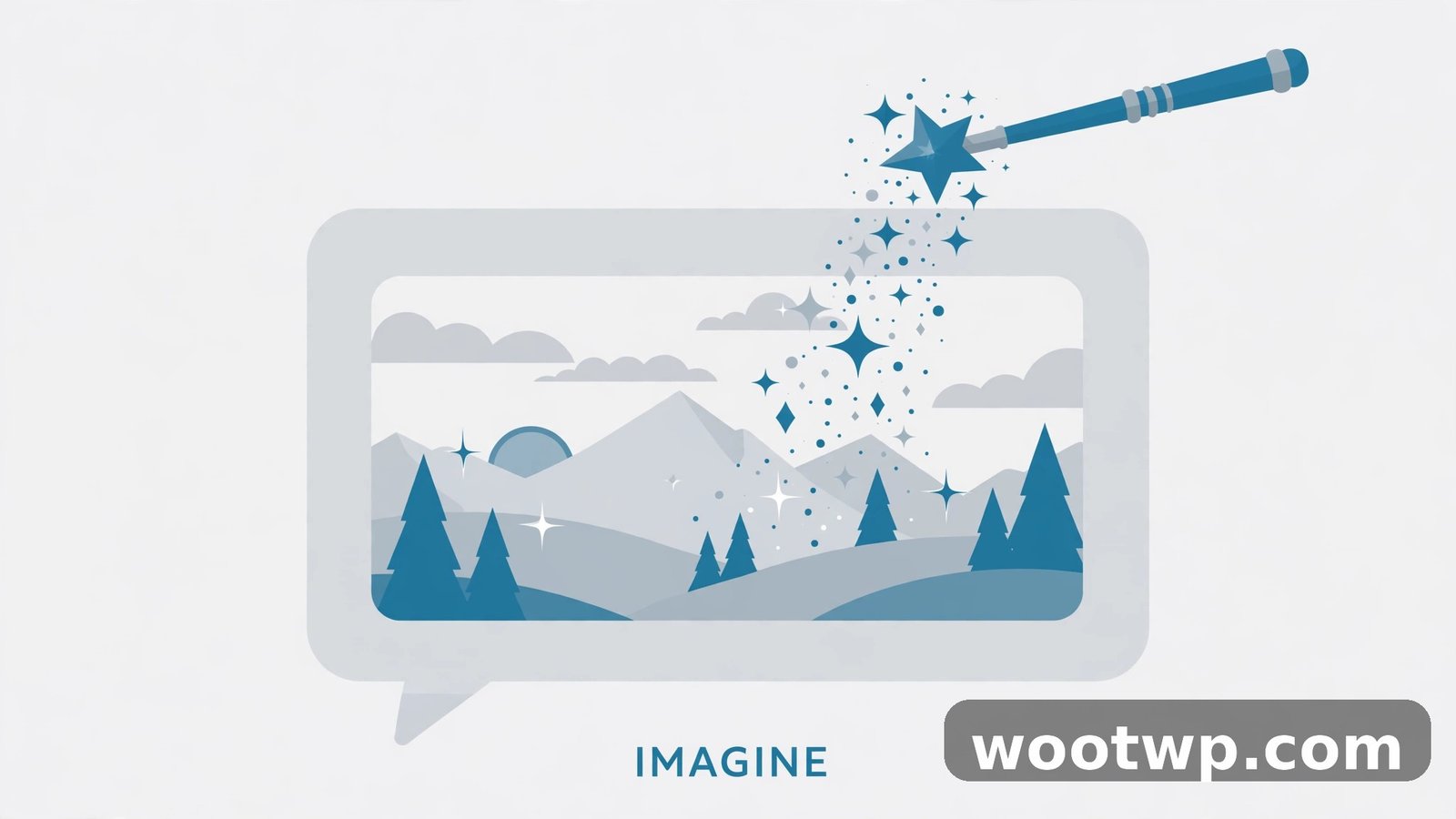
Meta AI can create images from text descriptions — a feature Meta calls Imagine. Describe what you want, and it generates the image right in the chat.
Try it: Tap the Meta AI icon and type "Imagine a sunset over desert dunes with a camel caravan" — or in any chat, type @/imagine followed by your description. The image appears in seconds, evolving as you refine the prompt.
Practical uses: custom birthday greetings, fun group-chat memes, quick mockups when describing an idea, or a unique profile picture. The images are high quality and free, which is remarkable for something living inside a messaging app.
4. Get private help about a group message
A newer addition: you can ask Meta AI about a specific message without cluttering the group. Tap and hold a message in a group chat, tap the options menu, and choose Ask Meta AI. This opens a private thread where you can ask for context, clarification, or background on that message.
Try it: Someone drops a confusing news headline in the family group — long-press it, ask Meta AI, and get the backstory privately instead of derailing the conversation. Meta notes that the AI only sees the message you choose to share, not your whole chat history.
5. Translate messages and text instantly
Meta AI handles real-time translation between languages, which is a lifesaver in multilingual groups or when traveling.
Try it: Paste a message in another language and ask "Translate this to English" or "Translate this to Arabic." You can also ask it to translate your own draft before you send it: "How do I say 'see you tomorrow at 7' in Urdu?"
It's faster than copying text into a separate translator app, and it stays in the conversation flow.
6. Draft and polish your messages
Stuck on wording? Meta AI drafts messages for you — formal emails, polite apologies, birthday wishes, job application notes, you name it.
Try it: "Write a polite message declining a wedding invitation" or "Draft a professional follow-up email after a job interview." Tell it the tone you want ("friendly but firm," "formal") and it'll adjust. I find this most useful for messages where tone matters and I'm overthinking every word.
7. Summarize long articles and documents
When someone shares a long article or a lengthy forwarded message, ask Meta AI to boil it down.
Try it: Paste the text (or share the link) and ask "Summarize this in 3 bullet points" or "What are the key takeaways?" It also works on your own long drafts — "Make this shorter" is a command I use constantly.
This pairs well with feature 4: long-press a rambling group message, ask Meta AI privately, and get the gist without reading a wall of text.
Is Meta AI on WhatsApp Private?
This is the question everyone asks, and it deserves a straight answer: your regular WhatsApp messages are end-to-end encrypted, but your conversations with Meta AI are not. When you talk to Meta AI, that content goes to Meta's servers to generate the response, and Meta may use it to improve the service.
Here's how to think about it practically:
- Treat Meta AI like any cloud AI service. Don't share passwords, financial details, ID numbers, or anything you wouldn't type into a web-based chatbot.
- Your private chats stay private. Asking Meta AI about a message doesn't expose your whole conversation — Meta says the AI only sees what you explicitly share with it.
- In groups, remember the audience. When you type @Meta AI in a group, everyone sees your question. Don't ask it anything in a group that you'd be embarrassed to have read aloud.
- You can manage your data. Delete individual Meta AI chats like any other chat, and check WhatsApp's privacy settings for options around AI interactions.
- Lock down your account regardless. Turn on WhatsApp's two-step verification (Settings → Account → Two-step verification) so your account is protected by a PIN. And if you use an authenticator app for your other accounts, make sure you don't lose your codes when switching phones — our guide on how to transfer Google Authenticator to a new phone walks through it safely.
The official WhatsApp help center has the latest details on Meta AI availability and privacy controls, and it's worth a visit if you want the fine print straight from the source.
Meta AI Not Showing Up? Try These Fixes
If you've updated WhatsApp and still don't see the Meta AI icon, work through these in order:
- Confirm you're on the latest version. Check the Play Store or App Store again — staged rollouts sometimes need the very newest build.
- Restart your phone. It sounds trivial, but it clears the temporary glitches that stop new features from loading.
- Clear the app cache (Android). Go to Settings → Apps → WhatsApp → Storage → Clear Cache. This doesn't delete your chats.
- Check your region and language. Meta AI rolls out by country and is primarily English-first. If you're in an unsupported region or using an unsupported language, it won't appear yet.
- Wait. Rollouts can take days or weeks to reach every account in a supported region. If everything is updated and it's still missing, it's almost certainly just not your turn yet.
- Reinstall as a last resort. Back up your chats first (Settings → Chats → Chat backup), then uninstall and reinstall WhatsApp. A fresh install sometimes triggers features that an update didn't.
Don't download "Meta AI" apps from unofficial sources claiming to unlock the feature — the real thing only comes through official WhatsApp updates, and fake versions are a common malware trap.
FAQs
Is Meta AI on WhatsApp free?
Yes, Meta AI is completely free inside WhatsApp — no subscription, no separate account, no usage tiers to worry about. You just need an updated version of WhatsApp in a supported region.
Can I use Meta AI in WhatsApp group chats?
Yes. Type @Meta AI followed by your question in any group, and it answers in the group for everyone to see. You can also long-press a specific message and choose "Ask Meta AI" to get private help about that message without cluttering the group.
Does Meta AI read all my WhatsApp messages?
No. Your regular chats remain end-to-end encrypted, and Meta AI only sees the content you explicitly share with it — the messages you send to it, or the specific message you long-press to ask about. It doesn't get access to your full chat history.
Why don't I have Meta AI on WhatsApp yet?
The most likely reason is the staged rollout — Meta releases the feature gradually by region and account. Make sure WhatsApp is fully updated, restart your phone, and give it time. If your region isn't supported yet, no amount of reinstalling will make it appear.
Can Meta AI generate images on WhatsApp?
Yes, using the Imagine feature. Tap the Meta AI icon (or type @/imagine in a chat) and describe the image you want. It generates the image in seconds, and you can refine it with follow-up descriptions. It's free and the results are impressively good.
How do I turn off or remove Meta AI from WhatsApp?
There's no off switch — Meta AI is a built-in part of WhatsApp, not an add-on you can uninstall. If you don't want to use it, simply don't tap the icon or type @Meta AI. Ignoring it is the only "disable" available.
Conclusion
Learning how to use Meta AI on WhatsApp unlocks a genuinely useful assistant inside the app you already open dozens of times a day: quick answers, group-chat help, image generation, translation, drafting, and summaries — all one tap away. Just remember the privacy trade-off (it's not end-to-end encrypted like your chats), keep WhatsApp updated, and don't share sensitive details with it. Once the icon appears on your phone, you'll wonder how you managed group trip planning without it.