How to Secure Facebook Account After a Hack Attempt: 9 Proven Steps
Someone may have gotten into your Facebook account — maybe you got a password reset email you never asked for, a login alert from a city you’ve never visited, or a friend messaged you saying “did you really send this?” That cold feeling in your stomach is real, and so is the fix. Learning how to secure Facebook account after a hack attempt isn’t complicated, but the order of steps matters. I’ve walked people through this exact situation more than once, and the people who recover fastest are the ones who lock down the right things in the right sequence.
This guide gives you that sequence: a clear, step-by-step checklist that takes you from “something feels wrong” to fully secured in about twenty minutes. Let’s get your account back under your control.
- How Do You Know Your Facebook Account Was Hacked?
- What Is the Very First Thing to Do After a Hack Attempt?
- Why Should You Secure Your Email Account First?
- How Do I Change to a Strong, Unique Password?
- How Do You Turn On Facebook Two-Factor Authentication?
- How Do I Remove Unknown Login Sessions From My Account?
- How Do I Turn On Login Alerts on Facebook?
- How Do I Check That My Email, Phone, and Profile Weren’t Changed?
- How Do I Remove Suspicious Apps and Check My Activity Log?
- How Do I Warn Friends About Scam Messages From My Account?
- Your Ongoing Protection Checklist
- Frequently Asked Questions
- Conclusion
How Do You Know Your Facebook Account Was Hacked?
Before you start changing things, confirm what’s actually happening. Real hack attempts leave fingerprints. Check for these signs:
- Password reset emails you didn’t request. If Facebook emails you “someone requested a new password” and it wasn’t you, someone is actively probing your account.
- Login alerts from unfamiliar places. Facebook’s login alerts name the device and approximate location. A login from a city you’ve never visited at 3 AM is a red flag.
- Posts, messages, or friend requests you didn’t make. This is the most obvious sign — your Activity Log (we’ll get to it) shows everything.
- Your email or phone number was changed. If you suddenly can’t log in, the attacker may have already swapped your contact details. That’s when you go straight to facebook.com/hacked.
- Friends report weird messages from you. Crypto investment pitches, “I need a code” requests, or links to “vote for me” — classic hijacked-account behavior.
One odd sign that trips people up: Facebook logging you out for no reason. It happens for innocent reasons too (expired cookies, app updates), so don’t panic over a single logout — look for the other signs first.
What Is the Very First Thing to Do After a Hack Attempt?
Do this before anything else: open a trusted device (your own phone or computer — not a borrowed or public one) and go to facebook.com/hacked.
That’s Meta’s official recovery flow. It walks you through:
- Identifying your account (email, phone number, or full name).
- Verifying your identity — usually by sending a code to your registered email or phone.
- Reviewing recent account changes the attacker may have made.
- Setting a new password and securing your contact details.
Why start here instead of just changing your password? Because if the hacker already changed your email or phone number on the account, a normal password change won’t reach you — the reset link goes to their email. The facebook.com/hacked flow is built for exactly that situation, and it’s the only official way to recover an account you can’t log into.
Important: never pay anyone who claims they can recover your Facebook account for a fee. Every one of those offers is a scam. The real recovery process is free and lives on facebook.com/hacked.
Why Should You Secure Your Email Account First?
Here’s the step most people skip — and the step attackers count on. Your Facebook account is only as secure as the email account attached to it. Think about it: “Forgot password” links go to your email. If a hacker controls your inbox, they can reset your Facebook password as many times as you change it, forever.
So before you tighten Facebook itself, lock down your email:
- Change your email password to something long and unique — one you’ve never used anywhere else.
- Turn on two-factor authentication on your email account (Gmail, Outlook, Yahoo — all of them support it under their security settings).
- Check for forwarding rules and unknown filters. In Gmail: Settings > See all settings > Forwarding and POP/IMAP. Attackers quietly add forwarding rules so password-reset emails land in their inbox too. Delete anything you didn’t create.
- Review recent logins to your email for unfamiliar devices or locations.
This is the single biggest reason people get “re-hacked” days after recovering. A facebook hacked recovery that ignores the email account is a recovery that won’t stick. Secure the email first, and every other step in this guide actually works.
How Do I Change to a Strong, Unique Password?
Once your email is locked down, change your Facebook password — and make it one that actually resists cracking:
- On Facebook, tap your profile picture (top right on desktop, or the menu icon in the mobile app).
- Go to Settings & privacy > Settings > Accounts Center > Password and security > Change password.
- Select your Facebook profile, enter your current password, then type the new one.
What makes a password strong in practice:
- At least 16 characters. Length beats cleverness. A random passphrase like “correct-horse-battery-staple” style word chains is both strong and memorable.
- Unique to Facebook. If you used your Facebook password on any other site, assume it’s compromised — credential-stuffing attacks (where attackers replay leaked passwords across sites) are how most “hacks” actually happen.
- Stored in a password manager, not in your head or a notes app. You don’t need to remember 16 random characters if your manager does it for you.
Don’t reuse the old password with one character changed. Attackers’ tools try exactly that first.
How Do You Turn On Facebook Two-Factor Authentication?
A strong password is step one. Facebook two-factor authentication is the lock on the door after it. With 2FA on, even if someone steals your password, they can’t get in without the second code.
Set it up like this:
- Go to Settings & privacy > Settings > Accounts Center > Password and security > Two-factor authentication.
- Select your Facebook profile.
- Choose your method. You have three options — and they are not equal:
- Authentication app (recommended). Google Authenticator, Microsoft Authenticator, or Authy generate codes that change every 30 seconds. They work without cell signal and can’t be intercepted the way text messages can.
- SMS text message. Better than nothing, but SIM-swap attacks exist — attackers have convinced phone carriers to move victims’ numbers to attacker-controlled SIMs. Use it only if you won’t use an app.
- Security key. A physical USB/NFC key — the strongest option, and worth it if you’re a frequent target.
- Follow the on-screen steps to link your chosen method, then save your recovery codes somewhere safe (printed paper in a drawer works). Those codes are your last resort if you lose your phone.
If you’ve recently moved your authenticator to a new phone or you’re setting one up for the first time, this walkthrough on transferring Google Authenticator to a new phone covers keeping your codes intact during the switch.
How Do I Remove Unknown Login Sessions From My Account?
Even after changing your password, sessions where the attacker is already logged in can stay active. You need to kick them out manually:
- Go to Settings & privacy > Settings > Accounts Center > Password and security > Where you’re logged in.
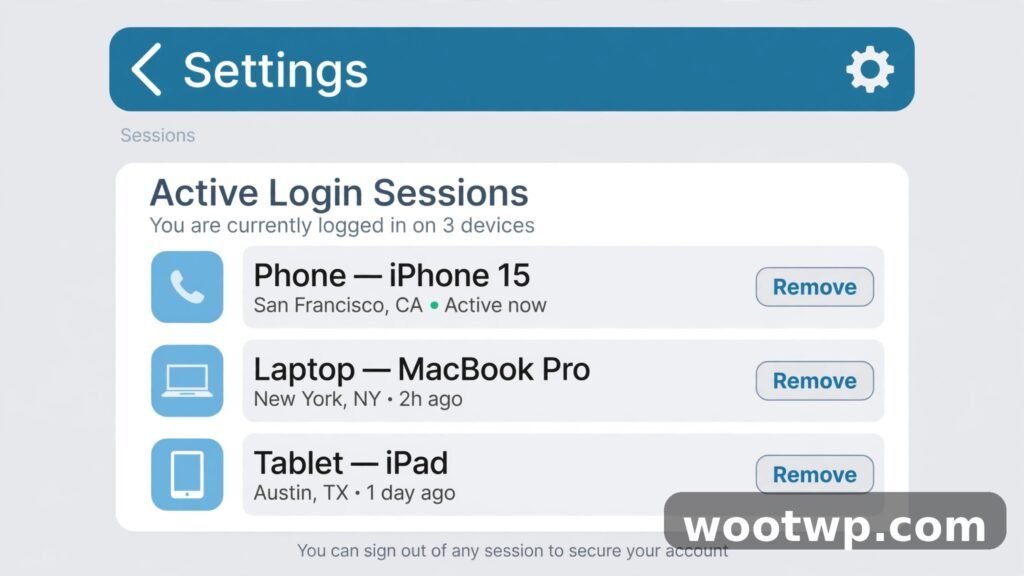
- You’ll see a list of every active session: device type, browser or app, approximate location, and last active time.
- Review each one carefully. Your own phone and laptop will show familiar locations.
- Tap any session you don’t recognize and choose Log out.
- For a full sweep, use Log out of all sessions — this forces every device everywhere to sign in again. Yes, you’ll have to log back in on your own phone too. That’s the point.
Do this right after changing your password. A password change alone doesn’t always kill existing sessions, and “Where you’re logged in” is the definitive list of who’s inside your account right now.
How Do I Turn On Login Alerts on Facebook?
Login alerts are your early-warning system. With them on, Facebook notifies you the moment your account is accessed from an unrecognized device or browser — so the next hack attempt announces itself instead of succeeding quietly.
- Go to Settings & privacy > Settings > Accounts Center > Password and security > Login alerts.
- Select your Facebook profile.
- Choose where you want the alerts: Facebook notifications, Messenger notifications, and email. Turn on all three — redundancy is the point.
From now on, treat every login alert like a fire alarm. If you get one and it wasn’t you, go straight to “Where you’re logged in,” kill the session, and change your password again. Speed is everything here — most account takeovers succeed because the victim doesn’t notice for days.
How Do I Check That My Email, Phone, and Profile Weren’t Changed?
Attackers who get in often change your contact details so they can lock you out later. Verify everything is still yours:
- Go to Settings & privacy > Settings > Accounts Center > Personal details > Contact info.
- Confirm your email address and phone number are the ones you actually own. If you see an address or number you don’t recognize, remove it immediately and re-add your real ones.
- While you’re there, glance at your name, birthday, and profile details under Personal details — attackers sometimes tweak these to interfere with identity verification later.
- Check Settings & privacy > Settings > Accounts Center > Password and security and confirm your two-factor method is the one you set — an attacker who got in before you enabled 2FA could theoretically have set up their own.
If anything looks wrong and you can’t fix it because the attacker changed the recovery options too, that’s what facebook.com/hacked is for — use the “I can’t access my email or phone” path in the recovery flow.
How Do I Remove Suspicious Apps and Check My Activity Log?
Old app permissions are a forgotten backdoor. Years ago you probably tapped “Log in with Facebook” on quizzes, games, and random websites — each one got access tokens that can outlive your interest in the app.
- Go to Settings & privacy > Settings > Accounts Center > Your information and permissions > Apps and websites.
- Review the Active list. Remove anything you don’t recognize or no longer use — tap it, then Remove.
- Check the Expired tab too; some permissions linger.
Then audit what actually happened on your account:
- Tap your profile picture and open your profile, then tap the three dots (…) and choose Activity log (on desktop: your profile > Activity log in the left menu).
- Filter by Your posts, Posts you’re tagged in, and Messages — scan for anything you didn’t write.
- Delete any posts or messages the attacker made. They’re often scam links or crypto pitches.
Clearing out old sessions and stale browser data is part of the same hygiene — if you want a clean slate in your browser too, here’s a guide to clearing cookies in Chrome, which wipes saved logins and forces a fresh sign-in everywhere.
How Do I Warn Friends About Scam Messages From My Account?
If the attacker messaged your friends — and they usually do — your friends are now targets. The classic play: “Hey, I need you to send me the code Facebook just texted you” (that’s a password-reset code for their account) or links to fake giveaways.
Do this:
- Post a short public status from your recovered account: “Heads up — my account was hacked earlier. If you got any weird messages or links from me, please ignore and delete them. Sorry about that.”
- Message anyone who replied to the scammer directly, if you can see the conversations in Messenger.
- Tell close family members by phone or another app, not just Facebook — older relatives are the most likely to fall for “it’s really me, send money” messages.
Don’t be embarrassed about it. Hacked accounts are so common now that most people have seen the warning post before — and your friends will thank you for the heads-up.
Your Ongoing Protection Checklist
Recovering is step one. Staying safe is the ongoing part. Run through this checklist once a month — it takes five minutes:
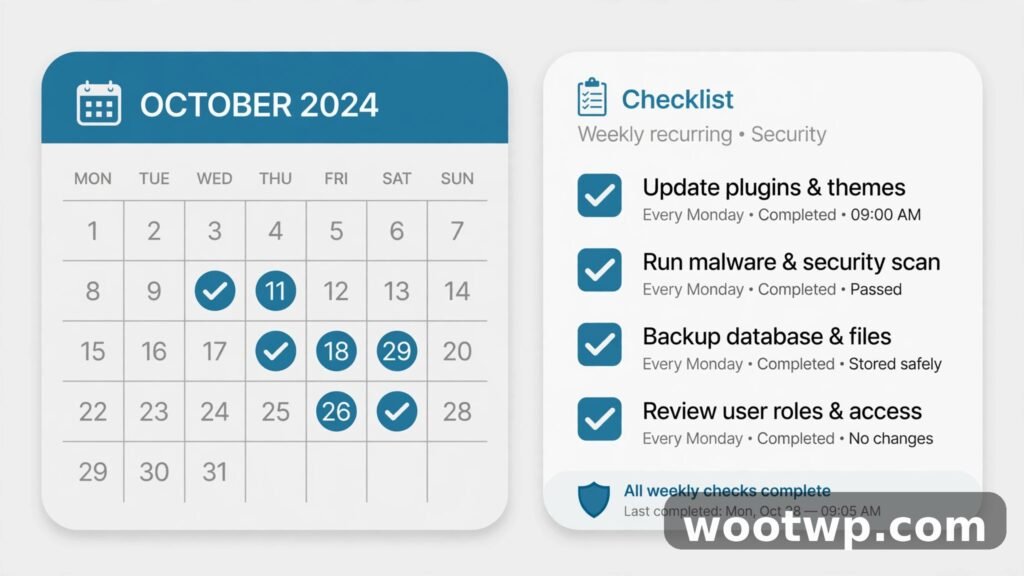
- [ ] Password unique and long — changed recently, stored in a password manager, not reused anywhere else.
- [ ] Facebook two-factor authentication on — authenticator app preferred, recovery codes saved offline.
- [ ] Login alerts on — Facebook, Messenger, and email all enabled.
- [ ] “Where you’re logged in” reviewed — no mystery devices.
- [ ] Email account secured — unique password, 2FA on, no forwarding rules you didn’t create.
- [ ] Apps and websites pruned — nothing active that you don’t recognize.
- [ ] Contact info current — your email and phone, nobody else’s.
- [ ] Friends and family briefed — they know to double-check any odd message “from you.”
For an extra layer of routine protection, it’s worth running through our free online security tools now and then — quick checks that help you spot weak points in your setup before someone else does.
Frequently Asked Questions
What should I do first if my Facebook account is hacked?
Go to facebook.com/hacked on a device you trust and start Meta’s official recovery flow. It verifies your identity, reviews changes the attacker made, and helps you set a new password. Don’t pay any third party that offers to recover your account — the real process is free.
How can I tell if someone is currently logged into my Facebook account?
Open Settings & privacy > Settings > Accounts Center > Password and security > Where you’re logged in. That list shows every active session with device, location, and last-active time. Log out anything you don’t recognize, or use “Log out of all sessions” for a complete sweep.
Can a hacker see my private messages after a hack attempt?
Yes — anyone with access to your account can read your Messenger conversations, see your friends list, and view anything your privacy settings allow. That’s why you should check your Activity Log for messages you didn’t send and warn friends about scam messages that may have gone out from your account.
Is two-factor authentication enough to stop hackers?
It’s the single biggest upgrade you can make, but it’s not magic on its own. Use an authenticator app rather than SMS, keep your linked email account secured with its own 2FA, and keep login alerts on so you’re notified of the next attempt. Security works in layers, not single tricks.
What if the hacker changed the email on my Facebook account?
Use facebook.com/hacked and follow the path for when you can’t access your email or phone. Meta will ask you to verify your identity another way — often by confirming trusted contacts or uploading ID — then lets you set a new email and password. Start this process as soon as you notice, since recovery gets harder the longer an attacker controls the account.
How do I stop a hacker from messaging my friends from my account?
First, log them out via “Where you’re logged in” and change your password so they can’t get back in. Then post a public warning on your profile and message anyone who received suspicious messages from you. Tell them not to click links or send codes — and warn older relatives by phone, since they’re the most common targets of follow-up scams.
Conclusion
Knowing how to secure Facebook account after a hack attempt comes down to one principle: lock the doors in the right order — email first, then password, then two-factor authentication, then sessions and alerts. Do that, and a hack attempt becomes a twenty-minute inconvenience instead of a week-long disaster. Run the monthly checklist, keep your recovery options current, and the next attempt won’t even get past the front door.