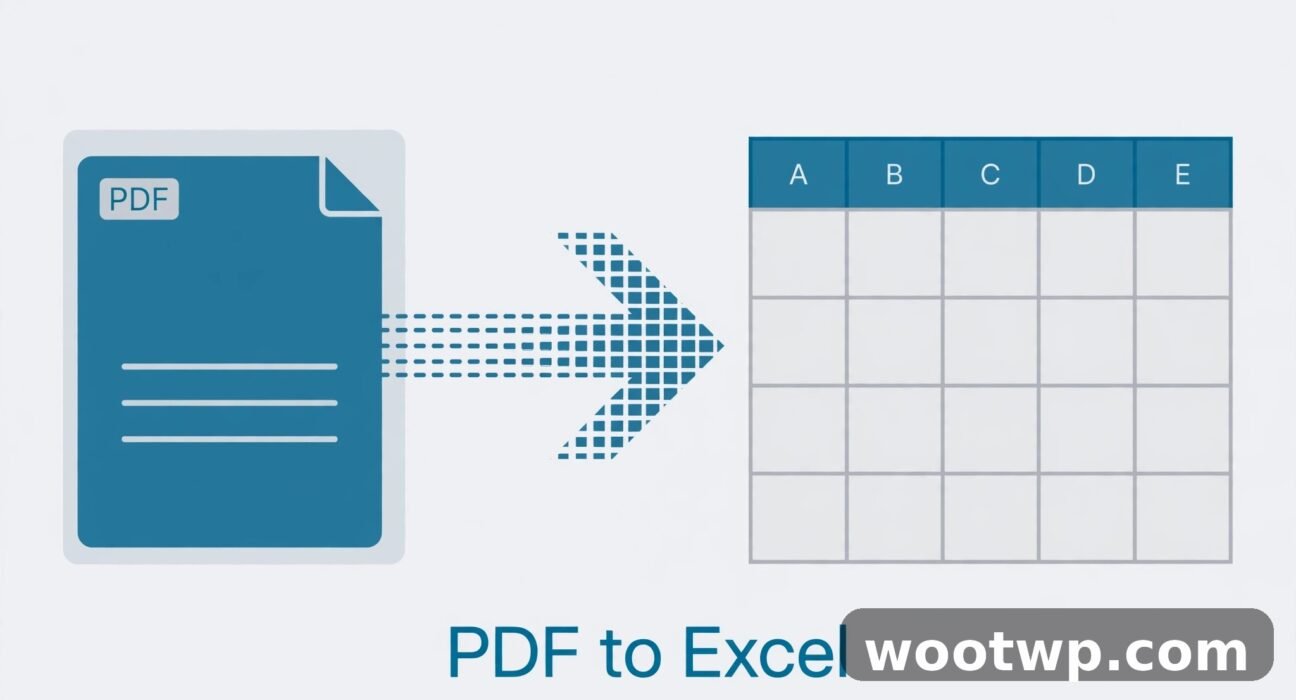
How to Convert PDF to Excel Free Without Losing Tables: 7 Proven Methods
You have a table locked inside a PDF — an invoice, a price list, a bank statement, a report — and you need it as a real spreadsheet you can sort, total, and edit. Learning how to convert PDF to Excel free without losing tables saves you from the worst option of all: retyping hundreds of numbers by hand, and mistyping a few of them along the way.
In this guide I'll show you the free methods that actually preserve your tables, in order from easiest to most powerful, and the checks that catch mistakes before they reach your spreadsheet. You will also learn which PDFs convert cleanly and which ones need an extra step first, so you stop wasting time on a method that was never going to work for your file.
- First, Check What Kind of PDF You Have
- How to Convert PDF to Excel Free Without Losing Tables: The Quick Method
- Use a Free Online PDF to Excel Converter Properly
- Copy and Paste the Table Into Excel the Right Way
- Convert PDF to Excel Without Losing Tables in Google Sheets
- Use LibreOffice Calc for Free Offline Conversion
- Fix Tables That Convert Badly: OCR for Scanned PDFs
- Clean Up the Converted Spreadsheet: The 10-Minute Check
- What to Do When a Table Spans Multiple Pages
- Frequently Asked Questions
First, Check What Kind of PDF You Have
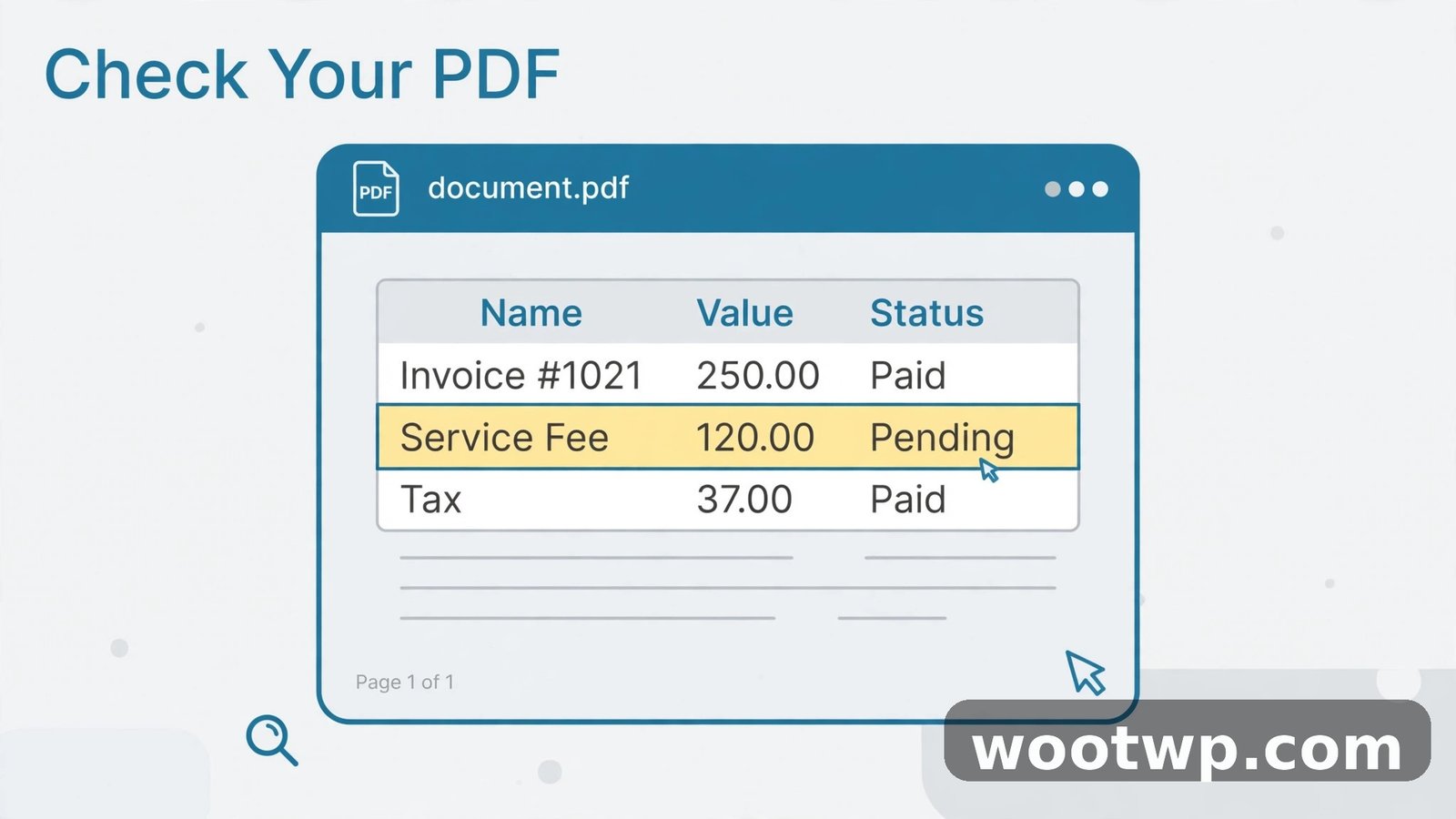
Not all PDFs are the same, and the kind you have decides which method will work. Spend thirty seconds on this check before you convert anything, because it prevents most failed conversions.
Open the PDF and try to select some text in the table with your mouse:
- If the text highlights cleanly, word by word, your PDF has real text inside it. Almost every free converter handles this kind well, and you can start with the quick method below.
- If you cannot select any text, or selecting drags a box over the whole page like a picture, your PDF is scanned or image-only. It is a photo of a table, not a table, and no normal converter can read it until you run OCR first. Skip to the OCR section below.
Also look at the table itself. Clean, ruled tables with clear lines and even spacing convert almost perfectly. Borderless tables — where columns are separated only by whitespace, like many bank statements — convert well but often need column nudging afterward. Tables with merged cells, multi-line cells, or tiny decorative fonts convert messily no matter which tool you use, and you should plan ten minutes of cleanup for those.
One more useful check: open the PDF at 100% zoom and look for faint gridlines. Some tables look borderless on screen but have light gray rules that converters can detect. If the rules are there, a good converter will find them, and your result will be much cleaner than a copy-and-paste job.
How to Convert PDF to Excel Free Without Losing Tables: The Quick Method
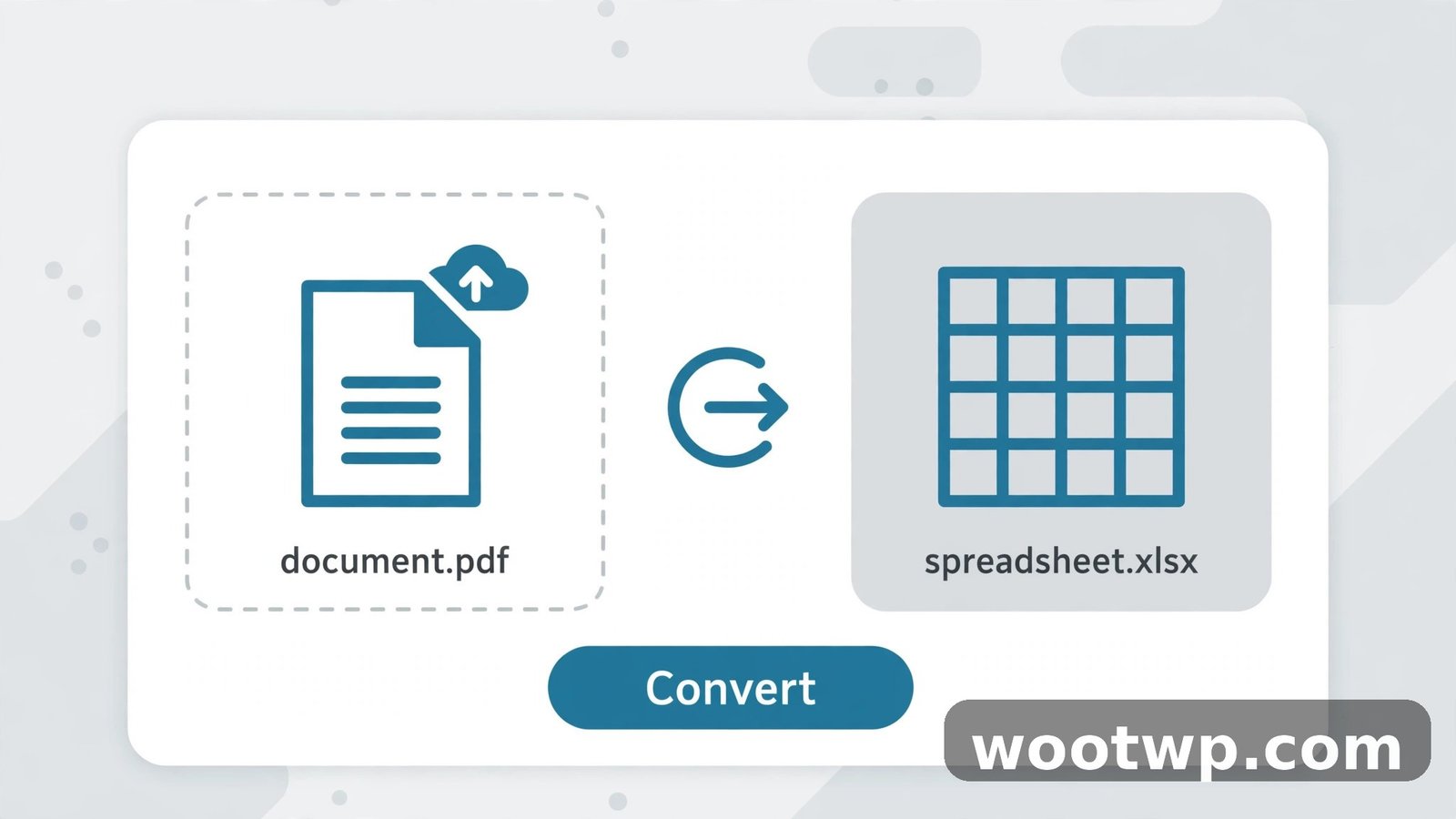
For a clean, text-based PDF, a free online converter is the fastest route, and it usually beats every manual method. The trick is picking a good one and checking its output properly, not just downloading whatever it gives you.
- Choose a converter that promises real Excel output (.xlsx), not a text dump. Free options include the PDF-to-Excel tools from well-known PDF sites, which handle one or a few files free without an account.
- Upload your PDF. If the file contains sensitive financial data, prefer a tool that processes the file in your browser or deletes uploads quickly, and read its privacy note before uploading a bank statement or payroll file.
- Start the conversion and wait for it to finish. Do not close the tab early — large PDFs with many pages take a minute or two.
- Download the .xlsx file and open it in Excel, Google Sheets, or LibreOffice Calc.
- Compare it with the original PDF, page by page, before you trust it. The cleanup checklist later in this guide tells you exactly what to check.
That last step is the one people skip, and it is the one that matters. A converter can silently drop a row, merge two columns, or turn a number into text, and you will not notice until a total is wrong. Always verify, even when the conversion looks perfect at first glance.
If your first converter mangles the table, try a second one before giving up. Converters use different table-detection methods, and a table that fails in one tool often converts cleanly in another. Trying two free tools takes five minutes and is far faster than retyping or hand-fixing a badly converted sheet.
For simpler PDF jobs, the same idea applies to other formats: if you need the same table as a document rather than a spreadsheet, our guide on how to convert PDF to Word free without losing formatting covers that route with the same verification approach.
Use a Free Online PDF to Excel Converter Properly
Getting a clean result from an online converter is less about which site you pick and more about how you use it. These settings and habits make the difference between a clean spreadsheet and a mess.
First, check the output options before you convert. Some converters ask whether to put each detected table on its own sheet or combine everything into one sheet. For a single table, one sheet is what you want. For a report with several separate tables, separate sheets keep them from running into each other.
Second, watch out for free-tier limits. Many free converters limit file size, pages per day, or the number of conversions per hour. If your PDF is large, split it into smaller chunks — one chapter or one statement at a time — and convert each separately. Splitting also makes errors easier to find, because a mistake is isolated to one chunk. Going the other way, if you have several separate statements to combine first, our guide on how to merge PDF files free on phone and PC walks through that step before conversion.
Third, handle headers and footers deliberately. Page numbers, report titles, and running headers often convert into stray rows at the top or bottom of your sheet. That is normal, not an error. Delete those rows after conversion, but do it after you have checked that no real data hid among them.
Fourth, never convert a password-protected PDF directly. Unlock it first with the password you own, using your PDF reader or a trusted tool, then convert the unlocked copy. Converters that claim to strip passwords from files you do not own are a red flag, and you should avoid them.
Finally, keep the original PDF. Do not delete it after conversion. If someone questions a number weeks later, the PDF is your proof, and you can always reconvert if you discover a mistake in the spreadsheet.
Copy and Paste the Table Into Excel the Right Way
Sometimes a converter is overkill, or your PDF is small enough that copy and paste is faster. Done the right way, it preserves tables surprisingly well. Done the careless way, it dumps everything into one column.
- Open the PDF and select exactly the table, from the first header cell to the last data cell. Avoid selecting page headers, footers, and surrounding paragraphs.
- Copy with Ctrl + C (or Cmd + C on Mac).
- Open Excel and click the cell where the table should start.
- Right-click and choose "Paste Special," then "Text" or "Unicode Text." This pastes the table as rows and columns instead of a formatted blob.
- If everything lands in one column, do not panic. Select that column, go to Data, then "Text to Columns," choose "Delimited," tick Tab and Space as delimiters, and click Finish. Excel splits the column back into a proper table.
If the pasted table still looks wrong — columns merged, numbers split across cells — the table's spacing is too irregular for pasting, and a proper converter will do a better job. Copy and paste works best for small, simple tables with clean spacing. For anything longer than a page, use a converter instead of fighting with paste.
A useful variation: paste into Google Sheets first, clean it up there, then download as .xlsx. Sheets' paste handling is sometimes kinder to PDF tables than Excel's, and its "Split text to columns" tool under the Data menu does the same job as Excel's Text to Columns.
Convert PDF to Excel Without Losing Tables in Google Sheets
If you already use Google Sheets, you can convert PDF tables without installing anything, using a two-step route through Google Docs. It is free, it works on any computer, and it handles many tables well.
- Upload your PDF to Google Drive.
- Right-click the file, choose "Open with," then "Google Docs." Google Docs runs OCR and text extraction on the PDF and opens it as an editable document, with tables roughly preserved.
- In the Docs document, find your table. Select it, copy it, and paste it into a blank Google Sheets spreadsheet.
- Clean up the pasted table in Sheets: fix any merged cells, delete stray header rows, and check the numbers against the PDF.
- Go to File, then Download, then "Microsoft Excel (.xlsx)" to get a real Excel file.
This method shines for tables that converters struggle with, because you can see and fix the table in Docs before it ever reaches a spreadsheet. Its weakness is complex formatting: heavily styled tables lose their formatting in Docs, though the data itself usually survives.
One caution: Google Docs conversion works on your file in the cloud, so do not use it for highly sensitive documents you would not otherwise upload. For bank statements and payroll data, an offline method below is the safer choice.
Use LibreOffice Calc for Free Offline Conversion
If you prefer to keep your files on your own computer, LibreOffice Calc — a free, open-source spreadsheet program — can convert PDF tables offline, with no uploads and no account.
The most reliable LibreOffice route is through Draw:
- Open your PDF in LibreOffice Draw. Draw opens PDFs as editable documents, with table cells as separate text boxes.
- Select the table area, copy it, and paste it into LibreOffice Calc.
- Use Data, then "Text to Columns," to split the pasted content into proper columns if it lands in one column.
- Save the result as .xlsx from File, then "Save As," choosing Excel format.
This takes more manual work than an online converter, so it is not my first choice for a clean, text-based PDF. It earns its place for sensitive files, because nothing leaves your computer, and for stubborn tables, because you can select and fix pieces of a table by hand in Draw before pasting.
LibreOffice Calc also opens the .xlsx files that online converters produce, so you can use it purely as your cleanup tool even if you converted online. Its find-and-replace, sorting, and filtering work the same way as Excel's for the cleanup steps below. If the Text to Columns dialog confuses you, LibreOffice's own Text to Columns help page explains each separator option with examples.
If you regularly work with PDFs on your computer, installing LibreOffice once gives you a free offline fallback for every PDF job — conversion, cleanup, and editing — without depending on a website being available.
Fix Tables That Convert Badly: OCR for Scanned PDFs
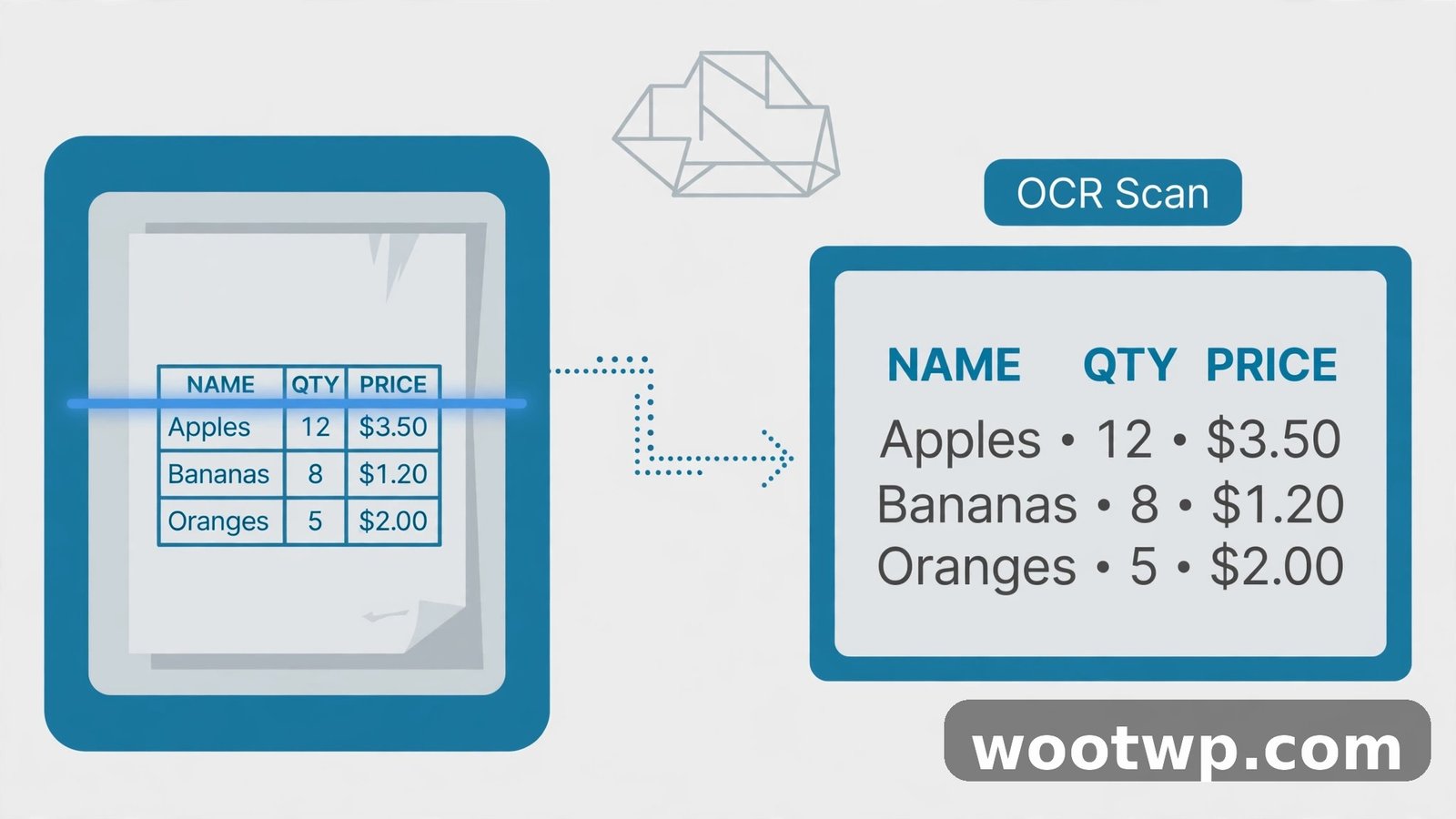
Scanned PDFs need OCR — software that reads text from images — before any converter can work with them. Without OCR, a converter sees a picture, not a table, and gives you nothing or garbage.
Free OCR options that work well for tables:
- Google Drive's "Open with Google Docs" route above, which runs OCR automatically when it opens a scanned PDF.
- Microsoft's free Lens app on your phone, which can scan a printed table and copy it as text or a spreadsheet.
- Desktop OCR tools bundled with many free PDF readers, which let you run OCR on a PDF and save a searchable copy.
For the best OCR result, start with the cleanest scan you can get:
- Scan at 300 dpi or higher if you control the scan. Low-resolution scans produce misread digits, and a misread digit is worse than a missing one because it looks correct.
- Straighten the page. A table photographed at an angle confuses OCR badly. Most scanning apps straighten automatically — use that feature.
- Crop to the table. Headlines, margins, and handwritten notes become phantom rows if OCR tries to read them as table data.
- Run OCR, then read every number in the result against the original. OCR confuses 1 with 7, 0 with O, and 5 with S more often than people expect, and those errors hide in totals.
After OCR, save the result as a searchable PDF, then run your normal converter on it. Two steps instead of one, but the second step now has real text to work with, and your table converts like a normal PDF.
If OCR keeps failing on a particular table — handwritten entries, faded print, ornate fonts — accept that full automation will not work for that file. Convert what OCR reads cleanly, then type the remaining rows by hand, checking each against the scan. A half-automated conversion with a careful check still beats retyping the whole table.
Clean Up the Converted Spreadsheet: The 10-Minute Check
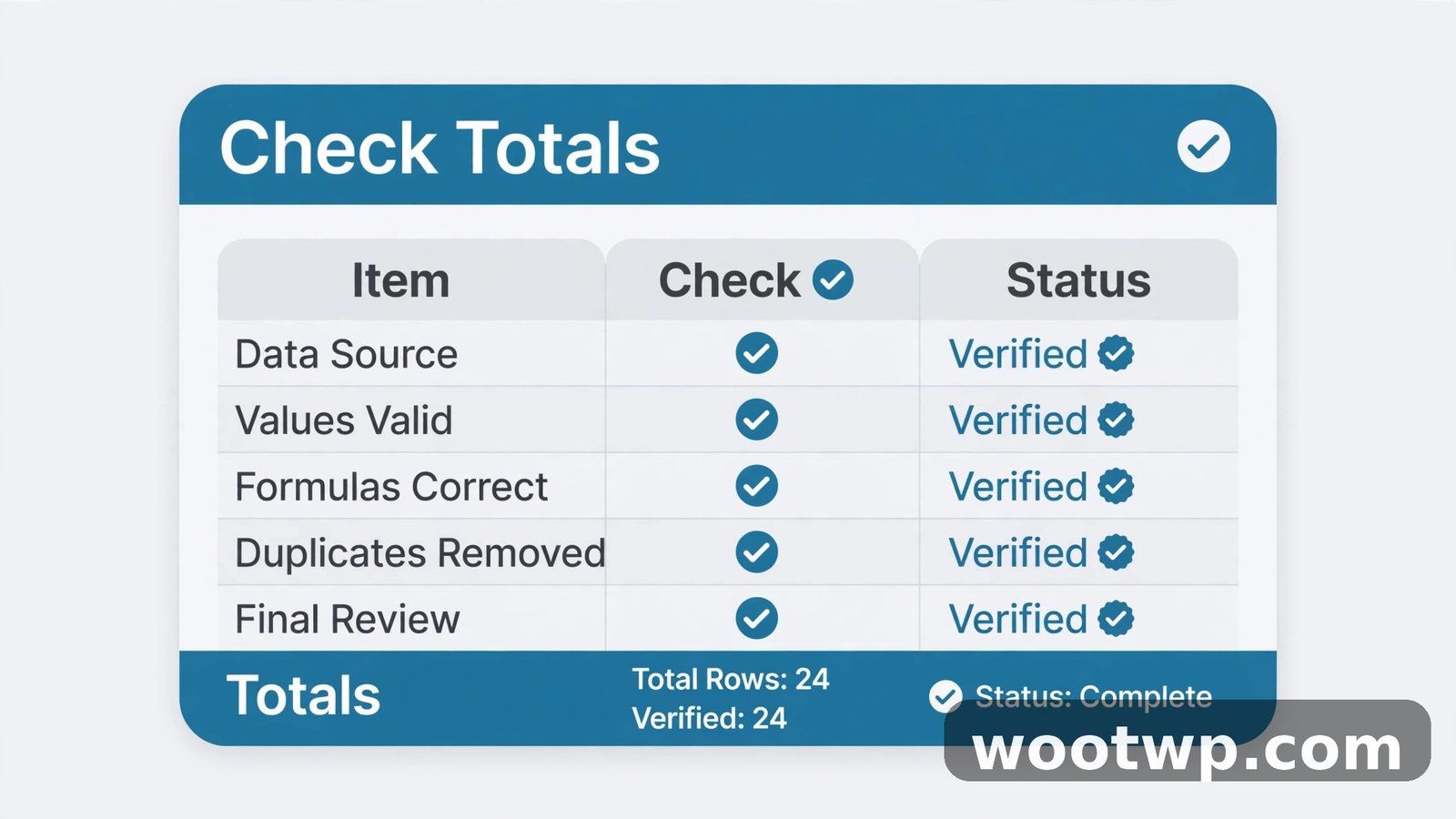
Every conversion, from every tool, needs this check. Ten minutes here prevents errors that could cost you far more later, especially with money figures.
Work through this list top to bottom:
- Row count. Count the rows in the spreadsheet and compare with the rows in the PDF table. A missing row is the most common silent error, and it usually happens at page breaks.
- Column alignment. Scroll across the header row and check that each column holds one kind of data — dates in the date column, amounts in the amount column. A column that suddenly holds two kinds of data means two columns merged during conversion.
- Numbers as numbers. Click a few amount cells and check the formula bar. If amounts are stored as text, they will not add up in formulas, and totals will silently be wrong. Select the column, and use "Text to Columns" with no delimiters, or multiply the column by 1 in a helper column, to convert text numbers to real numbers.
- Totals. Add a sum formula at the bottom of each amount column and compare it with the total printed in the PDF. If they match, your numbers are almost certainly right. If they do not, find the discrepancy before you use the sheet.
- Dates. Check that dates converted as dates, not as text or as wrong dates. A day-month swap (3/4 meaning March 4 in one system and April 3 in another) is a classic conversion error. Set the column's date format explicitly and eyeball a few entries.
- Merged and multi-line cells. Split merged header cells into separate columns where needed, and join multi-line cell content that split across rows back into one cell.
- Currency symbols and commas. Strip currency symbols from amount columns if they block formulas, and check that thousand separators converted correctly rather than turning 1,000 into 1 or 1000 inconsistently.
- Blank rows. Delete blank rows left by page breaks, headers, and footers, but only after confirming they are truly blank and not hiding data in a far-right column.
Do this check in order, and do it before you build any formulas, charts, or reports on the converted data. Fixing a table after you have built on it means redoing the work built on top.
What to Do When a Table Spans Multiple Pages
Multi-page tables are where most conversions go wrong, because converters usually handle one page at a time. A table that continues across a page break often arrives as two separate tables, or loses its header row on the second page, or drops the rows near the break.
Here is a reliable workflow for them:
- Convert the whole PDF, then identify where each page's table fragment landed. Most converters put each page on its own sheet or in its own block.
- Copy the fragments into a single sheet, in page order, deleting repeated header rows from the second fragment onward. Keep the first header row only.
- Check the join carefully. The rows immediately before and after each page break are where rows go missing or duplicate. Compare those rows against the PDF, line by line.
- Recalculate your totals across the joined table and compare with the PDF's grand total, if it prints one. If the PDF has no grand total, sum the fragments separately and add them — the pieces should add up to a sensible whole.
For very long tables — hundreds of rows across many pages — consider converting page by page and stacking the results yourself, rather than trusting one giant conversion. It takes longer, but each piece is small enough to verify, and a mistake stays local to one page instead of hiding in a huge sheet.
A final tip for recurring tables: if you receive the same report every month, save your cleanup steps as a checklist or a simple macro in your spreadsheet program. The second month's conversion then takes minutes, because you already know exactly which rows to delete, which columns to fix, and which total to check.
Frequently Asked Questions
How can I convert PDF to Excel free without losing table formatting?
Use a converter that outputs real .xlsx files, and start with a clean, text-based PDF. Ruled tables convert almost perfectly; borderless tables usually need minor column fixes afterward. Whatever tool you use, verify the result with the cleanup checklist in this guide — row count, column alignment, and totals against the original PDF — before you trust the spreadsheet.
Can I convert a scanned PDF to Excel?
Yes, but you must run OCR first. A scanned PDF is an image, not text, so converters cannot read it directly. Open it with Google Docs through Drive, or use a scanning app with OCR, to create a searchable PDF, then convert that file normally. Check every digit afterward, because OCR sometimes misreads similar-looking characters.
Why do my numbers not add up after converting PDF to Excel?
Usually because amounts converted as text instead of numbers, or because a row went missing at a page break. Select the amount column and convert text to numbers, check the row count against the PDF, and add a sum formula to compare with the total printed in the original. One of those three checks almost always finds the problem.
Is it safe to upload financial PDFs to a free online converter?
It depends on the tool and the document. Reputable converters delete uploads after a short time and state that clearly, but a bank statement or payroll file is still sensitive data leaving your computer. For sensitive files, prefer an offline method like LibreOffice, or a tool that processes the file in your browser without uploading it. Never upload a file to a converter that does not explain what happens to your data.
Can I convert PDF to Excel on my phone for free?
Yes. Most online converters work in a mobile browser: upload the PDF, convert, and download the .xlsx file, then open it in a spreadsheet app. For a scanned table, photograph it with a scanning app that offers OCR and spreadsheet export. Phone conversion works well for small tables; for long multi-page tables, a computer gives you a much easier cleanup experience.
Will formulas from the original spreadsheet survive a PDF to Excel conversion?
No. A PDF stores only the displayed values, not the formulas behind them, so the converted spreadsheet contains values only. You will need to rebuild any formulas, totals, and calculations yourself in Excel. That is another reason to check totals after conversion — the spreadsheet cannot check itself against the original logic.
Conclusion
Learning how to convert PDF to Excel free without losing tables is mostly about matching the method to your file: a good online converter for clean text PDFs, OCR first for scanned ones, and a careful cleanup check every single time. The conversion itself takes minutes; the verification is what makes the result trustworthy.
Convert your next table with one of the free methods above, run the ten-minute check against the original PDF, and you will have a spreadsheet you can actually rely on — without retyping a single row by hand.