How to Turn Off Read Receipts on Instagram: 5 Easy Ways
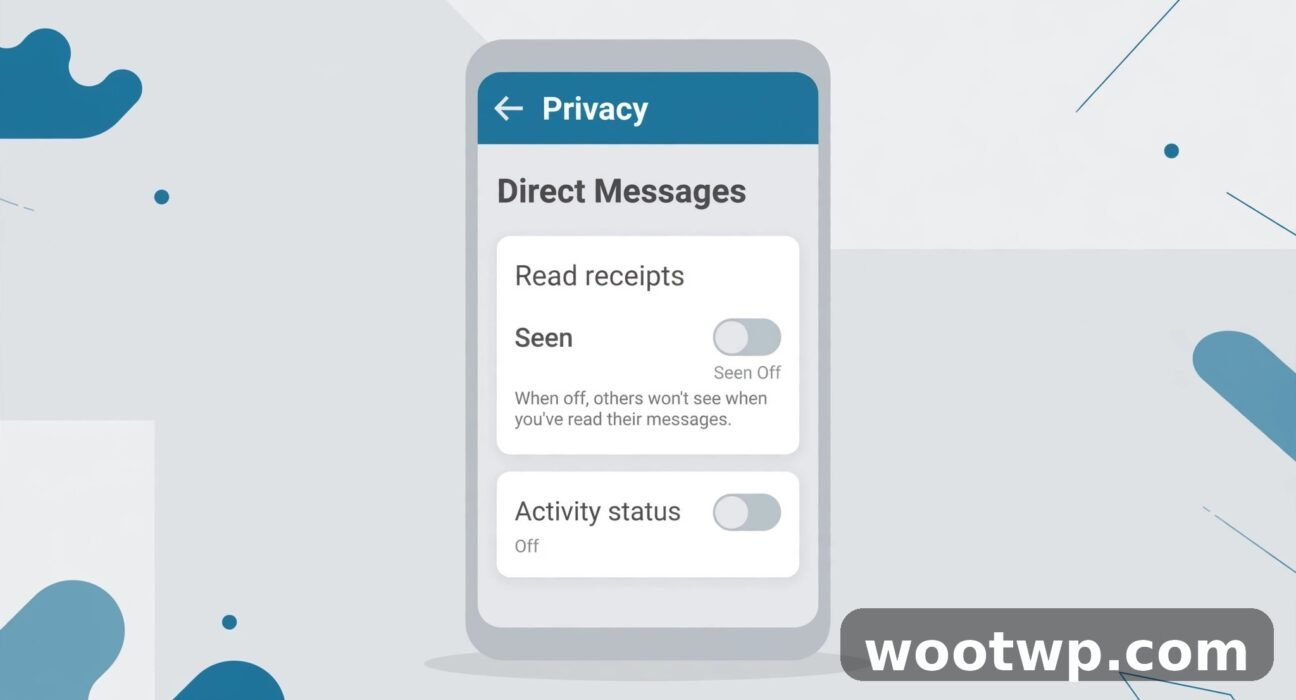
If you want to learn how to turn off read receipts on Instagram, you are in the right place. That little "Seen" label can feel like a timer ticking on your reply, and sometimes you just want to read a message in peace. The good news is that Instagram now lets you switch read receipts off, either for your whole account or for one chat at a time.
In this guide, I will walk you through both methods step by step. You will also learn what actually changes once the setting is off, why group chats behave differently, and how read receipts differ from activity status. By the end, you will be able to read your DMs without the pressure to reply right away.
- Turn it off for your whole account
- Turn it off for one chat only
- What changes when you turn read receipts off
- Group chats and read receipts
- Read receipts vs activity status
- If the toggle is missing
- Frequently asked questions
- Conclusion
How to Turn Off Read Receipts on Instagram for Your Whole Account
The account-wide switch is the simplest option. Once you turn it off, nobody will see a "Seen" label when you open their messages. This is the best choice if you want a clean break from reply pressure across all your chats.
Before you start, it helps to know how to turn off read receipts on Instagram works in practice. The change applies to new messages you open after switching it off. It does not rewrite history, and I will explain that part in more detail below.
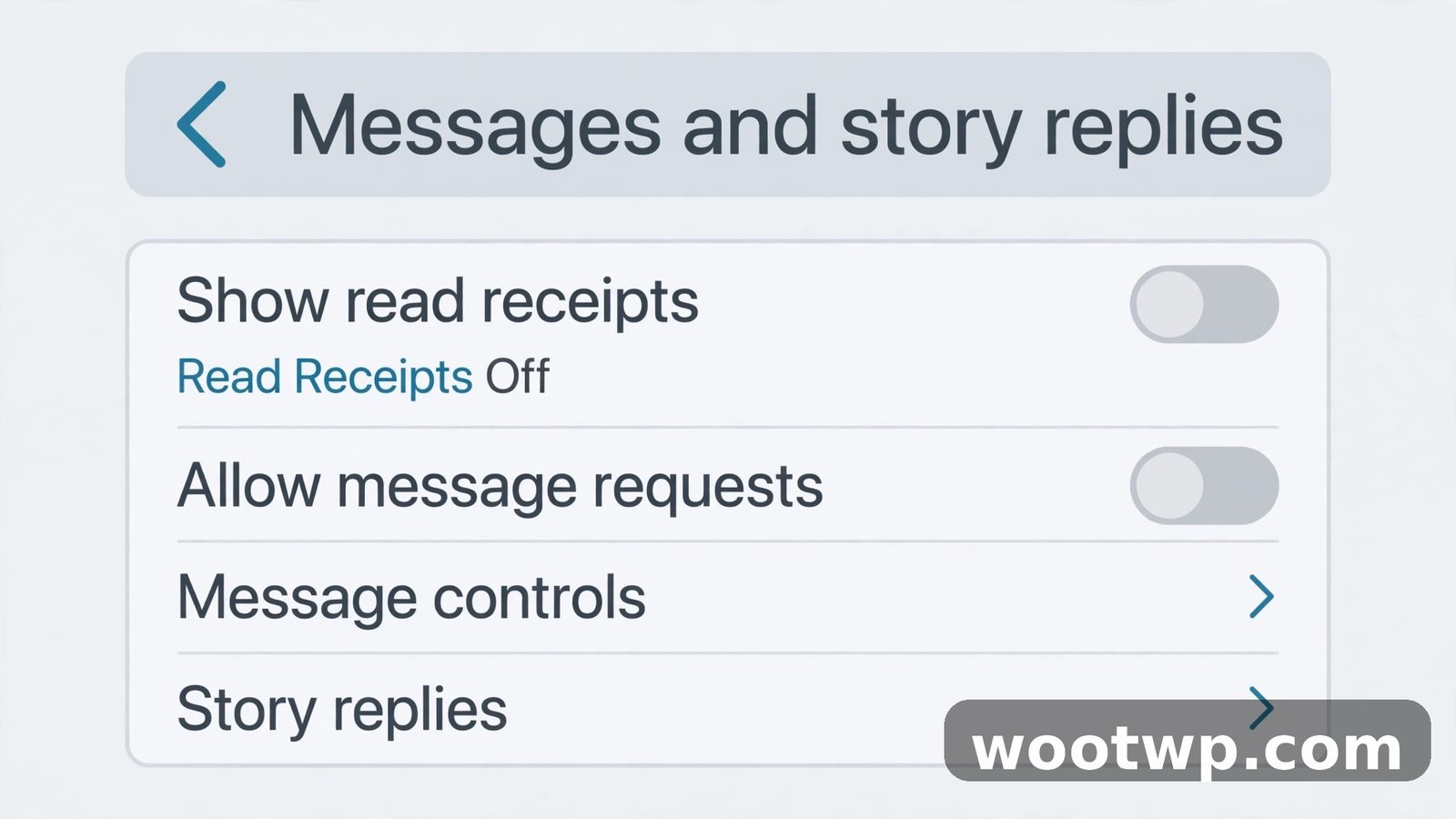
Steps to turn off read receipts for your whole account
- Open Instagram and tap your profile picture in the bottom right to go to your profile.
- Tap the menu icon (three lines) in the top right.
- Tap Settings and activity.
- Tap Messages and story replies.
- Tap Show read receipts to turn the switch off.
That is it. The instagram read receipts setting is now off for your whole account. From here on, when you open a DM, the sender will not get a "Seen" stamp on that message.
What to check after you switch it off
Give the setting a quick test if you want to be sure it worked. Open a chat from a friend you trust, read the latest message, and ask them whether they see "Seen" under it. In my experience, the change takes effect right away, with no need to restart the app.
If you ever change your mind, the same path turns it back on. Go to Profile, then menu, then Settings and activity, then Messages and story replies, and switch Show read receipts back on. There is no penalty for toggling it, and you can switch it as often as you like.
How to Turn Off Read Receipts on Instagram for One Chat Only
Maybe you do not want to switch receipts off for everyone. Perhaps you only need breathing room with one person, such as a coworker or a new contact, while keeping receipts on for close friends. Instagram covers that case too, with a per-chat toggle.
Learning how to turn off read receipts on Instagram for a single chat gives you fine control. The account-wide setting stays as it is, and only the chat you change behaves differently.
Steps to turn off read receipts for one chat
- Open Instagram and tap the messages icon in the top right to open your DMs.
- Open the chat you want to change.
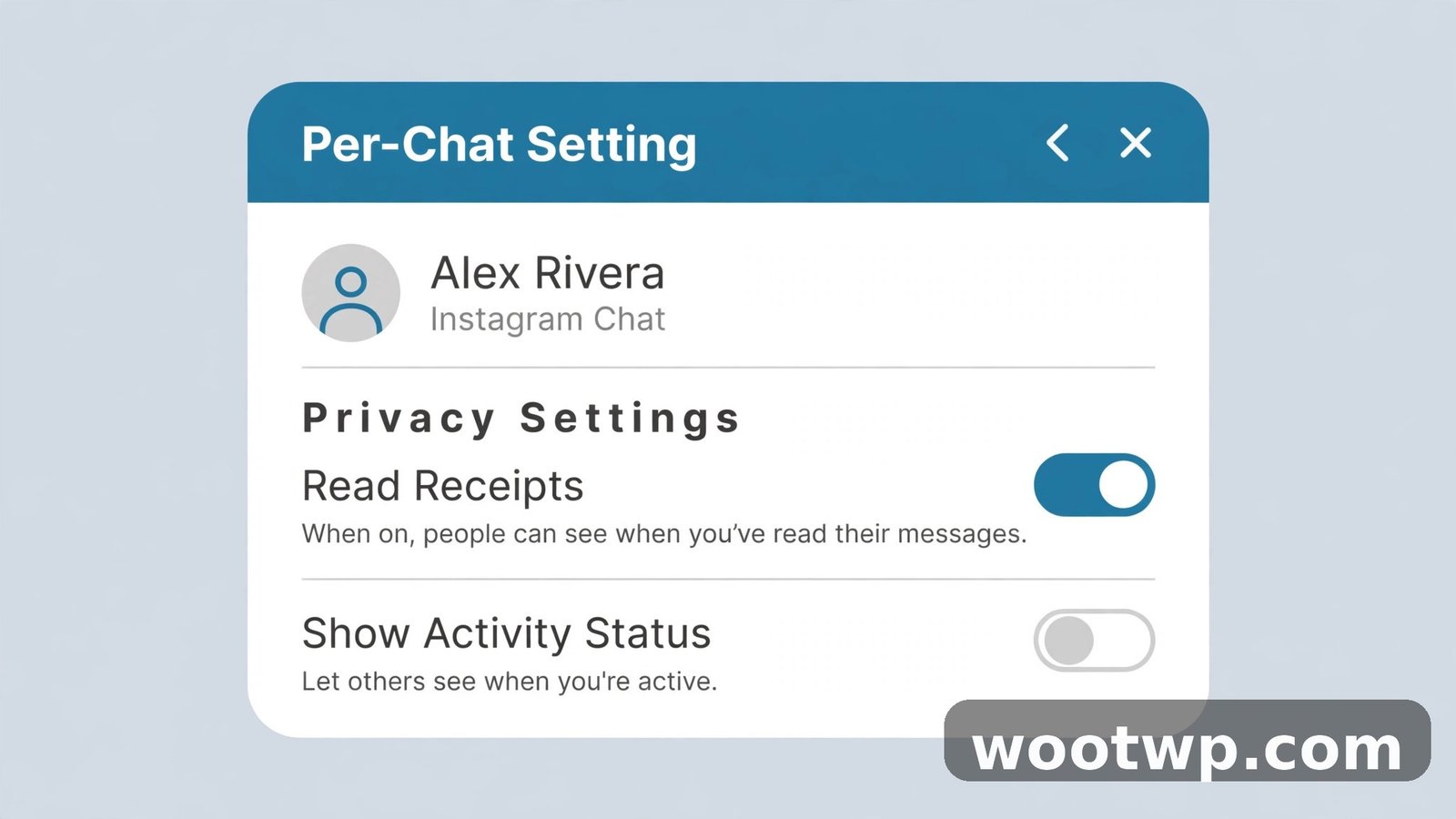
- Tap the person's name at the top of the chat to open their chat settings.
- Tap Privacy and safety.
- Tap Read receipts to turn the switch off for that chat only.
From now on, that person will not see "Seen" when you read their messages. Everyone else is unaffected, and their chats keep working exactly as before.
When the per-chat option makes the most sense
Use the per-chat toggle when you want privacy in one conversation but still like the back-and-forth of read receipts elsewhere. If you are still deciding how to turn off read receipts on Instagram for just one person, start with the chat that causes the most pressure and leave the rest alone. I have seen people use it for work chats, for group-project messages, and for chats with people they do not know well yet.
It also works in reverse. If your account-wide setting is off but you want one close friend to see your receipts, open that chat, go to Privacy and safety, and switch Read receipts on for that chat only. That chat then overrides the account-wide setting.
What Changes When You Turn Read Receipts Off?
When you learn how to turn off read receipts on Instagram, the change is mutual. That is the part many people miss, so it is worth spelling out clearly.
- The people you message will no longer see "Seen" when you read their messages.
- You will also stop seeing "Seen" when they read your messages.
- You can still send and receive messages exactly as before. Nothing else about the chat changes.
- Typing indicators are not affected by this setting.
In other words, you trade a small piece of information in both directions. You gain privacy, and you give up the confirmation that someone read your message. For most people, that is a fair trade, and it is the whole point of the setting.
Messages you already opened stay "Seen"
This is an important detail. Turning receipts off only affects messages you open after the change. If someone already saw "Seen" on a message before you switched the setting off, that label stays there. The setting cannot undo a receipt that was already sent.
So if there is one message you wish you had not opened yet, the time to change the setting is before you open it, not after. Once the "Seen" label is there, it does not disappear.
With Instagram seen receipts off, replies feel less rushed
With Instagram seen receipts off, the whole rhythm of a conversation changes. You can read a message on the bus, think about your reply, and answer later without the other person watching the clock. That alone makes the setting worth using for a lot of people.
It also helps in a practical way. If you check a message quickly while you are busy, you no longer have to worry that the sender thinks you are ignoring them. You can reply when you actually have time to give a proper answer.
Do Read Receipts Still Show in Group Chats?
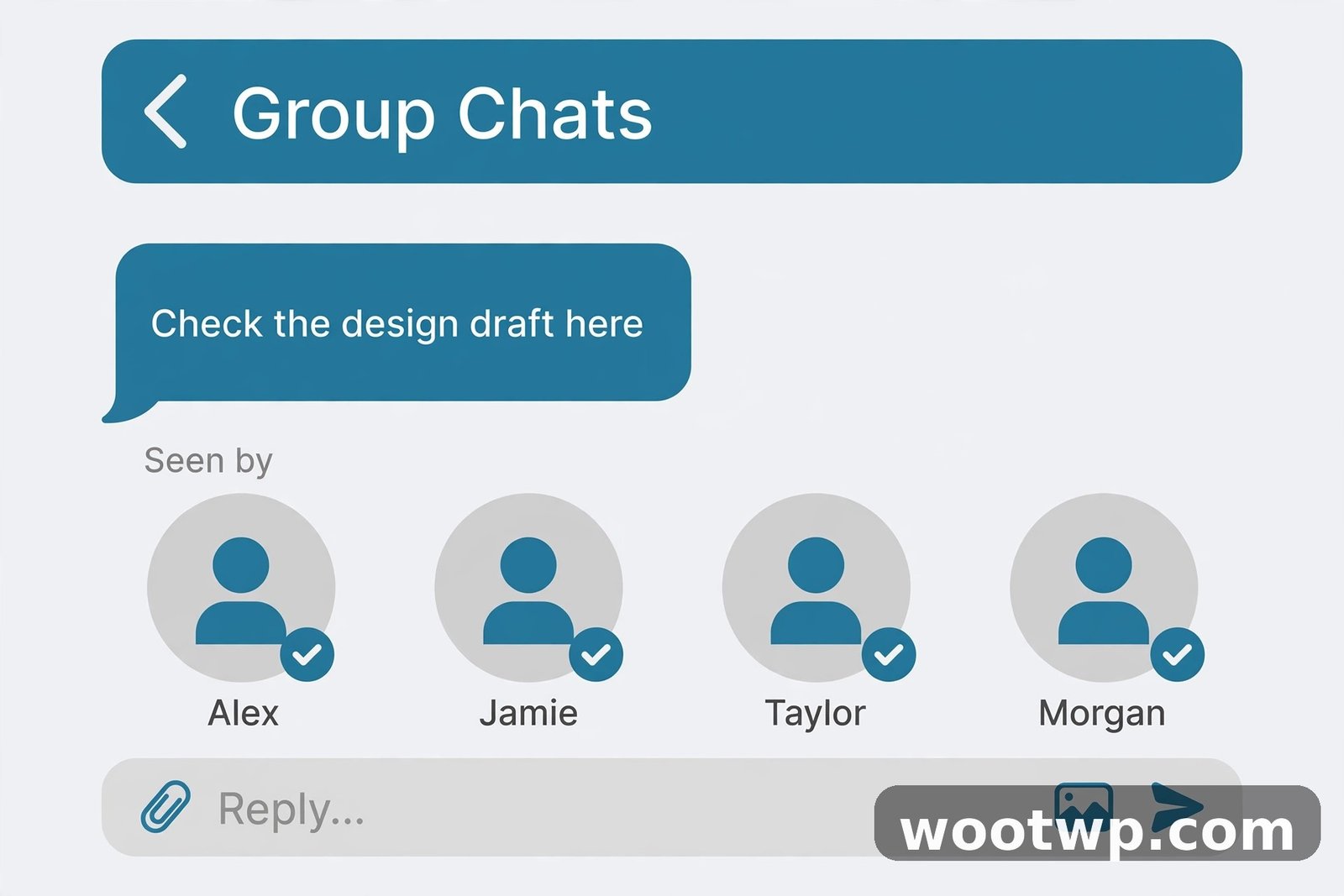
Yes, and this is the one big exception to know about. Group chats still show seen information even when read receipts are off. In a group chat, Instagram shows small profile bubbles under a message to show who has seen it. That behaviour does not change with the account-wide or per-chat setting.
This catches people out, so it is worth remembering. If you open a message in a group chat, the other members may still see that you have read it. The read receipts setting only covers one-to-one chats.
Why does Instagram keep receipts in group chats? The company has not given a detailed public reason, but group chats rely on seen indicators so everyone knows who has caught up. For now, treat group chats as a separate case: read receipts off does not mean invisible in a group.
If a group message needs a careful reply, the safest move is to wait until you are ready to answer before you open the thread. You can also mute the group for a while so you are not tempted to open it early. Muting does not hide your seen status, but it does stop the notifications pulling you back in.
Read Receipts vs Activity Status: What Is the Difference?
Read receipts and activity status sound similar, but they control two different things. Mixing them up is common, so here is the simple version.
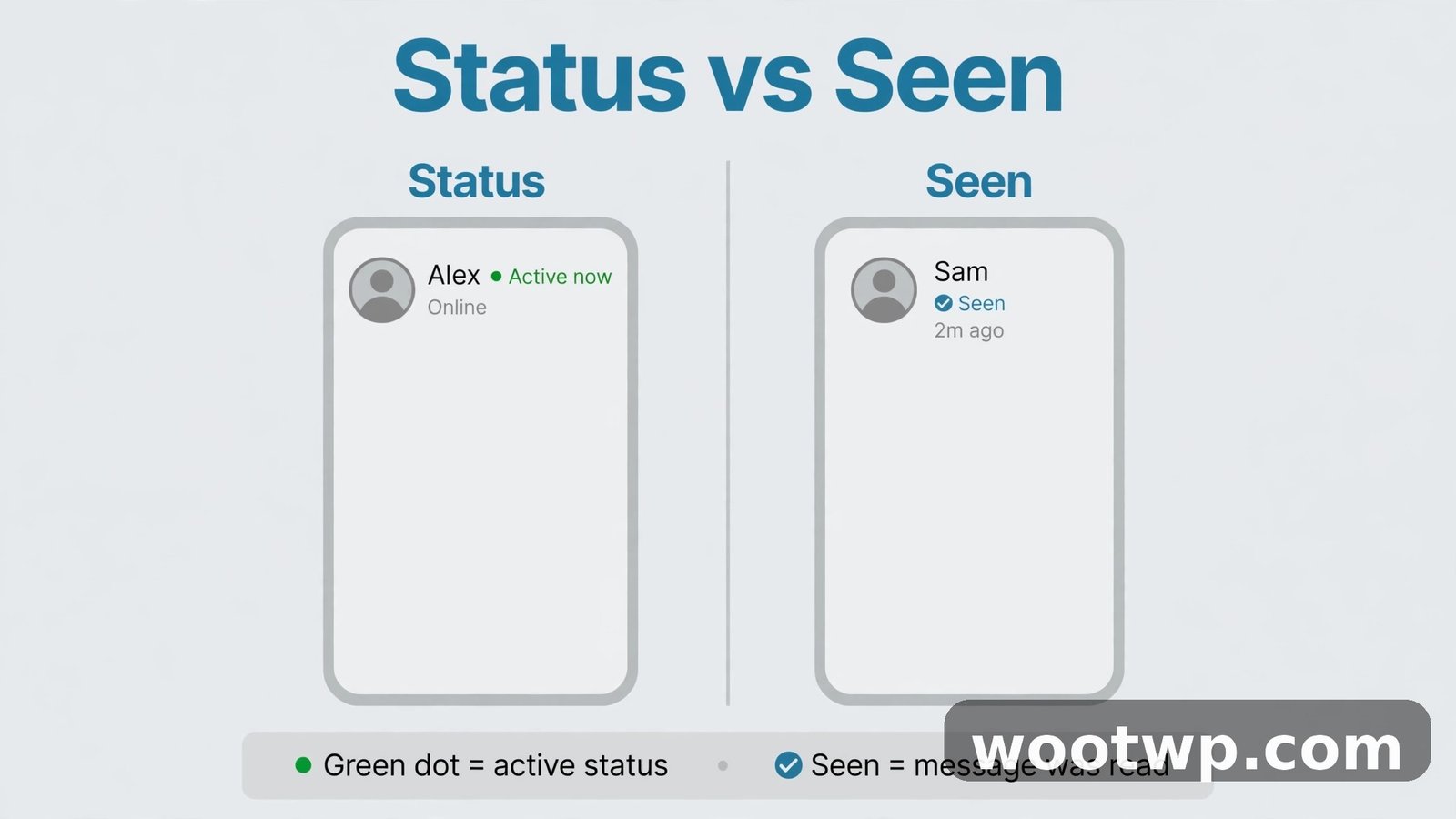
- Read receipts tell someone whether you have opened their specific message. The label is "Seen".
- Activity status tells people when you were last active on Instagram, or whether you are online right now. It shows as a green dot or a "Active now" note in the DM list.
Turning off read receipts does not turn off activity status. Likewise, turning off activity status does not turn off read receipts. How to turn off read receipts on Instagram is a separate job from hiding your online status, and you need to change each setting on its own.
If you want both kinds of privacy, switch off read receipts using the steps above, then find the activity status switch in Settings and activity and turn that off too. That combination gives you the quietest setup: no "Seen" labels and no online indicator.
It is also worth locking down the rest of your account while you are thinking about privacy. For example, our guide to how to enable two-factor authentication on Instagram walks through adding a second layer of protection to your account, which matters far more than any single privacy toggle. The same privacy habit applies in your browser, too — our guide to clearing cookies in Chrome shows how to stop old tracking data from hanging around after you sign out of sites. Instagram's own Help Center is another good place to check if a setting ever moves or looks different after an update.
What If the Read Receipts Toggle Is Missing?
If you follow the steps above and cannot find the toggle, do not panic. There are a few common reasons, and most of them are easy to fix.
First, update the app. The read receipts setting arrived in a newer version of Instagram, so an old version may simply not have it. Open the App Store on iPhone or Google Play on Android, search for Instagram, and tap Update if one is available. Then reopen the app and follow the steps for how to turn off read receipts on Instagram again, starting at Profile, then menu, then Settings and activity, then Messages and story replies.
Second, remember that Instagram rolls features out in waves. Even with the latest app version, a brand-new setting can take a while to reach every account. If the toggle is still missing after an update, wait a few days and check again. In my experience, it usually appears on its own without any extra steps.
Third, try restarting the app or your phone. Close Instagram fully, reopen it, and look again. A restart clears small glitches that can hide a new setting after an update.
If none of that works, check that you are looking in the right place. The setting lives under Messages and story replies, not under the main Privacy menu. That is the step most people get wrong. The full path is Profile, then menu, then Settings and activity, then Messages and story replies, then Show read receipts.
Frequently Asked Questions
How do I turn off read receipts on Instagram?
If you want to know how to turn off read receipts on Instagram for your whole account, go to your profile, tap the menu, then Settings and activity, then Messages and story replies, and switch off Show read receipts. That turns receipts off for your whole account. For one chat only, open the chat, tap the name at the top, go to Privacy and safety, and switch off Read receipts.
If I turn off seen on Instagram DM chats, will the other person know?
No, Instagram does not notify the other person when you change this setting. They will simply stop seeing the "Seen" label on messages you open afterwards. The only change they might notice is the missing label itself, and there is no alert or message about it.
Can I turn off read receipts for one person but not others?
Yes. Open that person's chat, tap their name, go to Privacy and safety, and switch off Read receipts for that chat. Your account-wide setting stays unchanged, so every other chat keeps its current behaviour. You can also do the reverse and turn receipts on for one chat while they are off everywhere else.
Do read receipts turn off for group chats too?
No. Group chats still show who has seen a message, using small profile bubbles under it. The read receipts setting only applies to one-to-one chats. If you open a group message, other members may still see that you have read it, even with receipts switched off.
Does turning off read receipts hide my activity status?
No, these are two separate settings. Read receipts control the "Seen" label on a message, while activity status controls the green dot and "Active now" note in your DM list. You need to switch each one off separately if you want both kinds of privacy.
Why can I not find the read receipts setting on my Instagram?
The most likely reason is an outdated app, so update Instagram from the App Store or Google Play first. If the toggle is still missing, your account may not have received the feature yet, since Instagram rolls new settings out in waves. Check again in a few days, and make sure you are looking under Messages and story replies.
Conclusion
Now you know how to turn off read receipts on Instagram, both for your whole account and for a single chat. Pick the option that fits your life: the account-wide switch for full peace of mind, or the per-chat toggle when only one conversation needs breathing room. The one clear takeaway is this: read receipts are your choice, not an obligation, so set them the way that makes messaging feel comfortable for you.