How to Download TikTok Videos Without Watermark Free: 7 Steps
If you want to learn how to download TikTok videos without watermark free, you are in the right place. Every time you hit Save on a TikTok video, the app stamps its logo and your username across the clip. That watermark bounces around the screen, and it ruins the video if you want to reuse it, edit it, or simply watch it clean.
The good news is that you can get a clean copy of a video without paying for anything. In this guide, I will walk you through the exact steps for Android, iPhone, and PC. You will also learn what to do when a download fails, how video quality really works, and the simple rules that keep you on the right side of copyright.
Here is what this guide covers:
- Why TikTok Adds a Watermark
- How to Download TikTok Videos Without Watermark Free on Android
- How to Download TikTok Videos Without Watermark Free on iPhone
- How to Download TikTok Videos Without Watermark Free on PC
- Can You Download Photo Slideshows and Sound-Only Clips Too?
- What Quality Can You Expect From a TikTok Download?
- Why Won't My TikTok Video Download?
- How to Stay Safe When Using Downloader Sites
- The Rules: Only Download What You Have Permission to Use
- Frequently Asked Questions
- Conclusion
Why TikTok Adds a Watermark
TikTok's built-in Save option is the simplest way to keep a video, but it always adds a watermark. The watermark shows the TikTok logo and the creator's username, and it moves around the screen so it cannot be cropped out easily.
TikTok does this on purpose. The watermark gives credit to the creator and sends viewers back to the app when a clip is shared somewhere else. That is fair, and it is also why a clean copy is worth knowing how to get.
A tiktok video downloader no watermark tool works differently. Instead of using the app's Save button, you copy the video's share link and paste it into a browser-based downloader. The downloader pulls the original video file from TikTok's servers, which does not carry the bouncing logo. The result is a clean MP4 you can watch offline, edit, or keep for yourself.
One thing to be clear about from the start: a clean file is not a free pass to steal content. The steps below are for your own videos, or for videos where the creator has given you permission to reuse them. I will cover the rules in more detail near the end of this guide.
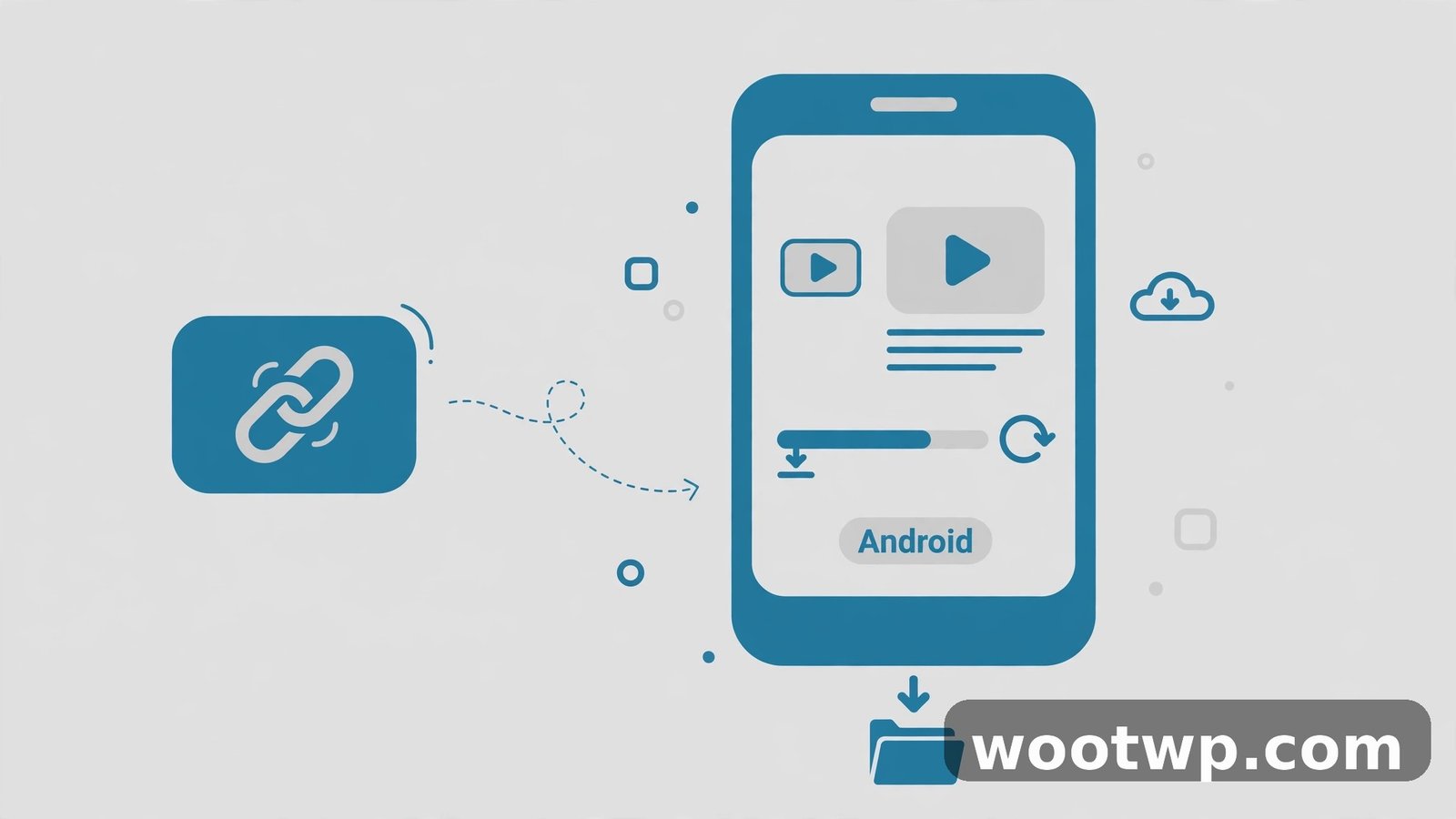
How to Download TikTok Videos Without Watermark Free on Android
Android makes this easy, because you can save straight to your gallery and manage files without extra apps. Here is the full process for how to download TikTok videos without watermark free on an Android phone.
Step 1: Copy the video link
Open TikTok and find the video you want. Tap the Share button on the right side of the screen. In the share menu, tap Copy Link. The link is now on your clipboard.
If you do not see a Copy Link option, the creator may have turned off downloads and sharing for that video. In that case, there is no clean workaround, and you should respect that setting.
Step 2: Paste the link into a browser-based downloader
Open Chrome or any browser on your phone. Go to a browser-based downloader site and paste the link into the box. Tap the download button and wait a few seconds while the site fetches the video.
You do not need to install an app for this. In my experience, the browser route is faster, uses no storage, and avoids the pile of extra permissions that downloader apps tend to ask for.
Step 3: Choose the no-watermark version
Most downloader sites show two or more options, such as "Download with watermark" and "Download without watermark". Pick the no-watermark option. Some sites also offer an HD MP4 choice. If you see it, take it, since it gives you the best available quality.
Step 4: Save the file to your phone
Your browser will ask where to save the file, or it will drop it into your Downloads folder automatically. Once it finishes, open your gallery or file manager and play the clip to check it looks clean.
If the video does not appear in your gallery right away, check the Downloads folder. Some Android phones keep browser downloads there instead of mixing them into photos and videos.
Tips for a smooth Android download
- Use a stable Wi-Fi connection for longer videos, so the download does not stall halfway.
- If a download fails, copy the link again. Share links can expire, and a fresh copy usually fixes it.
- Keep your browser updated. An old browser version can break the download button on some sites.
How to Download TikTok Videos Without Watermark Free on iPhone
iPhones need one extra step, because Safari does not always hand a downloaded video straight to your Photos app. Here is how to download TikTok videos without watermark free on an iPhone.
Step 1: Copy the video link
Open the video in TikTok, tap Share, then tap Copy Link. The process is the same as on Android.
Step 2: Paste the link in Safari
Open Safari and go to a browser-based downloader. Paste the link, then tap the download button and choose the no-watermark option. Safari will download the MP4 file.
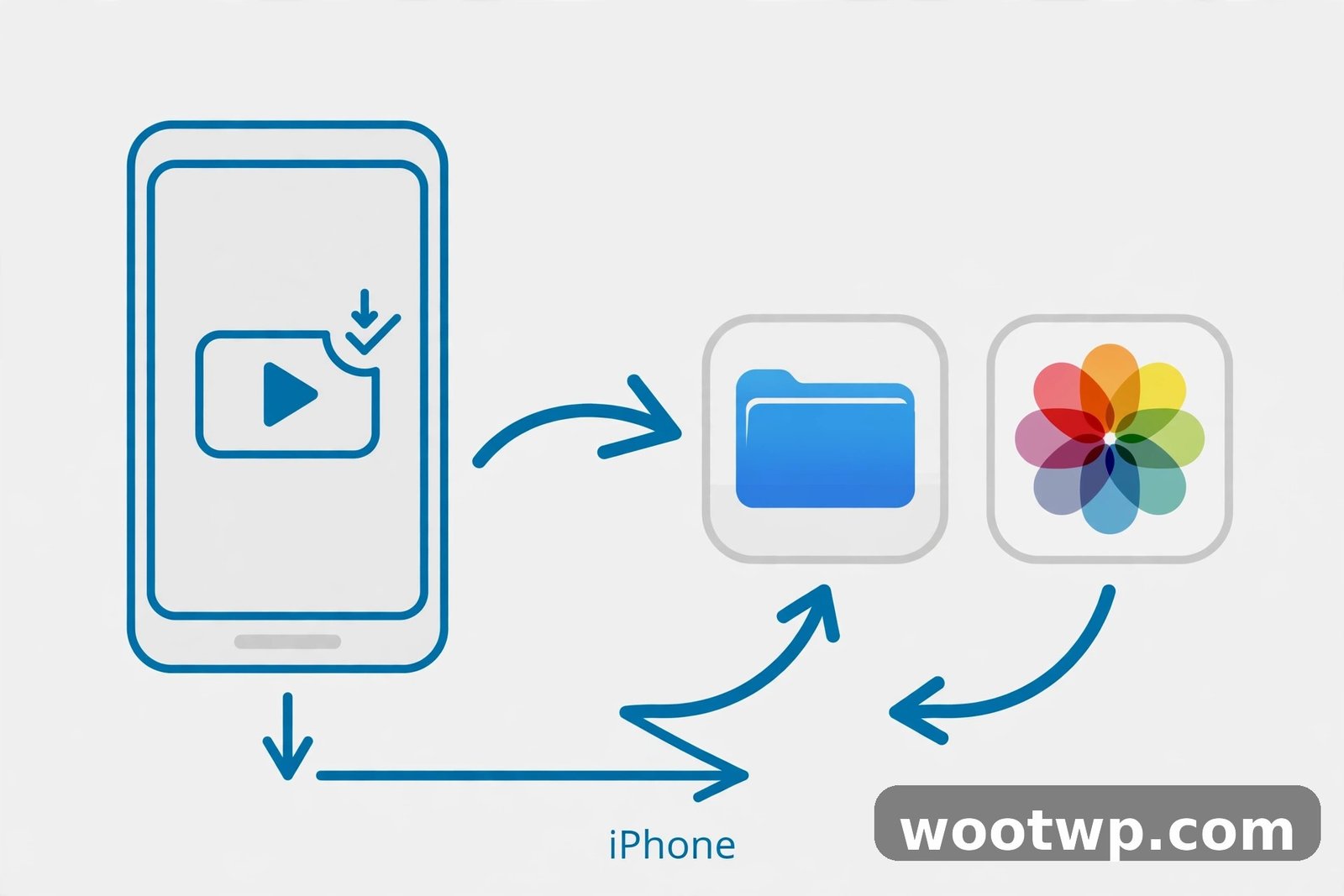
Step 3: Move the video to Photos
When the download finishes, tap the Downloads icon in Safari's toolbar, then tap the video file. Tap the Share button and choose Save Video. The clip now lives in your Photos app, ready to watch or edit.
If you skip this step, the video stays in Safari's Downloads folder. That is fine for watching, but you cannot edit it in most apps until you save it to Photos.
Using the Files app as an alternative
If the Save Video option does not appear, open the Files app and look in Downloads. Long-press the video file, tap Share, then tap Save Video. This route works on every recent iOS version, and it is the fix I reach for when Safari acts up.
To save TikTok video without watermark on either phone, the core idea is the same: copy the link, paste it into a browser downloader, and pick the clean version. The only difference is where the finished file lands.
How to Download TikTok Videos Without Watermark Free on PC
A computer is the easiest place to do this, because you get a bigger screen, faster downloads, and simple file management. Here is how to download TikTok videos without watermark free on a Windows PC or Mac.
- Open TikTok in your browser and play the video you want.
- Click the Share button under the video, then click Copy Link.
- Open a new tab and go to a browser-based downloader.
- Paste the link into the box and click the download button.
- Choose the no-watermark MP4 option, then save the file to a folder you will remember.
That is all there is to it. No software to install, no account to create, and no payment screen at the end. On a PC, you can also rename the file right away, which helps a lot when you are saving several clips for one project.
One handy trick: if you download a lot of clips, make one folder for them and sort by date. It sounds small, but it saves you from hunting through your Downloads folder later.
Can You Download Photo Slideshows and Sound-Only Clips Too?
Not every TikTok post is a plain video, so here is how the other formats work.
Photo slideshows
Many creators post photo carousels with music over them. A standard downloader usually grabs the slideshow as a video, with the photos playing in order and the music attached. If you only want one still photo from the carousel, take a screenshot of that frame instead. It is faster, and the quality is usually good enough for personal use.
Sound-only downloads
Some downloader sites offer an MP3 option next to the video options. This strips the audio track out of the clip, which is handy if you like a song or a voiceover and want to listen to it later. Just remember that music in TikTok videos is still copyrighted. Keep it for personal listening, and do not re-upload someone else's track as your own content.
Live photos and stories
TikTok's photo mode and stories follow the same rules as regular videos. If the post is public and sharing is turned on, the link method works. If it is private or friends-only, it does not, and no downloader site can change that.
What Quality Can You Expect From a TikTok Download?
This is where a lot of people get confused, so let me set honest expectations for a tiktok download HD MP4.
Most TikTok videos are uploaded in 1080p, and that is the best quality you will get from a download. A downloader cannot magically turn a 1080p upload into 4K. If a site promises "4K TikTok downloads" for a clip that was never uploaded in 4K, it is just upscaling the same file, and the result will not look any sharper.
Here is what affects the quality you actually get:
- The original upload. If the creator uploaded in 720p, your download will be 720p at best.
- Compression. TikTok compresses every upload, so even a crisp original loses some detail.
- The downloader's options. Always pick the HD or highest-quality MP4 when it is offered. The smaller file sizes are more compressed and look softer.
In practice, a good no-watermark download looks just as sharp as the video inside the TikTok app. If your download looks blurry, check whether you picked a low-quality option by mistake, or whether the original video was simply low quality to begin with.
Why Won't My TikTok Video Download?
Downloads fail for a handful of common reasons. Work through this list before you assume a site is broken.
The link expired
Share links can go stale, especially if you copied one hours ago. Go back to the video, copy the link again, and retry. This fixes the problem more often than anything else.
The video is private or friends-only
Private videos, friends-only posts, and videos from private accounts cannot be downloaded with the link method. This is a TikTok privacy protection, not a bug. If it is your own video, switch it to public temporarily, or use TikTok's own Save option instead.
The creator turned off downloads
Creators can disable downloads on their videos. When they do, the Save button disappears and downloader sites cannot fetch the file either. Respect that choice and move on.
The site is overloaded
Free downloader sites get busy, especially in the evening. If a download stalls or the page will not load, wait a few minutes or try a different browser-based tool. Clearing your browser data can also help; here is a guide on how to clear cookies in Chrome if the page keeps misbehaving.
Your connection dropped
A weak mobile signal can cut a download halfway through. Switch to Wi-Fi, or move closer to your router, and try again. Large files are the first to fail on a shaky connection.
How to Stay Safe When Using Downloader Sites
Free downloader sites are useful, but the space has its share of shady operators. These rules will keep you safe.
- Never install an app a downloader site tells you to install. A real browser downloader works in the browser. If a site says you must install its app first, close the tab.
- Never log in with your TikTok account. No downloader needs your password. A site asking you to sign in is phishing for your credentials.
- Never pay. The whole point is a free download. A paywall, a "premium unlock" for the no-watermark version, or a request for card details is a red flag.
- Watch for fake download buttons. Some sites surround the real button with large ads that look like download buttons. Read the button text before you tap, and close any pop-up that opens instead of a file.
- Keep your browser and phone updated. Updates patch the security holes that malicious ads try to exploit.
- Scan anything unexpected. If a download gives you an installer file or an unfamiliar file type instead of an MP4, delete it. A real TikTok download is always a video file.
I have seen plenty of these sites over the years, and the clean ones all share the same traits: no sign-in, no install, no payment, and a plain MP4 at the end. If a site breaks any of those rules, leave it.
The Rules: Only Download What You Have Permission to Use
This part matters, so let me keep it simple and direct.
Only download your own videos, or videos where the creator has given you permission to reuse them. Downloading a clip for offline watching is one thing. Reposting someone else's work as your own, or using it in your own videos without credit, is another thing entirely, and it can get your account flagged or your content removed.
A few ground rules that cover most situations:
- Your own videos: download freely. They are yours, and a clean copy is handy for backups and re-edits.
- Videos with permission: if a creator said yes, keep a note of that permission and credit them when you repost.
- Videos for personal viewing: saving a clip to watch offline is generally fine, as long as you do not redistribute it.
- Private or friends-only videos: off limits. If you cannot see it publicly, you should not be downloading it.
- Reposting: always credit the original creator, link back to their profile where possible, and never crop out or hide their name to pass the work off as yours.
If you plan to edit a downloaded clip and post it elsewhere, learning how to add captions to a video for free can make your repost look far more professional, and it is a good way to add your own value rather than just re-uploading someone else's clip.
TikTok itself explains how saving and sharing work on its official help pages, including what creators can control about downloads. You can read TikTok's own guidance on video downloads and sharing videos if you want the platform's official word.
And if you are curious about privacy on other platforms while you are here, this guide on how to check who viewed your Facebook profile clears up a common myth about profile visitors.
Frequently Asked Questions
How can I download TikTok videos without watermark free on Android?
Copy the video's share link in the TikTok app, paste it into a browser-based downloader, and choose the no-watermark MP4 option. The file saves to your Downloads folder or gallery, and the whole process takes under a minute on a decent connection.
Is it legal to download TikTok videos without a watermark?
Downloading your own videos is fine, and saving a clip for personal offline viewing is generally accepted. Reposting someone else's video without permission or credit can violate copyright and TikTok's terms, so only reuse content you own or have permission for.
Can I download TikTok videos without watermark free on iPhone without an app?
Yes. Use Safari, paste the link into a browser-based downloader, download the MP4, then use the Share menu to save it to Photos. No extra app is needed, and the Files app works as a backup if the Save Video option does not appear.
Why does my downloaded TikTok video still have a watermark?
You probably picked the wrong download option, or you used TikTok's built-in Save button instead of the link method. Go back, copy the link again, and make sure you select the no-watermark version before saving.
Can I download a private TikTok video without a watermark?
No. Private videos, friends-only posts, and videos from private accounts cannot be downloaded through the link method. This is a privacy protection built into TikTok, and legitimate downloader sites cannot get around it.
Does a TikTok video downloader no watermark reduce video quality?
A good downloader gives you the same quality as the original upload, usually up to 1080p. Quality only drops if you pick a smaller file option, or if the creator's original upload was low quality to begin with.
Conclusion
Learning how to download TikTok videos without watermark free comes down to one simple habit: copy the link, paste it into a browser-based downloader, and pick the clean MP4. Whether you download TikTok video on iPhone Android or PC, the process stays the same, it works on all three, it costs nothing, and it needs no extra app.
Just remember the one rule that matters most: only download your own videos or clips you have permission to reuse, and always credit the creator when you share their work. Do that, and you get clean videos without any trouble.