How to Create AI Images for Free: 7 Easy Proven Steps
You need an image for a blog post or social post, and you have no photo, no designer, and no budget. Learning how to create AI images for free solves that problem in minutes. You type a description, a free AI image generator makes a picture, and you retry until it looks right. This guide shows how it works and what to check before you use an image.
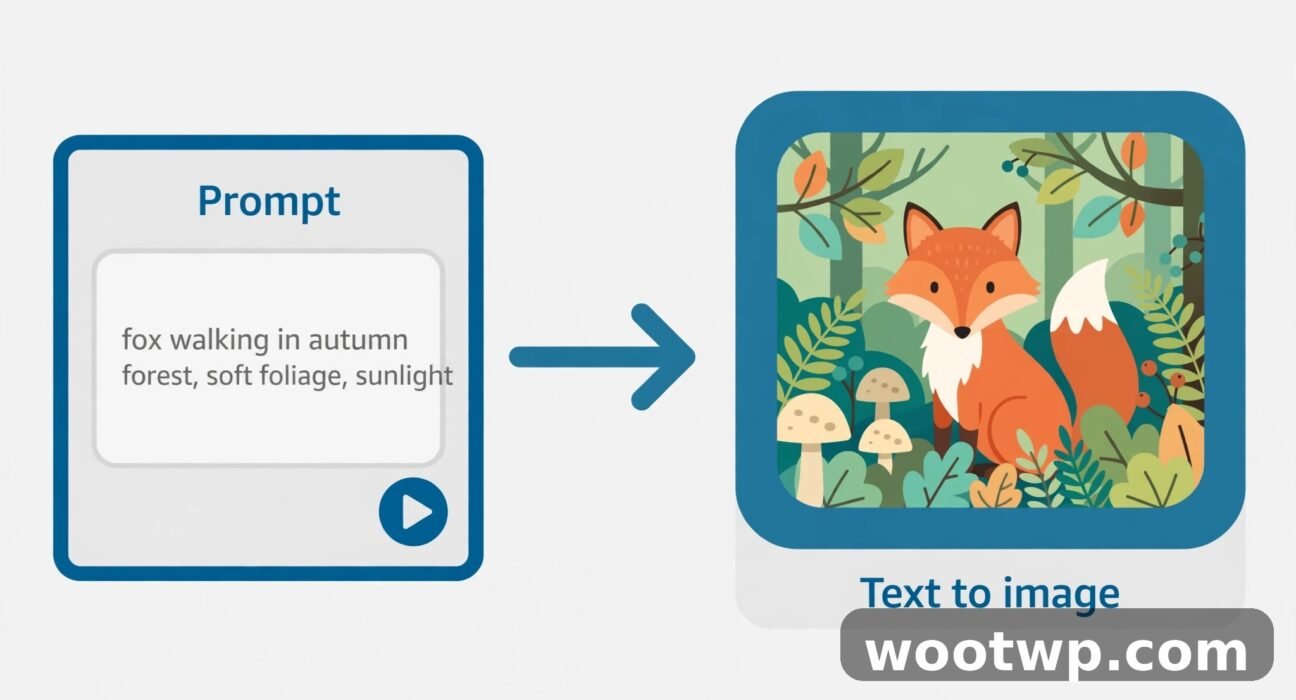
A free AI image generator makes a picture from a text prompt. You describe what you want, pick a size, and download the versions it creates. Most free options ask you to sign in with an account, such as a Microsoft or Adobe account, and give you a free allowance to start. Free allowances change often, so check the tool's free plan page before a big project.
Table of Contents
- What Is a Free AI Image Generator?
- How to Create AI Images for Free in 7 Steps
- How to Create AI Images for Free With Bing Image Creator
- How to Create AI Images for Free With Adobe Firefly
- How to Create AI Images for Free With Leonardo
- How to Write Prompts That Actually Work
- Which Aspect Ratio Should You Pick?
- What to Do When Your Image Looks Wrong
- Can You Use Free AI Images Commercially? Check the Terms First
- How to Spot Flaws and Avoid Passing Images Off as Real Photos
- FAQs About Creating AI Images for Free
- Conclusion
What Is a Free AI Image Generator?
A text to image free tool takes plain words and returns pictures. You describe a new image; you are not editing a photo.
In my experience, the first result is rarely the one you keep. Think of it as sketching with words.
Free tools differ in sign-in, style strength, and controls. Pick the one that matches the image you need.
If you search for an ai image generator no signup option, be careful: no-account sites are often slow or unclear about ownership. A known provider's free plan is usually faster and safer.
How to Create AI Images for Free in 7 Steps
These steps work in almost every text to image free tool.
Step 1: Pick Your Tool and Sign In
Choose one tool below and create a free account if it asks. Use an email you check, in case it sends a confirmation link.
Step 2: Decide What the Image Is For
Decide where the image will live first. A wide blog header, a square social post, and a tall phone wallpaper need different shapes. For example: a red bicycle against a brick wall on a sunny morning.
Step 3: Write a Short, Specific Prompt
Start with subject, setting, style, and lighting, in one or two sentences. Try "a cozy reading corner by a window, soft morning light, watercolor illustration."
Step 4: Choose a Size and Style
Pick the aspect ratio and style that match your use. Cropping a square image for a wide header loses its edges.
Step 5: Generate and Compare Versions
Generate a set and look at all versions before you judge. Download any version you like, even if it is not perfect.
Step 6: Refine With Small Changes
Change one thing at a time. If the light is wrong, change only the lighting words. If framing is too tight, add "wide shot" and try again.
Step 7: Download, Shrink, and Check the Image
Download the best version the free plan allows, check it at full size, then shrink it. Learn how to compress images without losing quality before you publish it on a blog.
How to Create AI Images for Free With Bing Image Creator
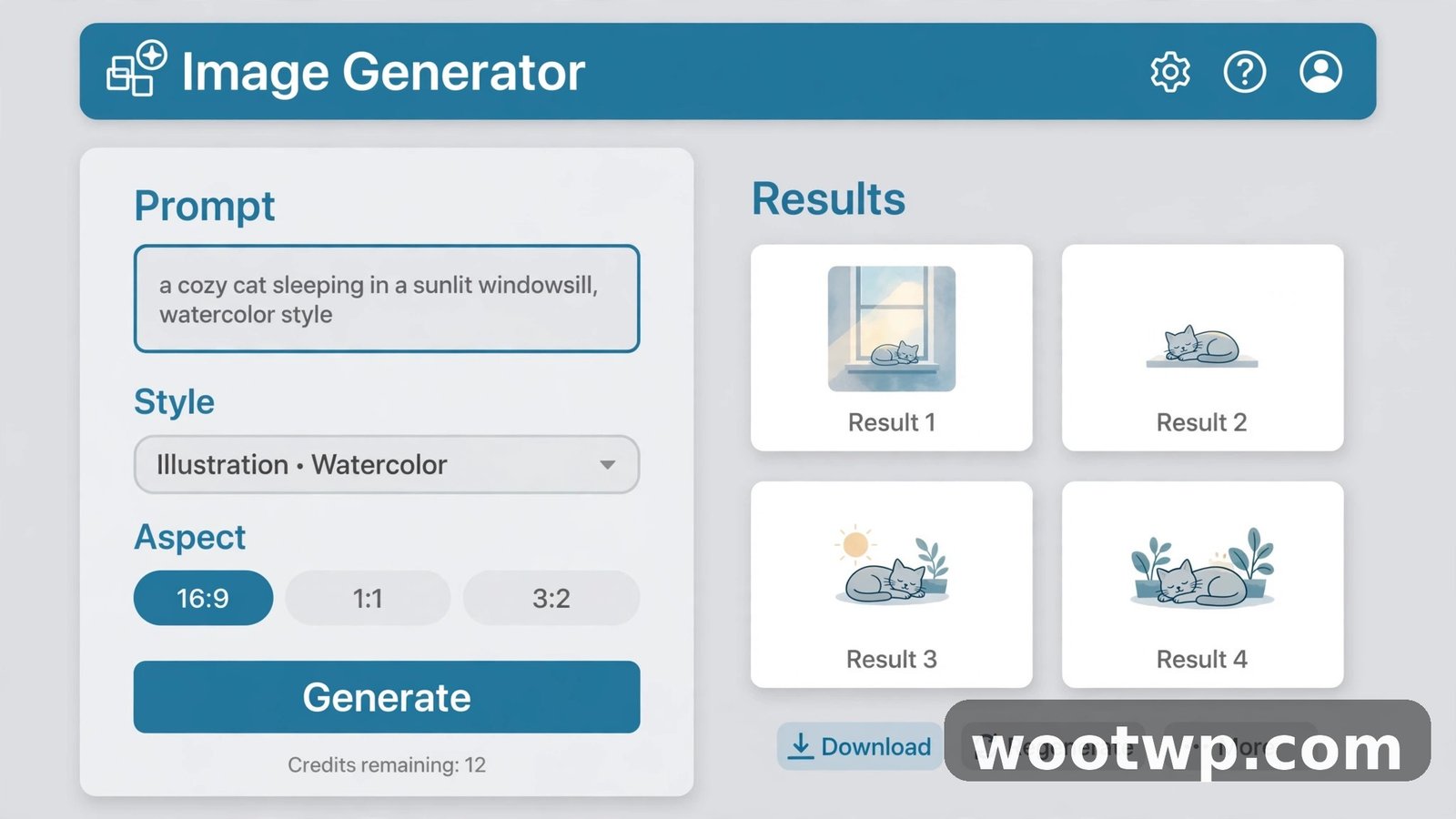
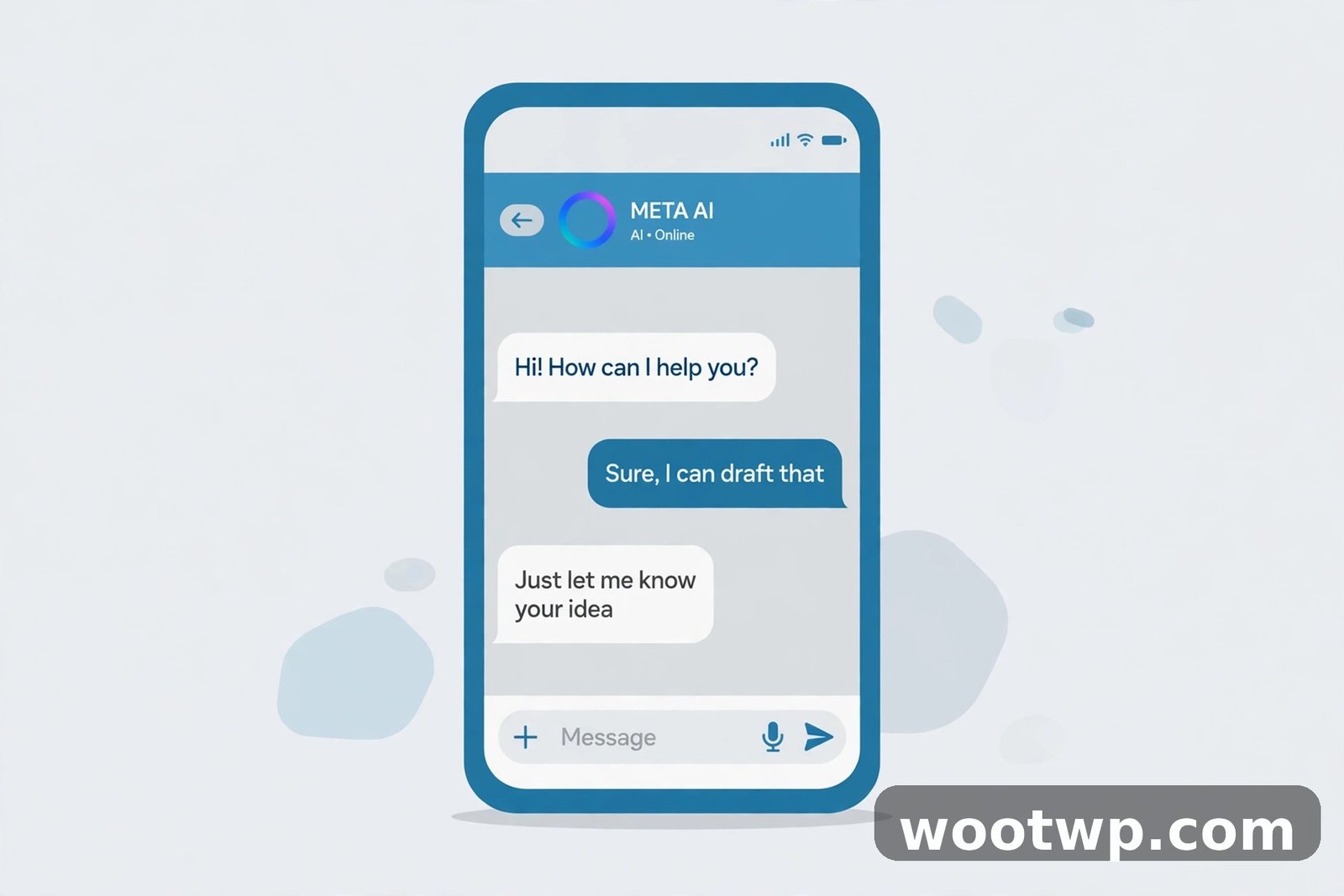
Bing Image Creator, now part of Microsoft Designer, is an easy starting point. Sign in, type a prompt, and get images in moments.
To use it, follow these steps:
- Open Bing Image Creator and sign in with your Microsoft account.
- Type your prompt.
- Press Create.
- Open an image and download the one you like.
- Edit your prompt and try again if needed.
It suits everyday subjects: animals, food, rooms, and landscapes. Use short, plain prompts, and check the current free plan details before a large batch, as its credit allowance can change.
How to Create AI Images for Free With Adobe Firefly
Adobe Firefly is Adobe's image generator, with a free plan through an Adobe account. It offers style and size settings you can adjust, and results often look clean and polished.
To use it, follow these steps:
- Open Adobe Firefly and sign in with a free Adobe account.
- Choose Text to Image.
- Type your prompt, pick an aspect ratio, and choose photo or art if offered.
- Generate, adjust the style or lighting controls, and generate again.
- Download the version that fits your project best.
Firefly helps when you need a consistent look: use the same style setting and lighting words, and only change the subject and setting. Check Adobe's free plan page first, as the allowance can change.
How to Create AI Images for Free With Leonardo
Leonardo suits illustration and stylized images. Its models and style presets cover looks such as fantasy art and anime, so it is a good second tool.
To use it, follow these steps:
- Create a free Leonardo account and open the image generation page.
- Type your prompt and pick a model or style preset.
- Set the image size or aspect ratio for your project.
- Generate a set and compare them.
- Refine the prompt or switch the preset, then generate again.
Start with the subject, then add action, setting, and style: "a lighthouse on rocky cliffs at sunset, dramatic clouds, digital painting." If faces or hands look strange, try a simpler pose or wider shot. Check its current free plan page before a deadline, as the allowance can change.
Together, these are among the best free ai image tools for beginners. Pick one first, and add another only when you hit a limit.
How to Write Prompts That Actually Work
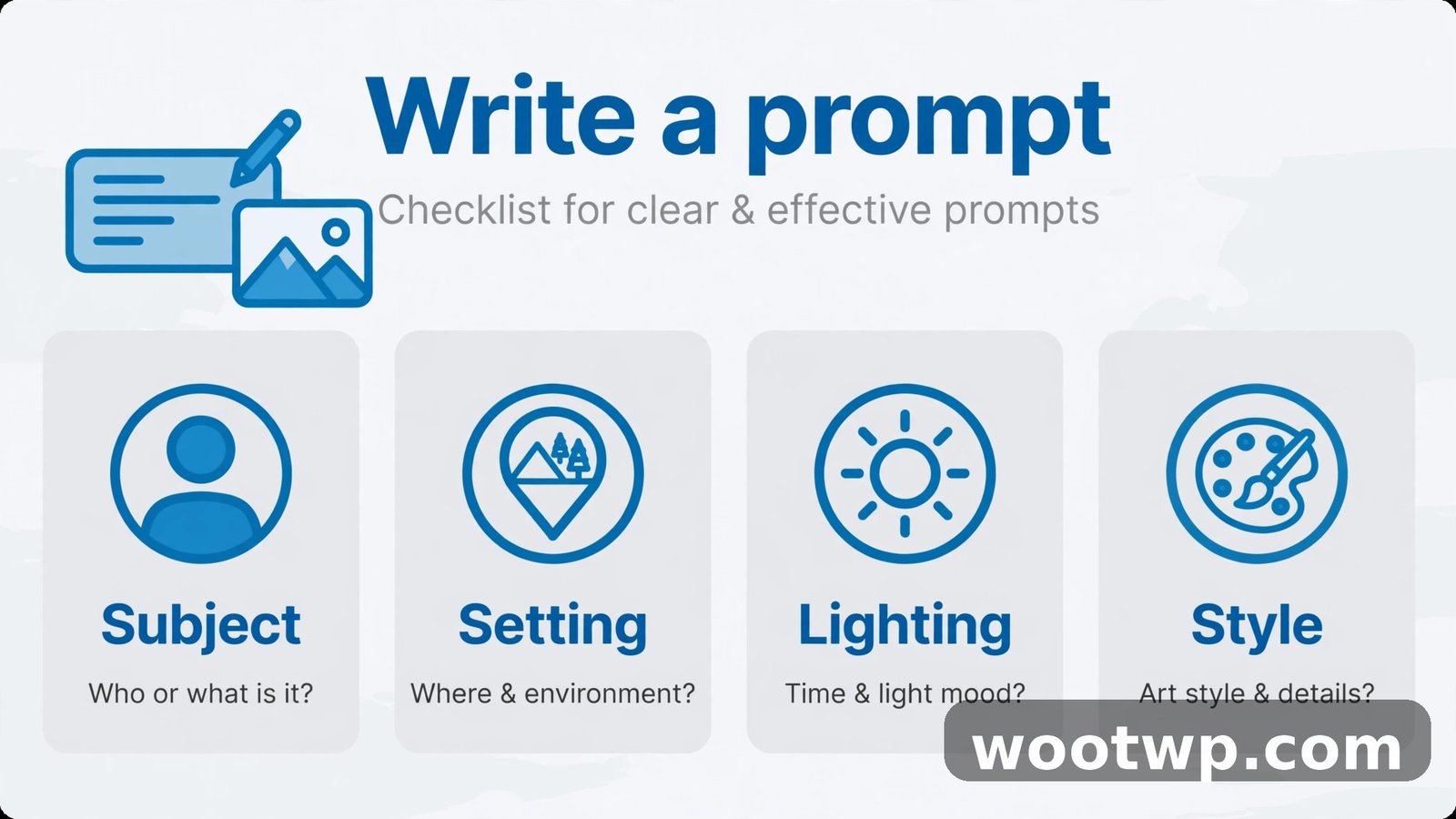
Good prompts are specific about the right things and vague about the rest. Control the subject, setting, composition, lighting, and style. Let the generator fill in small details.
Use this formula:
- Subject: who or what is in the image, and what it is doing.
- Setting: where it is, and what surrounds it.
- Composition: how the shot is framed, such as close-up, wide shot, or centered.
- Lighting: the kind of light, such as soft morning light, golden hour, or bright studio light.
- Style: the look you want, such as photo, watercolor, flat illustration, or 3D render.
A weak prompt says: "a nice dog." A stronger prompt says: "a golden retriever puppy sitting on a porch, morning sunlight, wide shot, warm photo style." The second names all five parts, so it works better.
Put the most important words first. Use plain words, and avoid text in the image unless the tool handles it well. Keep prompts that worked, so you can reuse them.
When a prompt fails, add the missing subject, place, or style and try again. Most bad results come from a missing subject or setting.
Which Aspect Ratio Should You Pick?
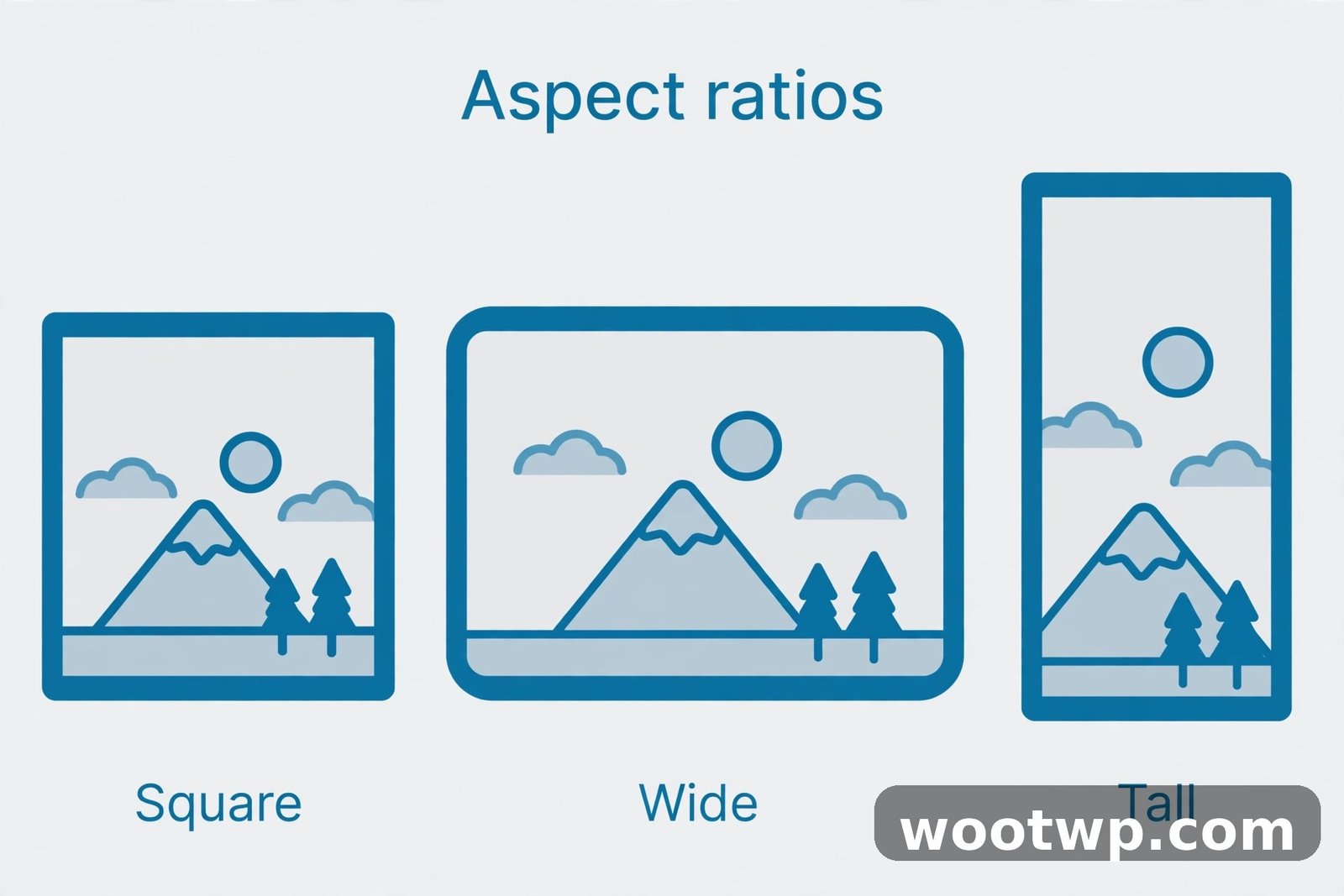
Aspect ratio is your image shape, width compared to height. Pick it before you generate, so cropping later does not cut off your subject.
Use this quick guide:
- Square (1:1): social posts and profile pictures.
- Wide (16:9): blog headers, banners, slides, and thumbnails.
- Tall (9:16): phone wallpapers and stories.
- Portrait (4:5 or 3:4): posters and taller feed posts.
For Instagram, pick square or portrait for the feed and tall for stories, and check at full size before you post. See the guide on how to fix blurry Instagram stories before you upload a tall generated image. For a website, use wide images at the top of a post and square images inside the text.
What to Do When Your Image Looks Wrong
Try these fixes in order:
- The subject is wrong or missing. Rewrite the first words so the subject is clear.
- The framing is too tight. Add "wide shot" and generate again.
- The style does not match. Change only the style words, and name one clear style.
- The colors look dull or harsh. Change only the lighting words, such as "soft daylight."
- The background is too busy. Name one background element instead of five.
- The image looks blurry or soft. Generate at a larger size if the plan allows it.
If three rounds do not fix it, switch tools. Paste the prompt that almost worked into the second tool and adjust its settings.
Can You Use Free AI Images Commercially? Check the Terms First
Rules depend on the tool, the plan, and the kind of use, and free and paid plans can differ. Never assume a free image is free to sell, use in an ad, or put on a product.
Check the terms on the tool's site for ownership and commercial use, including any different rights for free plans and rules about trademarks and real people. Keep a record of the tool, date, and prompt.
If you plan to sell the image, use it in client work, or run it as an ad, get a clear answer from the terms first. If unclear, do not use it that way.
How to Spot Flaws and Avoid Passing Images Off as Real Photos
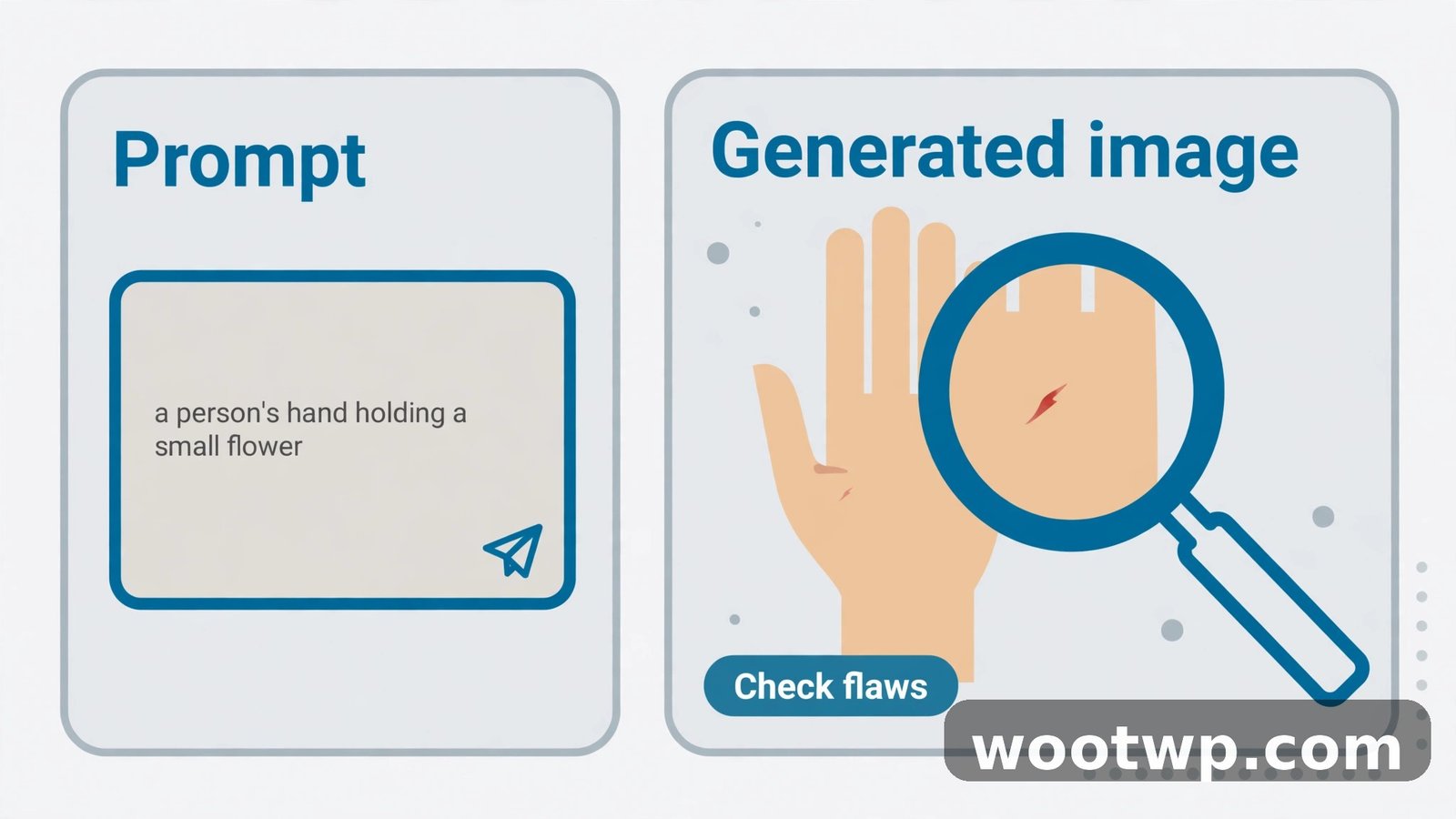
Check every image at full size before you share it, zooming in on hands, faces, and text, where flaws show up most.
Watch for these flaws:
- Hands and fingers: extra, missing, or bent fingers.
- Text and signs: misspelled or nonsense words up close.
- Faces and eyes: uneven eyes or melted background faces.
- Objects and edges: extra legs, merged objects, or bent lines.
- Shadows and light: shadows pointing in different directions.
If you find a flaw, try a simpler pose, move the subject farther away, or remove text and add it later in a photo editor. Never present a generated image as a real photo of a real event or person, and label realistic generated images clearly. If a reasonable person could mistake it for a real photo, say it is not one.
FAQs About Creating AI Images for Free
Is there a truly free AI image generator with no payment needed to start?
Yes, several known tools offer a free plan or free credits on signup. You usually need a free account, and the allowance can change, so check the current free plan page first.
How to create AI images for free on a phone?
Open the generator in your phone browser, sign in, type your prompt, and pick a size. Bing Image Creator and Adobe Firefly both work in a mobile browser. Check the image at full size before you post it.
Why does my image have extra fingers or strange hands?
Hands are hard for image generators, especially in close-ups. Try a simpler pose, a wider shot, or the same prompt in another tool.
Can I use free AI images on my blog or YouTube thumbnail?
It depends on the tool and plan. Some free plans allow blog and social use, while others limit commercial use. Read the terms, and if unclear, use the image only as a draft.
What is the best prompt for a realistic photo look?
Name a real subject, a real place, and natural light, then add the word photo and a framing word such as wide shot. For example: "a small bakery storefront in the morning, soft daylight, photo, wide shot."
Do I own the images I create for free?
Ownership varies by tool and plan. Read the terms for the tool you used, and save the prompt and date.
Conclusion
Now you know how to create AI images for free: pick one tool, write a clear prompt with subject, setting, composition, lighting, and style, choose the right shape, and refine in small steps. Start with one image today, and confirm the terms before you use it beyond practice.