How to Stop Spam Calls on Android: 8 Proven Ways That Work
A spam call in the middle of dinner is annoying. Ten of them a week is a pattern, and it usually means your number has landed on a list that robocallers share. The good news is that learning how to stop spam calls on Android does not require a paid app or a new number. Your phone already has most of the tools built in, and a few settings changes can cut the noise dramatically.
In this guide, I will walk you through the built-in blocking tools on Android, the Samsung and Pixel extras, carrier-level filters, and the habits that stop your number from attracting more calls. I will also cover what to do about spoofed numbers that look like they come from your own area code, because blocking one number at a time never fixes those.
- Why Blocking One Number Never Seems to Work
- Method 1: Block and Report Individual Numbers
- Method 2: Turn On Caller ID and Spam Protection
- Method 3: Filter Spam Calls Automatically
- Method 4: Use Samsung Smart Call
- Method 5: Use Pixel Call Screen
- Method 6: Turn On Your Carrier’s Spam Filter
- Method 7: Block All Unknown Numbers (the Nuclear Option)
- Method 8: Stop Feeding the Robocallers
- Frequently Asked Questions
Why Blocking One Number Never Seems to Work
If you block a spam number and another one calls the next day, you are not doing anything wrong. Robocallers use a trick called spoofing, which lets them display a fake number on your caller ID. They can generate a fresh number for every call, often one that shares your area code so you are more likely to answer. Blocking one spoofed number is like bailing out a boat with a sieve: it helps for a moment, but the source keeps flowing.
That is why the methods below work in layers. Individual blocking handles repeat offenders. Spam protection and carrier filters catch the calls before they ring. And the habits in Method 8 reduce how often your number gets dialled in the first place. No single layer stops everything, but together they usually cut spam calls from a daily nuisance to an occasional one.
Method 1: Block and Report Individual Numbers
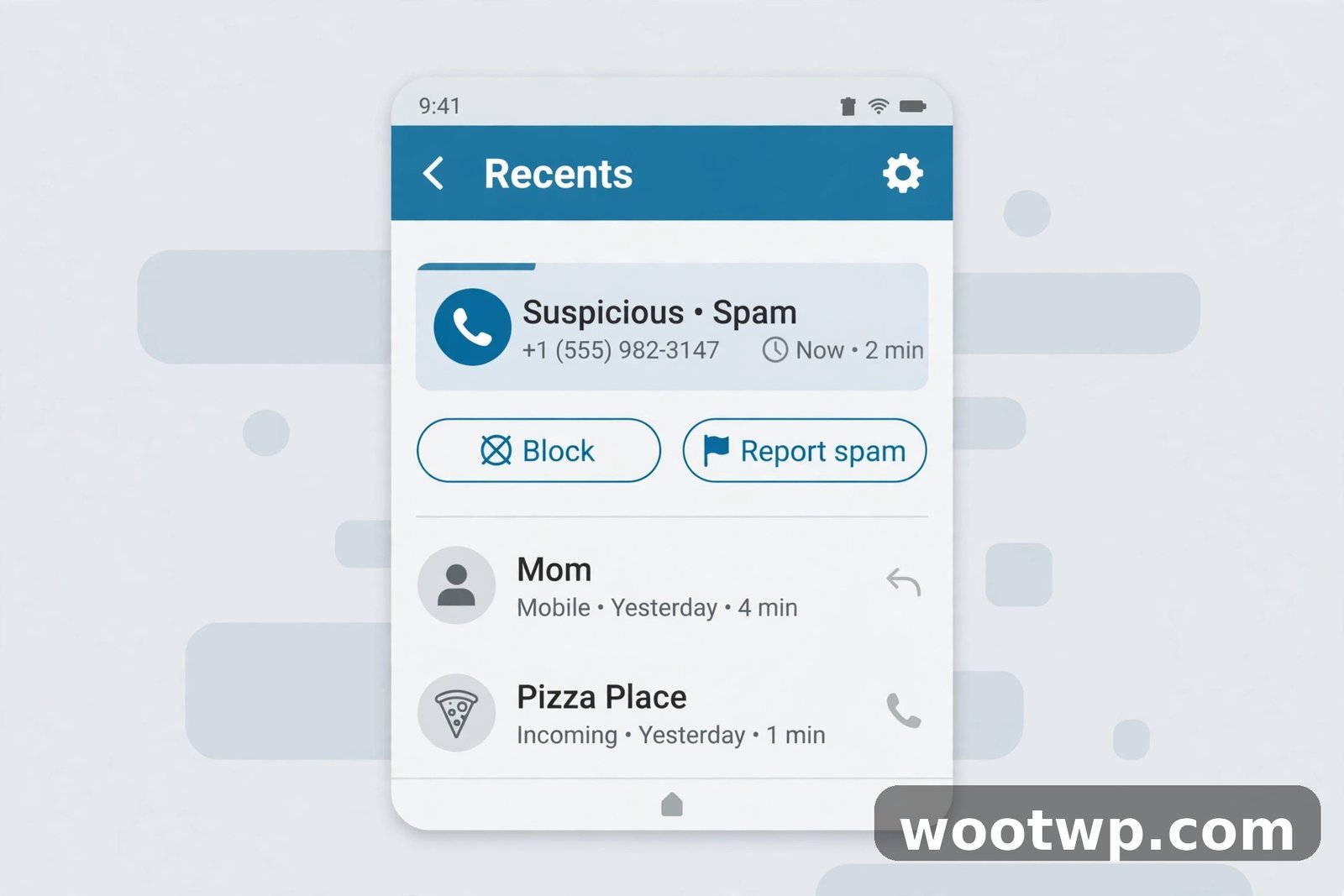
This is the first move for any number that keeps calling you, and it takes about ten seconds. Reporting matters as much as blocking, because reports feed the spam databases that protect everyone else too.
- Open the Phone app and go to Recents.
- Long-press the number you want to block, or tap it and tap the info icon.
- Tap Block or Block/report spam.
- Tick the box that says Report call as spam if it appears.
- Tap Block to confirm.
The number will not be able to call or text you again, and on most phones it will not even show up as a missed call. If you ever block a number by mistake, you can undo it: open the Phone app, tap the three-dot menu, go to Settings, then Blocked numbers, and tap the X next to the number.
Do this for every repeat caller. It will not stop spoofed numbers on its own, but it clears the repeat offenders, and your reports help Google and your carrier flag those numbers for other people.
Method 2: Turn On Caller ID and Spam Protection
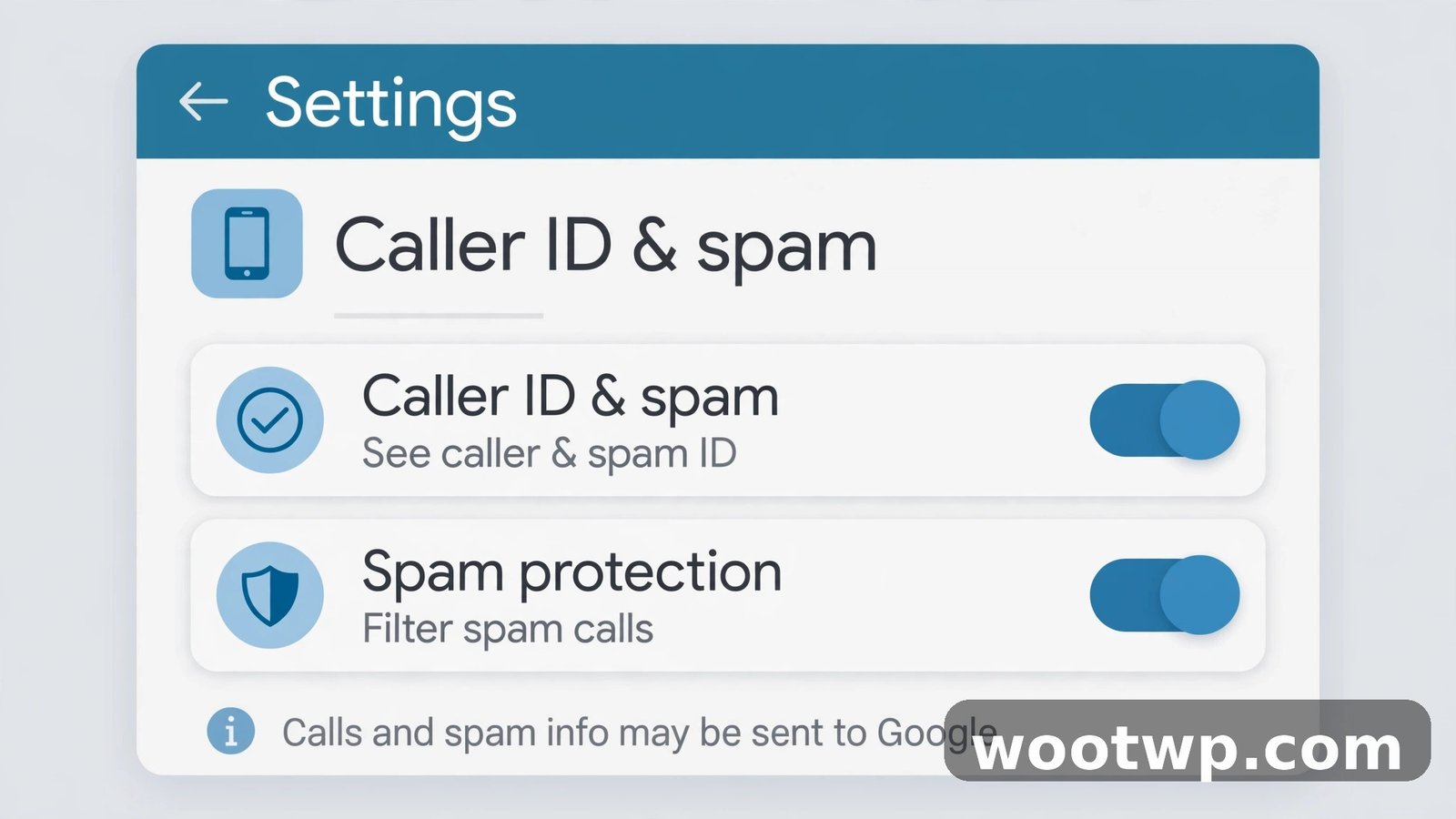
Most Android phones ship with caller ID and spam protection, but it is not always switched on. When it is on, your phone warns you about suspected spam before you answer, showing labels like Suspected spam caller on the incoming call screen. That warning alone prevents a lot of accidental pickups.
- Open the Phone app.
- Tap the three-dot menu in the top-right corner and tap Settings.
- Tap Caller ID and spam (on some phones it is under Spam and Call Screen or Caller ID and spam protection).
- Turn on See caller and spam ID.
This feature is free, and it is built into Google’s Phone app, which is the default dialer on Pixel phones and many other Android devices. If your phone uses a different dialer, the menu names may vary slightly, but the setting is usually in the same place.
Method 3: Filter Spam Calls Automatically
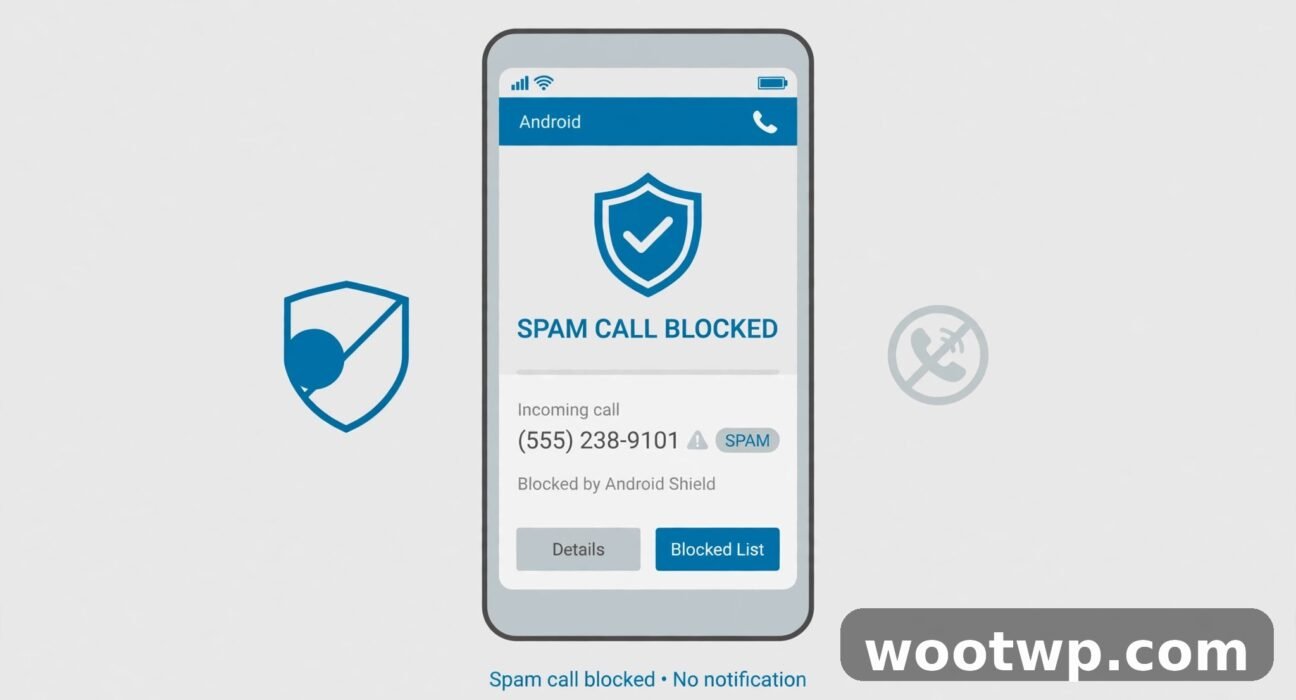
Warning labels help, but filtering goes one step further: suspected spam calls never ring at all. They go straight to voicemail or stay in your call history without disturbing you. This is the single most effective setting for how to stop spam calls on Android, and I recommend turning it on.
- Open the Phone app and go to Settings as above.
- Tap Caller ID and spam or Spam and Call Screen.
- Turn on Filter spam calls (on some phones this is labelled Block spam and scam calls).
Once this is on, filtered calls will not appear as missed calls. You can still find them in your call history if you need to check whether a real caller got caught by mistake. In my experience, genuine callers almost never get filtered, because the filter relies on large spam databases, not just unknown numbers. If a real call does get filtered, you will see it in history and can call back.
Method 4: Use Samsung Smart Call
If you use a Samsung Galaxy phone, you have an extra layer called Smart Call, which uses Samsung’s own data alongside Google’s to identify spam. On many Samsung phones it is on by default, but it is worth checking.
- Open the Phone app.
- Tap the three-dot menu and tap Settings.
- Tap Caller ID and spam protection.
- Make sure it is switched on.
Samsung’s version shows a warning on the incoming call screen for numbers its database flags as spam or fraud, and on newer models you can choose to block those calls outright. The menu wording varies a little between One UI versions, but the setting lives in the Phone app’s settings on every recent Galaxy phone.
Method 5: Use Pixel Call Screen
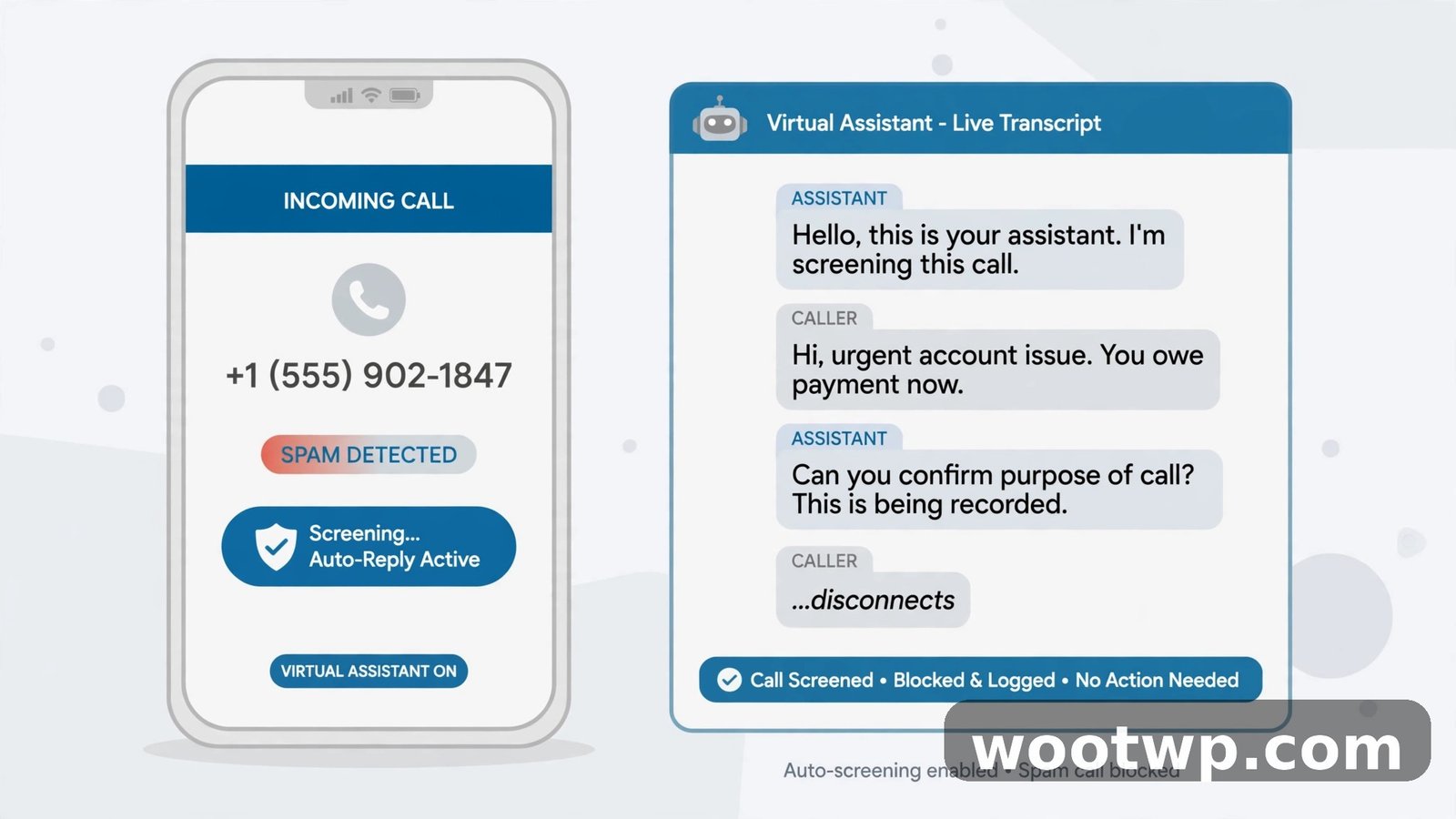
Pixel owners get the strongest tool of all. Call Screen answers suspected spam calls for you with Google Assistant, asks who is calling and why, and shows you a live transcript. Genuine callers explain themselves and get through. Robocallers usually hang up within seconds.
- Open the Phone app and go to Settings.
- Tap Spam and Call Screen.
- Tap Call Screen.
- Choose Automatically screen for spam and robocalls, and optionally for private or unknown numbers too.
Set it to automatic screening for spam only at first. Screening every unknown number is powerful, but it can delay genuine first-time callers, like a delivery driver or a doctor’s office, by a few seconds while the assistant talks to them. You can always tighten it later if spam is still getting through.
Method 6: Turn On Your Carrier’s Spam Filter
Your carrier sees spam calls before your phone does, and most major carriers now offer free network-level filtering. This layer catches calls that your phone’s own tools miss, and it works even if you switch phones.
- T-Mobile (US): Scam Shield is free and on by default for most plans. You can also dial #662# to turn on Scam Block, which blocks likely scam calls at the network level.
- AT&T (US): ActiveArmor is free in the myAT&T app and blocks fraud calls automatically.
- Verizon (US): Call Filter is free in the Call Filter app, with a paid Plus tier for extra features.
- Carriers elsewhere: most large carriers in the UK, Europe, and the Gulf now offer a free spam filter in their app or account portal. Search your carrier’s app for "spam" or "call protect" to find it.
If your carrier offers one, turn it on even if your phone’s tools already work well. Two layers of filtering catch more than one, and the carrier layer costs you nothing.
Method 7: Block All Unknown Numbers (the Nuclear Option)
If spam calls are still ruining your day after everything above, you can block every number that is not in your contacts. This is extreme, and I only recommend it if the volume is genuinely unbearable, because it will also block legitimate first-time callers.
- Open the Phone app and go to Settings.
- Tap Blocked numbers.
- Turn on Unknown or Block unknown/private numbers, depending on your phone.
With this on, calls from numbers not in your contacts go straight to voicemail. You will not be disturbed, and genuine callers can leave a message. Check your voicemail regularly while this is on, and turn it off again once the spam wave passes. Some third-party call-blocking apps offer a contacts-only mode with a whitelist, which is a more flexible version of the same idea, but the built-in setting works fine for a short-term fix.
Method 8: Stop Feeding the Robocallers
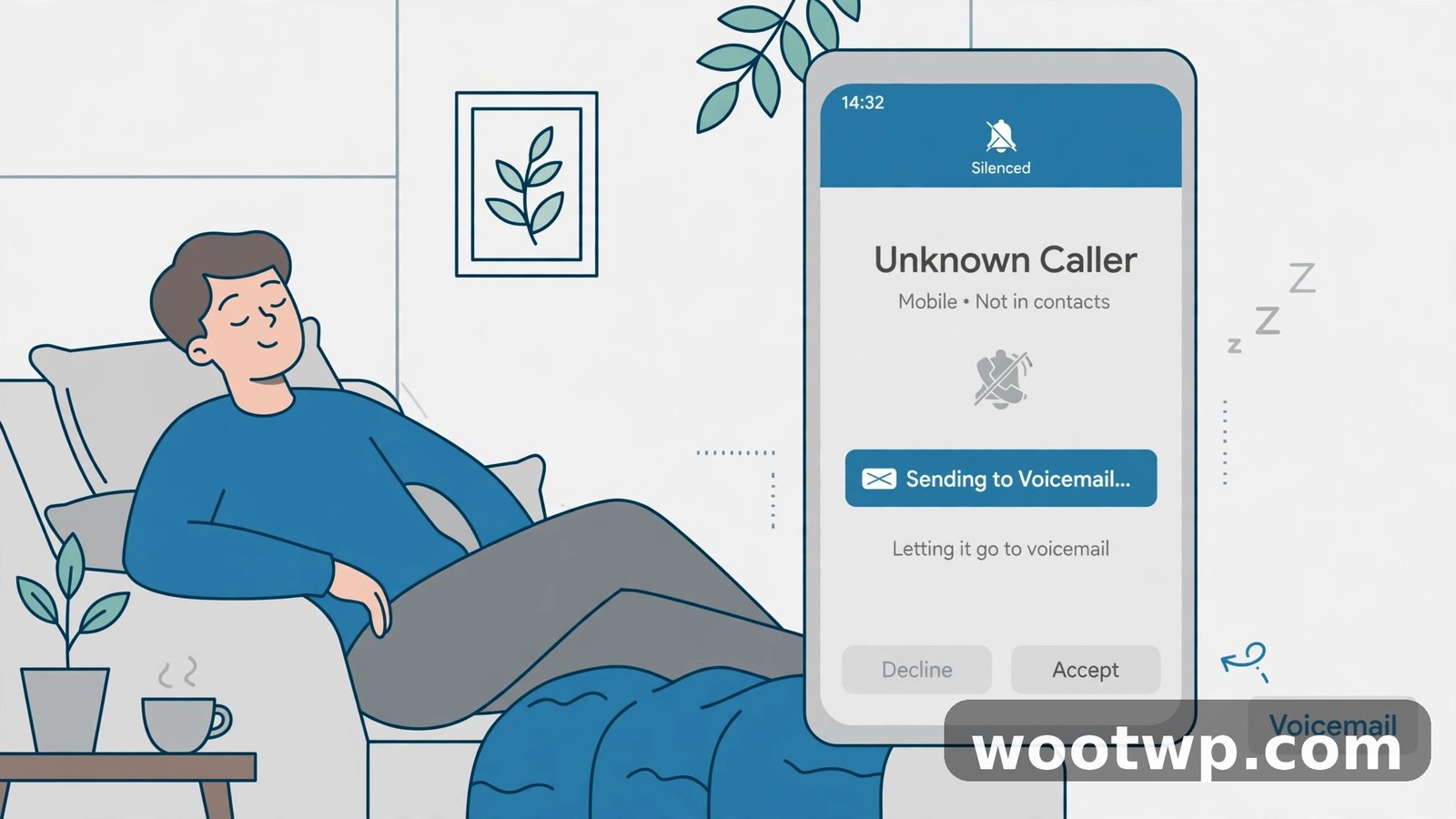
Settings stop calls that already exist. Habits stop new ones from starting. These cost nothing and they compound over time:
- Never answer unknown numbers. Answering confirms your number is active, and active numbers get called more. Let unknown calls go to voicemail.
- Never press a number to opt out. Robocall prompts that say "press 9 to be removed" are often a trick to confirm a live person is listening. Just hang up.
- Never say "yes" to a stranger. Some scam calls record your voice saying yes to use later. If a caller asks a question you did not expect, hang up.
- Do not share your number publicly. Avoid posting it on social media, classified ads, or public forms. If a form demands a number, consider whether it really needs your real one.
- Register on your country’s do-not-call list. In the US, that is donotcall.gov. It does not stop scammers, who ignore the law, but it does stop legitimate telemarketers, which reduces the total volume.
- Report scam calls to your regulator. In the US, report them at reportfraud.ftc.gov. Reports help regulators and carriers shut down the operations behind the calls.
- Watch for other warning signs. Spam calls alone are usually just spam, but if they arrive alongside odd behaviour like battery drain, apps you did not install, or settings changing by themselves, check our guide on how to check if your phone is hacked.
- Treat your inbox the same way. Spammers work every channel, so the same report-and-block habit helps there too. See how to stop spam emails in Gmail for the email version of this routine.
These habits will not eliminate spam calls overnight, but in my experience, people who stop answering unknown numbers see a real drop within a few weeks, because their number stops looking like a live target.
Frequently Asked Questions
How do I stop spam calls on Android for free?
Turn on Caller ID and spam protection and Filter spam calls in your Phone app settings, block and report repeat numbers, and switch on your carrier’s free spam filter. All of these are free and built in.
Why do I still get spam calls after blocking numbers?
Spammers spoof their caller ID, so each call can come from a different number. Blocking one number does not stop the next one. Use automatic filtering and carrier-level blocking instead of relying on individual blocks.
Will blocking unknown numbers stop important calls?
It can. Calls from numbers not in your contacts, like a delivery driver or a clinic, will go to voicemail instead of ringing. Check voicemail regularly while this setting is on, and turn it off when the spam wave passes.
Is it safe to answer a suspected spam call just to check?
It is better not to. Answering confirms your number is active and can lead to more calls. Let it go to voicemail and call back only if the message is from someone you recognize.
Do spam call blocking apps work better than built-in settings?
Sometimes, but not always. Built-in filtering plus your carrier’s filter covers most cases for free. A paid app can add features like a contacts-only whitelist, but read its privacy policy first, because some apps upload your contacts and call history to their servers.
How do I report a spam call on Android?
In the Phone app, long-press the number in Recents, tap Block/report spam, tick Report call as spam, and confirm. You can also report scam calls to your national regulator, such as the FTC in the US.
Conclusion
The best way to stop spam calls on Android is layered: turn on caller ID and spam protection, switch on automatic filtering, add your carrier’s free filter, and stop answering unknown numbers so your number drops off the active lists. No single setting stops everything, but together they turn a daily interruption into a rare one, and that is a trade worth making.