How to Fix Mobile Data Not Working on Android: 7 Easy Fixes
Nothing is more annoying than a phone with full signal bars and zero internet. If you're searching for how to fix mobile data not working on android, you're in the right place. This guide walks you through the fixes in the order that actually works, starting with the 30-second checks and ending with the deeper resets. Follow them step by step, and test your connection after each one so you know exactly what fixed it.
- Start With These Quick Checks First
- Is It Your Plan or Coverage?
- How to Fix Mobile Data Not Working on Android by Changing Network Mode and Operator
- Fix Mobile Data Not Working on Android by Resetting Your APN Settings
- Reset Network Settings Without Losing Anything
- Reseat Your SIM and Test It in Another Phone
- Why Is Android Data Not Working After an Update?
- What Not to Do When Mobile Data Stops Working
- When to Contact Your Carrier or Get the Phone Checked
- Frequently Asked Questions
Start With These Quick Checks First
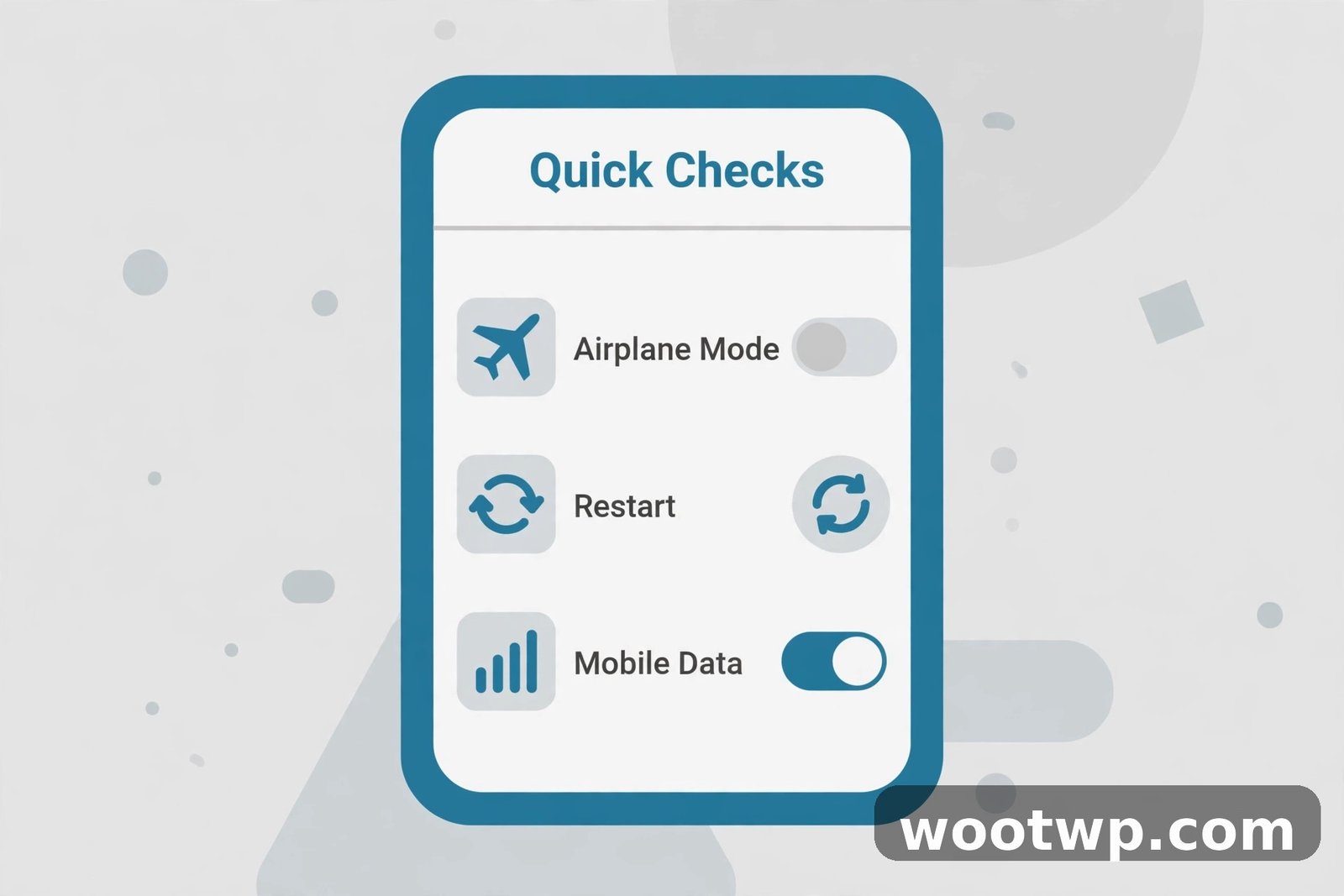
Most guides on how to fix mobile data not working on android start here for a good reason. In my experience, at least half of all mobile data problems are fixed by one of these simple steps. They take two minutes, so do them before you touch anything deeper.
1. Turn mobile data off and back on
Swipe down twice from the top of your screen to open Quick Settings. Tap the Mobile data tile to turn it off, wait 10 seconds, then tap it again to turn it on.
If you don't see the tile, open Settings > Network & internet > SIMs (on Samsung phones, Settings > Connections > SIM manager) and toggle Mobile data there. This forces your phone to reconnect to your carrier's data network.
2. Toggle airplane mode
Airplane mode is the classic reset for a stuck connection. It drops every radio in the phone and reconnects them cleanly.
- Swipe down to open Quick Settings.
- Tap the Airplane mode tile.
- Wait 30 seconds.
- Tap it again to turn airplane mode off.
- Wait another 30 seconds, then open your browser and test a page.
3. Restart your phone
A restart clears temporary glitches in the phone's radio software that a toggle alone won't fix. It is a simple first step in learning how to fix mobile data not working on android, and it costs you nothing. Hold the power button, tap Restart, and wait for the phone to fully boot before testing data again.
4. Make sure the right SIM is set for data
If your phone has two SIMs, it may be trying to use the wrong one for data. This is one of the most common causes on dual-SIM phones, and it's easy to miss.
- On Pixel phones: go to Settings > Network & internet > SIMs and check which SIM has Mobile data turned on.
- On Samsung phones: go to Settings > Connections > SIM manager and look at Mobile data under "Preferred SIM card."
Set the SIM with the active data plan as the data SIM, then test again.
5. Check your data limit and Data Saver
Android can quietly cut off your data when you hit a limit you set months ago and forgot about.
- On Pixel phones: go to Settings > Network & internet > SIMs, tap your SIM, then open Data warning & limit. Turn off Set data limit if it is blocking you, or raise the limit.
- On Samsung phones: go to Settings > Connections > Data usage > Billing cycle and data warning and check the same setting.
Also check Data Saver, which blocks background data for most apps:
- On Pixel phones: Settings > Network & internet > Data Saver.
- On Samsung phones: Settings > Connections > Data usage > Data saver.
Turn Data Saver off for testing. If data comes back, you can turn it back on later and add your important apps to the unrestricted list.
Is It Your Plan or Coverage?
When people ask how to fix mobile data not working on android, the plan is the last thing they check, but it should be near the top of the list. No setting on your phone can fix an expired plan or a dead zone.
Check your balance and plan status
Open your carrier's app or dial its balance-check code and confirm three things:
- Your data plan is still active and has data left.
- Your bill is paid and the line is not suspended.
- You have not hit a fair-usage cap that slows or stops your data.
If you ran out of data, topping up or buying an add-on bundle fixes the problem instantly. I have seen people reset their whole phone over an expired bundle, so check this first.
Check for an outage
Ask someone on the same carrier nearby if their data works. You can also check your carrier's status page or social media accounts for outage reports. If there is an outage, nothing on your phone will help, and you just have to wait it out.
Test your signal properly
Signal bars can be misleading. A phone can show two bars and still have no usable data connection. Move near a window or step outside and test again. If data works in one spot and not another, the problem is coverage, not your phone.
Also try turning Wi-Fi off while you test. Your phone may be clinging to a weak Wi-Fi network instead of using mobile data, which makes it look like data is broken when it is not. Once you have ruled out plan and coverage issues, you can move on to the settings steps that show how to fix mobile data not working on android for good.
How to Fix Mobile Data Not Working on Android by Changing Network Mode and Operator
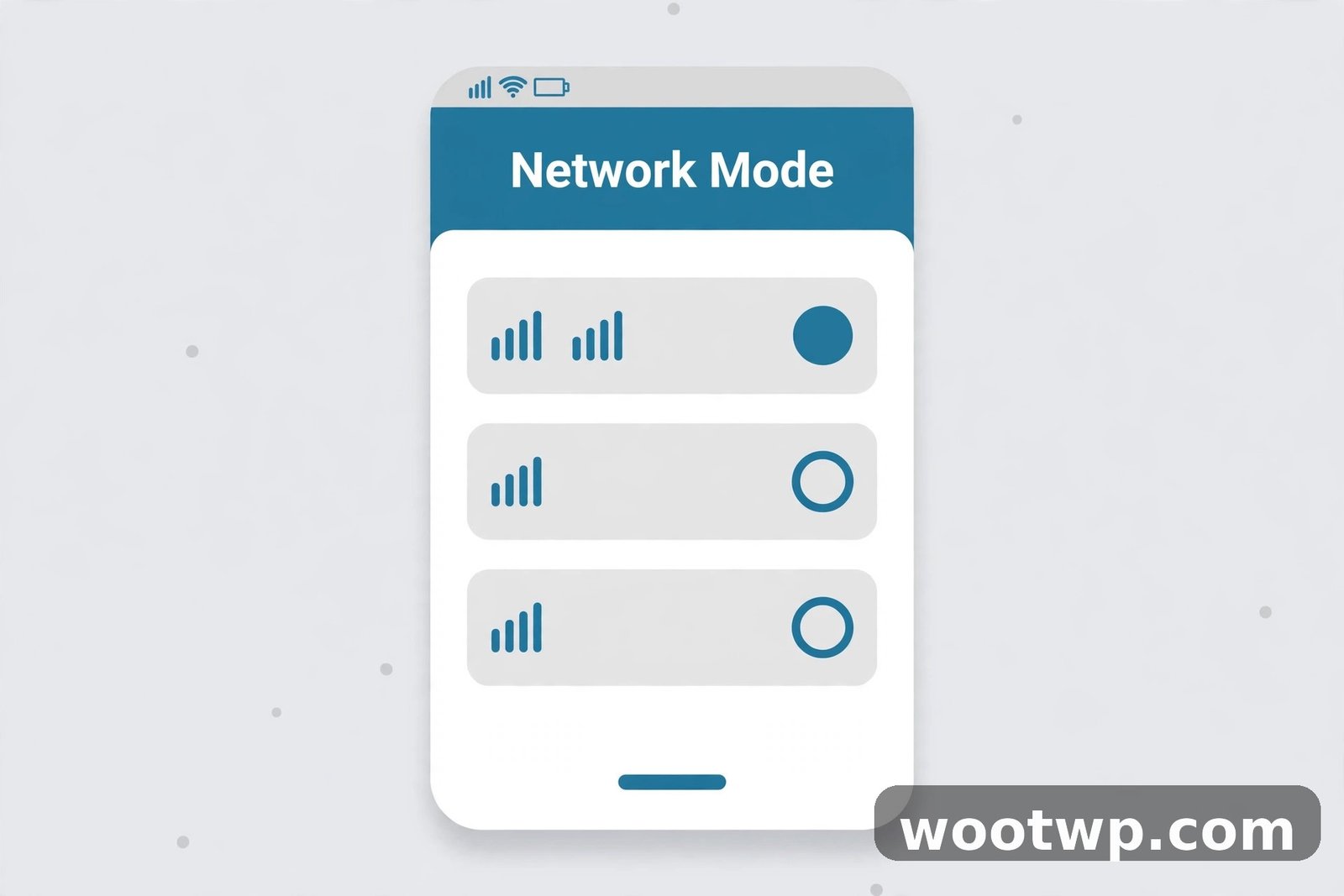
If the quick checks and your plan are fine, the next stop is your android mobile data settings. A wrong network mode or a stuck operator selection can leave you connected to a tower that gives you signal but no data. One of the most reliable ways to learn how to fix mobile data not working on android is to check these settings before you touch anything else.
Change your preferred network type
Your phone normally picks the fastest available network on its own. Sometimes it gets stuck on an old or incompatible mode, especially after travelling or swapping SIMs.
- Open Settings > Network & internet > SIMs and tap your SIM (Pixel).
- On Samsung, open Settings > Connections > Mobile networks > Network mode.
- Tap Preferred network type (Pixel) or Network mode (Samsung).
- Choose the highest option your carrier supports, usually 5G/4G/3G/2G auto or 4G/3G/2G auto.
If data is already set to auto and still fails, try dropping down one step, for example from 5G auto to 4G only, and test again. A stable 4G connection beats a broken 5G one every time.
If your phone is a Pixel, Google's official guide to fixing mobile connectivity issues covers the same steps with screenshots for Pixel's exact menu layout.
Select your operator manually
By default, Android picks your network operator automatically. When that selection goes wrong, your phone can sit on a partner network with no data access.
- On Pixel: Settings > Network & internet > SIMs, tap your SIM, then Network or Choose network.
- On Samsung: Settings > Connections > Mobile networks > Network operators.
- Turn off Select automatically or Choose automatically.
- Wait for the list of available networks to load, then tap your own carrier's name.
- Wait a minute, then test your data.
If your carrier's name appears twice, try each entry. Once data works, you can switch back to automatic selection and it will usually stay on the right network.
Check your mobile network settings android menu for roaming
If you are travelling, or near a border, data may be blocked because roaming is off. In your mobile network settings android menu, look for Roaming and turn it on if you are outside your home network area. Watch out for roaming charges on your plan, though, so turn it back off when you are home.
Fix Mobile Data Not Working on Android by Resetting Your APN Settings
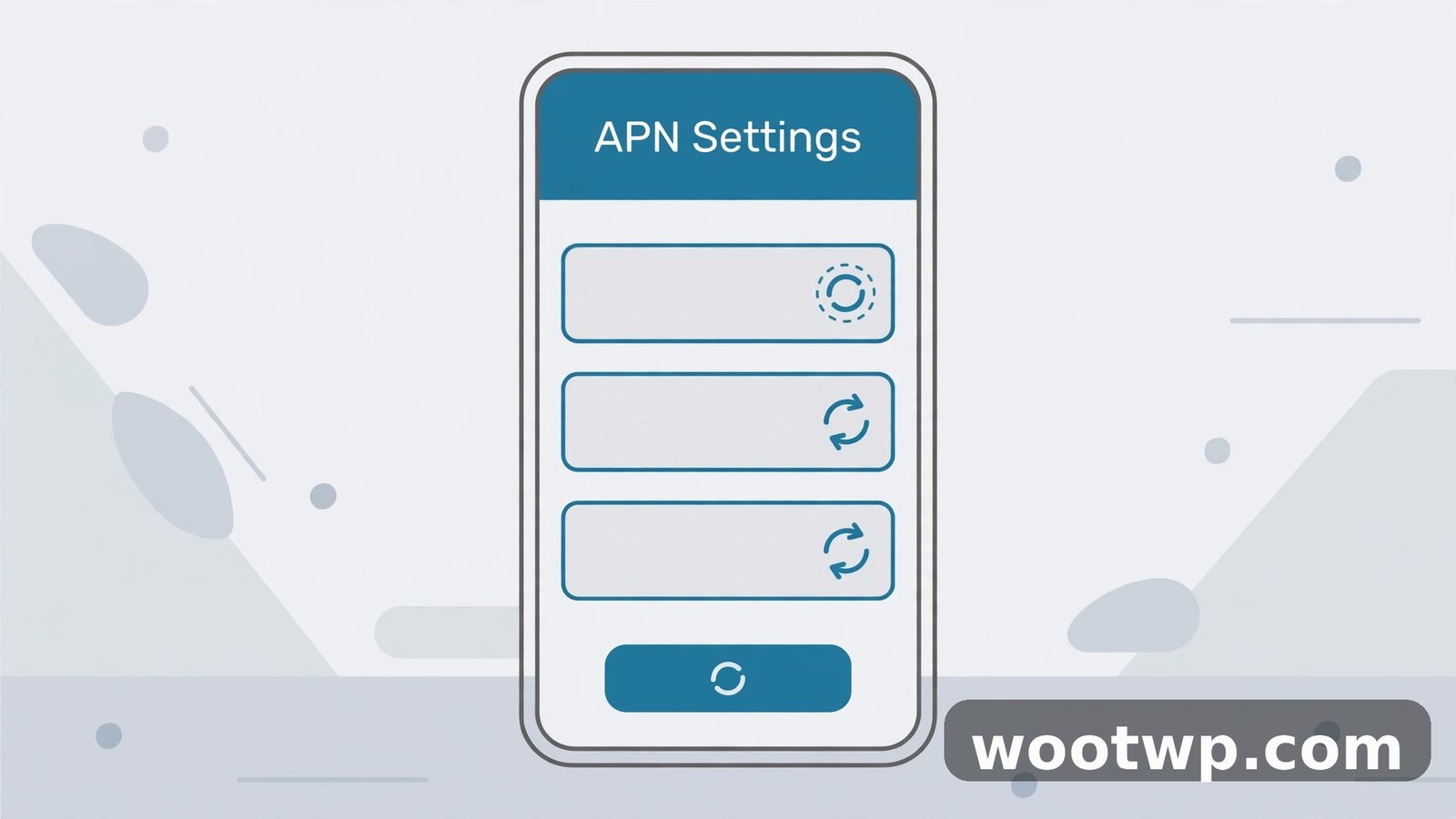
The APN, or Access Point Name, is the set of details your phone uses to connect to your carrier's data network. If it is wrong, missing, or corrupted, you get signal and calls but no internet. Learning how to fix mobile data not working on android often comes down to this one screen.
Find your APN settings
- On Pixel: Settings > Network & internet > SIMs, tap your SIM, then Access Point Names.
- On Samsung: Settings > Connections > Mobile networks > Access Point Names.
You should see at least one APN with a dot or checkmark next to it. If the list is empty, that is your problem right there.
Reset APN settings android to the carrier defaults
This is the safe version of an APN fix. If you want to learn how to fix mobile data not working on android without wiping anything else on the phone, the APN reset is the safest deeper fix you can try. It does not delete anything else on your phone, and it restores the settings your carrier intended.
- Open the Access Point Names screen as above.
- Tap the three-dot menu in the top corner.
- Tap Reset to default.
- Wait a few seconds, then make sure the correct APN is selected (the one matching your carrier).
- Restart your phone and test your data.
In most cases, the correct APN reappears on its own after the reset. If it does not, contact your carrier and ask them to send the APN settings to your phone by text message, or type in the settings from your carrier's official support page by tapping the plus icon and choosing New APN.
What to check inside an APN
If you edit an APN by hand, check these fields first, because a single wrong entry breaks data:
- APN: must match your carrier's APN name exactly.
- APN type: usually "default,supl" or left blank on carrier-provided APNs.
- APN protocol: set it to IPv4/IPv6 if you are unsure.
- MCC and MNC: these identify your carrier and country. Never change them unless your carrier tells you to.
Save with the three-dot menu, then select the APN you just edited. If you are not sure about a field, reset to default instead of guessing.
Reset Network Settings Without Losing Anything
If you still need to fix mobile data not working on android after the steps above, the next step is a network settings reset. This is the fix that solves most stubborn cases, and it is much safer than a factory reset.
What a network reset actually does
It wipes all saved Wi-Fi networks and passwords, Bluetooth pairings, and mobile network settings, then restores them to factory defaults. It does not delete your photos, apps, messages, or files. You will just need to re-enter your Wi-Fi passwords afterwards, so have them handy.
How to do it
- On Pixel: Settings > System > Reset options > Reset Wi-Fi, mobile & Bluetooth, then tap Reset settings.
- On Samsung: Settings > General management > Reset > Reset network settings, then tap Reset settings.
Enter your PIN or pattern if asked. Your phone may restart. After it boots, rejoin your Wi-Fi network if needed, then test mobile data with Wi-Fi turned off.
Reseat Your SIM and Test It in Another Phone
Sometimes the problem is physical. If you still need to learn how to fix mobile data not working on android after the resets above, the SIM itself is the next suspect. A SIM that shifted slightly in its tray, or a dirty contact, can give you calls but flaky or dead data.
- Turn your phone fully off.
- Push the SIM ejector tool into the tray hole and remove the tray.
- Take the SIM out and wipe its gold contacts gently with a dry, soft cloth.
- Put the SIM back in the tray the right way round and slide it in firmly.
- Turn the phone on and test your data.
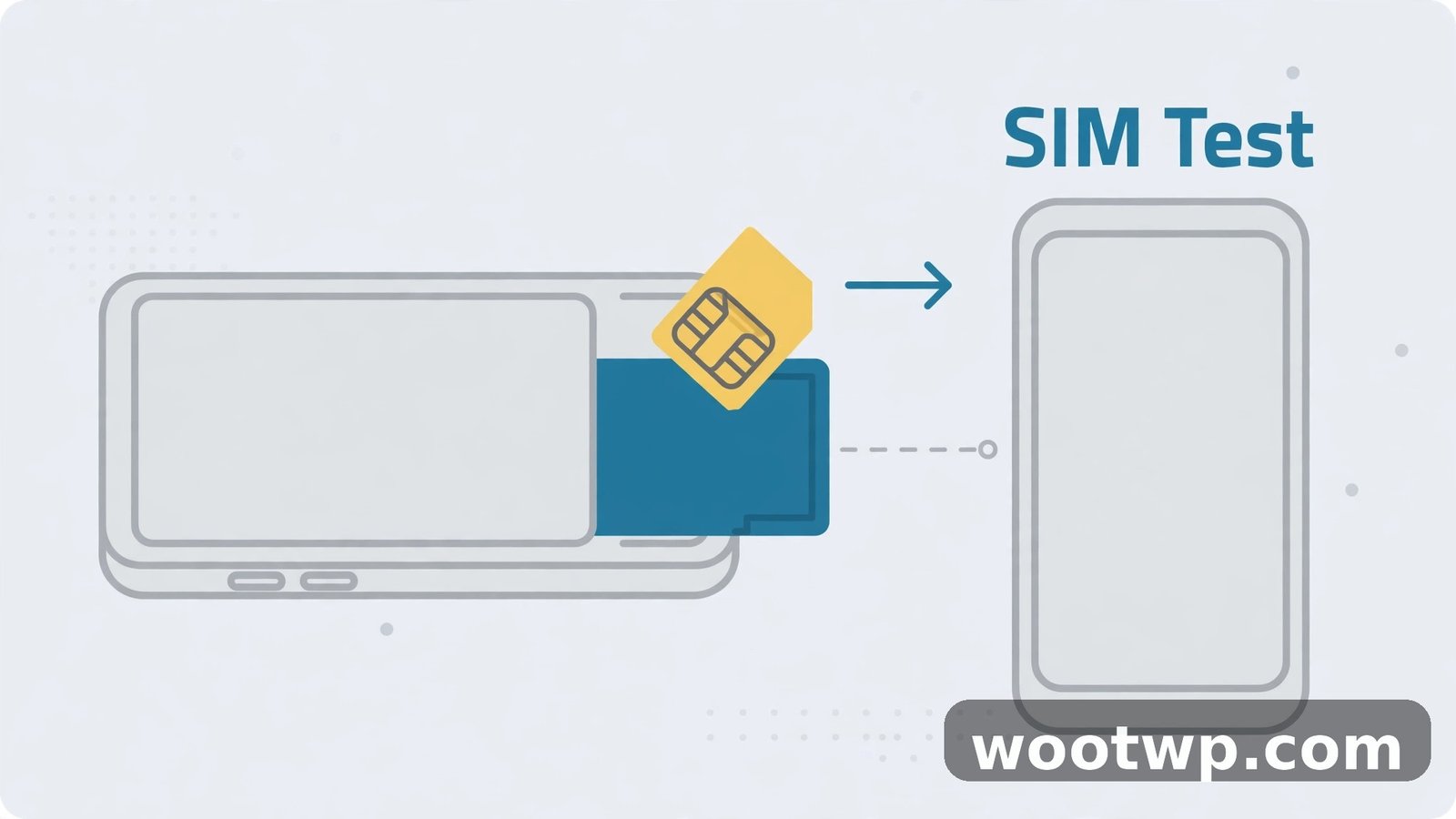
If that does not help, try the swap test, which tells you in two minutes whether the fault is your phone or your SIM:
- Put your SIM in another phone. If data works there, your phone is the problem.
- Put a different working SIM in your phone. If data works with the other SIM, your SIM or your account is the problem.
Take the result of that test to your carrier or repair shop. It saves a lot of guessing, and it stops shops from selling you a repair you do not need.
Why Is Android Data Not Working After an Update?
Android data not working after update is a specific pattern worth its own section, because the cause is different. If you are trying to learn how to fix mobile data not working on android and the trouble started the day you installed an update, start here. Updates can change network settings, reset APNs, or introduce a bug in the radio software. They can also change how individual apps use data.
Check for a follow-up update
If the problem started right after a system update, check for another one. Carriers and phone makers often push a quick fix within days.
Go to Settings > System > System update (Pixel) or Settings > Software update > Download and install (Samsung) and install anything available.
Clear the cache of the phone's network apps
A corrupted cache in the system apps that manage connectivity can block data after an update. Clearing it is safe and takes a minute:
- Go to Settings > Apps > See all apps.
- Tap the three-dot menu and turn on Show system.
- Find Carrier Services and Google Connectivity Services if present.
- Tap Storage & cache, then Clear cache. Do not tap Clear storage here.
Restart the phone and test again.
Check per-app mobile data permissions
After an update, some apps lose their permission to use mobile data, which looks like a data problem but only affects one app. Test with your browser first. If the browser works but one app does not, the fix is per-app:
- Go to Settings > Apps and tap the app that won't connect.
- Tap Mobile data & Wi-Fi (on Samsung, Mobile data under Usage).
- Make sure Background data is on and Unrestricted data usage is allowed if you use Data Saver.
- If the app still fails, tap Storage & cache and clear the cache for that app.
Watch out for VPNs and private DNS
A VPN app that fails to connect can block all mobile data while looking like a network problem. Turn your VPN off completely and test. The same goes for a custom private DNS setting under Settings > Network & internet > Private DNS. Set it back to Automatic for testing.
If your data usage suddenly spikes or an app behaves strangely alongside the data problem, it is also worth ruling out something unwanted on the phone. Our guide on how to check if your phone is hacked walks through the warning signs and checks.
And if your phone feels slow overall after the update, not just offline, our tips on how to make your Android phone faster cover the cleanup steps that pair well with these network fixes.
What Not to Do When Mobile Data Stops Working
A few common reactions make things worse when you are learning how to fix mobile data not working on android, so avoid these:
- Don't factory reset first. A factory reset erases everything and rarely fixes a data problem that a network reset would have solved. It is the last resort, not the first step.
- Don't install random "network booster" apps. They cannot improve your carrier signal, and many of them show ads or collect data in the background.
- Don't edit APN fields you don't understand. One wrong value can break data completely. Reset to default instead.
- Don't keep toggling settings at random. Change one thing, test, then move on. If you change five settings at once, you will never know which one fixed it or broke it further.
- Don't buy a new phone yet. Most mobile data problems are settings, SIM, or account issues, and all of them are cheaper to fix than a replacement.
When to Contact Your Carrier or Get the Phone Checked
If you have worked through every step above and data still fails, it is time to get help, because the problem is now likely on the carrier side or in the hardware.
Contact your carrier when:
- Your SIM works in another phone but not in yours, and you have already reset network settings.
- Your plan is active but data has never worked on this line.
- Your carrier needs to re-provision your line, which is a fix they apply on their side.
- You suspect your SIM is damaged. A replacement SIM is usually free or very cheap.
When you call, tell them exactly what you have tried: the toggle, airplane mode, APN reset, network reset, and the SIM swap test. That skips the scripted questions and gets you to a real fix faster.
Get the phone checked when:
- No SIM works in your phone, even after a network reset.
- Data fails but calls and Wi-Fi work perfectly, and the problem started after a drop or water exposure.
- The phone shows "No SIM" or "Emergency calls only" no matter what you do.
These point to a damaged SIM reader, antenna, or modem. A repair shop can test this quickly, and if the phone is under warranty, go through the maker first.
Frequently Asked Questions
How do I fix mobile data not working on android quickly?
Start with the fastest checks: turn mobile data off and on, toggle airplane mode for 30 seconds, and restart the phone. These steps are the fastest answer to how to fix mobile data not working on android in most cases. If that fails, check your plan balance and make sure the right SIM is set for data. These steps fix most cases in under five minutes.
Why does my phone show signal but no internet?
Signal bars only show your connection to the cell tower, not whether data is flowing through it. The usual causes are an expired data plan, a wrong APN, Data Saver blocking apps, or a carrier outage. Work through the plan check, APN reset, and network reset in this guide to narrow it down.
How do I reset APN settings on android?
Go to Settings, then Network and internet, then SIMs, and open Access Point Names. On Samsung phones the path is Settings, then Connections, then Mobile networks, then Access Point Names. Tap the three-dot menu and choose Reset to default, then restart your phone and test your data.
Will resetting network settings delete my photos or apps?
No. A network reset only removes saved Wi-Fi networks and passwords, Bluetooth pairings, and mobile network settings. Your photos, apps, messages, and files stay untouched. You will just need to reconnect to Wi-Fi networks afterwards.
Why is my mobile data not working after a software update?
Updates can reset APN settings, change network preferences, or introduce a temporary bug in the phone's radio software. Check for a follow-up update, clear the cache of Carrier Services, and reset your network settings. If the problem is widespread, the maker usually fixes it in the next patch.
Should I factory reset my phone to fix mobile data?
Only as a very last resort, after you have tried every step in this guide and confirmed with a SIM swap test that the fault is in your phone. A factory reset erases all your data and rarely fixes a problem that a network reset would not. Back up everything first if you do go down that road.
Conclusion
Learning how to fix mobile data not working on android comes down to working in the right order: quick toggles first, then your plan and coverage, then network mode and APN settings, and finally a network reset and SIM test. Most cases are fixed long before you reach the end of the list. The one takeaway to remember is this: test after every single change, so you always know what actually fixed it.