
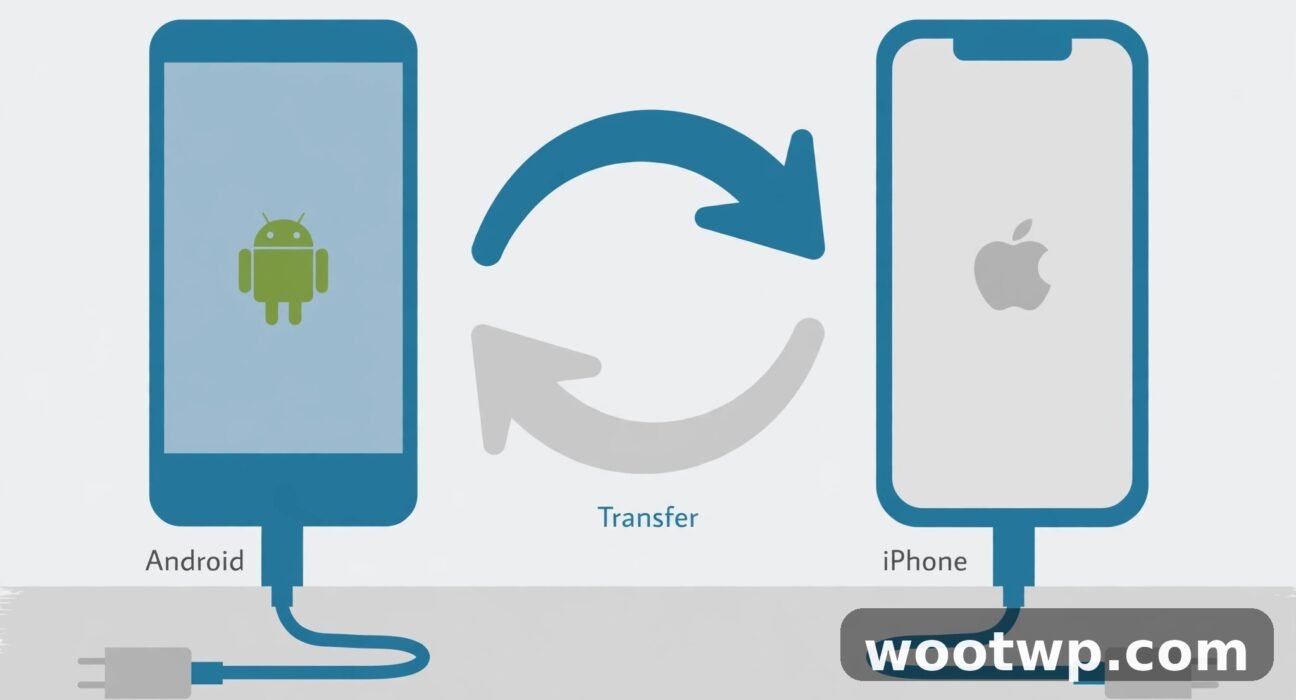
How to Transfer Data from Android to iPhone: 7 Easy Steps
My cousin switched phones last month. He'd used Android for years — a TECNO, like mine — and his new iPhone arrived on a Tuesday. By Wednesday evening he was sitting in my living room with both phones on the table, staring at them like they'd betrayed him. His photos were on the old phone. His contacts were on the old phone. Three years of WhatsApp chats were on the old phone. The iPhone, meanwhile, was shiny, empty, and completely unbothered. Learning how to transfer data from Android to iPhone took us about forty minutes once we knew the right order. Before that, we'd spent an hour tapping around in settings and getting nowhere, because the transfer only works properly during the iPhone's first setup — and he'd already finished his.
This guide covers the official method, the cable method, and the manual fixes for when things stall. Do it during setup if you can. If you've already finished setting up the iPhone, there's a section for that too.
- What Actually Transfers (and What Doesn't)
- Before You Start: The 5-Minute Checklist
- Method 1: Move to iOS App (the Official Way)
- Method 2: Transfer with a Cable (Faster for Big Photo Libraries)
- Method 3: Transfer Without the App (Android 17 and Newer)
- Moving Your WhatsApp Chats
- Moving Photos and Videos Manually
- If You've Already Finished Setting Up the iPhone
- When the Transfer Gets Stuck
- After the Transfer: A Quick Checklist
- FAQs
- Conclusion
What Actually Transfers (and What Doesn't)
The official Move to iOS app moves contacts, message history, SMS messages, camera photos and videos, photo albums, files and folders, accessibility settings, display settings, web bookmarks, mail accounts, WhatsApp messages and media, voice memos, call history, and calendars.
What it doesn't move: music, books, and PDFs need to be moved manually. Paid Android apps don't transfer either — you'll need to buy the iOS version again if there is one. Free apps that exist on both platforms get suggested for download on the iPhone, but their data comes along only if the app itself syncs to an account.
One more thing people miss: anything on a microSD card in the Android phone counts toward the total. If your photos live on the card, make sure they'll fit on the iPhone before you start. A 128GB Android phone stuffed full will not squeeze onto a 128GB iPhone with the system already taking its share.
Before You Start: The 5-Minute Checklist
Five minutes of prep saves an hour of frustration.
- Plug both phones into power. A transfer can take a while, and a phone dying halfway through is the worst possible outcome.
- Turn on Wi-Fi on the Android phone. The iPhone creates its own temporary Wi-Fi network for the transfer, and the Android phone joins it.
- Update the Android phone's apps, especially Chrome, if you want bookmarks to come across.
- Check the storage on the iPhone. Settings, then General, then iPhone Storage. Make sure there's room for everything you're moving.
- Turn off any mobile data limits or battery saver on the Android phone. Battery saver can kill the Wi-Fi connection mid-transfer, and you'll be starting over.
Method 1: Move to iOS App (the Official Way)
This is Apple's own tool, and it's the method most people should use. It runs during the iPhone's first setup, before you've finished configuring it.
- Turn on the new iPhone and place it near the Android phone.
- Follow the on-screen setup steps. On the Quick Start screen, tap Set Up Without Another Apple Device, then keep following the prompts. You may be asked to activate an eSIM.
- When you reach the Transfer Your Apps and Data screen, tap From Android.
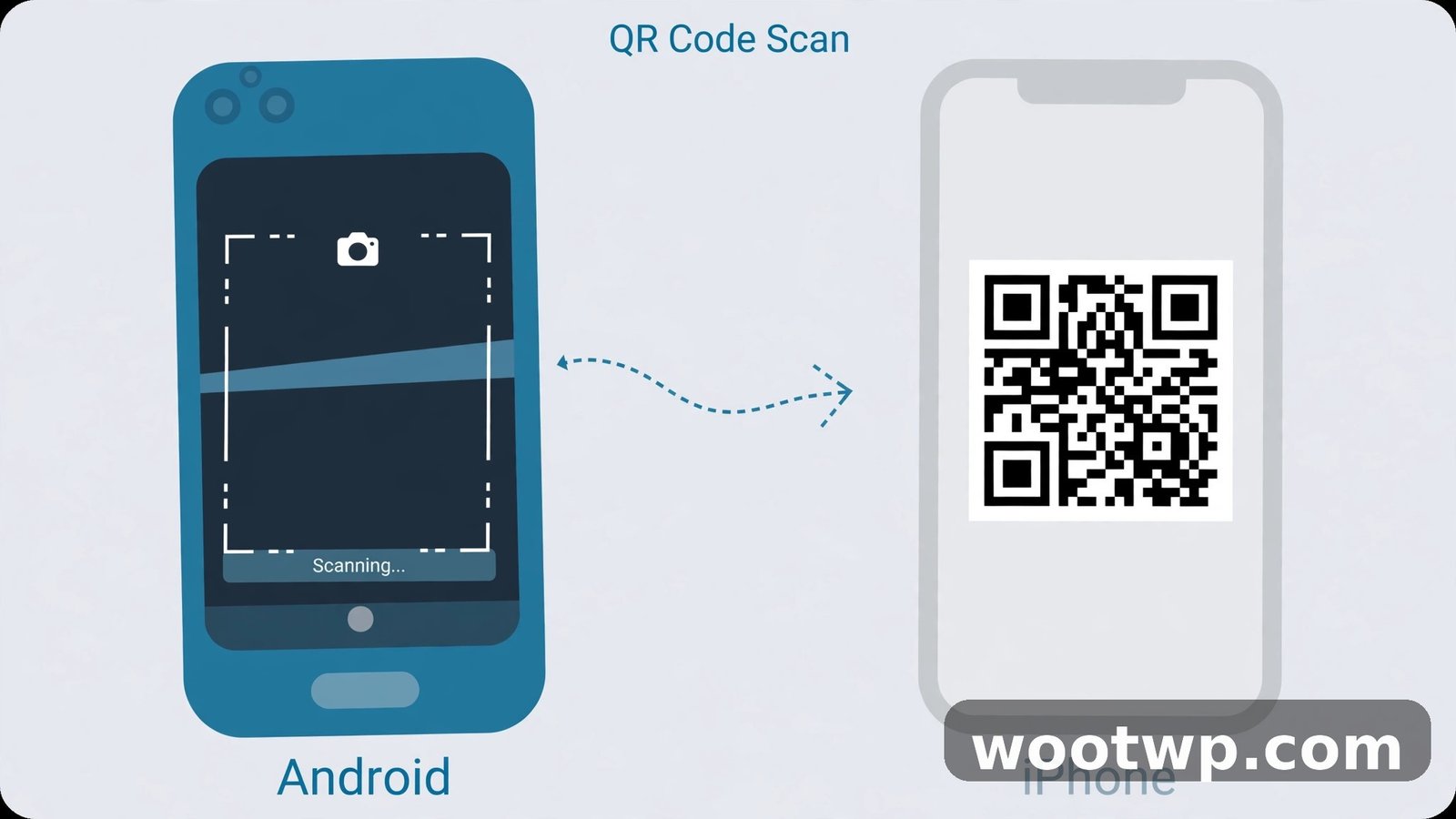
- On the Android phone, open the Move to iOS app. If you don't have it, tap the QR code button on the iPhone and scan the code with the Android phone's camera — that opens the Play Store page for the app. If you've never scanned a code with your Android camera before, our guide on how to scan a QR code on Android without any app covers the built-in way to do it.
- On the Android phone, tap Continue, agree to the terms, then tap Continue again and wait for a code to appear.
- On the iPhone, tap Continue on the Move from Android screen, then wait for a six-digit or ten-digit code.
- Enter that code on the Android phone. The iPhone creates a temporary Wi-Fi network — when asked, tap Connect to join it on the Android phone.
- On the Android phone, pick what to transfer: contacts, messages, photos, videos, and the rest. Then tap Continue.
- Wait. Even if the Android phone says the transfer is complete, leave both phones alone until the loading bar on the iPhone finishes. Keep them near each other and plugged in.
How long does it take? A few minutes for contacts and messages. Photos are the slow part — a few thousand photos can take half an hour or more, especially over Wi-Fi. Don't rush it. Don't pick the phones up. Don't answer a call on the Android phone mid-transfer. Just let it run.
Apple keeps the full official steps on its support site, and it's worth bookmarking the Move from Android to iPhone guide in case something changes with a future iOS update.
Method 2: Transfer with a Cable (Faster for Big Photo Libraries)
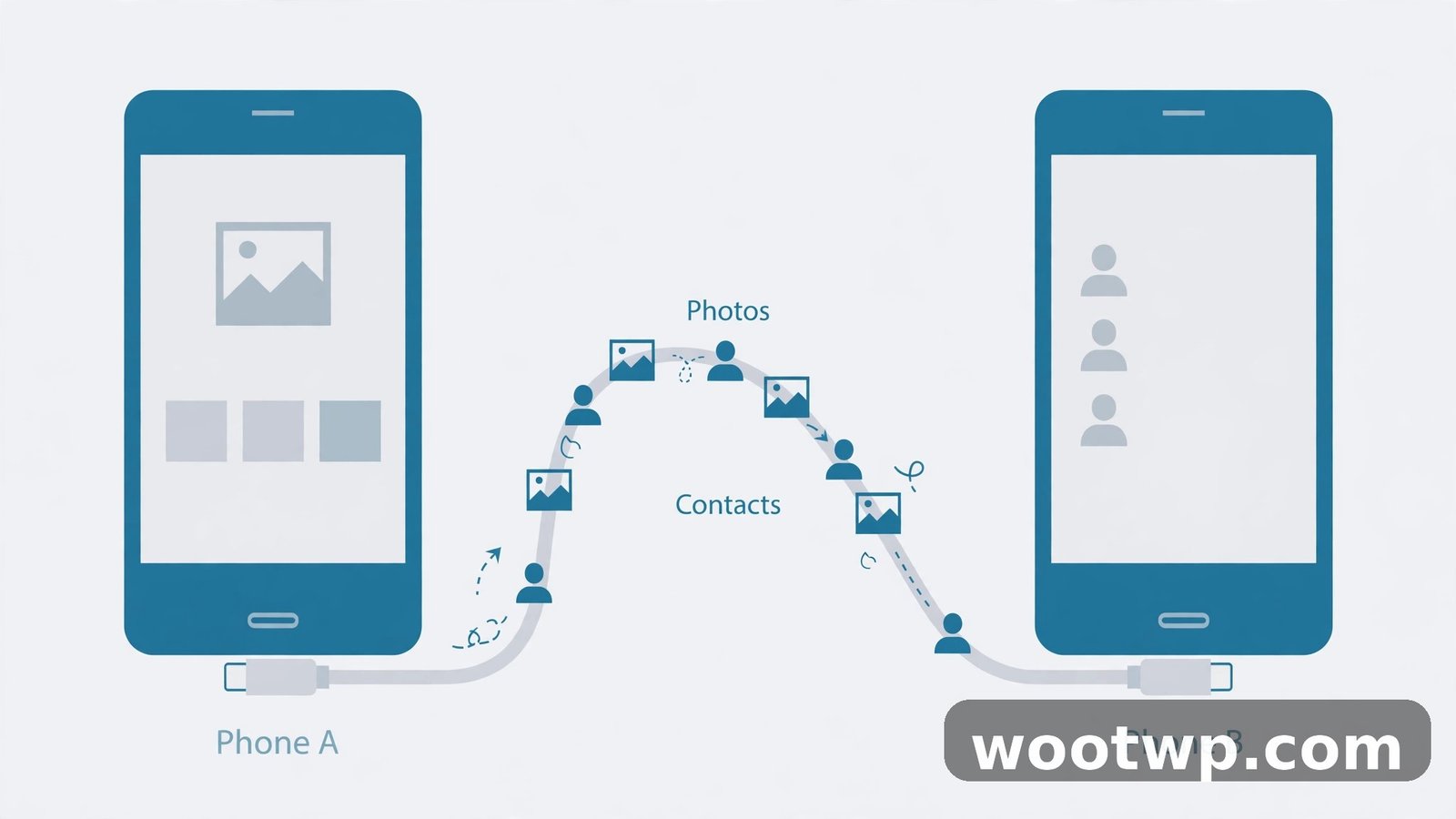
If you have tens of thousands of photos, Wi-Fi transfer drags. A cable is faster and more stable.
- Connect the Android phone to the iPhone with a USB-C cable. Most modern Android phones and iPhone 15 and newer use USB-C on both ends, so one cable does it.
- On the iPhone, follow the setup steps until the Transfer Your Apps and Data screen, then tap From Android.
- Follow the prompts to connect the cable and start the transfer.
- Pick the content to move and let it run. Keep both phones plugged into power if you can — a cable transfer still takes time with a big library.
The cable method moves the same content as the Wi-Fi method. The only difference is speed and stability. If the Wi-Fi transfer keeps dropping, this is the first thing to try instead of fighting with it.
Method 3: Transfer Without the App (Android 17 and Newer)
On newer Android phones running Android 17 or later, Apple supports a transfer that doesn't need the Move to iOS app at all. The option appears on the same Transfer Your Apps and Data screen — tap From Android, then Transfer without App.
- Place the Android phone next to the iPhone and tap Continue.
- Use the Android phone's camera to scan the QR code on the iPhone and connect.
- Pick the data to transfer — photos, contacts, calendars, call history, messages — and tap Continue.
- Tap Continue on the iPhone once the transfer completes.
Check with your phone maker whether your Android version supports this. Most phones in people's hands right now still need the app, so Method 1 is the one to try first.
Moving Your WhatsApp Chats
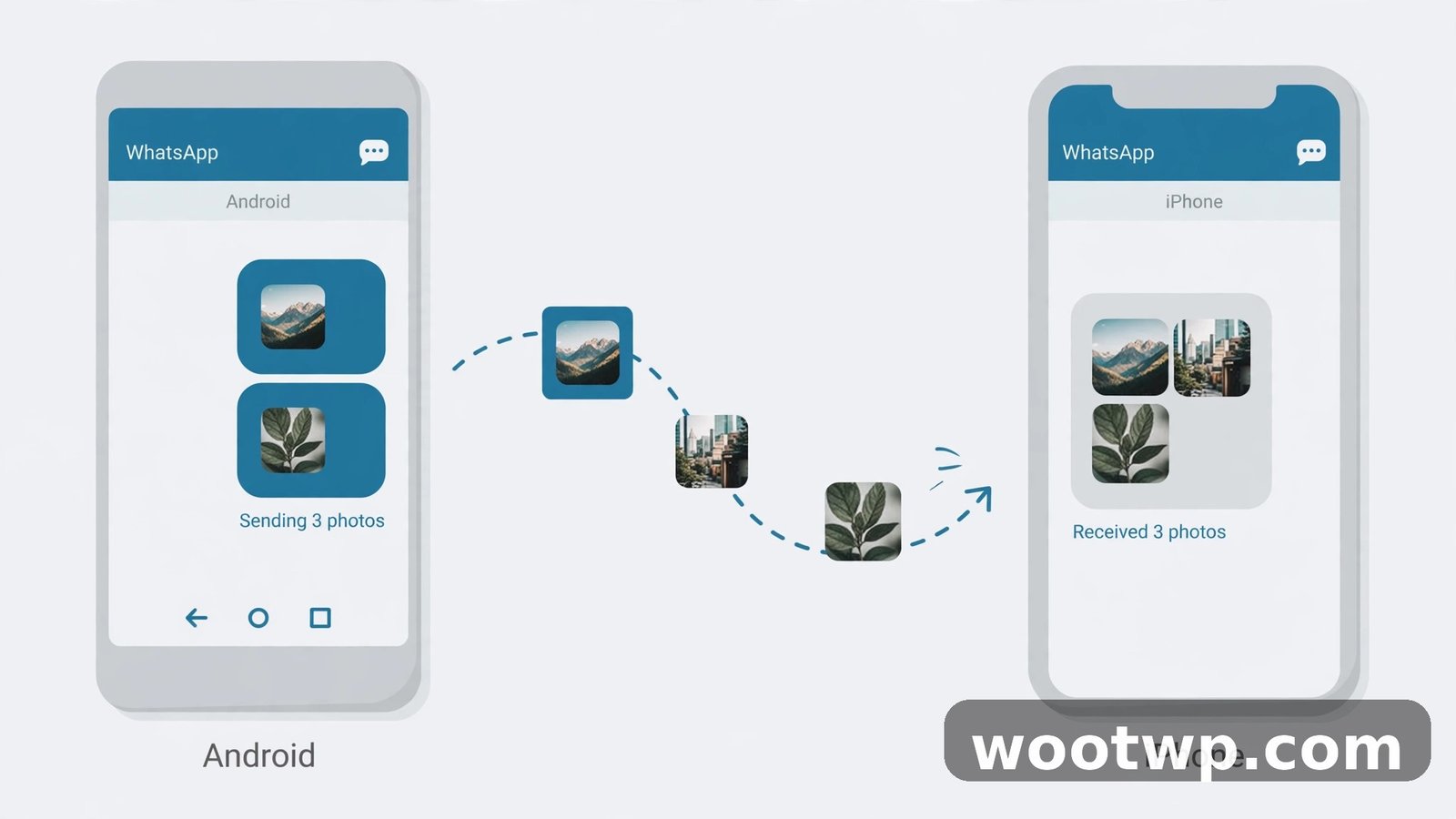
WhatsApp is the part people worry about most, and it's the part that goes wrong most often. The good news: the Move to iOS app transfers WhatsApp messages and media as part of the main transfer, as long as you include it in the selection.
Three things to get right:
- Update WhatsApp on the Android phone to the latest version before you start. An old version can refuse the transfer silently.
- Use the same phone number on the iPhone. WhatsApp ties chats to the number, not the phone.
- Don't open WhatsApp on the iPhone and start a fresh account before the transfer. Set it up through the transfer, or restore from the transfer data.
If your chats don't come across, the most common cause is that WhatsApp wasn't selected during the transfer, or the app was out of date. You can't re-run the transfer for just WhatsApp afterwards — it's part of the one-time setup flow. Your fallback is WhatsApp's own backup: back up chats to Google Drive on Android, then look for WhatsApp's transfer options inside the app. If messages ever go missing after a move, our guide on how to recover deleted WhatsApp messages walks through the restore options that actually work.
Moving Photos and Videos Manually
If the main transfer misses some photos, or you've already set up the iPhone, move photos yourself. Google Photos is the easiest bridge, because it works the same on both platforms.
- On the Android phone, open Google Photos and make sure backup is on. Wait until the backup finishes — check the backup status inside the app.
- On the iPhone, install Google Photos, sign in to the same Google account, and your photos appear.
- If you want them in Apple Photos too, open Google Photos on the iPhone, select the photos, and save them to the device.
For a big library, a computer is faster than the cloud. Connect the Android phone to a PC, copy the DCIM folder to the computer, then connect the iPhone and sync the photos through Finder on a Mac or iTunes on Windows. It's old-fashioned, but it moves 50GB without touching your internet at all.
Google's own help pages explain how to back up photos and videos if backup seems stuck or incomplete.
If You've Already Finished Setting Up the iPhone
This is where my cousin got stuck. He'd already finished the iPhone setup, skipped the transfer screen, and there was no way back to it. The transfer screen only appears during the first setup.
You have two choices. The clean one: erase the iPhone and start again. Go to Settings, then General, then Transfer or Reset iPhone, then Erase All Content and Settings. The phone restarts as new, and the transfer screen appears during setup. It sounds drastic, but it takes ten minutes and it gives you the proper transfer flow. Make sure you haven't already put anything important on the iPhone first.
The other choice: move everything manually. Photos through Google Photos, contacts through your Google account, WhatsApp through its own backup. It works, but it takes longer and it's easier to miss something — a calendar here, a voice memo there.
Honestly? Erase and start over. I know it feels wrong to wipe a brand-new phone. But doing the transfer properly once beats spending a week noticing things that didn't come across.
When the Transfer Gets Stuck
Transfers stall. Here's what fixes each stall, in order.
The code doesn't appear on the iPhone. Restart both phones and start the setup again. Make sure the Android phone isn't connected to a VPN, and turn off any battery saver — both can block the temporary Wi-Fi network.
The Android phone can't join the iPhone's Wi-Fi network. Forget other Wi-Fi networks on the Android phone temporarily, and make sure mobile data is on. The iPhone's temporary network has no internet, and some Android phones refuse to stay connected to a network with no internet. Tapping "stay connected" or "keep Wi-Fi on" when the warning pops up usually fixes it.
The transfer freezes halfway. Don't touch anything for five minutes. Photo transfers pause and resume, and the progress bar isn't always honest about it. If it's truly stuck after ten minutes with no movement, restart both phones and try the cable method instead.
The transfer finishes but photos are missing. Check the iPhone's storage first — if it filled up mid-transfer, the last photos simply didn't fit. Free up space and move the rest manually through Google Photos.
Move to iOS crashes on the Android phone. Update the app from the Play Store, clear its cache in Settings, then Apps, then Move to iOS, then Storage, then Clear cache, and try again. An old version of the app is the cause more often than people think.
After the Transfer: A Quick Checklist
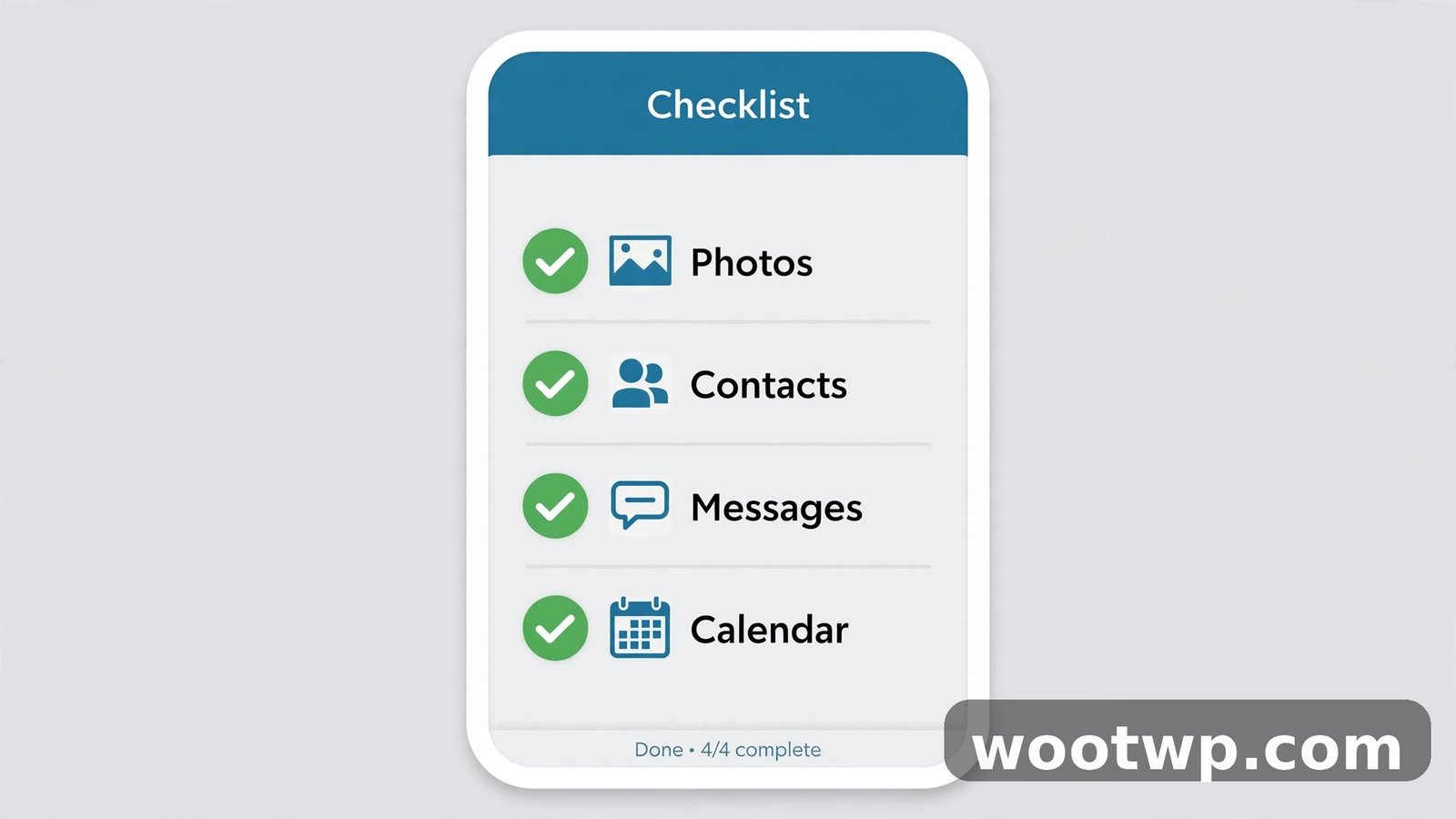
Before you put the Android phone in a drawer, run through this.
- Open Photos on the iPhone and scroll to the bottom. The count should roughly match the Android phone.
- Open Contacts and check for the names you actually call. Search for two or three people you talk to every week.
- Open WhatsApp and check that your recent chats are there.
- Check your calendars for the next week. Birthdays and appointments are the things people notice missing a month later.
- Send a test message and make a test call. Make sure the number carried over properly.
- Sign in to your email accounts. The transfer moves the account settings, but you'll need to enter passwords again.
And keep the Android phone for a week. Don't wipe it the same day. If you find something missing on Thursday, the old phone is still there to rescue it. Wipe it next weekend, once you're sure.
If you use WhatsApp on a computer too, your linked devices need reconnecting after the move — our guide on how to use WhatsApp on PC without keeping your phone online covers the linked devices setup.
FAQs
How do I transfer data from Android to iPhone after setup?
The Move to iOS transfer screen only appears during the iPhone's first setup. If you've already finished setup, erase the iPhone from Settings, then General, then Transfer or Reset iPhone, then Erase All Content and Settings, and run the setup again. Or move things manually with Google Photos, your Google account, and WhatsApp backup.
Can I transfer WhatsApp from Android to iPhone?
Yes. The Move to iOS app transfers WhatsApp messages and media as part of the main transfer. Update WhatsApp on Android first, use the same phone number, and don't start a fresh WhatsApp account on the iPhone before the transfer runs.
How long does it take to transfer data from Android to iPhone?
Contacts and messages take a few minutes. Photos are the slow part — a few thousand photos over Wi-Fi can take 30 minutes or more. A cable transfer is faster for large libraries. Keep both phones plugged in and near each other until the iPhone's loading bar finishes.
Does Move to iOS transfer everything?
It transfers contacts, messages, photos, videos, files, calendars, call history, WhatsApp, bookmarks, and mail accounts. It doesn't transfer music, books, or PDFs — move those manually. Paid Android apps don't transfer either; you'll need to download the iOS versions separately.
Why is Move to iOS not working?
The usual causes are battery saver killing the Wi-Fi connection, a VPN blocking the temporary network, an outdated Move to iOS app, or the Android phone refusing to stay on a Wi-Fi network with no internet. Turn off battery saver and VPN, update the app, and try the cable method if Wi-Fi keeps dropping.
Can I transfer data from Android to iPhone without a computer?
Yes. The Move to iOS app works entirely between the two phones over Wi-Fi or a cable — no computer needed. A computer only helps if you want to move a very large photo library manually through a file copy.
Conclusion
Moving from Android to iPhone feels bigger than it is. The Move to iOS app handles most of it in one pass — contacts, messages, photos, WhatsApp, the lot — as long as you run it during the iPhone's first setup, with both phones charged and nearby. If you've already finished setup, erase and start over; it's ten minutes of mild annoyance that saves a week of noticing missing things. And whatever you do, don't wipe the old phone on the same day. Keep it for a week, check the things that matter, and only then let it go.