
How to See Saved WiFi Password on Windows 11: 4 Easy Ways
If you want to know how to see saved WiFi password on Windows 11, the answer depends on one thing: has this PC ever connected to that network? Windows saves the password every time you connect to a Wi-Fi network, and it can show it back to you in plain text. If the PC has never joined the network, Windows has nothing to show, and the password has to come from the router or another device instead. This guide covers all four ways to reveal a saved password — Settings, Control Panel, the netsh command, and the router fallback — so you can connect a new phone, tablet, or laptop in under a minute.
One warning before you start. A saved Wi-Fi password is shown in plain text, so anyone looking at your screen can read it. Do this on your own PC, and do not reveal a password for a network you do not own or manage without the owner's permission. On a work or school PC, your IT policy may block these steps entirely. If the options below are greyed out or ask for an administrator password you do not have, ask your IT department instead of trying to work around the policy.
In this guide:
- Which Method Should You Use to See a Saved WiFi Password?
- How to See Saved WiFi Password on Windows 11 in Settings
- How to Find a Saved WiFi Password for a Network You Are Not On
- How to See a WiFi Password in Control Panel on Windows 11
- How to See Any Saved WiFi Password With the Netsh Command
- What If Windows Has Never Saved the Network?
- What to Do When the WiFi Password Will Not Show
- Frequently Asked Questions About Saved WiFi Passwords on Windows 11
- Conclusion: Pick One Method and Write the Password Down Safely
Which Method Should You Use to See a Saved WiFi Password?
Windows 11 gives you four ways to read a saved password. They all show the same password. They differ in which networks they can reach and which Windows 11 versions have them. Pick the one that matches your situation.
- Settings, connected network: You are connected to the network right now and want its password. This is the fastest method on current Windows 11 versions.
- Settings, Manage known networks: You are not connected right now, but the PC joined the network before — for example, your office network while you are at home. Use the known networks list.
- Control Panel: Your Windows 11 version has no Show button in Settings, or you prefer the classic screens. This works on every Windows 11 version, but only for the network you are connected to.
- Command Prompt with netsh: You want the password for any saved network, or you want to list every saved network at once. This is the most reliable method, and it works on every version.
- Router: No PC has ever joined the network, or the saved profile was deleted. Windows has nothing to show, so the router is the source of truth.
If you only need one password and you are connected to the network, start with Settings. If that screen has no Show button, skip straight to the netsh command. It never depends on which Settings layout your build has.
How to See Saved WiFi Password on Windows 11 in Settings
This is the method Microsoft documents for current Windows 11 versions, and it is the quickest when it is available. It shows the password for the network you are connected to right now.
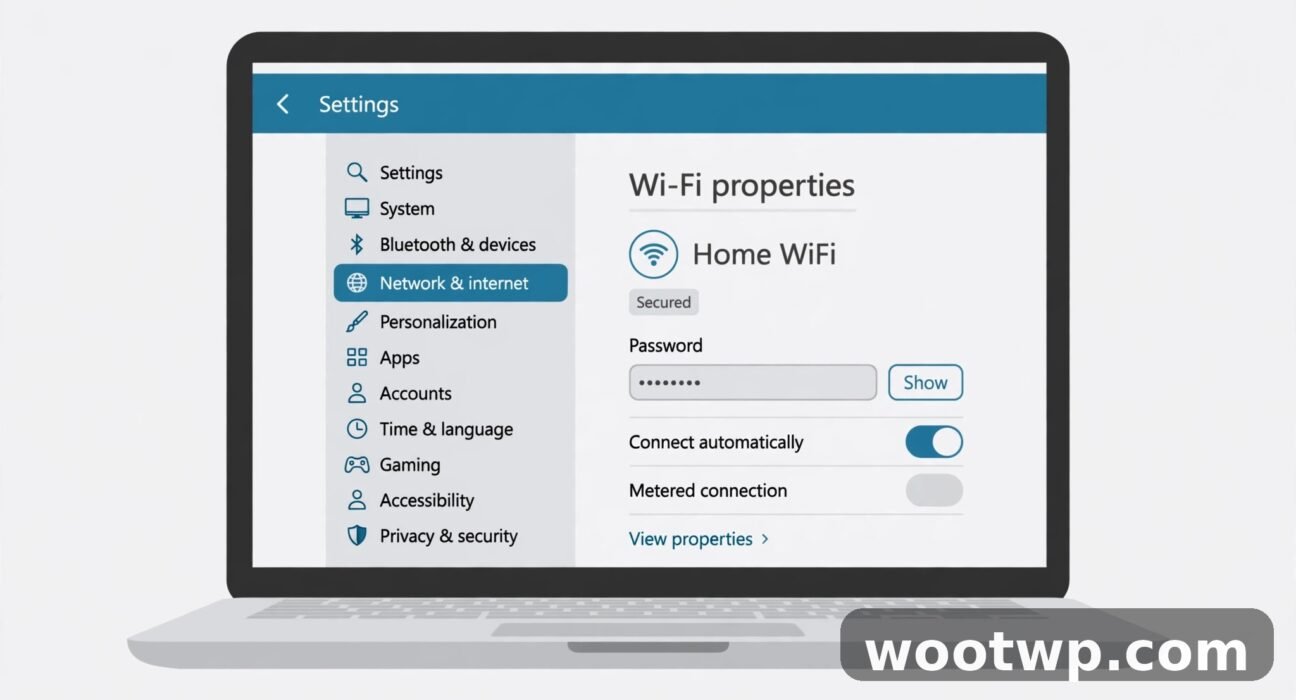
- Open Settings. Press Windows key + I, or right-click the Wi-Fi icon on the taskbar and choose Network and internet settings.
- Click Network and internet in the left sidebar.
- Click Wi-Fi, then click the name of the network you are connected to, or click Properties next to it. The exact label varies a little by Windows 11 build.
- Look for Wi-Fi network password or View Wi-Fi security key.
- Click Show (or View) next to it. Windows may ask for your administrator approval or your sign-in PIN. Approve it.
- The password appears in plain text. Type it into the other device, then close Settings.
If you do not see a Show button, your build may use the older layout, or the option may be hidden by policy. Do not waste time hunting for it. Use the Control Panel method or the netsh command below — both show the same password, and neither needs the Settings button.
A quick note on wording. Older Windows 11 builds label the same option "View Wi-Fi security key," and some label the button "View" instead of "Show." The position is the same: on the properties page for the connected network. If you see either wording, you are in the right place.
How to Find a Saved WiFi Password for a Network You Are Not On
Windows keeps a profile for every network it has joined, including networks you are not connected to right now. On current Windows 11 builds, you can reveal those passwords from the known networks list, without going near the command line.
- Open Settings with Windows key + I.
- Click Network and internet, then Wi-Fi.
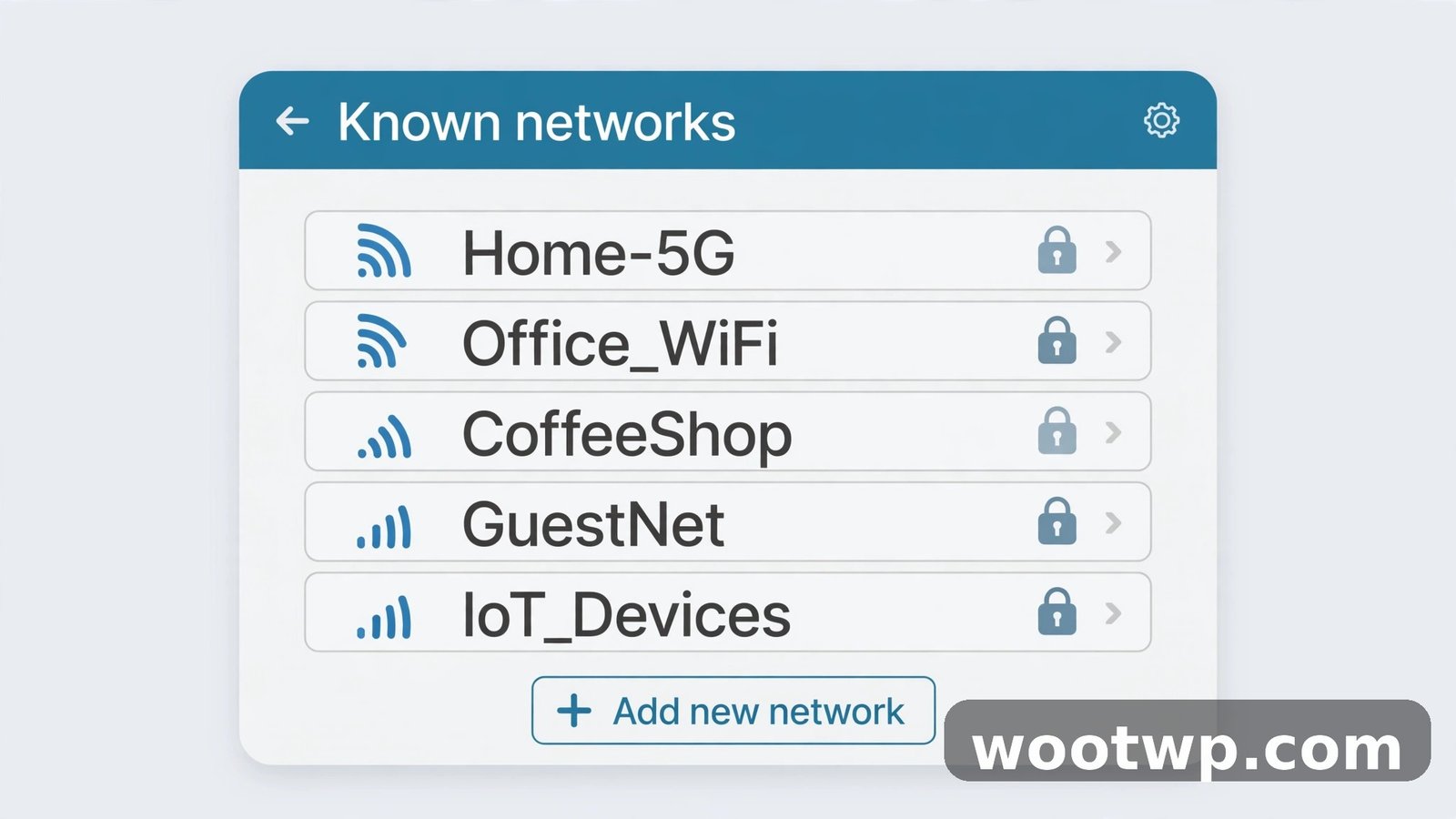
- Click Manage known networks.
- Find the network in the list. If it is not there, this PC never saved it, or someone chose Forget for it. Windows cannot recover a forgotten network's password — skip to the router section.
- Click the network name to open its properties.
- Click Show next to Wi-Fi network password. Approve the administrator prompt if Windows asks for it.
- Read the password and type it into the device you are connecting.
This method is handy when you are setting up a device at home and need the password for a network at a relative's house or your office. As long as your laptop joined that network once, the password is still stored, even though you are miles away from it.
If the known networks list has no Show button for the network you picked, the netsh command in the next-but-one section will still work. The command reads the same saved profiles directly, and it does not depend on the Settings layout.
How to See a WiFi Password in Control Panel on Windows 11
The classic Control Panel screens still work on Windows 11, and they are the fallback when Settings has no Show button. This method only shows the password for the network you are connected to right now.
- Click Start, type Control Panel, and press Enter.
- Click Network and Internet, then Network and Sharing Center. If Control Panel shows large or small icons instead of categories, click Network and Sharing Center directly.
- Next to Connections, click the name of your Wi-Fi network. This opens the Wi-Fi Status window.
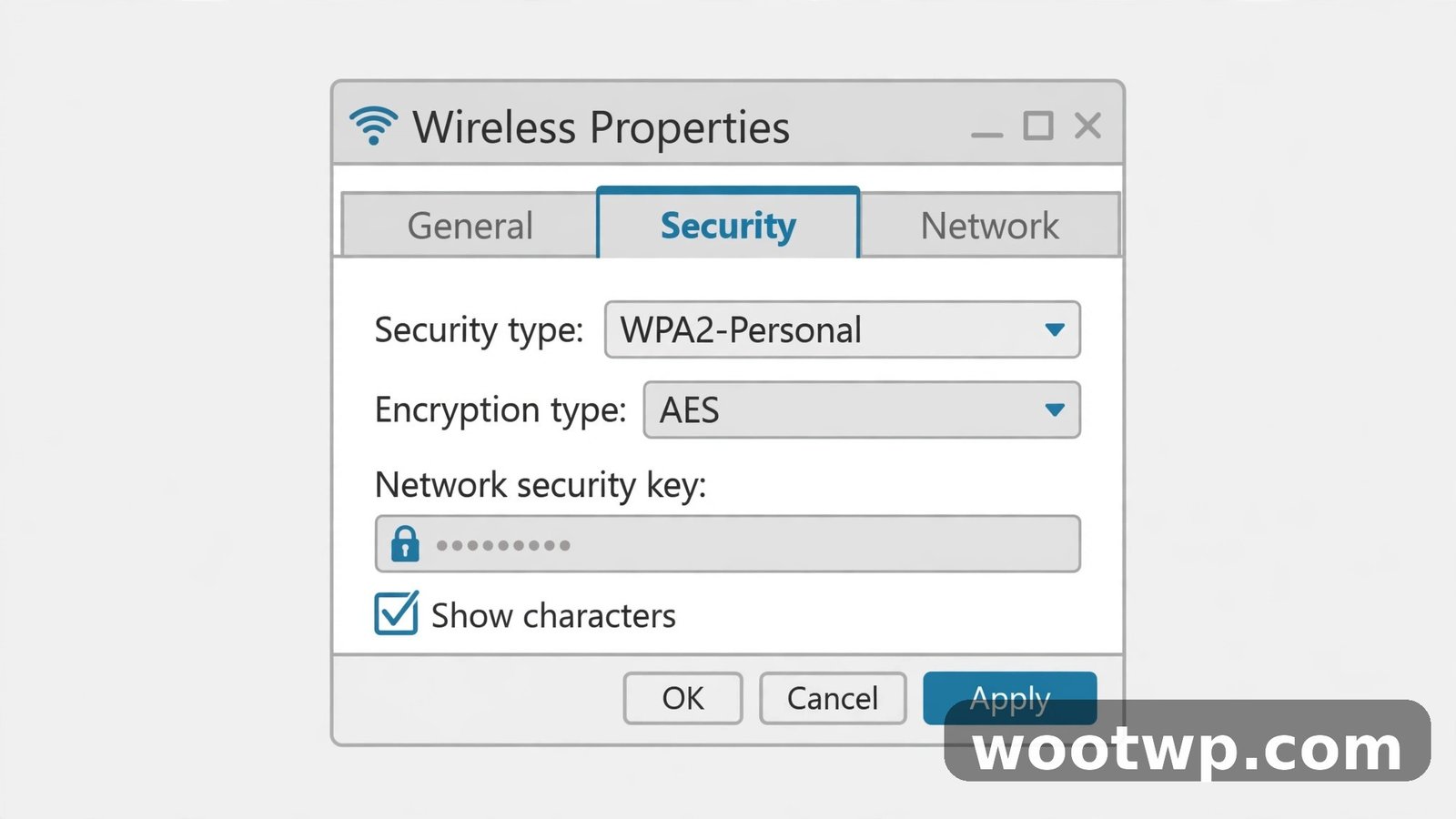
- Click Wireless Properties.
- Go to the Security tab.
- Check the Show characters box. The password appears in the Network security key field.
- Write the password down or type it into the other device, then close the windows without changing anything else.
Do not change the security type or encryption type on this screen. Those settings must match the router, and changing them here can stop the PC connecting at all. The only box you need is Show characters. If the Security tab is greyed out or Show characters does nothing, your account may not have administrator rights, or a policy may block it. Try the netsh command as an administrator, or ask the person who manages the PC.
How to See Any Saved WiFi Password With the Netsh Command
The netsh command is the most reliable way to see saved WiFi passwords on Windows 11. It lists every Wi-Fi profile the PC has saved, and it shows the password for any of them, connected or not. It works in Command Prompt, PowerShell, and Windows Terminal, on every Windows 11 version. You need to run it as an administrator.
Step 1: List Every Saved Wi-Fi Network
- Click Start, type cmd, right-click Command Prompt, and choose Run as administrator. Click Yes on the User Account Control prompt.
- Type the following command and press Enter:
netsh wlan show profiles- Windows lists every saved network under User profiles, with a line reading "All User Profile" followed by each network name. Note the exact name of the network you want, including spaces and capital letters.
If the list is empty, the PC has no saved Wi-Fi profiles. That can happen on a fresh install, or if someone forgot every network. Skip to the router section — there is nothing for Windows to reveal.
Step 2: Show One Network's Password
Type the following command, replacing Network Name with the exact name from the list. Keep the quotation marks if the name has spaces:
netsh wlan show profile name="Network Name" key=clearFor example, if the network is called Home WiFi, the command is:
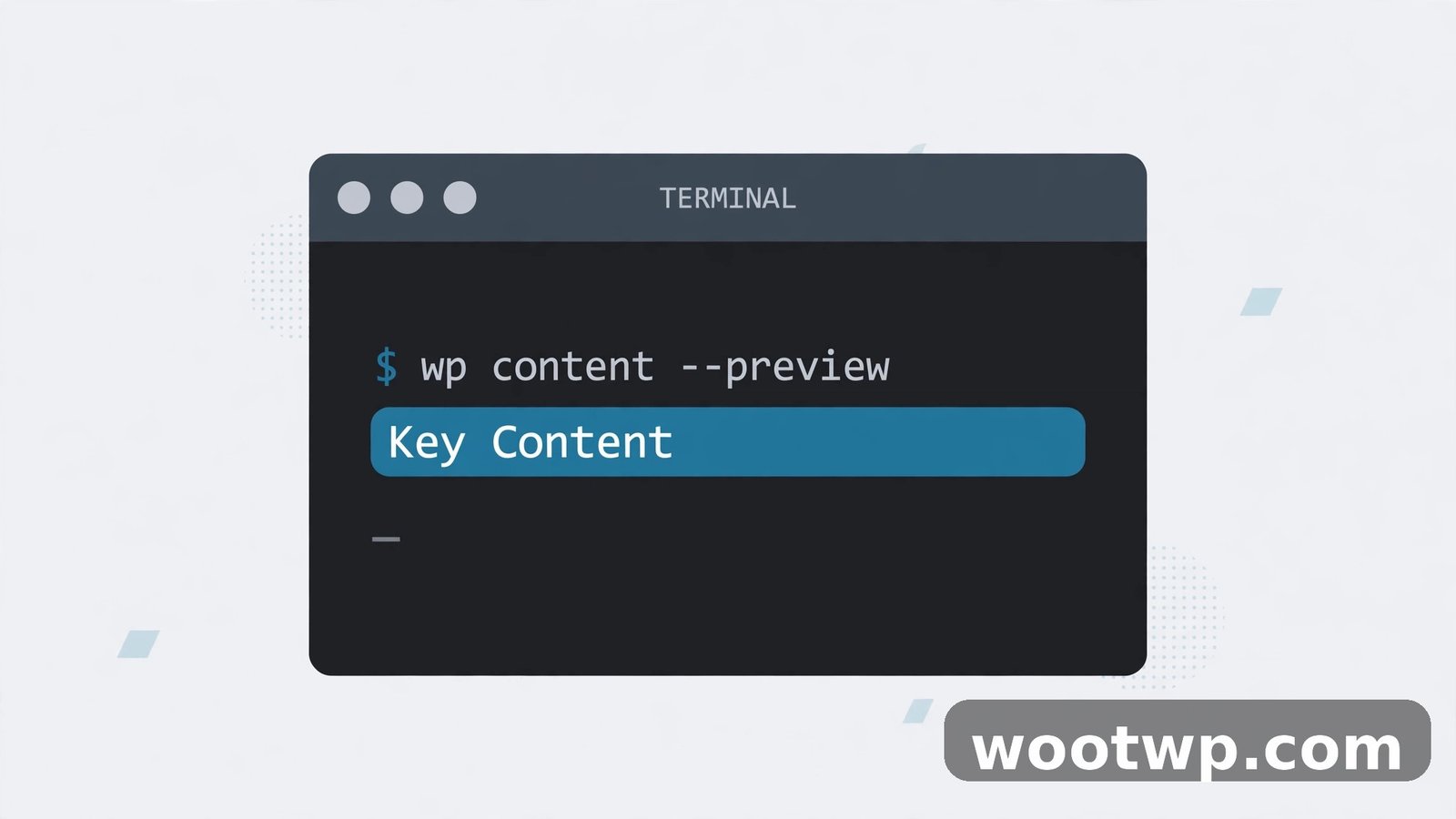
netsh wlan show profile name="Home WiFi" key=clearPress Enter. In the output, scroll to the Security settings section and find the line that reads Key Content. The text after Key Content is the saved Wi-Fi password, in plain text.
Step 3: Show All Saved Passwords at Once (Optional)
If you need several passwords, you can run the same command once per network. A faster option in PowerShell is a short loop that prints each profile name with its key. Open PowerShell as an administrator and run:
netsh wlan show profiles | Select-String "All User Profile" | ForEach-Object { ($_ -split ":")[1].Trim() } | ForEach-Object { netsh wlan show profile name="$_" key=clear | Select-String "Key Content" }That prints one Key Content line per saved network, in the same order as the profile list. Match each line to its network by running the single-network command again if the order is unclear. Only do this on your own PC, and close the window when you are done — the output shows every saved password in plain text, and anyone who can see the screen can read them.
The netsh commands above are documented in Microsoft's command reference, and the same commands work in PowerShell and Windows Terminal. If you want to check the full syntax, Microsoft's Windows support pages cover Wi-Fi settings and network commands for current Windows versions. The netsh route is the most reliable answer to how to see saved WiFi password on Windows 11 when the Settings screens on your build do not show a Show button.
What If Windows Has Never Saved the Network?
None of the methods above can show a password for a network the PC has never joined. Windows only knows the passwords for networks it connected to. That router check is the fallback whenever you need to know how to see saved WiFi password on Windows 11 but no PC has the profile saved. If the profile was deleted with Forget, or the PC was reset, that saved password is gone from the PC for good. The router is the source of truth, because that is where the password is set. You have three options, in order of ease.
Check the Router Label
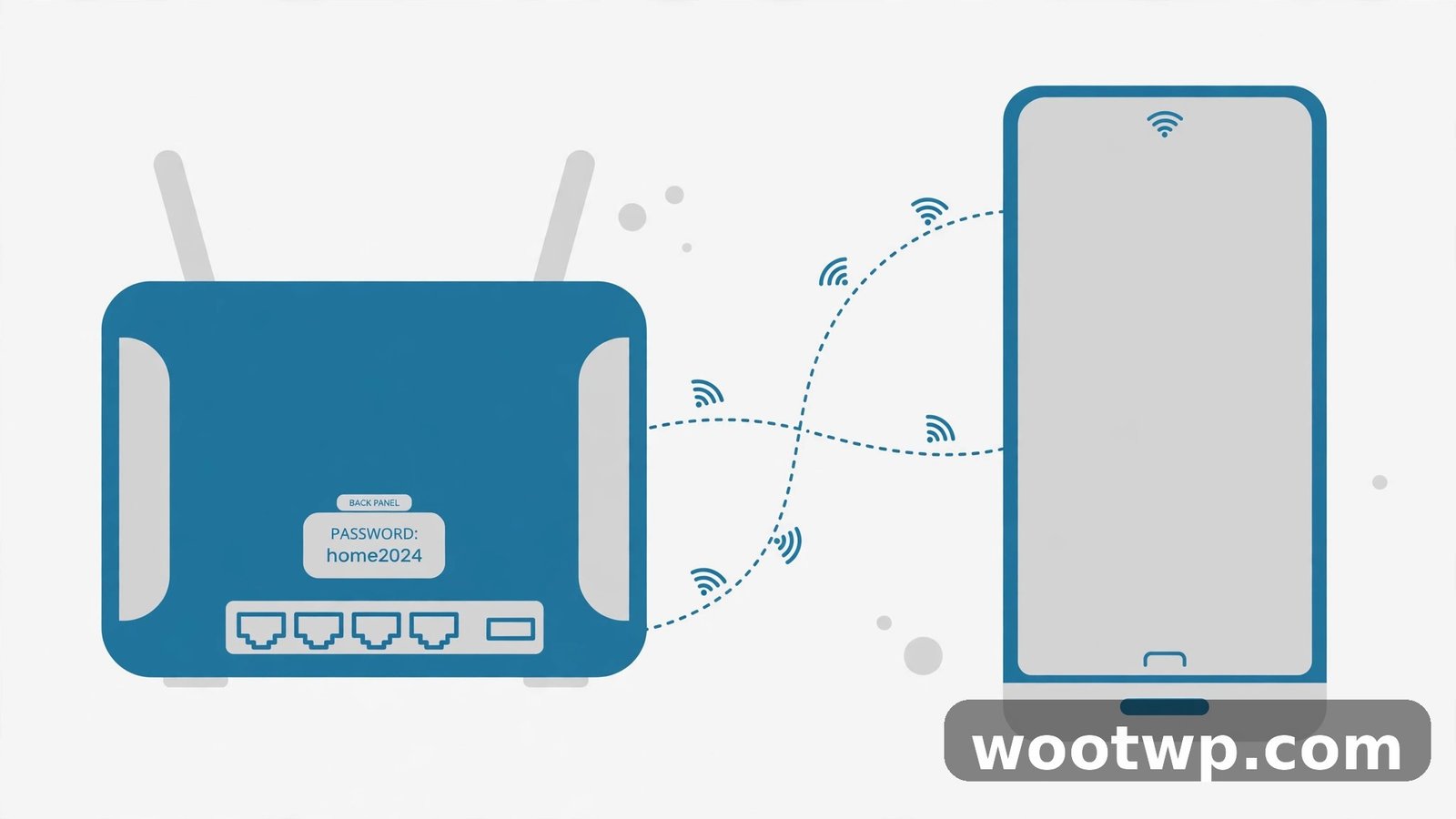
Many routers have a sticker on the back or bottom with the default network name and password, often labeled Wi-Fi Key, Wireless Password, or Network Key. If no one ever changed the password, the sticker password still works. If someone changed it, the sticker is out of date, and you need the router's settings page instead.
Open the Router's Settings Page
- Connect a device to the network, by Ethernet cable if Wi-Fi is not an option, or from a phone that is already connected.
- Find the router's address. It is usually printed on the router label, and it is commonly 192.168.1.1 or 192.168.0.1. On Windows, you can also find it by running
ipconfigin Command Prompt and looking for the Default Gateway address. - Type that address into a browser and sign in with the router's admin username and password. These are also on the router label, unless someone changed them.
- Go to the Wireless, Wi-Fi, or Wireless Security section.
- Look for the Password, Pre-Shared Key, or Network Key field. Click Show if the password is hidden.
- If you change the password here, every device on the network will need the new one. Write it down before you save.
If you cannot sign in to the router because the admin password was changed and no one remembers it, the only option is to reset the router to factory settings with the reset button on the back. That restores the default password on the label, but it also wipes every custom setting on the router, including the network name, password, and any port rules. Only reset a router you own, and only after you have checked every other option.
Ask Another Device That Is Already Connected
A phone or tablet that is already on the network may be able to show the password. On Android, open Settings, Network and internet, Internet, tap the connected network, tap Share, and approve with your fingerprint or PIN. The phone shows a QR code, and the password appears in plain text under it on many Android versions. On an iPhone, open Settings, Wi-Fi, tap the info icon next to the network, and tap the password field to reveal it after Face ID or Touch ID. If you go the phone route and the phone is an Android, our guide on how to use an Android phone as a Wi-Fi hotspot safely covers the related sharing settings, in case you need to share the connection itself rather than just the password.
What to Do When the WiFi Password Will Not Show
If every method above fails when you are trying to learn how to see saved WiFi password on Windows 11, one of these causes is usually behind it. Work through them in order.
- The PC never joined the network. Windows cannot show what it never saved. Use the router or another connected device.
- The profile was forgotten. Choosing Forget deletes the profile and its password from the PC. Reconnect once with the password, and Windows will save it again.
- You are not an administrator. Revealing a saved key can ask for administrator approval. Sign in with an administrator account, or right-click Command Prompt and choose Run as administrator before running the netsh command. On a work or school PC, the option may be blocked by policy. Ask IT.
- The network uses enterprise sign-in. Some office and university networks use a username and password per person, not a shared Wi-Fi password. There is no shared key to reveal, and the Key Content line will be empty or missing. Sign in with your own account credentials instead.
- The password field is empty in the netsh output. An open network has no password, so Key Content is blank. That is correct, not an error. Connect without a password, or check with the network owner whether the network is meant to be open.
- The network name is spelled wrong in the command. The netsh command needs the exact profile name, including spaces and capitals. Run
netsh wlan show profilesagain, copy the name exactly, and keep the quotation marks around it. - A third-party password viewer asks you to install software. You do not need it. Tools such as WirelessKeyView can list saved passwords, but they need administrator rights, they trigger antivirus warnings, and the built-in methods above do the same job. Downloading a random password-recovery tool from the web is a needless risk for a job Windows does on its own.
How to Change the WiFi Password After You Find It
Finding the password and changing it are different jobs. If you found the password because you suspect someone you no longer trust has it, change it at the router, then reconnect every device with the new password. Changing it on the PC alone does nothing — the PC just stores what the router expects. After you change the router password, use Forget on the PC, then connect again with the new password so Windows saves the new profile cleanly. If you are tidying up a home network, our guide to checking who is using your Wi-Fi helps you spot unknown devices before you decide whether a password change is needed, and our guide to fixing slow Wi-Fi at home covers the placement and channel changes that help when the password was never the problem.
Frequently Asked Questions About Saved WiFi Passwords on Windows 11
How do I see my saved WiFi password on Windows 11 without a command?
Open Settings with Windows key + I, go to Network and internet, then Wi-Fi, and open the properties for the network you are connected to. Click Show next to Wi-Fi network password. For a network you are not on, go to Wi-Fi, then Manage known networks, open the network, and click Show there. If your build has no Show button, use Control Panel or the netsh command instead.
How do I find the WiFi password for a network I am not connected to?
Use Settings, Wi-Fi, Manage known networks, and open the saved network to reveal its password. Or run netsh wlan show profiles as an administrator to list saved networks, then netsh wlan show profile name="Network Name" key=clear and read the Key Content line. Both methods only work if the PC joined the network before.
What is the netsh command to show a WiFi password on Windows 11?
Run Command Prompt as an administrator, type netsh wlan show profiles to list saved networks, then type netsh wlan show profile name="Network Name" key=clear, replacing Network Name with the exact network name in quotes. The password is on the Key Content line under Security settings. The command works in Command Prompt, PowerShell, and Windows Terminal.
Why is the WiFi password not showing on Windows 11?
The most common reasons are that the PC never joined the network, the profile was forgotten, your account is not an administrator, or a work or school policy blocks the option. Enterprise networks that use per-person sign-in have no shared password to show. Check the profile list with netsh first — if the network is not listed, Windows has nothing to reveal.
Can I see a WiFi password on Windows 11 without administrator rights?
Usually not. Revealing a saved key asks for administrator approval, and the netsh command needs to run as an administrator. On a personal PC, approve the prompt with your own account. On a work or school PC, ask IT. Do not try to bypass the policy — if the option is blocked, it is blocked for a reason.
Is it safe to use a WiFi password viewer tool from the internet?
You do not need one. Windows 11 shows saved passwords with built-in Settings, Control Panel, and netsh commands. Third-party password viewers need administrator rights, often trigger antivirus warnings, and add risk for no benefit. Only download network tools from sources you trust, and only when a built-in method cannot do the job.
Conclusion: Pick One Method and Write the Password Down Safely
Now you know how to see saved WiFi password on Windows 11 four ways: in Settings for the network you are on, in Manage known networks for a saved network you are not on, in Control Panel when Settings has no Show button, and with the netsh command for any saved network at all. For most people, Settings is fastest and netsh is the most reliable backup. If no PC ever joined the network, the router or another connected device is the only source. Once you have the password, store it somewhere safe — a password manager beats a sticky note — so the next new device takes seconds instead of another hunt through settings.